

Types of Instagram Video
Before understanding the frame rate limit of Instagram videos, let’s first understand the different types of videos on Instagram:
- Feed Videos: Feed videos are regular videos you share to your profile. They range in length from 30 seconds to 60 minutes.
- Reels: Instagram Reels are short videos similar to TikTok and YouTube Shorts. They are no longer than 90 seconds.
- Stories: Stories are photos or videos posted by users. You can view them by clicking the small circle at the top of the user’s feed. These photos or videos disappear 24 hours after being posted. Story videos are a maximum of 60 seconds in length.
What Is Instagram Video Frame Rate Limit
This section will first explain what frame rate is, and then tell you the range of video frame rates supported by Instagram.
What Is Frame Rate?
Frame rate, also called FPS (Frames Per Second), refers to the frequency at which still images are displayed per second. In other words, it refers to the number of still images that appear in a video per second. The higher the frame rate, the smoother and more natural the motion in the video. Common frame rates include 24 fps, 30 fps, 60 fps, and higher. Among them, 30 fps is commonly used in streaming media.
Best Frame Rate for Instagram Videos
Instagram Reels maximum frame rate is 30 fps, and minimum is 23 fps. A higher frame rate results in smoother video playback. Therefore, the best frame rate for Instagram Reels is 30 fps. Other video types (stories and feed videos) follow the same standard as Reels.
Note that the maximum frame rate mentioned above refers to the export video frame rate. Instagram supports uploading videos at a maximum of 60 fps. However, Instagram typically limits uploaded videos to 30 fps or slightly lower. Therefore, it is recommended that you upload videos at 30 fps to avoid automatic compression by Instagram that could reduce video quality.
![[New] Instagram Reel Template Uses Format from Another Reel](https://images.minitool.com/videoconvert.minitool.com/images/uploads/2022/05/1.png)
How to Bypass Instagram Video/Reels Frame Rate Limit
Instagram Reels has a maximum upload frame rate of 60 fps. However, your video may have a frame rate of less than 30 fps after upload, as Instagram only supports displaying videos at 30 fps.
Therefore, any video with a higher frame rate should be downgraded to 30 fps before uploading to match the platform’s optimal settings. How to do it? I found 2 excellent tools that support adjusting video frame rate: MiniTool Video Converter and VEED Frame Rate Converter.
Option 1: MiniTool Video Converter
MiniTool Video Converter is a versatile software. It supports free conversion of audio and video file formats, video compression, and conversion of video or audio to text. Its conversion function allows you to individually adjust various video parameters, including frame rate, resolution, encoding, bit rate, sample rate, and more. Below is a guide on how to use this application to reduce the video frame rate:
Step 1: Download and Install MiniTool Video Converter
Get MiniTool Video Converter by clicking the download button below.
MiniTool Video ConverterClick to Download100%Clean & Safe
Step 2: Upload Your Video
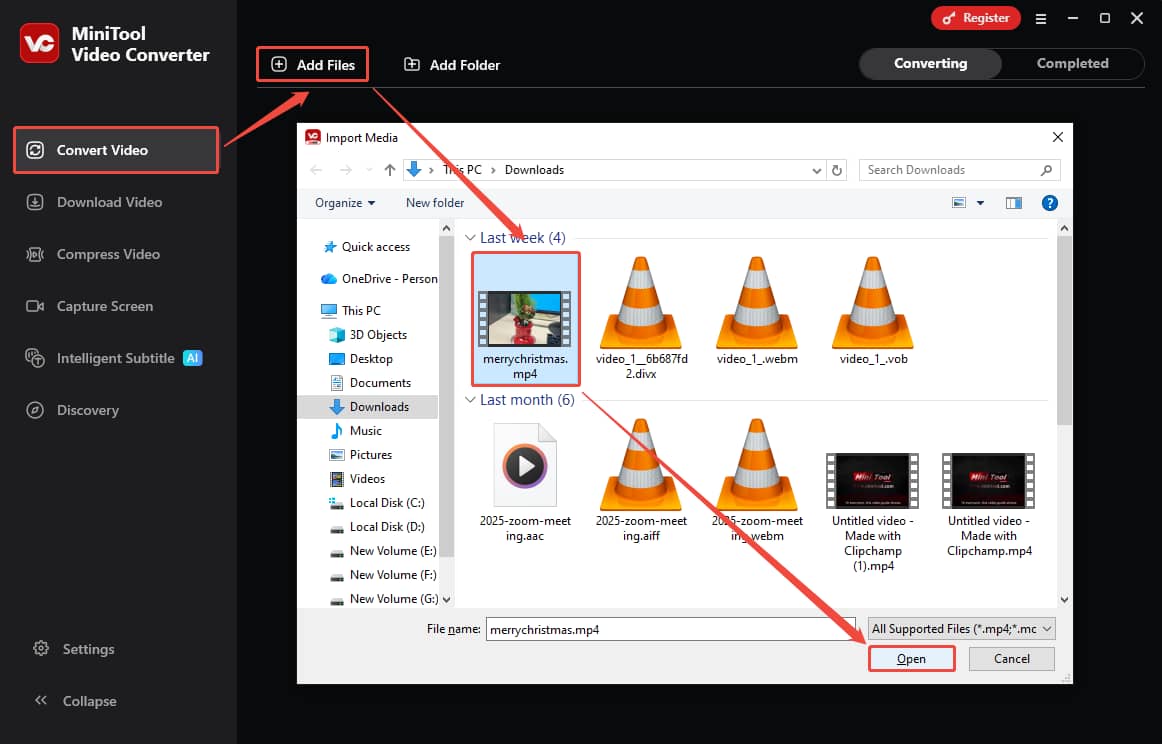
In the Convert Video screen, click Add Files, select the video in the Import Media window, and click Open.
Step 3: Adjust the Video Frame Rate
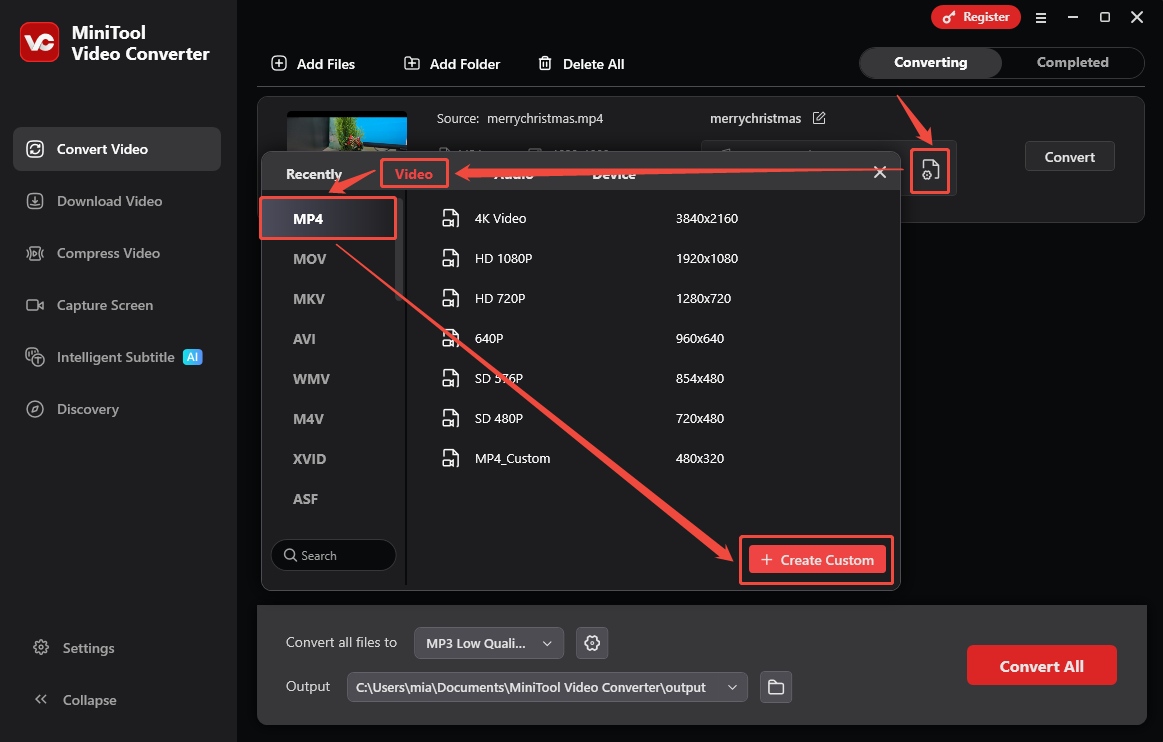
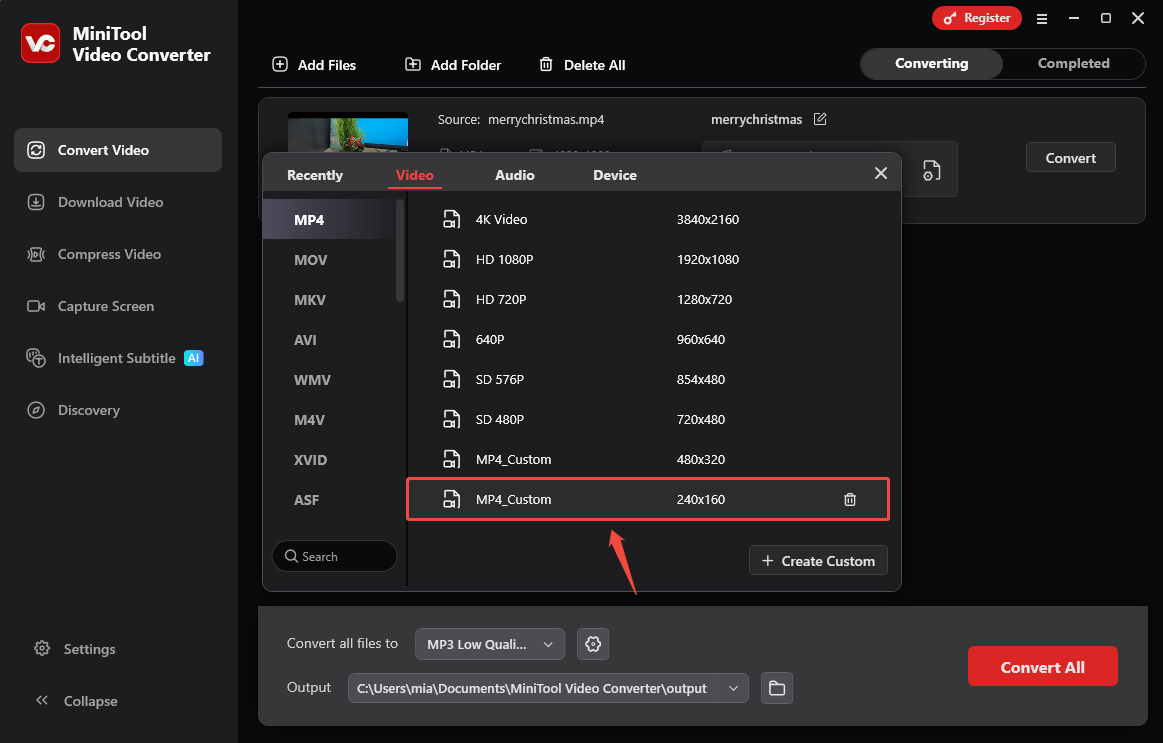
Click the gear icon to open the output format window. Then, choose the same format as the original video. Here I select MP4. Then, click + Create Custom.
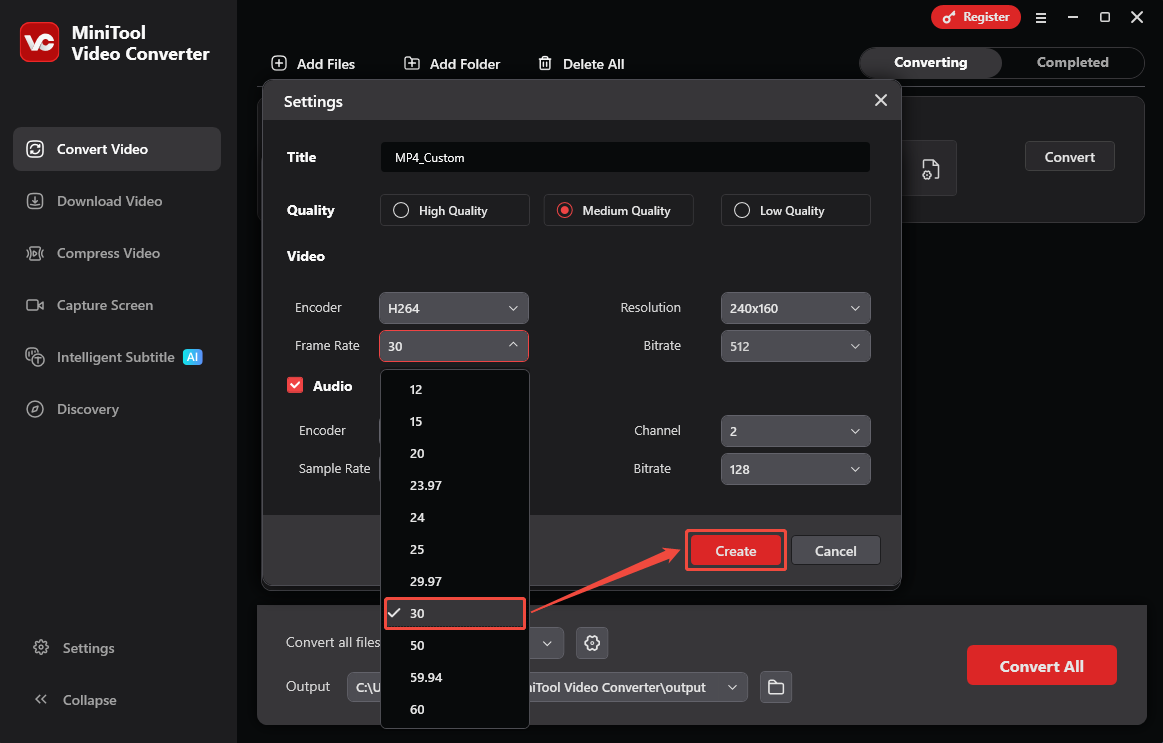
In the Settings window, expand the Frame Rate option, select 30, and click Create.
Select the custom option you just created.
Step 4: Start Conversion
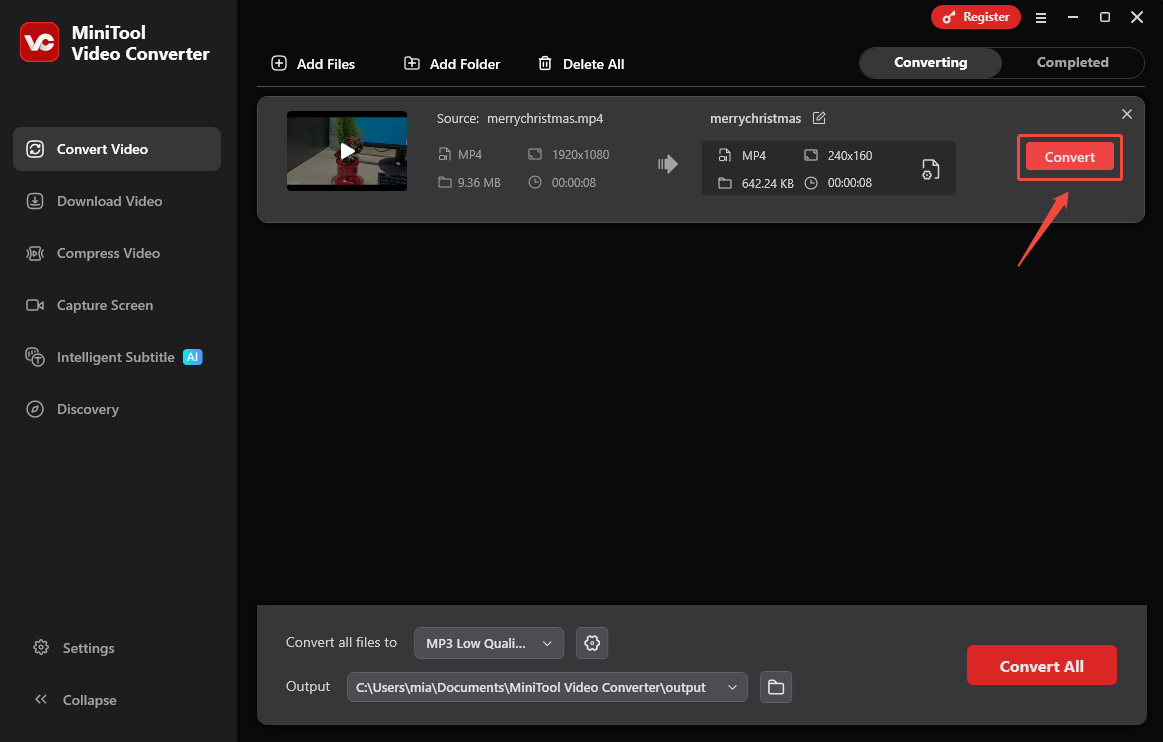
Click Convert to start conversion.
Step 5: Locate the Video
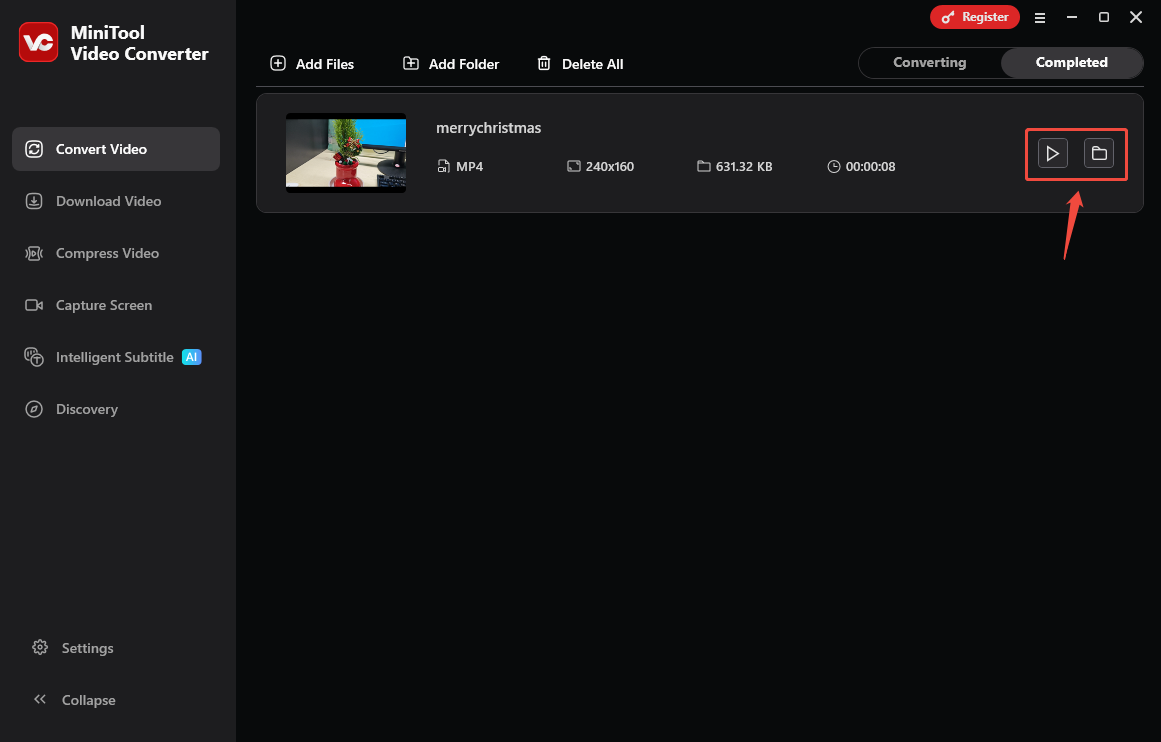
Under the Completed tab of the Convert Video screen, click the play icon to preview the video, or click the folder icon to locate the video.
MiniTool Video Converter offers multiple frame rate options and won’t add watermarks to your videos.
Option 2: VEED Frame Rate Converter
VEED Frame Rate Converter is an online tool provided by VEED.io. It helps users modify the frame rate of videos online. It’s very simple and easy to use. Here’s a tutorial:
Step 1: Go to VEED.io and Import a Video
Visit https://www.veed.io/tools/video-frame-rate-converter. Then, click Adjust video frame rate. In the video editing page, click the Upload button in the upper-left corner to import your video.
Step 2: Set the Frame Rate
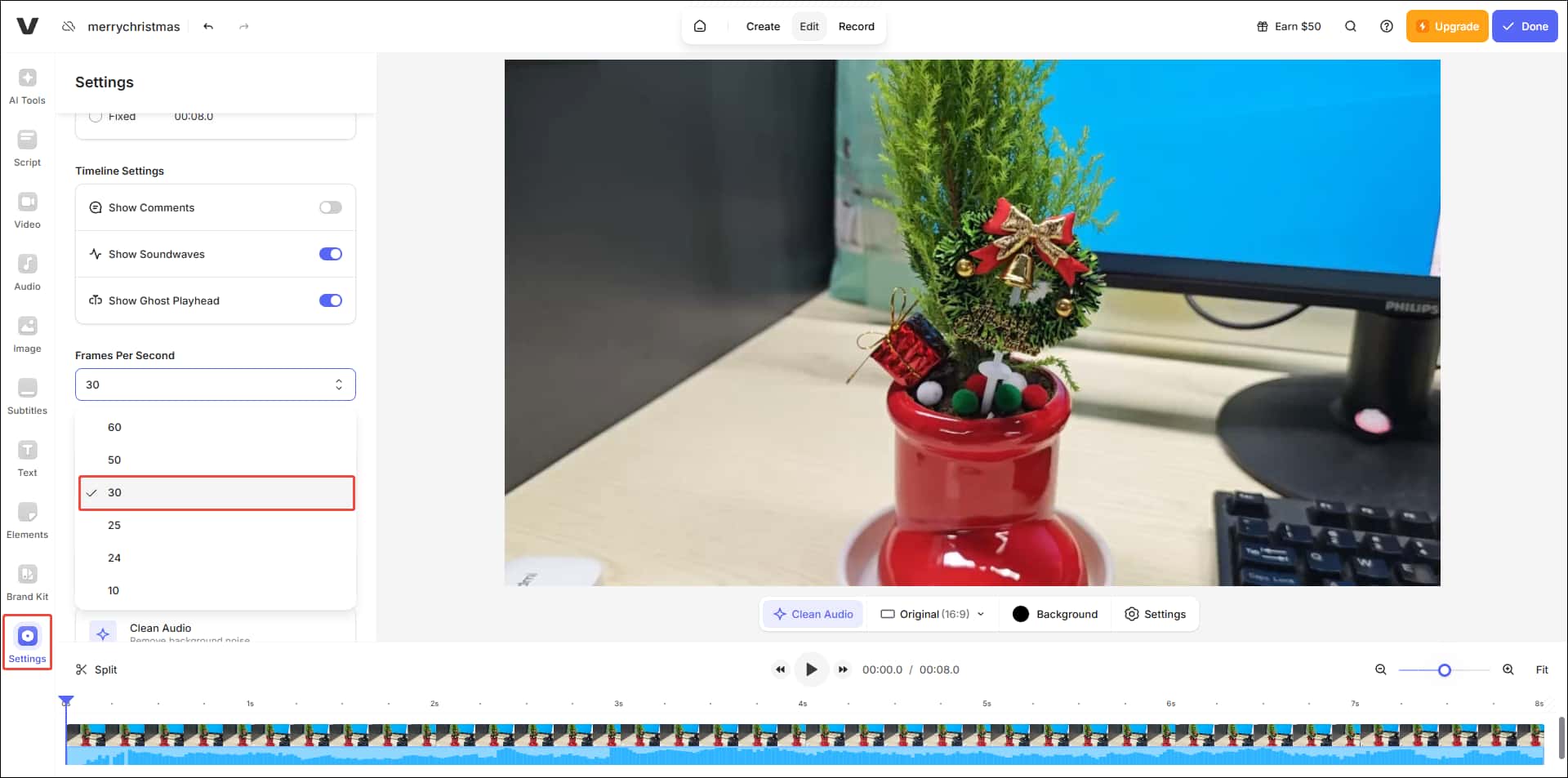
Choose Settings at the bottom left. Then, expand the Frames Per Second option and choose 30.
Step 3: Export the Video
Click the Done button at the top right and choose Export Video.
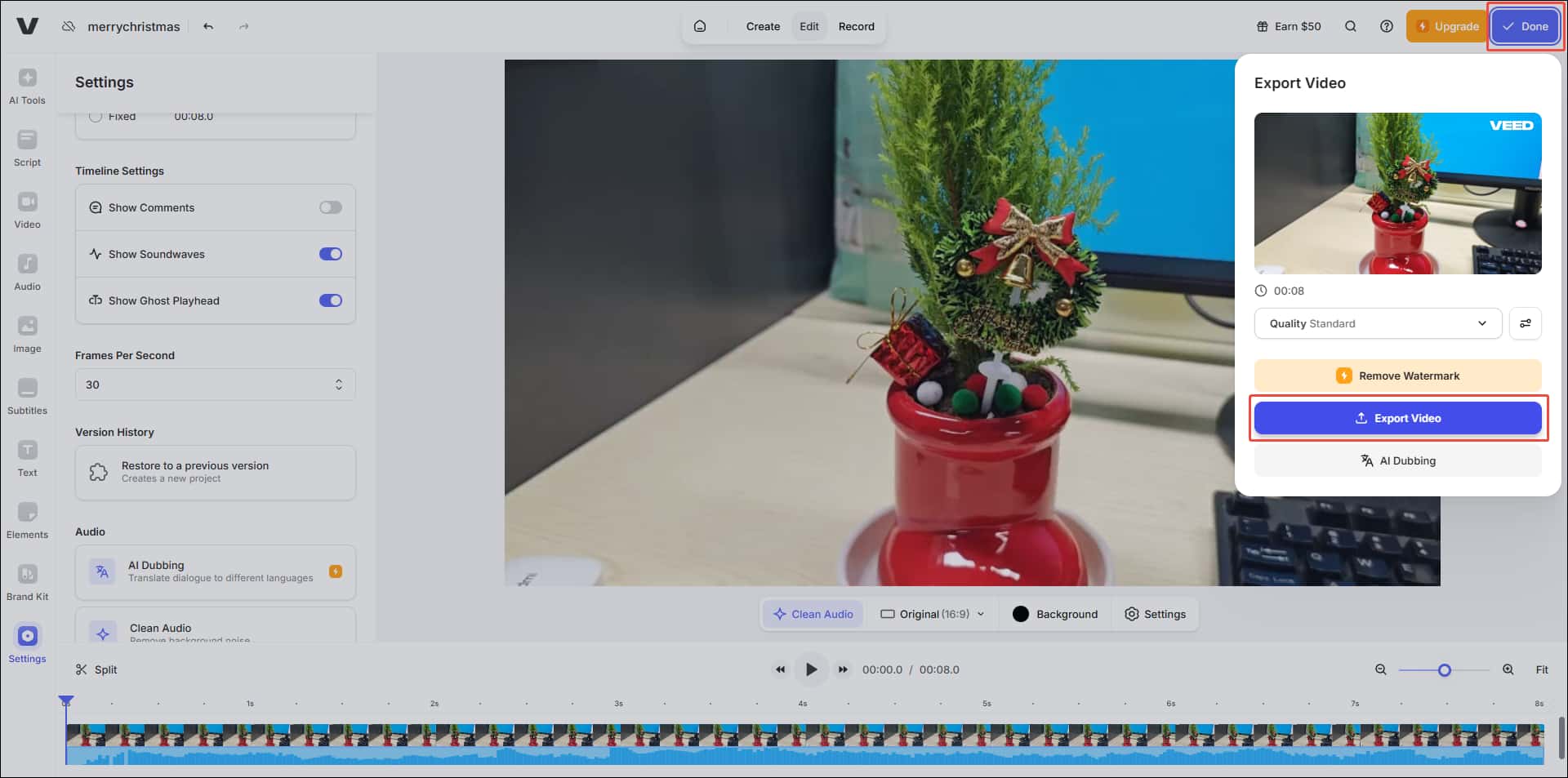
You need to log in to your account to export the video. Also, the exported video will have a VEED watermark in the upper right corner. If you mind this, it’s best to choose MiniTool Video Converter.
Conclusion
This article explains 3 types of Instagram videos and tells you the recommended frame rate of these videos. To break the Instagram video frame rate limit, you can use MiniTool Video Converter to lower the frame rate before uploading.
User Comments :