

Can HandBrake upscale video? Of course! HandBrake features in upscaling videos. However, it can’t improve video quality. Therefore, this article shows how to do it with an excellent video upscaler: MiniTool Video Converter.
HandBrake is a free and open-source multi-functional media file processing tool. It is available for Windows, macOS, and Linux systems. HandBrake features format conversion, video encoding, editing, compression, and disc ripping. Its powerful features and user-friendly interface have attracted many users.
Video upscaling refers to the process of adding pixels to each frame of a video using AI (Artificial Intelligence) technology when the video is enlarged to fit a larger screen. Adding pixels increases the video resolution, resulting in higher clarity. Unlike traditional pixel stretching that results in blurry videos, video upscaling can truly improve video quality.
Can HandBrake Upscale Video
Can you upscale a video with HandBrake? Yes, HandBrake can enlarge videos by increasing the resolution, but it doesn’t actually improve video quality.
HandBrake uses a traditional enlargement method, not an artificial intelligence algorithm. This method enlarges the video by stretching pixels, which may cause video blurring. Therefore, HandBrake can only adjust the resolution to fit larger screens, but it’s not suitable for improving video quality.
Other Limitations of Using HandBrake to Upscale Video
If using HandBrake for upscaling videos, the following 3 limitations may be unavoidable.
- High level of expertise required: HandBrake allows manual adjustment of parameters, such as codec, resolution, and bitrate. Achieving the ideal video effect through manual fine-tuning of these parameters requires a high level of technical knowledge. Otherwise, it’s impossible to optimize the various parameters.
- Resolution blurring: Resolution stretching causes pixel misalignment. Therefore, the image becomes blurry and lacks sharpness.
- Loss of image detail: Stretching pixels only amplifies existing details without adding new ones. The enlarged pixels are no longer in their optimal state. So, many fine textures, such as skin, hair, or background, become blurry.
The True Tool for AI Video Upscaling
Can you upscale video quality? Of course! I’ve been looking for a suitable upscaler recently and finally found MiniTool Video Converter. It is a video processing tool exclusive to the Windows platform. It strongly supports AI-based video upscaling, so that MiniTool Video Converter can indeed upscale videos, resulting in an improvement in video quality. It provides 3 upscaling options, including original, 2X, and 4X. Even at the original resolution option, the image quality will be better after upscaling.
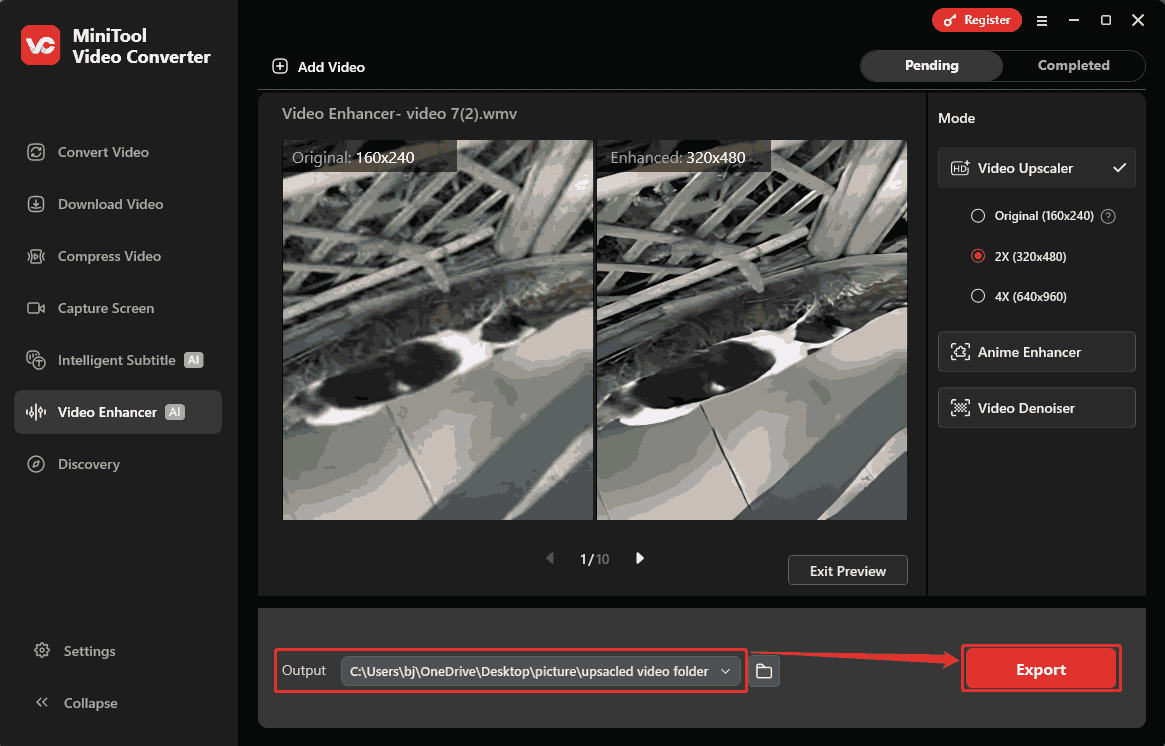
After setting the upscaling parameter, I can preview the upscaled videos and compare the before-and -after effects side by side at key frames. MiniTool Video Converter also supports enhancing anime and denoising videos to improve video quality.
Next, I will demonstrate how to use a real video upscaler to upscale a video with MiniTool Video Converter.
Step 1. Download and Set Up MiniTool Video Converter
Download MiniTool Video Converter and follow the on-screen prompts to install it.
MiniTool Video ConverterClick to Download100%Clean & Safe
Step 2. Add the Target File
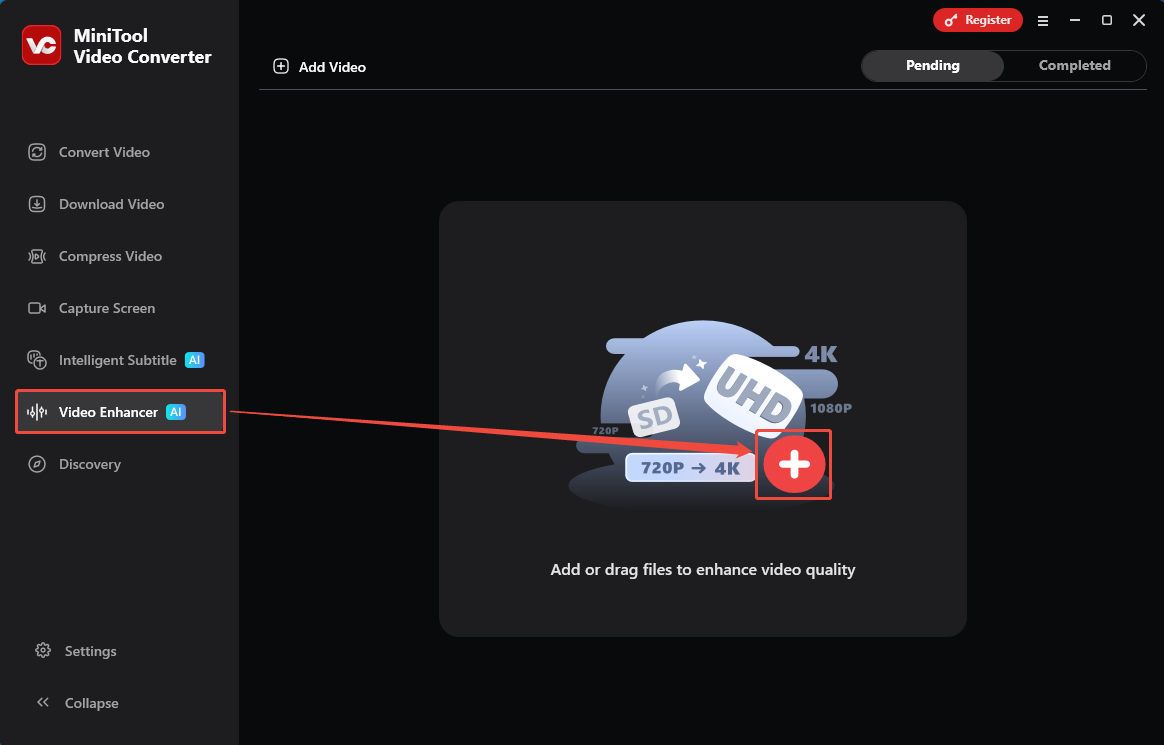
Run MiniTool Video Converter. In the main interface, I switch to the Video Enhancer tab. From there, click on the Plus icon to import the target video from my device.
Step 3. Pick the Desired Upscaling Level
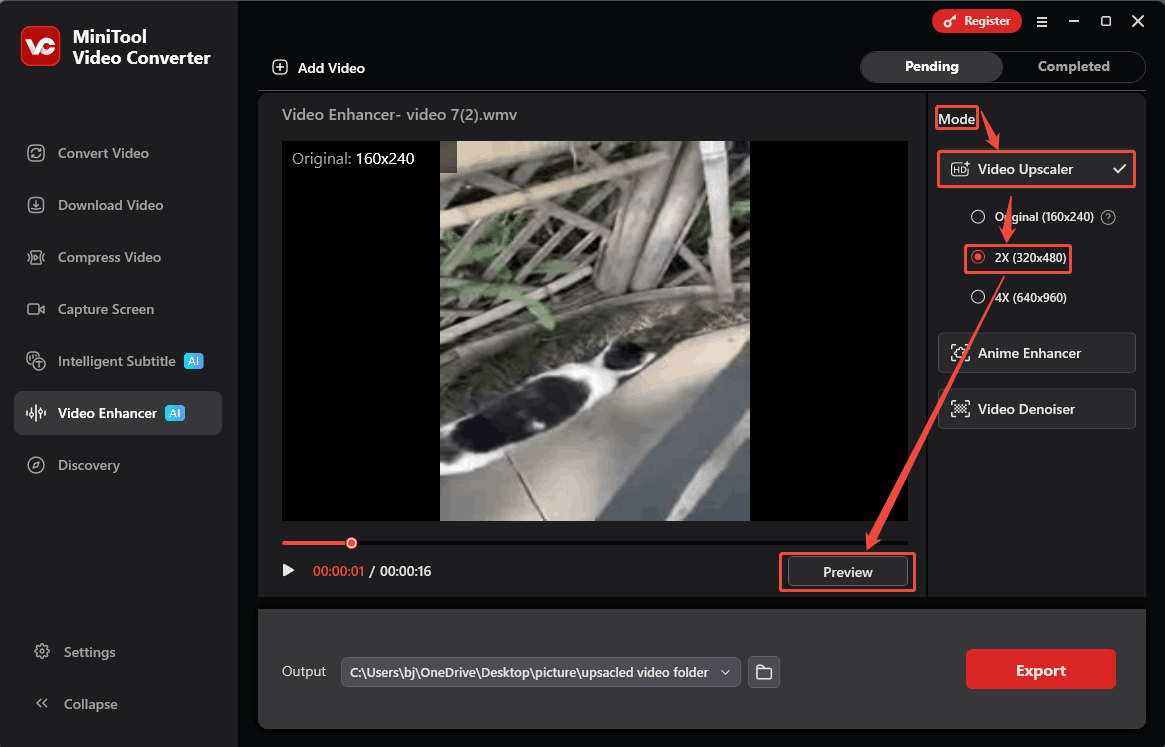
After uploading the video, go to the Mode section. Here, expand the Video Upscaler tab and select an upscaling parameter. I choose the 2X (320x480) option. Then, click on the Preview button to previously see the upscaled video. Also, I can compare the visual differences between the videos before and after upscaling.
Step 4. Start the Export Process
When setting the upscaling parameter, expand the Output option and pick a storage location for the output folder. Then, click on the Export button to begin exporting.
Step 5. Check the Result
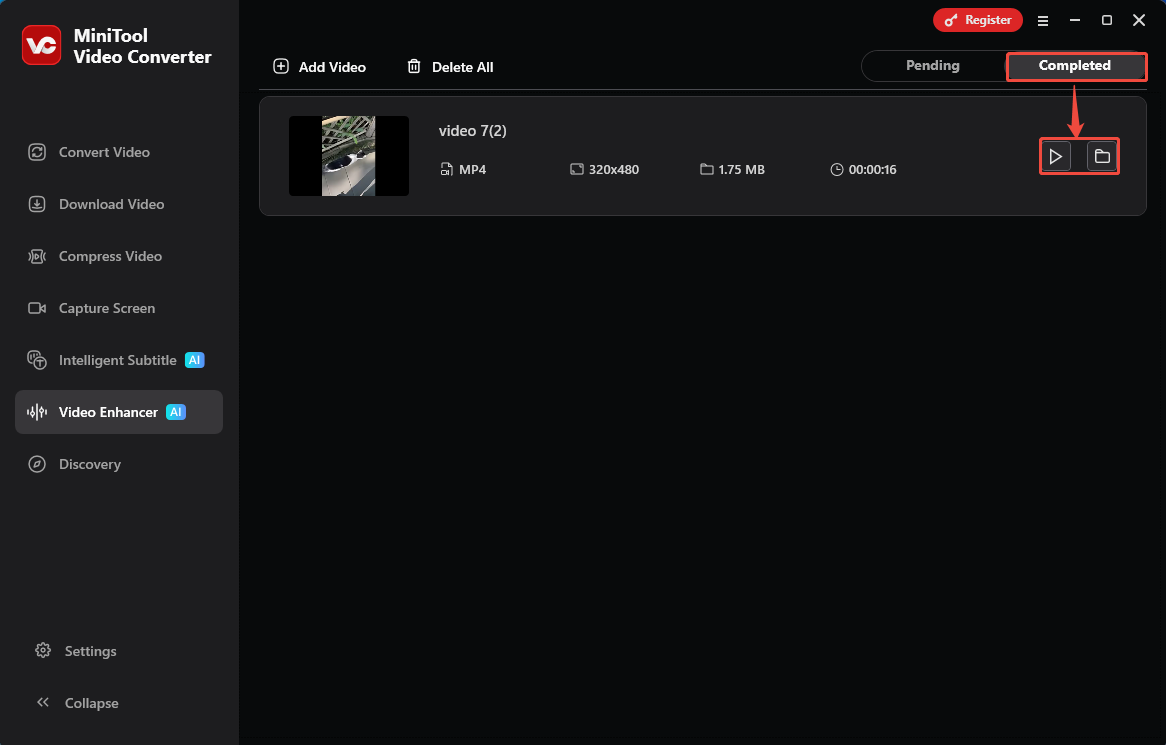
Once the export finishes, this upscaled video will automatically go to the Completed tab. Here, click on the Play icon to check the video effect after upscaling. Additionally, I can also click on the Folder icon to locate the upscaled video.
MiniTool Video Converter’s upscaling feature effectively solves HandBrake’s inability to improve video quality through upscaling. Besides, it is free and user-friendly, even suitable for beginners.
How to Edit the Upscaled Videos
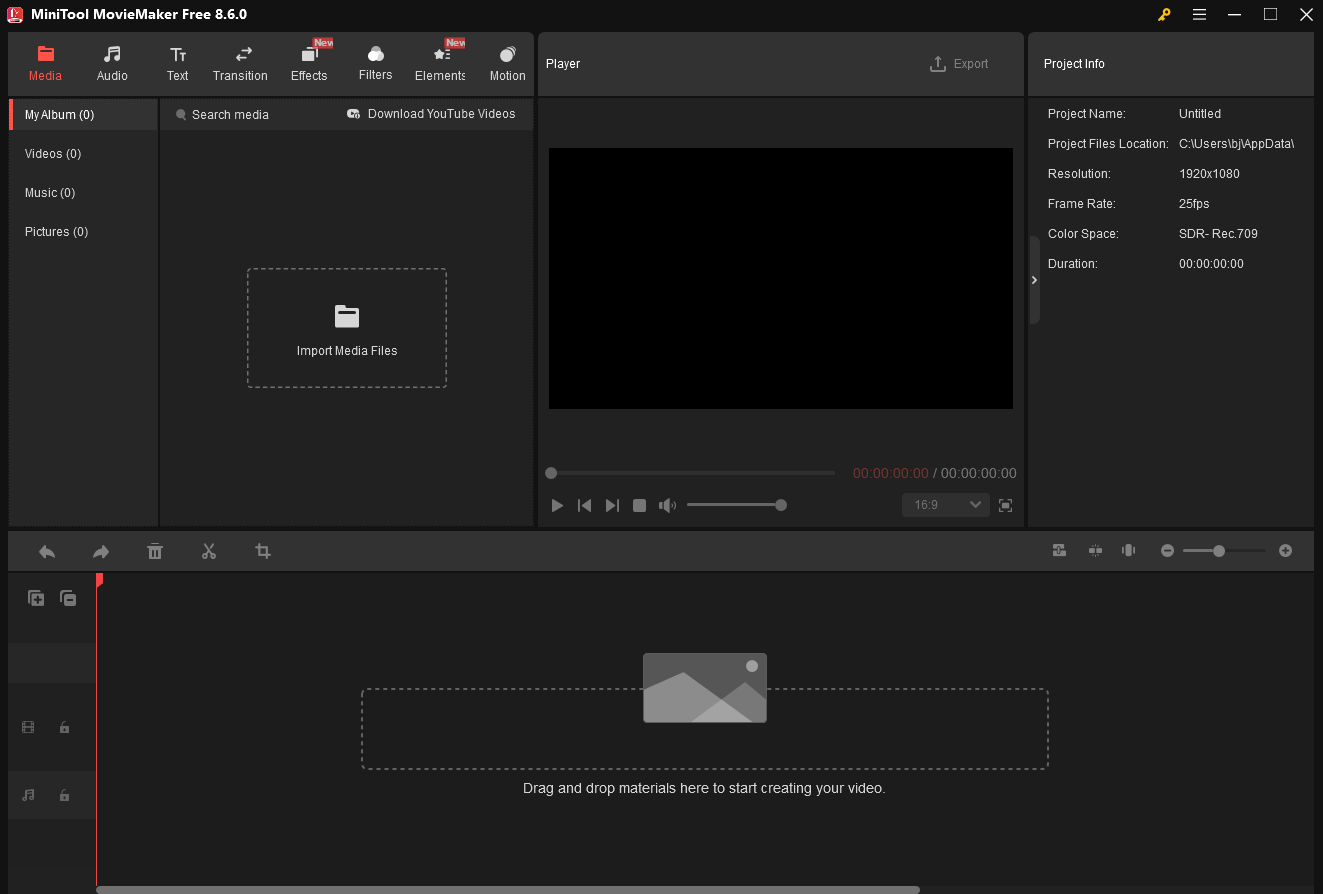
For editing the upscaled videos, MiniTool Moviemaker can truly help creatively edit videos with a user-friendly interface. It only needs users to import a target video, add it to the timeline, process editing, and export a new video.
MiniTool MovieMaker is my commonly used video editor, which allows me to add music effects, text, transitions, filters, elements, and motions, beautifying my video. It also helps me split, crop, trim, flip, rotate, and reverse the video. Moreover, MiniTool MovieMaker enables me to fine-tune frame rate, aspect ratio, saturation, contrast, brightness, and more parameters. When I export the edited video, I can freely change the video format to MP4, MKV, MOV, AVI, WebM, and more.
MiniTool MovieMakerClick to Download100%Clean & Safe
Wrap Things Up
Can HandBrake upscale video? Yes, but it only stretches the original pixels without adding extra pixels. Therefore, HandBrake can’t improve video quality. This article also shows the disadvantages of using HandBrake to upscale videos. However, this article shows an alternative video upscaler: MiniTool Video Converter. It supports upscaling videos by adding more pixels based on an AI model.
If you have any questions or suggestions about MiniTool Video Converter or MiniTool MovieMaker. Feel free to contact the MiniTool team via email at support@minitool.com for support.
User Comments :