

Learn how to convert torrent to MP4 for better compatibility with phones, TVs, browsers, and media players. This guide gives simple conversion methods: using MiniTool Video Converter or MiniTool MovieMaker.
Torrent videos are not always saved as MP4 files. Many torrents use MKV, AVI, or other formats that may not work well on some devices. Converting the video to MP4 improves compatibility with phones, TVs, browsers, and editing software.
How to Convert Torrent to MP4 Offline on Windows?
This part is for Windows users who want to convert torrent to MP4. I will recommend two credible file converters and offer two specific conversion guides.
Option 1. MiniTool Video Converter
MiniTool Video Converter is a Windows video converter that supports MP4, MKV, AVI, WMV, and many other formats. It allows batch conversion, making it useful for converting multiple torrent videos at once.
Best For:
- Batch conversion.
- Beginners.
- Converting large video files.
- Customizing output settings.
Fast Track:
- Download and install MiniTool Video Converter.
- Import the torrent files.
- Set MP4 as the output format.
- Set output location.
- Begin the conversion.
- Check the converted results.
Step 1. Download and Install MiniTool Video Converter
 MiniTool Video Converter
-
 Batch convert video/audio files among 1000+ formats.
 - Quickly compress videos for easy storage and transfer.
- Accurately extract subtitles from video/audio files.
- Effectively enhance video quality.

Download and install MiniTool Video Converter on the PC. Then, run it.
Step 2. Import the Torrent Files
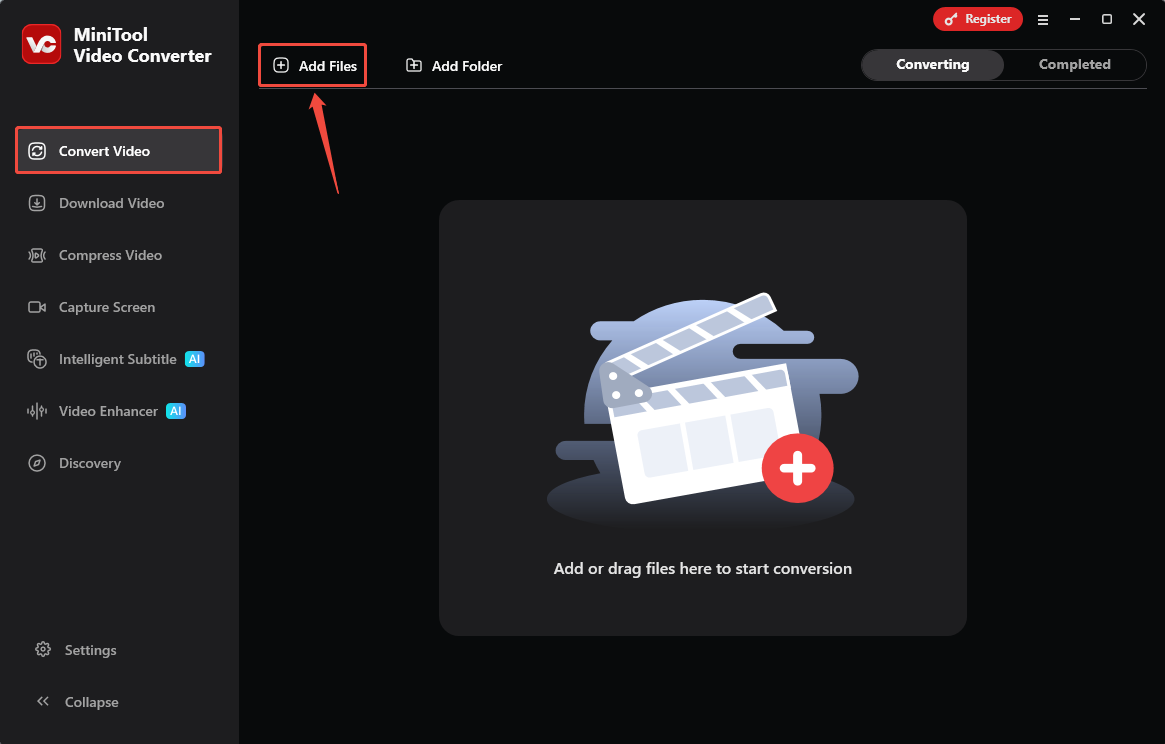
Click the Add Files option to upload the torrent to this program.
Step 3. Set MP4 as the Output Format
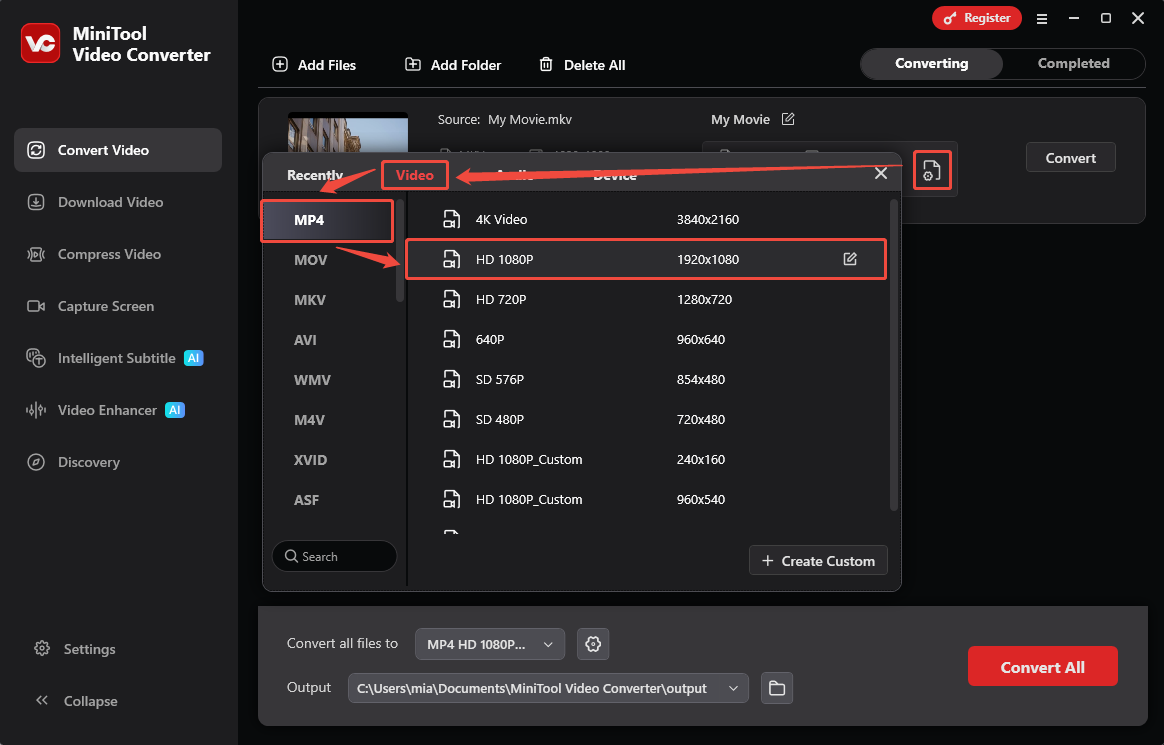
Click the gear icon, choose the Video tab, select MP4, and select the video quality.
Step 4. Set Output Location
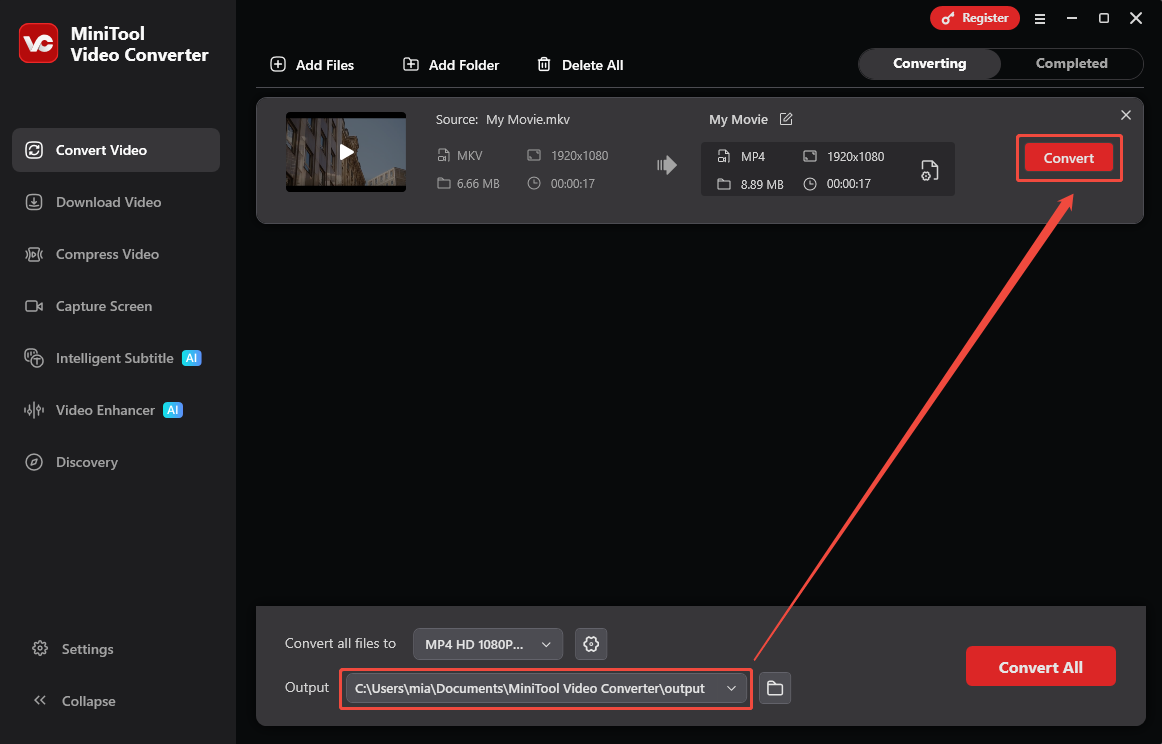
Expand the Output option and select a folder to save the output file.
Step 5. Begin the Conversion
Click the Convert option next to the task to start conversion.
Step 6. Check the Converted Results
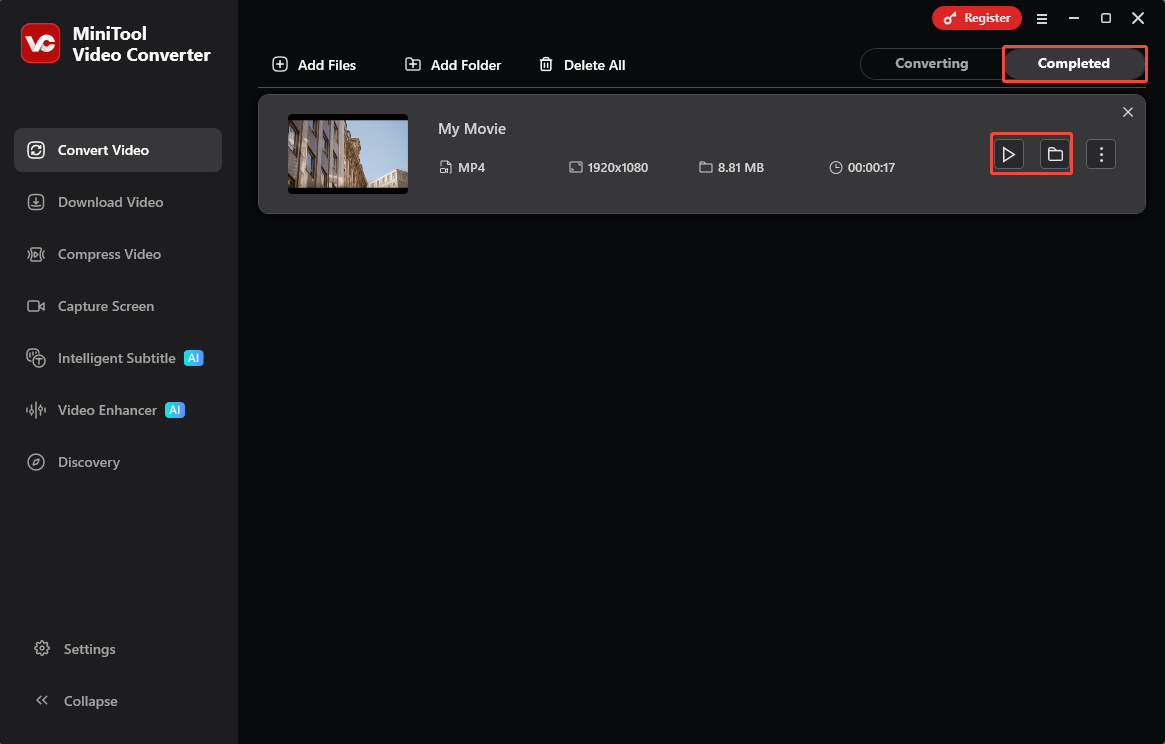
Once the conversion tasks are done, switch to the Completed section and click on the play icon to view it, or click the folder icon to locate the converted files.
Once converted, the video should play on most devices and media players without compatibility issues.
MiniTool Video Converter also provides customizable settings, including bitrate, resolution, encoder, frame rate, and audio channel. In addition, it has a clean interface, no file size limit, and supports fast video conversion for beginners and regular users.
MiniTool Video ConverterClick to Download100%Clean & Safe
![The Complete Methods for Quick RPL to MP4 Conversion [Pro Guide]](https://images.minitool.com/videoconvert.minitool.com/images/uploads/2025/03/rpl-to-mp4-thumbnail.png)
Option 2. MiniTool MovieMaker
MiniTool MovieMaker is a video editor that can also convert torrent videos to MP4. It supports formats like MP4, AVI, MKV, MOV, WEBM, GIF, and MP3.
Best For:
- Editing torrent videos before conversion.
- Combining multiple clips.
- Trimming or cropping videos.
- Exporting videos as MP4.
Fast Track:
- Download and install MiniTool MovieMaker.
- Import the target file.
- Add video to the timeline.
- Export the video as MP4.
- Locate the output video.
Step 1. Download and Install MiniTool MovieMaker
Click on the download button below to download and install MiniTool MovieMaker.
MiniTool MovieMakerClick to Download100%Clean & Safe
Step 2. Import the Target File
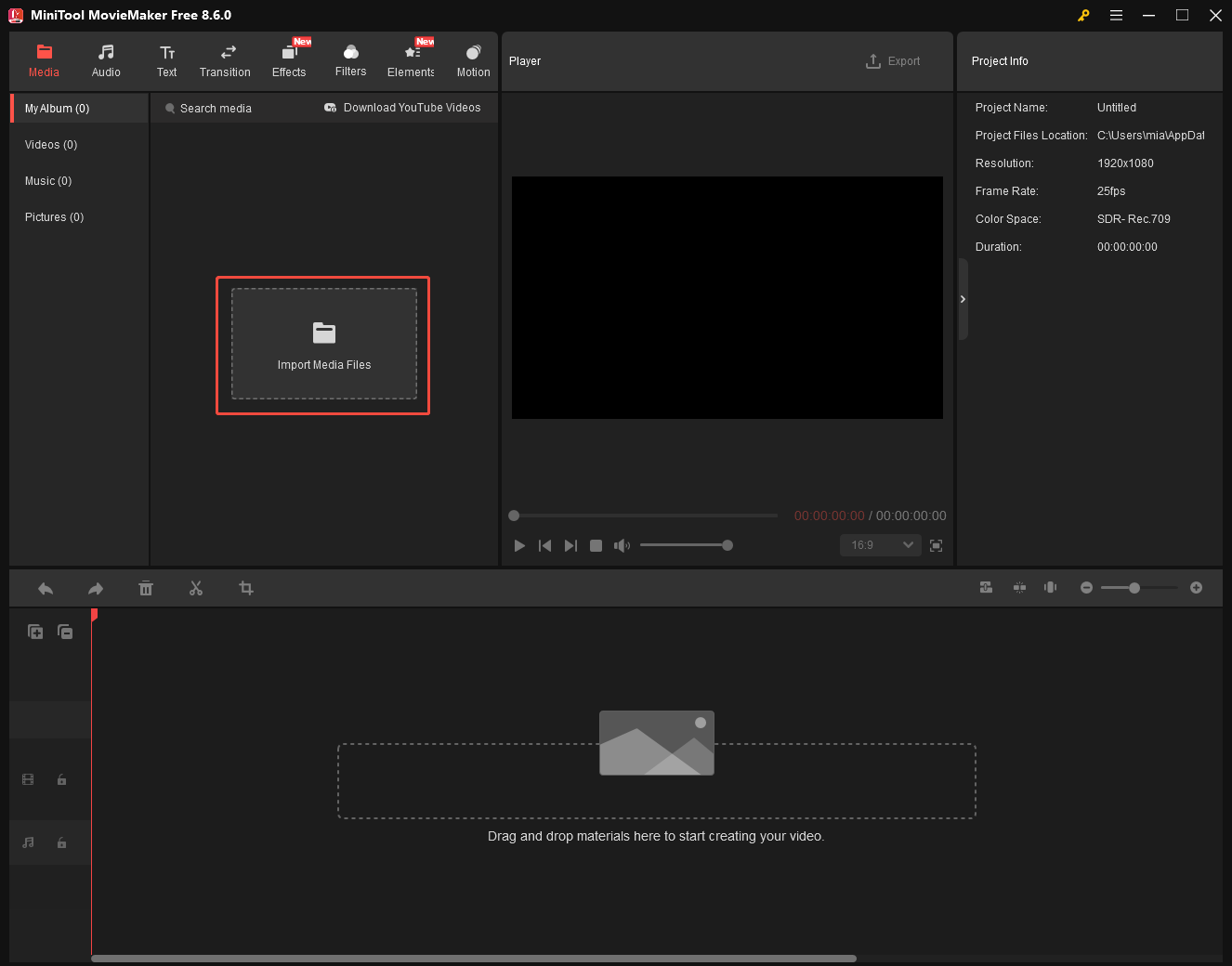
Launch this video editor, click on the Import Media Files button to import the torrent file.
Step 3: Add Video to the Timeline
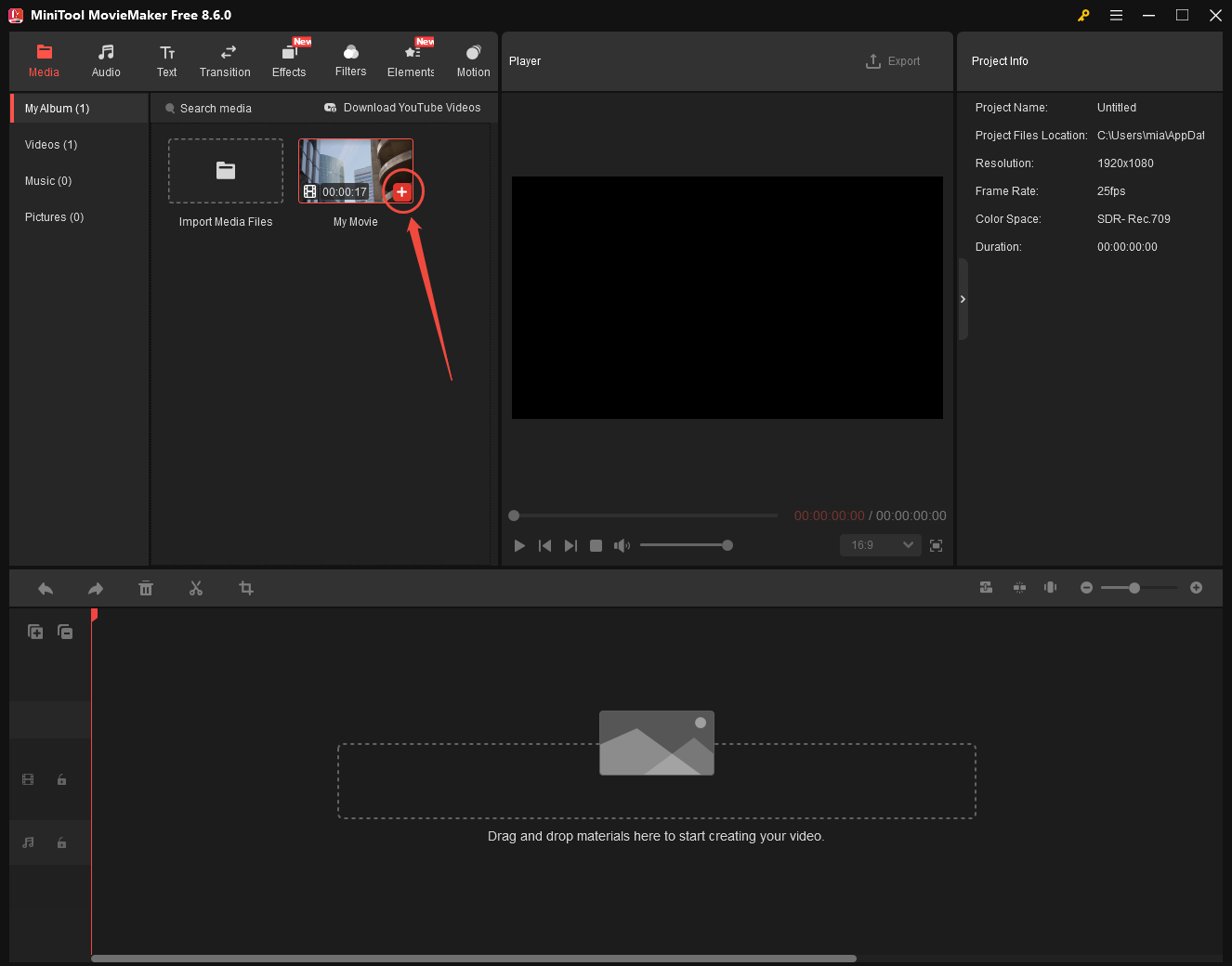
Click on the plus icon on the uploaded video to add it to the timeline. After that, according to your needs, add different elements to the footage.
Step 4. Export the Video as MP4
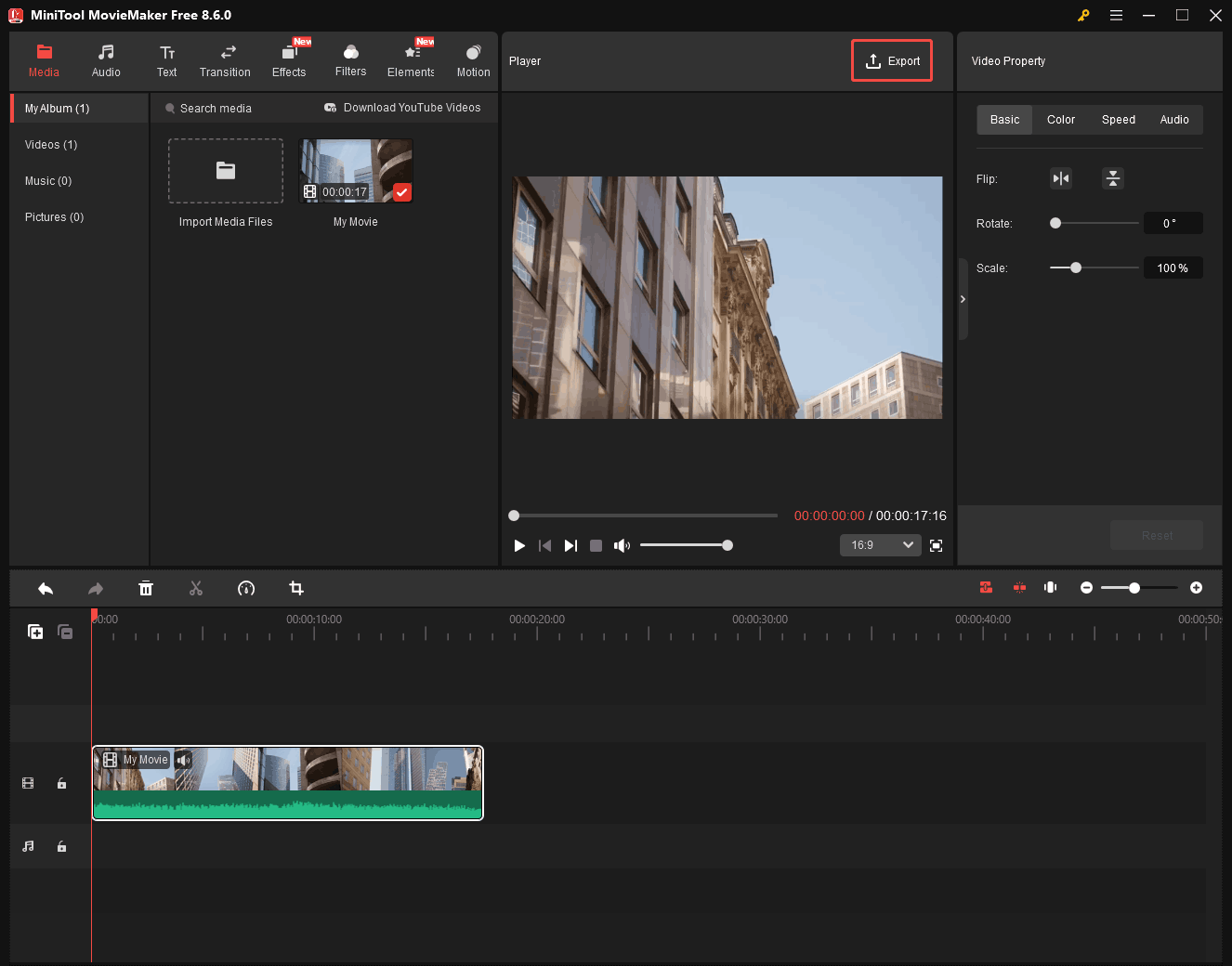
Once your editing is complete, click on the Export icon at the upper right of the Player window.
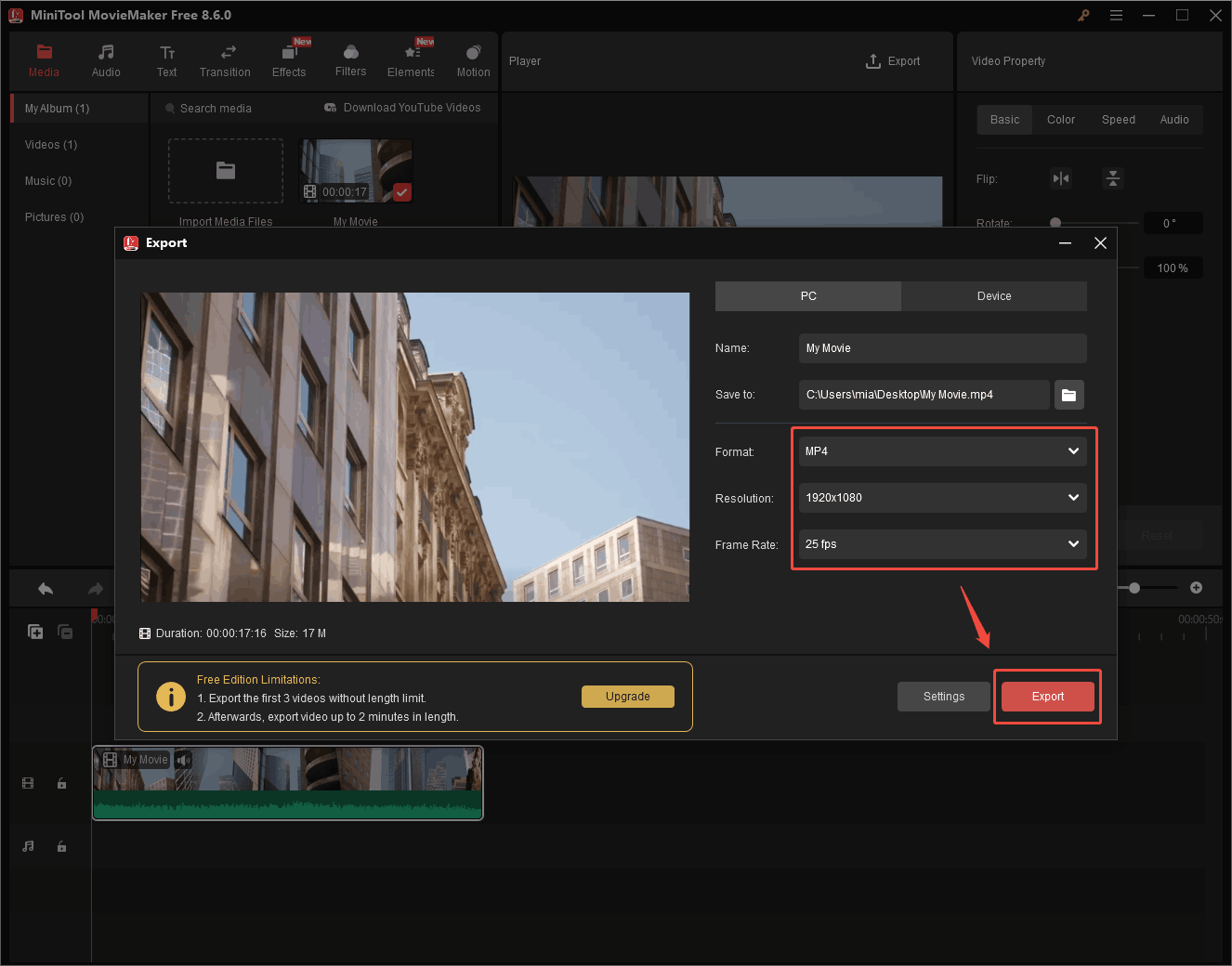
By default, the output format will be set as MP4. If necessary, customize the frame rate and resolution as you want. After that, click the Export button.
Step 5. Locate the Output Video
After the conversion is over, click on the Find Target button in the pop-up window to locate and check your converted file.
Tweet: If you want to convert torrent to MP4 while editing your torrent files, never miss MiniTool MovieMaker.
Besides conversion, the software allows users to trim clips, crop videos, adjust speed and volume, change aspect ratio, and combine multiple video clips into one file. It also includes filters, text, transitions, and other editing elements.
Practical Notes:
- MP4 offers better compatibility with TVs, phones, and browsers.
- If the torrent file is already MP4, conversion may not be necessary.
- Lower bitrate settings can reduce file size significantly.
Are Torrent Videos Already MP4?
Quick Answer:
- Some torrent videos are already MP4.
- Others may use MKV, AVI, or MOV.
- Convert to MP4 if playback or compatibility issues occur.
The format of the downloaded torrent file depends on the sharer. If the sharer provides an MP4 file, the downloaded torrent file will also be saved in MP4 format. Torrent files can also be MKV, AVI, or other formats.

Extra Tips: How to Download Torrent Files
Considering that some of you may know little about how to obtain torrent files, I will elaborate on various aspects of torrent file downloading in the following paragraphs.
Step 1. Get a Free Torrent Client on Your Computer
Go to https://www.utorrent.com/desktop/compare/ and click on the DOWNLOAD NOW button to download and install µTorrent on your PC. Then, run it.

Step 2. Move to a Reliable Torrenting Site and Download What You Want.
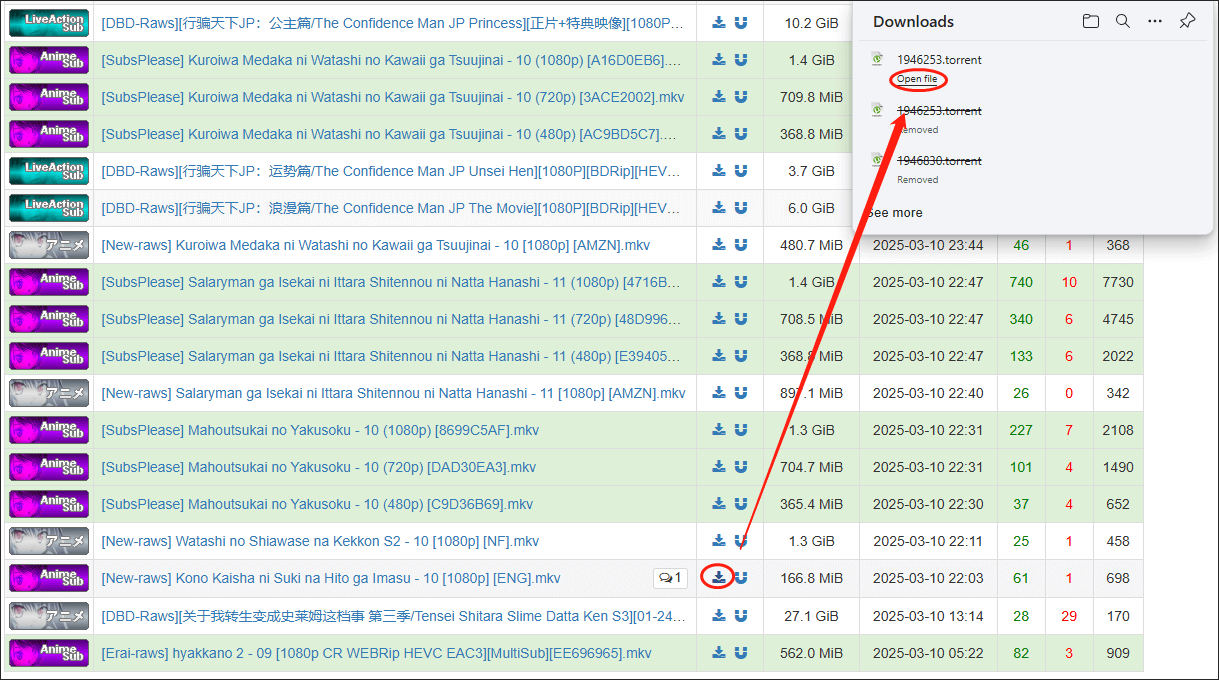
Launch your web browser and go to https://nyaa.land (the website of a reliable torrenting site). Then, find the content you desire and click on the download icon to begin downloading the torrent file that you have chosen. Once the downloading is over, click on Open file in the Downloads window of your web browser. Next, the µTorrent app will pop up automatically.
Step 3. Locate and Check Your Torrent Files.
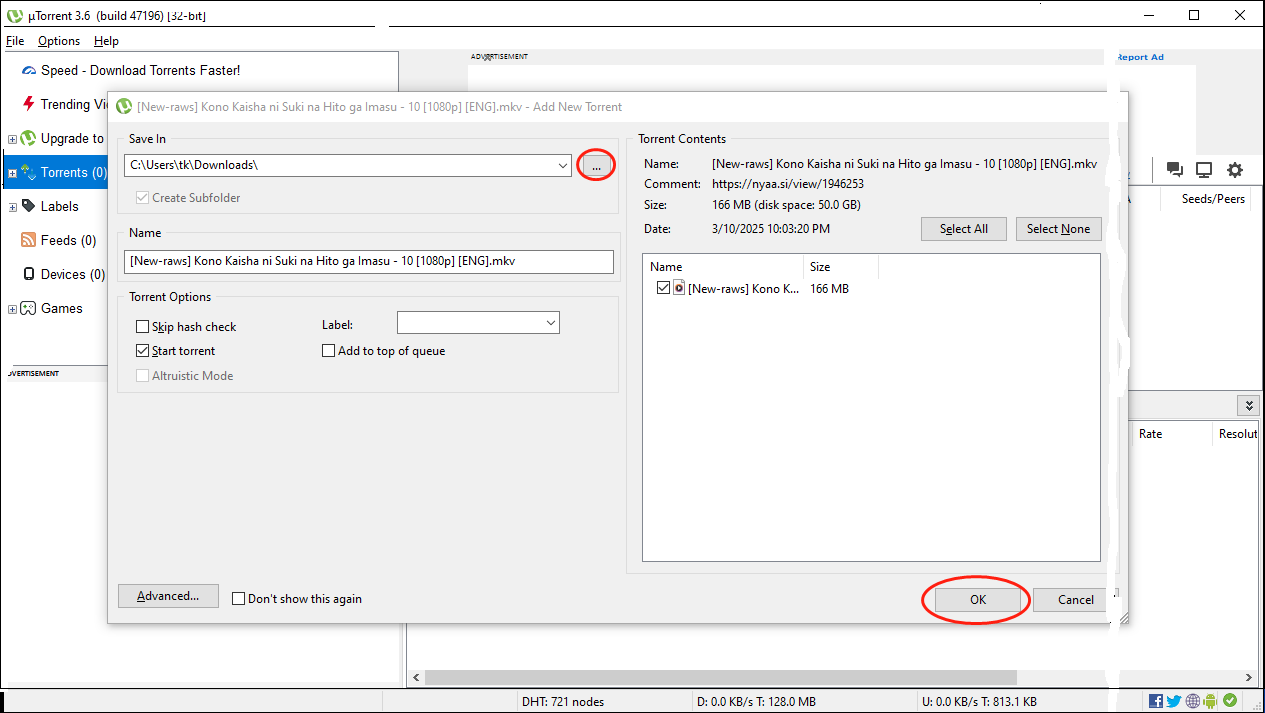
In the interface of the µTorrent app, click on the three-dot icon to choose a saving path for your decoded torrent file. Next, click on the OK button to commence the decoding of your torrent file.
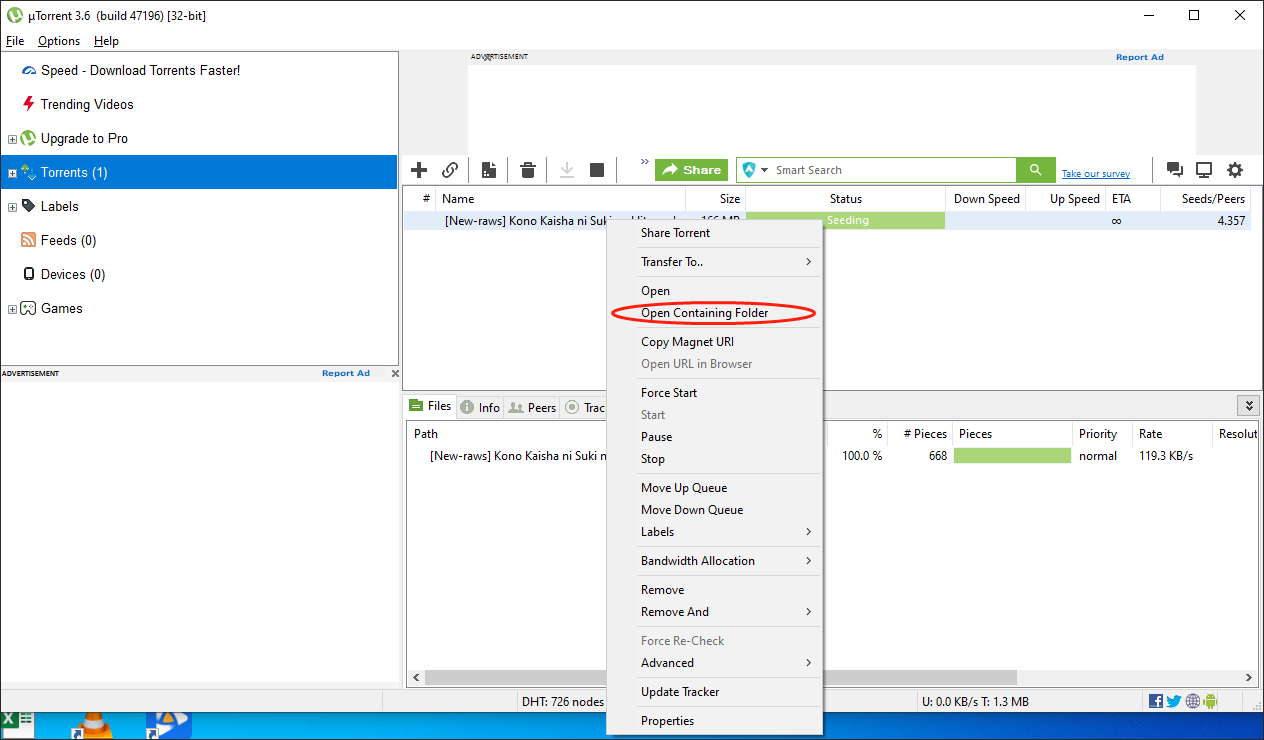
Once the decoding is done, right-click on your torrent file in the file list of µTorrent and choose Open Containing Folder to locate and check your video file.
Bottom Line
Some torrent videos are already MP4 files, while others may use MKV, AVI, or other formats. If compatibility problems occur, converting the video to MP4 is usually the best solution. For Windows users, MiniTool Video Converter and MiniTool MovieMaker are good options.
For support with MiniTool Video Converter or MiniTool MovieMaker, contact support@minitool.com.
User Comments :