

For a smaller file size, convert MOV to HTML5 with video converters such as MiniTool Video Converter and CloudConvert. This article covers the conversion steps, including importing the MOV file, selecting MP4 as the HTML5-supported output format, adjusting video settings if needed, and starting the conversion.
MOV is a multimedia container format developed by Apple. It can package various tracks, including video, audio, text, 3D models, VR panoramas, and metadata tracks, which enrich the content and make its transformation and sharing much easier.
HTML5 (Hypertext Markup Language 5) is a markup language used to structure and present hypertext on the World Wide Web. It has now become the standard recommendation of the web. HTML5's advanced technology provides an unparalleled viewing experience for online videos.
Below is how to convert MOV to HTML5 with MiniTool Video Converter and CloudConvert.
How to Convert MOV to HTML5
Fast steps:
- Open MiniTool Video Converter or CloudConvert.
- Import the MOV file.
- Choose MP4 as the output format.
- Start conversion.
1. MiniTool Video Converter
MiniTool Video Converter supports MOV to HTML5 and many other video and audio conversions. It offers batch conversion of up to 5 tasks, no watermarks or ads, and customizable resolution, frame rate, and bitrate.
How to use MiniTool Video Converter to convert MOV to HTML5 video? Read the following detailed guide:
1. Obtain MiniTool Video Converter
Download MiniTool Video Converter. Then, follow the setup instructions to install this application.
 MiniTool Video Converter
-
 Batch convert video/audio files among 1000+ formats.
 - Quickly compress videos for easy storage and transfer.
- Accurately extract subtitles from video/audio files.
- Effectively enhance video quality.

2. Upload the Prepared MOV File
Run MiniTool Video Converter. Drag the MOV file you have prepared into the Add or drag files here to start conversion region to upload it.
3. Set a Format Supported by HTML5
Click on the Settings icon to open the output format window. In this window, switch to the Video tab and choose the MP4 format that HTML5 supports.
4. Start the Conversion Process
There, expand the Output option and specify a storage location. Then, click the Convert button on the conversion task. This converter will start processing your file immediately.
5. Watch and Locate the Converted Video
The completed conversion task will be listed under the Completed tab. To view the result, simply click on the Play icon. If you want to find this converted video on your computer, click on the Folder icon.
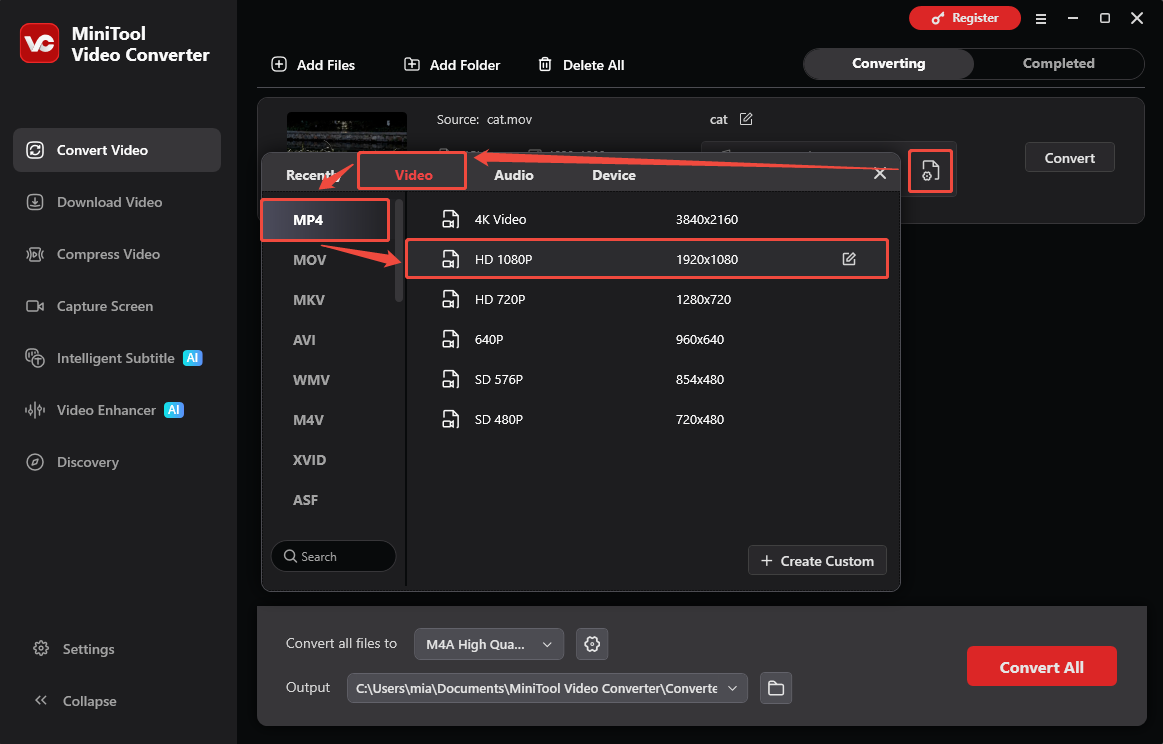
MiniTool Video Converter provides you with a great video conversion experience. You can instantly and freely convert MOV to HTML5. In addition, it prioritizes security during the whole conversion process, protecting users’ privacy.
2. CloudConvert
CloudConvert is a user-friendly and practical online converter. It supports quickly and easily converting MOV to HTML5. Plus, CloudConvert accepts conversions between more than 200 formats. It allows you to import multiple conversion tasks at a time. Also, CloudConvert empowers you to customize the advanced parameters for the converted video.
Next, let’s take a look at how to convert MOV to HTML5 using CloudConvert.
1. Find CloudConvert’s Conversion Webpage
Paste https://cloudconvert.com/mov-to-mp4 into your browser and visit CloudConvert’s conversion page.
2. Import the MOV Video
Click on the Select File option to import the MOV video.
After importing the MOV video, click on the Wrench icon to open the Options window. There, you can customize advanced parameters for the converted video. Then, click on Okay to save your changes.
3. Begin the Conversion
Once all preparations are complete, click on the Convert option to begin the conversion.
4. Download the Converted Video
Once the conversion is complete, click on the Download option to save the converted video.
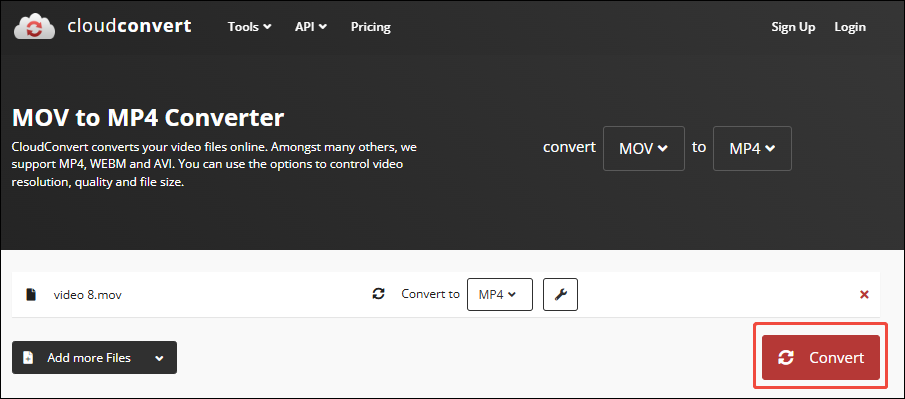
CloudConvert gives you a convenient conversion process. However, it has shortcomings that may affect you. For example, the free version has a limit on the number of conversions, which allows you to convert a maximum of 25 times per day.
Why Convert MOV to HTML5
- Improve compatibility.
- Reduce file size.
- Support multilingual subtitles.
- Maintain high resolution and video size.
To improve compatibility, MOV videos can be converted to HTML5. This conversion resolves the issue that different devices are unable to play the video directly. For example, videos shot on an iPhone can be converted to an HTML5-supported format. Then, the videos play smoothly on Windows and Android systems.
Furthermore, converting MOV to HTML5 can effectively reduce file size, save storage space, and speed up transmission and loading. This advantage becomes even more apparent when you understand how video file size is determined, especially in terms of bitrate, codec, and resolution. Besides, HTML5 doesn’t restrict the language of video subtitles. After conversion, users can enjoy English, French, Japanese, Spanish, German, and more.
What’s more, to achieve a balance between high-definition resolution and video size, MOV files can be converted to HTML5 format with 4K resolution.
MOV vs HTML5: Key Differences
| MOV | HTML5 | |
| Compatibility | Limited | Wide |
| File Size | Generally larger | Generally smaller |
| Loading Speed | Slow | Fast |
| Best For | Local playback & editing | Web playback & sharing |
#1. Compatibility
HTML5 offers better compatibility than MOV.
MOV is a video format developed by Apple that can play smoothly on iPhones, Macs, and QuickTime. However, it sometimes will have problems such as videos failing to open or playing choppy on Windows and Android systems. In addition, when MOV is played on some older computers or mobile phones, there may be issues such as stuttering or the device failing to open.
In contrast, HTML5 boasts strong compatibility. It supports Windows, macOS, Android, and iOS systems. More importantly, it doesn't require any plugins. HTML5 also supports use on multiple platforms and devices simultaneously. In format compatibility, it adopts MP4, WebM, and OGG as its recommended formats.
#2. Webpage Playback Support
HTML5 is better suited for webpage playback than MOV.
MOV files don’t apply to web pages. In most cases, users can’t play them on web pages. MOV can only be downloaded to a local folder for playback, consuming user computer storage space and wasting their time.
HTML5 is native to web pages, allowing users to play videos as soon as they open the page. Also, HTML5 is supported by all versions of Firefox, Internet Explorer, Safari, Google Chrome, and more.
#3. File size and Loading Speed
HTML5 offers smaller file sizes and faster loading speeds than MOV.
MOV's multi-track encapsulation and easy-to-edit features lead in large video sizes. Due to its large file size, the loading speed is likely slow, resulting in unsmooth playback on webpages. HTML5 uses MP4 and WebM, which can maintain video quality while reducing file size. Therefore, it has a faster loading speed as well.
Based on the comparisons above, we can know that HTML5 outperforms MOV. It is excellent in compatibility and web page support. Furthermore, HTML5’s advanced formats offer better compression efficiency, faster loading speeds, and smaller file sizes.
Troubleshooting Common Conversion Issues
What problems did you encounter when you converted videos? This part will show you the common issues and solutions.
Mistake 1. Video, Audio, and Subtitle Are Out of Sync
Audio, video, and subtitles out of sync after conversion are a common problem. MOV is a format that encapsulates multiple tracks. Converting it to another format that doesn’t support multitrack multimedia content may result in the disorder of video, audio, and subtitles.
To solve this problem, the synchronization feature of VLC Media Player is a great choice. It supports accurately adjusting synchronization time, improving your work efficiency.
Mistake 2. Video Quality Loss
When converting video formats, the resolution and bitrate may be automatically lowered to ensure smooth playback, reducing the amount of video details. Additionally, converting the same file multiple times also leads to a decrease in video quality.
If you want to maintain the video quality when you convert videos, you can choose H.265 as the video codec, which is one of the most advanced video codecs. H.265 helps you keep the video quality as much as possible.
Final Words
Converting MOV to HTML5 can improve compatibility, webpage playback, loading speed, and file size. MiniTool Video Converter is suitable for batch conversion, while CloudConvert is convenient for online conversion. This article also compares MOV and HTML5 and covers common conversion issues.
If you have any problems when using MiniTool Video Converter, please send an email to support@minitool.com to ask for help.
User Comments :