

What Is SWF
Standing for Small Web Format, SWF refers to a video format that was widely used for interactive web content, such as some online advertisements and games. Since Adobe no longer supports Flash in 2020, SWF videos are unplayable on modern browsers unless there is a special emulator.
Is SWF Transcription Necessary
An SWF file has low compatibility, which means that it is difficult for you to play an SWF video. In this background, if you want to learn something from that video, you may have a headache. By transcribing SWF to text, you can grasp the key points of an SWF video easily and quickly.
Meanwhile, SWF transcription enables you to use the video for other purposes, including video captions, article writing, and more.
How to Convert SWF to Text
Here, I will recommend 2 amazing online SWF to text converters, including HappyScribe and Google Docs.
Option 1. HappyScribe
HappyScribe is an online SWF to text converter supported by AI technology. With it, you can convert SWF to text with simple clicks. In addition, HappyScribe also supports multiple video/audio formats, including MP4, M4A, MOV, WAV, and more.
What’s more, HappyScribe features an intuitive interface. This way, even if you are a novice, you can access this tool to accomplish the SWF transcription easily and quickly. Below is a detailed guide on how to transcribe SWF to text with HappyScribe.
Step 1. Go to the SWF to Text Converter Page of HappyScribe
Visit https://www.happyscribe.com/convert-swf-to-text.
Step 2. Import the SWF File
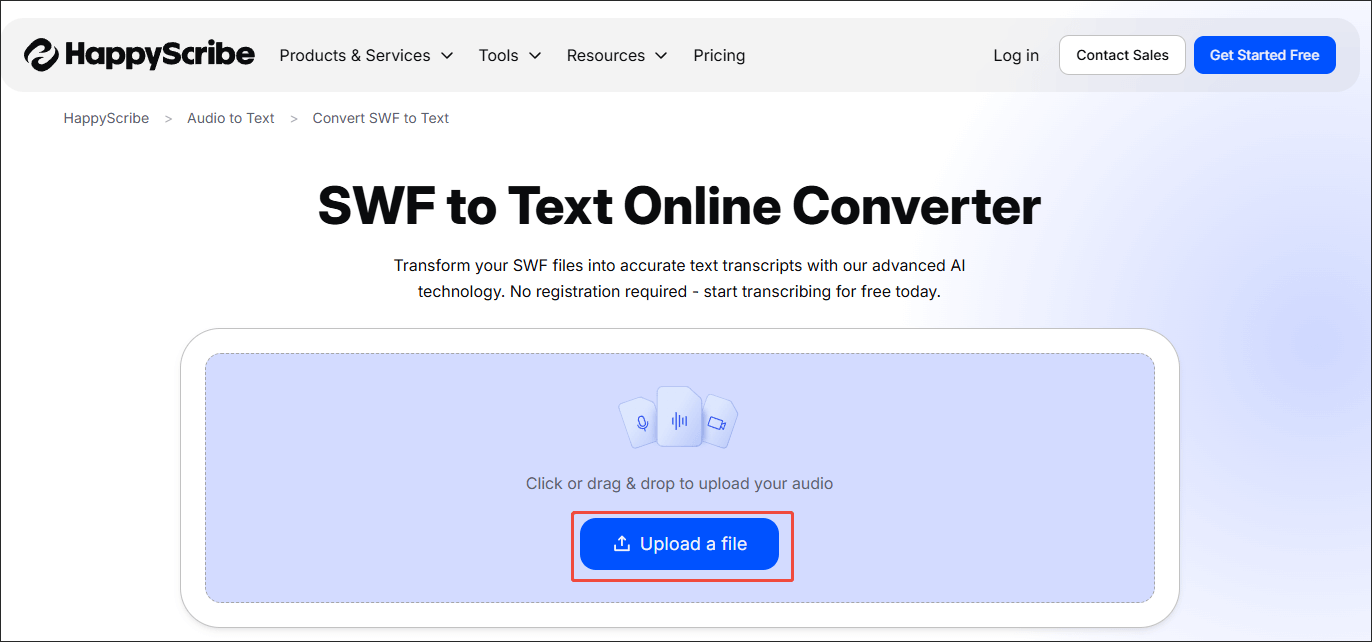
Click on the Upload a file option to upload the SWF video.
Step 3. Start Transcription
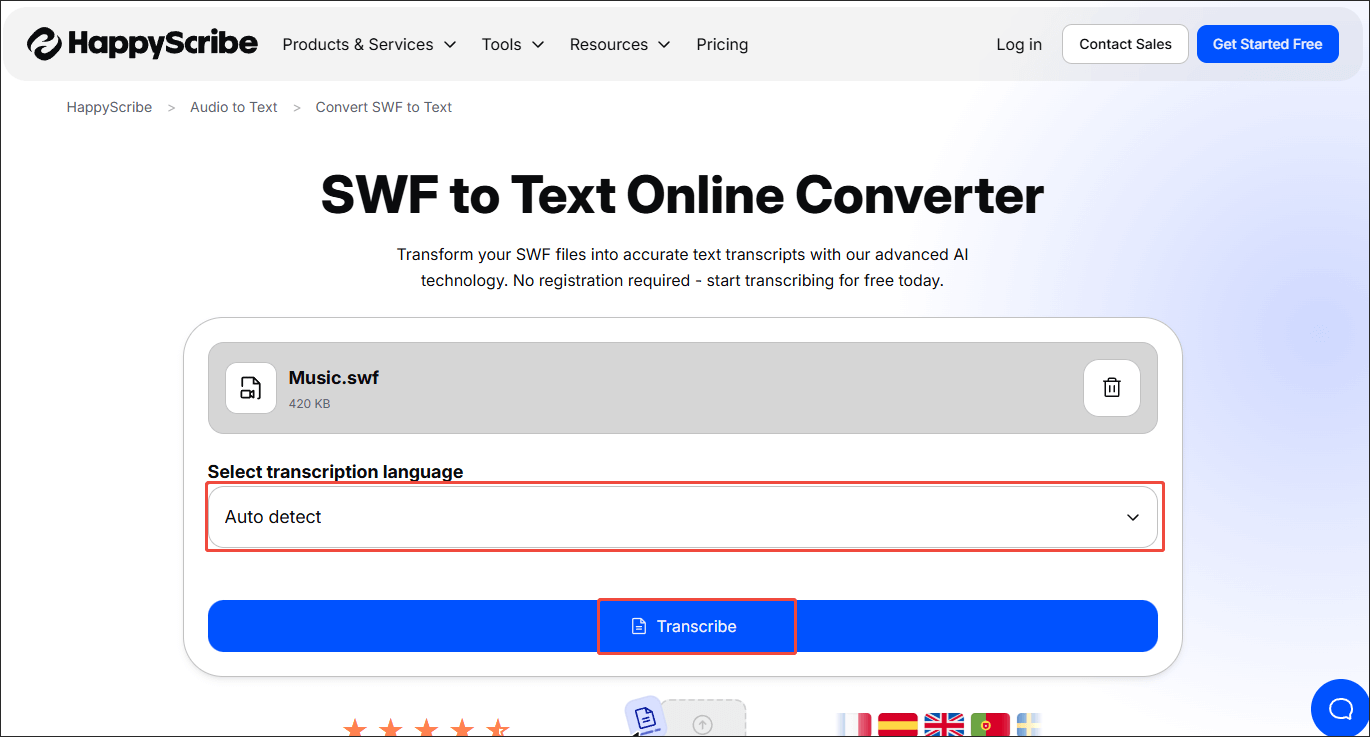
When the file upload ends, expand the Select transcription language option and specify the transcription language. Here, I select Auto detect. Next, click on the Transcribe button to start the transcription process.
Step 4. Edit the Text
When the transcription process ends, you will access the My Workspace page. There, choose the SWF file that you have transcribed to access the text editing page.
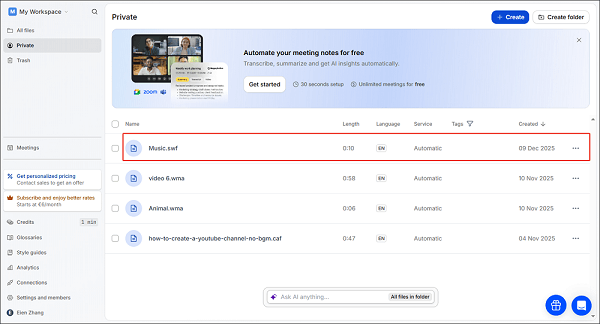
You can see a text list. To edit the text, click on it directly. Next, click on the upper-right Export option to access the Export window.
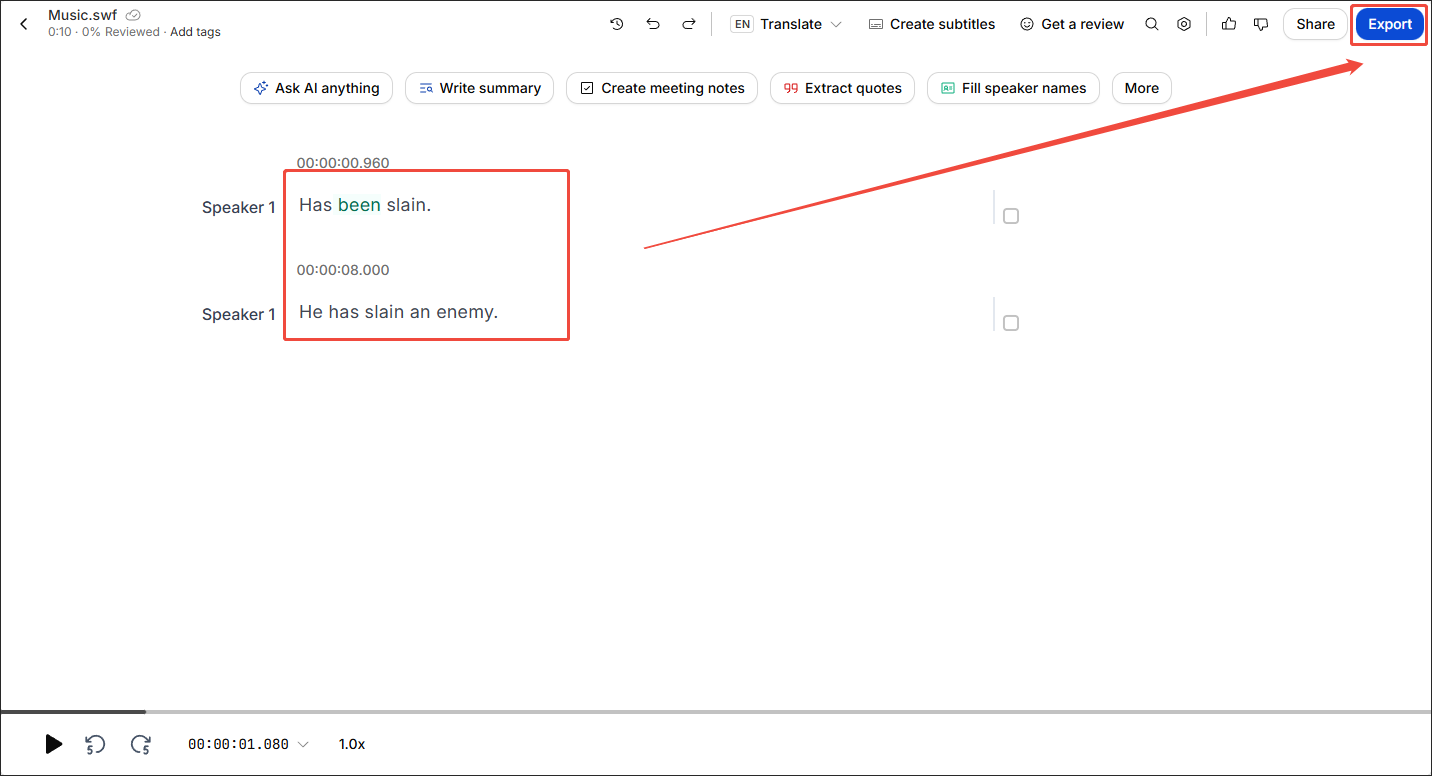
Step 5. Export the Text File
In the Export window, expand the Choose your file format option to choose an output format. You can save the text in formats like TXT, PDF, DOCX, and SRT for free. If you want other formats, you need to pay for the upgrade. Then, scroll down and click on the bottom-right Export file button to export the text file. When the file export completes, view and check it.
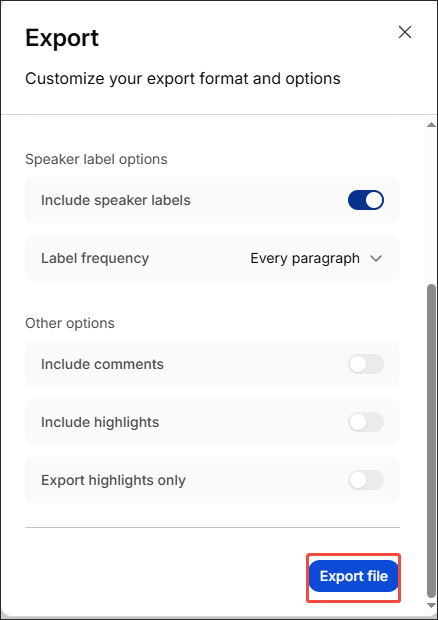
With the above-detailed steps, it will never be difficult for you to convert SWF to text.
Option 2. Google Docs
Admittedly, HappyScribe is a great video-to-text converter. However, if the trial period is not available, free users can’t access that tool anymore. To ensure you can convert any SWF video to text, I recommend another tool called Google Docs. As a popular online word processor, it has a built-in feature that can transcribe any system audio to text.
Below is a detailed guide on how to get text from an SWF file with Google Docs.
Step 1. Go to the Website of Google Docs and Create a Document
Go to https://docs.google.com/ and log in to your account. Then, click on the Blank document option to create a document.
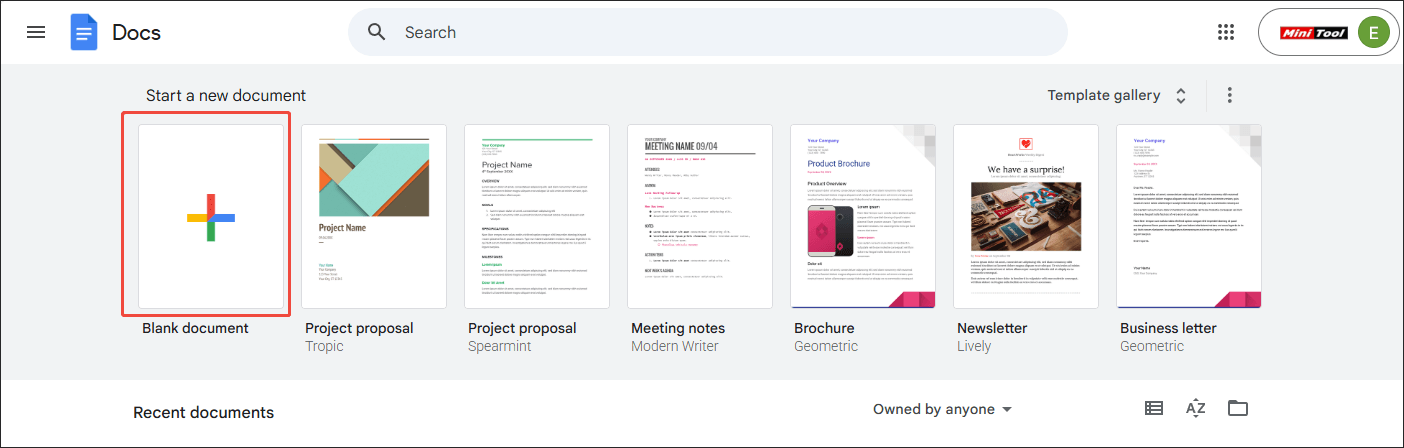
Step 2. Activate the Transcription Function
Expand the Tools option and click on the Voice typing option to enable the transcription feature.
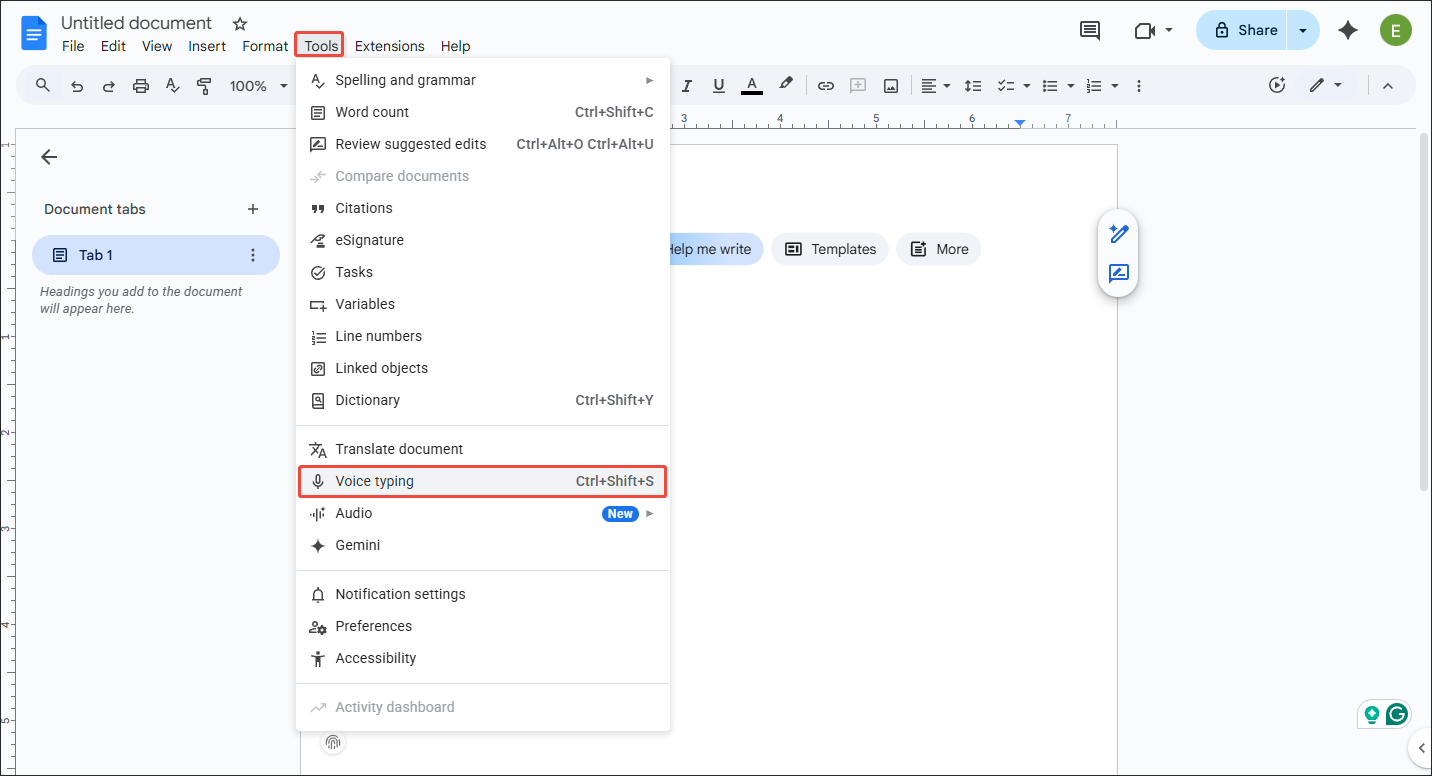
Step 3. Begin Transcription
Click on the Microphone icon to start the transcription process. Next, play SWF videos with a media player (the VLC media player is highly recommended). Then, the text will automatically appear in the document. According to the transcription result, determine whether to edit the text or not.

Undoubtedly, Google Docs enables you to get text from SWF videos easily and quickly. However, it doesn’t offer you many output text formats.
Bonus: How to Convert Other Videos to Text
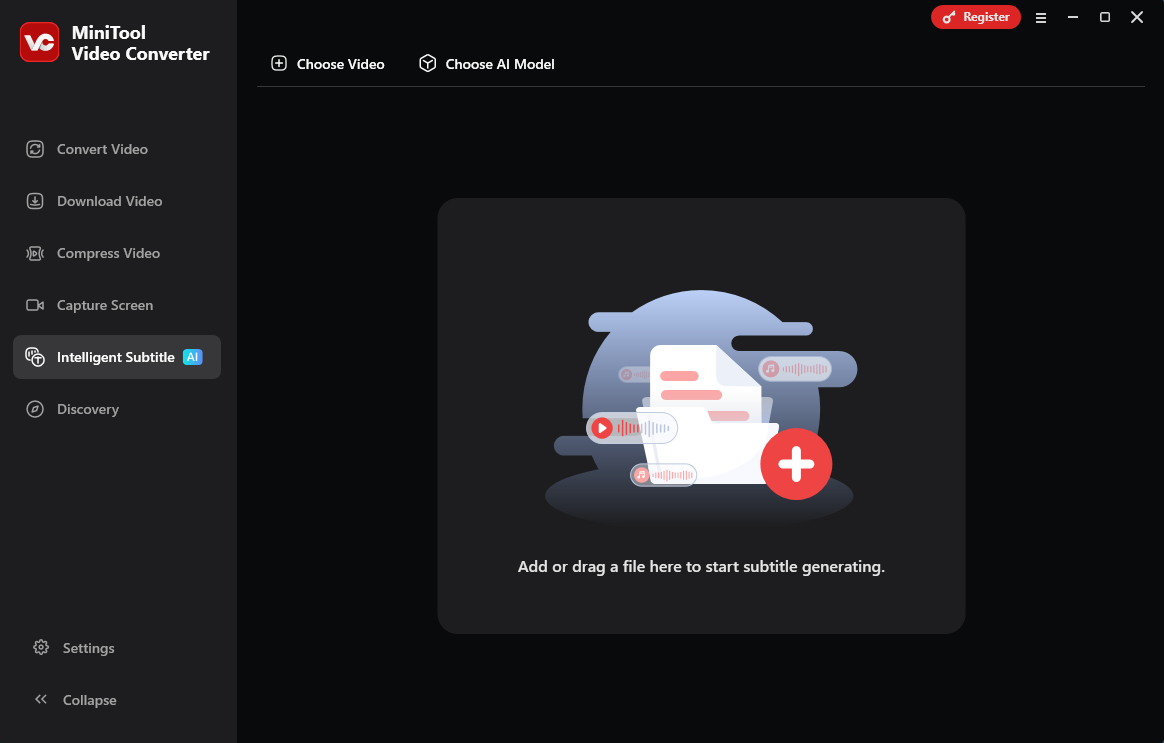
Do you want to convert other videos/audio to text? If yes, MiniTool Video Converter can help! It enables you to transcribe a wide range of video/audio formats, including MP4, MP3, MKV, WAV, MOV, and more. In addition, MiniTool Video Converter empowers you to accomplish the transcription tasks for free.
Featuring an intuitive interface, MiniTool Video Converter is accessible to users ranging from novices to experts. Its Basic Mode is always available for free users.
MiniTool Video ConverterClick to Download100%Clean & Safe
Final Words
If you want to convert SWF to text, both HappyScribe and Google Docs can help! The former one is suitable for those who want more output formats. The latter one is for people who don’t want to be bothered by a limited trial period. Provided that you want to transcribe other videos or audio, never miss MiniTool Video Converter.
User Comments :