

This post explains how to transcribe FLV to text using 2 video to text converters: MiniTool Video Converter and Transcri.io. Simply upload your FLV video, and the transcription starts immediately- no complex settings.
What Is FLV
FLV (Flash Video) is a digital container file format primarily used for storing and transmitting digital video content, such as television programs, videos, and movies. There are 2 Flash Video file formats: FLV and F4V. The audio and video data in FLV files are encoded with the same method as SWF files. FLV typically uses the H.264 video codec and the HE-AAC audio codec.
However, FLV has limitations, as many operating systems cannot play FLV videos directly. It can only be viewed using Adobe Flash Player, browser plug-ins, or third-party programs.
If you want to understand the key points of an FLV video more quickly, you can convert it to text, which is faster than watching the video, allowing you to find what you need more efficiently. Moreover, converting FLV videos to text makes the video accessible to people with hearing impairments.
How to Convert FLV to Text
Fast Track Steps:
- Open the target transcription tool.
- Upload your FLV file.
- Wait for the transcription.
- Edit and save the transcript.
Want to convert FLV to text? Below are 2 top-grade FLV to text converters, including MiniTool Video Converter and Transcri.io. Here is a quick comparison table:
| Tool | MiniTool Video Converter | Transcri.io |
| Price | A free basic model + two paid ones | Free (with file limits) |
| Platform | Windows (local) | Web-based |
| File size limit | No limit | Max 20MB |
| Privacy | Processed locally, no upload | Requires upload |
| Output formats | SRT / TXT | Multiple formats |
| Editable text | Supports sentence-by-sentence editing | Limited |
| Export video with subtitles | Supported | No |
Method 1. Use MiniTool Video Converter
MiniTool Video Converter is a powerful text generator. It uses artificial intelligence to recognize audio, enhancing recognition accuracy. It supports various video/audio to text conversions, such as FLV to text, 3GP to text, WMV to text, AIFF to text, etc. The software offers 3 models for this task, including the free Basic model and 2 paid models.
Best of all, the software also lets you edit the transcript and export it as a Text file or SRT file. In addition, it doesn’t have watermarks, ads, or bundles. It is also 100% safe and clean.
 MiniTool Video Converter
-
 Batch convert video/audio files among 1000+ formats.
- Quickly compress videos for easy storage and transfer.
- Accurately extract subtitles from video/audio files.
- Effectively enhance video quality.
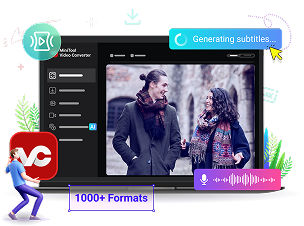
Here is how to convert FLV to text with MiniTool Video Converter.
1. Download and Install
Download and install the FLV-to-text converter on your PC.
2. Choose an AI Model and Import the Video
Launch the software and switch to the Intelligent Subtitle tab. Then, click the Choose Video option to trigger the Choose AI Model window.
In the Choose AI Model window, choose a model according to your needs. Here, I choose Basic Model and click OK to apply the settings. Then, the Import Media window will automatically pop up. There, import your FLV video.

3. Edit the Text
When the FLV import completes, move to the right side of the Player window. There, under the Text tab, you can click the Edit icons to modify the subtitles.

Switch to the Style tab. There, you can customize the font, outline width, opacity, background color, and position of the subtitles.
4. Specify the Output Settings
Check the Export Subtitle and the Export Video options. Then, expand the Export subtitle option to select the output format for the subtitle file.

5. Choose a Storage Location and Begin the Export Process
Expand the Output option at the bottom to choose a storage location for the output files. Then, click on the Export button to begin the export process.
6. Check the Output Files
Once the file export process ends, the output folder will pop up. Then, check the output subtitle and video file.
MiniTool Video Converter converts FLV to text very conveniently and quickly.Click to Tweet
Method 2. Use Transcri.io
Transcri.io is an online transcription software that supports FLV to text conversion. It uses AI power to recognize the audio accurately. What’s more, Transcri.io supports various languages, providing users with a wider range of transcription and translation content. Furthermore, it supports FLV to text conversion for non-logged-in users with a maximum file size of 20MB.
The following is about FLV to text conversion with Transcri.io.
1. Open Transcri.io’s Homepage
Visit https://transcri.io/en/video-to-text/flv-to-txt to open Transcri.io’s homepage.
2. Upload the FLV Video
Click the Choose a file option to upload the FLV video.
3. Start the Conversion Process
Click the Convert button to start the conversion process.

4. Download the Text File
When the conversion process completes, click the Download icon to enter the Download window.

In the Download window, expand the Choose the file type to download option to choose a format for the converted file. Then, click on the Download button to save the converted file.
Final Thoughts
It is easy to transcribe FLV to text in MiniTool Video Converter and Transcri.io on your PC. To transcribe small video files under 20MB, Transcri.io is a can’t-miss tool, and use MiniTool Video Converter to convert larger FLV files to text.
If you have any problems while using MiniTool Video Converter, contact the support team at support@minitool.com for help.
People Also Ask
1. Open a blank document in Word for the web.
2. Go to the Home tab, click the drop-down arrow next to Dictate, and select Transcribe.
3. Choose your preferred spoken language from the drop-down.
4. Select Upload audio and add your MP4 file from your computer.
5. Keep the Transcribe pane open while Word converts the audio to text.
6. Review and edit the generated transcript.
7. Click Add all to document to insert the transcript.
1. Under the Convert Video tab, click Add Files at the top to add the target FLV file.
2. Click the Settings icon on the right side.
3. Go to the Audio tab, select MP3 on the left sidebar, and click the desired preset.
4. Click Convert to start the conversion task.
About The Author

Position: Columnist
Cora is a tech writer specializing in digital media workflows, with over six years of hands-on experience in video post-production, media transcoding, and screen capture. Her writing is always clear and practical. Cora also produces in-depth software reviews for users across skill levels to help them find the right tool and enjoy video editing.
User Comments :