

This article walks you through the reasons for transcribing website audio. Meanwhile, it shows you how to transcribe website audio to text with 2 powerful tools, including Google Docs (Online) and MiniTool Video Converter (Offline).
Why Transcribe Website Audio to Text
Website audio transcription helps attract more audience, such as those who prefer reading or are hearing-impaired. In addition, such transcription matches SEO well, since a search engine reads text instead of audio.
Moreover, the transcription from the website audio to text helps you repurpose the content. For instance, you can refer to the text in your articles or use the text as the video captions. Plus, the transcription enables you to grasp the key points of the text effortlessly.
How to Transcribe Website Audio to Text Online
If you want an online method to transcribe website audio to text, you can use Google Docs. Developed by Google, it is an online word processor. With Google Docs, you can create, edit, or collaborate on documents without hassle. More importantly, this tool offers a built-in function to transcribe website audio with simple clicks.
Below is a step-by-step tutorial on how to transcribe website audio to text using Google Docs.
Step 1. Log in to Your Google Docs Account
Visit https://docs.google.com/document/u/1/?pli=1&tgif=d.
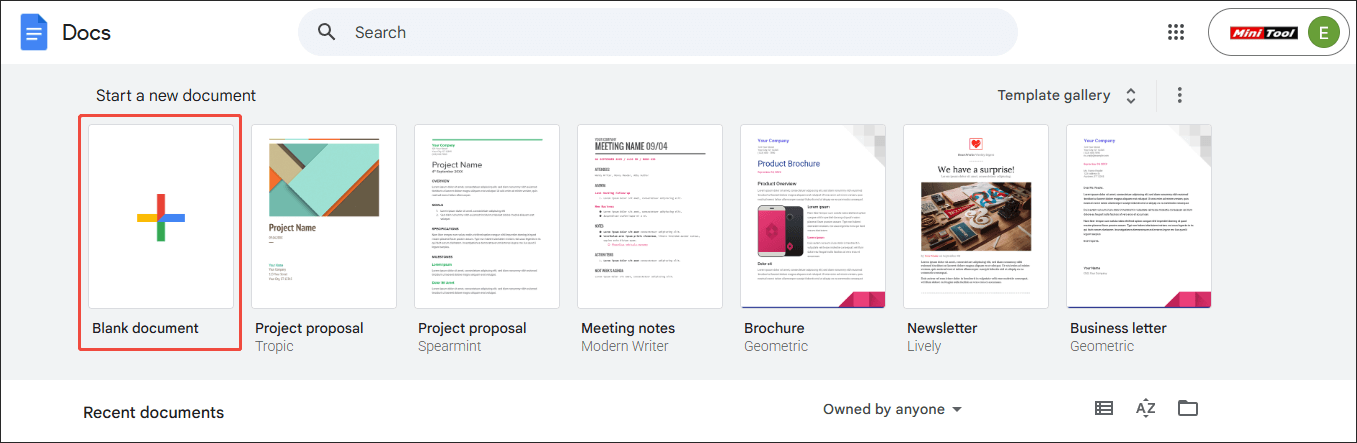
Step 2. Create a Word Document
Click on the Blank document option to create a Word document.
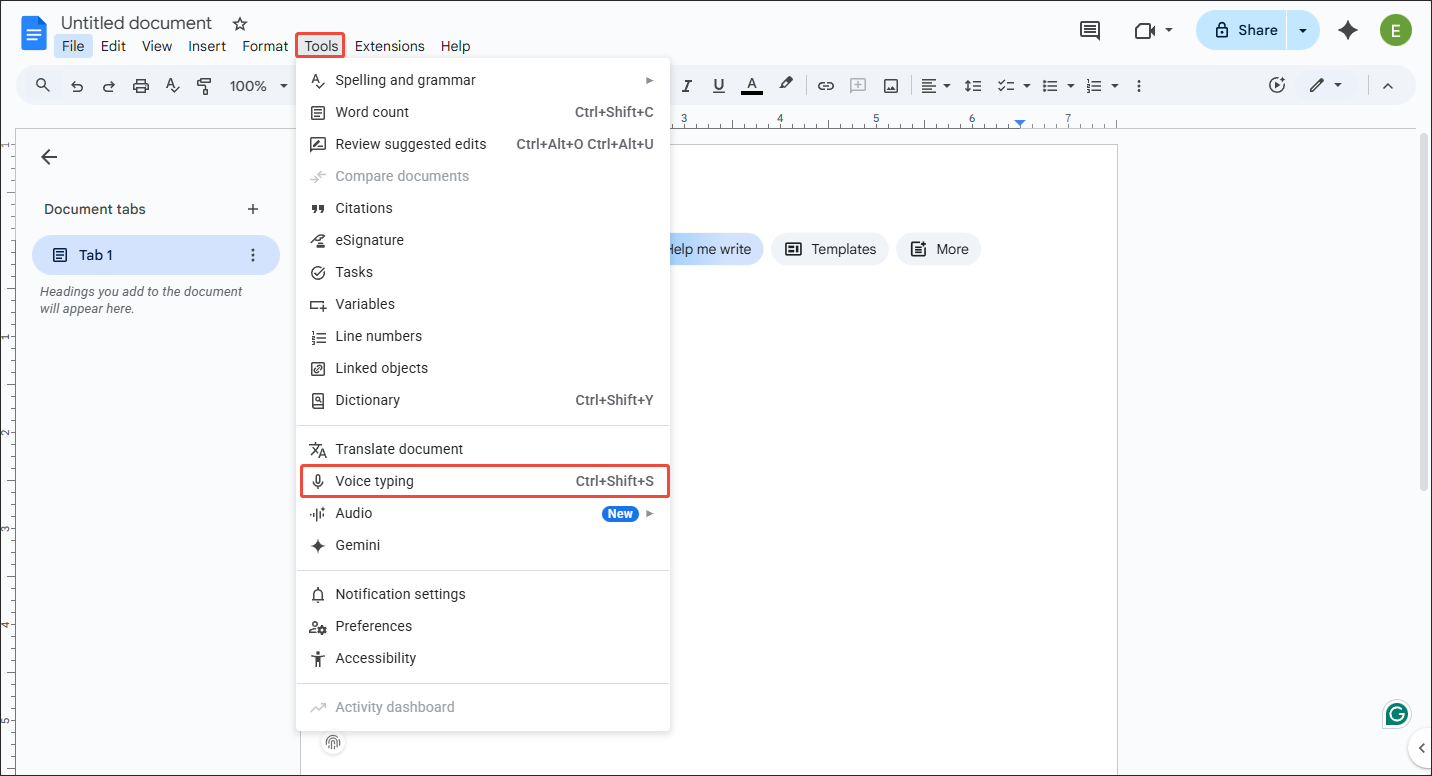
Step 3. Enable the Transcription Function
Expand the upper Tools option and choose Voice typing to enable the transcription feature.
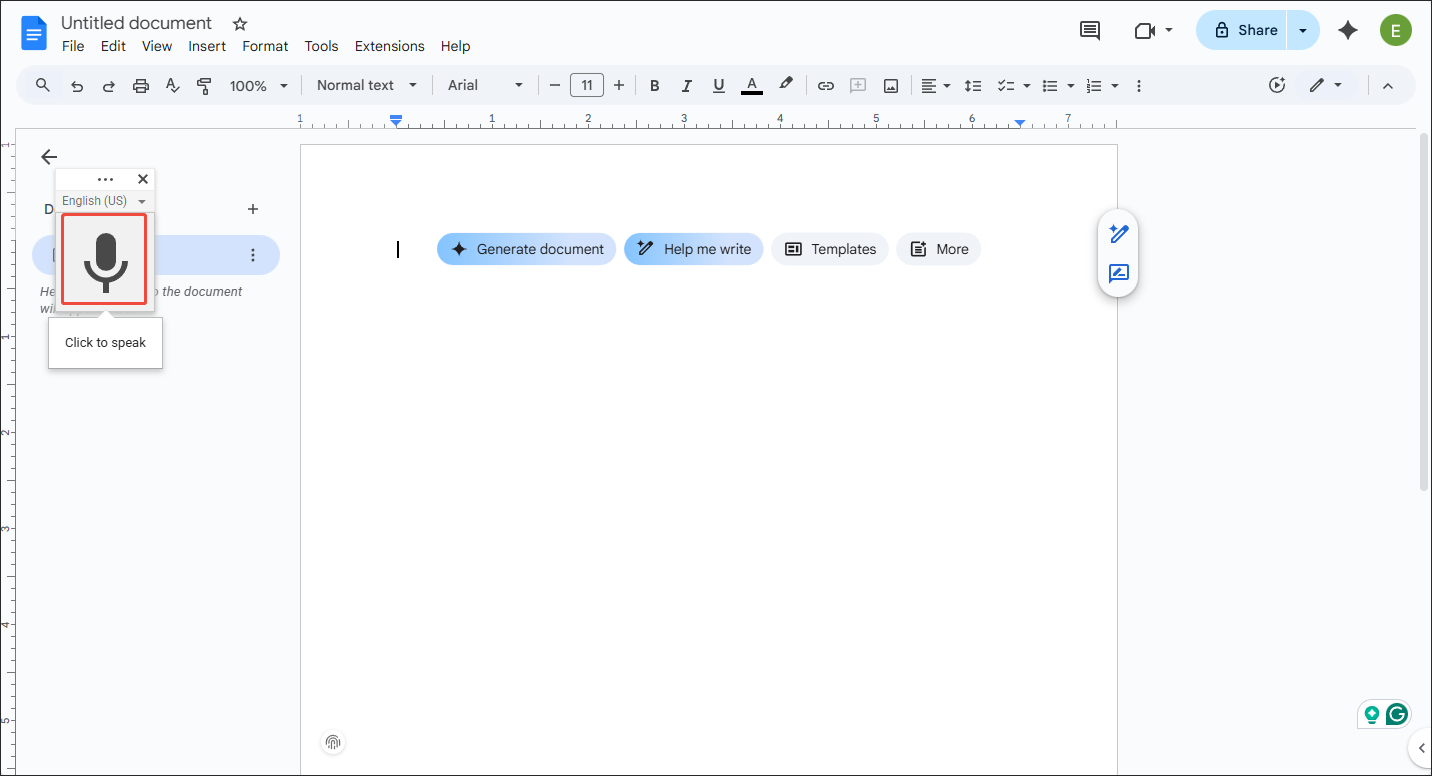
Step 4. Start the Transcription Process
Click on the Microphone icon to begin the transcription process. Then, play the website audio that you want transcribed. Next, you will see the text that pops up automatically.
With the above-detailed steps, you can get text from any website audio with simple clicks.
How to Transcribe Website Audio to Text Offline
If you want an offline solution, MiniTool Video Converter can be a good choice.
Why Use MiniTool Video Converter
As a free video/audio-to-text converter, MiniTool Video Converter enables you to transcribe a wide range of audio/video files, including MP3, MP4, WAV, MKV, WMA, MOV, and so on. Meanwhile, it emphasizes accuracy and conversion speed. As such, with MiniTool Video Converter, you can transcribe website audio to text more efficiently.
There is no file size limit for any free users. With an intuitive interface, MiniTool Video Converter enables all novices to transcribe the website audio easily and quickly. Even if you want to save the website audio in different text formats, this application can meet your needs.
How to Transcribe Website Audio to Text with MiniTool Video Converter
Before the audio transcription, remember to download or record the website audio as a single file. Below are the detailed instructions on how to transcribe website audio to text using MiniTool Video Converter.
Step 1. Download and Install MiniTool Video Converter
MiniTool Video ConverterClick to Download100%Clean & Safe
Click on the download button above to download and install MiniTool Video Converter on your PC.
Step 2. Choose an AI Mode and Import the Website Audio File
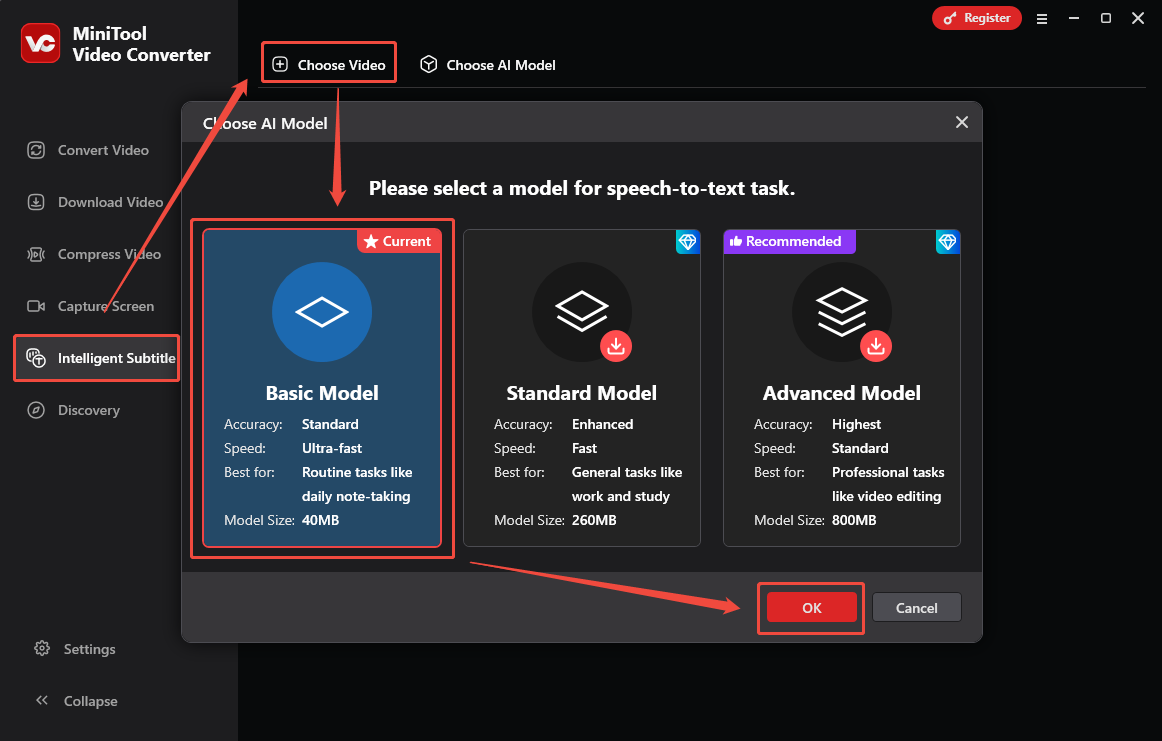
After launching MiniTool Video Converter, switch to the Intelligent Subtitle tab. There, click on the upper-left Choose Video option to enter the Choose AI Model window. There, choose among Basic Model, Standard Model, and Advanced Model. Here, I select the Basic Model as an example. Next, click on the OK button to download that model.
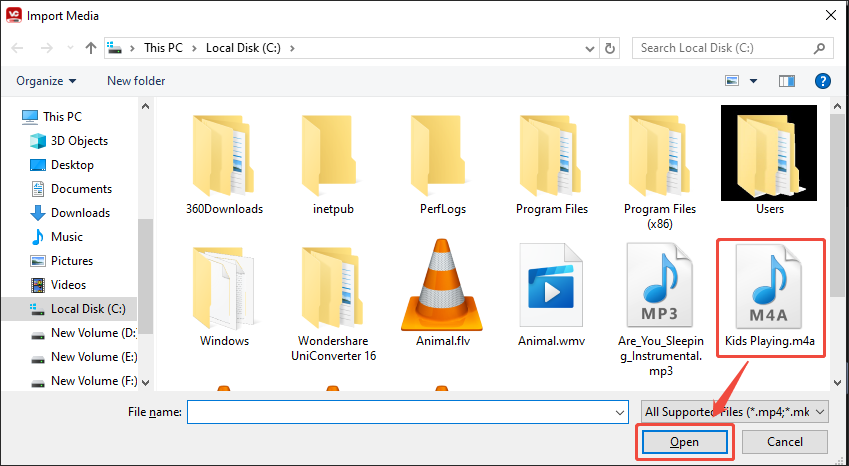
When the download process ends, the Import Media window will pop up. Then, select the website audio file and import it into this program.
Step 3. Edit the Text
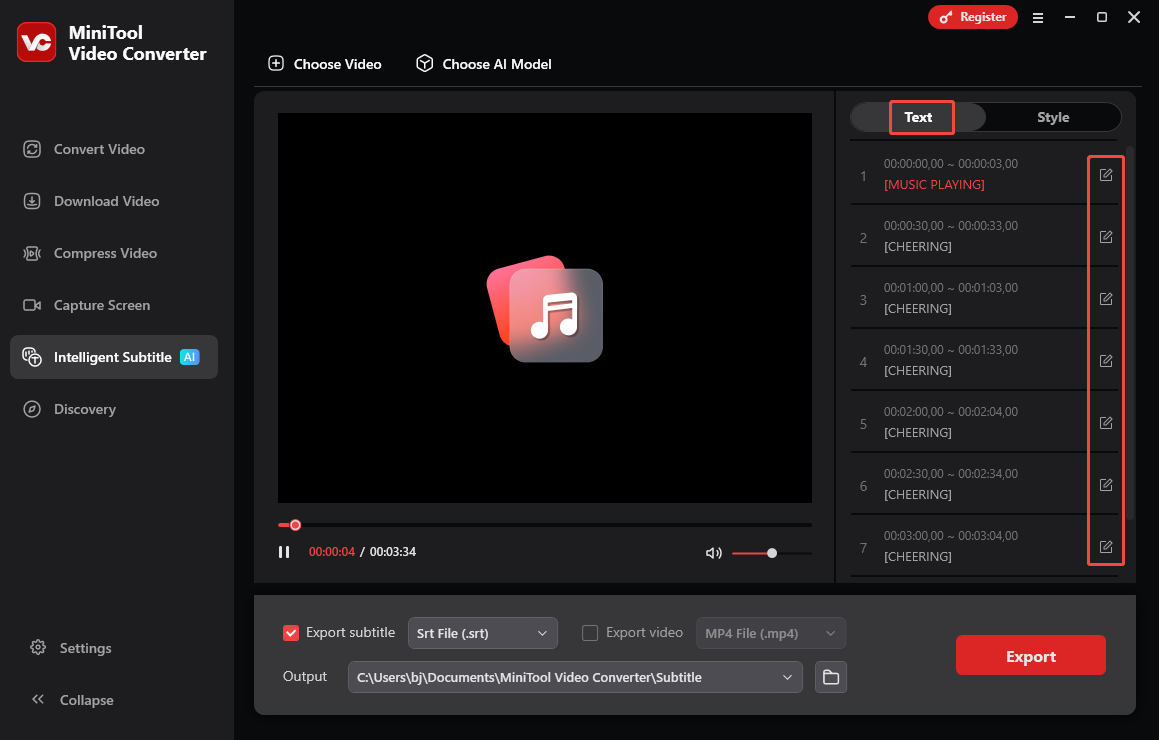
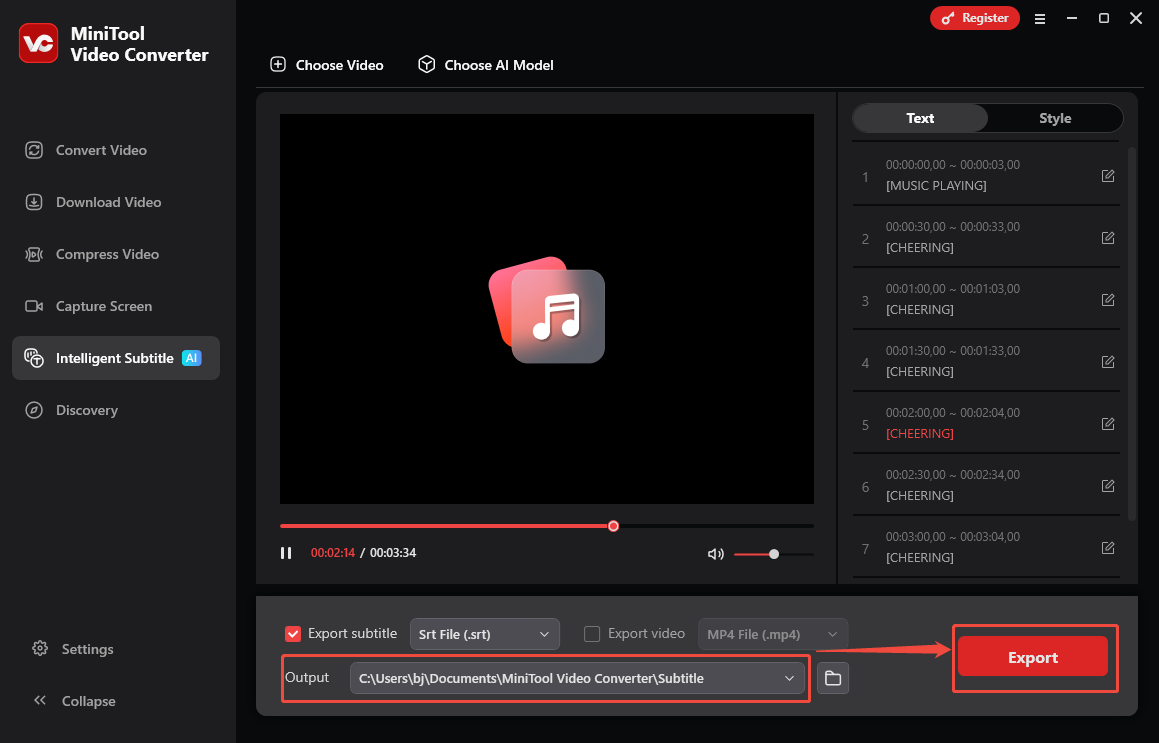
When the file upload ends, navigate to the Text tab. There, click on the Edit icons to edit the text based on your needs.
Step 4. Set the Output Format and Choose a Saving Path
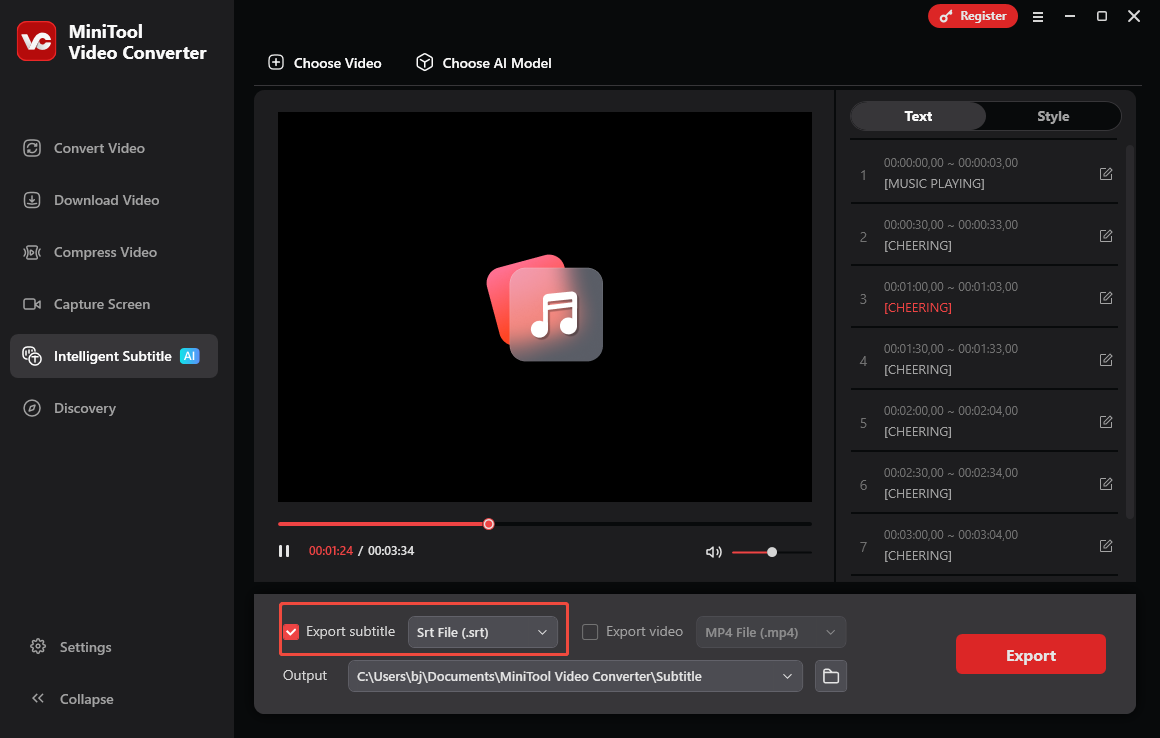
Expand the Export subtitle option to choose an output format for the text file. Both SRT and TXT are available. Here, I select Srt File (.srt) as an example. Next, expand the bottom Output option to choose a saving path for the converted file.
Step 5. Start Transcription
Begin the transcription process by clicking on the bottom-right Export button. When the transcription process completes, the output folder will pop up automatically. Then, view and check the text file.
As a feature-rich application, MiniTool Video Converter also allows you to convert videos for free. Simultaneously, it empowers you to compress videos without any payment.
Wrapping Up
If you want to transcribe website audio to text without downloading extra software, Google Docs can help. Provided that you emphasize high transcription accuracy, MiniTool Video Converter is a must-have option.
User Comments :