

This post explains how to convert WMA to text with 3 robust audio-to-text converters, including MiniTool Video Converter, HappyScribe, and Google Docs. In just a few clicks, you can generate a transcript of your audio file.
Why Transcribe WMA to Text
WMA (Windows Media Audio) is a proprietary audio format within the Windows Media framework, used for music streaming and storage. Many reasons encourage you to convert WMA to text. WMA transcriptions provide you with a wider audience base. For example, some people who lost their hearing can’t grasp the key point of the audio file. If you convert the WMA files to text, these audio files can be more understandable for them.
In addition, subtitle embedding is important to make your videos more accessible to the viewers. Hence, in the process of adding subtitles to your videos, if the subtitle information is saved in a WMA audio file. It is necessary for you to convert a WMA file to text.
On the other hand, to reach a new audience, you may want to share your WMA file on other platforms, such as Blogger and Medium. In this background, you need to save the WMA audio in text format, like SRT, TXT, and more.
For some translators, WMA transcription also enables an easier translation process. Generally speaking, it is easier to translate the text directly than audio. Therefore, if you are translating some information in WMA files, you’d better transcribe them first. You can even use the text to create new audio files in different languages.
How to Convert WMA to Text
In this section, I will recommend 3 powerful WMA-to-text converters: MiniTool Video Converter, HappyScribe, and Google Docs.
| Tool | MiniTool Video Converter | HappyScribe | Google Docs |
| Price | A free basic model + two paid ones | Paid (free quota to be verified) | Free |
| Platform | Windows (local) | Web (online) | Browser |
| Privacy | Local processing, no upload | 256-bit SSL encryption | Requires upload / real-time |
| Output Format | SRT / TXT | Multiple formats | Text |
| Language Support | Multiple languages | 120+ languages | Multiple languages |
| Transcription Type | File transcription | File transcription | Real-time transcription |
| Editable Text | Sentence-by-sentence editing | Supported | Supported |
Option 1. MiniTool Video Converter (Offline)
Fast Track Steps:
- Install MiniTool Video Converter.
- Select an AI model.
- Import the WMA file.
- Check and edit the transcript.
- Export the file.
MiniTool Video Converter is one of the most professional text converters that you can try. It is a reliable conversion tool that enables you to get text from various audio/video files, including WMA, MP4, MP3, MOV, AIFF, WMV, WAV, AVI, and so on. In addition, it is capable of recognizing multiple languages. Powered by AI, the software can automatically transcribe WMA to text
What’s more, the application features an intuitive interface, which allows beginners to accomplish transcription tasks with simple clicks.
Best of all, the software offers you a completely free AI model, which helps you save more cost for transcribing WMA to text. More importantly, unlike some online converters, it doesn’t set any file size limit for free users.
 MiniTool Video Converter
-
 Batch convert video/audio files among 1000+ formats.
 - Quickly compress videos for easy storage and transfer.
- Accurately extract subtitles from video/audio files.
- Effectively enhance video quality.

Below is a detailed tutorial on how to transcribe WMA to text
1. Download and install
Download and install this WMA-to-text converter on your PC.
2. Choose an AI model and import the WMA file.
After launching the program, switch to the Intelligent Subtitle module. There, click the Choose Video option to enter the Choose AI Model window. Next, choose the AI model you want. Here, I select the Basic Model and click the OK button to download it.
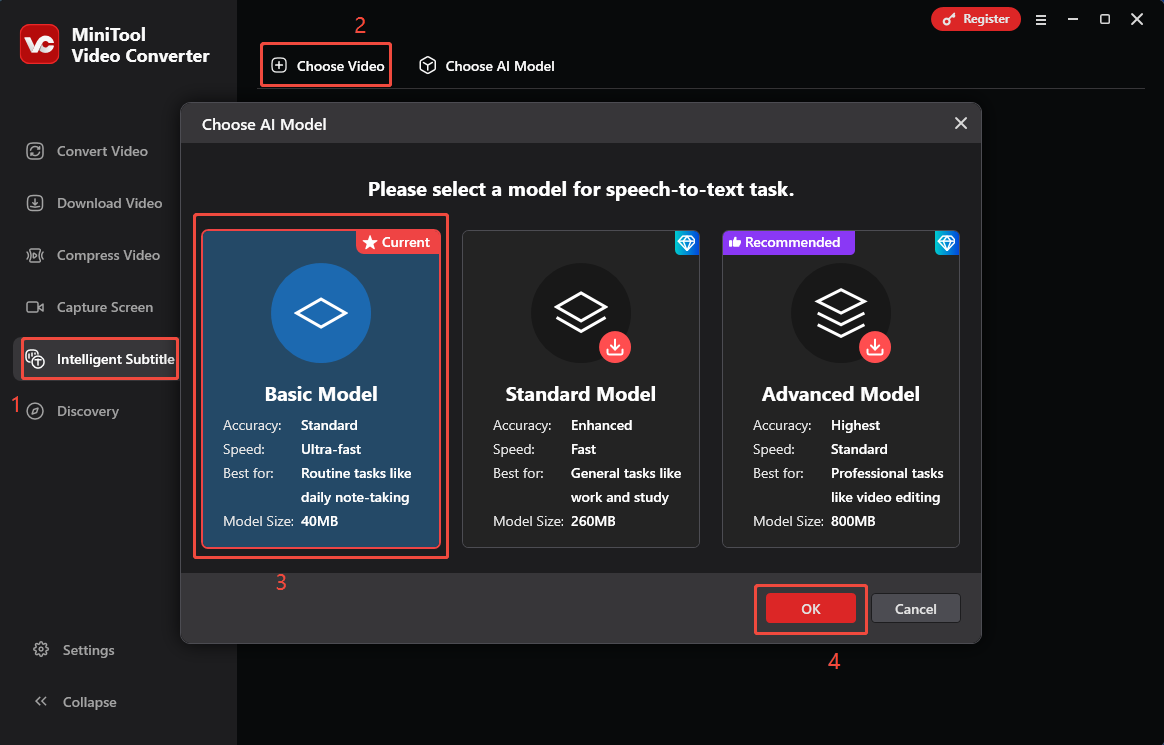
When the download process ends, you will see a pop-up Import Media window. There, select the WMA file and import it into the converter.
3. Edit the text and set the output format.
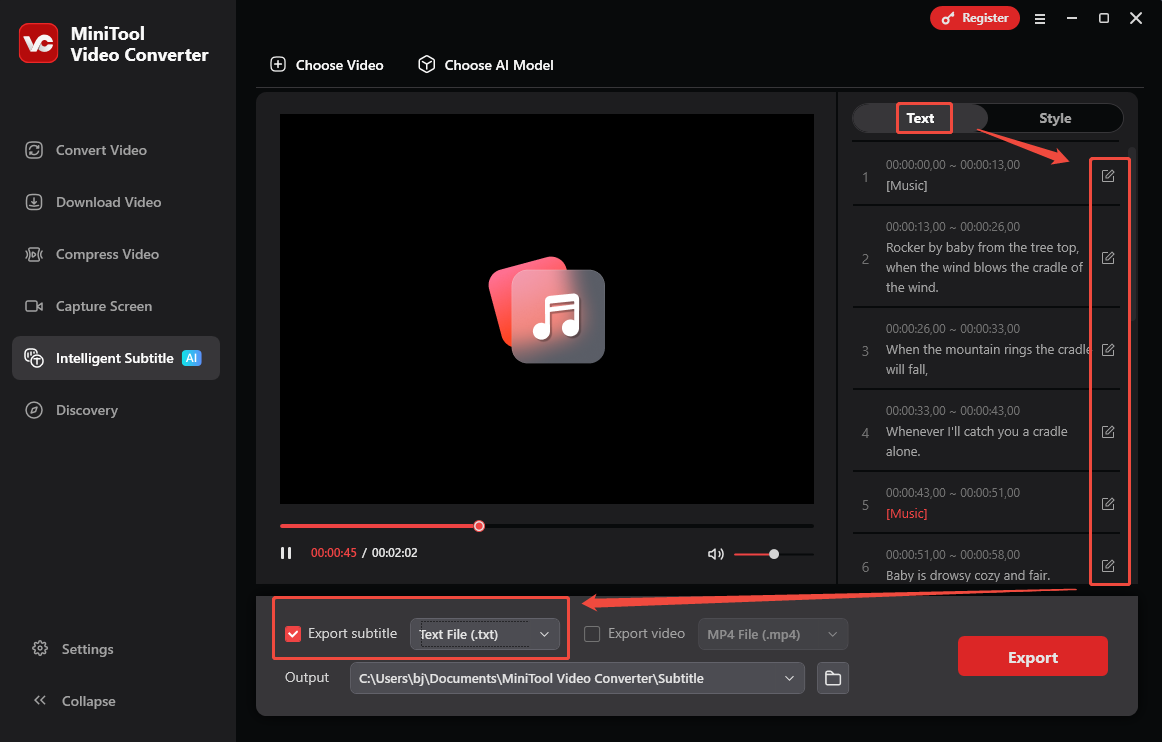
When the file upload ends, you will see a text list. There, click the Edit icons under the Text tab. Then, you can edit the text based on your needs. Next, expand the bottom Export subtitle option to set the output format (Both SRT and TXT are available). Here, I choose Text File (.txt) as an example.
4. Set an output folder and start transcription.
Expand the bottom Output option to choose a destination folder for the text file. Then, click on the bottom-right Export button. When the transcription process completes, the output folder will pop up automatically. Next, you can view and check the output file.
With these detailed steps, it will never be difficult for you to convert WMA files to text. More than a free WMA to text converter, MiniTool Video Converter is also a watermark-free video compressor that empowers you to reduce the video file size without hassle.
Option 2. HappyScribe (Online)
Fast Track Steps:
- Upload the WMA file to HappyScribe.
- Select the transcription language.
- Wait for the transcription.
- Edit and save the transcript.
Want to get text from WMA without downloading extra software? HappyScribe can help. It is an easy-to-use text converter that supports all kinds of video/audio formats, including WMA, MOV, M4A, MP4, MP3, and more. Simultaneously, it offers you 98% accuracy.
More than that, HappyScribe applies 256-bit SSL encryption to protect the uploaded WMA file. Hence, you don’t need to worry about privacy leakage. Additionally, it supports 120+ languages, which helps break the barriers brought by WMA audio files in different languages.
Below is a detailed guide on how to convert WMA to text using HappyScribe.
1. Go to the WMA to Text Converter page of HappyScribe.
Visit https://www.happyscribe.com/convert-wma-to-text. Click on the Upload a file button to import the WMA file
2. Specify the transcription language and start transcription.
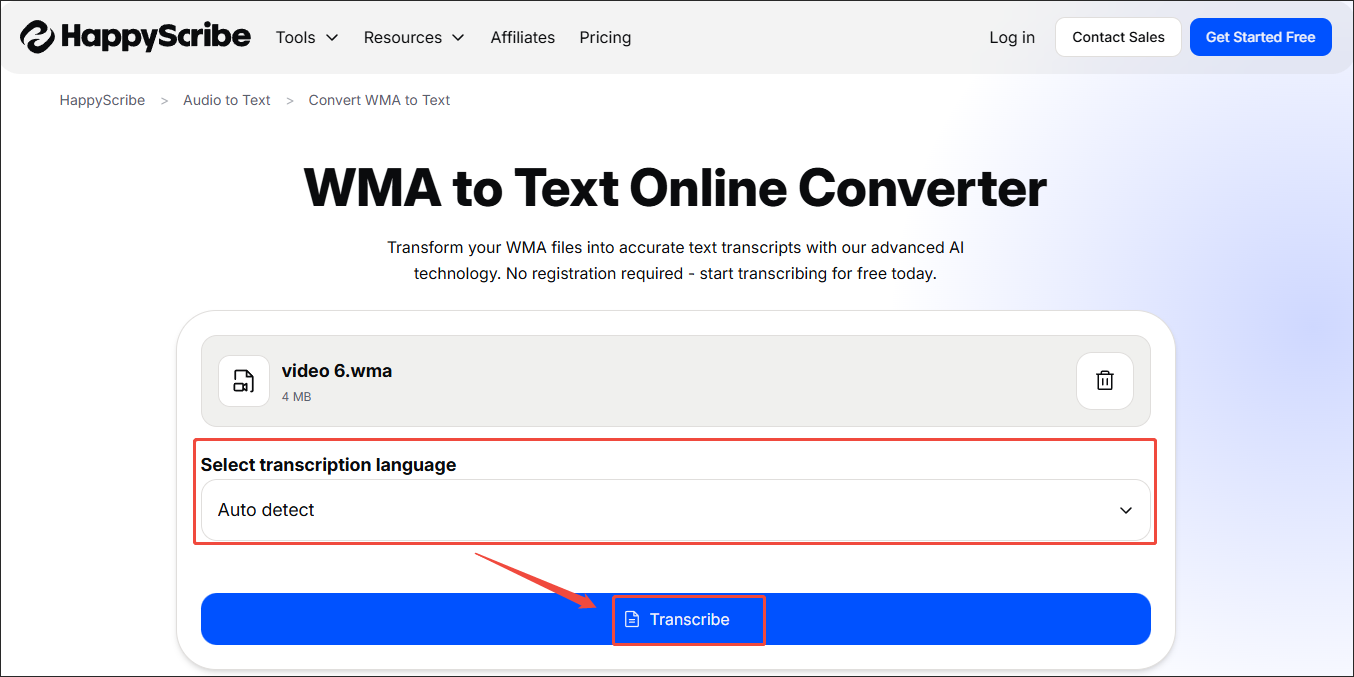
Expand the Select transcription language option to configure the transcription language. Here, I select Auto detect. Then, begin the transcription process by clicking on the Transcribe button.
3. Edit and save the text.
When the transcription process finishes, you will see the text list. Click on the text file you have gotten from the WMA audio to enter the text interface. There, view and check the text content. If you want to edit the text, click on it. Then, click on the upper-right Export option to access the Export window.
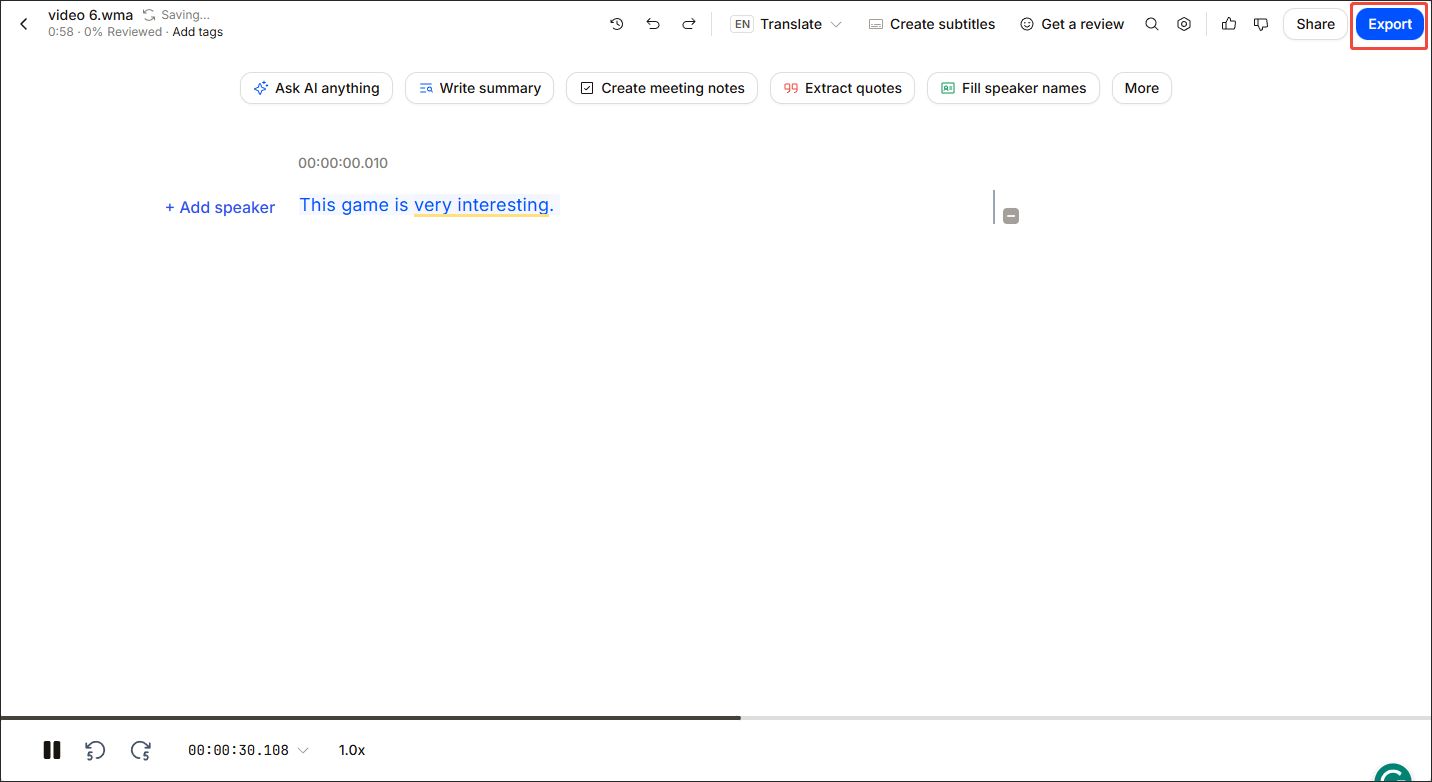
In the pop-up window, expand the Choose your file format option. There, specify the output format. Next, scroll down. Finally, download the text file by clicking on the bottom-right Export file option.
Undoubtedly, HappyScribe is a can’t-miss online WMA to text converter.
Option 3. Google Docs (Online)
Fast Track Steps:
- Open a document in Google Docs.
- Enable Voice typing.
- Allow your browser to access your microphone.
- Choose your language.
- Start speaking, and the transcription starts immediately.
Google Docs is another option that empowers you to get text from WMA. As a free online word processor, it has a built-in transcription function, which enables the automatic conversion from WMA to text. Below is the detailed guidance on how to transcribe WMA using Google Docs.
1. Go to Google Docs and log in to your account.
Visit https://docs.google.com/document/u/0/.
2. Create a new text document.
Click on the Blank document option to enter the text interface.
3. Enable the transcription function and start transcription.
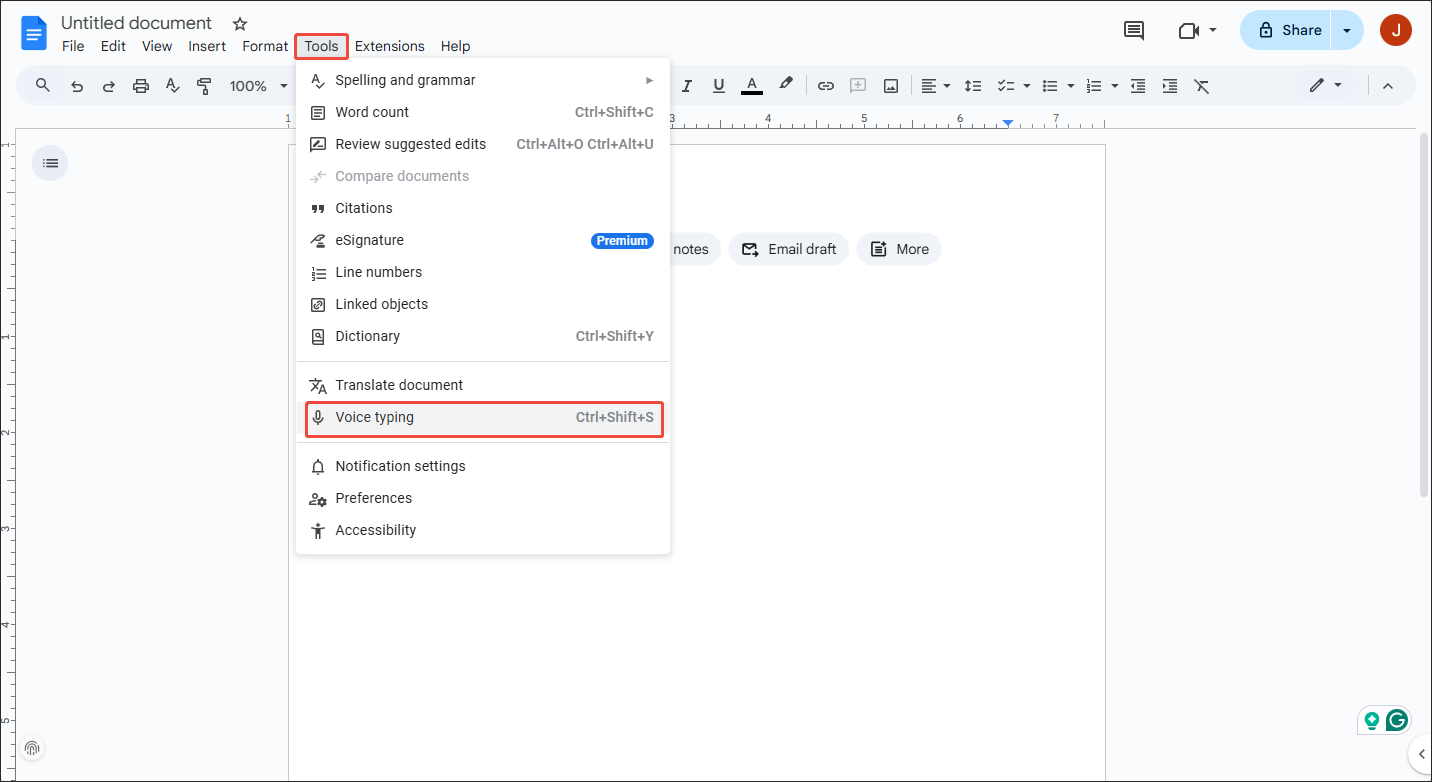
Expand the upper-left Tools option and choose Voice typing to enable the transcription function.
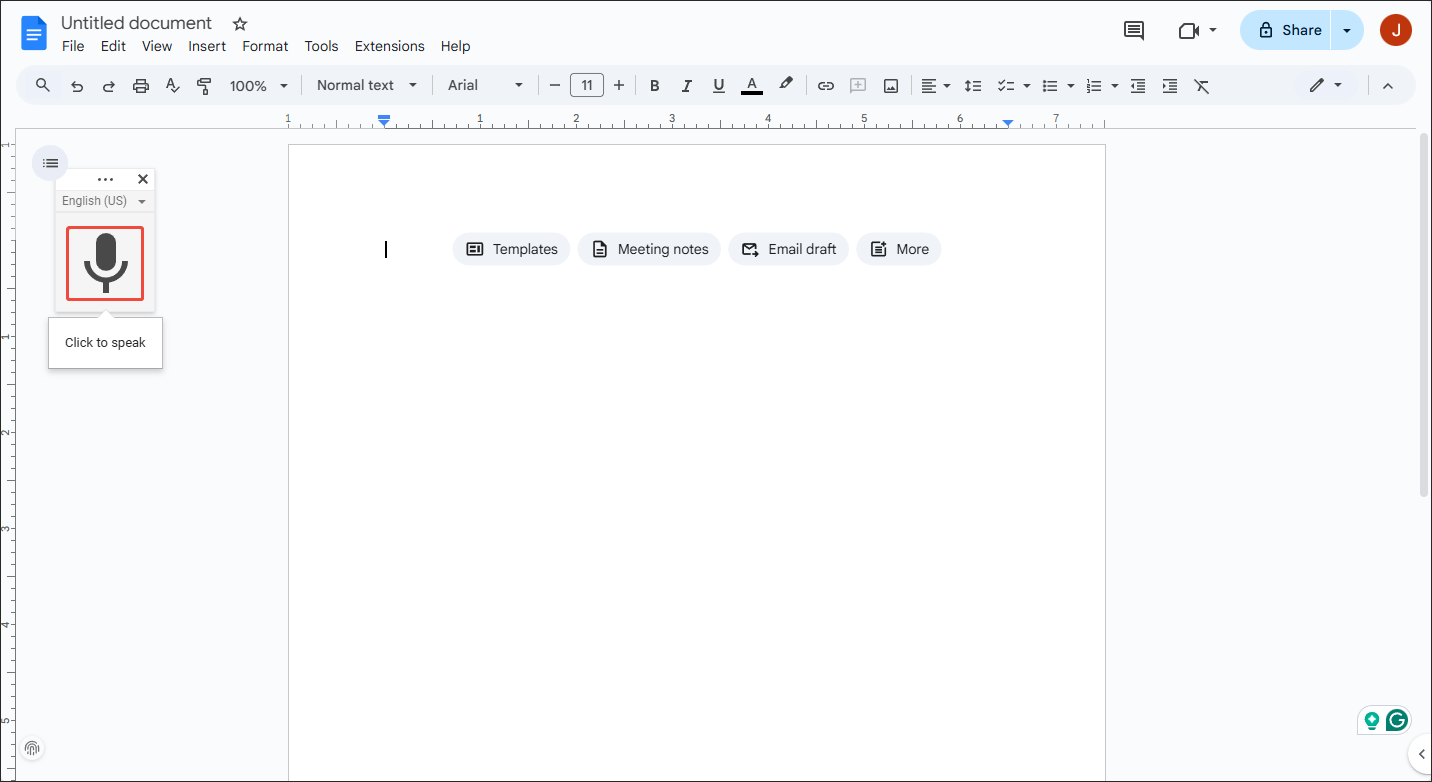
Click on the pop-up Microphone icon and play the WMA file you want to transcribe. When the audio playback process ends, you will see the text appear automatically. Finally, view and save the text on your PC.
As you can see, Google Docs is a reliable WMA to text converter.

To Wrap Things Up
It is easy to transcribe WMA to text with MiniTool Video Converter, HappyScribe, and Google Docs. With several clicks, you can get a transcript of your audio file for better comprehension.
If you encounter any problems when using MiniTool Video Converter, contact the support team at support@minitool.com for help.
People Also Ask
2. Under the Convert Video tab, click Add Files at the top to add the target WMA file.
3. Click the Settings icon on the right side.
4. Go to the Audio tab, select MP3 on the left sidebar, and click the desired preset.
5. Click Convert to start the conversion task.
WMA is created by Microsoft and offers better quality and smaller files at low bitrates (under 128 kbps). This format supports DRM.
Choose MP3 for universal playback and high-quality audio. Choose WMA for low-bitrate efficiency or Windows/DRM use.
About The Author

Position: Columnist
Cora is a tech writer specializing in digital media workflows, with over six years of hands-on experience in video post-production, media transcoding, and screen capture. Her writing is always clear and practical. Cora also produces in-depth software reviews for users across skill levels to help them find the right tool and enjoy video editing.
User Comments :