

This article walks you through the WMV format and clarifies whether WMV is playable on Firefox. Meanwhile, it recommends a fabulous WMV player: VLC, and shows you how to play WMV in Firefox with MiniTool Video Converter (Offline) or CloudConvert (Online).
What Is WMV
Standing for Windows Media Video, WMV is a video format with a compressed nature. Developed by Microsoft, it has much to offer in sustaining the storage of movies, TV episodes, video clips, and animations. In addition, since WMV contains Digital Rights Management, it can be an ideal choice for people who desire copy protection.
Can Firefox Play WMV
Can Firefox play WMV? The answer is no. Specifically, WMV videos apply proprietary codecs from Microsoft. However, Firefox doesn’t give native support for those codecs, which finally leads to WMV videos not playing. To fix that issue, it is workable to convert your WMV videos to a format with better compatibility, like MP4.
If you know little about how to accomplish the conversion tasks, the following paragraphs can help!
Method 1. Use a Third-Party Player
If you want to play WMV without conversion, it is suggested that you download and install a third-party WMV player. Here, I highly recommend the VLC media player. It is compatible with various systems, including Windows, Mac, Linux, Android, and more.

Method 2. Convert WMV for Firefox
Here, I will recommend 2 fabulous WMV to MP4 converters, including MiniTool Video Converter (Offline) and CloudConvert (Online).
Option 1. Use MiniTool Video Converter (Offline)
MiniTool Video Converter is a free video converter that supports batch conversion (up to 5 files can be converted simultaneously). More importantly, it supports various output formats, including MP4, MP3, MKV, AIFF, MOV, WAV, WMV, OGG, M2TS, and more.
Without a file size limit, MiniTool Video Converter empowers you to customize different parameters, including encoder, resolution, frame rate, sample rate, and so on. Below is a step-by-step tutorial on how to convert WMV to MP4 with MiniTool Video Converter.
Step 1. Download and Install MiniTool Video Converter
MiniTool Video ConverterClick to Download100%Clean & Safe
Download MiniTool Video Converter by clicking on the download button above. Then, follow the on-screen prompts to install this WMV to MP4 converter on your PC.
Step 2. Import the WMV Files
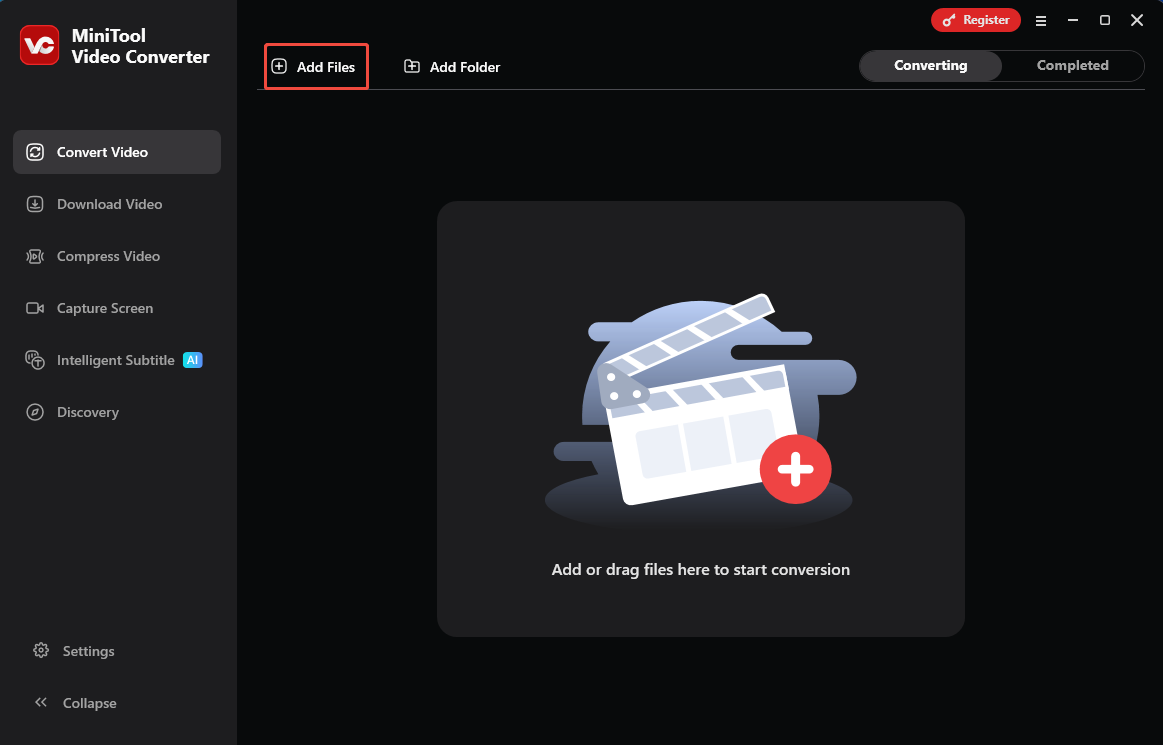
After launching MiniTool Video Converter, import the WMV files by clicking on the upper-left Add Files option.
Step 3. Set MP4 as the Output Format
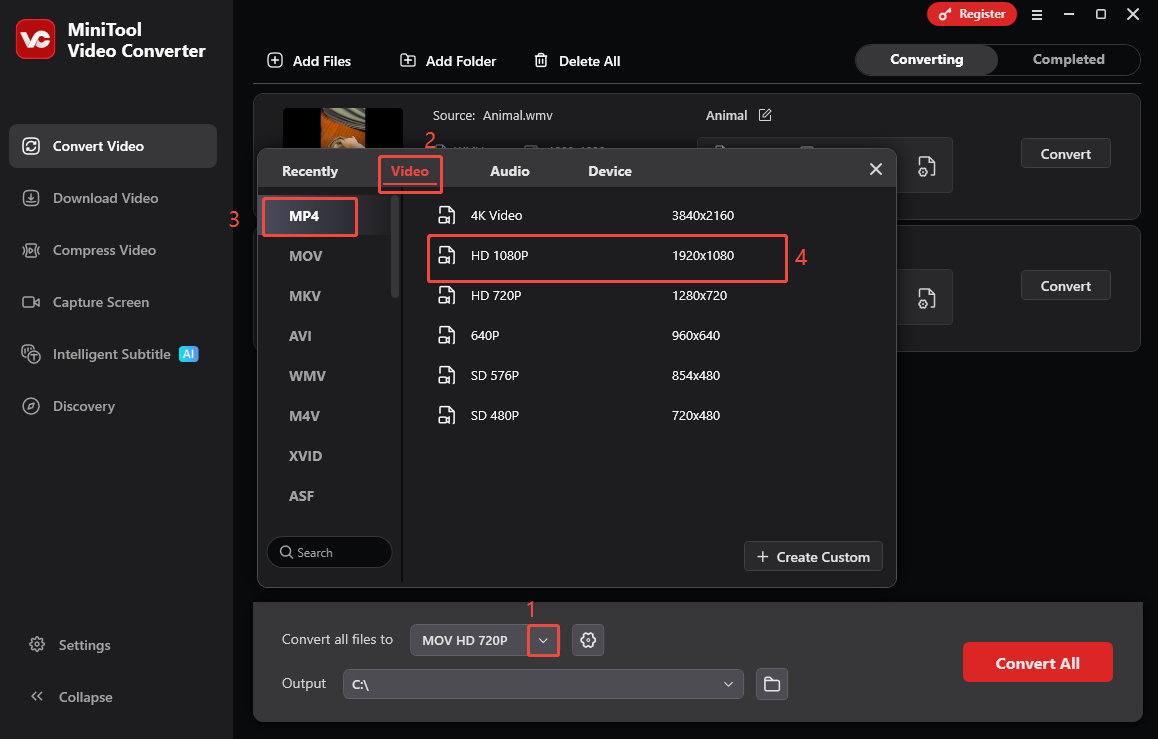
Expand the bottom Convert all files to option to enter the output format window. There, switch to the Video tab. There, click on MP4. Next, choose the resolution you want. Here, I select HD 1080P as the example.
Step 4. Set an Output Folder and Start Conversion
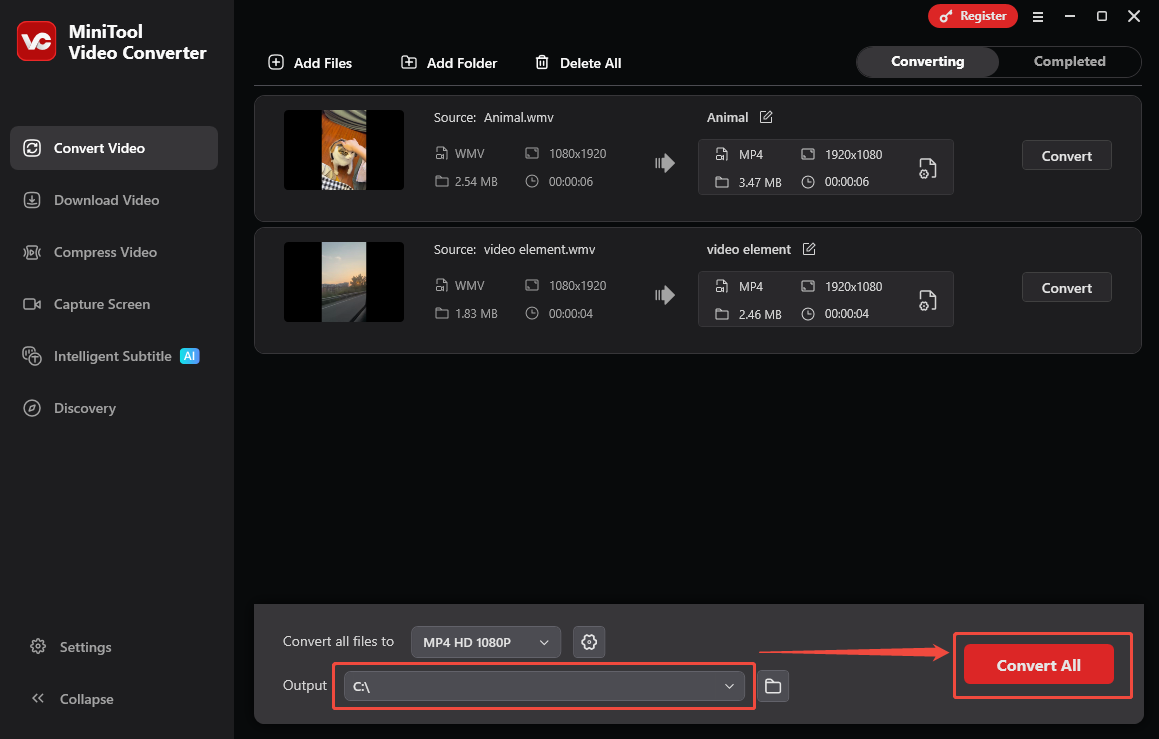
Expand the bottom Output option to choose a saving path for the converted files. Then, click on the bottom-right Convert All button to begin the conversion process.
Step 5. Check the Output Files.
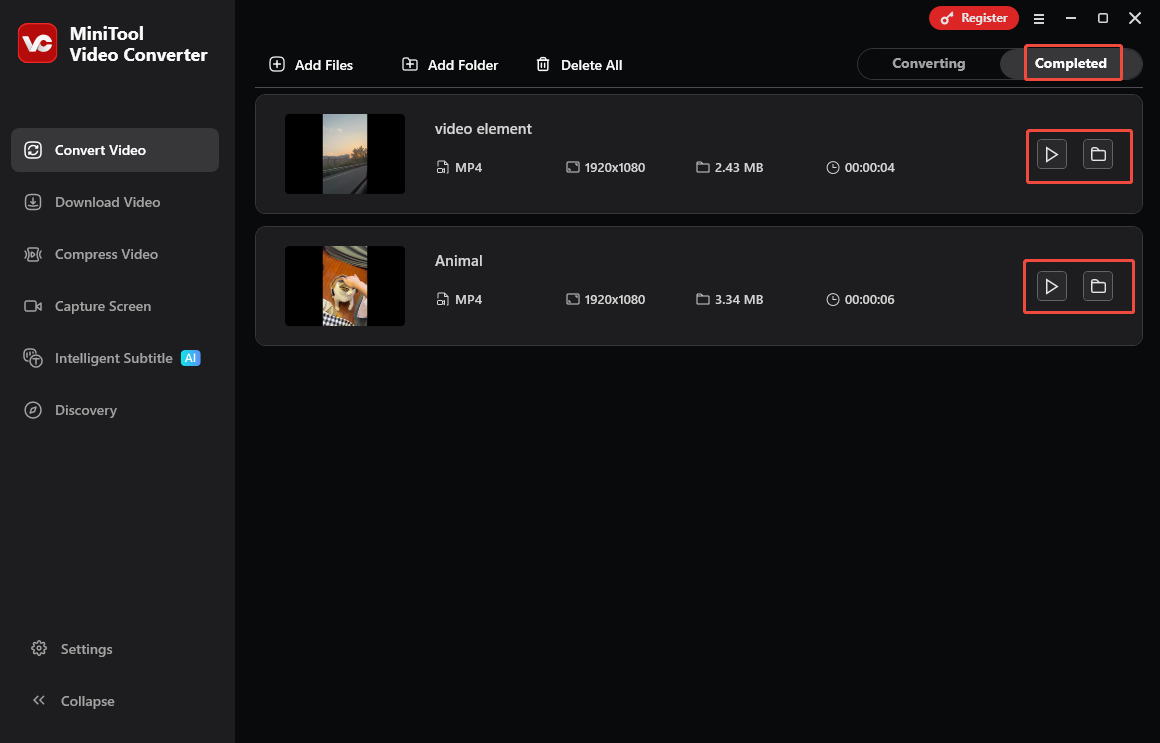
When the file conversion process completes, this video converter will automatically switch to the Completed section. There, click on the Play icon to view the converted files. If you want to locate these files, click on the Folder icon.
More importantly, MiniTool Video Converter is also a versatile application allowing you to transcribe or compress audio/video files with simple clicks.
Option 2. Use CloudConvert (Online)
CloudConvert is a robust online converter that allows you to convert WMV files to a variety of output formats, including MP4, AVI, FLV, MKV, and so on. It enables you to upload WMV files from different sources, including Google Drive, Dropbox, OneDrive, and more. Furthermore, it has an intuitive interface and is suitable for entry-level users.
Below is a detailed guide on how to convert WMV to MP4 using CloudConvert.
Step 1. Go to the WMV to MP4 Converter page of Convertio.
Visit https://cloudconvert.com/wmv-to-mp4.
Step 2. Import the WMV files.
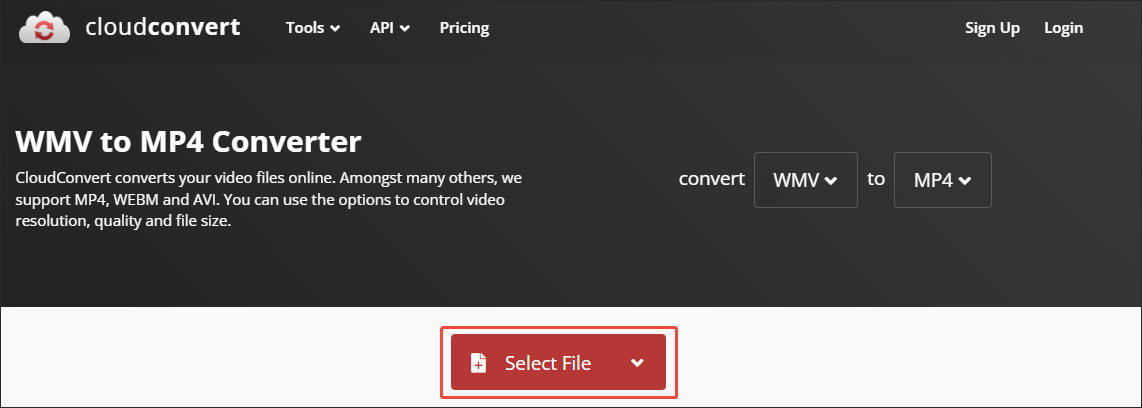
Click on the Select File button to upload the WMV videos that you want to convert.
Step 3. Configure the conversion settings.
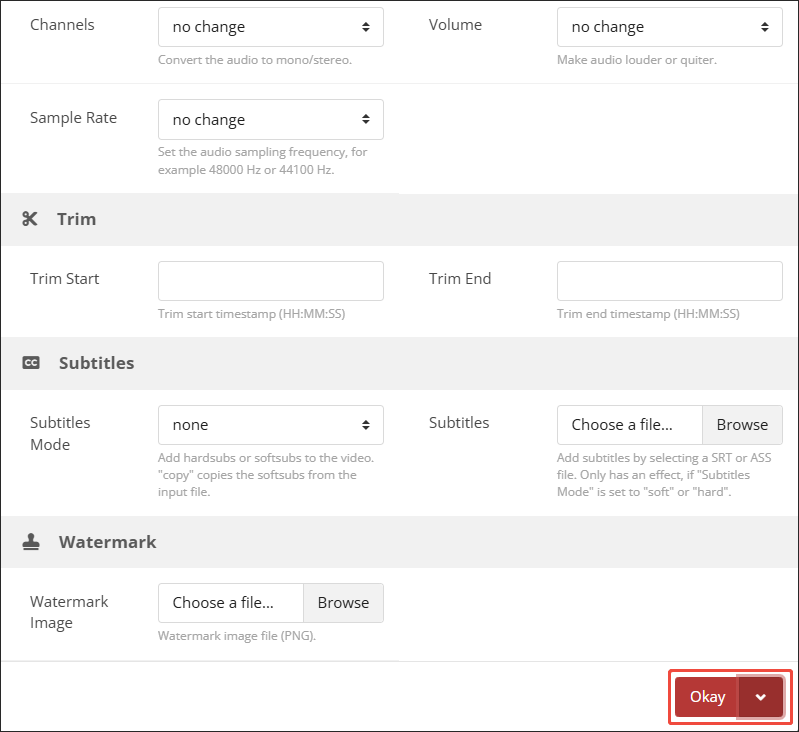
Click on the wrench icon to access the Options window. There, you can customize a lot of parameters, like video codec, resolution, aspect ratio, and more. Finally, click on the bottom-right Okay button
Step 4. Start conversion and check the converted files.
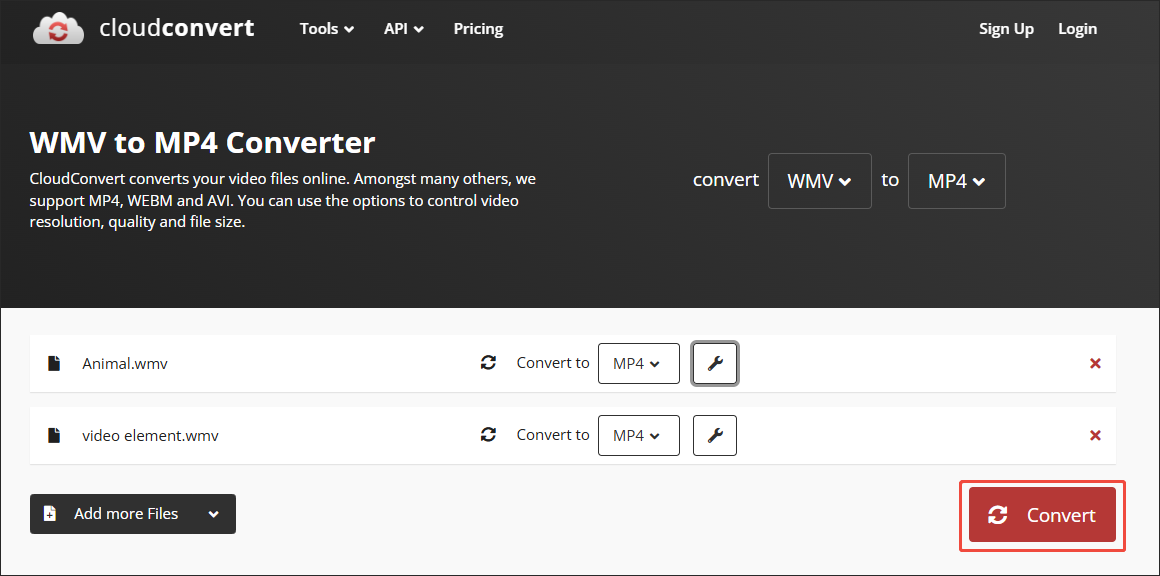
Click on the Convert button to start the conversion process. When the file conversion process finishes, download and check the output files.
As you can see, CloudConvert is a great tool that helps you play WMV in Firefox.
In Summary
To play WMV without conversion, you can directly download the VLC media player on your PC. To play WMV in Firefox, you can convert your WMV videos to a Firefox-supported MP4 with MiniTool Video Converter (Offline) or CloudConvert (Online).
User Comments :