

This article walks you through Ren’Py and clarifies does Ren’Py support MP4. Meanwhile, it shows you how to convert MP4 to Ren’Py-supported WEBM with MiniTool Video Converter (Offline) or Convertio (Online).
What Is Ren’Py
With an open-source nature, Ren’Py refers to a game engine that never costs you a dime. It enables you to create games and novels. In addition, Ren’Py shows great compatibility with Windows, Linux, macOS, iOS, and Android. It also enables you to view various videos.
Can Ren’Py Play MP4
Does Ren’Py support MP4 files? No, the answer is negative. Specifically, Ren’Py lacks support for the MP4 codecs, like H.264. To solve that problem, you can try to convert MP4 videos to a Ren’Py-supported format, including WEBM (Opus/VP9), and MKV (VP8/VP9/Theora). If you don’t know how to convert the MP4 videos, the following content can help!
How to Solve the Problem of Ren’Py Not Playing MP4
2 amazing tools, including MiniTool Video Converter (Offline) and Convertio (Online), enable you to fix the issue that Ren’Py won’t play MP4 effortlessly.
Option 1. MiniTool Video Converter (Offline)
I have used MiniTool Video Converter for many years. It supports various conversion tasks, including MP4 to WEBM, MP4 to MKV, AVI to MP4, AIFF to MP3, and so on. More importantly, MiniTool Video Converter allows for batch conversion, empowering you to convert up to 5 MP4 videos simultaneously.
Plus, MiniTool Video Converter doesn’t require any payment for video conversion. Meanwhile, it doesn’t set any file size limit for users. Besides, since MiniTool Video Converter features a well-organized interface, entry-level users can access this application without effort. Below is a step-by-step tutorial on how to convert MP4 to WEBM using MiniTool Video Converter.
Step 1. Download and Install MiniTool Video Converter
MiniTool Video ConverterClick to Download100%Clean & Safe
Click on the download button above to download and install MiniTool Video Converter on your PC.
Step 2. Import the MP4 Videos
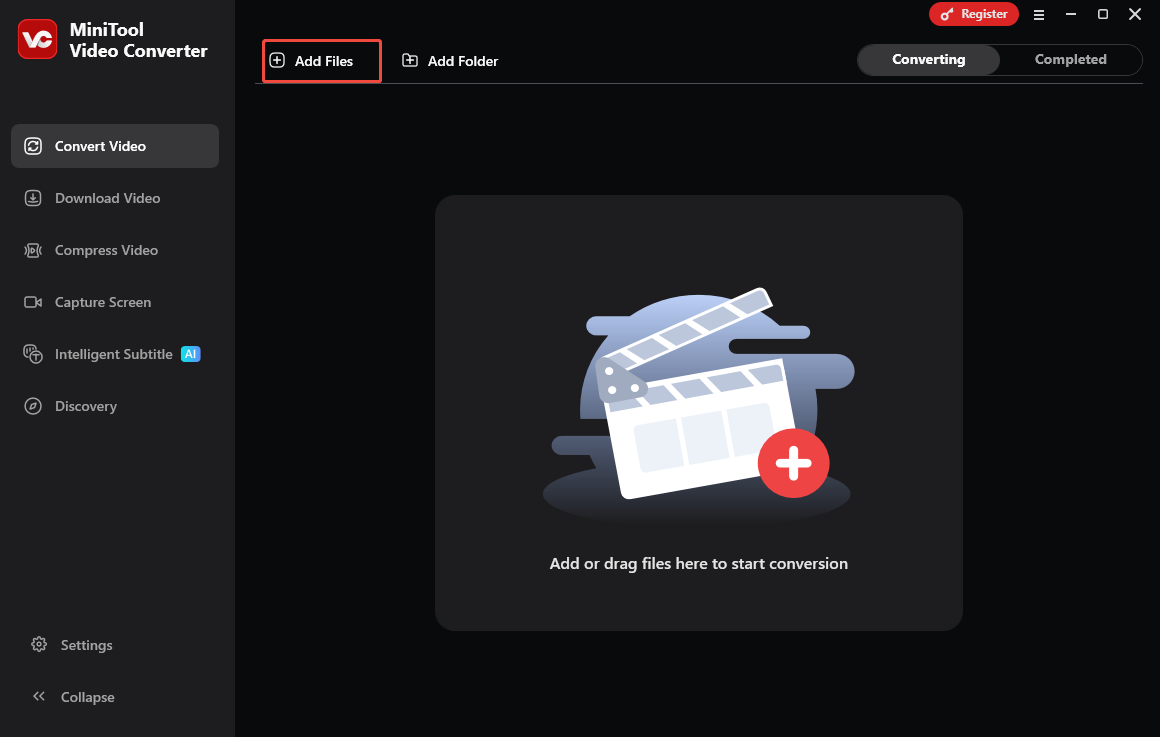
After launching MiniTool Video Converter, click on the upper-left Add Files option to import the MP4 files.
Step 3. Set WEBM as the Output Format
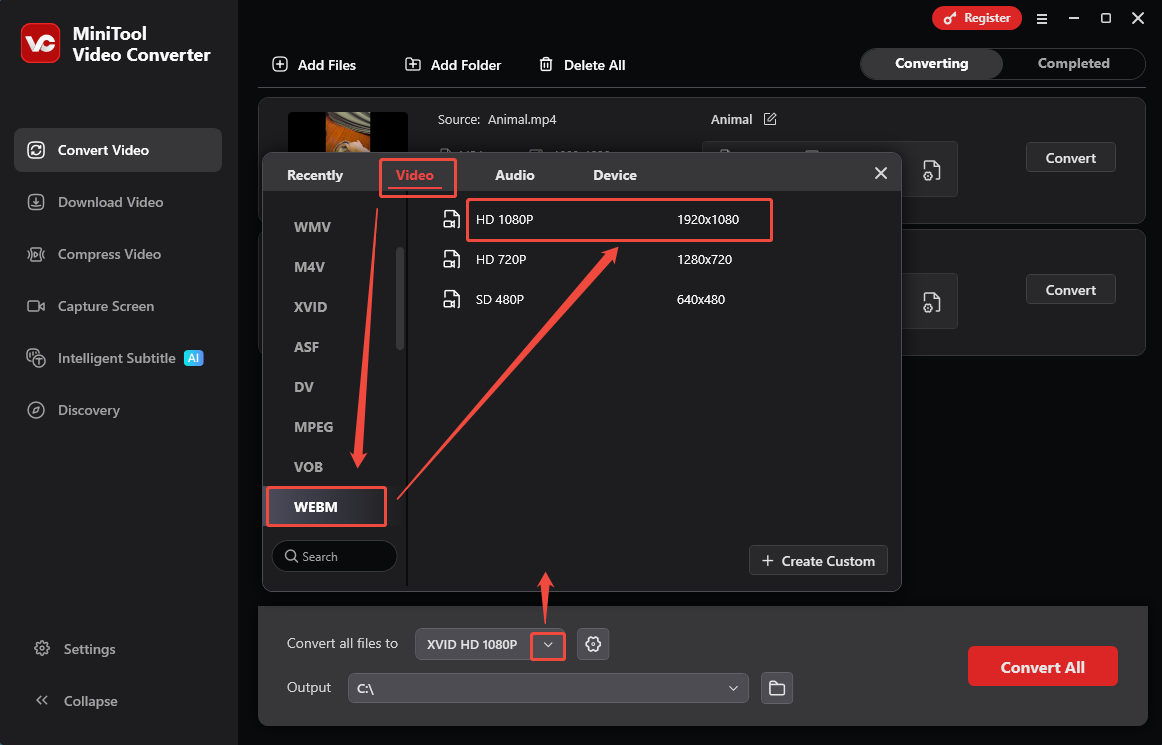
Expand the bottom Convert all files to option to enter the output format window. There, switch to the Video tab and click on WEBM. Then choose the resolution you want. Here, I select HD 1080P as an example.
Step 4. Select a Saving Path and Start Conversion
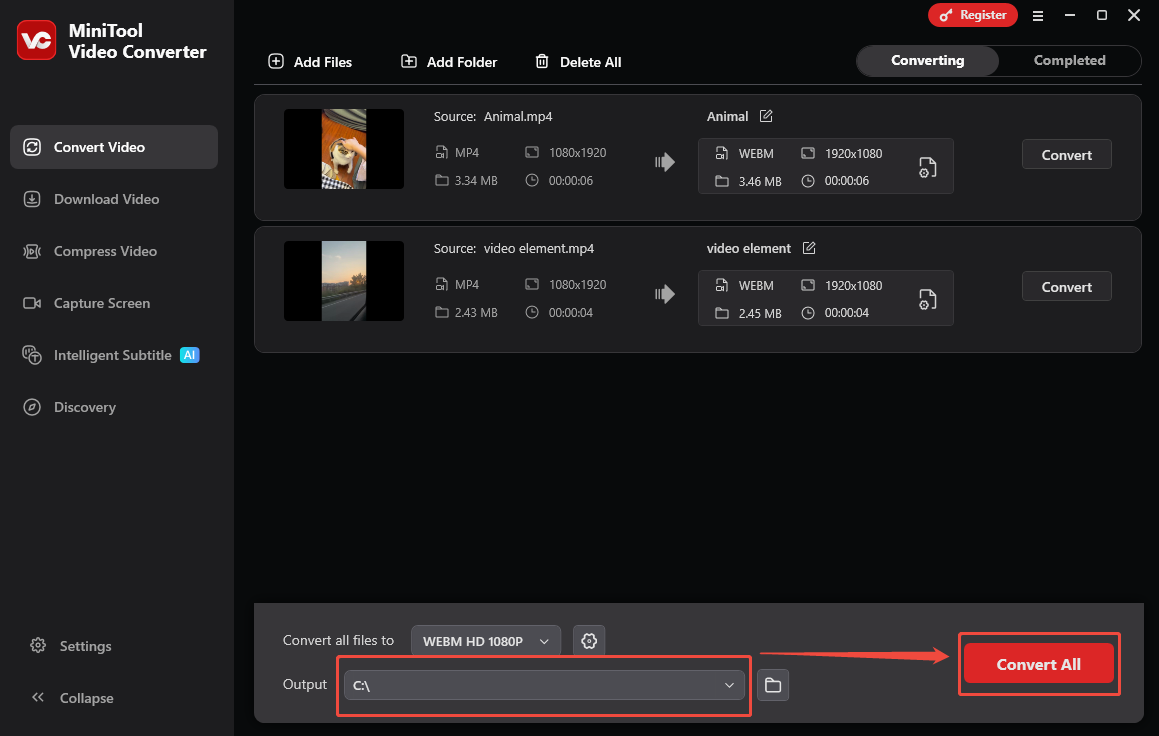
Expand the bottom Output option to choose a saving path for the converted files. Next, begin the conversion process by clicking on the bottom-right Convert All button.
Step 5. Check the Output Files
When the file conversion process ends, this video converter will automatically switch to the Completed section. There, click on the Play icon to view the output files. If you want to locate these files, click on the Folder icon.

More than a video converter, MiniTool Video Converter is also a one-stop solution for video compression and video/audio to text conversion.
Option 2. Convertio (Online)
Although Ren’Py doesn’t support MP4, Convertio enables you to convert MP4 to Ren’Py-supported WEBM without downloading extra software. It allows you to upload your MP4 videos from multiple sources, including your computer, Google Drive, and Dropbox. Below are the detailed instructions on how to convert MP4 to WEBM using Convertio.
Step 1. Go to the MP4 to WEBM Converter page of Convertio.
Visit https://convertio.co/mp4-webm/.
Step 2. Import the MP4 videos.
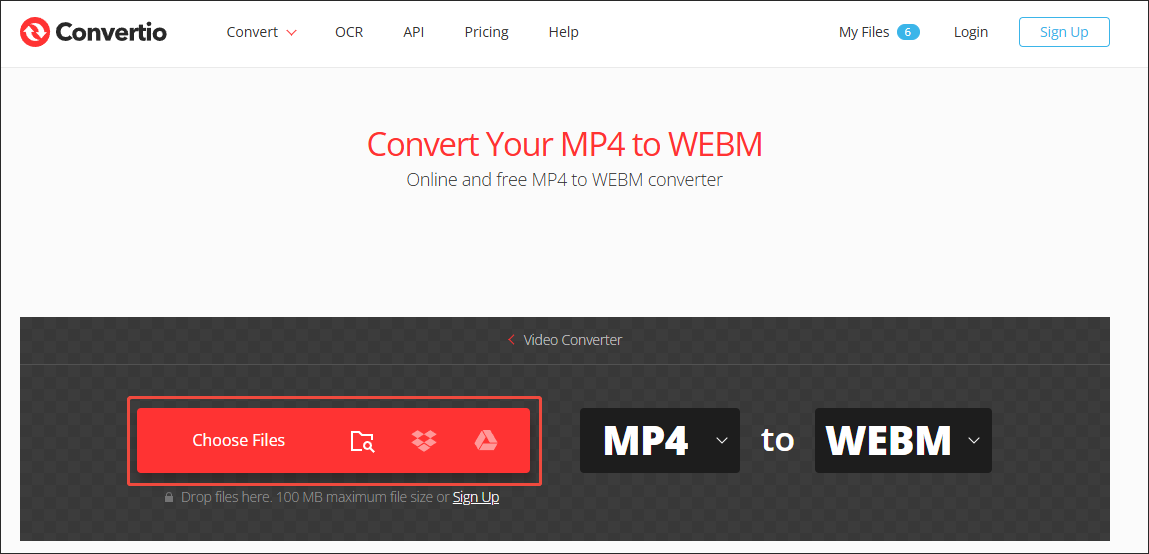
Click on the Choose Files option to upload the MP4 files.
Step 3. Configure the conversion settings.
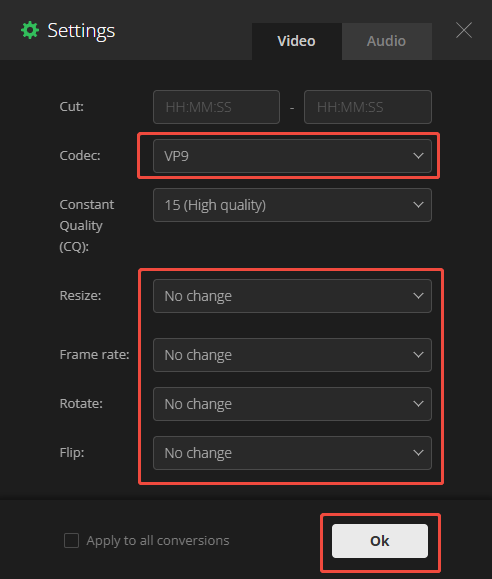
Click on the Settings icon to enter the Settings window. There, you can customize the codec, volume, frame rate, and other parameters based on your needs. Finally, click on the bottom-right Ok button to save the changes.
Step 4. Begin conversion and check the converted files.
Start the conversion process by clicking on the bottom-right Convert All button. When the file conversion process completes, download and check the output files.

Undoubtedly, Convertio is a reliable tool that helps you convert MP4 for Ren’Py. However, it has a 100MB file size limit for free users.
Bonus: How to Edit Your MP4 Videos
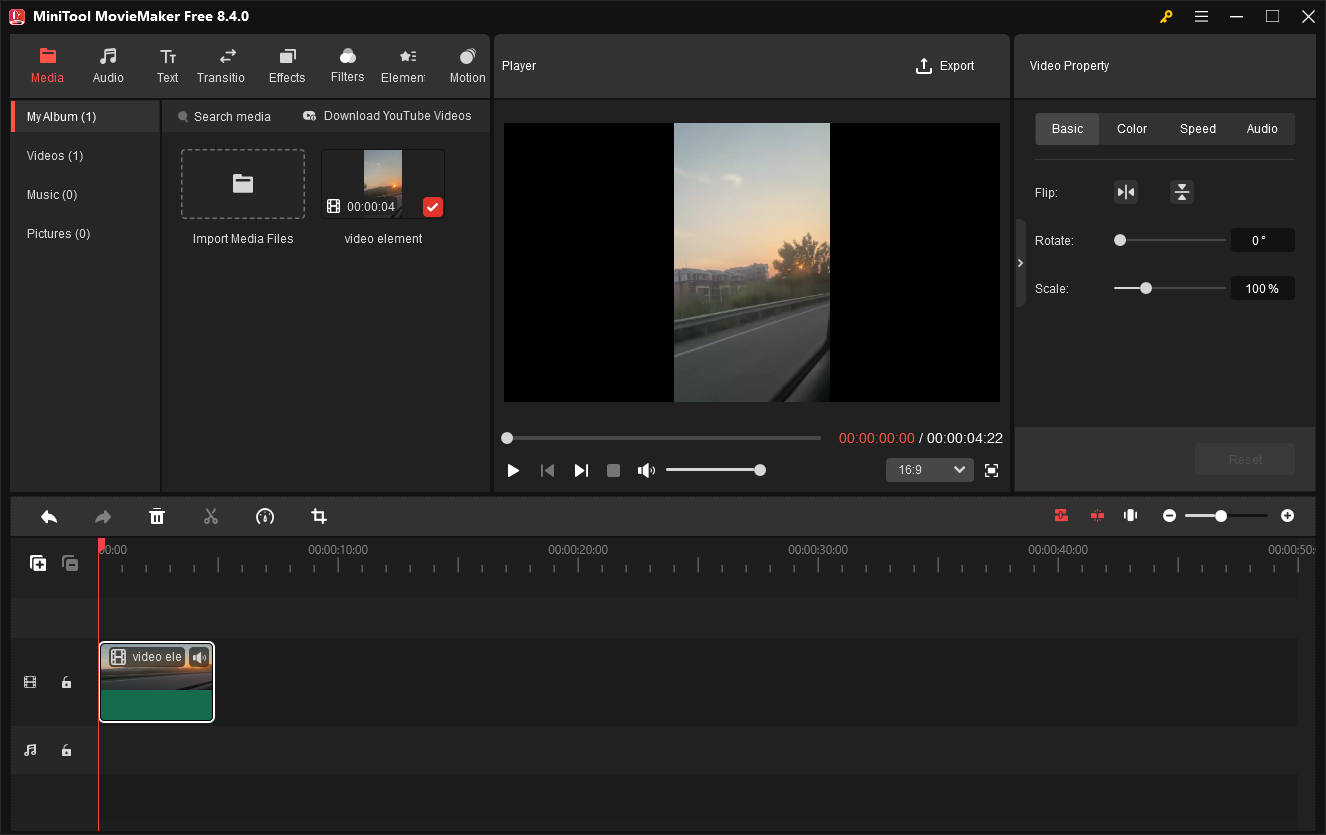
Before converting the MP4 videos to a Ren’Py-compatible format, do you want to edit your MP4 videos? If yes, never miss MiniTool MovieMaker. It is a fabulous MP4 editor that allows you to crop, split, speed up, reverse, flip, or rotate your MP4 files with simple clicks.
MiniTool MovieMaker also enables you to add various elements, including motions, transitions, filters, effects, and so on, to your MP4 video. Even if you want to change the video aspect ratio, it can meet your needs. Besides, MiniTool MovieMaker is capable of saving your MP4 videos in multiple formats, including WEBM, MKV, WMV, MP3, GIF, and so on.
MiniTool MovieMakerClick to Download100%Clean & Safe
Final Verdict
Does Ren’Py support MP4? No, it doesn’t. To handle that problem, you can use MiniTool Video Converter (Offline) or Convertio (Online) to convert MP4 to Ren’Py-supported WEBM.
User Comments :