

This article briefly explains why to convert OGG to AAC and shows a step-by-step tutorial on how to process the conversion with a fabulous audio conversion tool: MiniTool Video Converter.
OGG is an open-source audio container format. However, it has limited device and browser support. AAC is a wide range of compatible audio formats. Additionally, compared to OGG, it offers better sound quality at the same file size.
How to Convert OGG to AAC
For better video quality and better compatibility, you may need to convert OGG to AAC. As a veteran using audio converter user, I suggest you try MiniTool Video Converter. I want to share the true usage experience.
MiniTool Video Converter doesn’t have file size limitations, which helps me convert video and audio files over 10GB many times. What’s more, it converts files quickly and supports batch converting 5 tasks simultaneously.
Apart from converting OGG to AAC, it also allows you to convert MP3 to WAV, AIFF to WMA, M4A to Opus, and more. In addition, MiniTool Video Converter can convert audio formats to be compatible with mobile devices, like Apple, Huawei, Samsung, and Android. MiniTool Video Converter’s another advantage is that it doesn’t have any built-in ads or watermarks.
Below is the step-by-step OGG to AAC conversion guide using MiniTool Video Converter without any bundles.
Step 1. Download and Set Up MiniTool Video Converter
Click on the download button to get the MiniTool Video Converter’s setup file. Then, follow the detailed installation instructions to install it.
MiniTool Video ConverterClick to Download100%Clean & Safe
Step 2. Upload the Target File
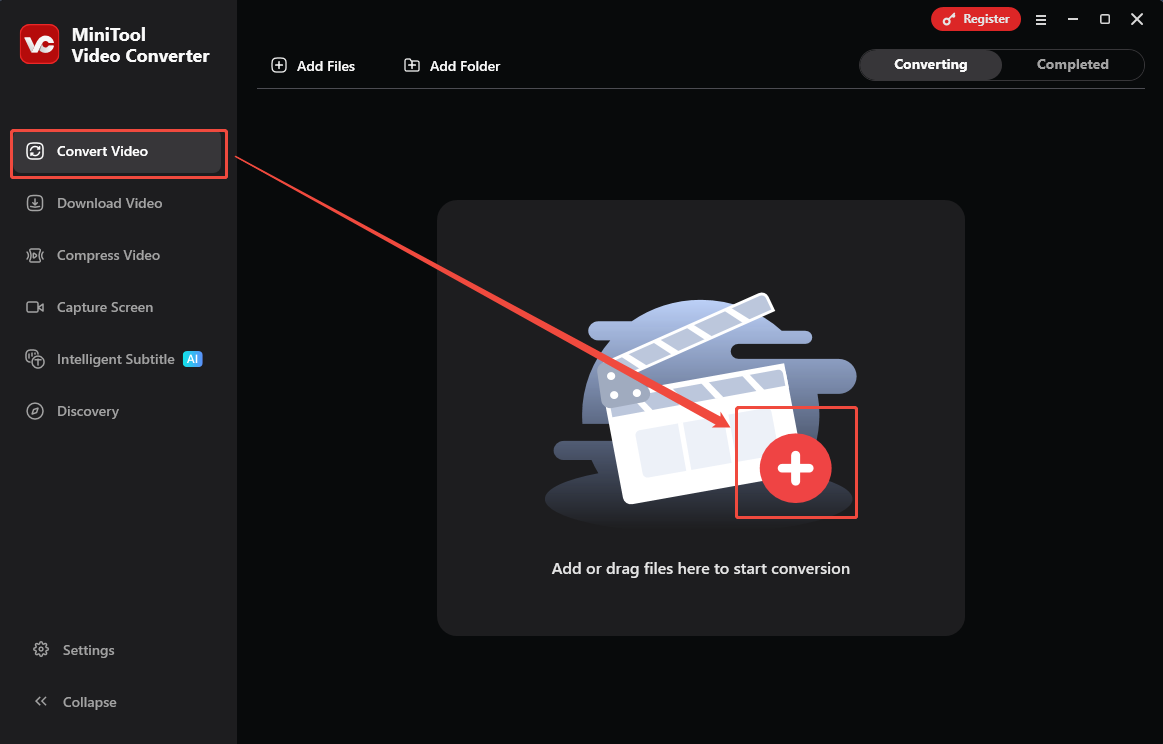
Open MiniTool Video Converter. Click on the Plus icon in the Convert Video tab to upload the OGG audio.
Step 3. Configure AAC as the Output Format
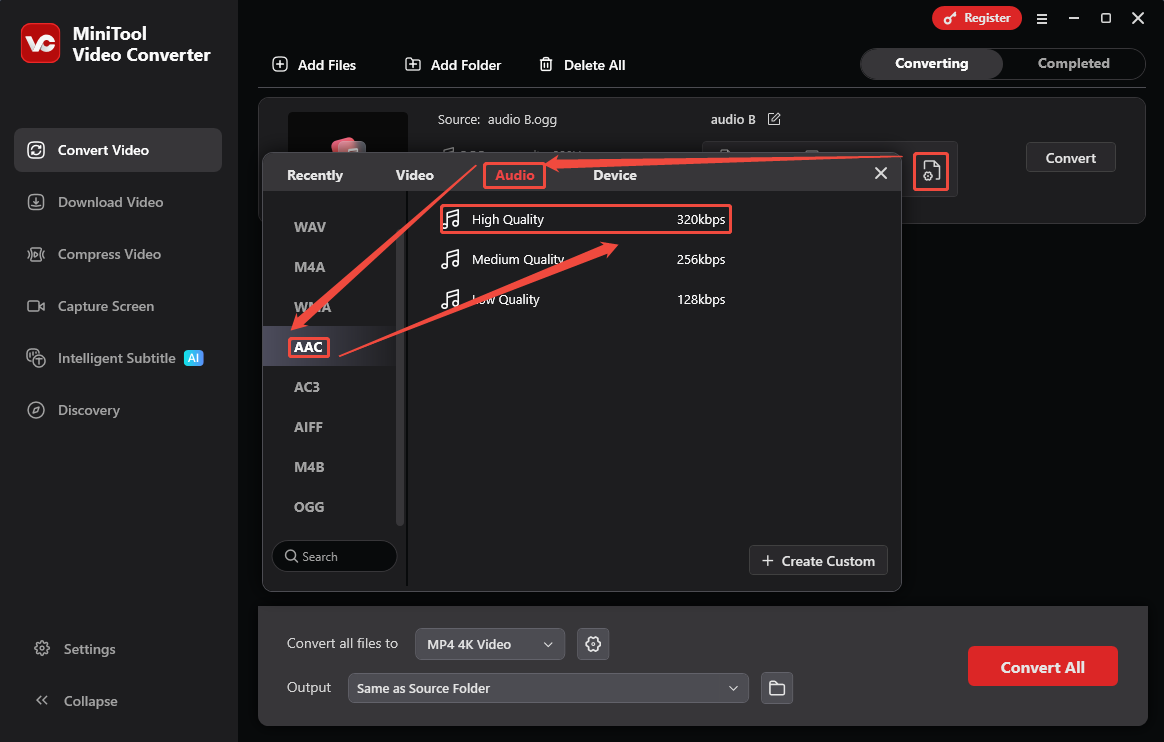
Click on the Gear icon on the conversion task to enter the output format window. From there, switch to the Audio tab and choose AAC. Then, pick an audio quality option here. I select High Quality as an example.
Step 4. Set a Saving Path and Begin Conversion
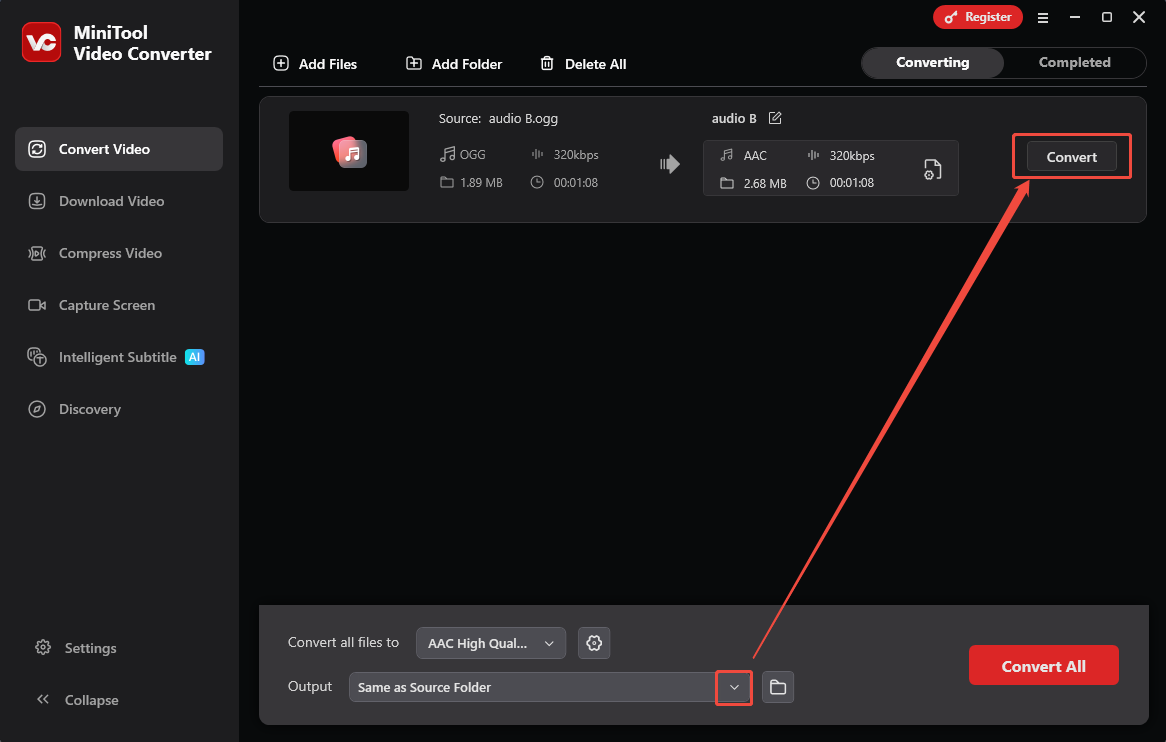
After setting the output format, expand the Output option to choose a saving folder for the converted audio. Then, click on the Convert button to begin the conversion process.
Step 5. Check and Locate the Converted Audio
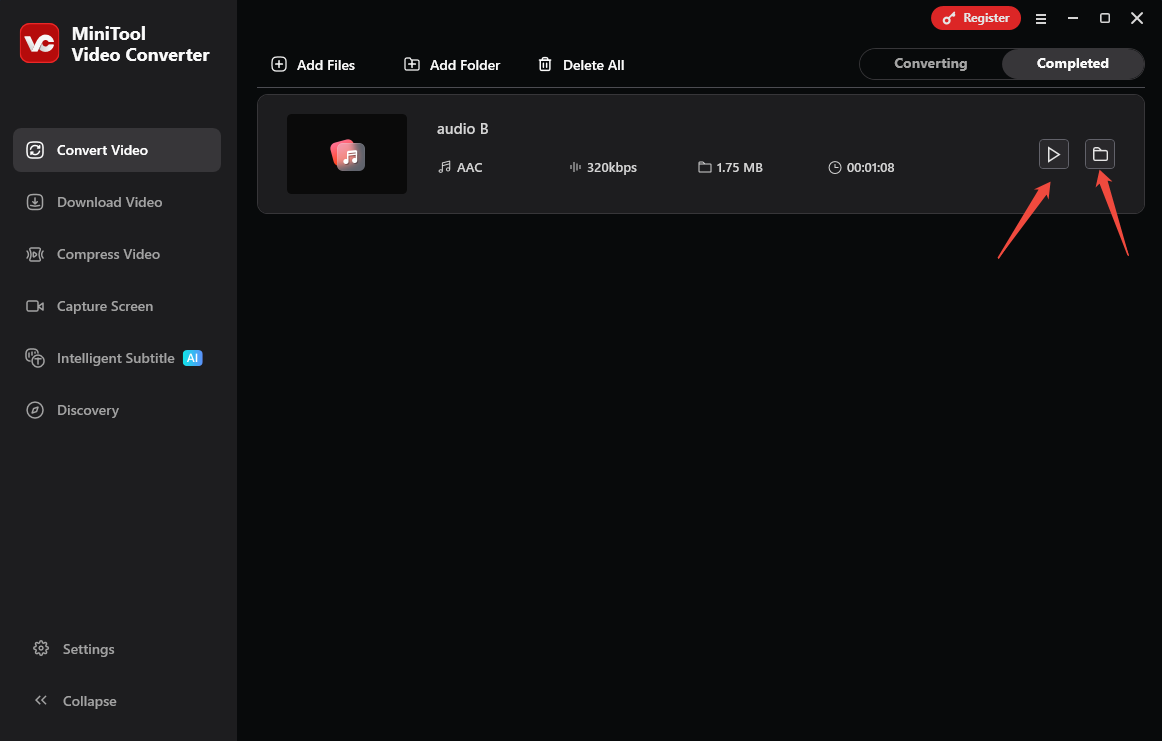
Once the conversion finishes, the converted audio will appear in the Complete tab. Here, click on the Play icon to check it. Or click on the Folder icon to locate the converted audio on your PC.
Using MiniTool Video Converter to convert OGG to AAC can enhance your workflow. It is user-friendly, even for beginners.
AAC’s Compatibility Performance
Most mainstream media players offer excellent support for AAC, including Windows Media Player, VLC Media Player, QuickTime Player, and other desktop players. Users can play AAC smoothly without much audio quality loss. Also, it doesn’t need additional plugins.
Moreover, most popular browsers also support native AAC playback, such as Chrome, Firefox, Edge, and Safari. This makes AAC very suitable for online audio playback. Many mobile applications and social media platforms are also compatible with AAC.
Furthermore, the high quality and high compression efficiency of AAC enable many streaming services to favor it. Therefore, AAC has become one of the main audio formats for online and offline playback.
Bonus: How to Edit the Converted AAC Audio
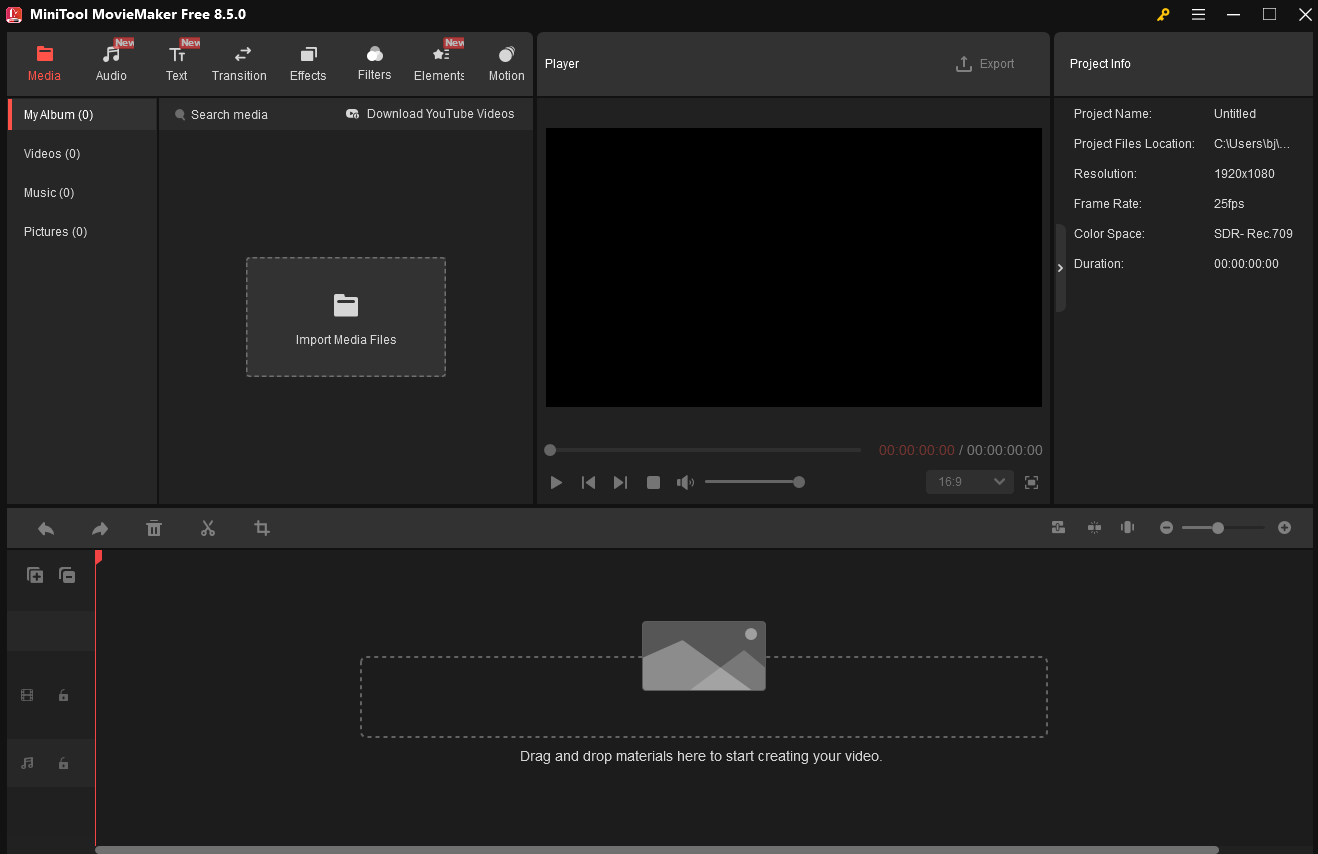
In most cases, you may need to edit the converted AAC audio to make it background music or add a sound effect to it. Need an audio editor to deal with the converted audio? There is an all-in-one editor you should know, which is MiniTool MovieMaker.
MiniTool MovieMaker supports adding audio effects, importing a video, or adding subtitles to match the converted AAC audio. What’s more, it allows you to fade in and out of the converted audio. Also, MiniTool MovieMaker empowers you to speed up the original audio. It provides a volume adjustment feature to help you control the volume.
MiniTool MovieMakerClick to Download100%Clean & Safe
Final Words
This article shows why convert OGG to AAC and introduces an excellent audio converter to complete this conversion, which is MiniTool Video Converter. Besides, it also shares a useful editor to process the converted AAC file.
User Comments :