

MKV (Matroska) is an open-source and royalty-free video container format. It contains video, audio, text, and metadata. However, MKV is usually used to encapsulate lossless compressed videos, so it has a large file size and uses a significant amount of storage space.
MPEG-4 (Moving Picture Experts Group- 4) is an international standard for video encoding. The format encoded by MPEG-4 can be compatible with many systems, devices, players, and social media platforms. Besides, MPEG-4 has high compression efficiency, which allows users to get a small video file size.
Therefore, to gain better compatibility and a smaller file size, people usually convert MKV to MPEG4.
How to Convert MKV to MPEG4
For video conversion, I use MiniTool Video Converter. It has been my favorite offline converter since I downloaded it. MiniTool Video Converter supports over 1,000 video and audio formats, including MKV and MPEG-4 encoded formats.
What’s more, when I use MiniTool Video Converter, I find a lot of other practical features of it. First, MiniTool Video Converter allows me to convert files in batches, up to 5 tasks at the same time. In addition, MiniTool Video Converter supports customizable settings, such as resolution, frame rate, bitrate, and encoder, enabling me to convert high-quality videos.
MiniTool Video Converter shows me that it can convert videos to be compatible with various social media platforms, including Instagram, Facebook, Vimeo, and YouTube. Also, it can synchronize the video and audio.
The following is how to convert MKV to MPEG-4 efficiently with MiniTool Video Converter.
Step 1. Download and Install MiniTool Video Converter
I put the download button of MiniTool Video Converter below. Click on it to download this converter. Then, follow the on-screen instructions to set it up.
 MiniTool Video Converter
-
 Batch convert video/audio files among 1000+ formats.
 - Quickly compress videos for easy storage and transfer.
- Accurately extract subtitles from video/audio files.
- Effectively enhance video quality.

Step 2. Import the MKV File
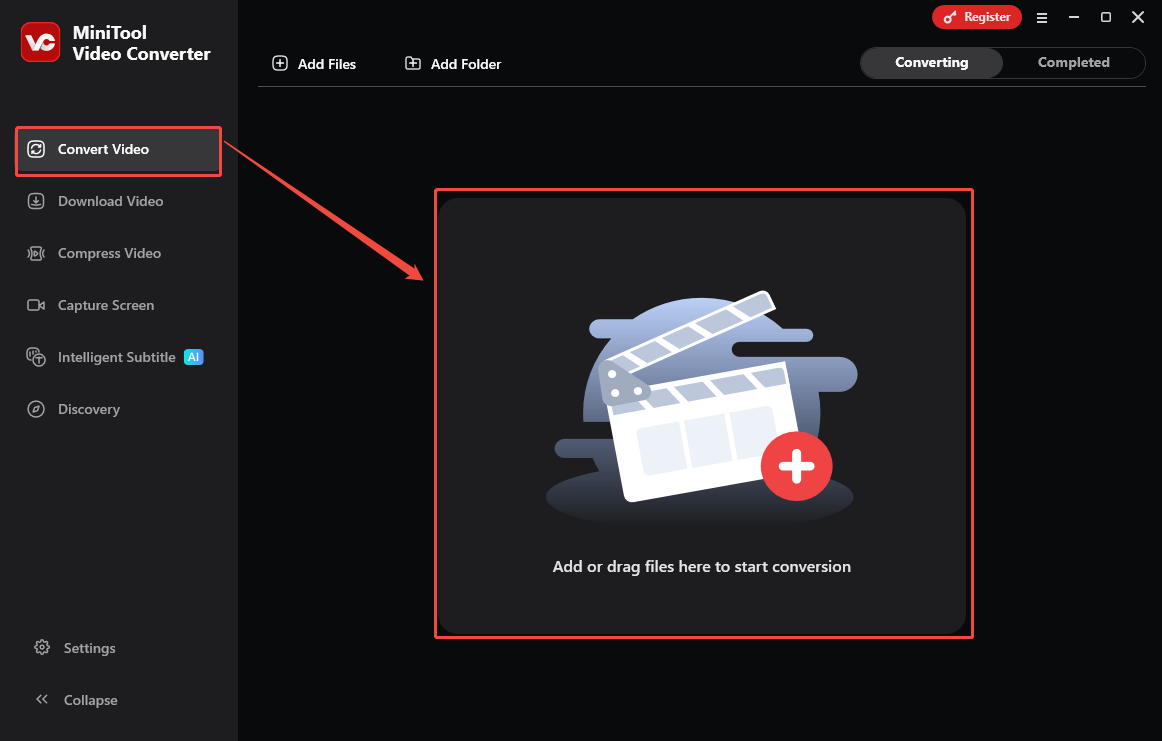
I launch MiniTool Video Converter. In the default Convert Video tab, I drag the MKV file into the Add or drag files here to start conversion option to import it.
Step 3. Set a Format Encoded by MPEG-4
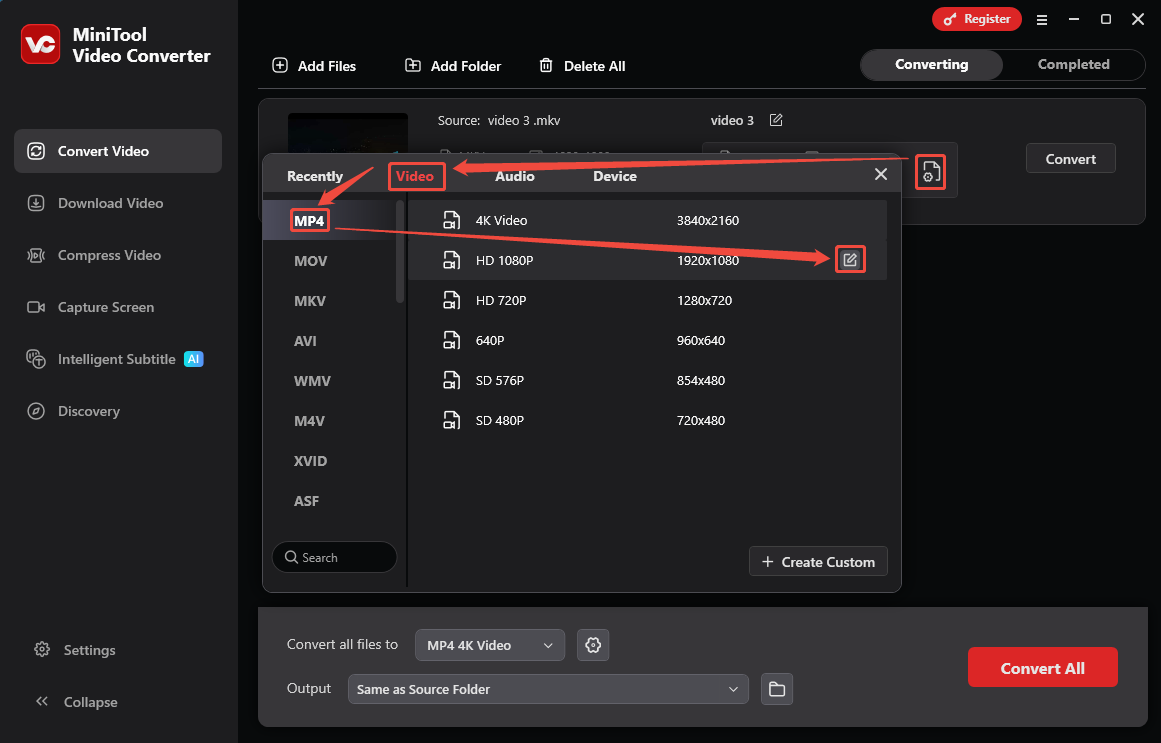
After importing MKV, I click on the Gear icon to open the output settings format window. Here, I go to the Video tab and choose MP4 as the output format. Then, I click the Edit icon on the HD 1080P option, which is encoded by MPEG-4, to trigger the Settings window.
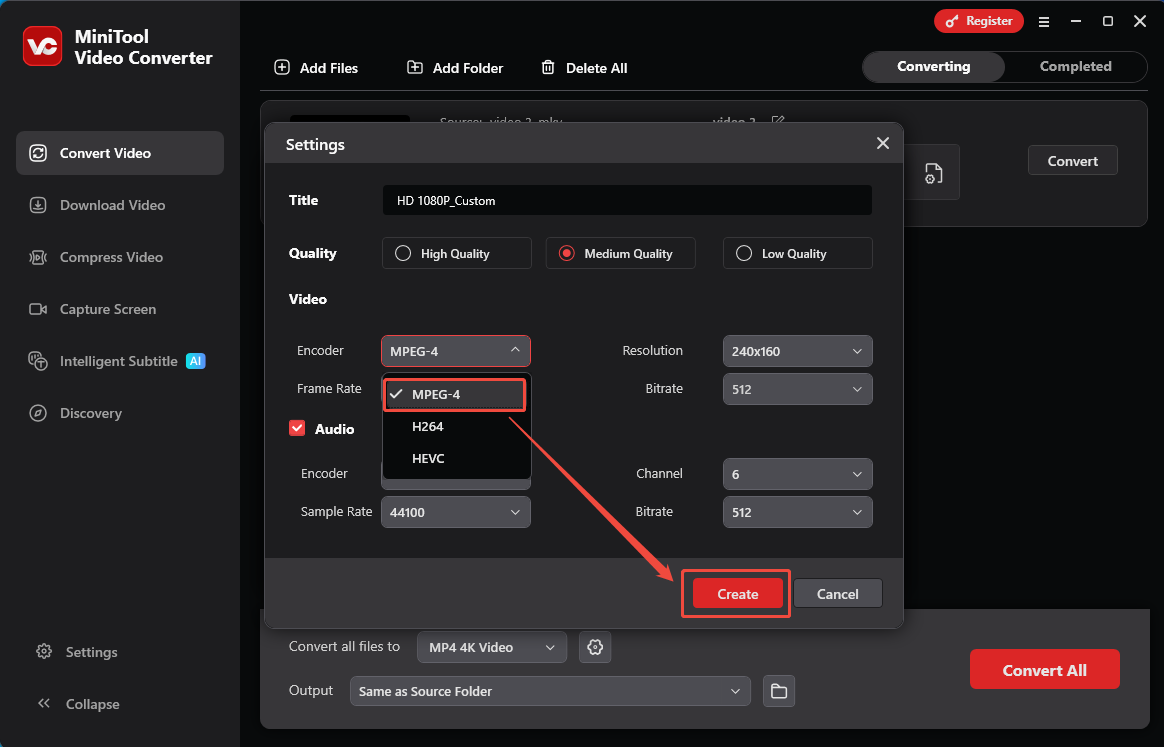
In the Settings window, I expand the Encoder option to choose the MPEG-4 option. Then, I click on the Create button to save the change. Back to the output format settings window, I choose the HD 1080P_Custom option that I saved just now.
Step 4. Start the Conversion
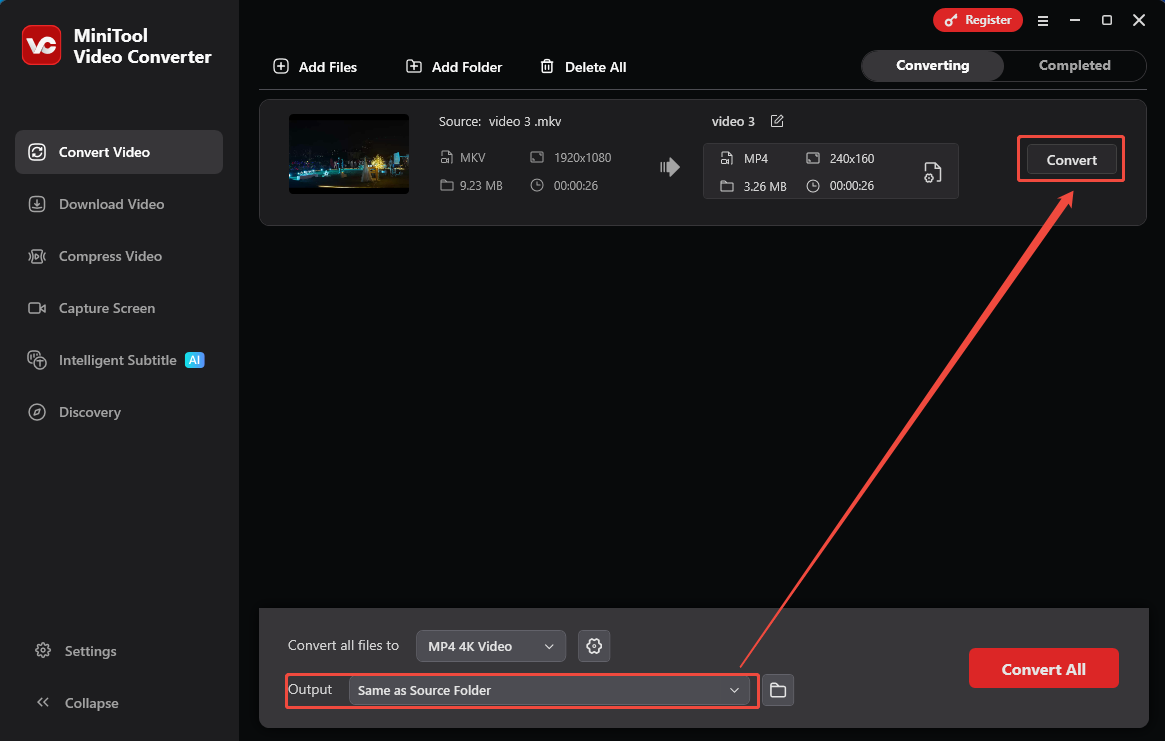
I click on the Output option to choose a saving path for the converted video. Then, I click on the Convert button on the conversion task to start the conversion.
Step 5. Check and Locate the Converted Video
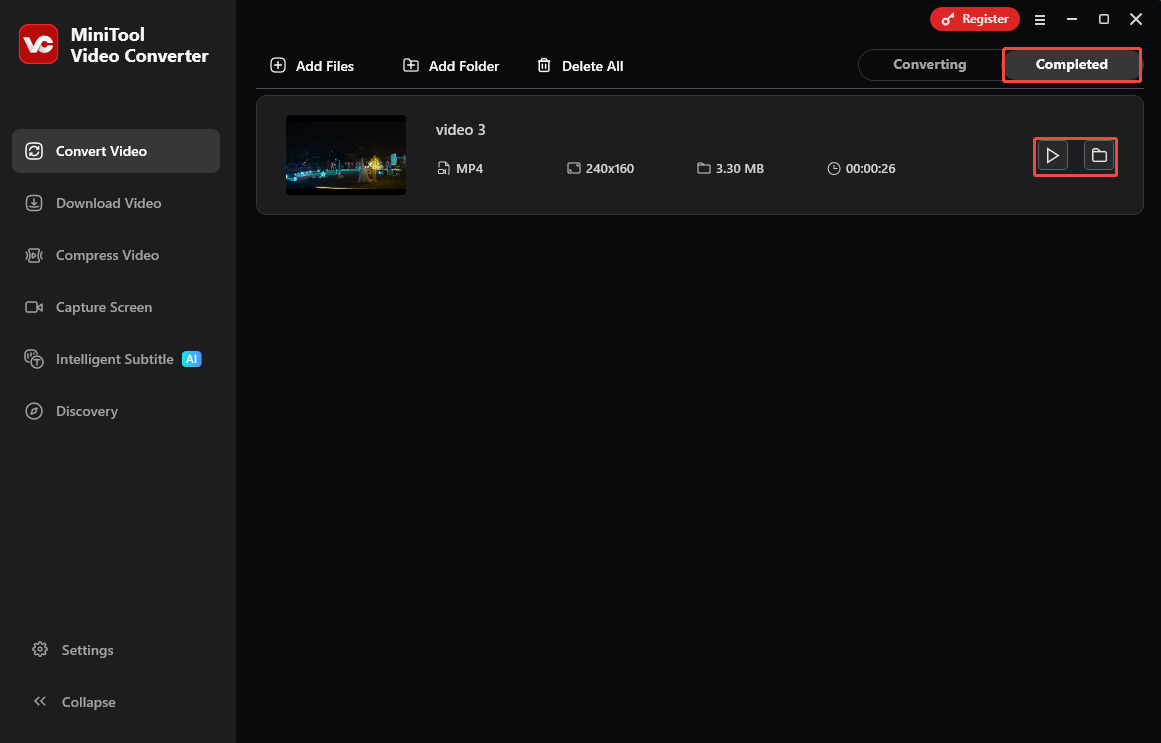
Once the conversion task is complete, this converted video will land on the Completed tab. From here, click on the Play icon or the Folder icon to check the converted video or locate it on the PC.
MiniTool Video Converter makes it easier to convert MKV to MPEG4 encoded video. It doesn’t limit the file size of videos. Also, I don’t have to stand the built-in ads or bundles when I convert files.
MPEG-4 vs MP4: What Are the Differences
MPEG-4 and MP4 are different concepts. As I mentioned at the beginning of the article, MPEG-4 is a video encoding standard. It encodes many video formats, including MP4, AVI, M4V, MOV, and more. An MP4 is an audio and video file that complies with the MPEG-4 standard.
How to Keep Video Quality During Conversion
According to my experience, keeping the original resolution and especially not reducing it is an effective method to keep video quality. Also, use an appropriate bitrate to avoid excessive compression that would blur the video quality. Additionally, using professional tools is very important to prevent file damage and quality loss.
Bottom Line
This article details a guide on how to convert MKV to MPEG4 with MiniTool Video Converter. What’s more, it shows the difference between MPEG-4 and MP4 and gives ideas to keep video quality during conversion.
User Comments :