

This article walks you through whether a Chromebook supports SWF. Meanwhile, it offers you 4 methods to open SWF files on Chromebooks, including utilizing the Ruffle Web Demo, using the Ruffle extension, installing an SWF player, and converting SWF to MP4.
Can Chromebook Play SWF
Are SWF files playable on Chromebooks? The answer is negative. Specifically, the video formats supported by a Chromebook include MP4, MKV, MOV, WEBM, and 3GP. Plus, these video container formats must use the codecs, such as H.264 (AVC), VP8, and VP9. As you can see, SWF is not in the supported video format list.
To solve the problem above, the following content offers you 4 powerful methods. Read on to find out!
Method 1. Use the Ruffle Web Demo (The Easiest Way)
Ruffle Web Demo is an online tool that supports SWF playback on many web browsers and Chromebooks. Below is a step-by-step guide on how to open SWF files on a Chromebook with this online application.
Step 1. Go to the interface of Ruffle Web Demo.
Visit https://ruffle.rs/demo/.
Step 2. Upload your SWF video.
Click on the Select File option to import the SWF file.
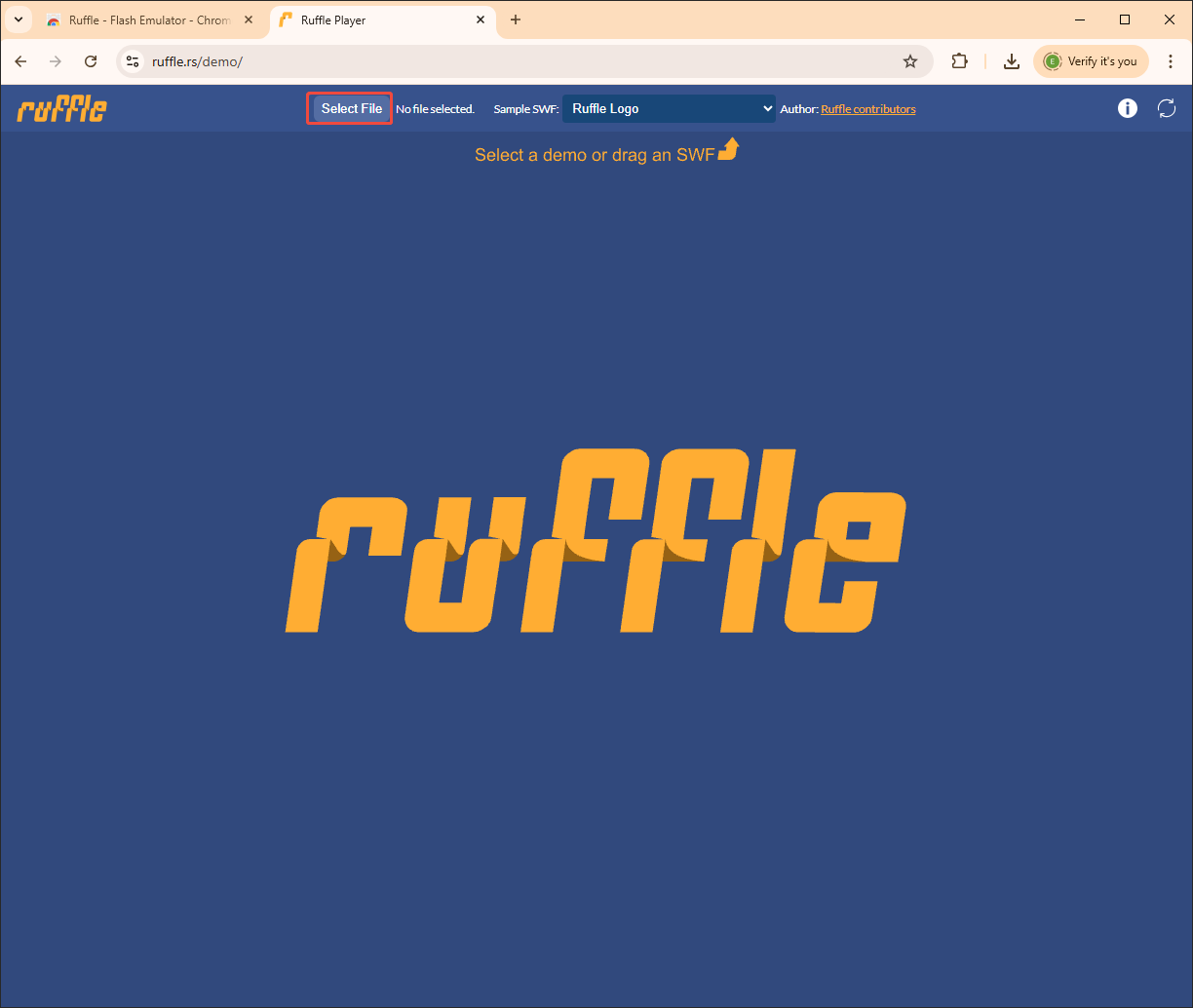
Step 3. View the SWF content.
When the file upload completes, the SWF video will play automatically.
If the method doesn’t work, you can try other solutions below.
Method 2. Use a Browser Extension
Some browser extensions are workable for SWF playback on Chromebooks. Here, I will introduce Ruffle to you. In essence, Ruffle, which is a browser add-on, refers to a Flash Player emulator. With it, you can view SWF files on most web browsers, like Google Chrome.
In addition, Ruffle emphasizes security and privacy, protecting you from the security risks of the original Flash Player. Below is the detailed guidance on how to open SWF files on Chromebooks.
Step 1. Go to the Chrome Web Store.
Visit https://chromewebstore.google.com.
Step 2. Add Ruffle to Google Chrome.
Search for Ruffle-Flash Emulator. Then, click on Add to Chrome.
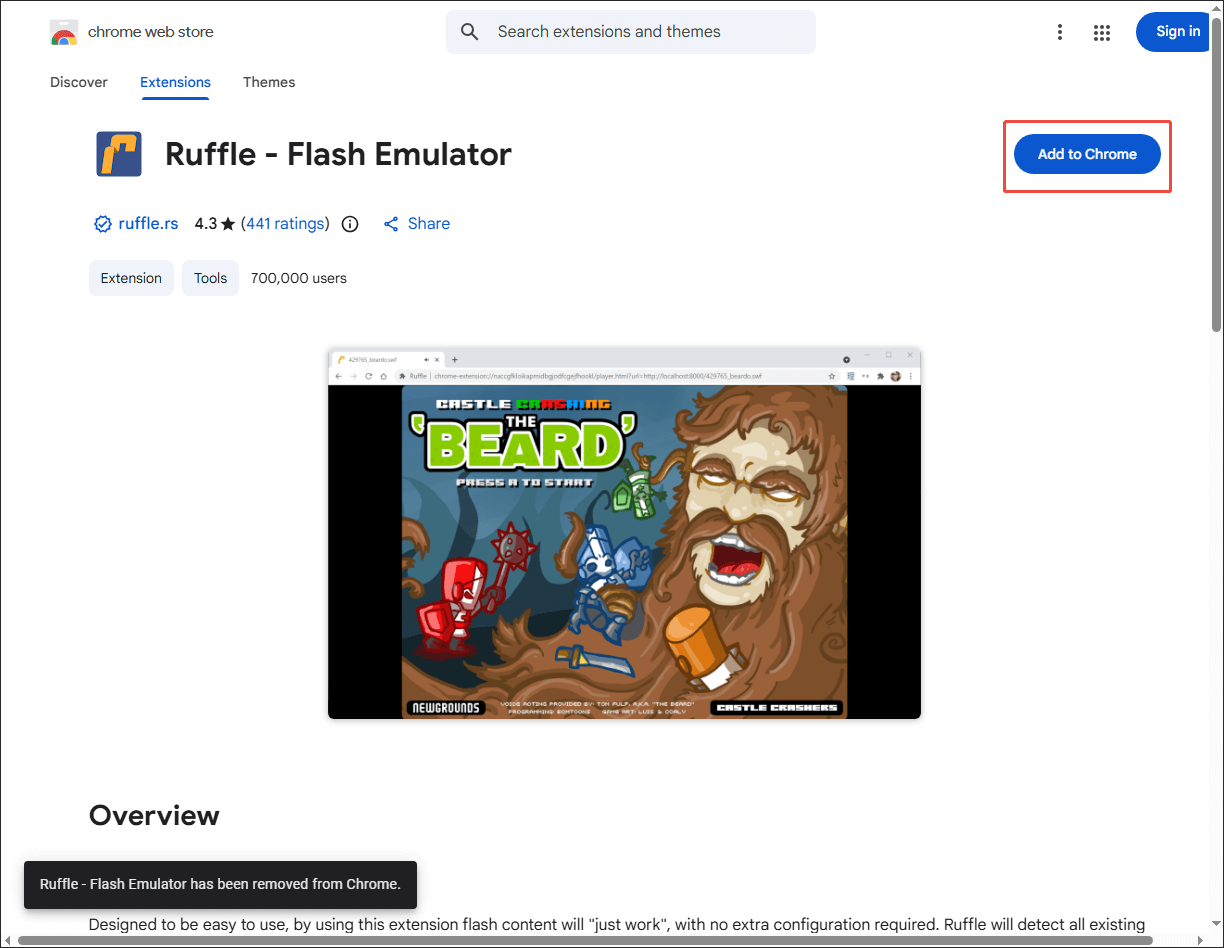
Step 3. Play SWF on Chromebooks.
When the extension installation is over, click on the extension and the Open SWF Player option to enter the emulator window. There, click on the Select File button to import the local SWF files. If you want to view the SWF content from the Internet, enter the URL of the SWF file and click on the Load button.
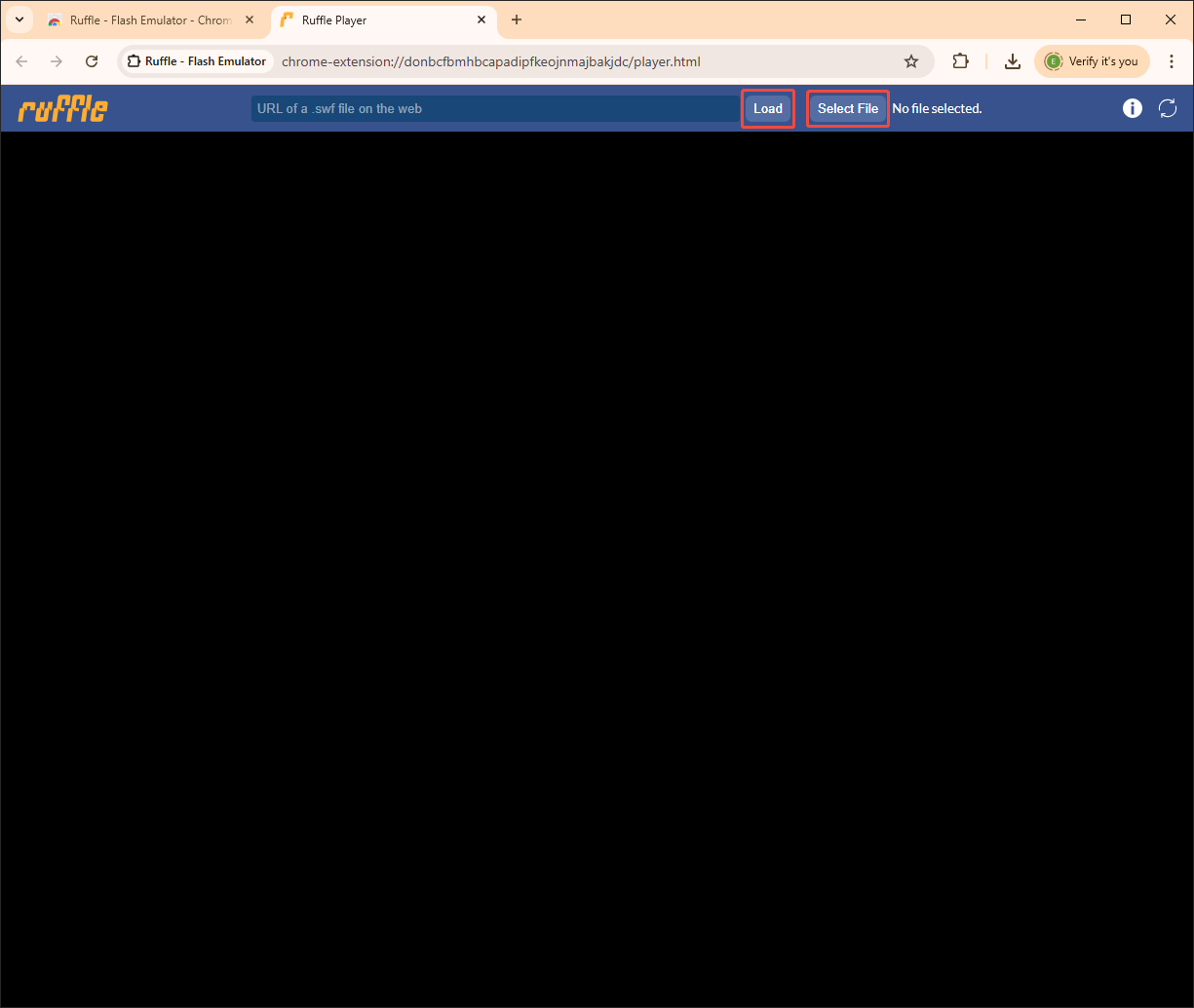
Ruffle-Flash Emulator is an easy-to-use tool that empowers you to open SWF files on Chromebooks.
Method 3. Use an SWF Player
People who enable Linux on Chromebooks (x86_64 architecture models) can install VLC media player. This way, the SWF files can be played directly. In addition, some Flash viewers, including Lightspark and Gnash, can also help.
Method 4. Convert SWF to MP4
You can also convert your SWF videos to a Chromebook-supported video format, like MP4. Here, I highly recommend CloudConvert. It is a top-grade web-based converter that allows you to upload your SWF files from multiple sources, including Google Drive, OneDrive, Dropbox, URL, and your computer.
CloudConvert supports countless output formats, including MP4, AVI, FLV, MKV, MOV, WEBM, and so on. Below is a step-by-step tutorial on how to convert SWF for Chromebook using CloudConvert.
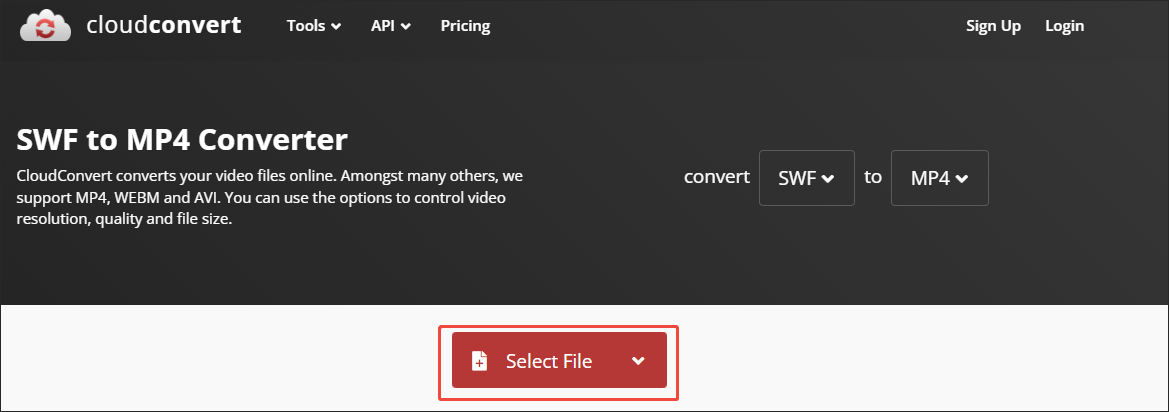
Step 1. Go to the SWF to MP4 Converter of CloudConvert.
Visit https://cloudconvert.com/swf-to-mp4/.
Step 2. Import the SWF videos.
Upload your SWF files by clicking on the Select File button.
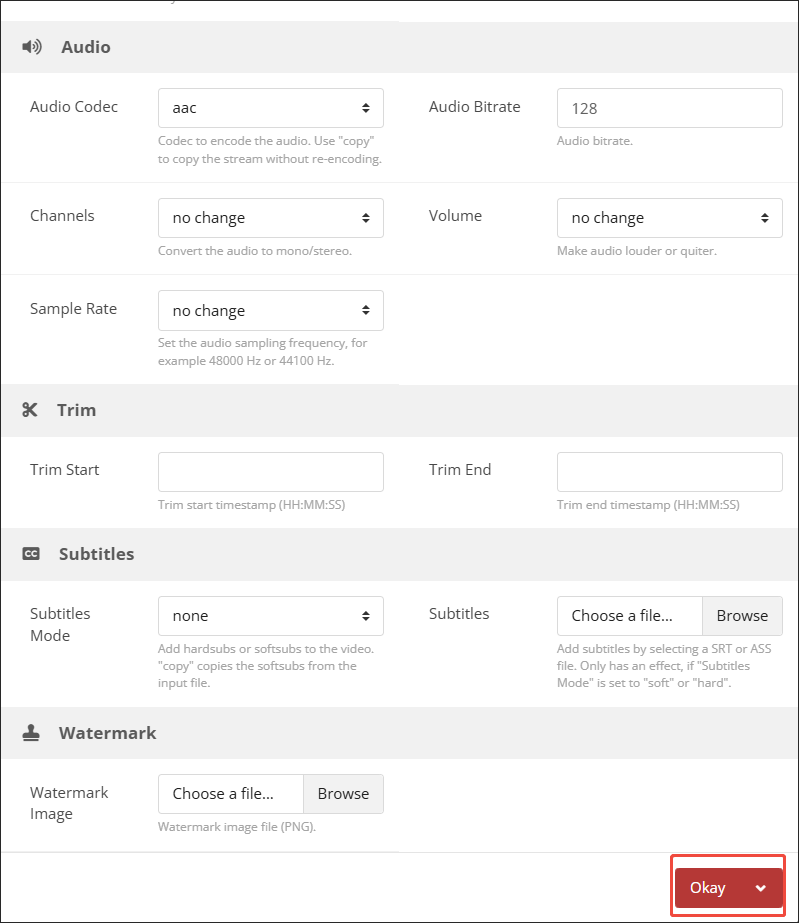
Step 3. Specify the conversion settings.
Click on the wrench icon to access the Options window. There, you can customize a variety of parameters, including video codec, resolution, aspect ratio, frame rate, and so on. Finally, click on the Okay button to confirm the changes.
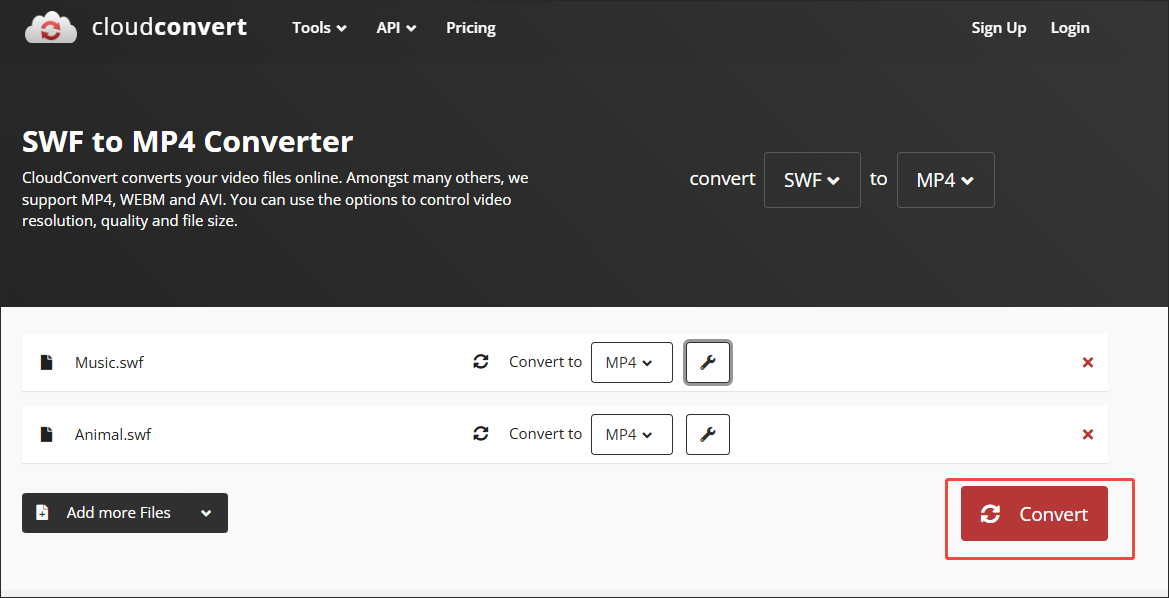
Step 4. Start conversion.
Begin the conversion process by clicking on the bottom-right Convert button.
Step 5. Check the converted files.
When the file conversion ends, download and check the converted files.
With the above-detailed steps, it is believed that you grasp how to open SWF files on Chromebook.
Bonus: How to Convert Other Video/Audio Files to SWF
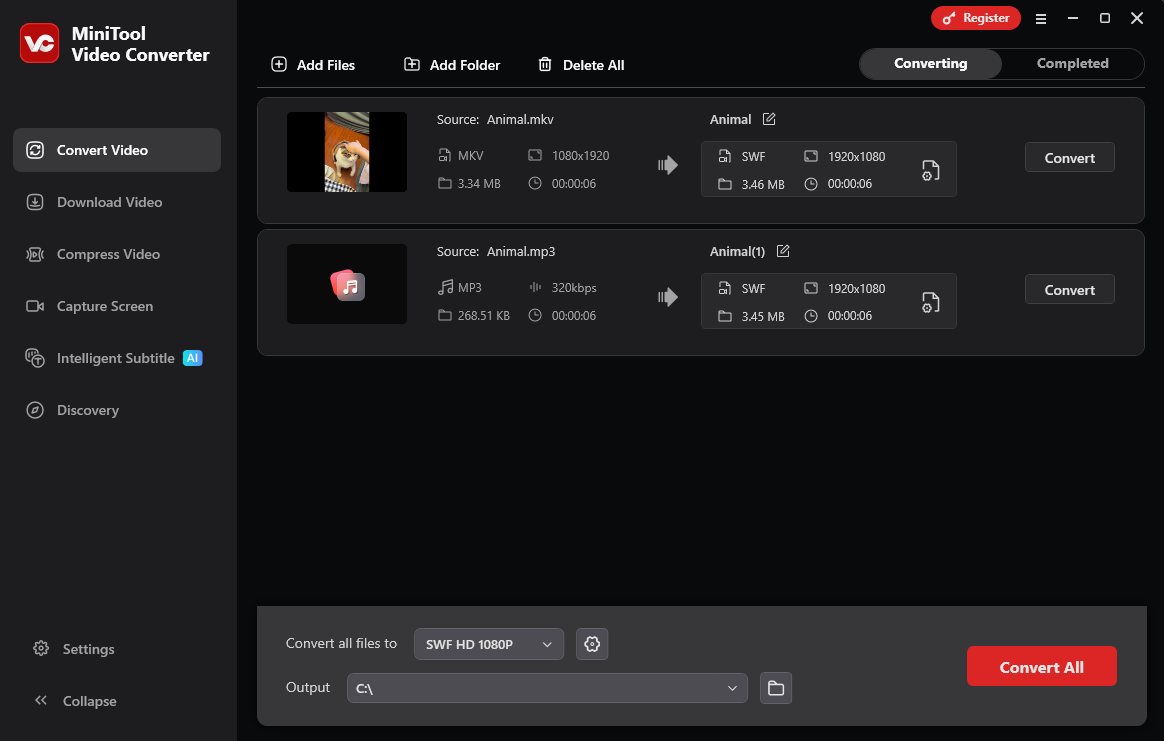
MiniTool Video Converter enables you to convert a wide range of audio/video files to SWF without any payment. More importantly, it emphasizes high conversion speed, allowing you to convert up to 5 files simultaneously. In addition, MiniTool Video Converter features an intuitive interface, enabling every beginner to access this application effortlessly.
Furthermore, MiniTool Video Converter doesn’t set any file size limit for you. Its interface is 100% clean. Meanwhile, it allows you to customize various parameters, including encoder, frame rate, sample rate, bitrate, resolution, and audio channel.
MiniTool Video ConverterClick to Download100%Clean & Safe
Wrapping Up
Chromebooks don’t support SWF files directly. How to open SWF files on Chromebooks? Here are 4 remarkable methods, including using the Ruffle Web Demo, using the Ruffle extension, installing the VLC player (with Linux enabled on Chromebooks), and converting SWF to MP4.
User Comments :