

How to convert H264 to WMV? This article will explain why to process this conversion. It also shows you how to transfer H264 to WMV with 2 methods, which include using MiniTool Video Converter and Zamzar.
Understanding of H264
H264 (Advanced Video Coding/MPEG-4 Part 10) is a video encoding standard known for its high compression efficiency with good video quality. It is usually used in various popular formats, including MP4, MKV, MOV, AVI, and more. H264 is well-compatible with most streaming media platforms, such as YouTube, Instagram, and Netflix.
Understanding of WMV
WMV (Windows Media Video) is a digital video format developed by Microsoft, which belongs to the Windows Media framework. WMV is the most well-known video compression format in the WMV family. Besides, it has strong compatibility, especially with Windows systems and older versions of software or media players.
Why Convert H264 to WMV
If you want to play videos in Windows Media Players or other older Windows-based software, converting H.264 video to WMV is a good option to ensure smooth playback. On condition that you want to unify video formats for more consistent playback in Windows media players, converting H.264 to WMV can work even better.

How to Convert H264 to WMV
Want to find an H264 to WMV converter? I would like to recommend 2 practical converters that I have tried recently.
#1. MiniTool Video Converter
MiniTool Video Converter is a free video converter that I have used. It supports various video codecs, such as H264, H.265, AV1, VP8, and VP9. MiniTool Video Converter also supports over 1,000 formats, including WMV, MP4, MKV, MOV, AVI, and more.
Does it support batch H264 to WMV conversion? Of course! It can quickly and safely complete these conversion tasks of up to 5 simultaneously. What’s more, MiniTool Video Converter enables you to convert 4K video to WMV. It can also synchronize video and audio through resolution, frame rate, and bitrate.
MiniTool Video Converter is completely clean and safe. It supports formats that are compatible with social media platforms, including YouTube, Vimeo, Instagram, and Facebook. Also, it can convert formats for mobile devices, such as Apple, Huawei, Samsung, and Android.
The steps below are how to convert H264 to WMV with MiniTool Video Converter.
Step 1. Get MiniTool Video Converter
To get MiniTool Video Converter, simply click on the download button below. Then, follow the on-screen instructions to install it.
MiniTool Video ConverterClick to Download100%Clean & Safe
Step 2. Add H264 Encoded Video
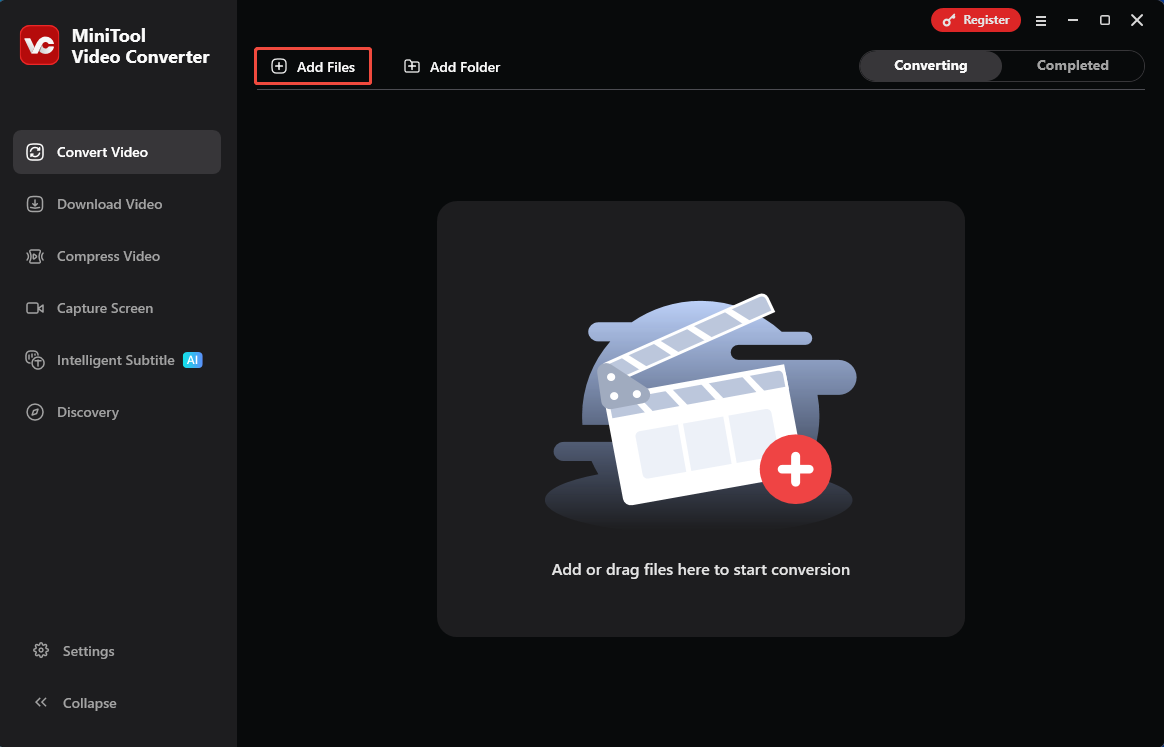
Launch MiniTool Video Converter. Click on the Add Files option to add the video encoded by H264.
Step 3. Set WMV as the Output Format
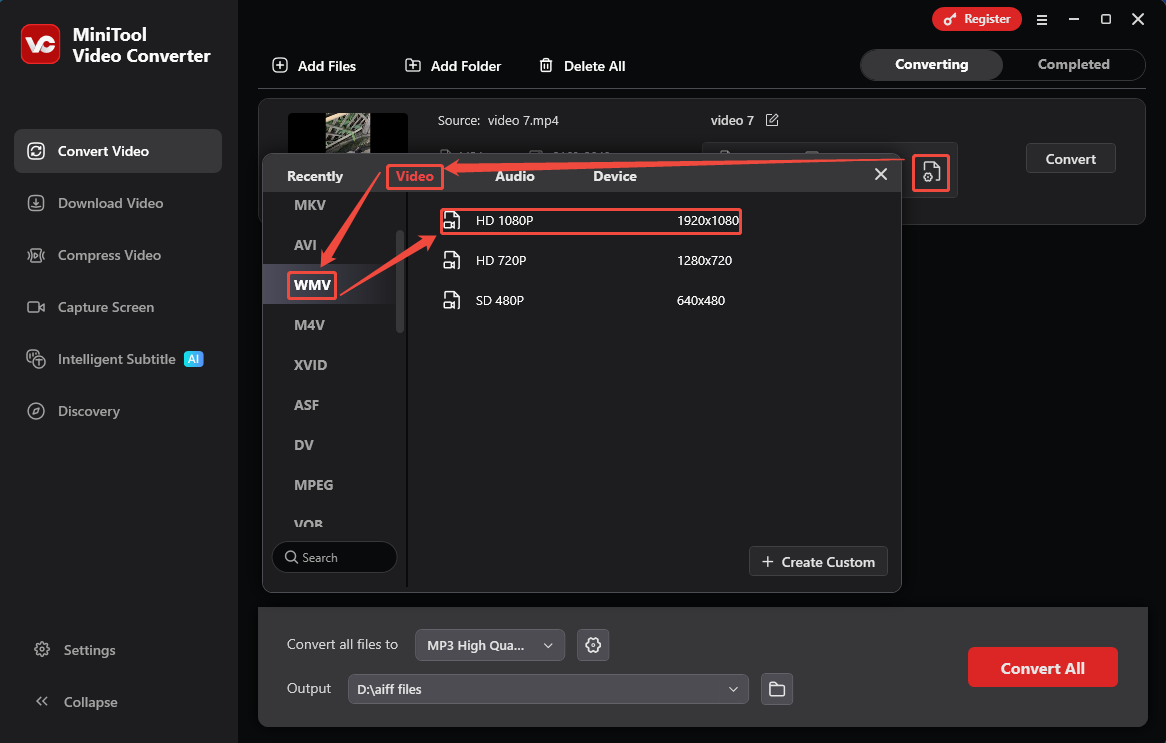
After importing the H264 encoded video, click on the Settings icon to trigger the output format window. There, switch to the Video module and choose WMV. Then, select a resolution according to your needs. Here, I pick HD 1080P as an example.
Step 4. Start the Conversion
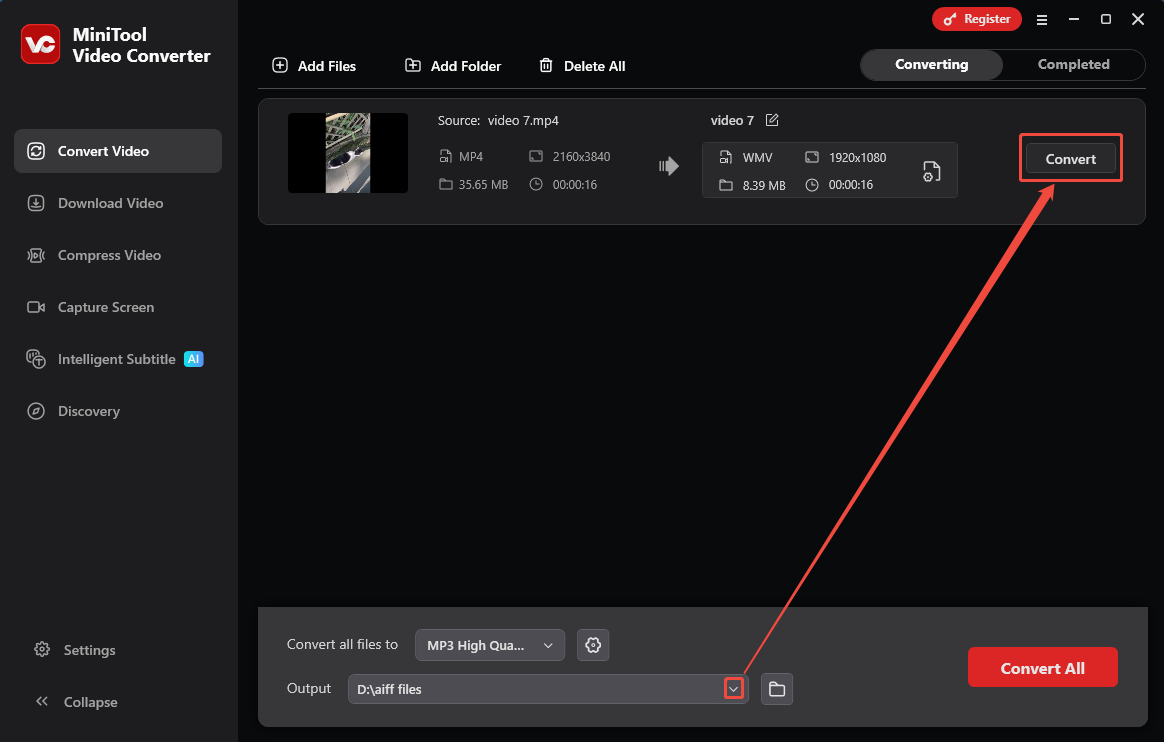
When the output format is set, expand the Output option to specify a storage folder on your computer. Then, click on the Convert button to start the conversion.
Step 5. Check the Converted Video
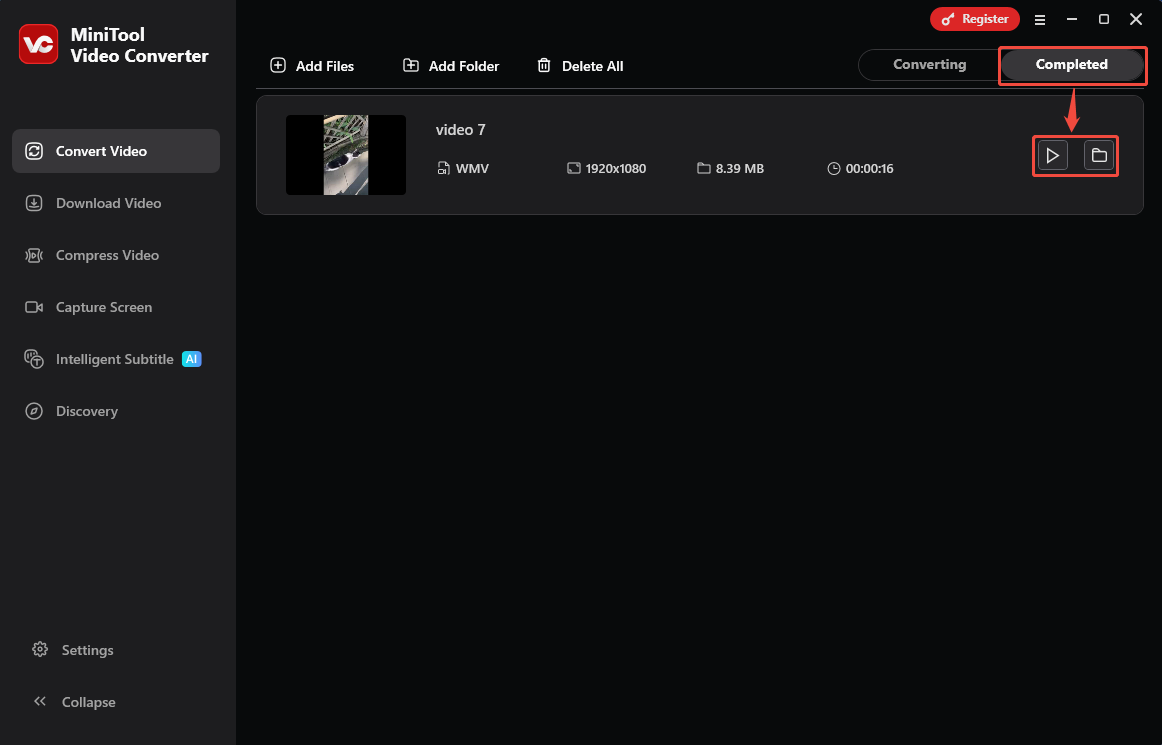
Once the conversion is over, this video converter will switch to the Completed tab. Here, to view the result, click on the Play icon. Or click on the Folder icon to locate this converted video.
MiniTool Video Converter makes it quick to convert H264 to WMV.
#2. Zamzar
Zamzar is a browser-based converter that supports more than 1,200 conversions between 150 different formats, including converting H.264 encoded MP4 to WMV, MKV to MP4, MOV to WebM, VOB to AVI, FLV to MPEG, and more. However, it only allows you to import files smaller than 50MB.
The following section is about how to turn H264 to WMV with MiniTool Video Converter.
Step 1. Visit Zamzar’s Webpage
Go to https://www.zamzar.com/convert/mp4-to-wmv/ to enter Zamzar’s webpage.
Step 2. Import H264 Encoded Video
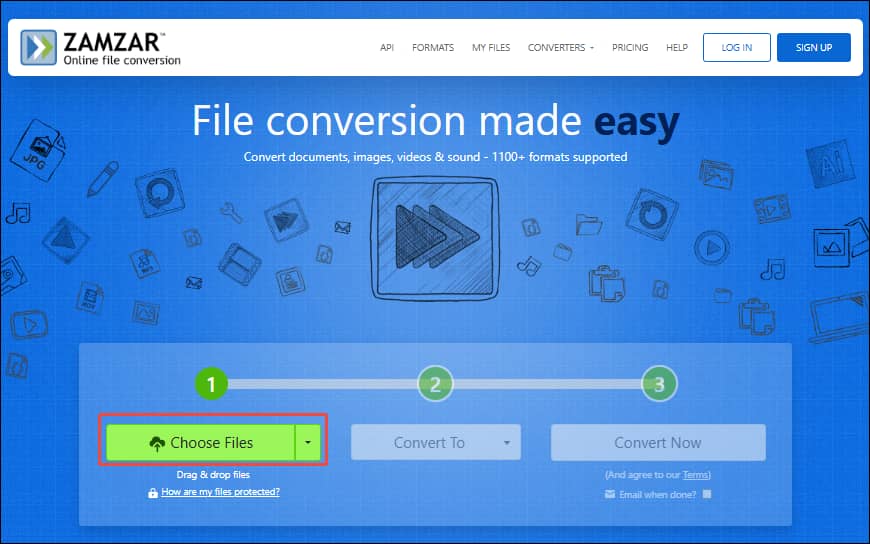
Click on the Choose Files option to import the video encoded in H264.
Step 3. Choose WMV and Start the Conversion
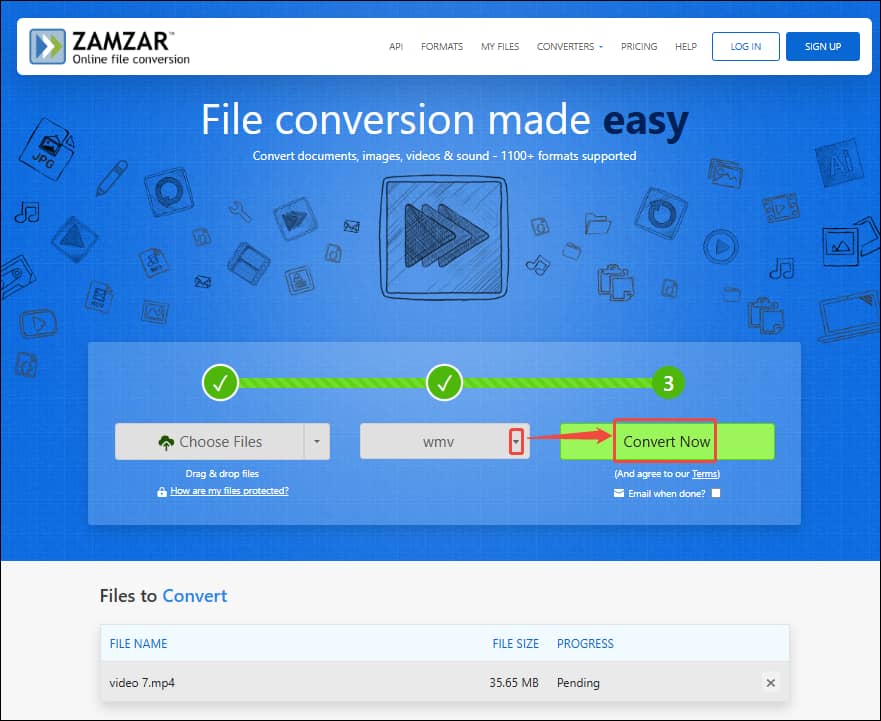
Expand the Format option to choose WMV. Then, click on the Convert Now button to start the conversion.
Step 4. Save the Converted Video
Once the conversion task ends, click on the Download button to save the converted video.
Zamzar has an intuitive interface for converting H264 to WMV, which is suitable for beginners.
Final Words
In this article, you can walk through what H264 and WMV are. You can also learn why convert H264 to WMV. What’s more, you can master 2 converters to complete this conversion, including MiniTool Video Converter and Zamzar. If you don’t want to download and install an extra application, use Zamzar. To convert a large video over 50 MB, the best choice is to use MiniTool Video Converter, which doesn’t have size limitations.
User Comments :