

How to convert MKV to AC3 audio? This article shows the reasons to process this conversion and what the file should be after conversion. It also tells you 2 excellent MKV to AC3 converters, including MiniTool Video Converter and Convertio.
Get to Know MKV
MKV (Matroska Video) is a royalty-free multimedia container format. It holds video, audio, text, and metadata. MKV containers align the playback timing of audio, video, and subtitles. It is also a powerful tool for creating and editing video.
MKV is also an alternative to AVI. Therefore, it is compatible with many web browsers. MKV is also compatible with many players, such as VLC Media Player and Windows Media Player. The video size of MKV is usually large. Due to its complex file structure, MKV files are typically larger than other formats.
Get to Know AC3
AC3 (Dolby Digital) is a lossy digital audio encoding format developed by Dolby Laboratories. It compresses video without sacrificing much quality. Similar to MP3, AC3 uses lossy compression algorithms to reduce file size. It supports 6-channel audio output. Besides, AC3 is also used in devices such as high-definition television broadcasting, DVDs, and Blu-ray discs.
Why Convert MKV to AC3
Extract audio from MKV files and convert it to AC3 format. This not only improves compatibility with DVDs, TV broadcasts, and Blu-ray discs, resolving device or scene adaptation issues, but also effectively reduces file size, making it easier to store and transfer.
What Should the Converted AC3 Audio Be
Converting MKV to AC3 doesn't affect the sound quality, which users hardly perceive any difference in sound quality at least. Furthermore, AC3 is compatible with a wider range of systems, including DVDs and car audio systems. AC3's high compression efficiency helps reduce file size, making it easier to store and transform.
How to Convert MKV to AC3
After understanding the 2 formats and the conversion reasons, it’s time to convert MKV to AC3 audio. I would like to recommend 2 practical converters to you.
1. MiniTool Video Converter
As a free video converter, MiniTool Video Converter can help you convert MKV to AC3 without much audio quality loss. It also supports converting other video-to-audio conversions, such as MP4 to MP3, MOV to WMV, AVI to WMA, WebM to AAC, OGV to AIFF, and more. What’s more, MiniTool Video Converter also enables you to batch convert videos and audio within 5 tasks.
MiniTool Video Converter doesn’t embed any vexing ads, watermarks, or bundles. It offers social media-compatible formats as well, which can be used for Vimeo, Instagram, Facebook, and YouTube. Additionally, MiniTool Video Converter can also convert formats to be compatible with various devices, including Apple, Huawei, Samsung, and Android.
The following section is how to convert MKV to AC3 with MiniTool Video Converter.
Step 1. Download and Install MiniTool Video Converter
Click on the download button below to download MiniTool Video Converter. Then, install it according to the on-screen instructions.
MiniTool Video ConverterClick to Download100%Clean & Safe
Step 2. Import the MKV Video
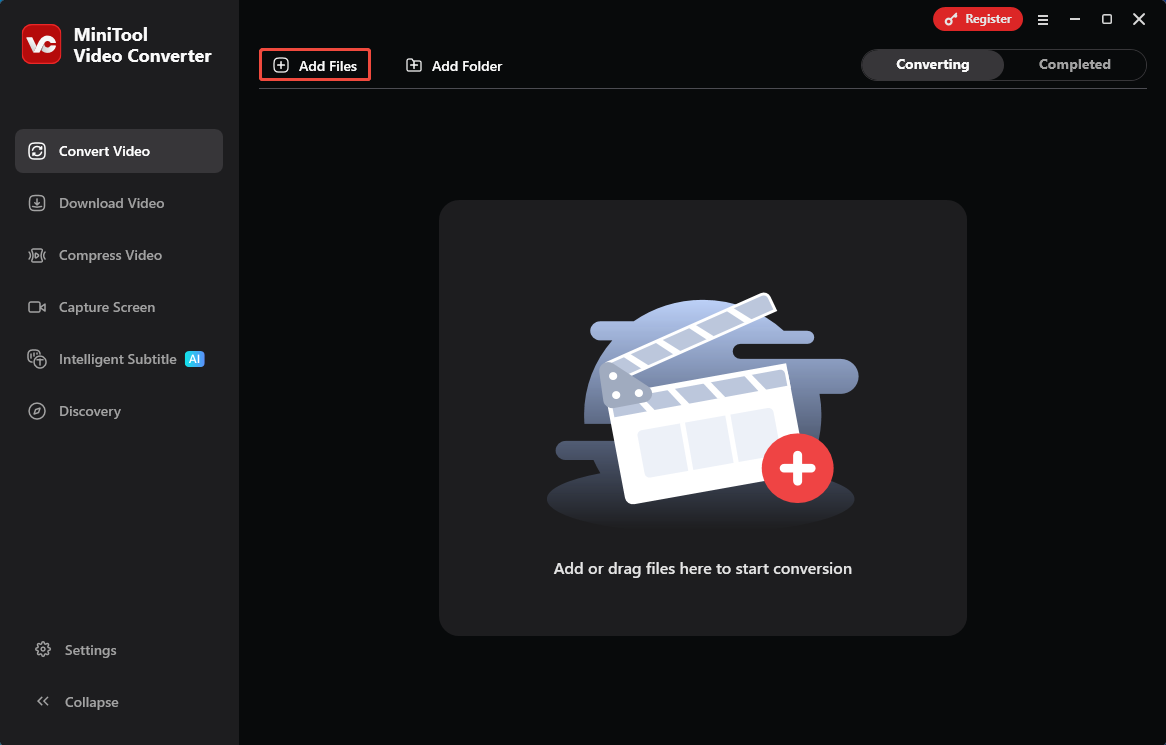
Launch this application. Then, click on the Add Files option to import the MKV video.
Step 3. Choose AC3 as the Output Format
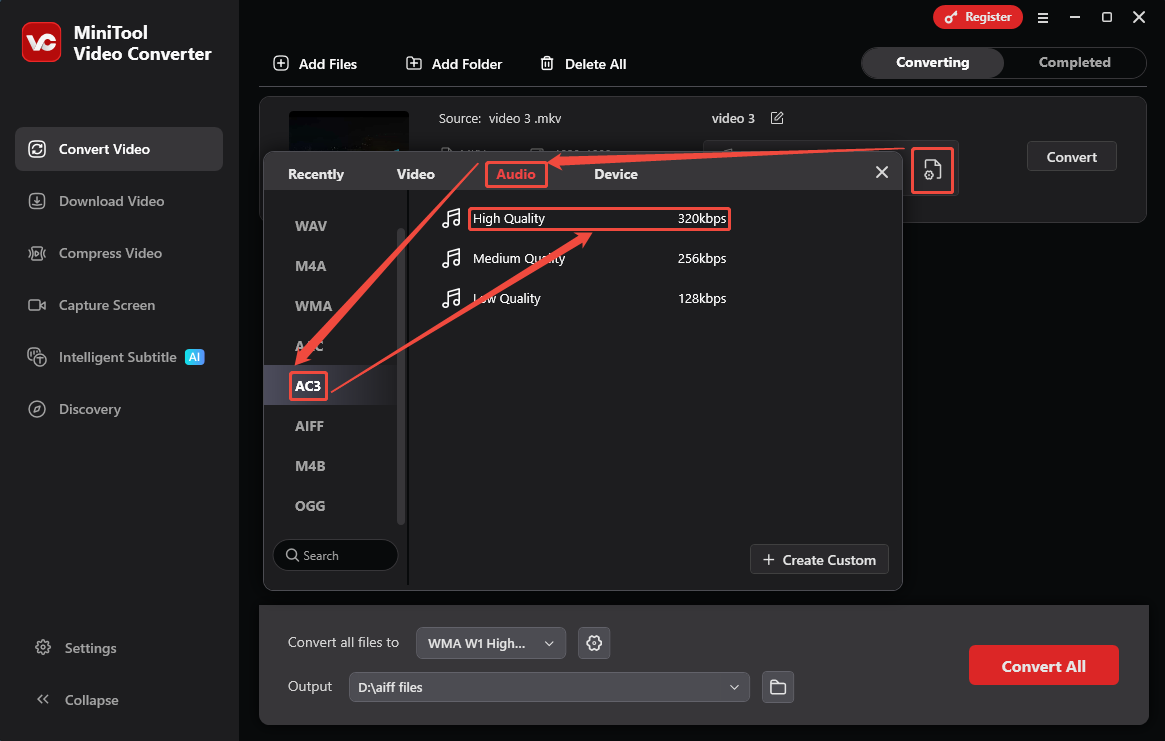
Click on the Gear icon to open the output format window. There, switch to the Audio tab and choose the AC3 format. Then, choose an audio quality option on the right page. Here, I pick High Quality.
Step 4. Start the Conversion
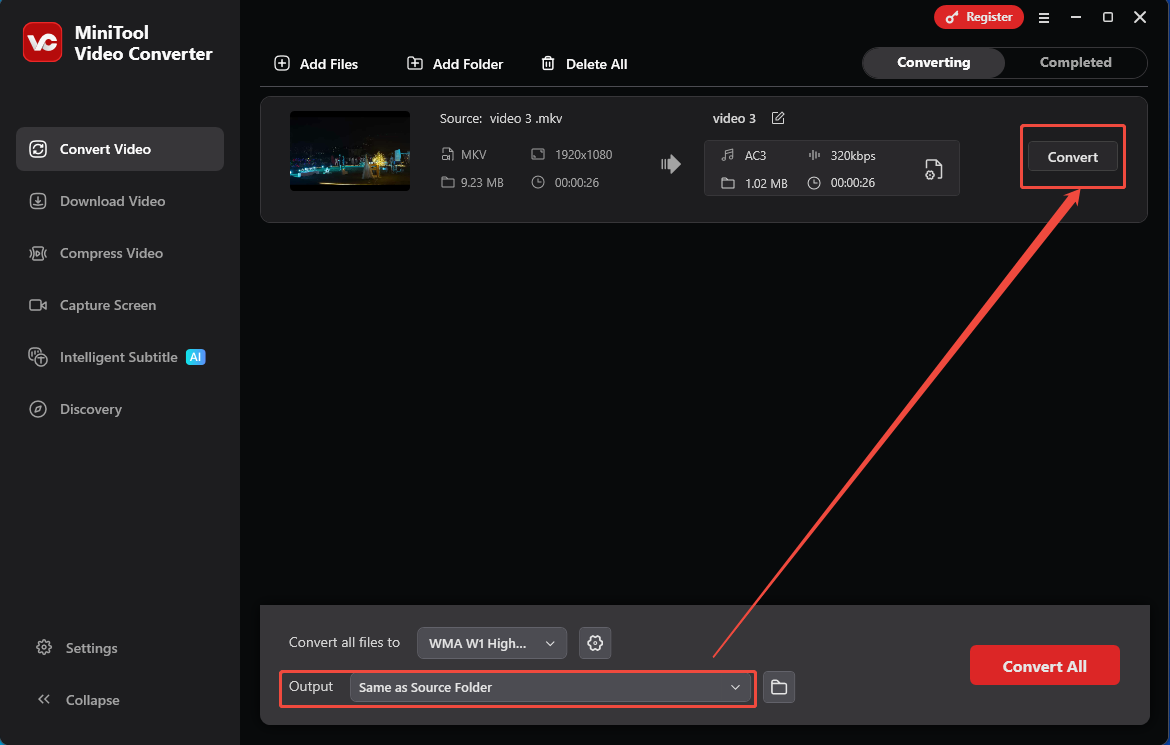
Expand the Output option to choose a storage location. Then, click on the Convert button to start the conversion.
Step 5. Check the Converted Audio
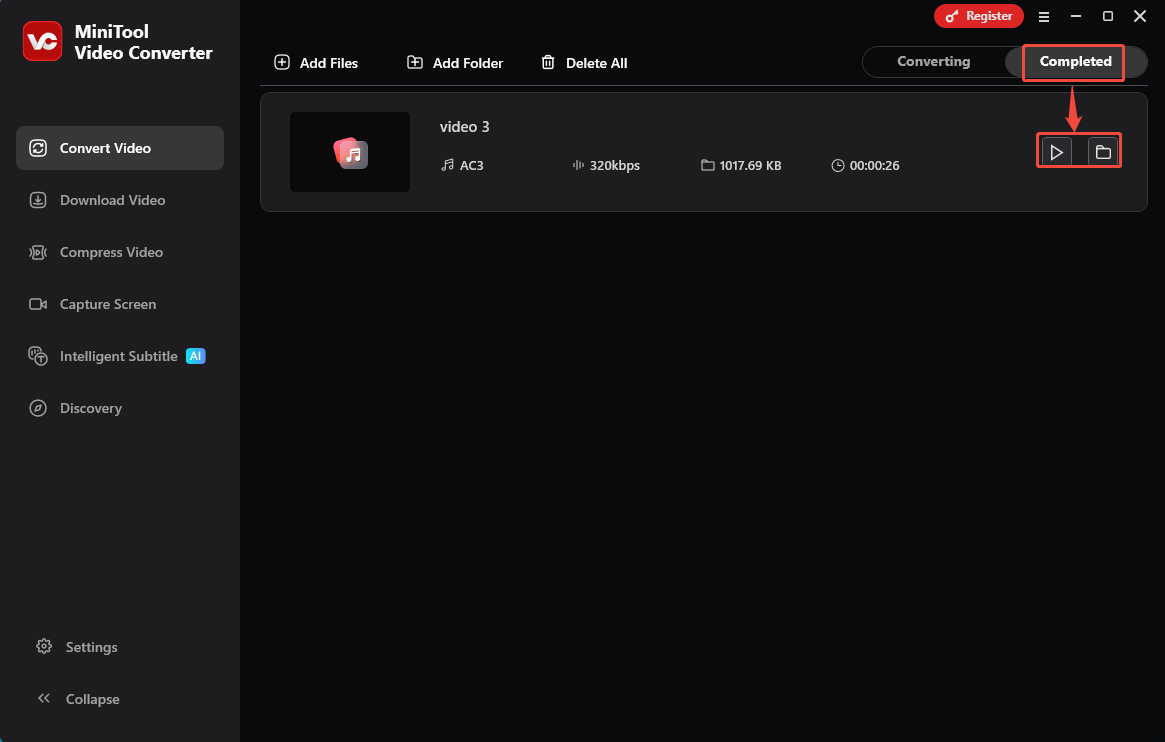
Once the conversion task ends, this file converter will switch to the Completed tab. There, click on the Play icon or the Folder icon to view or locate this converted audio.
MiniTool Video Converter makes it much easier to convert MKV to AC3 audio. You can directly refer to the tutorial above to start your conversion.
2. Convertio
Convertio is a web-based media file converter. It also allows you to upload files from Google Drive and Dropbox. In addition, Convertio supports over 300 formats for your conversions, which include MKV to AC3 audio. It empowers you to change the codec, bitrate, channels, and frequency for the converted audio. Below is a guide on how to process MKV to AC3 conversion with Convertio.
Step 1. Open the Conversion Page of Convertio
Visit https://convertio.co/mkv-ac3/ to enter Convertio’s conversion page.
Step 2. Add MKV Video into Convertio
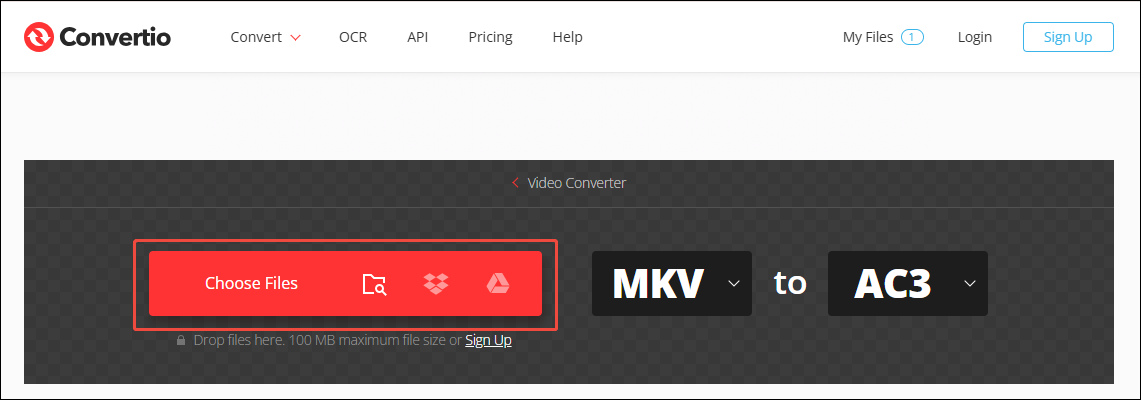
Click on the Choose Files option to add the MKV video to the page of Convertio.
Step 3. Begin Converting
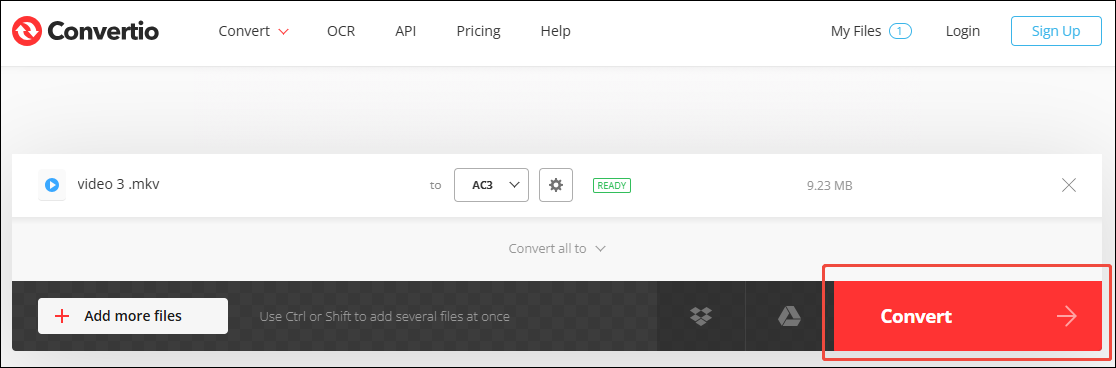
Click on the Convert button to begin the conversion process.
Step 4. Download the Converted Audio
Click on the Download button to save the converted audio.
Convertio is an efficient MKV to AC3 converter. However, you are supposed to know that it only allows you to upload files up to 100MB without logging in.
Final Words
This article explains why convert MKV to AC3 audio and tells you 2 methods to complete this conversion using MiniTool Video Converter and Convertio. How should I further select between these two converters? When dealing with a large file, choose MiniTool Video Converter. If you are tired of downloading and installing applications, use Convertio.
User Comments :