

This article explains can CDJs play M4A audio files. Meanwhile, it shows you how to convert M4A to CDJ-compatible WAV with MiniTool Video Converter or FreeConvert. Finally, this posts recommends a fantastic M4A editor called MiniTool MovieMake.
Can CDJs Play M4A
Can CDJs play M4A files? The answer varies according to the CDJ model you are using. For example, the CDJs that support M4A (encoded with AAC) include Pioneer CDJ-3000, CDJ-2000NXS, and CDJ-2000NXS2, and more. However, some older CDJ models like CDJ-850, CDJ-900, and CDJ-1000 don’t recognize the M4A files, finally leading to audio not working.
What to do if your CDJ model doesn’t support M4A? It is advisable to convert the M4A files to a CDJs-compatible format, such as WAV. Read on to find out the detailed conversion methods below.
Method 1. Use MiniTool Video Converter (Offline)
MiniTool Video Converter is a can’t-miss converter that helps you convert M4A for CDJs.
What Is MiniTool Video Converter
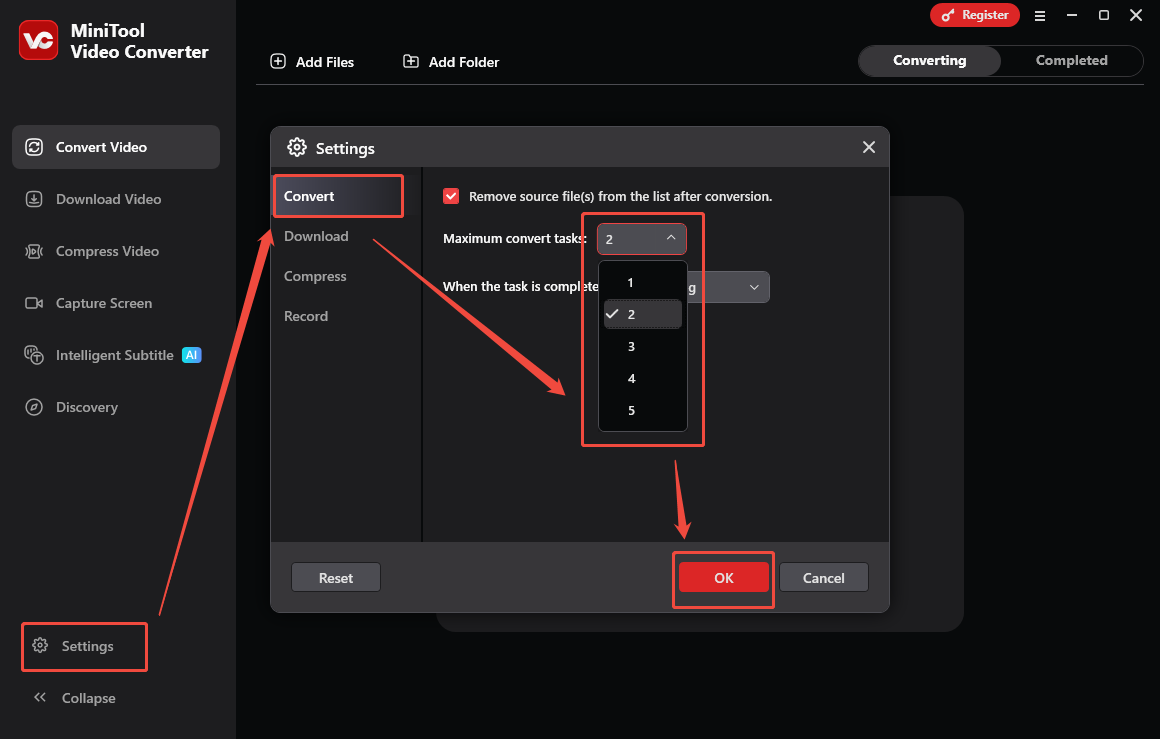
MiniTool Video Converter is an audio/video converter that never costs you a dime. It supports various conversion tasks, including M4A to WAV, M4A to MP3, M4A to AIFF, and more. Meanwhile, MiniTool Video Converter allows for batch conversion, empowering you to convert up to 5 M4A files simultaneously.
Even if you know little about audio conversion, MiniTool Video Converter, which features an intuitive interface, is accessible to you. What’s more, it allows you to customize the audio encoder, audio channel, and audio bitrate of the output files.
How to Convert M4A to WAV with MiniTool Video Converter
Since WAV shows great compatibility with CDJs, I will show you how to convert M4A to WAV using MiniTool Video Converter.
Step 1. Download and install MiniTool Video Converter.
MiniTool Video ConverterClick to Download100%Clean & Safe
Click on the download button to download and install MiniTool Video Converter on your PC. Then run it.
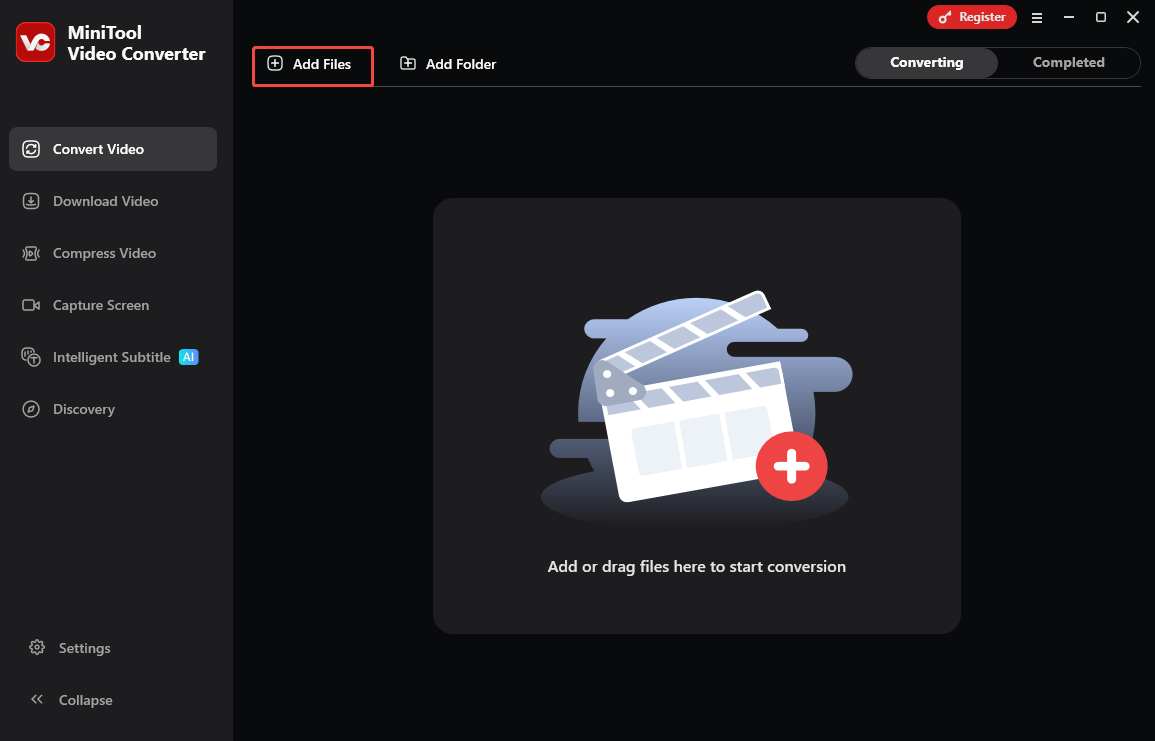
Step 2. Import the M4A files.
Click on the upper-left Add Files option to upload the M4A files.
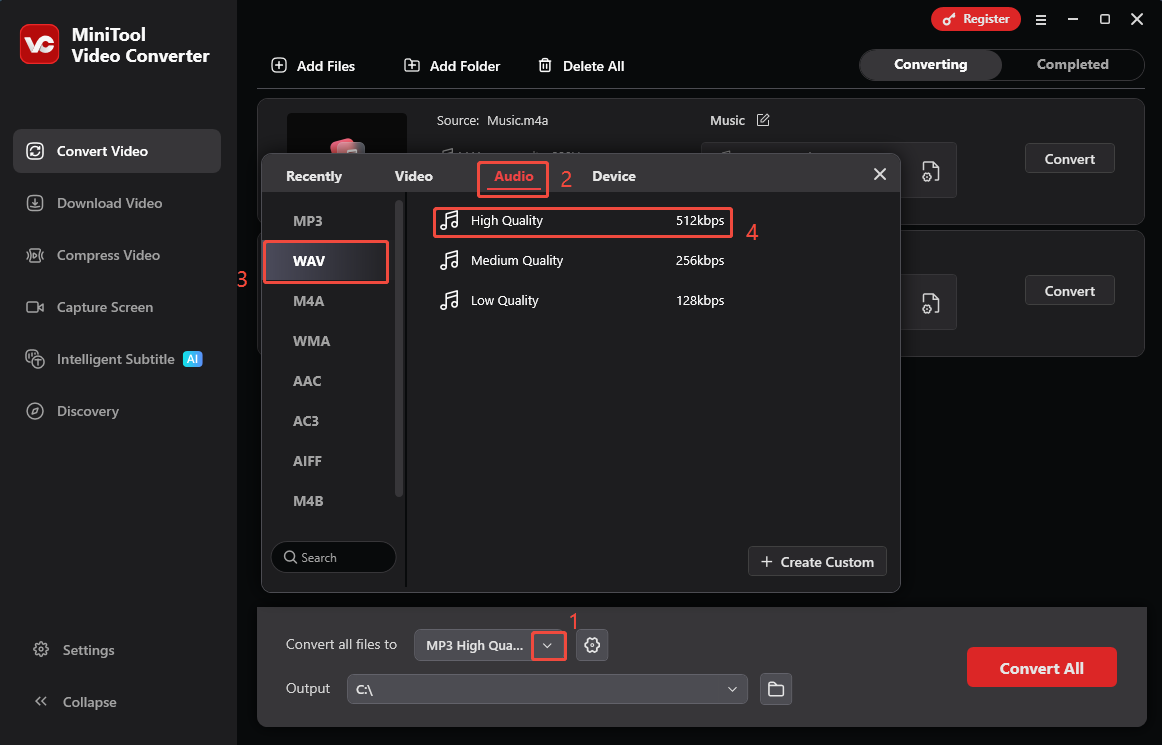
Step 3. Set WAV as the output format.
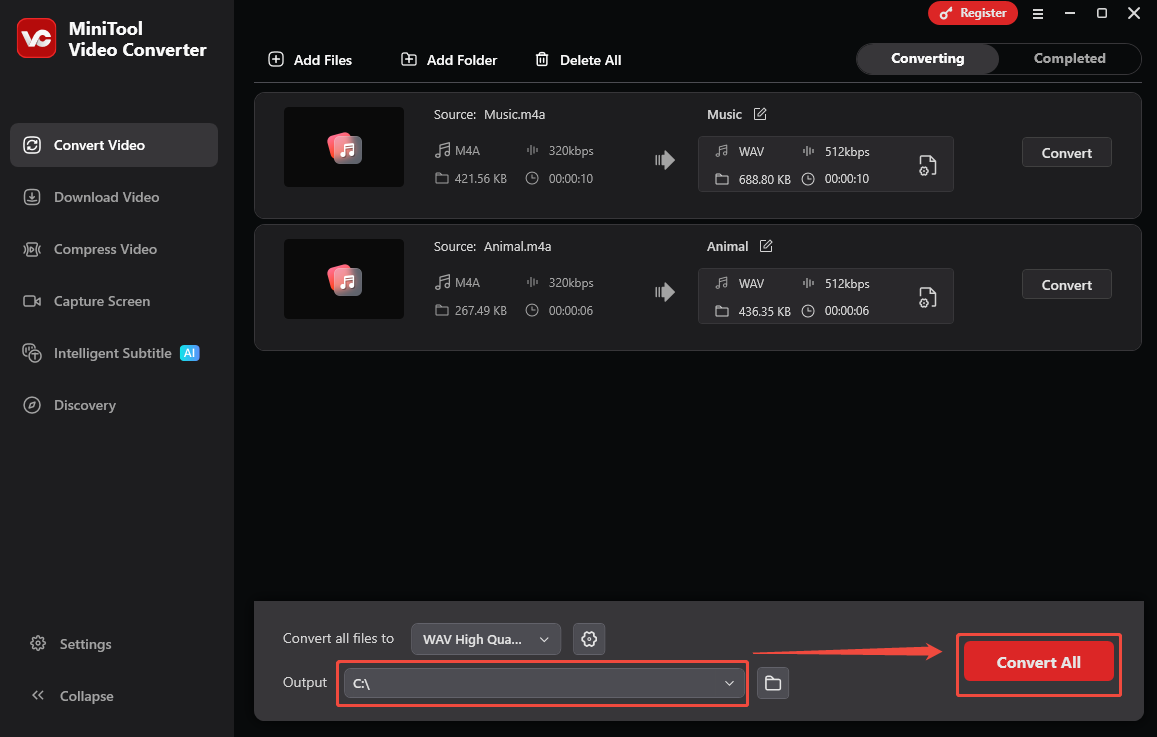
Expand the bottom Convert all files to option to enter the output format window. There, navigate to the Audio tab and click on WAV. Next, select the audio quality you want. Here, I choose WAV High Quality as the output format.
Step 4. Set a destination folder and begin conversion.
Expand the bottom Output option to select a saving path for the output files. Then, click on the Convert All button to begin the conversion process.
Step 5. Check the output files.
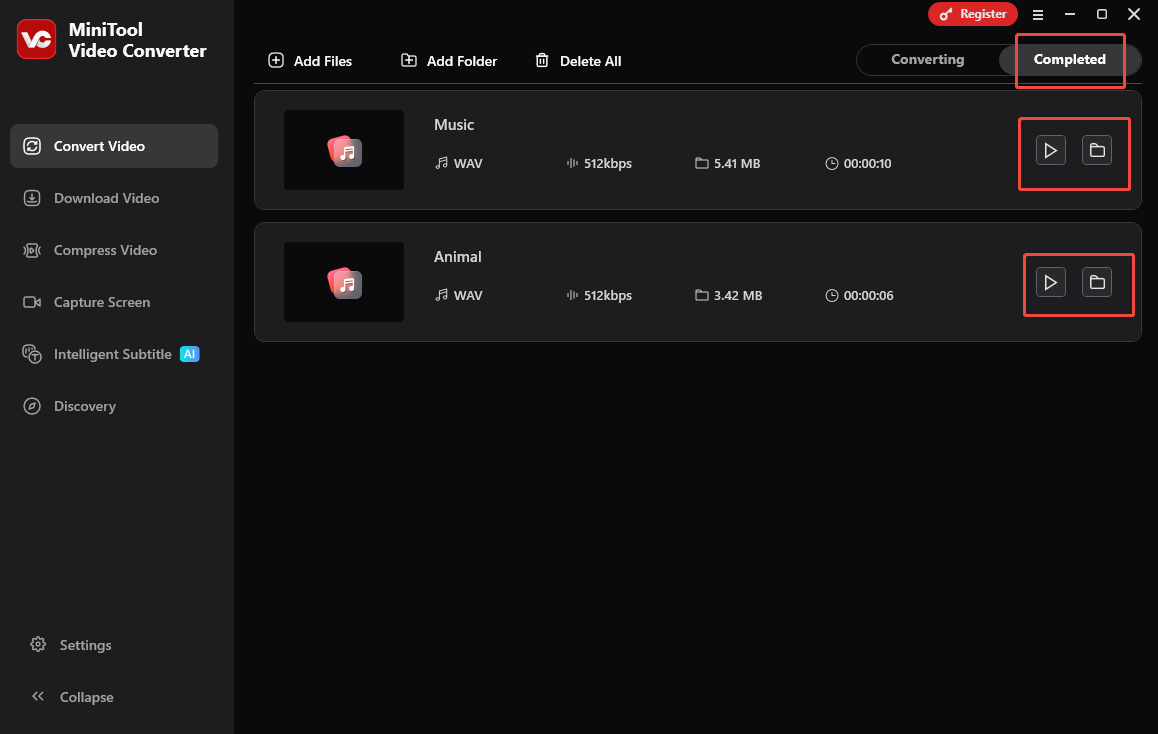
When the file conversion process finishes, this M4A converter will automatically switch to the Completed section. There, click on the Play icon to view the output files. If you want to locate the output files, click on the Folder icon.
More than a conversion tool, MiniTool Video Converter is also a one-stop solution for audio/video transcription and video compression.
Method 2. Use FreeConvert (Online)
If you want to convert your M4A files with an online tool, FreeConvert can help. It is a powerful web-based converter that works well with various systems, including Windows, Mac, Linux, Android, and more. Meanwhile, FreeConvert features an intuitive interface. All beginner can use it to convert their M4A files effortlessly.
Below are the detailed steps to convert M4A to WAV using FreeConvert.
Step 1. Go to the M4A to WAV Converter page of FreeConvert.
Visit https://www.freeconvert.com/m4a-to-wav.
Step 2. Upload the M4A files.
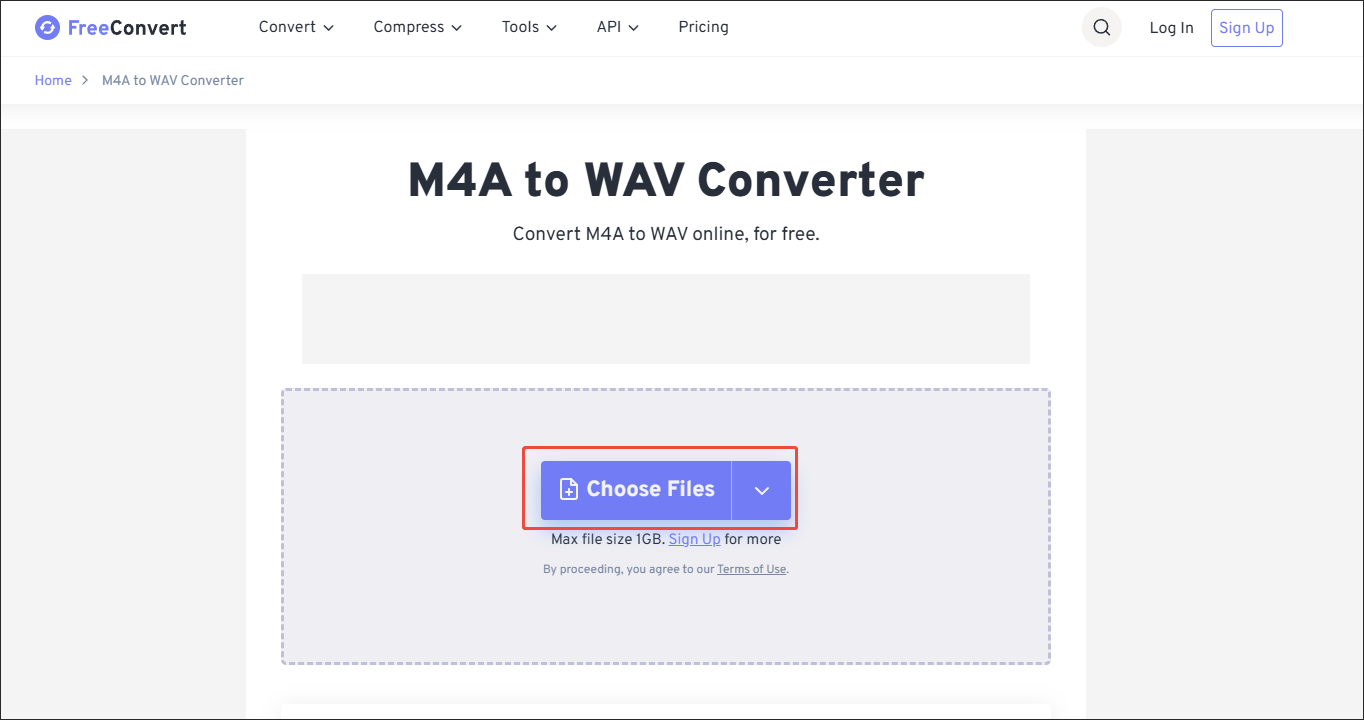
Import the M4A files by clicking on the Choose Files option.
Step 3. Configure the conversion settings.
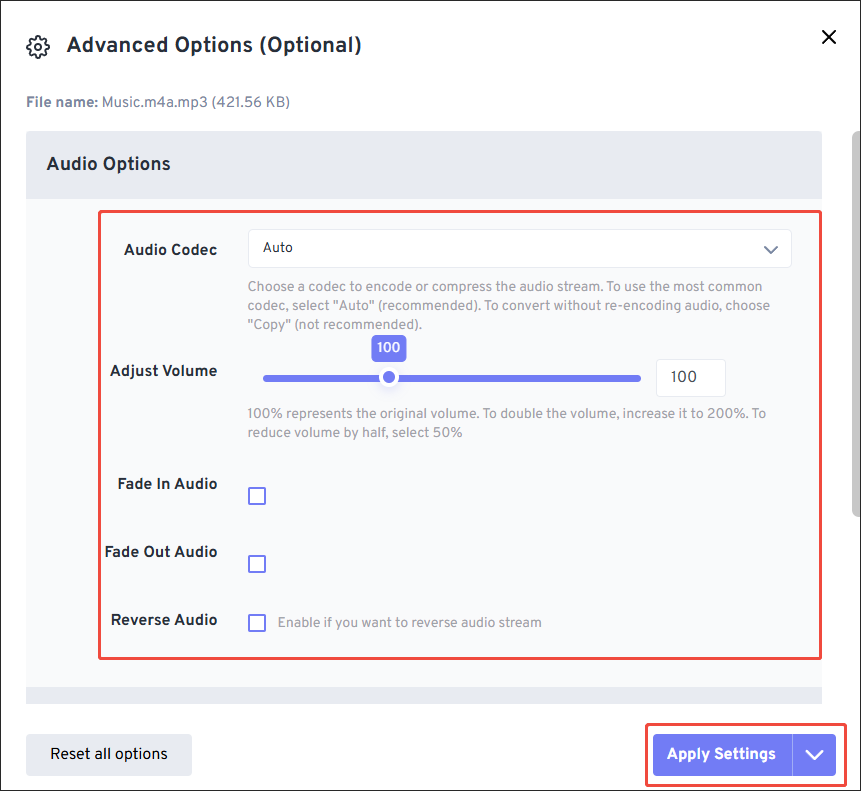
Click on the Settings icon to enter the Advanced Options window. There, you can customize the various parameters as you want. Once the customization is done, click on the Apply Settings option.
Step 4. Begin conversion and check the output files.
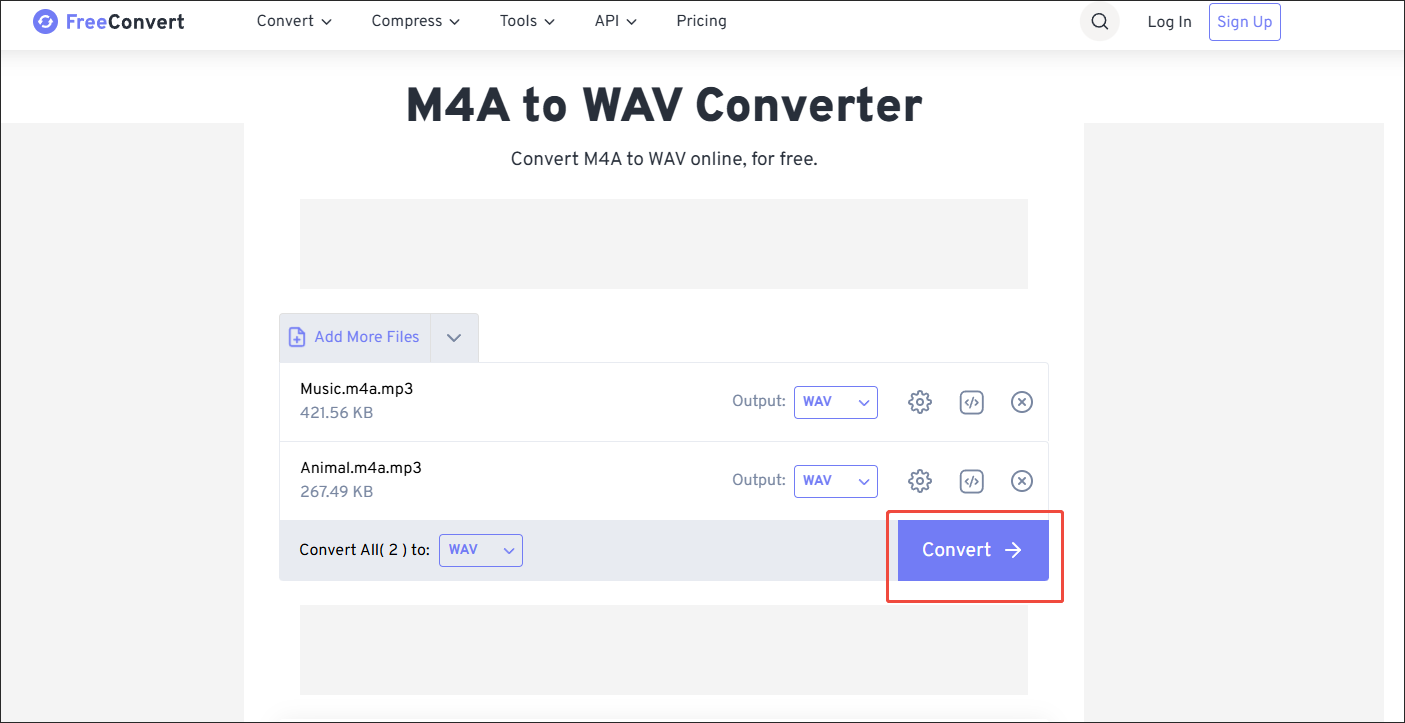
Start the conversion process by clicking on the Convert button. When the file conversion process finishes, download and check the converted files.
Can CDJs play M4A? If your answer is no, FreeConvert can be a reliable audio converter for you. However, it has a 1 GB file size limit.
Bonus: How to Edit Your M4A Audio
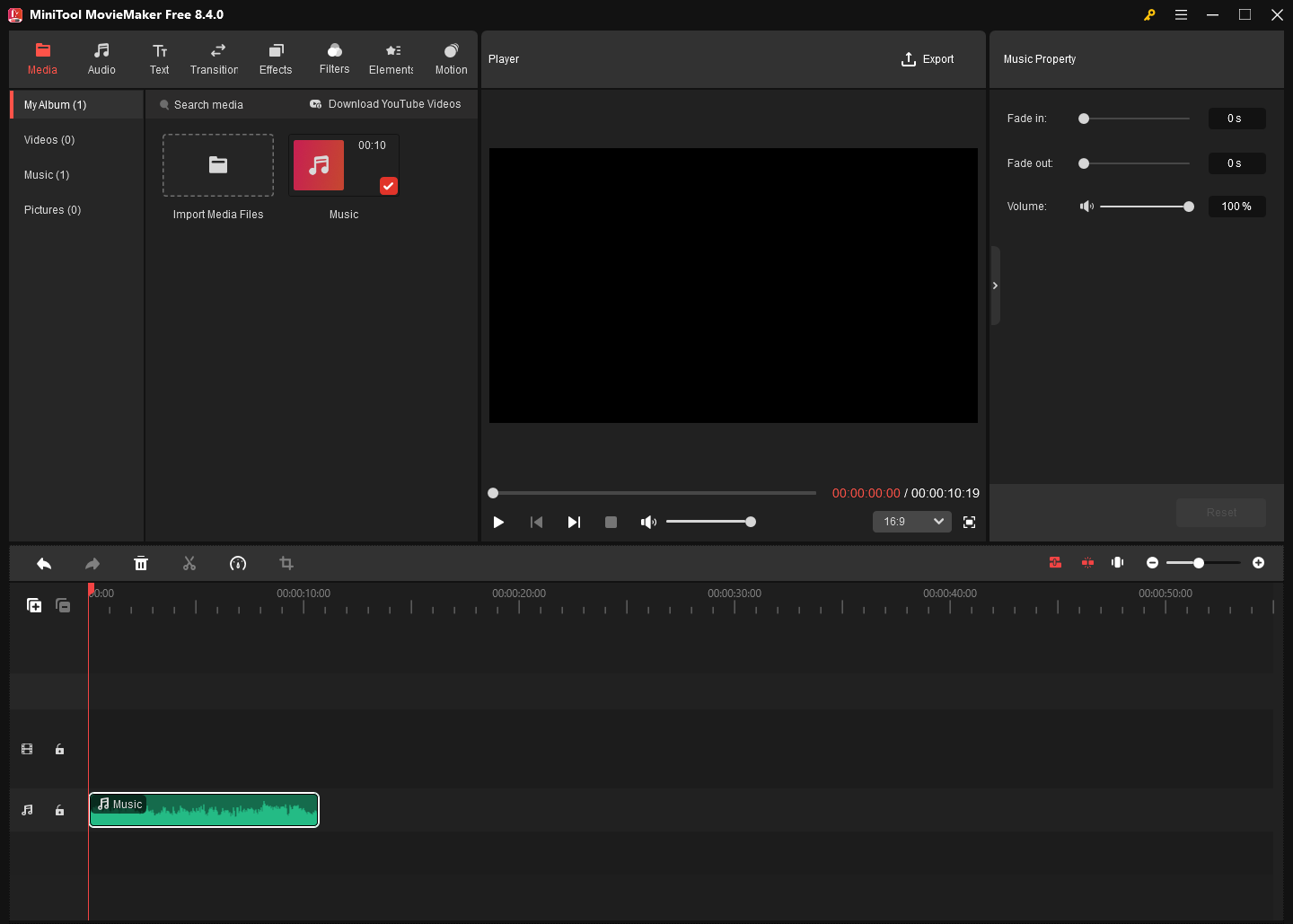
Do you want to edit the M4A audio file? If yes, MiniTool MovieMaker can help! It is a fabulous audio/video editor that enables you to split, merge, reverse, or trim your M4A files with simple clicks. In addition, MiniTool MovieMaker allows you to save your M4A files in multiple formats, including MP3, MP4, MKV, MOV, and so on.
MiniTool MovieMakerClick to Download100%Clean & Safe
Closing Words
Can CDJs play M4A audio? The answer depends on the specific CDJ model you are using. If your CDJ model doesn’t read the M4A file, you can use MiniTool Video Converter (Offline, no file size limit) or FreeConvert (Online, 1GB file size limit) to convert M4A to CDJ-supported WAV.
User Comments :