

Speech recognition software facilitates audio generation. This article introduces two excellent tools for this task, including MiniTool Video Converter and Otter.ai.
Speech recognition includes ASR (Automatic Speech Recognition), computer speech recognition, and STT (speech-to-text). It can identify speech features, speech content, and language. Currently, there are many different types of speech recognition applications, including intelligent speech assistants and speech transcription tools, etc.
2 Best Speech Recognition Software
I would like to recommend two very practical and popular speech recognition applications: MiniTool Video Converter and Otter.ai.
| Tool | MiniTool Video Converter | Otter.ai |
| Price | Free + paid | Free + paid plans |
| Platform | Windows (local) | Web/mobile |
| File size limit | No limit | Limited free quota |
| Privacy | Local processing, no upload required | Requires upload |
| Real-time transcription | No | Supported |
| Output formats | SRT / TXT | Multiple formats |
| Editable text | Supports sentence-by-sentence editing | Supported |
How do I use these two transcription tools? Here are the fast-track steps:
- Open the target transcription tool.
- Upload your video or audio file.
- Wait for the transcription.
- Edit and save the transcript.
1. MiniTool Video Converter
MiniTool Video Converter is a simple multimedia file processing tool. It can be used as a speech transcriber, a completely free video converter, a practical compressor, and a screen recorder. It features automatic recognition and uses intelligent AI to generate captions for videos and audio.
Moreover, the software supports exporting captions as SRT or text files. It also supports recognizing multiple languages. In addition, the application produces accurate transcriptions and generates them at a fast speed.
 MiniTool Video Converter
-
 Batch convert video/audio files among 1000+ formats.
 - Quickly compress videos for easy storage and transfer.
- Accurately extract subtitles from video/audio files.
- Effectively enhance video quality.

Here is how to transcribe audio or video's audio using MiniTool Video Converter.
1. Download and Install
Download and install the speech recognition software on your PC.
2. Choose an AI model
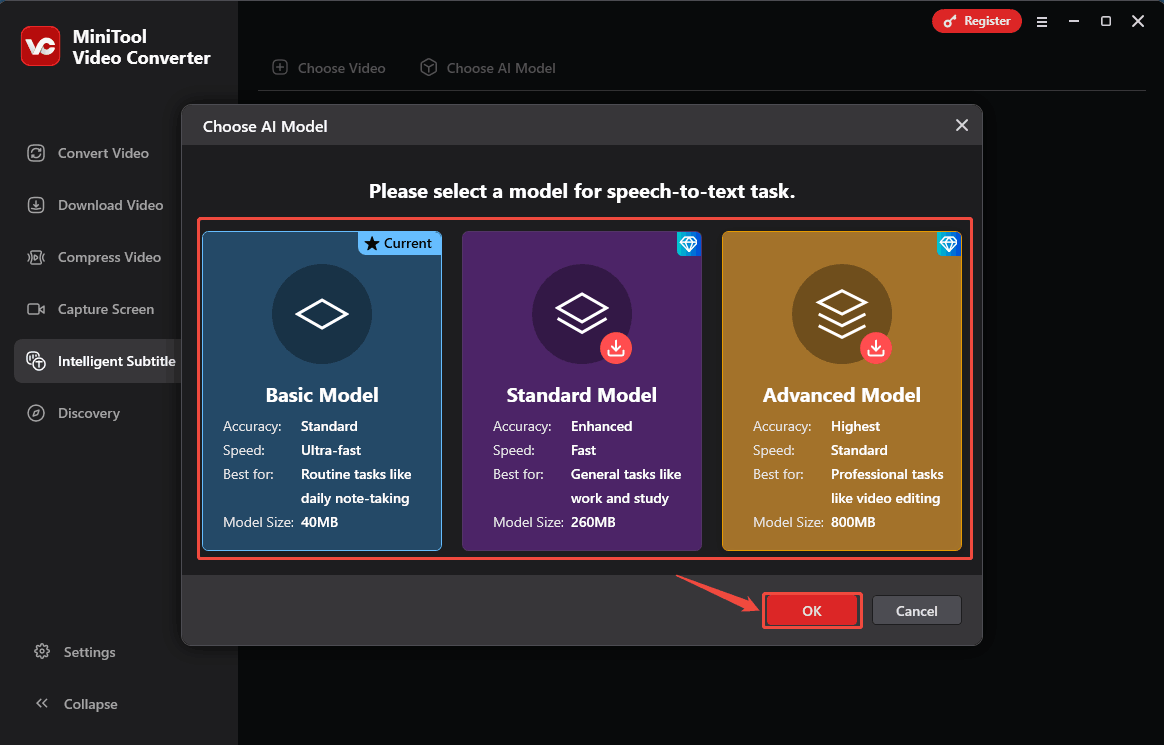
Launch the software and switch to the Intelligent Subtitle tab. Then, select a model and click OK to download it.
3. Import the File
Once the chosen model is installed, click the Choose Video option to import the video or audio file you want to transcribe.
4. Edit the Transcript
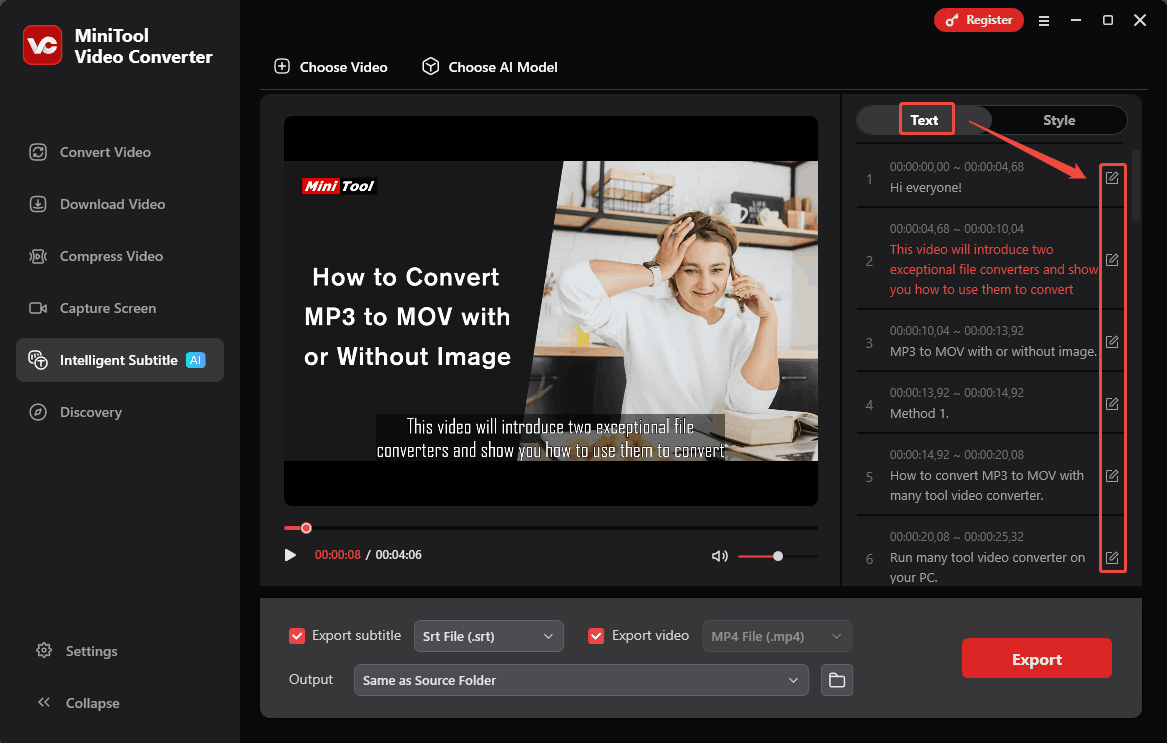
Once the video is imported, the transcription starts automatically. Next, switch to the Text tab on the right side of the Player window. There, click the Edit icon to correct errors in the generated captions or create new captions.
To customize more subtitle options, switch to the Style tab. There, you can customize the font, outline width, opacity, background color, and position of the captions.
5. Choose What to Export
Determine whether to check the Export subtitles and Export video options. You can also expand the Export subtitle option to select the exported subtitles’ format. The exported video file will automatically be saved in MP4 format.
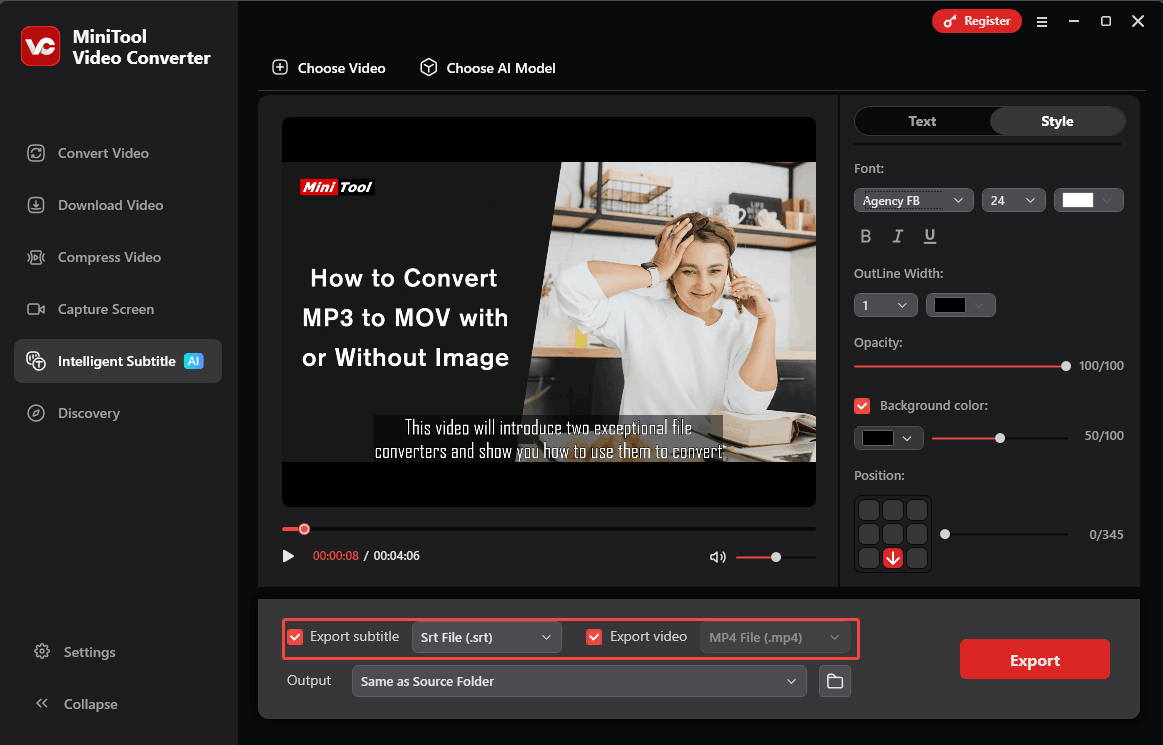
Expand the Output option to choose a folder destination for the converted subtitles and video.
6. Export and Check the Output
Click the Export button at the bottom to start the export process. When the export ends, the output folder will pop up. Also, you can click the bottom Folder icon to locate the output video.
2. Otter.ai
Otter.ai is an online audio and video text recognition and generation assistant. It combines Speech recognition, AI chat, Automated summaries, and speaker identification. Otter.ai is very suitable for real-time transcription of text in meetings and the generation of audio and video subtitles.
Here is how to recognize speech with Otter.ai
1. Upload the Target Video to Otter.ai
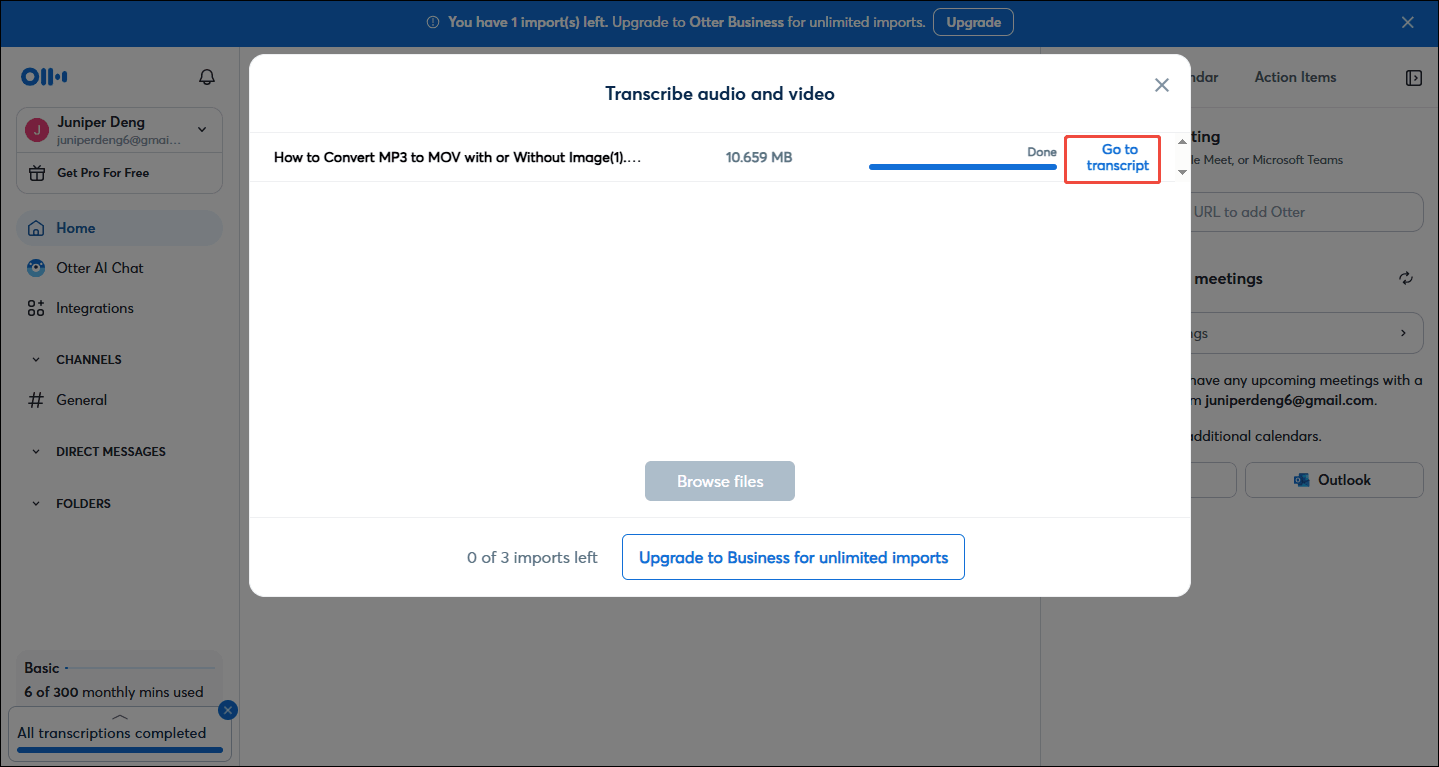
Go to https://otter.ai/home. and click the Import option to trigger the Transcribe audio and video window. Next, click the Browse files option to import the target video.
2. Start Transcription
After uploading the video, click the Go to transcript option to start generating subtitles.
3. Customize Subtitles
When the subtitles are generated, the editable subtitle task will appear in the main interface. Switch to the Transcript tab, click Edit Transcript to access the editing page.
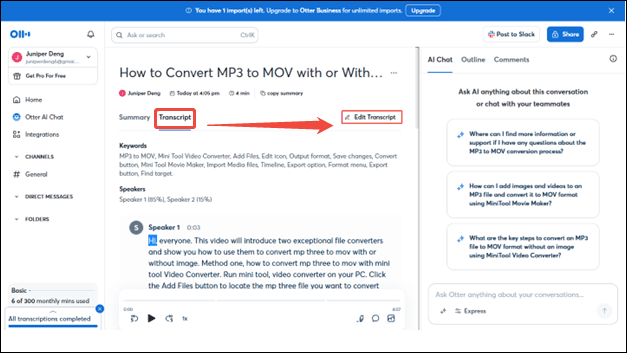
On the editing page, you can correct or create new subtitles. Then, click the upper-right Done option to end the editing.
4. Export the Video
Expand the More button to choose the Export option.
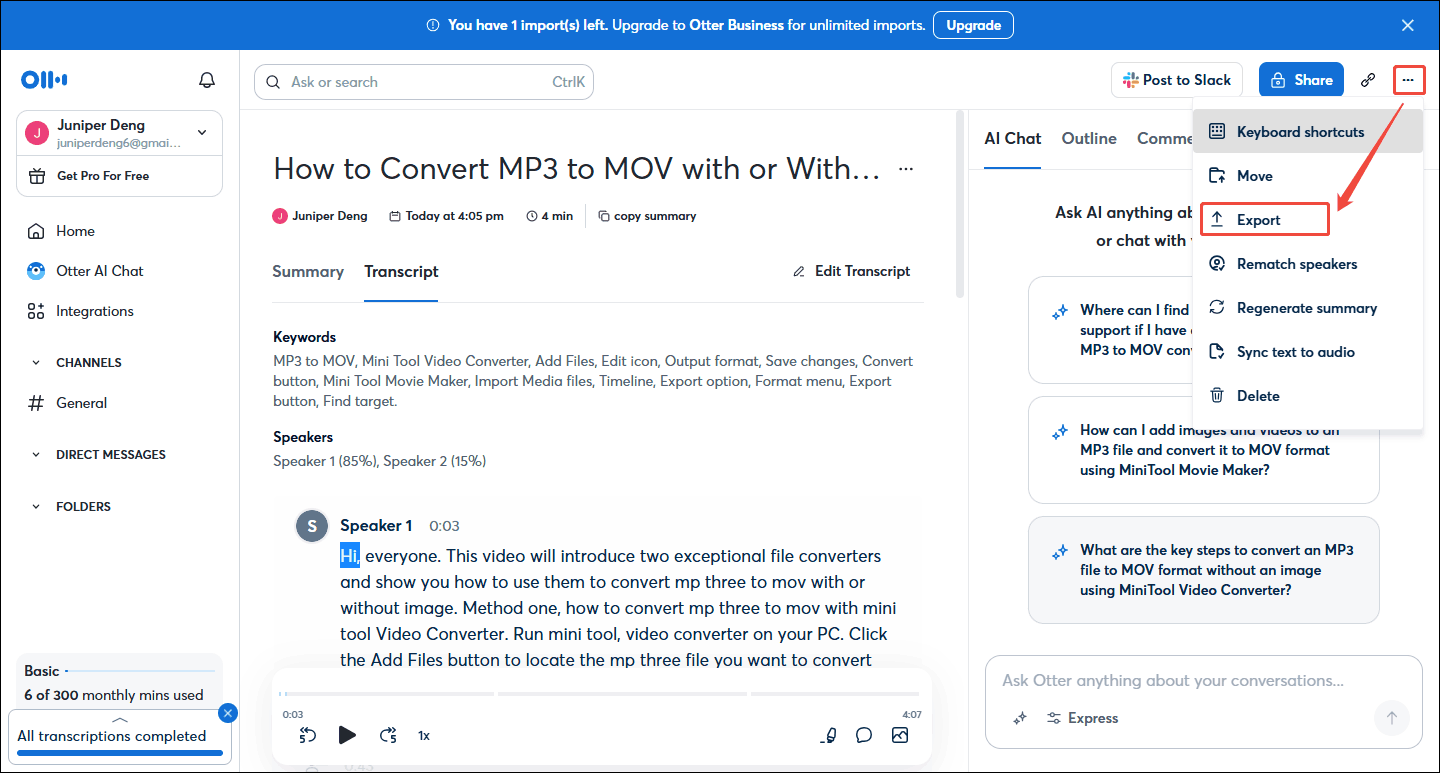
In the Export pop-up window, click the Export button to start the export process. Then, go to check the output video.
With the above-detailed steps, it will never be difficult for you to convert speech to text online.
Why Use Speech Recognition Software to Generate Captions
I think the reasons for using speech recognition software can be analyzed from three aspects: efficiency, cost reduction, and accessibility.
1. Efficiency: Automated speech recognition can accurately identify audio files and efficiently transcribe them into text. Compared with transcribing speech to text manually, it helps you convert speech to text more quickly.
2. Cost Reduction: Some video editors may require payment for adding some stylized captions to the video. However, some speech recognition software offers subtitle options for free, which helps you save more cost for video creation.
3. Accessibility: Speech recognition software provides a vital aid for people with physical disabilities, enabling them to get captions without typing. Meanwhile, for some people who have lost their hearing, converting speech into text with recognition software can also help them understand the content of audio and videos. For this, we can see that automated speech recognition has huge accessibility.
Final Thoughts
Speech recognition software enables speech-to-text conversion. With MiniTool Video Converter and Otter.ai, you can easily transcribe your video and audio and get a transcript quickly.
If you have any problems using MiniTool Video Converter, email support@minitool.com for help.
People Also Ask
1. Click inside any text box, document, or email field.
2. Press the Windows logo key + H to open the voice typing menu.
3. Start speaking clearly into your microphone to convert your speech into text.
4. Press the Windows logo key + H again or say "Stop listening" to end the dictation.
To turn on speech recognition in Windows 11, press Win + Ctrl + S, then select Next in the Set up Speech Recognition wizard window, and follow the instructions on your screen to set up speech recognition.
About The Author

Position: Columnist
Cora is a tech writer specializing in digital media workflows, with over six years of hands-on experience in video post-production, media transcoding, and screen capture. Her writing is always clear and practical. Cora also produces in-depth software reviews for users across skill levels to help them find the right tool and enjoy video editing.
User Comments :