

Blurry footage can ruin a great video. This post explains how to make a blurry video clear using two AI video enhancers: MiniTool Video Converter and Topaz Labs, alongside best practices to prevent blurriness during production.
Blurry videos can reduce visual quality and make important details harder to recognize. Enhancing video clarity can sharpen footage, improve overall appearance, and enhance the viewing experience. The following methods explain how to make a blurry video clear using both a desktop solution, MiniTool Video Converter, and an online tool, Topaz Labs.
Here is a concise comparison table of the two tools:
| Tool | MiniTool Video Converter | Topaz Labs |
| Platform | Windows | Web |
| Cost | Free | Paid |
| Watermark | No | No |
| File Size Limit | None | None |
| Enhance Mode | AI-powered Video/Anime enhancement | AI video enhancement |
| Target Users | Windows users | Cross-platform, willing to pay |
| What We Like | 1. Preview before export. 2. Support importing common video formats. | 1. Support output resolution up to 4K. 2. Allows frame rate adjustment. |
| What We Don’t Like | Only works on Windows. | Only imports MP4 and M4V files. |
How to Make a Blurry Video Clear
Fast Track Steps:
- Install and open a video enhancer.
- Import the blurry video.
- Choose enhancement mode and level.
- Enhance and export.
Method 1: Use MiniTool Video Converter
MiniTool Video Converter includes an AI-powered Video Enhancer designed to improve blurry video. It can sharpen video details, reduce unwanted noise, and upscale video resolution to produce clearer visuals. Its simple and intuitive interface makes video enhancement accessible even for beginners.
Below is how to make a blurry video clear for free with the software:
1: Download and Install the Video Enhancer
Download and install the software by following the setup instructions displayed on the screen.
 MiniTool Video Converter
-
 Batch convert video/audio files among 1000+ formats.
 - Quickly compress videos for easy storage and transfer.
- Accurately extract subtitles from video/audio files.
- Effectively enhance video quality.

2: Import the Blurry Video
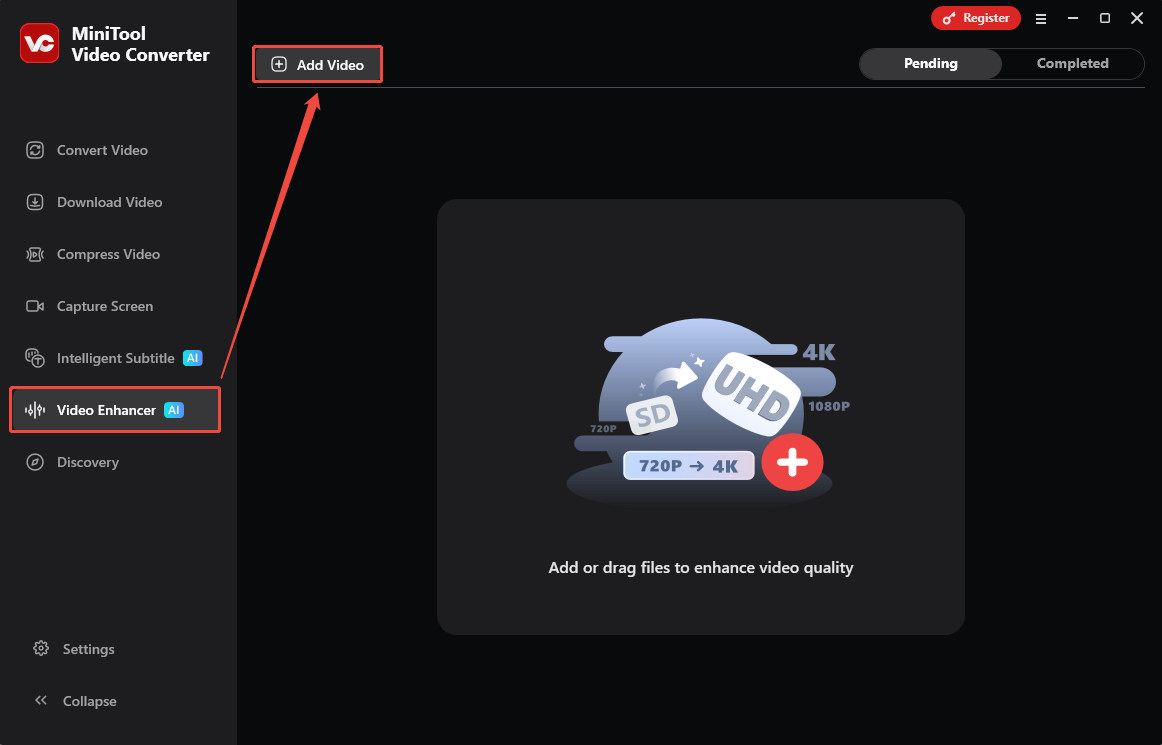
Open this free video enhancer, go to the Video Enhancer section, and click Add Video to import the blurry video file.
3: Choose the Video Enhance Mode
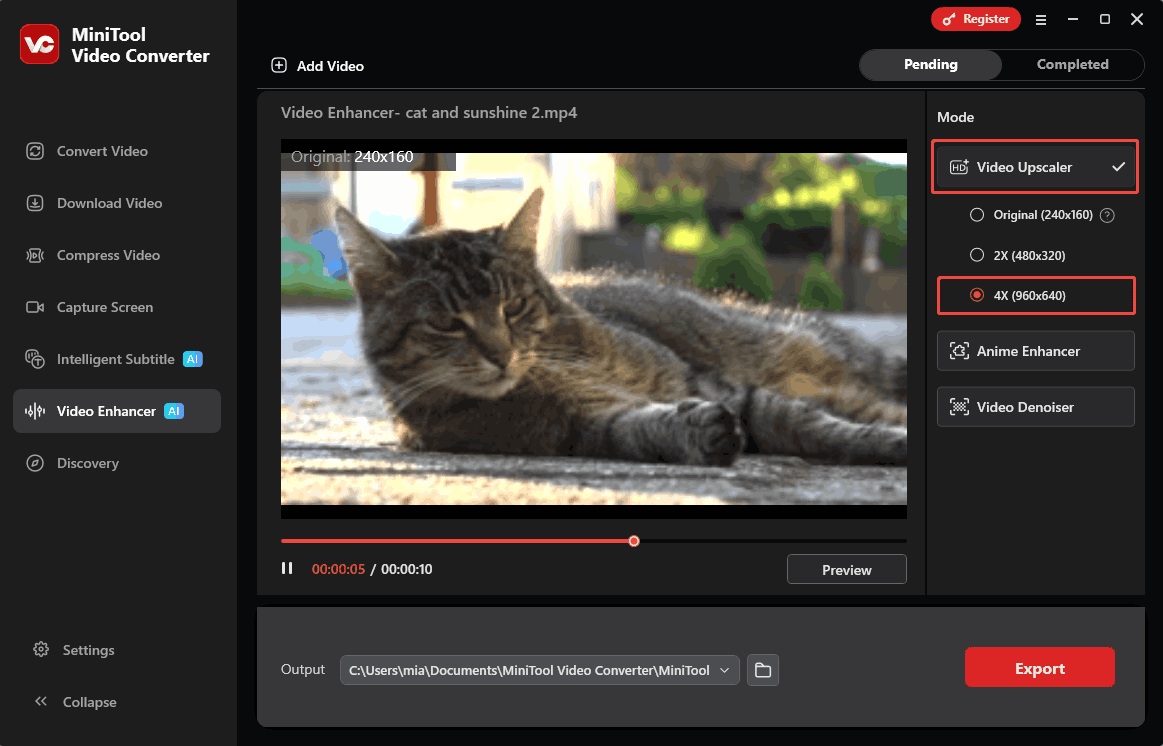
Under the Mode section, choose either Video Upscaler or Anime Enhancer. Both modes can make blurry videos clear. Then, select the enhancement level.
4: Preview the Video Before Enhancing
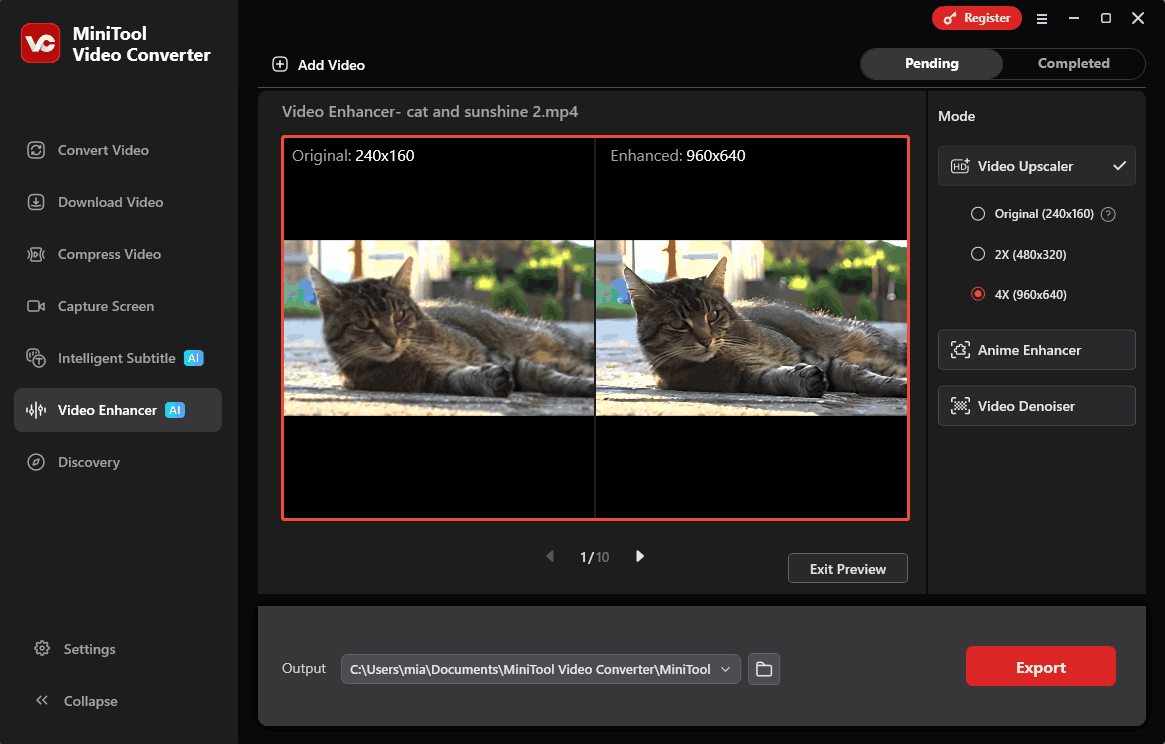
After choosing an enhancement mode, click Preview to check the video quality before exporting.
5: Set Save Location and Start Enhancing
Choose a save location in the Output section, then click Export to begin enhancing the video.
Step 6: Locate the Enhanced Video
Once the enhancement process is finished, the software will switch to the Completed section. Click the play icon to watch the enhanced video, or click the folder icon to open the exported file location.
MiniTool Video Converter not only enhances blurry videos but also offers several additional multimedia tools. It supports converting audio and video files between various formats, compressing large videos to reduce file size, and converting speech to text. These built-in features make it an all-in-one solution for video and audio processing tasks.
Method 2: Use Topaz Labs
Topaz Labs provides an online AI-powered video enhancement tool that can improve video clarity directly in a web browser. It uses advanced AI technology to restore missing details and enhance blurry videos into clearer results. Here’s how to use it:
1: Go to the Topaz Labs Website
Visit https://www.topazlabs.com/tools/video-enhancer and click Get started now.
2: Import the Video
Click the Upload a Video option to import the blurry video from the device.
3: Upscale the Video
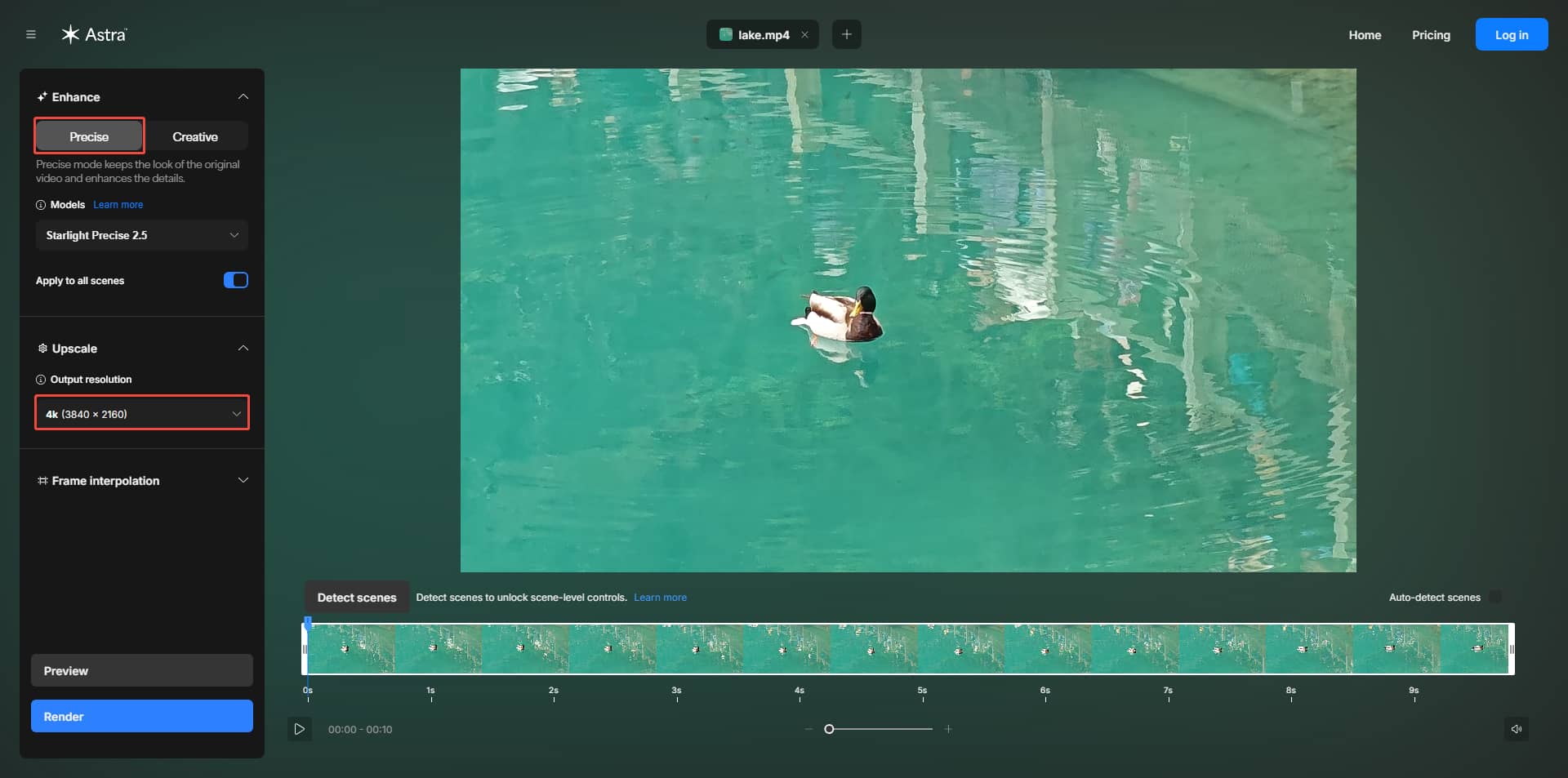
In the Enhance section, choose the Precise tab and choose the Output resolution.
4: Start Upscaling
Click the Render option in the bottom-left corner to start enhancing the video.
In addition to video upscaling, Topaz Labs also offers AI-powered tools for improving video quality, such as detail recovery, frame interpolation, and motion smoothing.
What Causes a Video to Be Blurry
I also encounter blurry videos when using my camera. Based on personal experience and feedback from many other users, there are three common causes of blurry videos: dirty camera lenses, focus problems, and motion blur caused by slow shutter speeds:
- Lens Dirt: Dust or fingerprints on the camera lens can block light and reduce image clarity, causing videos to appear blurry.
- Focus Issues: Unstable autofocus can make subjects appear unclear. This often happens when the camera struggles to track moving objects.
- Slow Shutter Speed: If the shutter speed is too slow relative to the speed of the subject, motion blur will occur.
How to Avoid Blurry Videos
Based on the most common causes of video blurring mentioned above, several effective measures can help improve video clarity:
- Clean the Lens: Remove dust or fingerprints from the camera lens using a soft microfiber cloth.
- Manually Lock Focus: Autofocus may constantly adjust or fail to focus accurately, especially in low-light conditions. Manually locking focus ensures that the subject remains sharp and clear throughout the recording process.
- Adjust Shutter Speed: Using a faster shutter speed can reduce motion blur in moving scenes.
Conclusion
This post explains how to make a blurry video clear with MiniTool Video Converter and Topaz Labs’ online video enhancement tool. If you want to enhance your videos for free, I highly recommend MiniTool Video Converter. Also, when shooting, make sure to keep the lens clean, increase the lighting appropriately, and manually focus to prevent blurry videos.
If any issues arise while using MiniTool Video Converter, contact the support team at support@minitool.com.
People Also Ask
2. Tap Edit in the top-right corner.
3. Tap the Adjust icon at the bottom.
4. Increase Sharpness slightly to define edges without adding heavy pixel noise.
5. Adjust Brilliance or Contrast slightly to make details stand out.
6. Tap Done to save changes.
About The Author

Position: Columnist
Cora is a tech writer specializing in digital media workflows, with over six years of hands-on experience in video post-production, media transcoding, and screen capture. Her writing is always clear and practical. Cora also produces in-depth software reviews for users across skill levels to help them find the right tool and enjoy video editing.
User Comments :