

This post introduces a top tool to enhance security camera video quality. The process is straightforward. Upload your video, choose your enhancement setting, and begin the upgrade. It also explains why video enhancement is important, such as making details easier to identify and supporting accurate analysis.
Video footage from security cameras can sometimes appear blurry. This may be due to dust on the lens, improper focus, low resolution settings, or poor lighting conditions. If the issue stems from a dirty lens, cleaning it may help resolve the blurriness. Alternatively, try adjusting the camera's focus and resolution settings manually.
However, the above solutions may not always completely resolve the issue. If the maximum resolution supported by the camera itself is inherently low, the resulting video quality will also be poor. In such cases, the only viable solution is to utilize AI video enhancement tools to intelligently upscale the resolution.
How to Enhance Security Camera Video
Below is a full guide on how to fix blurry security camera footage with a video enhancer.
Part 1: Save the Security Camera Video on Desktop
Since most enhancement tools are desktop applications, the security camera video must first be transferred to a computer. Below are several methods for transferring and saving security camera video to a computer:
# Method 1: Web Interface (Browser)
- Enter the camera's IP address in a browser.
- Log in and go to the Playback or Search option.
- Pick the camera, date, and time range.
- Mark the clip with the scissor icon.
- Click the Download or Backup icon to save the file (usually MP4 or AVI) to the computer.
# Method 2: VMS Software (Desktop Application)
- Open the camera manufacturer’s VMS software (such as Smart PSS or CMS).
- Log in and go to Playback.
- Use the Local tab to search recordings on the NVR or camera.
- Select the footage and click Export or Local Record.
- Save and convert the format if necessary.
# Method 3: USB Transfer from DVR/NVR
- Plug a USB drive into the DVR or NVR device.
- Open the Backup or Export menu and select the camera and time range.
- Pick MP4 or AVI as the output format.
- Export the footage to the USB drive.
- Copy files to the target computer.
After saving the surveillance footage to the computer using any of the methods mentioned above, select a video enhancement tool to improve its quality.
Part 2: Use MiniTool Video Converter to Enhance Video
Fast Track Steps:
- Download and install MiniTool Video Converter.
- Import the target recording.
- Set an enhancement level.
- Preview the enhanced video.
- Start enhancement.
- Check the enhanced video.
MiniTool Video Converter provides a free and easy way to enhance video quality using AI-powered technology. It improves clarity by upscaling resolution, reducing noise, and sharpening blurred details, making it suitable for restoring blurry security camera videos.
The software supports 2x and 4x video upscaling through intelligent pixel enhancement, helping maintain a natural and clear visual output. It also supports multiple formats, including MP4, MKV, MOV, AVI, WMV, and more, ensuring smooth import and processing without compatibility issues. After enhancement, videos are saved in MP4 format for easy playback across most devices.
In addition, the program is designed to be user-friendly. It adds no watermarks to exported videos and imposes no limits on file size or the number of files that can be processed, making it a practical solution for improving video quality at no cost.
Here is how to enhance security camera video quality:
1: Download and Install
Download and install the video enhancement tool by following the on-screen prompts. Then, open this free video enhancer.
 MiniTool Video Converter
-
 Batch convert video/audio files among 1000+ formats.
 - Quickly compress videos for easy storage and transfer.
- Accurately extract subtitles from video/audio files.
- Effectively enhance video quality.

2: Import the Target Video
Choose the Video Enhancer option in the left column. Then, click Add Video to upload the security camera video from the computer.
3: Choose the Enhance Mode
After importing the video, choose an enhancement mode (Video Upscaler, Anime Enhancer, or Video Denoiser). Generally speaking, surveillance footage tends to be blurry because of low resolution. Therefore, choosing Video Upscaler is a suitable choice.
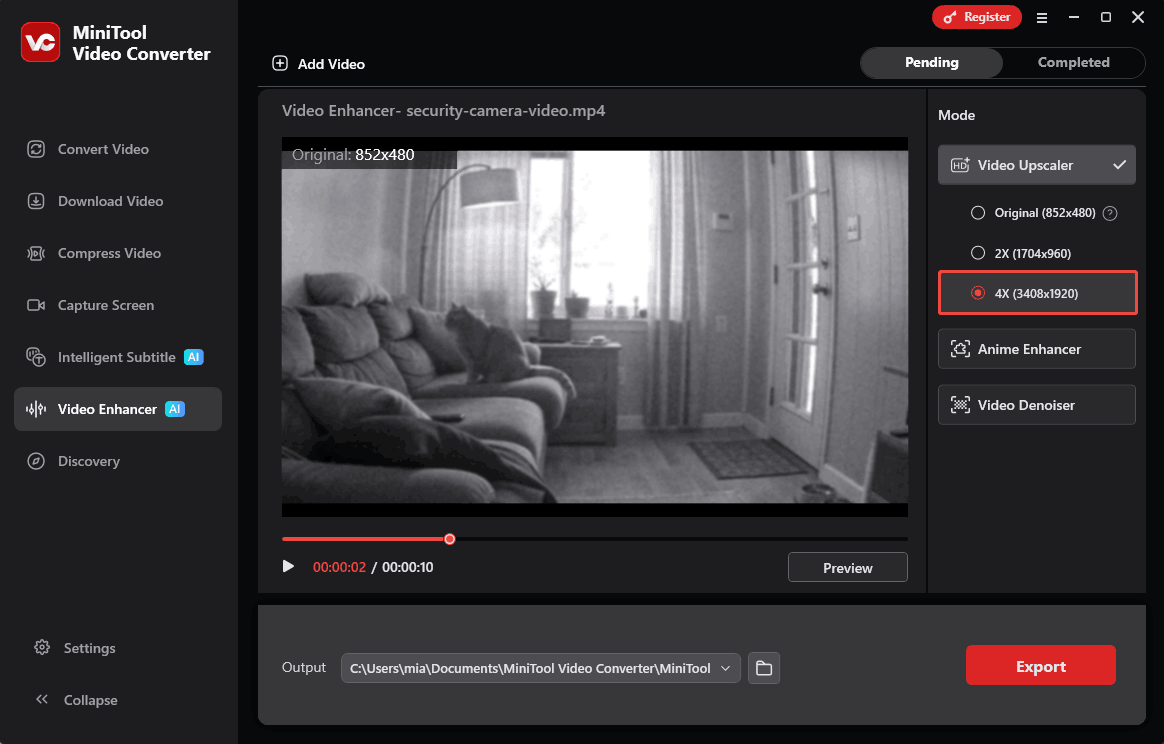
4: Preview the Enhanced Video
After selecting an enhancement mode, click Preview to compare the original and enhanced videos side by side.
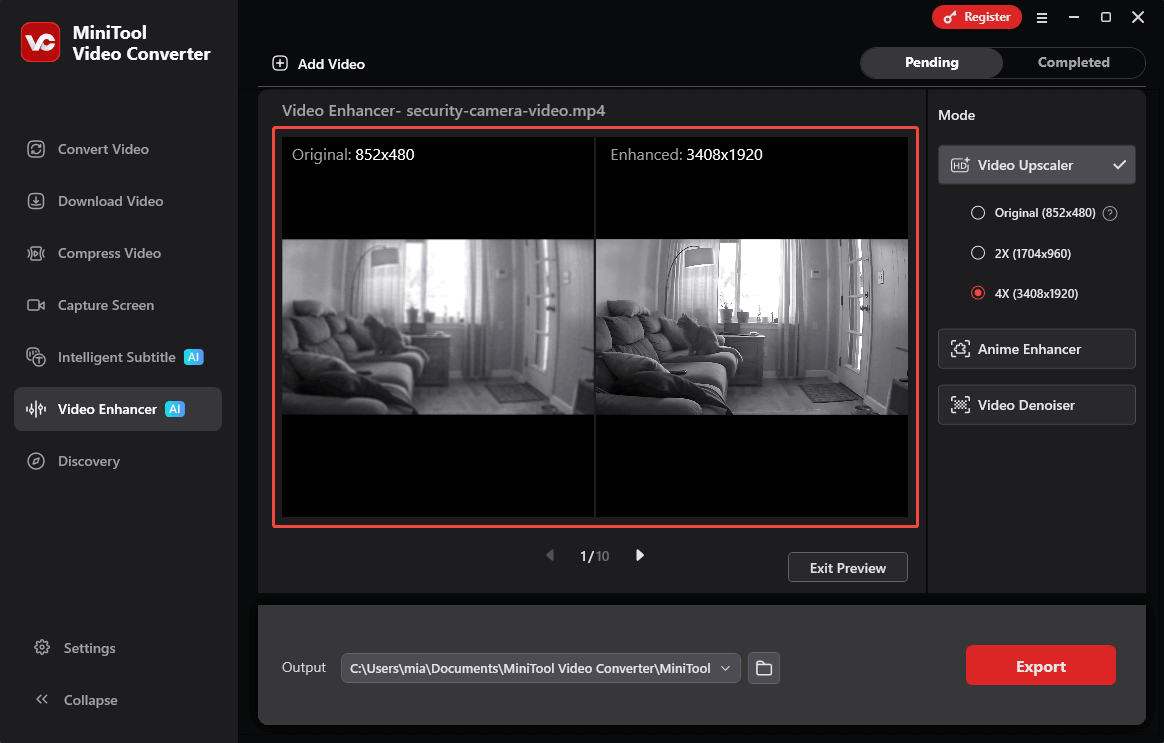
5: Select Output Folder and Export the Video
After previewing the enhancement, unfold the Output option at the bottom to select a save location, then click Export in the lower-right corner. The software processes the video and saves the final enhanced file to the chosen folder.
6: Find the Exported Video
Once the export completes, the interface automatically switches to the Completed tab. Click the play icon to preview the enhanced video, or the folder icon to open its save location.
After applying video upscale processing, I reviewed the security camera video, and it appeared significantly clearer. I could make out details such as text and license plate numbers much more easily. I also found that MiniTool Video Converter offers a variety of useful features, such as reducing video file size, converting formats, transcribing audio and video, and more.
Why Improving Security Camera Video Quality Matters
Enhancing the video quality of security cameras helps secure more conclusive evidence. If surveillance footage is blurry or indistinct, identifying faces, license plates, and various objects becomes difficult. This can severely hinder criminal investigations.
AI video enhancers can be used to boost video clarity through techniques such as upscaling, noise reduction, and sharpening. These technologies can restore missing details in footage that is of low resolution or captured under poor lighting conditions. In the event of a crime, clear video footage serves as invaluable evidence, providing crucial support for both criminal investigations and legal proceedings.

Final Words
It is incredibly easy to clarify videos using AI tools like MiniTool Video Converter. With this tool, I can not only enhance security camera video quality but also improve the clarity of movies, animations, and other videos. Have questions about the software? Send an email to support@minitool.com for help.
People Also Ask
About The Author

Position: Columnist
Cora is a tech writer specializing in digital media workflows, with over six years of hands-on experience in video post-production, media transcoding, and screen capture. Her writing is always clear and practical. Cora also produces in-depth software reviews for users across skill levels to help them find the right tool and enjoy video editing.
User Comments :