

This post explains how to cut video from TikTok using MiniTool Video Converter, an all-in-one solution for editing, compressing, converting, and enhancing videos. Save the video from TikTok, import it into the app, trim the edges or split the video, and export the final result.
After downloading a video from TikTok to my PC, I often need to trim a few seconds from the beginning, cut off redundant footage at the end, or split a long video into segments to upload to another platform one by one. Usually, I need a dedicated editing program to import, trim, export, and repeat the process.
Now, I can do these tasks right in one application, MiniTool Video Converter. While it’s primarily designed as an audio/video converter, it includes a simple cut tool for quick edits. How to cut video from TikTok in the software? Let’s dive in.
How to Cut Video from TikTok on PC
Fast Track Steps:
- Download the video from the TikTok website to the desktop.
- Open the TikTok video cutter and import the saved clip.
- Drag the trim handle to remove unwanted parts at the beginning or end.
- Or, use the cut tool to split the video into small clips.
- Export the final result.
MiniTool Video Converter offers an all-in-one cut tool for trimming or splitting videos. My favourite part is that it can save each segment separately after splitting. I no longer have to delete the other clips, save one segment, then repeat the whole process again and again until I save every split clip. Best of all, the software does not leave a watermark on the exported videos.
 MiniTool Video Converter
-
 Batch convert video/audio files among 1000+ formats.
 - Quickly compress videos for easy storage and transfer.
- Accurately extract subtitles from video/audio files.
- Effectively enhance video quality.

How to cut video from TikTok? Follow me:
1. Download the Video from TikTok
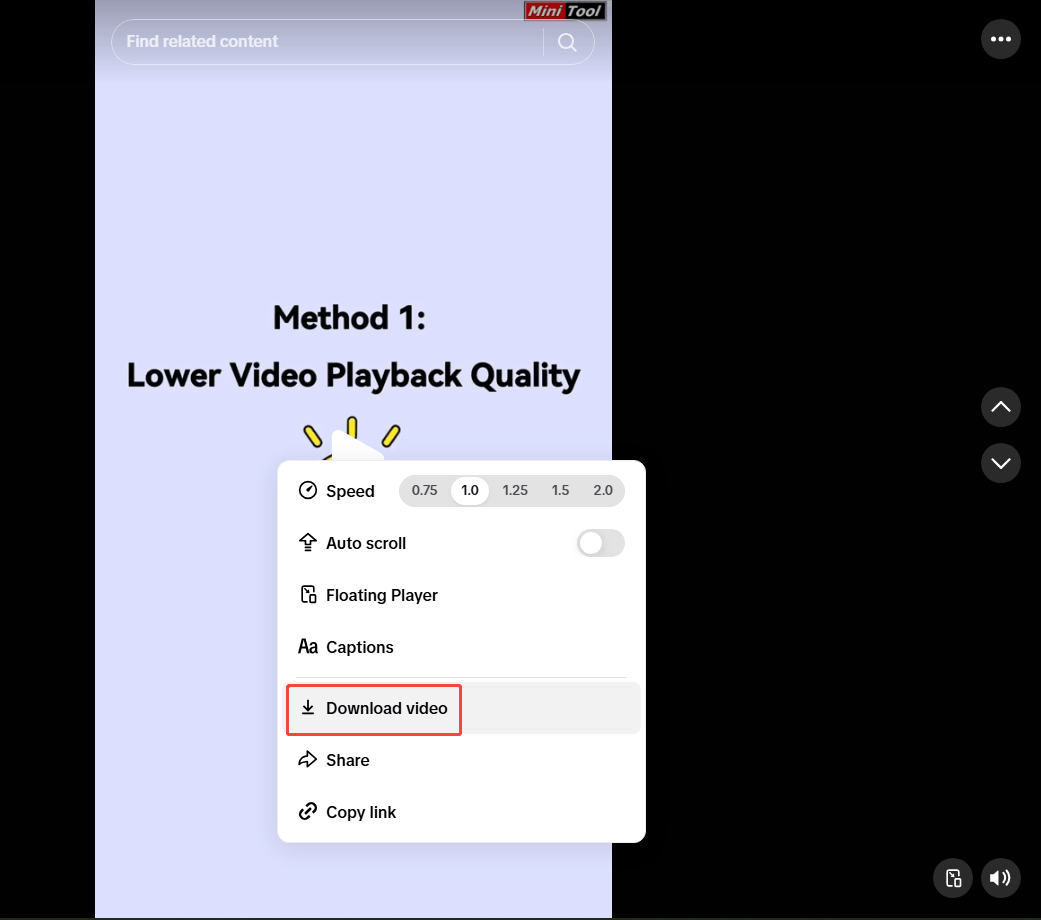
First, navigate to the TikTok website and find the target video. Right-click on the screen and select Download video from the pop-up menu to get an MP4 file. The saved video has a TikTok watermark.
2. Import the TikTok Video
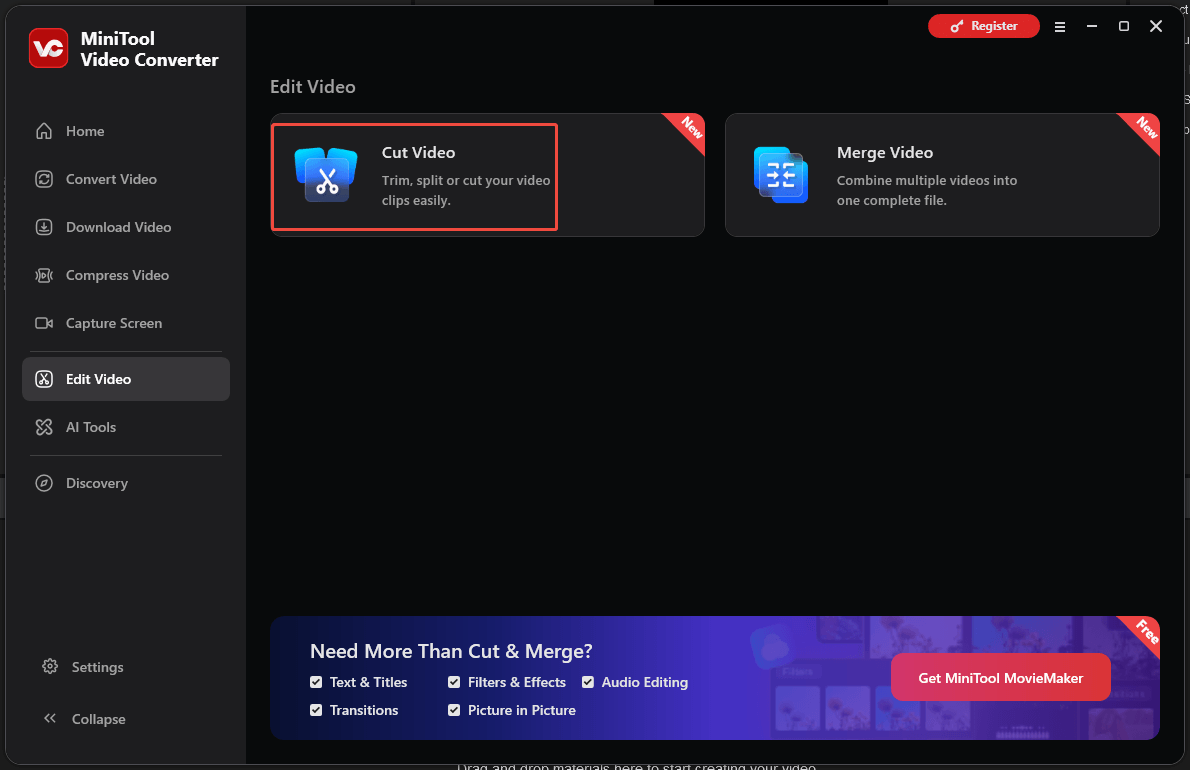
Open MiniTool Video Converter after installation. On the home page, click Cut Video or select Edit Video on the left sidebar and click Cut Video. Then, File Explorer opens. Select the downloaded TikTok video and click Open to import it.
3. Cut the Video from TikTok
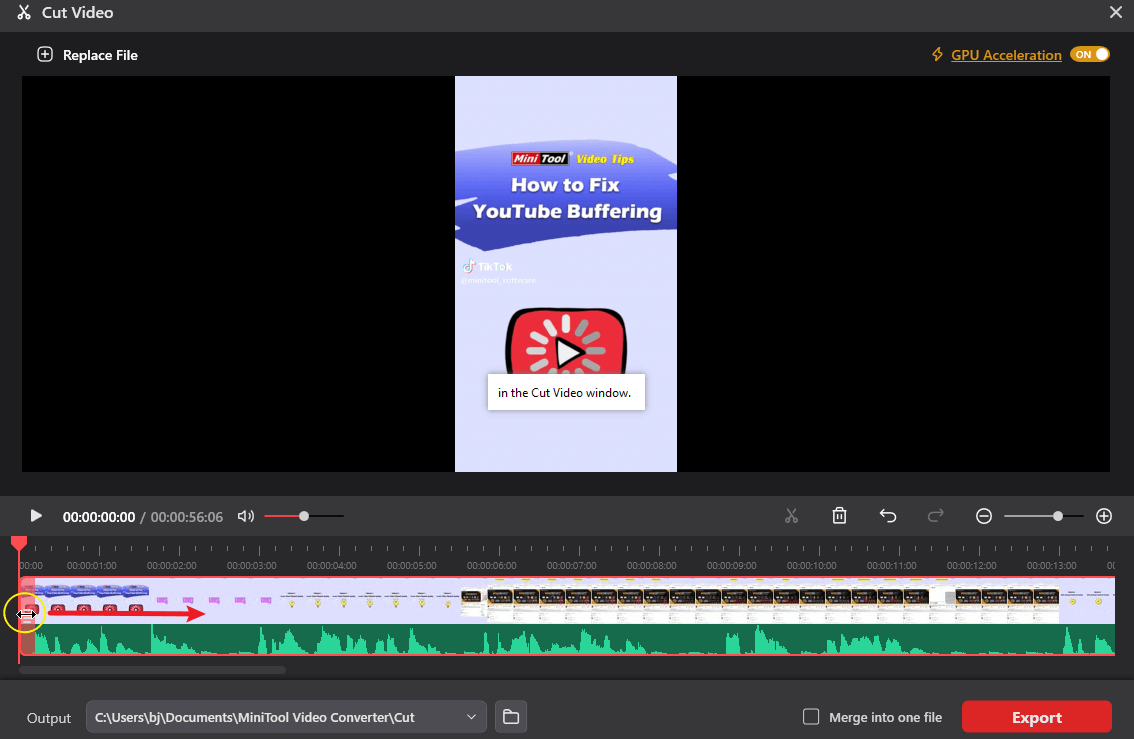
The Cut Video window appears, and the video will be automatically added to the timeline. To cut the video precisely, click the Zoom in icon at the far right of the timeline toolbar to enlarge the timeline and display the timecode with a more precise scale.
Next, do one of the following to edit the video:
#Trim: Hover the cursor over the start, or drag the progress bar to the end of the video and place the mouse cursor. Then the trim handle (a double-sided arrow) appears; hold and drag the icon inward to remove unnecessary parts from either end.
#Cut: Move the playhead to the first position where I want to make a cut, click the Cut icon (scissors) on the playhead or on the timeline toolbar. Repeat this step to divide the video into multiple parts.
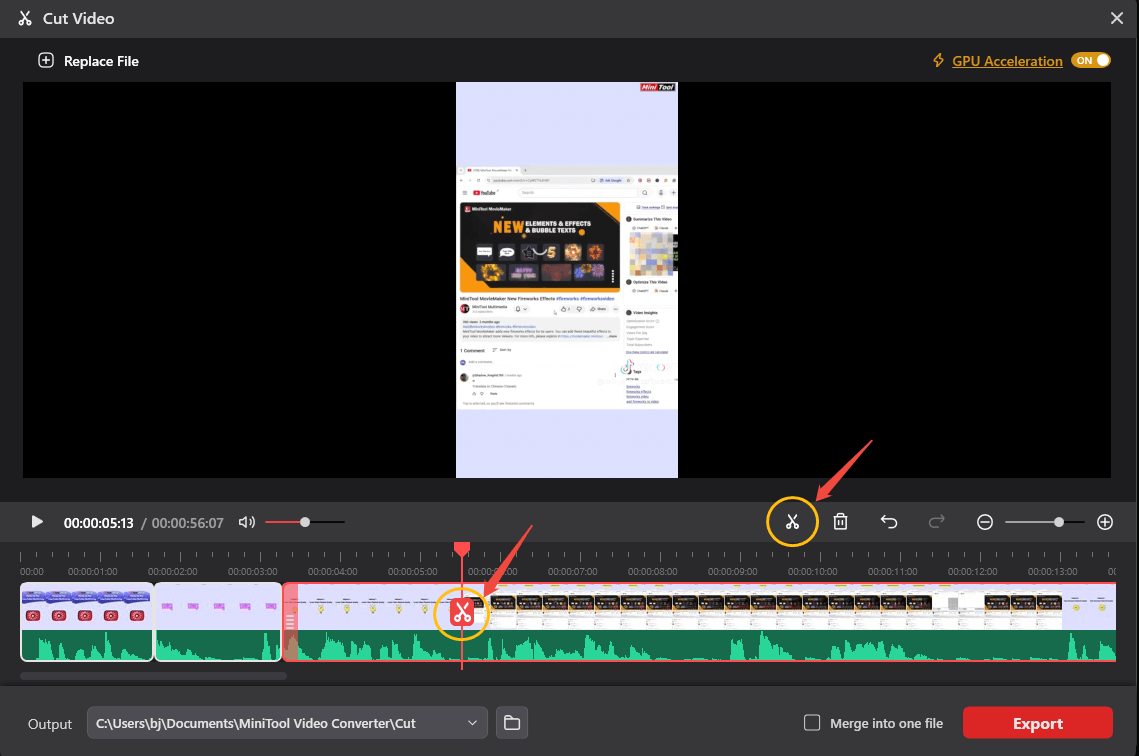
When I need to delete an unwanted part in the middle, I also split it into segments, select the target clip, and click the Delete icon.
4. Export the Result
By default, the Merge into one file option is not checked. If I need to split a video into pieces and delete a middle section, I will check that box. Then, I will get a single file. If I need to save each split clip individually, I'll leave it unchecked.
Next, click the Output bar to change the location, and click Export to start exporting the result.
How to Cut a Video on TikTok Before Posting
Fast Track Steps:
- Open the editor in TikTok.
- Trim the edges or remove the unwanted middle section.
- Save the video and post it to TikTok.
There was a time when, after uploading a video to TikTok from a computer, users couldn't edit it on the platform at all; editing was only possible on the mobile app. Now, simple edits, such as splitting, trimming, and adding text, are available on the TikTok website.
So, how to cut a video on TikTok before posting? Follow the steps:
1. Open the Built-in Editor on TikTok
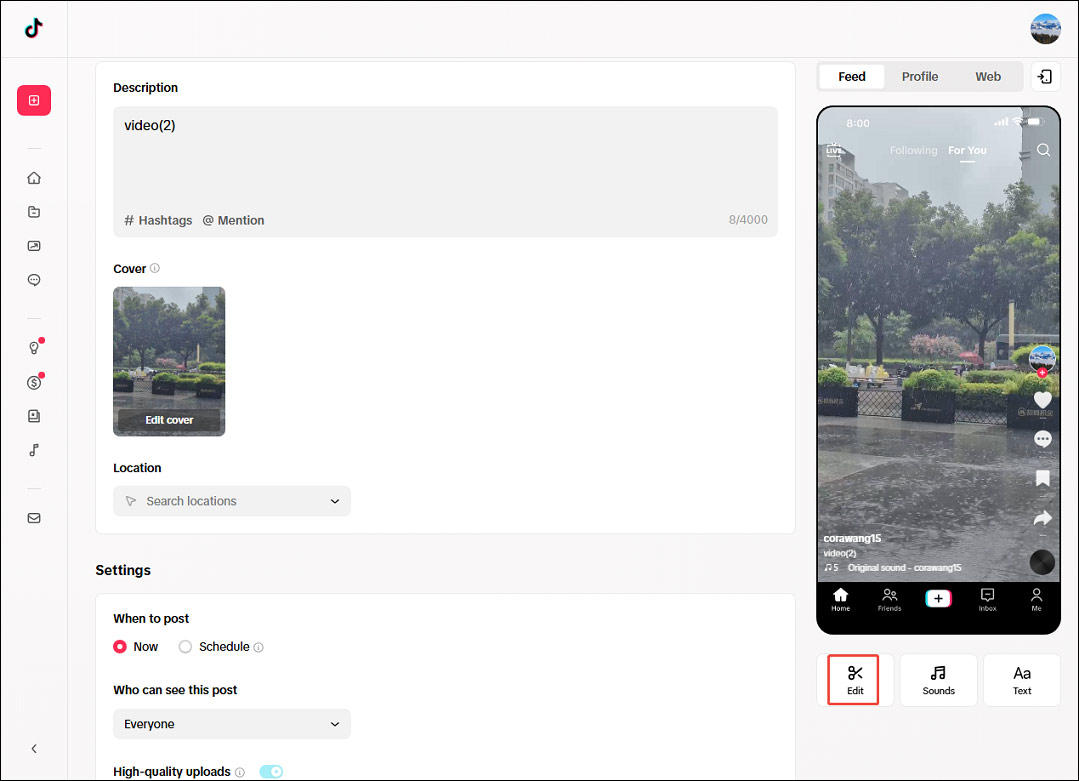
Once a video is uploaded to the TikTok website, click Edit below the preview on the right side to open the editing page.
2. Cut the Video
Do one of the following:
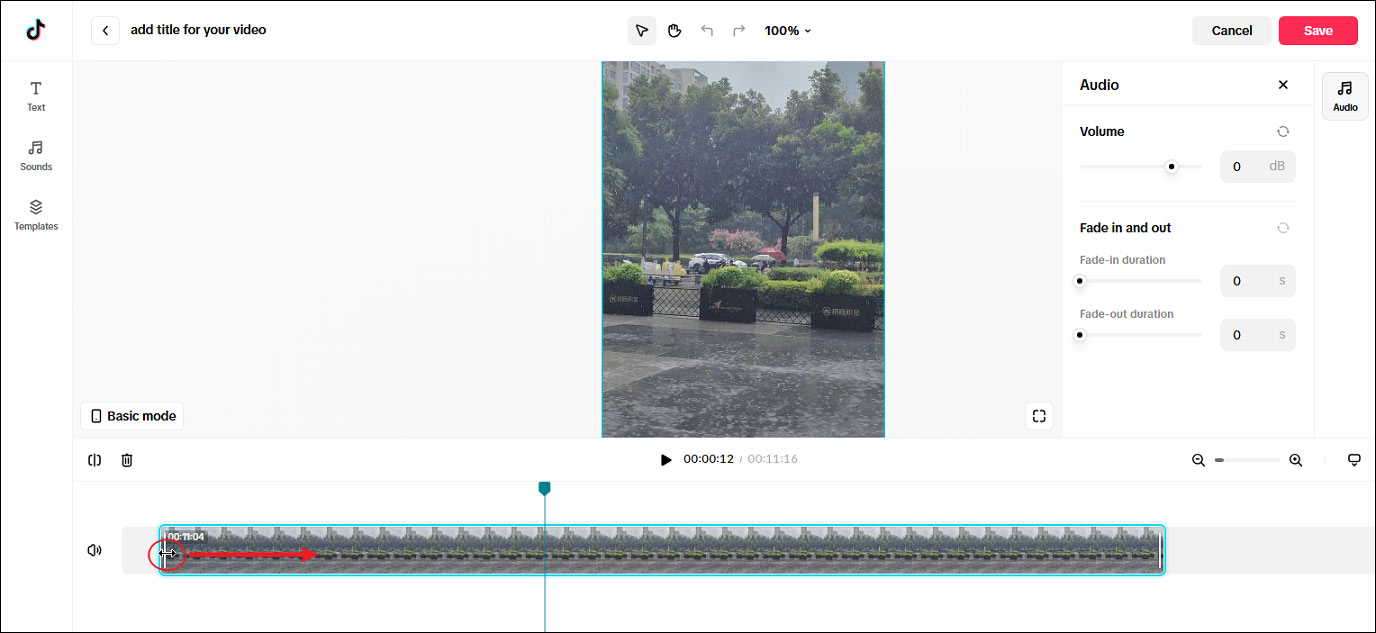
1) Trim the video: select the clip on the timeline, place the cursor over the beginning or end of the clip until a double-sided arrow appears. Click and drag that handle inward to cut off unwanted footage at either edge.
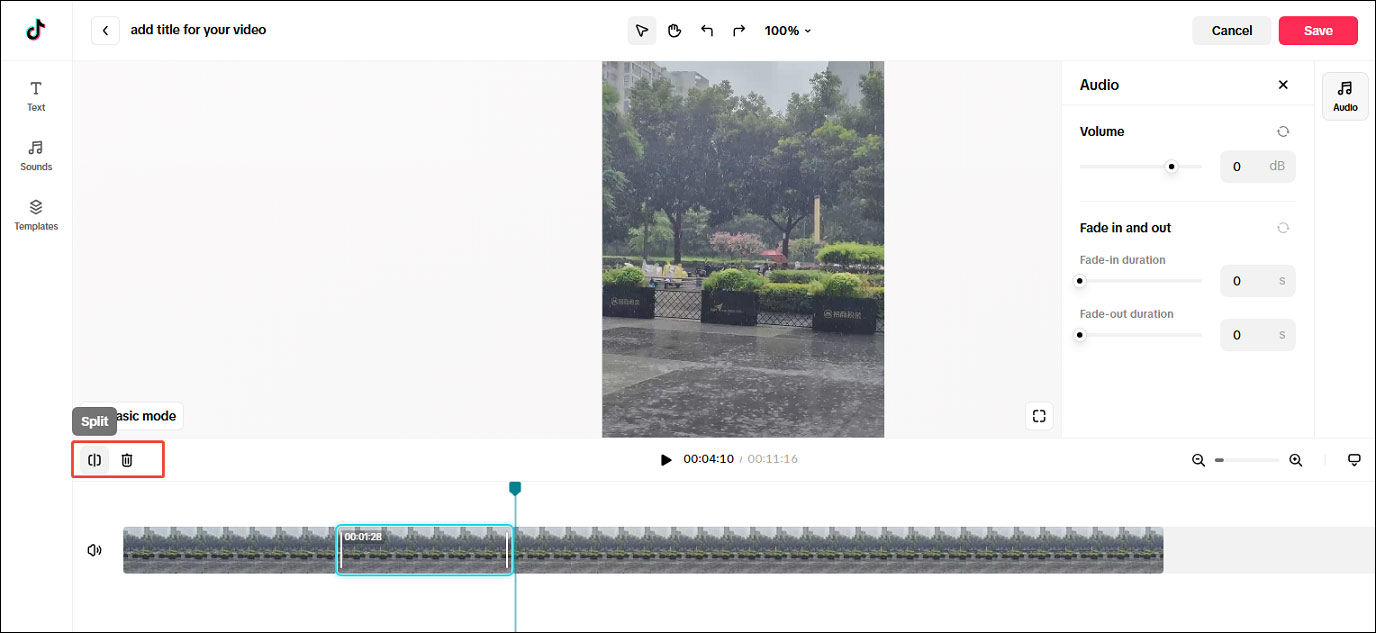
2) Cut the video and delete the middle section: drag the playhead to the desired place to make the first cut on the timeline, and click the Split icon. Repeat this step to divide the video into segments until the unwanted middle part is separated. Click that part and click the Delete icon next to the Split icon.
3. Save and Post
Once, click Save to save the result and return to the upload page. Complete the settings and post the video to TikTok.
Conclusion
How to cut a video from TikTok? Whether you want to trim the edges, remove a middle section, or save each segment as a separate clip after splitting, MiniTool Video Converter has you covered. Additionally, this versatile tool can compress videos, enhance video quality, and automatically create captions for videos.
If you have problems using the software, email support@minitool.com for help.
People Also Ask
On desktop, you can upload the video to TikTok and make simple edits within the platform. Alternatively, use a dedicated editor like CapCut to edit and optimize the video, and then upload it to TikTok.
1. Open TikTok and find the video you want.
2. Tap the Share button (the arrow icon) on the side of the video.
3. Tap Save video or Download.
CapCut is better for advanced creative control and polished effects, such as applying keyframe animations, adjusting the video aspect ratio, adding transitions, auto-reframing clips, and applying masks to hide or reveal specific parts of a video.
About The Author

Position: Columnist
Cora is a tech writer specializing in digital media workflows, with over six years of hands-on experience in video post-production, media transcoding, and screen capture. Her writing is always clear and practical. Cora also produces in-depth software reviews for users across skill levels to help them find the right tool and enjoy video editing.
User Comments :