

This guide shows how to cut YouTube videos in two ways. With YouTube Studio, go to YouTube Studio, find your video, open the Editor, make a cut video, and save the changes. With MiniTool Video Converter, import the video, go to the video cut feature, split and remove unwanted parts, and export the edited video.
YouTube used to have a great feature called “Clip,” which I frequently used to trim or cut videos. Unfortunately, YouTube no longer offers its built-in Clip feature for creating short video clips. Instead, the Share at Timestamp option lets you share a video from a specific point without creating a separate video file.
If you need to actually cut or trim a YouTube video, try the following methods for your own videos or videos you have permission to edit.
How to Cut YouTube Videos?
- Use YouTube Studio Built-in Cut Feature
- Use MiniTool Video Converter
Method 1: Cut YouTube Videos with Built-in Cut Feature
Fast steps:
- Go to YouTube Studio.
- Find your video.
- Go to the video editor.
- Access the video editor.
- Cut the YouTube video.
- Save the edited video.
YouTube Studio provides a built-in Editor that lets creators modify published videos while keeping the existing views, comments, and video URL. With this tool, creators can trim the start or end of a video, split a video into sections, and remove unwanted parts from the middle.
If your own video has already been uploaded to YouTube, use YouTube Studio Editor to cut your own video. Here is how:
1. Go to YouTube Studio.
Visit studio.youtube.com and sign in to your account.
2. Find your video.
In the left column, choose the Content tab, and find the video you want to edit.
3. Go to the video editor.
Then, move the cursor above the video thumbnail and click Edit video.
4. Access the video editor.
On the Video details page, choose the Editor option on the left to go to the video editing page.
5. Cut the YouTube video.
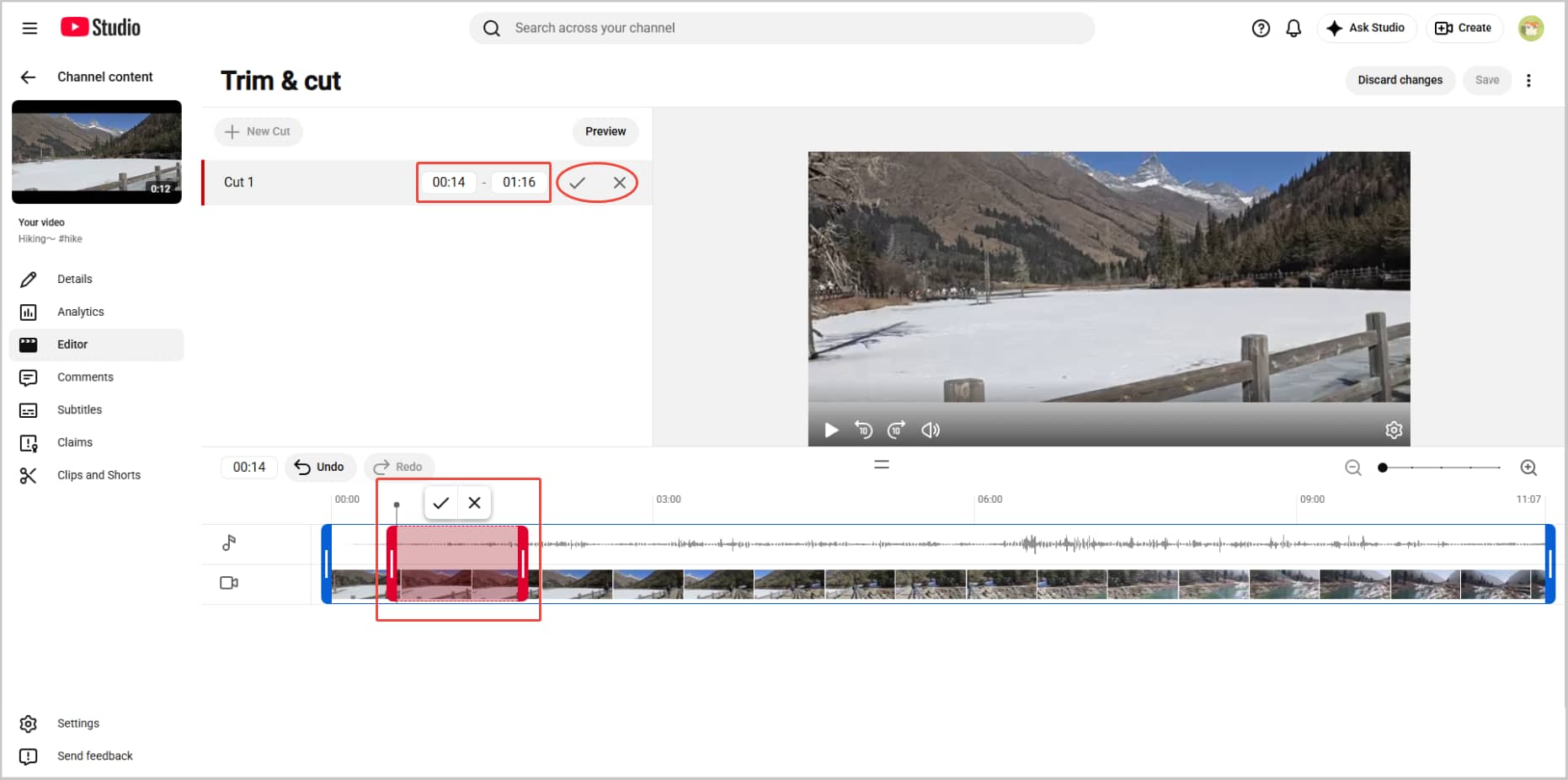
Choose Trim & cut. Then, click New Cut. Then, make a clip in 2 ways:
- Option 1: In the Cut 1 section, manually enter the start and end time to determine the clip's duration, then click the checkmark to confirm.
- Option 2: Adjust the clip's duration on the timeline, then click the checkmark.
6. Save the edited video.
Click the Save option in the top-right corner to save the new video.
If you need more advanced editing, such as adding effects, changing audio, or creating multiple clips, using dedicated video editing software may give you more control.
Method 2: Cut YouTube Videos with MiniTool Video Converter
Fast steps:
- Download the YouTube video.
- Open MiniTool Video Converter.
- Access the video cutting tool.
- Import the target video.
- Cut the video into segments.
- Remove unnecessary segments.
- Set the save location.
- Export the video.
Part 1: Get the YouTube Video.
Case 1: How to Cut Your Own YouTube Videos
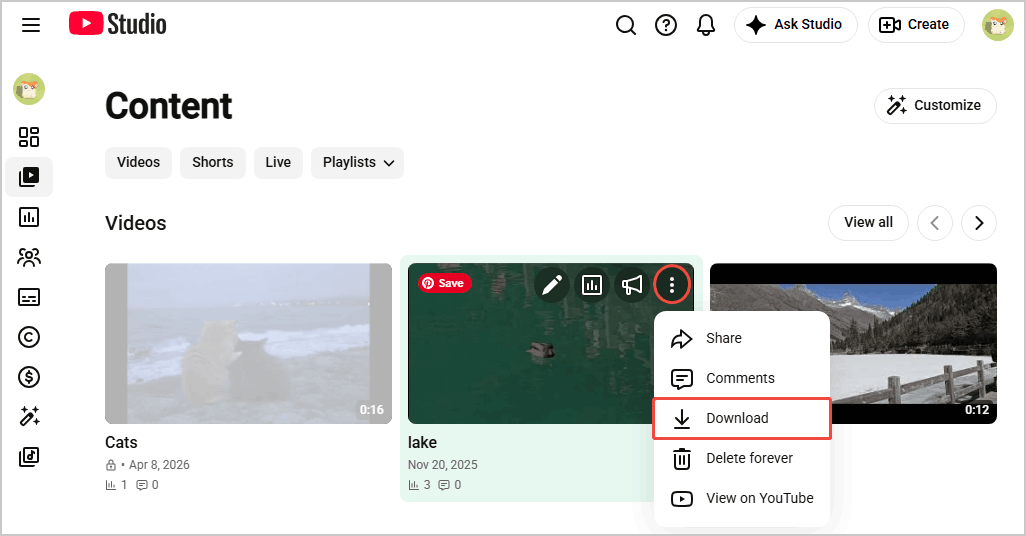
If you have the original video file, you can import it directly into MiniTool Video Converter to cut it. If you do not have a backup of the YouTube video on your computer, you can download your video from YouTube Studio:
- Go to YouTube Studio and sign in.
- Choose Content on the left menu.
- Find the video you want to download.
- Click the More options icon and choose Download.
Case 2: How to Cut a YouTube Video That’s Not Yours
If you want to cut a YouTube video that’s not yours, make sure you have permission to use and edit the content. After getting permission from the video creator, you can download the YouTube video with some online or desktop tools.
Part 2: Cut YouTube Videos
MiniTool Video Converter includes a free video cutting feature that makes it easy to cut or trim video quickly. It also supports hardware acceleration to speed up video processing and improve overall efficiency.
 MiniTool Video Converter
-
 Batch convert video/audio files among 1000+ formats.
 - Quickly compress videos for easy storage and transfer.
- Accurately extract subtitles from video/audio files.
- Effectively enhance video quality.

Here is how to use this software to cut a YouTube video:
1. Download and install MiniTool Video Converter.
Download the latest version of MiniTool Video Converter, then open the program.
2. Access the video cutting tool.
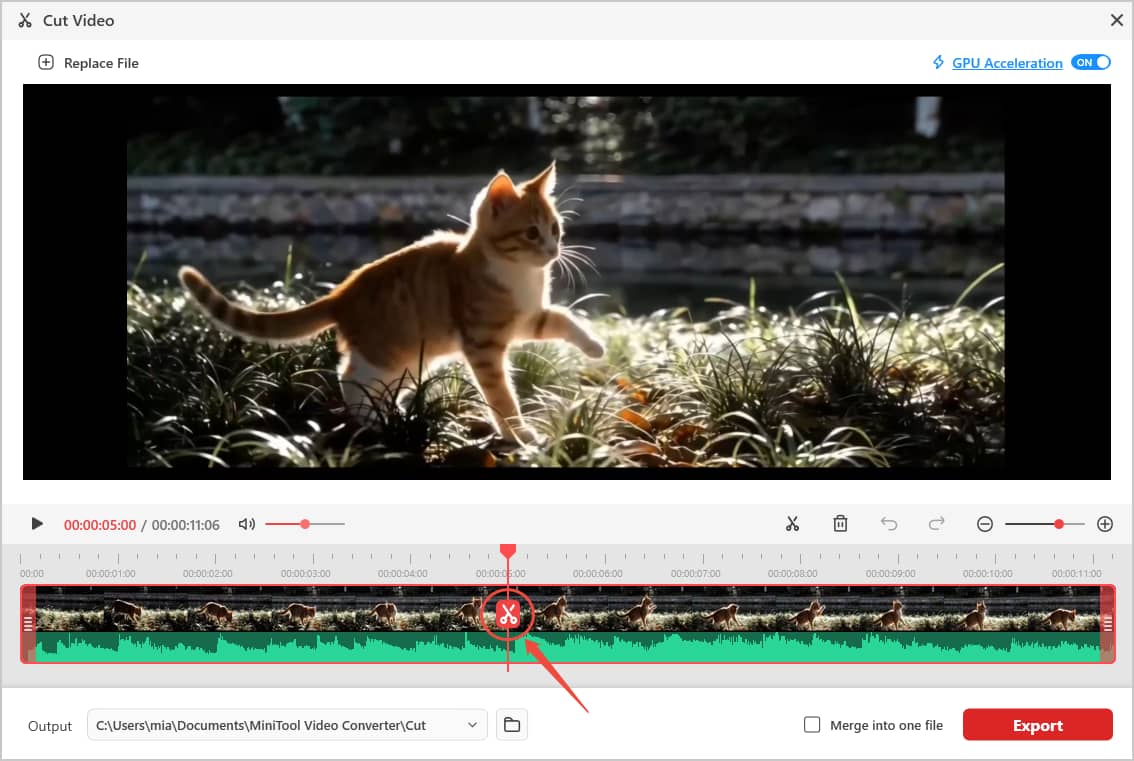
From the left-side menu, go to Edit Video and choose Cut Video to enter the editing window.
3. Import the target video.
In the File Explorer, select the video you want to edit, and import it into the program.
4. Cut the video into segments.
Move the timeline cursor to the position where you want to split the video, then click the scissors icon. Repeat the process to create multiple clips.
5. Remove unnecessary segments.
Select any unwanted clip from the timeline and click the trash can icon to remove it.
6. Set the save location.
Expand the Output menu and select a folder for the exported video.
7. Export the video.
To export each clip individually, simply click Export. If you want to combine the clips into a single video file, first check the Merge into one file option, then click Export.
What to Consider Before Cutting a YouTube Video?
- Have the right to edit the video.
- Choose a tool that preserves the original video quality.
- Choose a tool that supports the desired format.
1. Copyright and permission
If you are editing someone else's YouTube video, you must ensure that you have the right to edit and use that video. Downloading or modifying another creator’s video without permission may violate copyright regulations.
2. Video quality
Choose a video editing tool that preserves the original image quality after editing. Avoid tools that excessively compress the video, as this can reduce resolution and clarity.
3. Output format
Check whether the editing tool supports exporting to the format you need. For instance, the MP4 format offers broad compatibility and works with most devices, platforms, and video players. The tool you choose should better support these popular formats.
Conclusion
This article gives two ways to cut YouTube videos. YouTube Studio is suitable for basic cuts on your own uploaded videos, while MiniTool Video Converter offers a simple workflow for splitting, trimming, and exporting videos with more editing flexibility. Before cutting a video, check copyright permission, output format, and video quality.
If you encounter any issues while using MiniTool Video Converter, feel free to contact MiniTool official support at support@minitool.com for assistance.
User Comments :