

MKA is a flexible audio container format that supports various audio codecs, multiple tracks, and rich metadata. This article introduces three useful MKA conversion tools, MiniTool Video Converter, FFmpeg, and Online Audio Converter, to help convert MKA format files easily.
What Is MKA Format?
Here is an overview of the MKA file, covering its definition, file size, compatibility, supported audio codecs, use cases, and pros and cons.
1. Definition
MKA, also known as Matroska Audio, is a free and open-standard audio container format developed as part of the Matroska project.
It can not only store audio but also include information such as metadata, chapter markers, and embedded attachments within the same file. This facilitates the integration of audio content and related data into a single container.
2. File Size
An MKA file's size is determined primarily by the audio codec it uses. Uncompressed formats, such as PCM and WAV, result in significantly larger files (approximately 10 MB per minute).
Lossless codecs such as FLAC and ALAC offer a good balance by reducing file size without affecting audio quality, whereas lossy codecs like Opus achieve even greater compression.
3. Compatibility
MKA files are not widely supported across devices and applications. Windows 10 and Windows 11 can play Matroska files natively. Some powerful open-source players, such as VLC Media Player, can also recognize and play them smoothly. However, many default media players, mobile devices, and web browsers cannot open or play MKA files without additional software.
4. Supported Audio Codecs
MKA supports almost all audio compression formats. It can contain lossless codecs such as FLAC, ALAC, and PCM, lossy codecs like AAC, MP3, Opus, and Vorbis, as well as surround sound codecs including AC3 and DTS.
The codecs supported by an MKA file depend on the media player or software used to open it. If the software supports both the MKA container and the audio codec inside, the file will play normally.
5. Use Case
MKA is a versatile audio format for storing music, podcasts, audiobooks, and other audio recordings. In addition to supporting multiple audio tracks, it can also embed album art, lyrics, subtitles, and chapter information in a single file.
6. Pros and Cons
Pros:
- Supports lossless and lossy audio codecs.
- Stores multiple audio tracks in one file.
- Includes rich metadata (album art, lyrics, chapters).
Cons:
- Limited compatibility.
- Less practical for everyday audio files.
Best MKA Converter
- MiniTool Video Converter
- FFmpeg
- Online Audio Converter
1. MiniTool Video Converter
MiniTool Video Converter is a powerful conversion tool designed to handle various audio and video formats, including MKA, FLAC, AAC, WMA, MP3, MP4, MOV, MKV, and more. It allows users to easily convert MKA files to other audio formats or transform different audio and video files into the MKA format with simple steps.
Here is how to use this video converter to convert MKA file to other formats, such as MP3.
Fast steps:
- Launch MiniTool Video Converter.
- Import MKA audio.
- Choose the output format.
- Start conversion.
- Check the converted file.
1. Launch MiniTool Video Converter.
Install and launch the free video converter on your PC.
 MiniTool Video Converter
-
 Batch convert video/audio files among 1000+ formats.
 - Quickly compress videos for easy storage and transfer.
- Accurately extract subtitles from video/audio files.
- Effectively enhance video quality.

2. Import MKA audio.
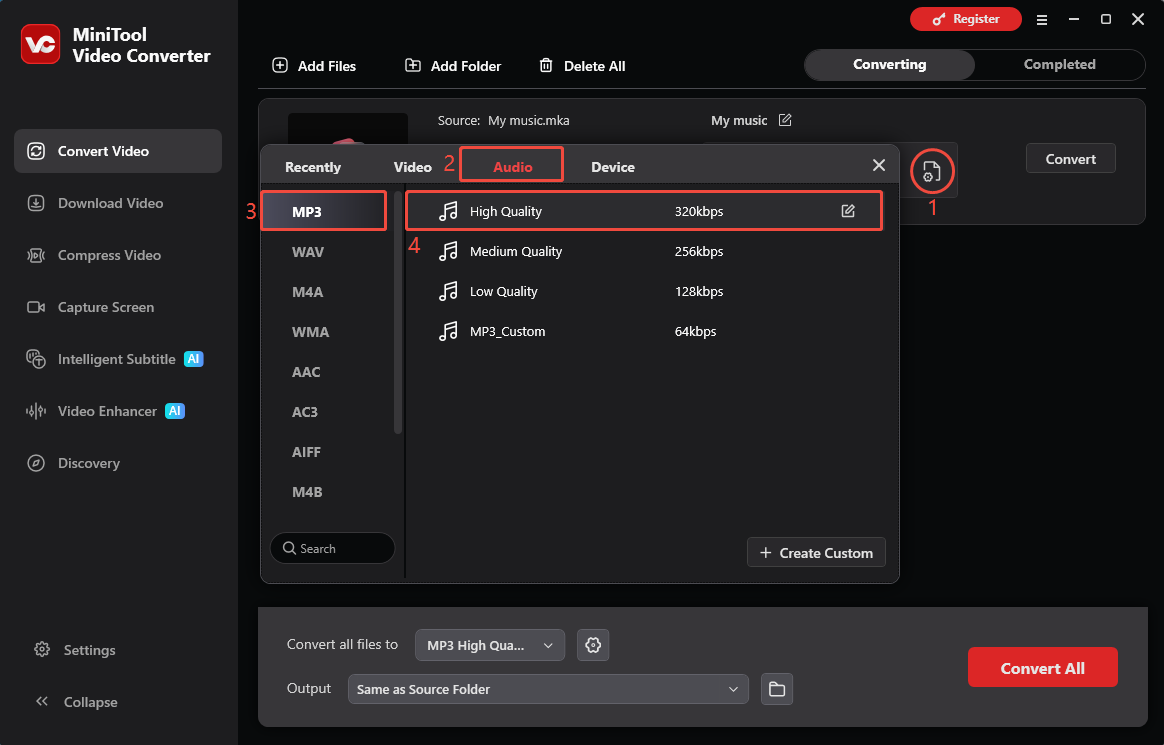
In the default Convert Video interface, click Add Files to import the MKA format audio.
3. Choose the output format.
Click the gear icon to open the output format settings, select MP3 under the Audio tab, and adjust the quality option based on your needs.
4. Start conversion.
Start the conversion process by clicking the Convert All option.
5. Check the converted file.
Once finished, click the folder icon to find and view the converted audio file.
For Windows users, MiniTool Video Converter is a great choice.
2. FFmpeg
FFmpeg is a free, open-source command-line tool frequently used for converting multimedia files. Here are the steps to convert MKA to MP3 using it.
Fast steps:
- Install FFmpeg.
- Open Command Prompt or Terminal.
- Run the conversion command.
- Start conversion.
1. Install FFmpeg.
Download and install FFmpeg from its official website.
2. Open Command Prompt or Terminal.
Navigate to the folder containing your MKA file.
3. Run the conversion command.
Run this command: ffmpeg - i input.mka output.mp3. Then, replace input.mka with the name of your MKA file and replace output.mp3 with the desired MP3 file name.
4. Start conversion.
Press Enter to start the conversion. The MP3 file will be saved in the same folder.
If you don’t want to download any software, Online Audio Converter might be a better choice for you.
3. Online Audio Converter
If you prefer convert files online, I recommend you use Online Audio Converter. It is an online conversion tool that supports many browsers and devices. Here is how to use this tool to convert MKA to MP3.
1. Go to https://online-audio-converter.com/.
2. Click Open files to import MKA file.
3. Choose output format as MP3.
4. Click Convert to start conversion.
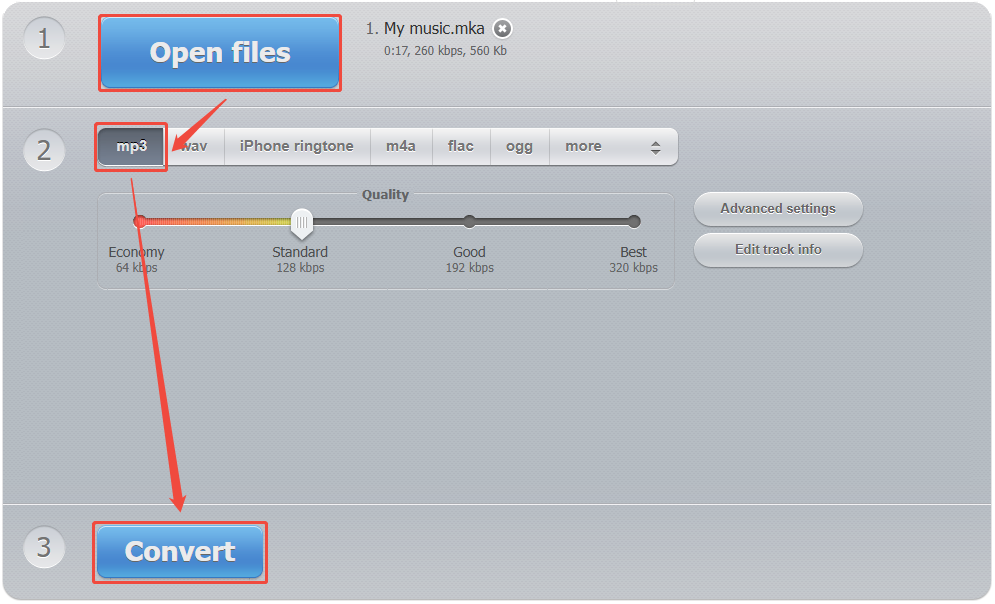
Online Audio Converter can handle most audio format conversions, but it supports a limited range of formats (only MP3, WAV, M4A, FLAC, OGG, MP2, and AMR). If you need to convert MKA format files to other formats, you can use the first two recommended tools.
How to Play MKA Files?
Fast steps:
- Open VLC.
- Open file.
- Select MKA audio.
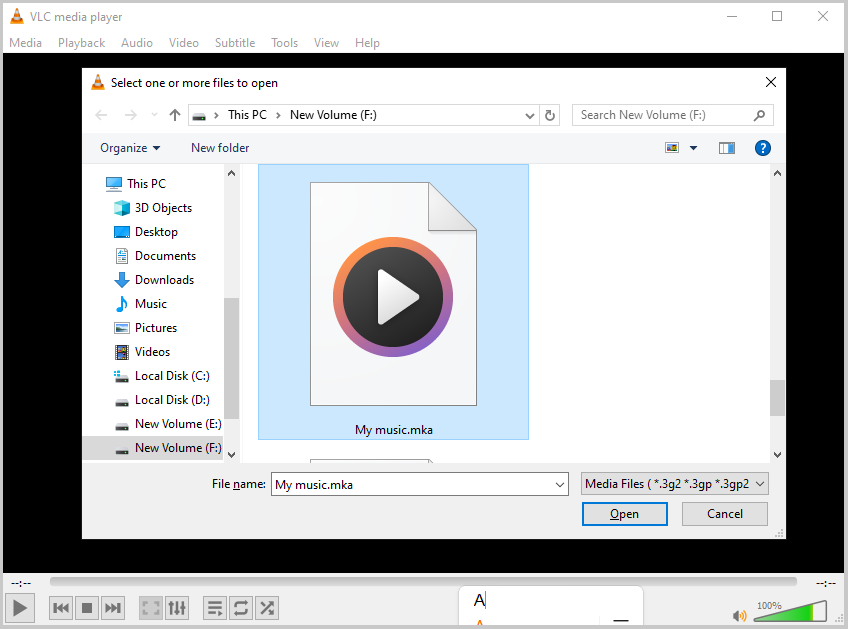
To play MKA files, simply use a media player that supports the format. VLC Media Player is a highly versatile media player. It can natively open and play MKA files. Here are the detailed steps.
1. Open VLC.
Install and launch VLC on the computer.
2. Open file.
Click the Media tab and choose Open File.
3. Select MKA audio.
Choose the MKA audio and click Open.
In addition to VLC, Foobar2000 also supports opening and playing MKA files.
Conclusion
MKA format is suitable for storing high-quality audio with additional information. Howerver, it has limited device compatibility. Using tools like MiniTool Video Converter, FFmpeg, or Online Audio Converter makes it easier to convert MKA files to other audio format.
If you encounter any issues while using MiniTool Video Converter, feel free to contact MiniTool official support at support@minitool.com for assistance.
User Comments :