

How does bitrate affect video quality? This article shares the relationship between bitrate and video quality. Higher bitrates result in better clarity, while lower bitrates can optimize file size but may introduce visual artifacts. Besides, the post introduces how to adjust the bitrate via a useful bitrate adjustment tool.
Video bitrate is the information depth of video and audio. It represents the amount of digital data processed or transmitted per second in a video stream. Bitrate is usually measured in Mbps (Megabits per second) or Kbps (Kilobits per second). It is a major factor determining video quality and file size.
How Does Bitrate Affect Video Quality
Bitrate determines the amount of data per second in a video. A higher bitrate results in clearer video, while a lower bitrate results in blurrier footage.
High bitrate video offers clearer image quality and richer detail. High bitrate enhances video clarity, sharpens lines, and enriches colors. It preserves subtle shadow variations, delicate textures, and smooth color transitions. However, low-bitrate videos require lightweight and fast loading, transmission, and sharing. Therefore, video detail is usually compromised, resulting in blurry videos.
Dynamic content is heavily reliant on high bitrates. Sports events and highly dynamic games, for example, have large animation spans between frames, demanding more flexible bitrate allocation to avoid stuttering and blurring. Conversely, static videos, such as interviews or lectures, have smaller animation spans between frames, requiring less bitrate calculation and allocation.
How to Adjust Video Bitrate
Using a video bitrate adjustment tool makes it easier to change the bitrate for better video quality. MiniTool Video Converter is a great choice that I have tried when converting my videos. It helps me customize the video bitrate. Below is a detailed guide on how to change the bitrate for my video with this video converter.
Fast Track:
- Obtain MiniTool Video Converter
- Upload a target file
- Customize the bitrate
- Start the conversion process
- Check the result
1. Download and Install MiniTool Video Converter
Download and install MiniTool Video Converter. Then, launch this software.
 MiniTool Video Converter
-
 Batch convert video/audio files among 1000+ formats.
 - Quickly compress videos for easy storage and transfer.
- Accurately extract subtitles from video/audio files.
- Effectively enhance video quality.

2. Import a Target Video
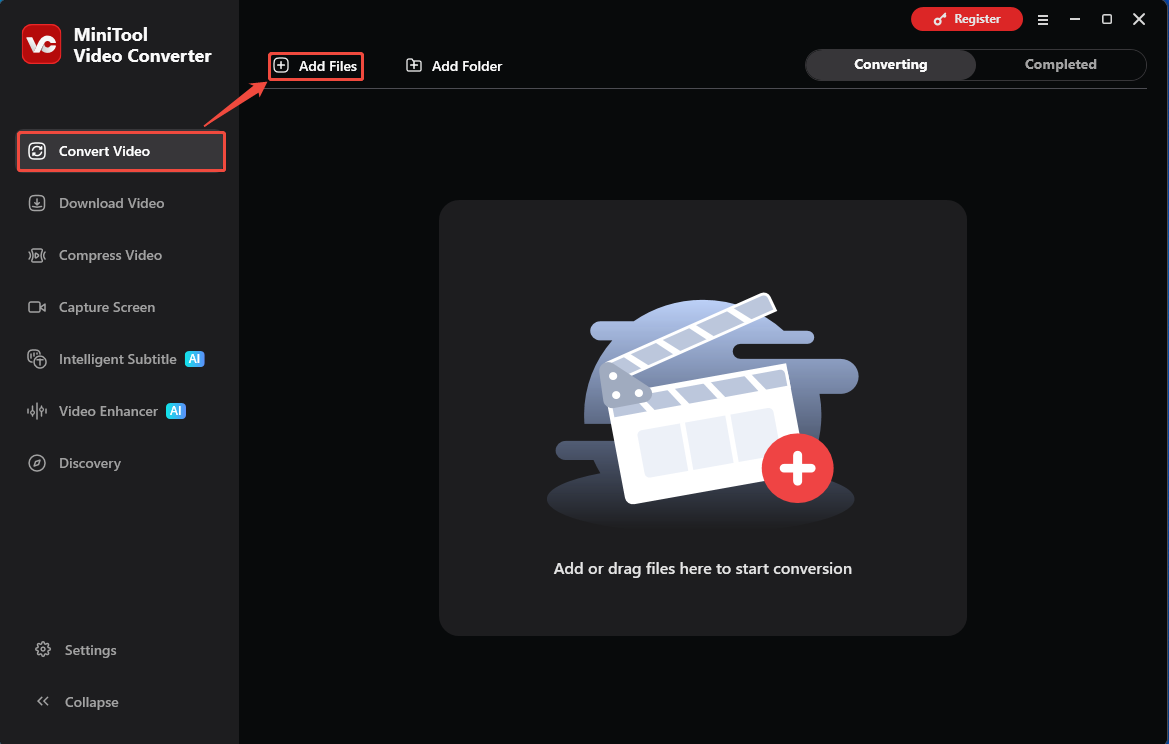
Click on the Add Files option in the default Convert Video tab to upload the target file I want to increase the bitrate.
3. Adjust the Bitrate for the Target Video
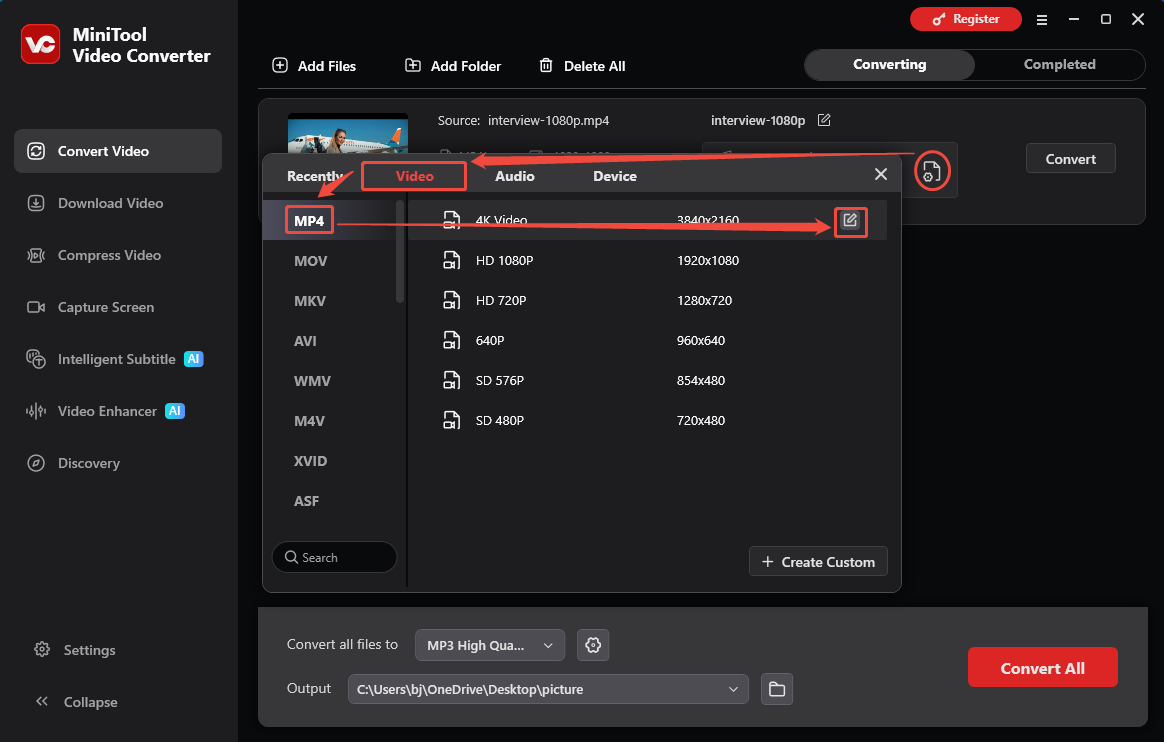
Click the Gear icon on the imported conversion task to go to the output format window. There, switch to the Video tab and choose a proper format. I select MP4 and click the Edit icon on a video resolution option, such as 4K Video. Then, enter the Settings window.
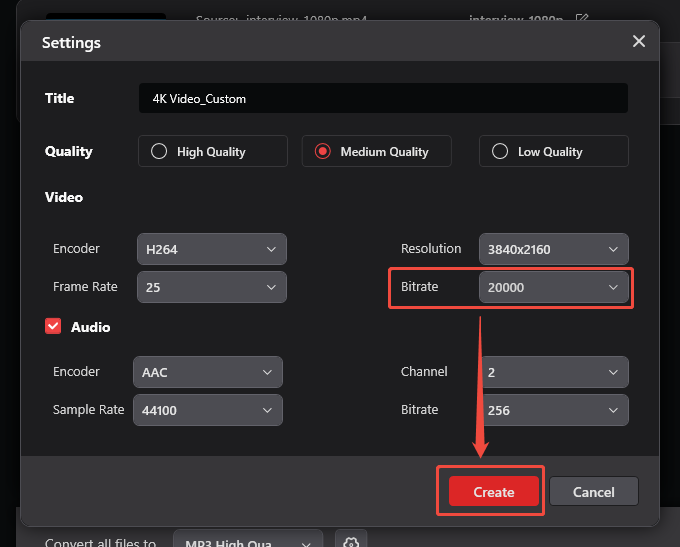
In the Settings window, expand the Bitrate option to adjust the bitrate. Next, click on the Create button to save the change. Then, choose the 4K Video_Custom option.
4. Start the Conversion
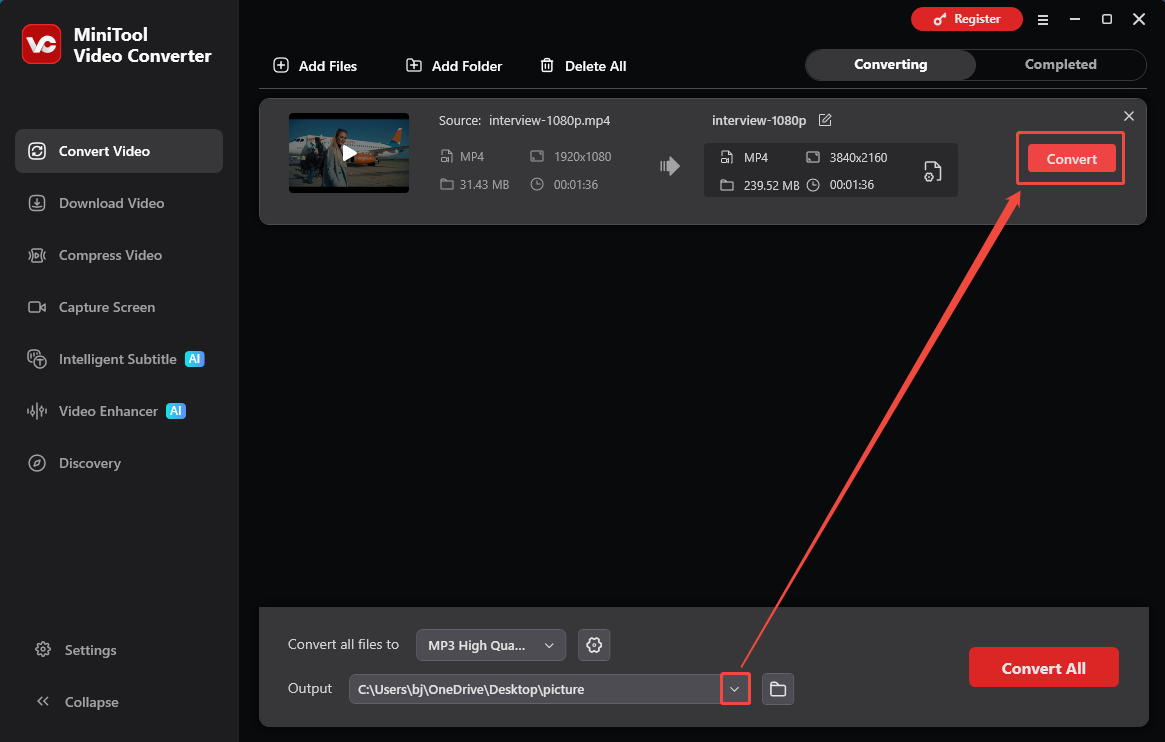
Before the conversion, expand the Output option to choose a storage location for the converted video. Then, click the Convert button on the conversion task to begin the conversion process.
5. Check and Locate the Converted Video
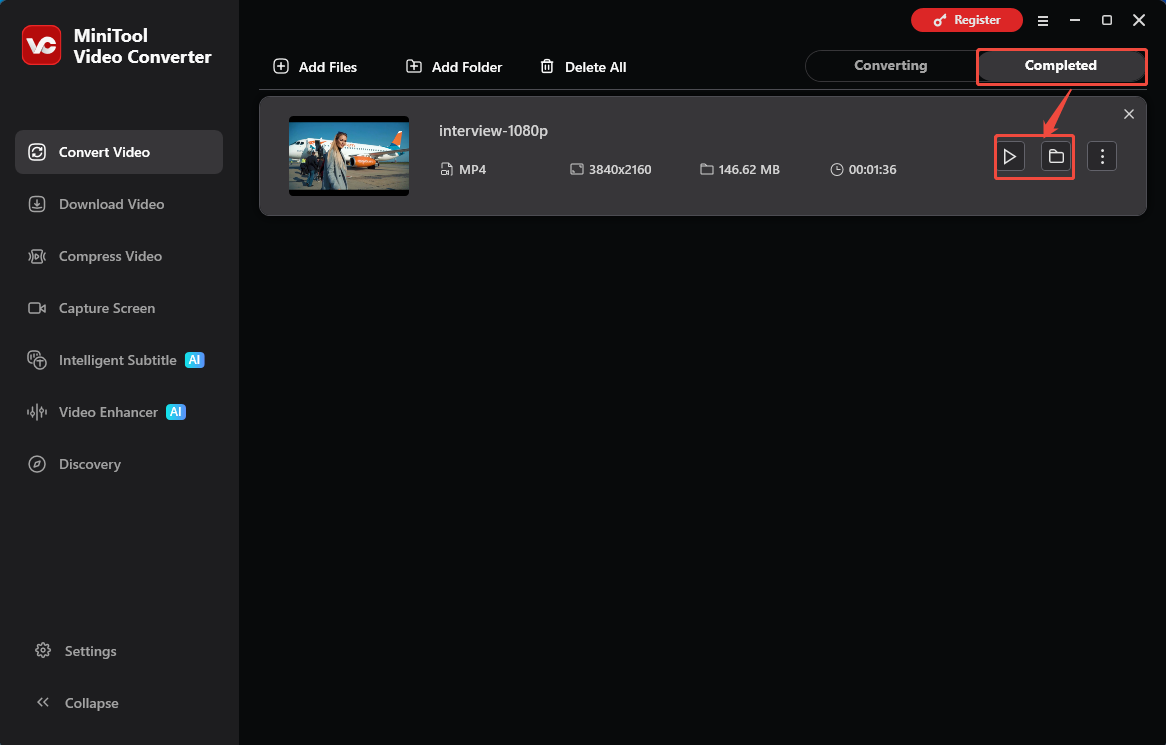
Once the conversion ends, this converted video will land on the Completed tab. Here, click on the Play icon to check it. Or click the Folder icon to locate the converted file on the computer.
MiniTool Video Converter not only supports bitrate adjustment for individual tasks, but also allows me to batch adjust imported videos. It’s very easy and efficient. Besides, in addition to bitrate, this application also allows me to customize the resolution, encoder, sample rate, and frame rate.
Need a tool to change the video bitrate? Try MiniTool Video Converter!Click to Tweet

Bitrate vs Resolution vs Frame Rate
Frame rate means the number of frames per second in a video. More frames mean a smoother video. It is measured in fps (frames per second). Common frame rates are 24 fps, 30 fps, and 60 fps. Movies and TV shows generally use 24 fps for optimal visual effects. Games or sports events with high-precision motion capture will experience smoother gameplay at 30 fps or 60 fps.
Resolution refers to the product of the number of pixels horizontally and vertically in each frame of a video. It determines the clarity of a video. Usually, the higher resolution shows a clearer video. Common resolutions now include 720p, 1080P, and 4K (3840×2160).
Bitrate is the data basis of resolution and frame rate. It provides the data needed for frame rate and resolution to function. Without this data, the video can’t move. If you increase the resolution or frame rate, you must increase the bitrate. Low bitrate 4K video looks far inferior to high bitrate 1080p video. Although 4K video has a much higher number of pixels than 1080P, the amount of data cannot supply all of those pixels.
Conclusion
How does bitrate affect video quality? This article explains that bitrate is the data basis of video. Higher bitrates can preserve sharp details and smooth motion, while lower bitrates, although saving bandwidth, may result in blurry images.
If you have any questions or suggestions about MiniTool Video Converter, send an email to support@minitool.com for support.
User Comments :