

To convert FLV to MKV, use MiniTool Video Converter for desktop conversion or Convertio for online conversion. Import the FLV file, choose MKV as the output format, configure the settings if needed, and convert the file.
FLV (Flash Video) is a video container format developed by Adobe that stores audio, video, and text data. It commonly uses H.264 video and HE-AAC audio codecs. FLV files can be played with VLC Media Player, PotPlayer, and GOM Player but are difficult to edit in Adobe software.
MKV (Matroska Video) is a multimedia container format that supports multiple video, audio, image, and subtitle tracks. It commonly uses VP9, H.264, and H.265 video codecs and AAC or Opus audio codecs. MKV files can be played with VLC Media Player, DivX Player, and 5KPlayer.
How to Convert FLV to MKV
Fast steps:
- Choose a video converter (MiniTool Video Converter or Convertio).
- Import the FLV files.
- Choose MKV as the output format.
- Start conversion.
Option 1. Use MiniTool Video Converter (Desktop)
MiniTool Video Converter is a versatile file processing tool. It supports free conversions of more than 1,000 formats, including FLV to MKV. Below is a step-by-step guide on how to convert FLV to MKV with MiniTool Video Converter.
 MiniTool Video Converter
-
 Batch convert video/audio files among 1000+ formats.
 - Quickly compress videos for easy storage and transfer.
- Accurately extract subtitles from video/audio files.
- Effectively enhance video quality.

1. Download and Install MiniTool Video Converter
Download and install MiniTool Video Converter. Then, run it.
2. Import the FLV File
Go to Convert Video. Drag your FLV file into the Add or drag files here to start conversion area to upload it.
3. Configure MKV as the Converted Format
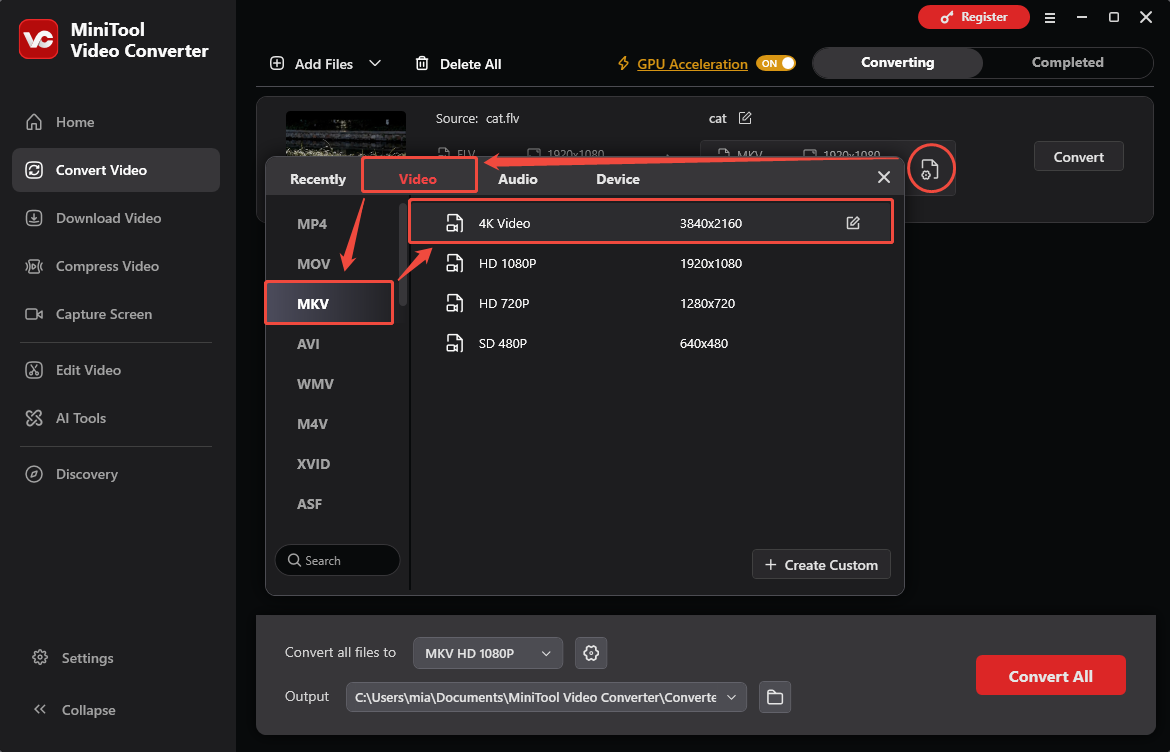
Click on the settings icon to open a pop-up window. There, switch to the Video tab to choose MKV. Then, select a resolution for your converted file. Here, I choose 4K Video.
4. Choose a Storage Path and Start the Conversion
Expand the Output option at the bottom to specify a storage path. Then, click on the Convert button to start the conversion.
5. Check the Converted File
When the conversion task completes, the video converter will switch to the Completed module. There, click on the Play icon or the Folder icon to check or locate the converted file.
MiniTool Video Converter also allows converting high-definition videos to various formats, such as 4K video to WMV, 1080p video to AVI, 720p to ASF, etc. Additionally, it enables you to perform batch conversions of up to 5 conversion tasks at a time.
Option 2. Use Convertio (Online)
Convertio is a useful converter designed for use in browsers. It supports converting 300+ formats and can perform 25,600 conversions. What’s more, Convertio allows you to configure advanced options like video quality, codec, aspect ratio, and more. It enables you to import files from Dropbox and Google Drive.
The next steps are how to convert FLV to MKV with Convertio.
1. Visit Convertio’s Homepage
Navigate to https://convertio.co/flv-mkv/ to enter Convertio’s homepage.
2. Import the FLV file
Click on the Choose Files option to import the FLV file.
3. Begin the Conversion Process
Click on the Convert button to begin the conversion process.
4. Download the Converted File
When the conversion process ends, click on the Download button to save the converted file.
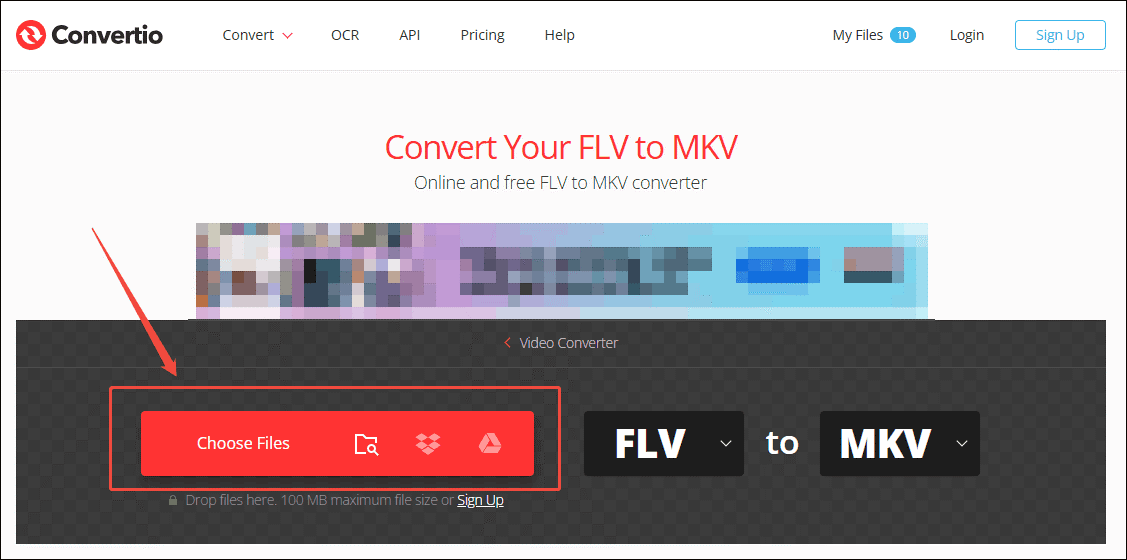
Using Convertio to convert FLV to MKV is a quick and effortless option. However, it only allows you to import a file smaller than 100MB.
You can also convert MKV to FLV with the above two tools!
Why Convert FLV to MKV and Vice Versa
- FLV to MKV: Improve compatibility with media players and retain multiple audio, video, image, and subtitle tracks in one container.
- MKV to FLV: Make MKV videos more suitable for workflows that require FLV, although FLV is not a standard format for modern Adobe editing workflows.
Final Words
If you want to convert FLV to MKV, there are two converters you can’t miss: MiniTool Video Converter (Desktop) and Convertio (Online).
The online tool is convenient and easy to use. However, it can only upload files up to 100 MB. For smooth and large-size FLV to MKV conversions, MiniTool Video Converter and MiniTool MovieMaker are the priority.
If you have any problems when using MiniTool Video Converter, please send an email to support@minitool.com to ask for help.
User Comments :