

This article shows common animation frame rates: 12 fps, 24 fps, 30 fps, and 60 fps. It also shows guides on how to change the frame rate with 2 effective video converters: MiniTool Video Converter and MiniTool MovieMaker.
Frame rate refers to the number of images played per second in a video. When these images are played continuously, our eyes perceive them as continuous motion. The unit of frame rate is fps. 24 fps means that the video contains 24 images per second. The higher the frame rate, the smoother the video.
Animation is a series of still images played at a fast pace. Common types of animation include animated films, television animation, and video game animation.
Common Animation Frame Rates
While there are many frame rate options, the following are commonly used in animation.
- 12 fps: 12 fps is also called Two-Frame Animation. It means that every 2 consecutive pictures among the 12 pictures appearing in one second are the same. Therefore, the animator only had to draw 6 different images. Such animation can not only save costs, but also give the animation a special short-stay effect. It is used in many classic animations.
- 24 fps: 24 fps is the standard of movies and professional animations. It contains 24 different images per second. It not only gives the picture a strong sense of story and literary atmosphere, but also makes the video present smooth visual effects.
- 30 fps: 30 fps is the popular frame rate used in TV serials and online videos. There are 30 different images every second. It is clearer than 24 fps and is more in line with the viewing needs of digital media users.
- 60 fps: 60 fps is the standard for motion scenes and gaming. Its 60 unique pictures per second make the video highly smooth. Fast and large-scale movements are also displayed smoothly without stuttering and latency, which is particularly tailored to gamers.
How to Adjust Animation Frame Rate
Although I have tried many methods to adjust the frame rate, I believe only 2 tools below are handy and efficient.
Method 1. Use MiniTool Video Converter
MiniTool Video Converter has accompanied me for many years. It allows me to adjust the animation frame rate. MiniTool Video Converter offers a wide range of frame rate parameter options, such as 12 fps, 15 fps, 24 fps, 25 fps, 30 fps, 60 fps, and more. Apart from frame rate adjustment, MiniTool Video Converter also enables me to fine-tune video resolution, bitrate, and encoder.
In addition, I found that MiniTool Video Converter is excellent and practical in other aspects as well. It supports more than 1,000 video and audio formats, allowing me to convert videos and audio and extract audio from videos. What’s more, I can convert videos and audio in batches. Another noteworthy point is that MiniTool Video Converter has no limit on the size of imported files.
The following is how to adjust the animation frame rate using MiniTool Video Converter.
Step 1. Download and Set Up MiniTool Video Converter
Download and install MiniTool Video Converter. Then, run this application.
 MiniTool Video Converter
-
 Batch convert video/audio files among 1000+ formats.
 - Quickly compress videos for easy storage and transfer.
- Accurately extract subtitles from video/audio files.
- Effectively enhance video quality.

Step 2. Add the Animation Video
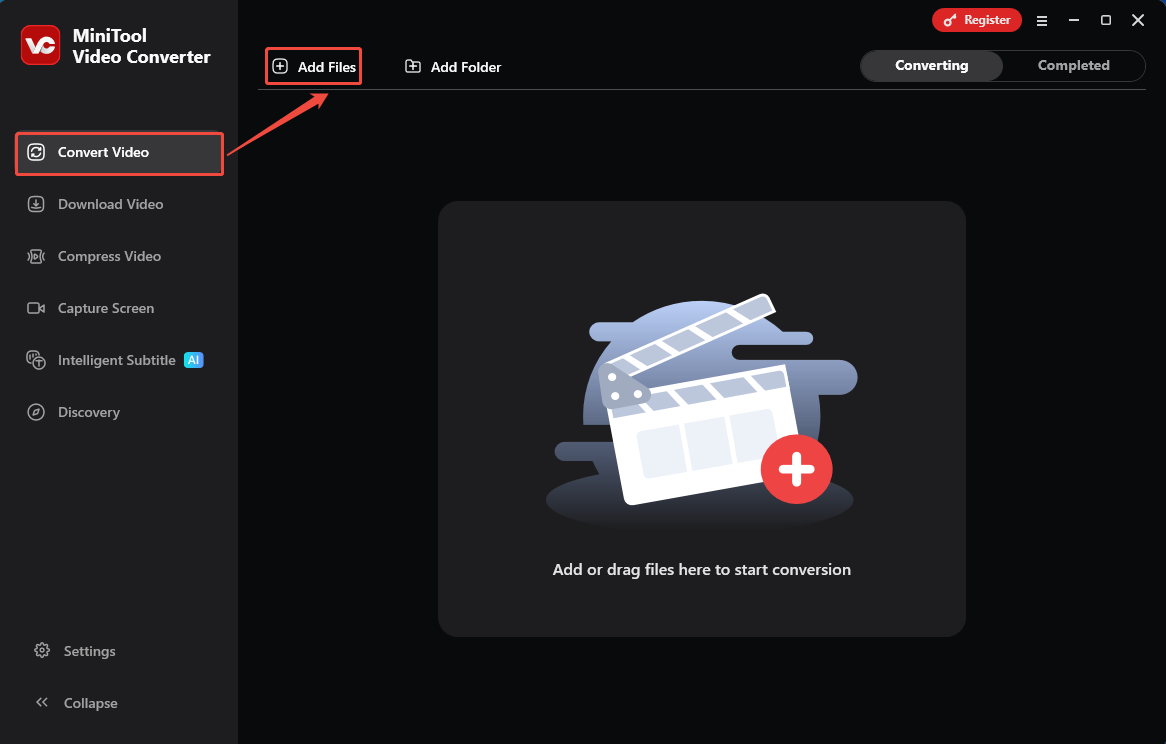
I click on the Add Files option in the default opened Convert Video tab to import the animation video.
Step 3. Change the Frame Rate
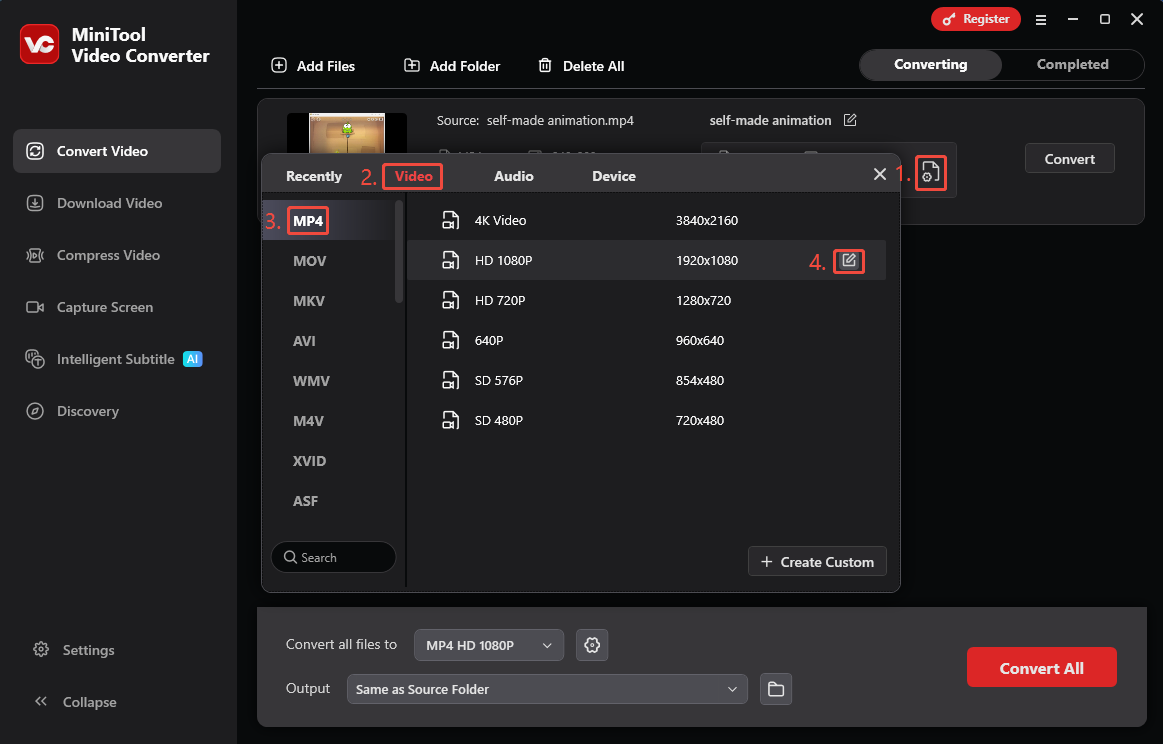
To change the frame rate for animation, I open the Settings window by following these steps.
1. Click on the Gear icon to go to the output format settings window.
2. In this window, switch to the Video tab.
3. Select MP4 in the left format column.
4. Choose a resolution option and hover my mouse over it. Then, I click on the Edit icon to trigger the Settings window.
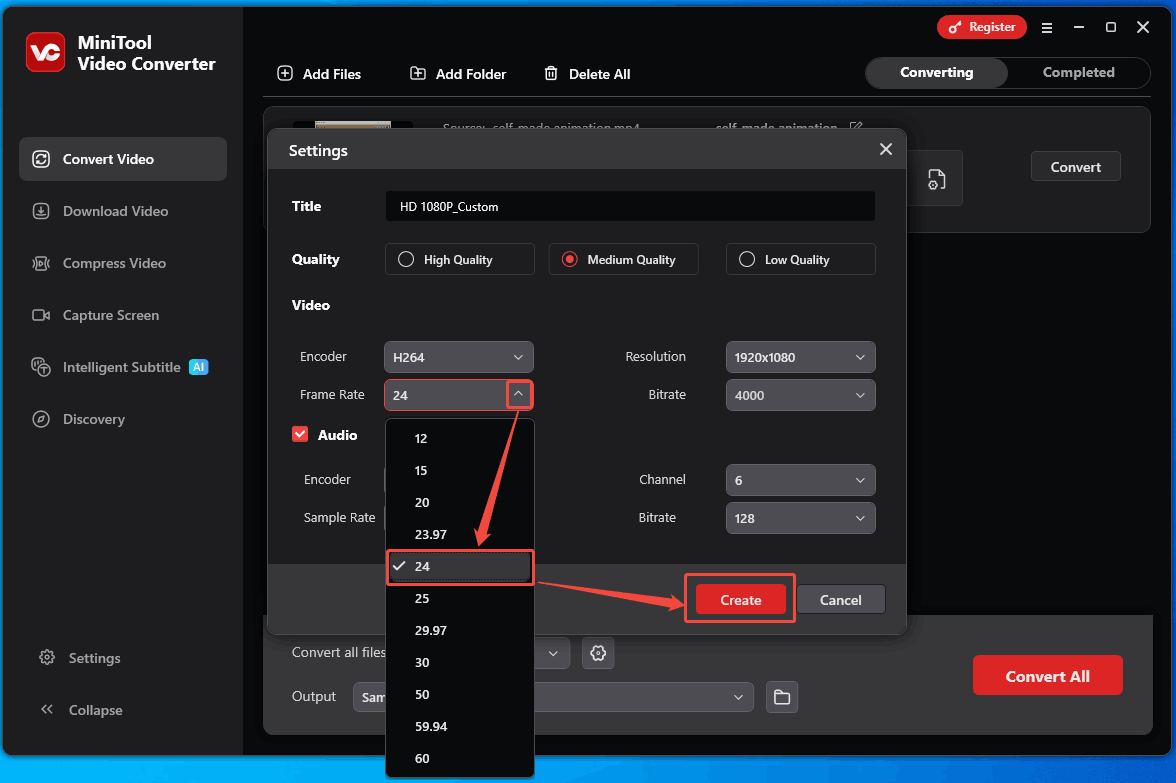
In the Settings window, expand the Frame Rate option and choose a frame rate for this animation. Here, I choose the 24 fps and click on the Create button to save this change. Then, choose the HD 1080P_Custom option created just now to apply it.
Step 4. Convert the Task
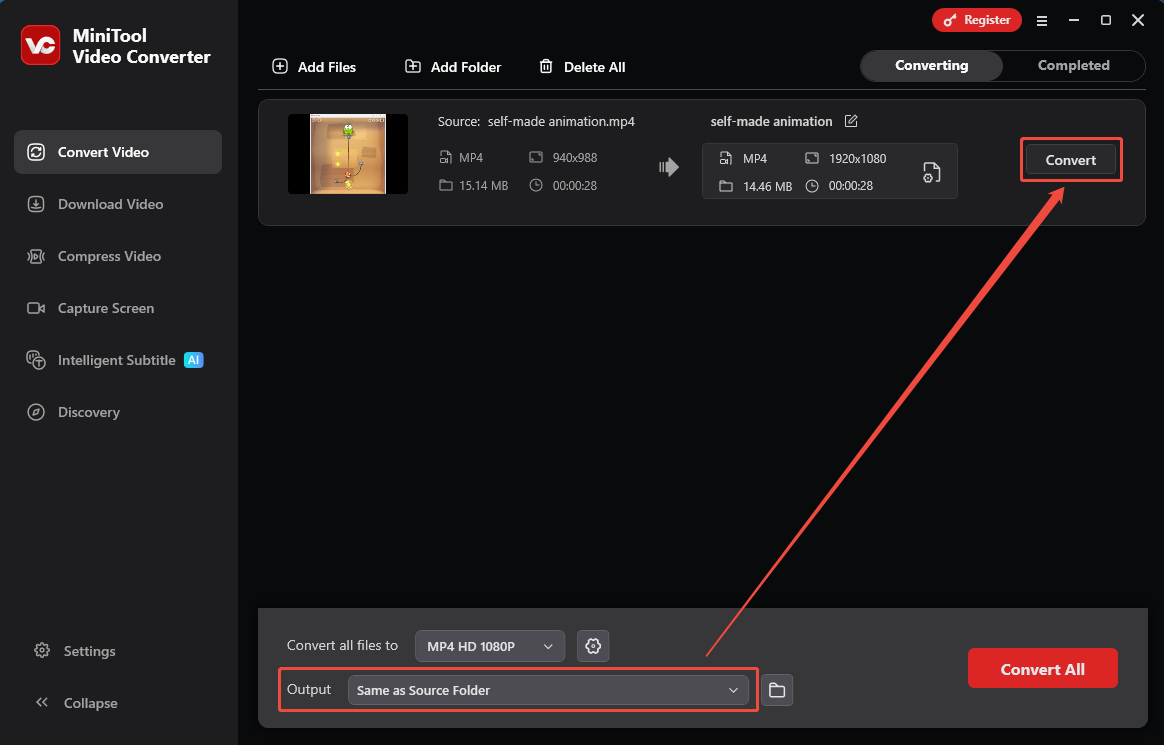
After the new frame rate setting, expand the Output option to choose a saving path for the converted video. Then, click on the Convert button to start the conversion.
Step 5. Check the Converted Video
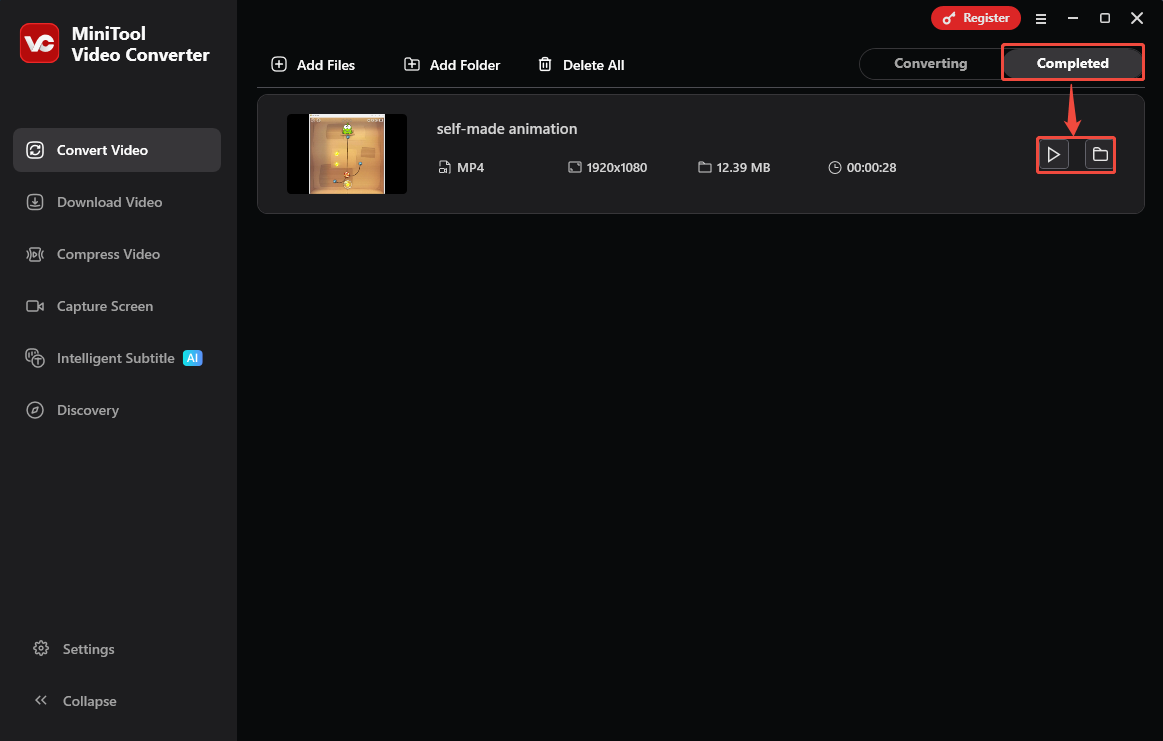
Once the conversion ends, this converted video will land on the Completed tab. From there, click on the Play icon to preview it. Additionally, I can also click on the Folder icon to locate this converted video on computer.
MiniTool Video Converter helps quickly and easily customize the animation frame rate. It is free and user-friendly.
Need an animation frame rate adjustment tool? Try MiniTool Video Converter!Click to Tweet
Method 2. Use MiniTool MovieMaker
MiniTool MovieMaker also allows me to change the frame rate for animation, which supports fine-tuning parameters to 24 fps,25 fps, 30 fps, and 60 fps. In addition to adjusting the frame rate, it also offers many other services needed for editing. MiniTool MovieMaker empowers me to add sound effects, transitions, filters, text, video effects, motions, and elements to the imported videos. Also, it allows me to trim, split, crop, merge, reverse, rotate, and flip videos.
Next, I will demonstrate how to change the frame rate for animation with MiniTool MovieMaker.
Step 1. Get MiniTool MovieMaker
Download and follow the on-screen prompts to install MiniTool MovieMaker.
MiniTool MovieMakerClick to Download100%Clean & Safe
Step 2. Import the Target Video
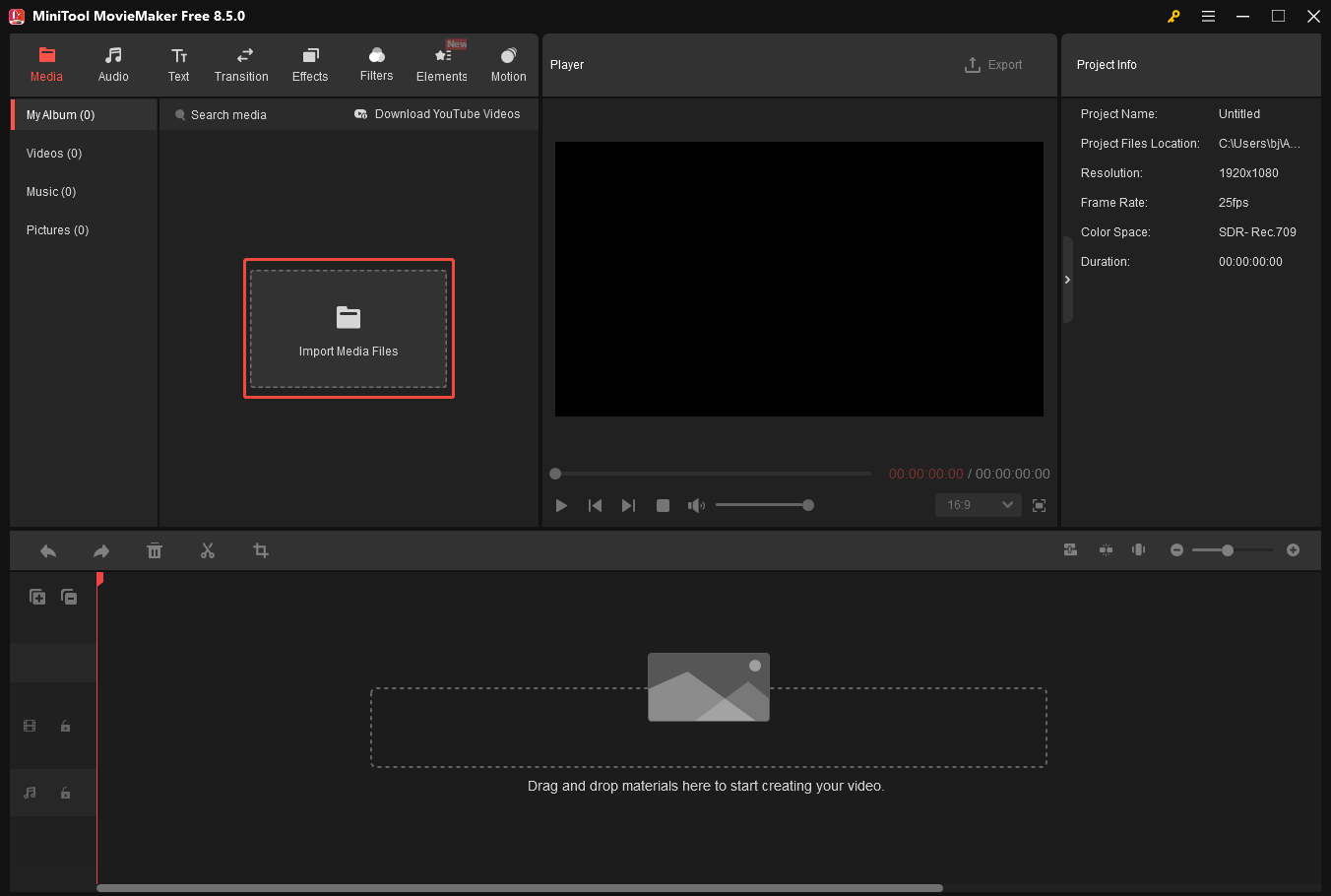
Run MiniTool MovieMaker and close the promotion window. Then, I click on the Import Media Files option to upload the target file.
Step 3. Add the Imported Video to the Timeline
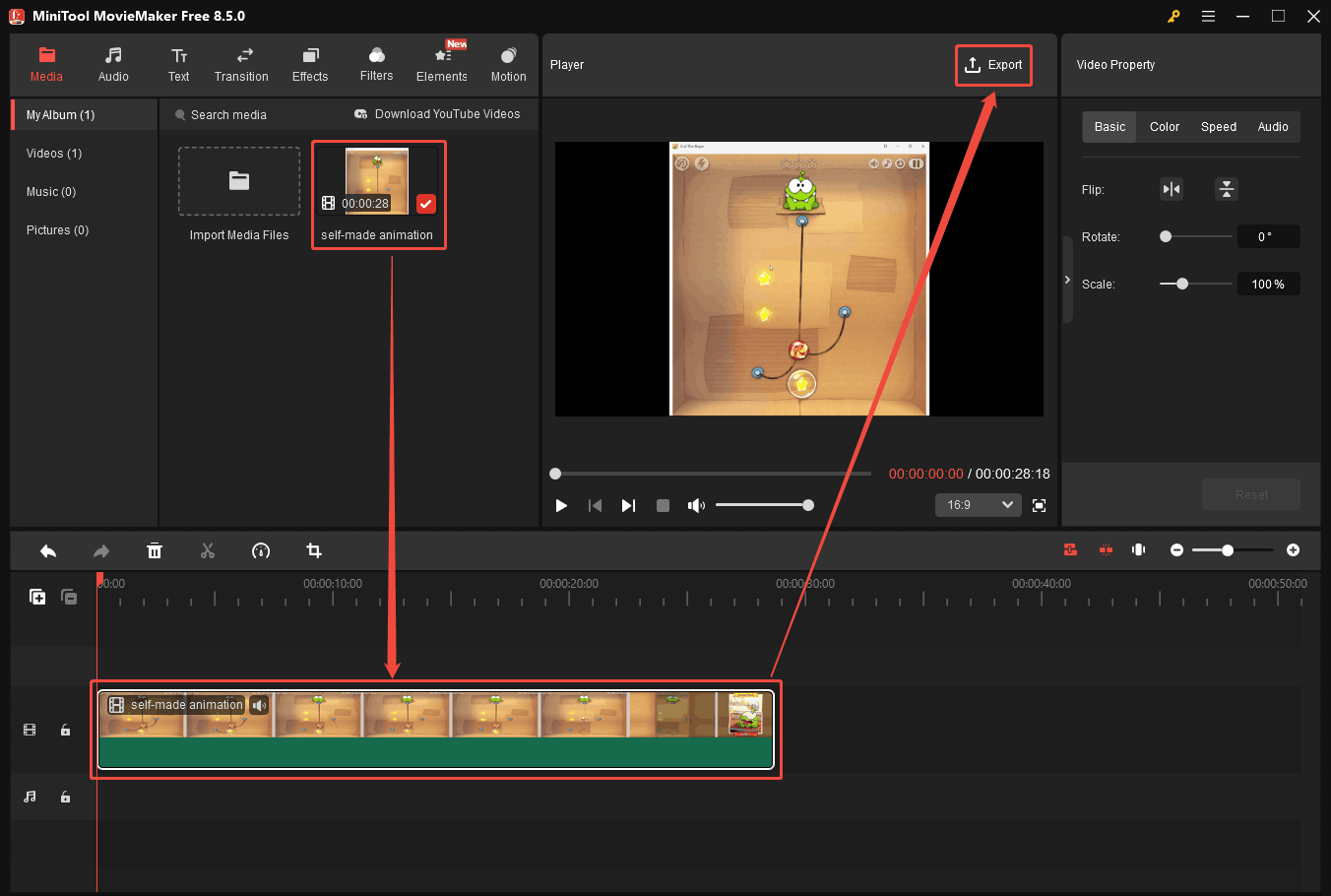
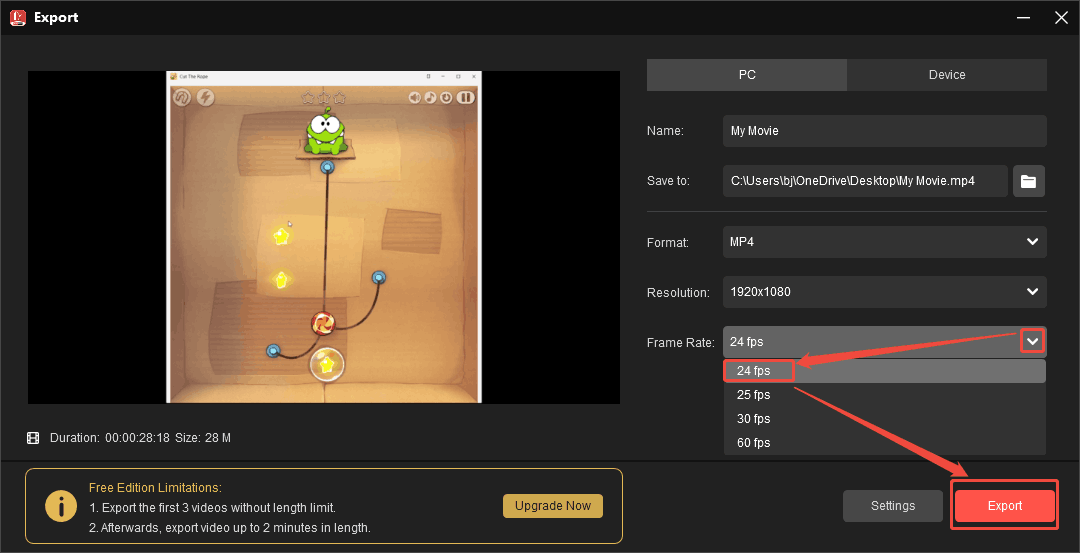
After that, drag the imported video onto the timeline. Then, click on the Export button to open the Export window.
Step 4. Adjust the Frame Rate and Start Export
In the Export window, I expand the Frame Rate option and select the 24 fps option. Next, click on the Export button to begin the export process. Then, click on the Find Target button in a newly popped-up window to locate the exported video in my local folder.
MiniTool MovieMaker is also a worthy frame rate adjustment tool for animation without ads or watermarks.
Conclusion
This post briefly introduces what frame rate and animation are. It also describes 4 types of common animation frame rates, including 12fps, 24 fps, 30 fps, and 60 fps. Besides, the article shares 2 excellent frame rate adjustment tools, including MiniTool Video Converter and MiniTool MovieMaker. Both of them are easy to use and free.
If you want to get more information about MiniTool Video Converter or MiniTool MovieMaker, feel free to contact MiniTool's official support via email at support@minitool.com.
User Comments :