

This article explains why the WMV file won’t play and gives 4 methods to solve this problem, including using MiniTool Video Converter to convert WMV to other formats.
What Is WMV
WMV (Windows Media Video) is a video container format designed by Microsoft. It has limited compatibility and is mainly used on Windows systems. WMV is mainly used for local video storage and playback, storage and transfer of early video tutorials, and exporting videos from some older devices.
Why WMV Won’t Play on Windows
Why is WMV not playing on Windows? There are 3 common reasons.
1. Player Is Incompatible with WMV
Many WMV files are protected by Microsoft’s DRM (Digital Rights Management), and playing WMV on unauthorized devices or non-Windows systems may be blocked. Forced playback may result in a black screen, crashes, or audio and video out of synchronization.
2. WMV Lacks Codecs
WMV playback failure may also be due to a lack of codecs. If it can’t be decoded, the data can't be recognized by the player, which may result in a black screen or the player crashing.
3. WMV File Is Corrupted
A WMV file may also fail to open because it is corrupted or infected with a virus. Opening a corrupted WMV file may result in a warning message from the player or your computer system.
How to Fix WMV Not Working on Windows
To restore playback of WMV files, you can try the following 4 solutions.
1. Repair the Corrupted WMV
Sometimes, WMV can’t play in the players because their internal data has been corrupted during transfer. Therefore, you can use an efficient video repair tool. Here, I share with you MiniTool Video Repair, which can repair more than 2,000 types of media files, including repairing a WMV file.
2. Change WMV Players
Another solution is that you can change a player to play a WMV file. WMV is the Windows native format. Perhaps using Windows Media Player can open it easily. Also, VLC Media Player is a common player that can be compatible with WMV.
3. Install WMV Codecs
Apart from the 2 solutions above, if a codec is missing, you can use specialized software to install one for your WMV file, such as the K-Lite Codec Pack. It is a professional collection of video and audio codecs for the Windows system.
4. Convert WMV to Other Formats
If the above solutions can’t help you repair the WMV file. Converting it to other formats may work. Want a robust converter? I highly recommend MiniTool Video Converter to convert WMV to other formats. MiniTool Video Converter supports converting videos between over 1,000 formats, so you can convert WMV to MP4, MOV, AVI, WebM, and more.
MiniTool Video Converter also enables you to convert 5 tasks at the same time. It allows you to fine-tune up to 4K resolution. Moreover, apart from this parameter, MiniTool Video Converter empowers you to adjust bitrate, frame rate, and encoder for the converted videos.
The following are the specific methods for converting WMV to MP4 using MiniTool Video Converter.
Step 1. Download and Install MiniTool Video Converter
Click on the download button below to download and install MiniTool Video Converter. Then, launch it.
MiniTool Video ConverterClick to Download100%Clean & Safe
Step 2. Import the WMV Video
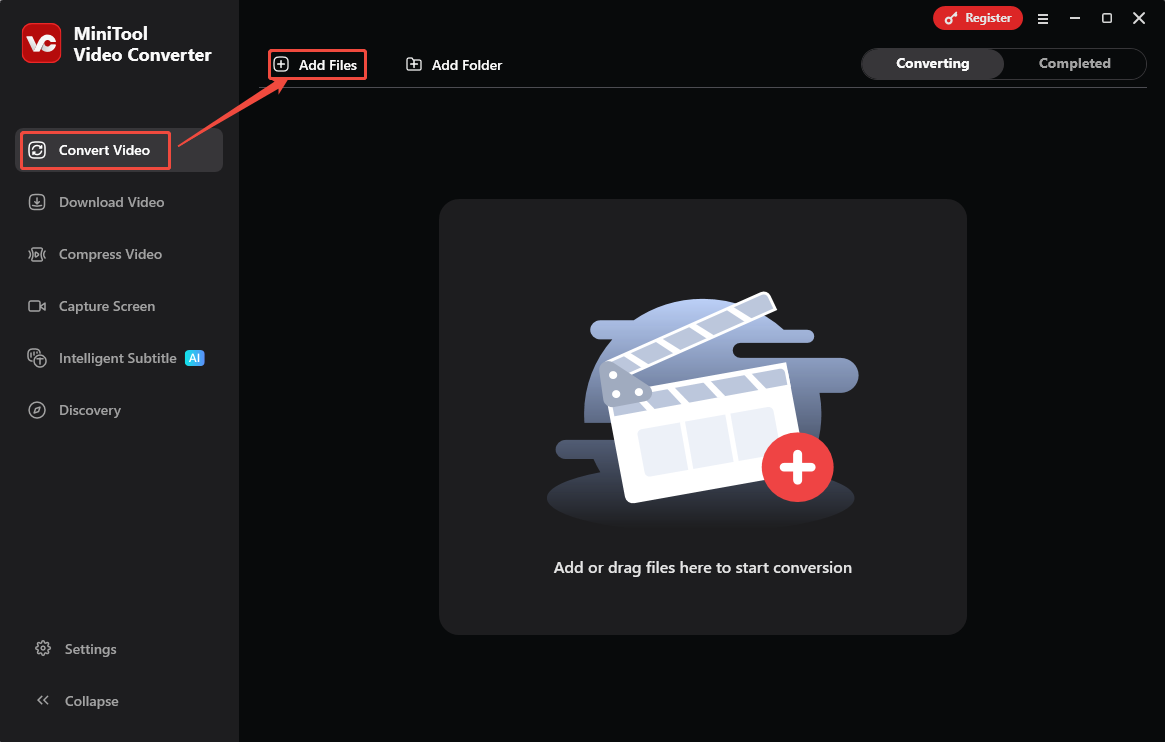
After entering the MiniTool Video Converter main interface, click the Add Files option in the default Convert Video tab to import a WMV video.
Step 3. Select a Storage Location
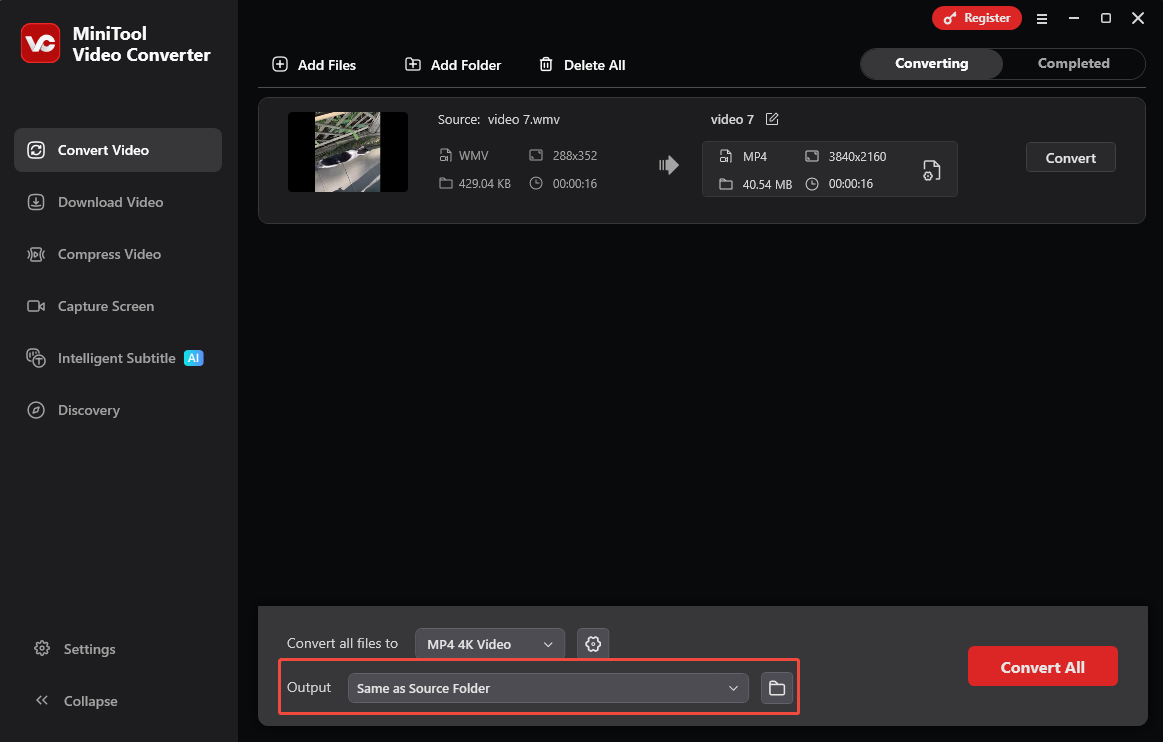
Click on the Output option at the bottom of the interface to pick a suitable saving folder on your computer.
Step 4. Configure MP4 as the Output Format
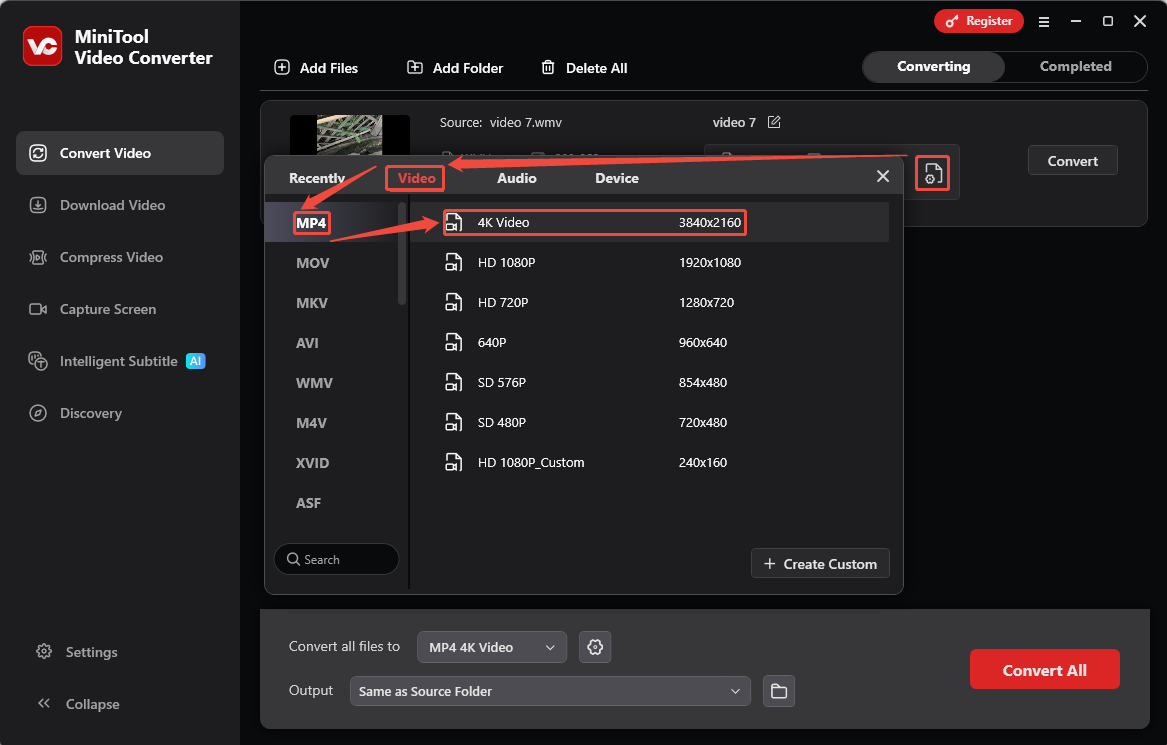
Click on the Gear icon to enter the output format settings window. There, switch to the Video tab and choose MP4 as the output format. Then, select a resolution. I need a high-quality converted video, so I choose 4K Video.
Step 5. Start Converting
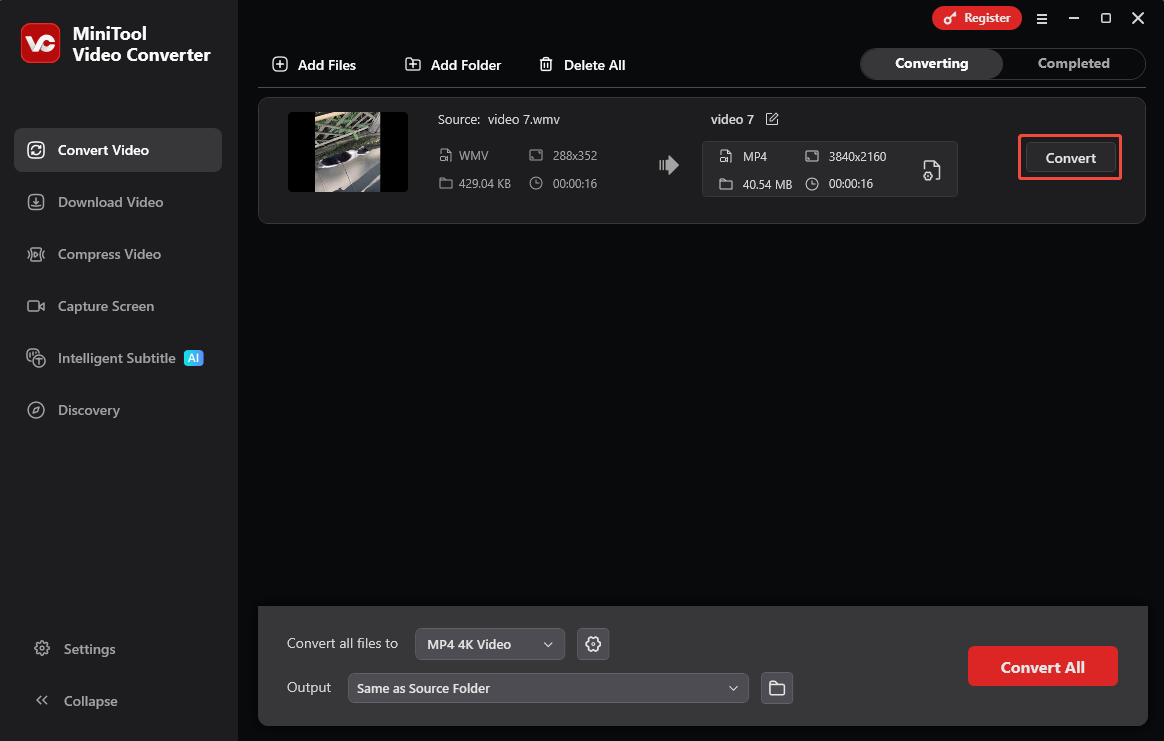
When you set the converted video format, this video converter will go back to the main interface. Then, click on the Convert button to start converting.
Step 6. Check and Locate the Converted Video
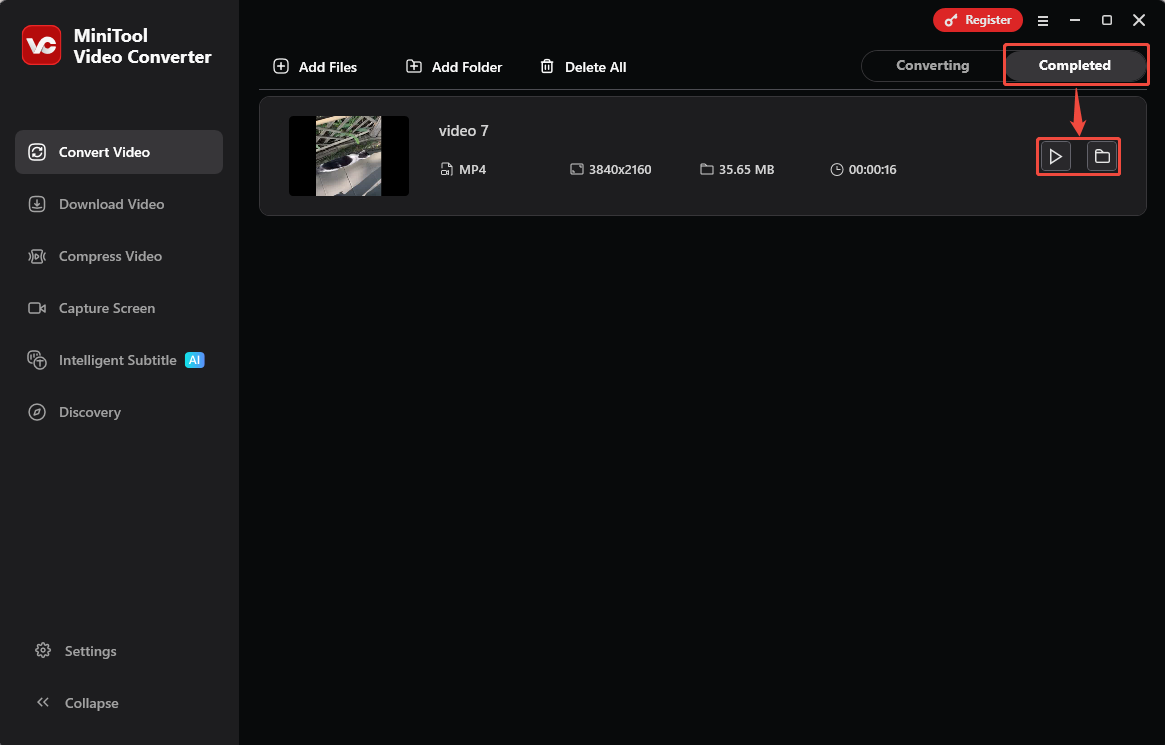
The converted video will appear in the Completed tab. There, click on the Play icon or the Folder icon to check or locate it.
MiniTool Video Converter is one of the converters I’ve used the longest. What I like most is that it doesn’t have a size limit for imported files, so I can convert files of any size.
Wrap Up
This article lists the potential issues of the WMV file won’t play and shares 4 effective solutions, including repairing the corrupted file, changing a player, installing a codec, and converting WMV to other formats.
User Comments :