

In this post, you will get to know why to reduce the video size for Seesaw and how the compressed video will be. Besides, you will also learn how to compress a video for Seesaw with the top 2 Seesaw video compressors, including MiniTool Video Converter and FreeConvert.
What Is Seesaw
Seesaw is an integrated learning platform designed for students in elementary education. It is trusted and loved by teachers, students, and parents worldwide. Its highlights include a comprehensive, multi-scenario teaching and learning approach, integrating high-quality teaching resources, holistic student development, and home-school communication features.
Seesaw offers 2 main dimensions: multimodal expression and full-scenario connectivity. It includes tools for voice and screen recording, photography, and drawing. Seesaw also supports real-time communication between home and school, allowing parents to keep track of their child's learning progress.
Additionally, Seesaw’s built-in portfolio lessons automatically categorize by skill and folder, recording students' growth. These visualized teaching methods support the realization of a student-centered approach.
Why Compress Video for Seesaw
When using Seesaw, you'll frequently need to submit assignments to the platform. Video is one of the primary methods of submission. However, this platform has size limits for video uploads and submissions. You need to compress the target video to under 250MB. Additionally, Seesaw doesn't have a built-in compressor. Therefore, you'll need to compress it using an external compressor before uploading.

What Should the Compressed Video Be
What are Seesaw's requirements for the attributes of compressed video? Besides the requirement that the video size not exceed 250MB, here are some other requirements you should know:
- Video Duration: Within 5 minutes
- Video Resolution and Frame Rate: 480P and 720P are recommended
- Video Format: MP4, MOV, WebM, and more
How to Compress Video for Seesaw
Looking to compress a video for Seesaw? I’m happy to share 2 compressors I’ve used.
1. MiniTool Video Converter
MiniTool Video Converter is a completely free video converter. It supports compressing a wide range of video formats, like MP4, MKV, MOV, AVI, OGV, WebM, and MPEG. MiniTool Video Converter converts quickly without size limitations.
Need to control the compression levels? MiniTool Video Converter lets you shrink target videos from 100% to 10% of the original size, depending on your needs. What about handing multiple files? It also supports batch compression of up to 5 tasks at once.
Want more customization? MiniTool Videpo Converter enables you to fine-tune key parameters of the compressed video, including encoder, resolution, and frame rate, making compression no longer a simple mechanical operation.
Next, we’ll walk through how to use MiniTool Video Converter to reduce video size for Seesaw.
Step 1. Download and Install MiniTool Video Converter
Click on the download button to download and set up MiniTool Video Converter. Then, launch it.
MiniTool Video ConverterClick to Download100%Clean & Safe
Step 2. Import the Target Video
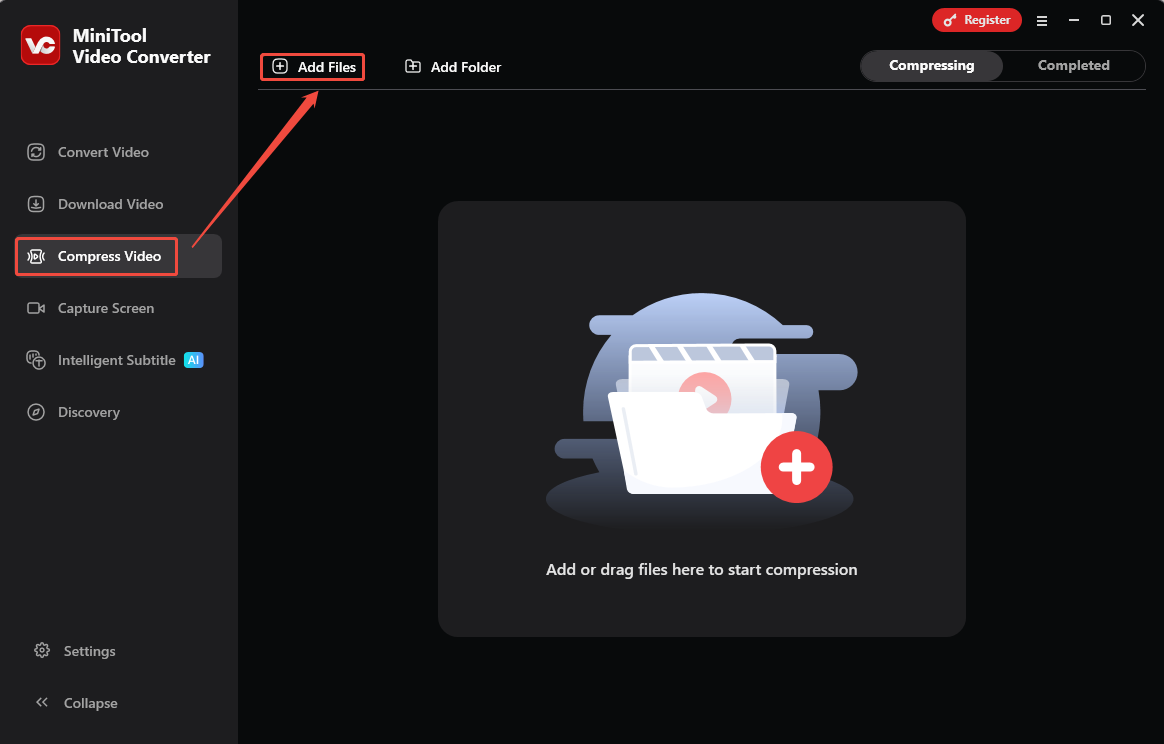
Switch to the Compress Video module. There, click the Add Files option to import a target video larger than 250MB.
Step 3. Customize the Compression Level
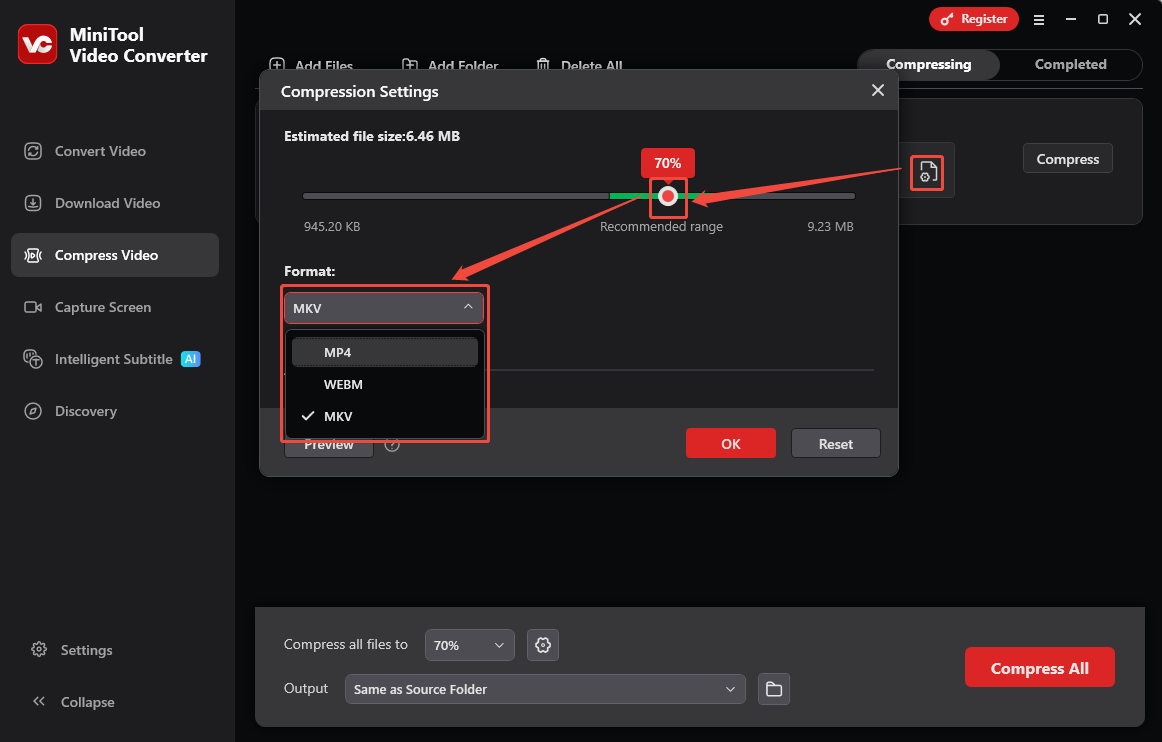
Click on the Settings icon to open the Compression Settings window. There, drag the red slider to change the output video size within 250MB. Then, expand the Format option to choose an output format for the compressed video.
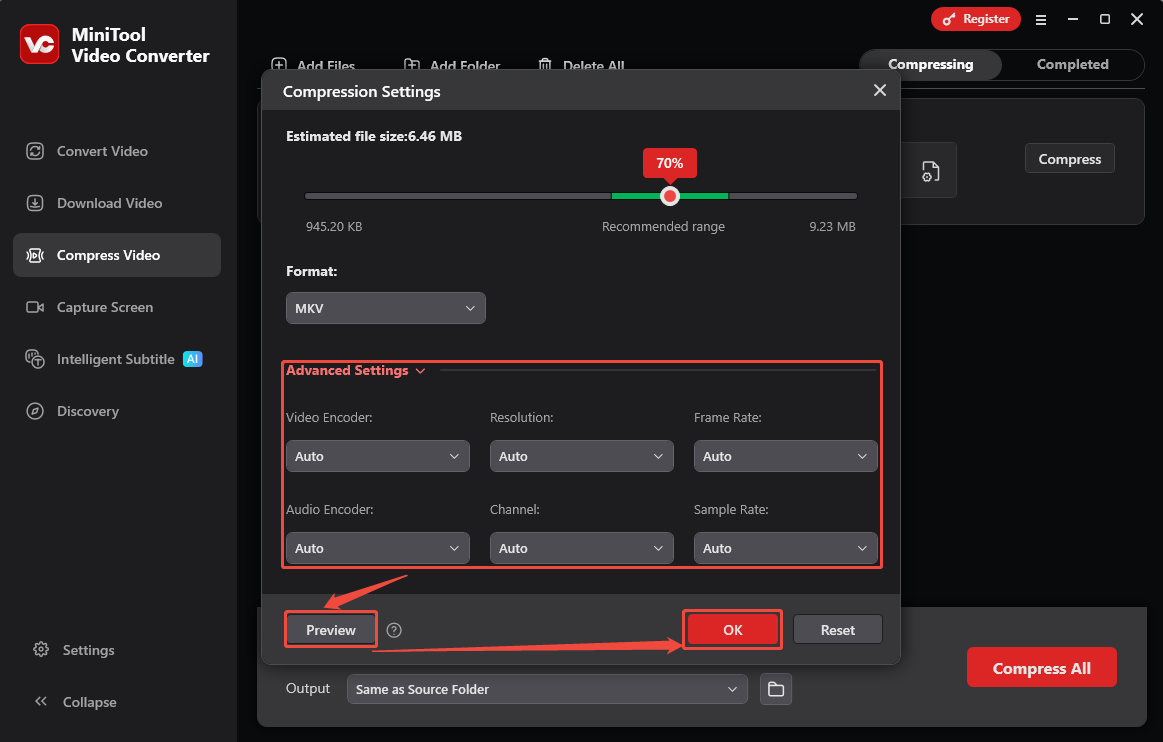
Expand the Advanced Settings option to customize the video encoder, resolution, frame rate, audio encoder, channel, and sample rate. Besides, you can click on the Preview option to preview the compressed video. Then, click on the OK button to apply these choices.
Step 4. Start the Compression
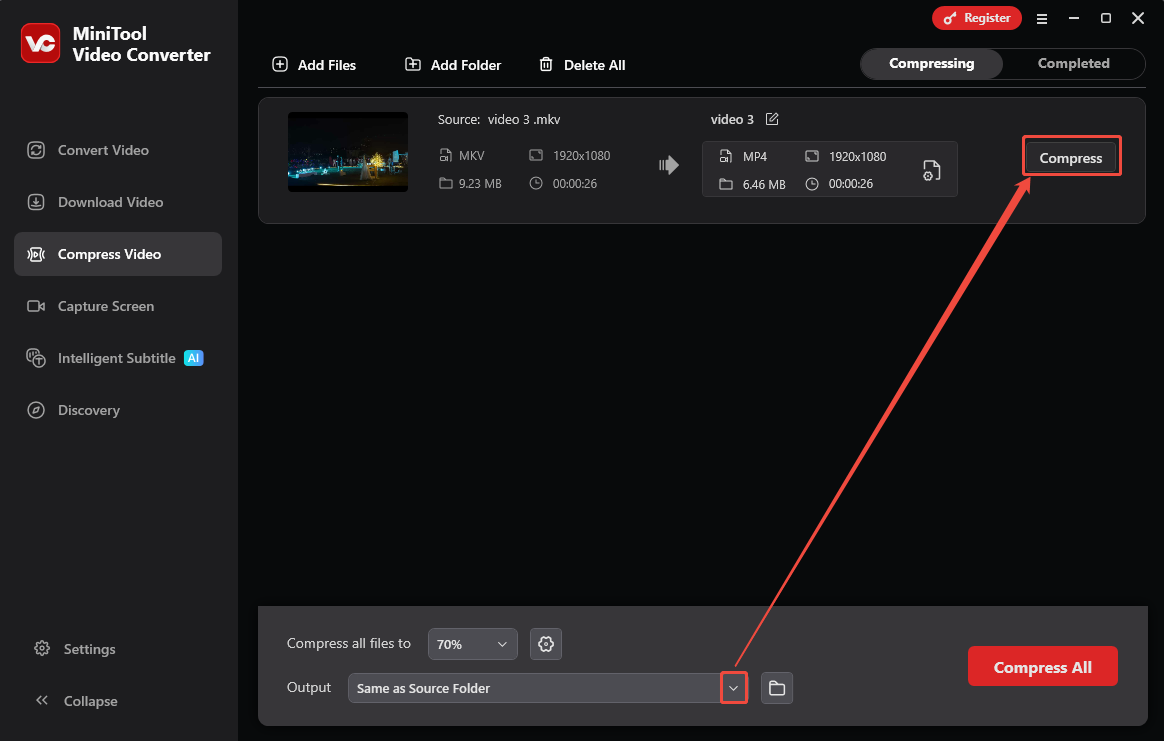
Expand the Output option to specify a storage location. Then, click on the OK button to start the compression.
Step 5. Check the Compressed Video
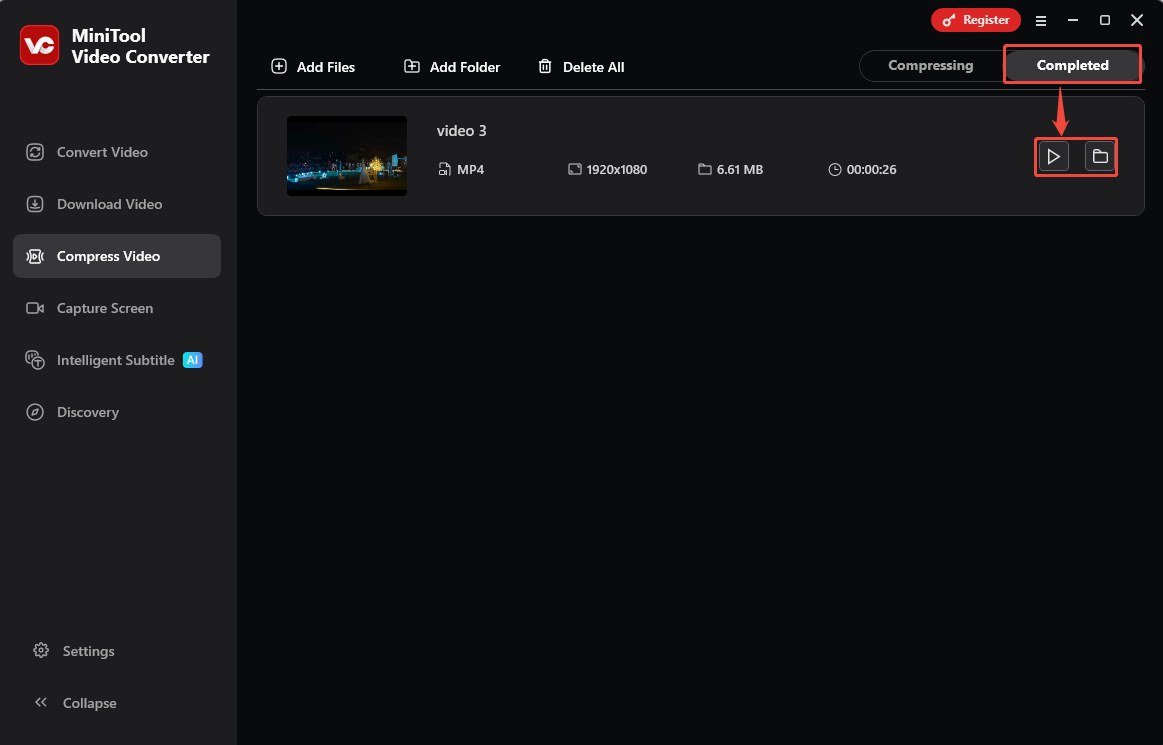
When the compression process finishes, this compression tool will toggle to the Completed module. There, click on the Play icon or the Folder icon to check or locate the compressed video.
Using MiniTool Video Converter to complete Seesaw compression is highly efficient. You can directly use it after installation. Don’t worry about annoying ads or built-in bundles disturbing your programs.
2. FreeConvert
FreeConvert is a browser-based compressor that can quickly compress a video for Seesaw to 250MB. It has an intuitive interface and is easy to use without complex instructions. FreeConvert allows you to import videos from multiple sources, such as OneDrive and Dropbox. However, the shortcoming is that FreeConvert only supports compressing videos under 1GB for unlogged-in users.
If you want to use FreeConvert to compress a video for Seesaw, just follow my steps to get traversal.
Step 1. Access FreeConvert’s Compression Page
Visit https://www.freeconvert.com/video-compressor to enter FreeConvert’s Compression Page.
Step 2. Upload the Target Video Prepared
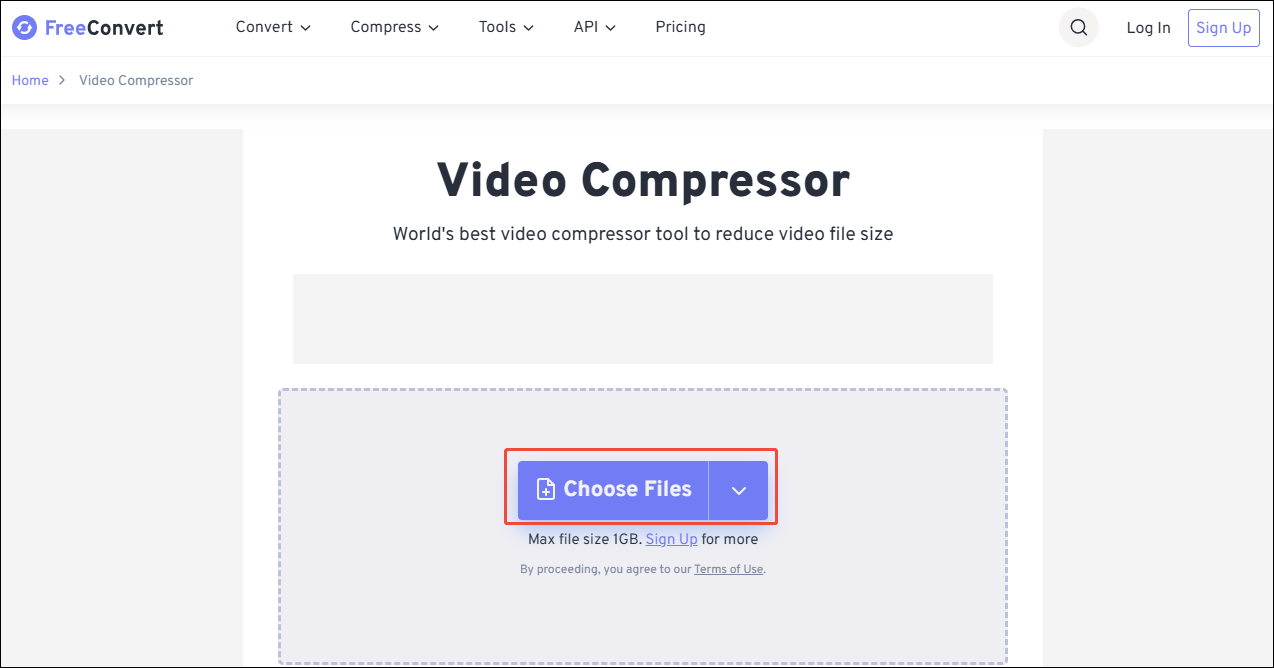
Click on the Choose Files option to upload the target video you’ve prepared.
Step 3. Adjust the Compression Percentage
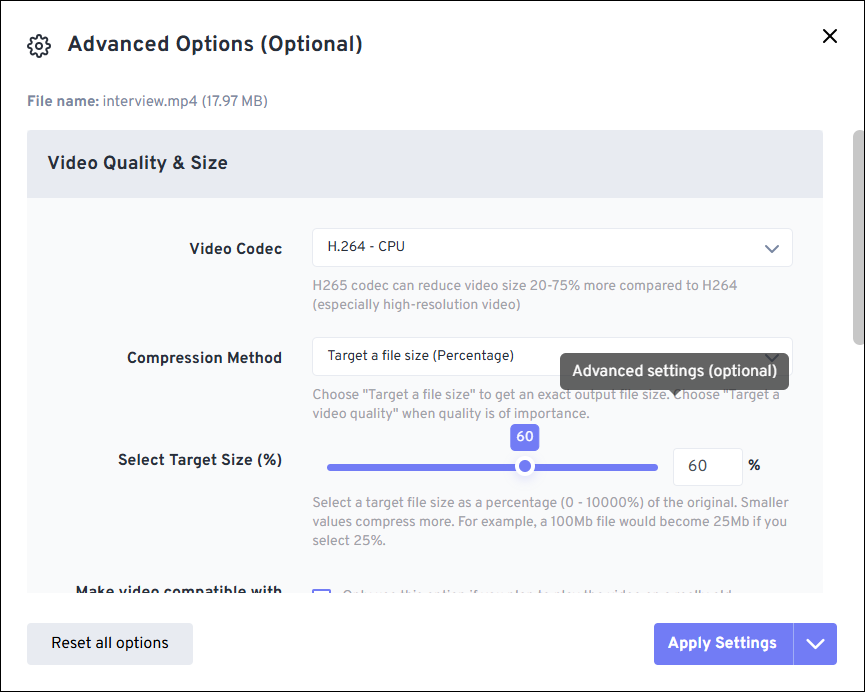
After uploading the target video, slide down to the Advanced Options section. There, drag the blue slider to confirm the compression percentage.
Step 4. Begin the Compression
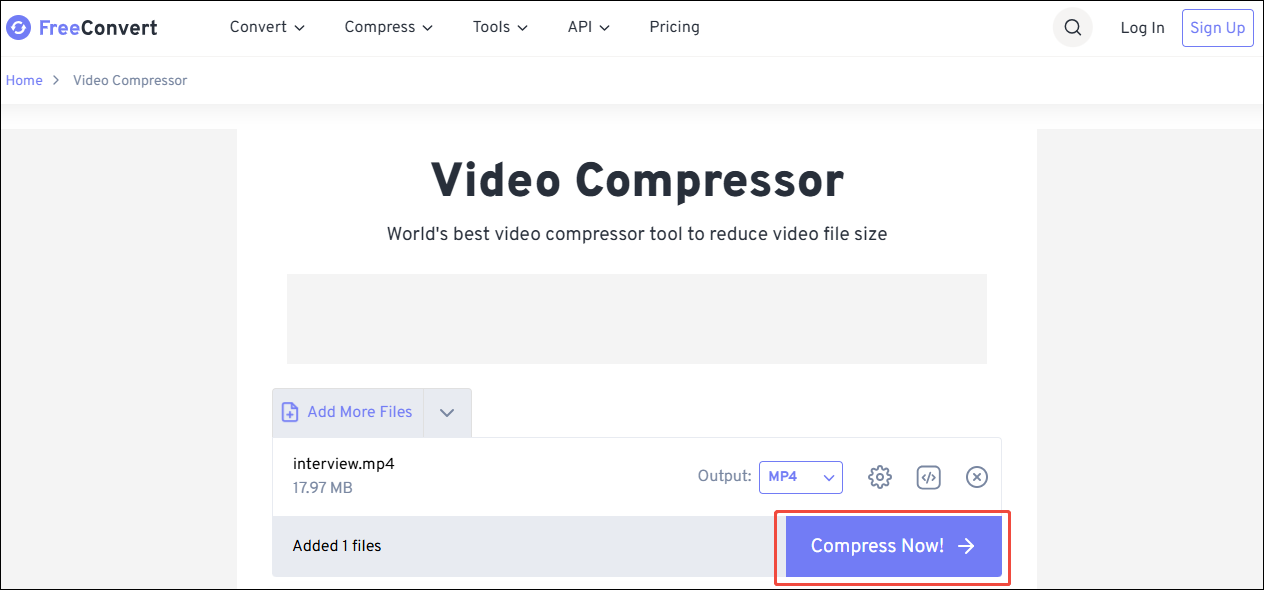
Click on the Compress Now button to begin the compression process.
Step 5. Get the Compression Result
Click on the Download button to save this compressed video.
If you want to compress a video for Seesaw within 1GB, you can use FreeConvert. Nevertheless, you may need to bear with vexing ads sometimes.
Conclusion
Seesaw only supports uploading 250MB for per video. This article lists what the compressed video should be. Also, it introduces how to compress a video with 2 practical compressors, including MiniTool Video Converter and FreeConvert.
User Comments :