

What Is Yoto
Yoto provides you with a popular audio player brand. Those audio players don’t feature a screen. With them, kids can manage the music, stories, and educational content independently. Using physical cards, children can enjoy all kinds of amusement effortlessly.
Can Yoto Play M4B
Does Yoto support M4B? No, it doesn’t. The audio formats that Yoto supports include M4A and MP3. As such, you can’t play M4B files with Yoto. To solve that problem, you can convert the M4B files to MP3. If you don’t know how to do that, the following content can help!
How to Convert M4B for Use in Yoto
To fix the compatibility issue, it is advisable for you to convert the M4B files to Yoto-supported MP3. To facilitate your conversion tasks, 2 powerful converters, including MiniTool Video Converter (Offline) and FreeConvert (Online), can help.s
Option 1. MiniTool Video Converter (Offline)
MiniTool Video Converter is one of the best M4B converters that you can try.
About MiniTool Video Converter
MiniTool Video Converter is a free file converter that enables you to convert M4B to a wide range of audio/video formats, including MP3, MP4, M4A, MOV, AIFF, MKV, OGG, M2TS, WAV, and so on. Meanwhile, it supports batch conversion, allowing you to convert up to 5 M4B files simultaneously.
With a well-organized interface, MiniTool Video Converter is a usable application for all beginners. In addition, it never sets a file size limit for free users, which means that you can use MiniTool Video Converter to convert large M4B files as much as possible.
How to Convert M4B to MP3 with MiniTool Video Converter
Below is a detailed guide on how to convert M4B to MP3 using MiniTool Video Converter.
Step 1. Download and install MiniTool Video Converter.
MiniTool Video ConverterClick to Download100%Clean & Safe
Click on the download button above to download and install MiniTool Video Converter on your PC.
Step 2. Import the M4B files.
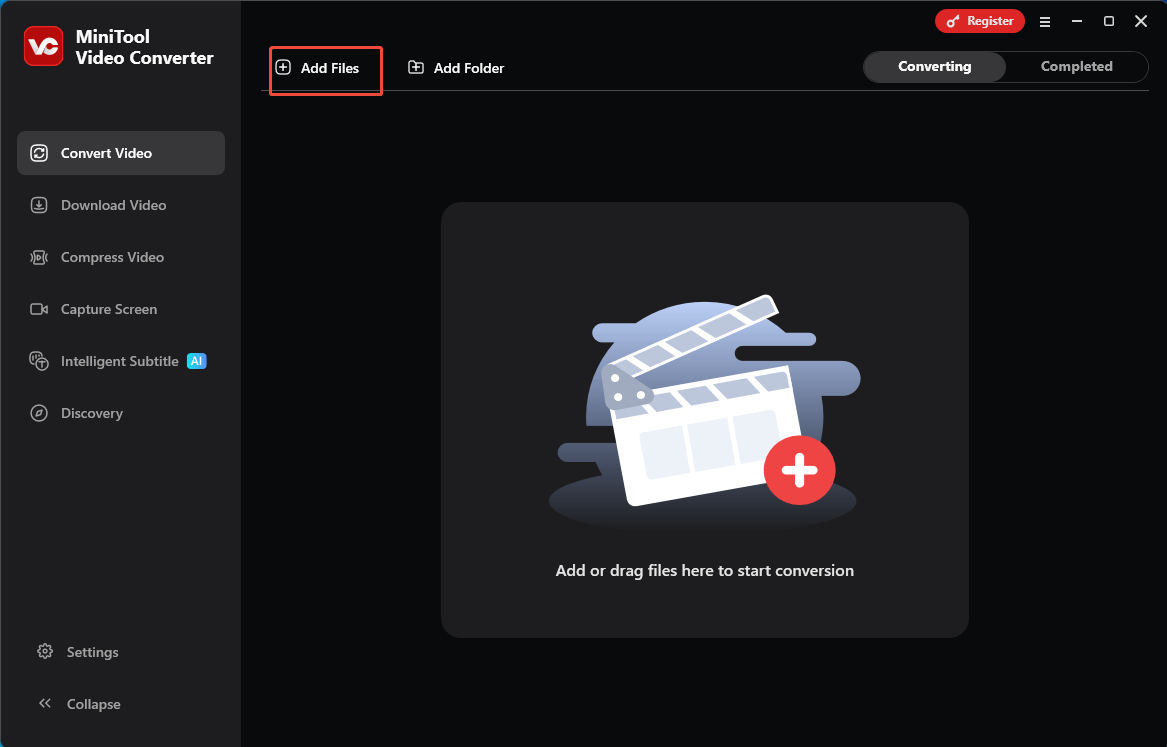
After launching MiniTool Video Converter, click on the upper-left Add Files option to import the M4B files that you want to convert.
Step 3. Set MP3 as the output format.
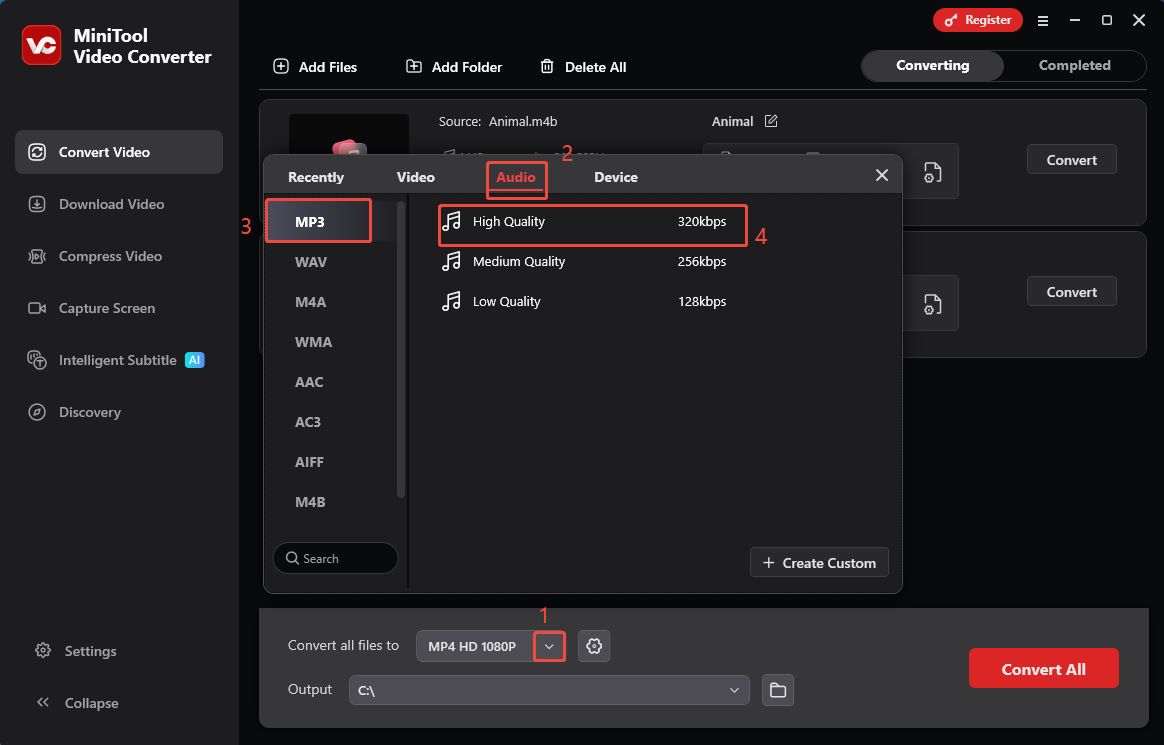
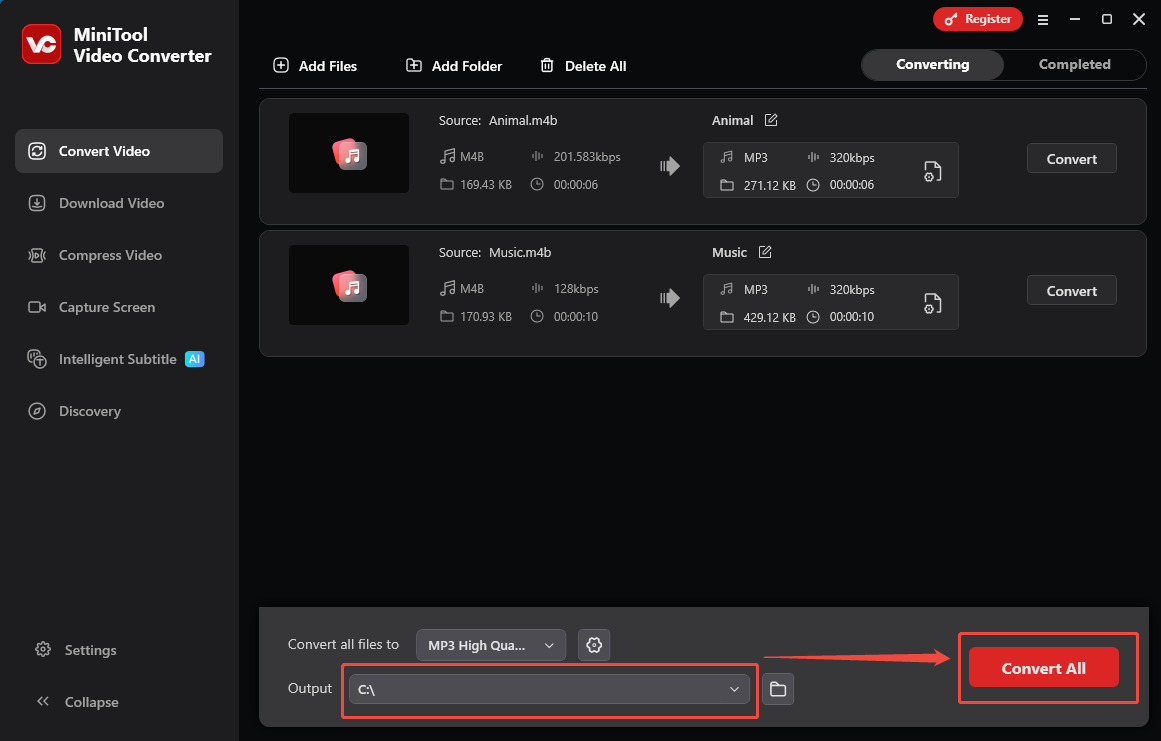
Expand the bottom Convert all files to option to enter the output format window. There, switch to the Audio tab and click on MP3. Next, select the audio quality. Here, I select High Quality.
Step 4. Set an output folder and start conversion.
Expand the bottom Output option to choose a saving path for the converted files. Next, begin the conversion process by clicking on the bottom-right Convert All button.
Step 5. Check the output files.
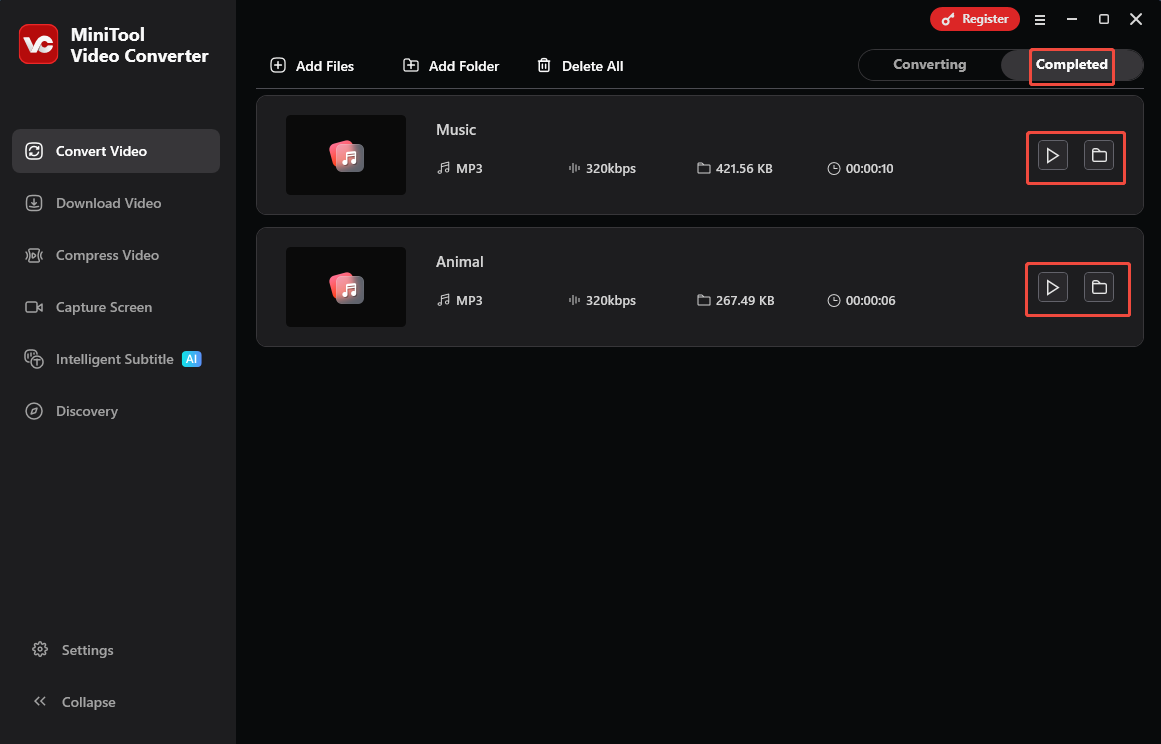
When the file conversion process completes, this file converter will automatically switch to the Completed section. There, click on the Play icon to view the output files. If you want to locate these files, click on the Folder icon.
More than a conversion tool, MiniTool Video Converter is also a one-stop solution for video compression and audio/video-to-text conversion.
Option 2. FreeConvert (Online)
FreeConvert is a robust web-based converter that empowers you to convert M4B to all kinds of audio formats, including MP3, WAV, AIFF, AMR, AAC, and so on. Plus, it enables you to import the M4B files from multiple sources, such as Google Drive, OneDrive, Dropbox, and more. Below is a detailed guide on how to convert M4B to MP3 using FreeConvert.
Step 1. Go to the M4B to MP3 Converter Page of FreeConvert.
Visit https://www.freeconvert.com/m4b-to-mp3.
Step 2. Import the M4B files.
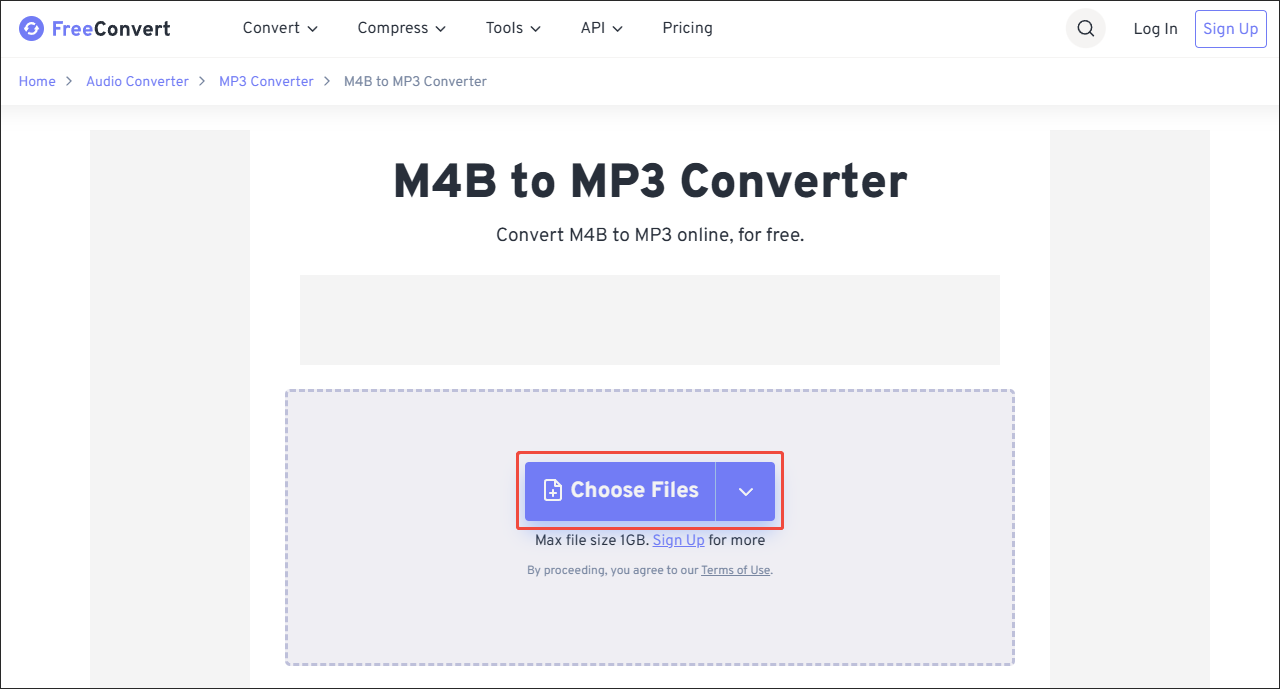
Click on the Choose Files option to upload the M4B files.
Step 3. Configure the conversion settings.
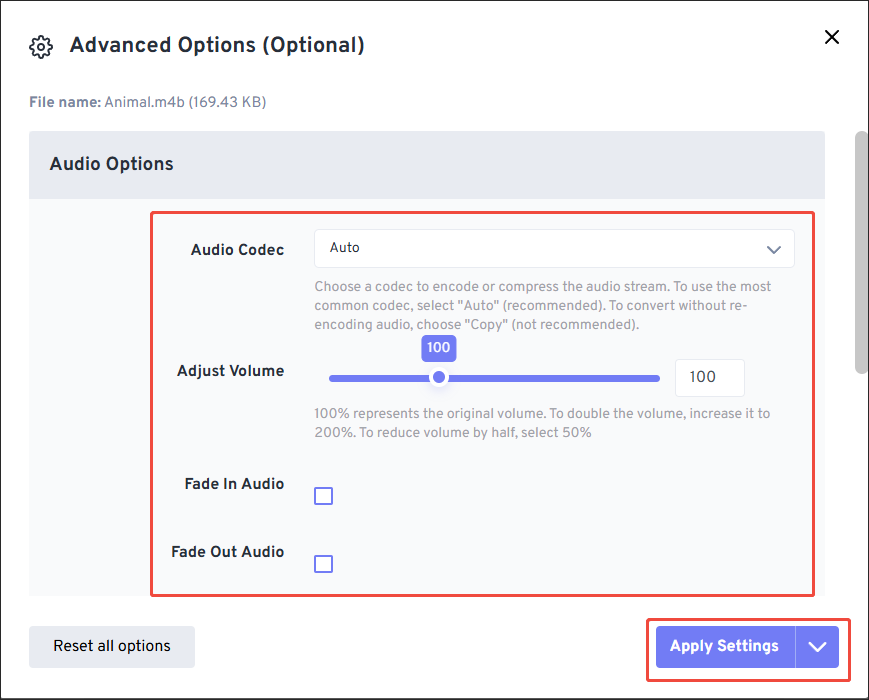
Click on the Settings icon to enter the Advanced Options window. There, you can customize the audio codec or volume. Also, you can determine to fade in/out the audio based on your needs. Finally, click on the Apply Settings option to save the changes. Remember to repeat the above operations to specify the settings of other M4B files.
Step 4. Start conversion and check the converted files.
Start the conversion process by clicking on the Convert button. When the file conversion process finishes, download and check the output files.
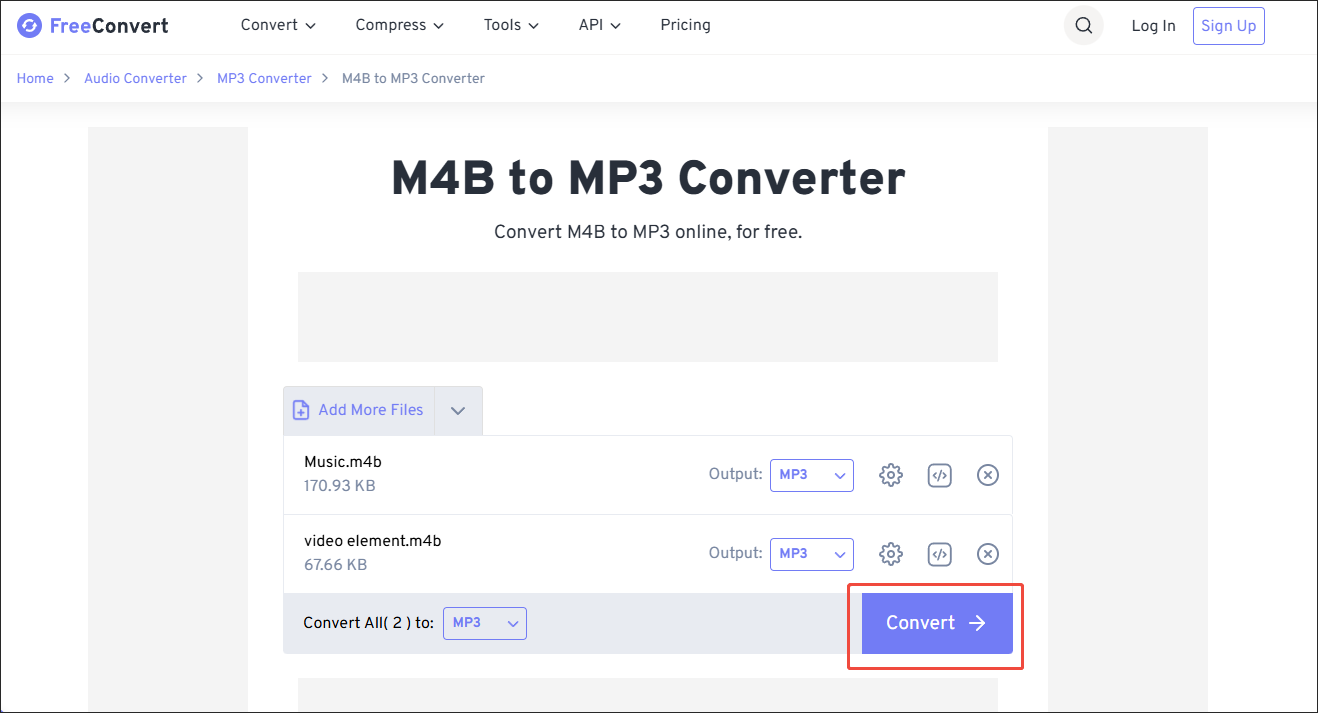
Although Yoto doesn’t support M4B, you can use FreeConvert to convert M4B for Yoto with simple clicks.
Wrapping Up
Does Yoto support M4B? The answer is negative. To solve the problem of Yoto won’t play M4B, you can choose MiniTool Video Converter (Offline) or FreeConvert (Online) to convert M4B files to MP3.
User Comments :