

What Is Kobo
Also known as Rakuten Kobo, Kobo is a powerful developer of audiobooks, e-books, and e-readers. Simply put, it offers a wide range of digital reading content to book lovers. In addition, to facilitate your reading, Kobo provides you with E-Ink screens, giving you an easy reading experience.
Can Kobo Play M4B
Does Kobo support M4B? No, it only supports MP3. Hence, it is common to see Kobo won’t play M4B. To solve that problem, it is workable for you to convert the M4B files to MP3. If you don’t know how to do that, the following content can help!
How to Convert M4B for Kobo
You can convert the M4B files to Kobo-supported MP3 with MiniTool Video Converter (Offline), Zamzar (Online), and CloudConvert (Online).
Tool 1. MiniTool Video Converter (Offline)
MiniTool Video Converter is one of the best applications that you can try to convert M4B for Kobo. It allows you to convert up to 5 M4B files at the same time. In addition, MiniTool Video Converter never sets any file size limit and doesn’t require any payment for the conversion tasks.
To ensure that every beginner can access MiniTool Video Converter, this application is designed with a well-organized interface. MiniTool Video Converter also allows you to customize various parameters, including encoder, frame rate, sample rate, bitrate, resolution, and more.
Moreover, MiniTool Video Converter supports a wide range of audio/video formats, including MP3, MP4, AIFF, MKV, WAV, MOV, and more. Below is a detailed guide on how to convert M4B to MP3 using MiniTool Video Converter.
Step 1. Download and Install MiniTool Video Converter
MiniTool Video ConverterClick to Download100%Clean & Safe
Click on the download button above to download and install MiniTool Video Converter on your PC.
Step 2. Import the M4B Files
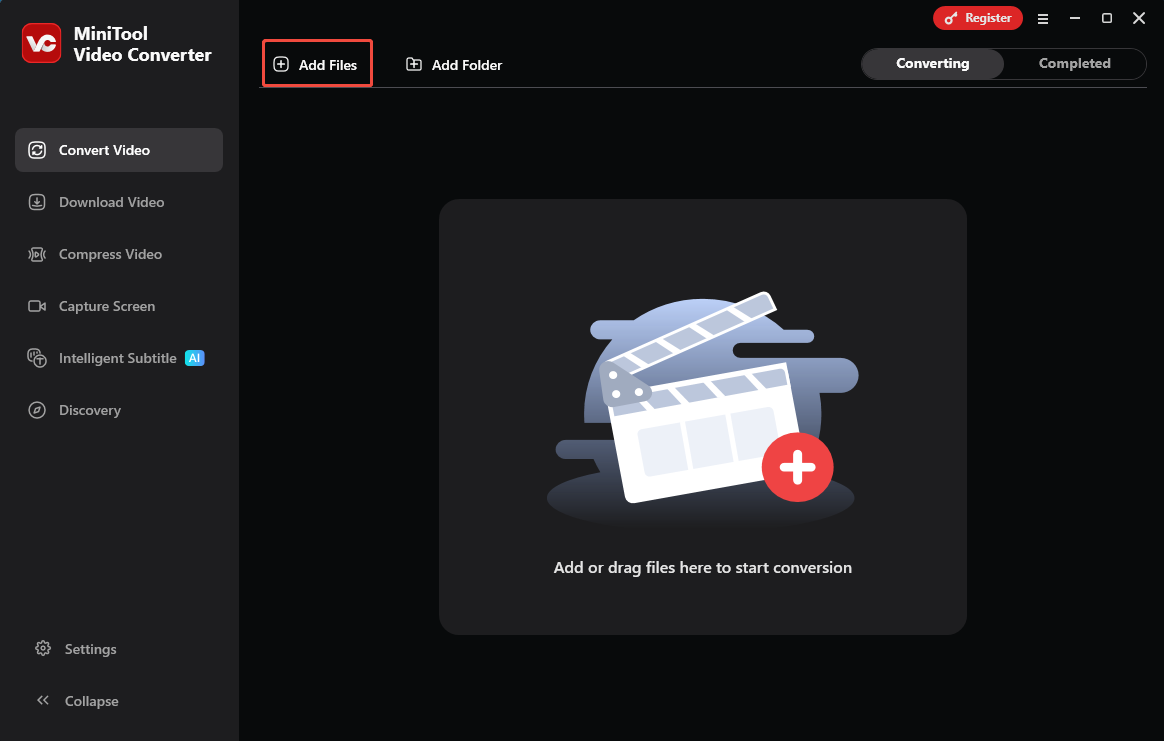
After launching MiniTool Video Converter, click on the upper-left Add Files option to import the M4B files that you want to convert.
Step 3. Set MP3 as the Output Format
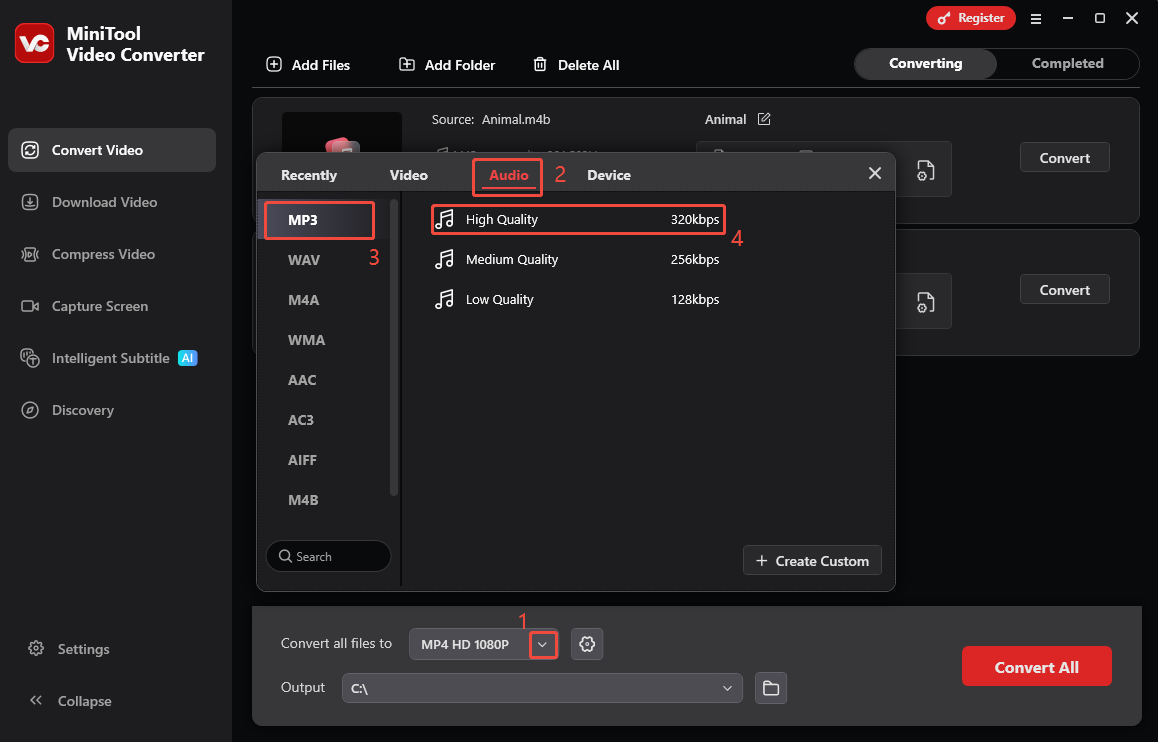
Expand the bottom Convert all files to option to enter the output format window. There, switch to the Audio tab and click on MP3. Then, choose the audio quality you want. Here, I select High Quality as an example.
Step 4. Set an Output Folder and Start Conversion
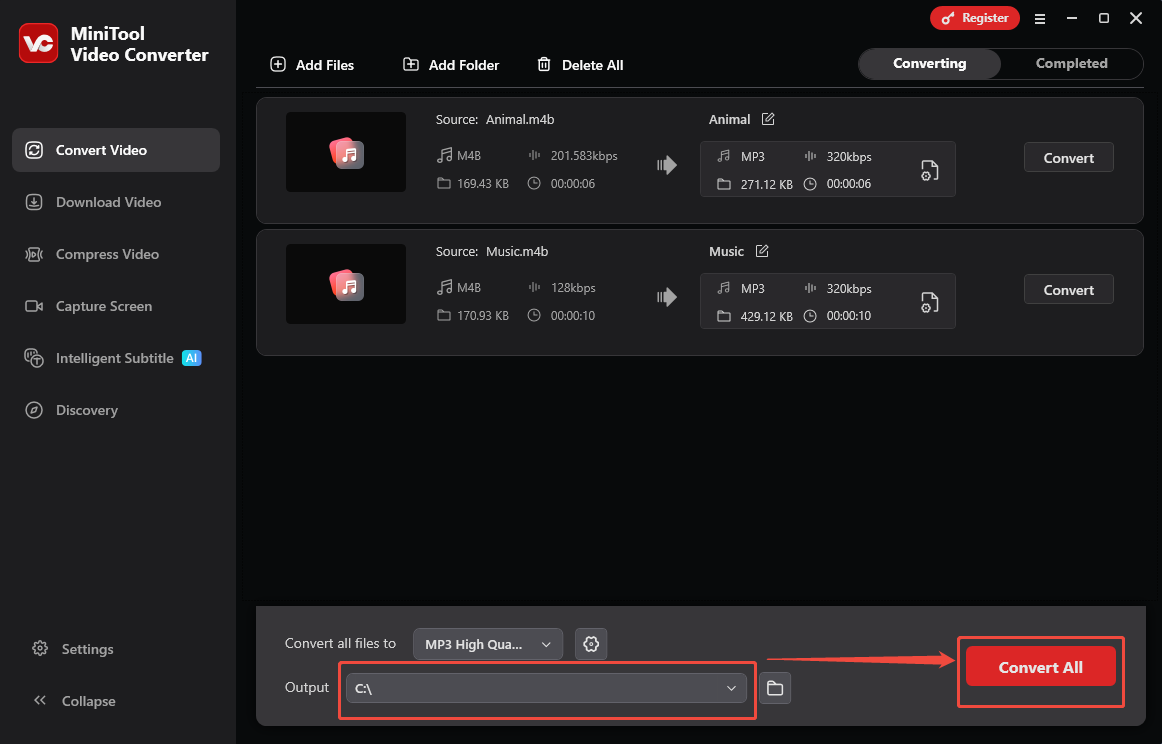
Expand the bottom Output option to choose a destination folder for the converted files. Then start the conversion process by clicking on the bottom-right Convert All button.
Step 5. Check the Output Files
When the file conversion process ends, this Kobo converter will automatically switch to the Completed section. There, click on the Play icon to view the output files. If you want to locate the converted files, click on the Folder icon.
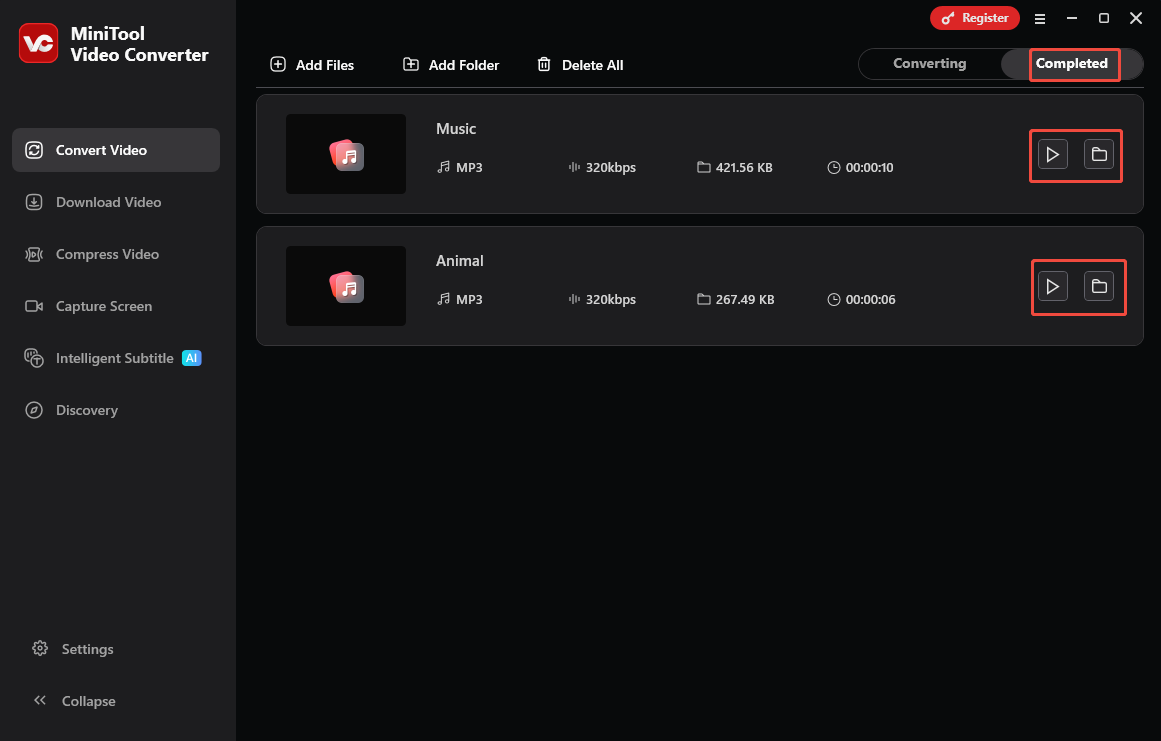
More surprisingly, MiniTool Video Converter also enables you to compress videos for free. In addition, it empowers you to generate text from various audio/video files.
Tool 2. Zamzar (Online)
If you want to convert M4B for Kobo without downloading extra software, Zamzar can help. It supports file importing from different sources, such as Google Drive, OneDrive, Dropbox, Box, URL, and your device. Zamzar also enables you to specify some advanced settings, such as bitrate, sample rate, and more. Below is a detailed guide on how to convert M4B to MP3 with this tool.
Step 1. Go to the M4B to MP3 Converter page of Zamzar.
Visit https://www.zamzar.com/convert/m4b-to-mp3/.
Step 2. Import the M4B files.
Click on the Choose Files option to upload the M4B files.
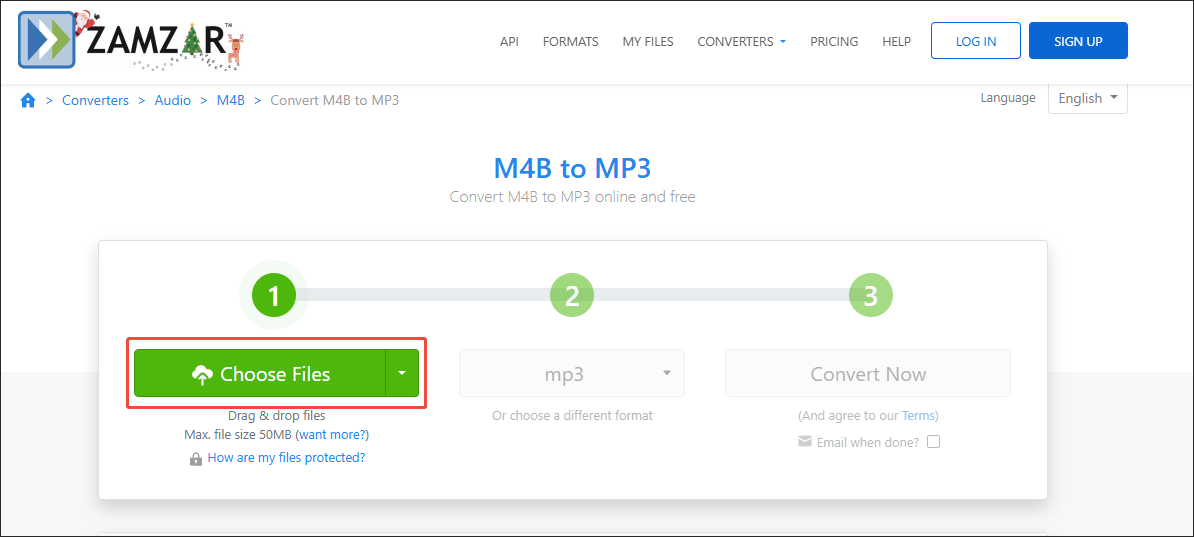
Step 3. Configure the conversion settings and start conversion.
When the file import completes, the Advanced settings window will pop up. Then, you can customize the bitrate, sample rate, and sound effects based on your needs. Finally, click on the bottom-right Convert button to start the conversion process.
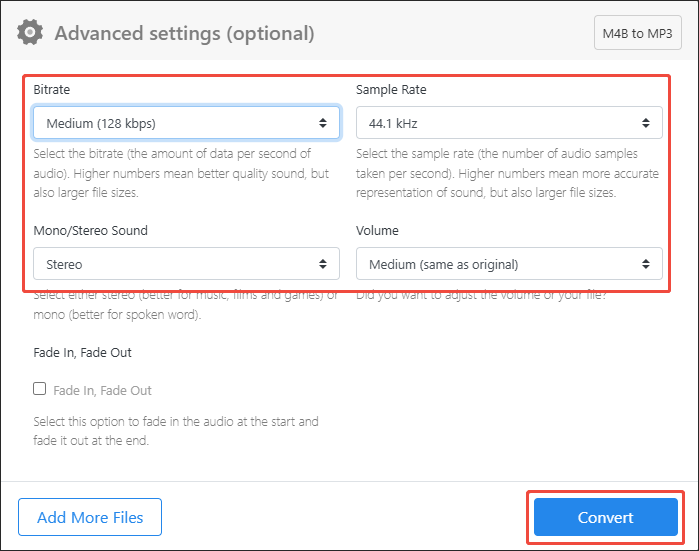
Step 4. Check the output files.
When the file conversion process finishes, click on the Download button to download and check the converted files.
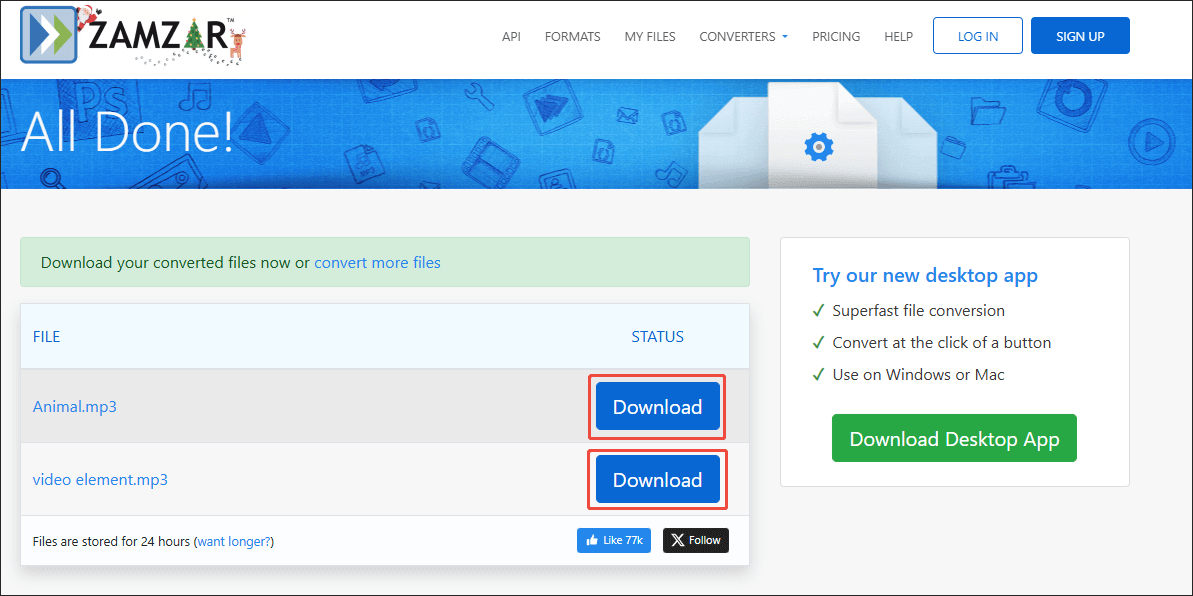
Admittedly, Zamzar is an easy-to-use online converter. However, it has a 50MB file size limit for free users.
Tool 3. CloudConvert (Online)
CloudConvert is an online converter that has a higher file size limit than Zamzar. As such, if you want to convert multiple large M4B files online, it can be a more ideal option. With a 100% clean interface, CloudConvert enables every user to have a more focused conversion experience. Below is a step-by-step tutorial on how to convert M4B to MP3 using it.
Step 1. Go to the M4B to MP3 Converter Page of CloudConvert.
Visit https://cloudconvert.com/m4b-to-mp3.
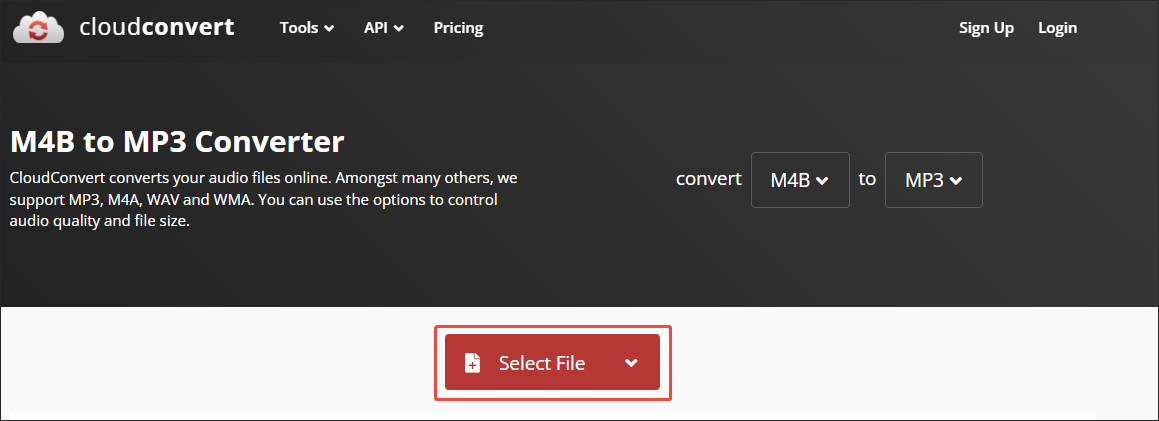
Step 2. Import the M4B files.
Click on the Select File option to upload the M4B audio files.
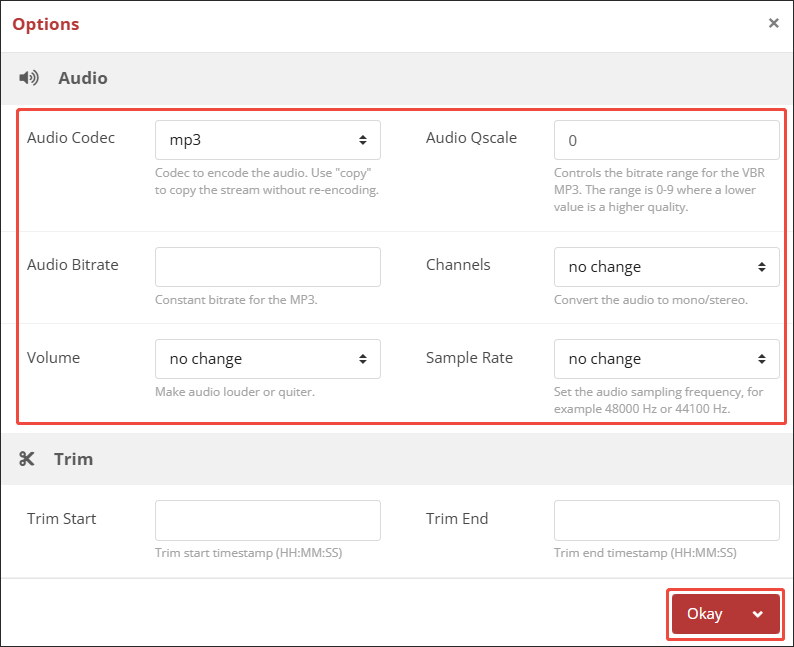
Step 3. Configure the conversion settings.
Click on the Wrench icon to enter the Options window. There, you can customize the audio codec, audio channels, and other parameters. Finally, click on the Okay button to save the changes.
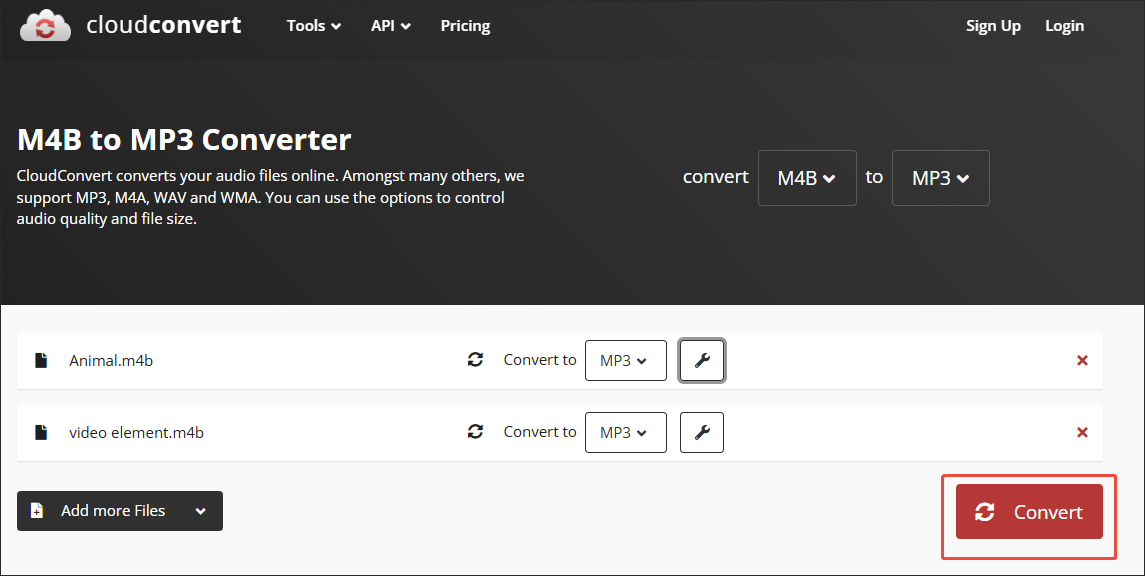
Step 4. Start conversion and check the output files.
Begin the conversion process by clicking on the Convert button. When the file conversion process ends, download and check the converted files.
As you can see, although Kobo doesn’t support M4B, CloudConvert enables you to listen to what you want on Kobo easily.
Closing Words
Does Kobo support M4B files? Unfortunately, the answer is no. To fix that issue, you can convert M4B to Kobo-supported MP3 with MiniTool Video Converter (Offline), Zamzar (Online), or CloudConvert (Online).
User Comments :