

What Is M4V
Developed by Apple, M4V is a video format that shares some similarities with MP4. It is widely used for the storage of many videos, including TV shows and films from iTunes. However, due to the protection of copyrighted content, M4V offers much to support DRM (Digital Rights Management).
What Is M4B
M4B is a popular audio format used for podcasts and audiobooks. It supports functions, such as chapter markers and bookmarking, offering you a better auditory experience. To play protected M4B files, the Apple Books or iTunes app can help. If the M4B files are not protected, you can view them with the VLC media player.
How to Convert M4V to M4B Offline
Provided that you want an offline method to convert M4V to M4B, it is advisable to use MiniTool Video Converter.
What Is MiniTool Video Converter
MiniTool Video Converter is a free video converter that enables you to convert M4V to a variety of audio/video formats, including M4B, MP4, M4A, MKV, AIFF, MOV, OGG, WMV, and so on. Emphasizing high conversion speed, it allows you to convert up to five M4B files simultaneously.
With an intuitive interface, MiniTool Video Converter allows any beginner to access this tool to accomplish the file conversion easily and quickly. Better than some online converters, MiniTool Video Converter doesn’t set any file size limit for free users.
How to Convert M4V to M4B with MiniTool Video Converter
Below is a step-by-step tutorial on how to convert M4V to M4B using MiniTool Video Converter.
Step 1. Download and Install MiniTool Video Converter
MiniTool Video ConverterClick to Download100%Clean & Safe
Click on the download button above to download and install MiniTool Video Converter on your PC.
Step 2. Import the M4V Videos
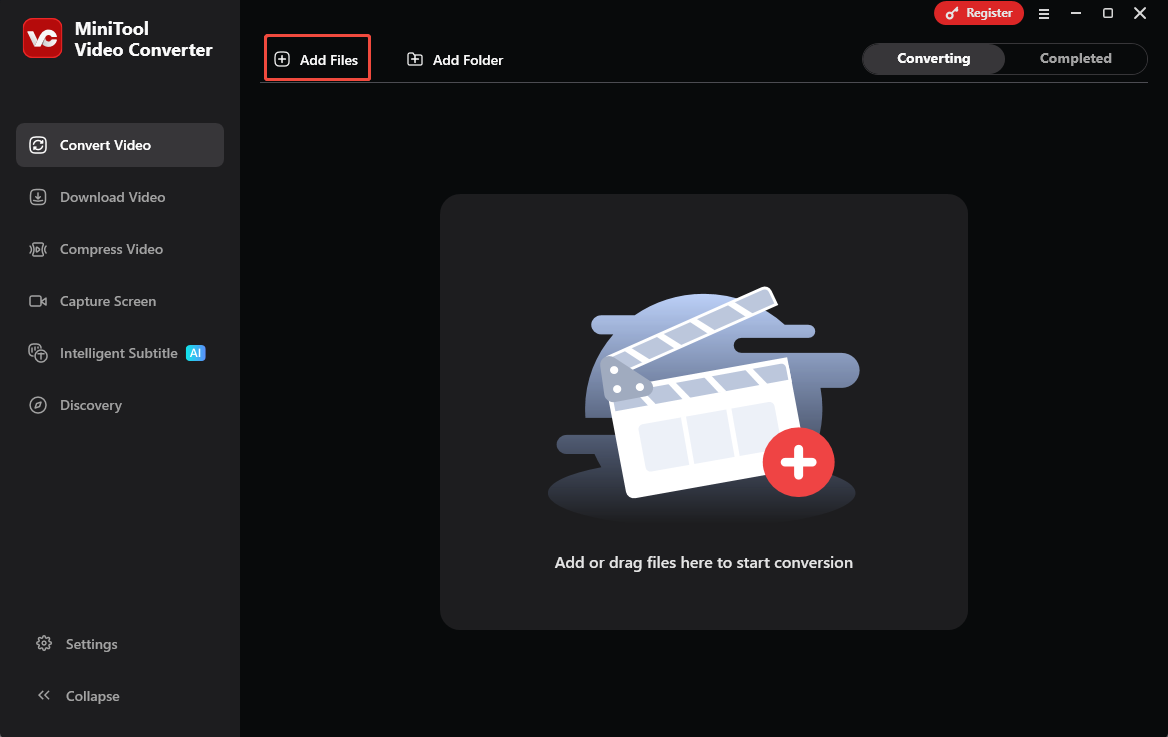
After launching MiniTool Video Converter, click on the upper-left Add Files option to upload the M4V videos that you want to convert.
Step 3. Set M4B as the Output Format
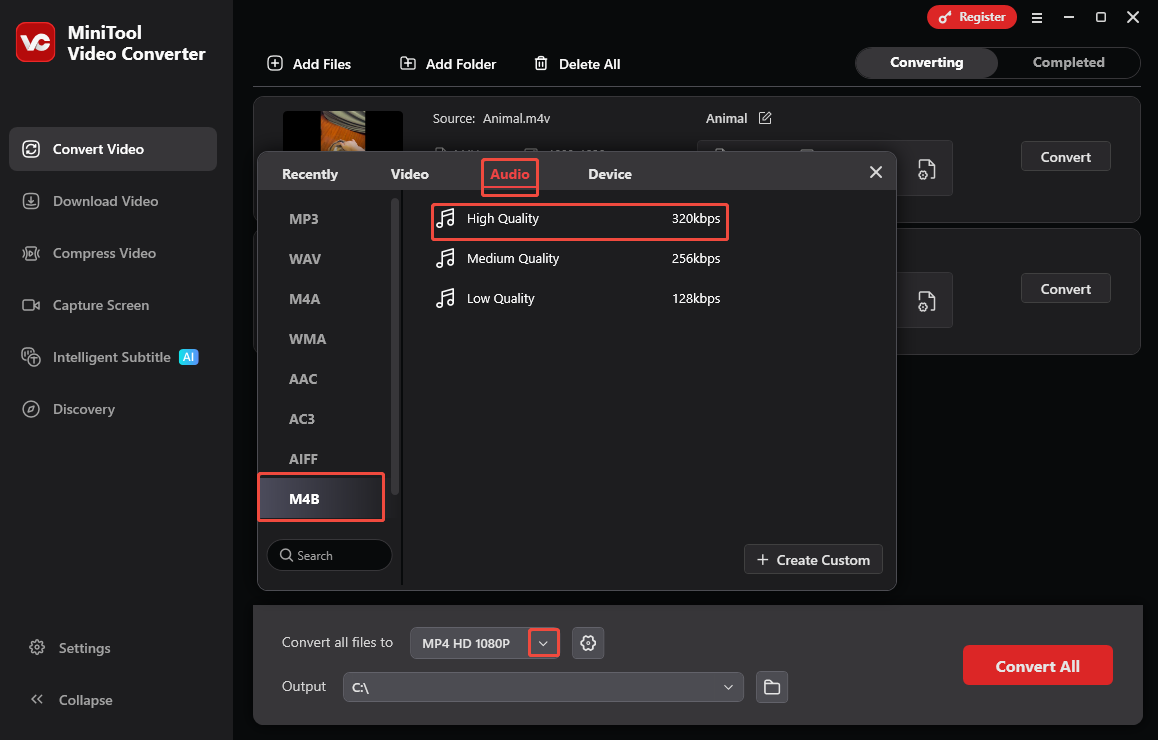
Expand the bottom Convert all files to option to access the output format window. There, switch to the Audio tab and click on M4B. Then choose the audio quality you want. Here, I select High Quality as an example.
Step 4. Set an Output Folder and Start Conversion
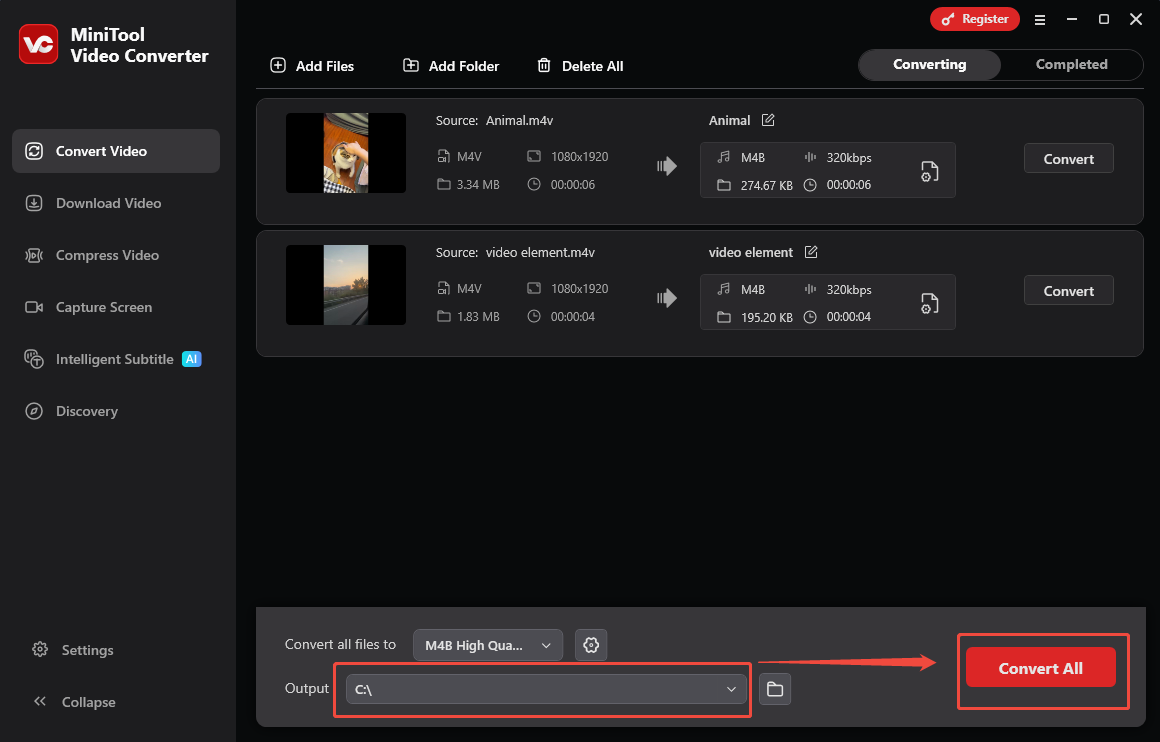
Expand the bottom Output option to choose a saving path for the converted files. Then, click on the Convert All button to start the conversion process.
Step 5. Check Output Files
When the file conversion process ends, this video converter will automatically switch to the Completed section. There, click on the Play icon to view the output videos. Then, click on the Folder icon to locate the converted files.
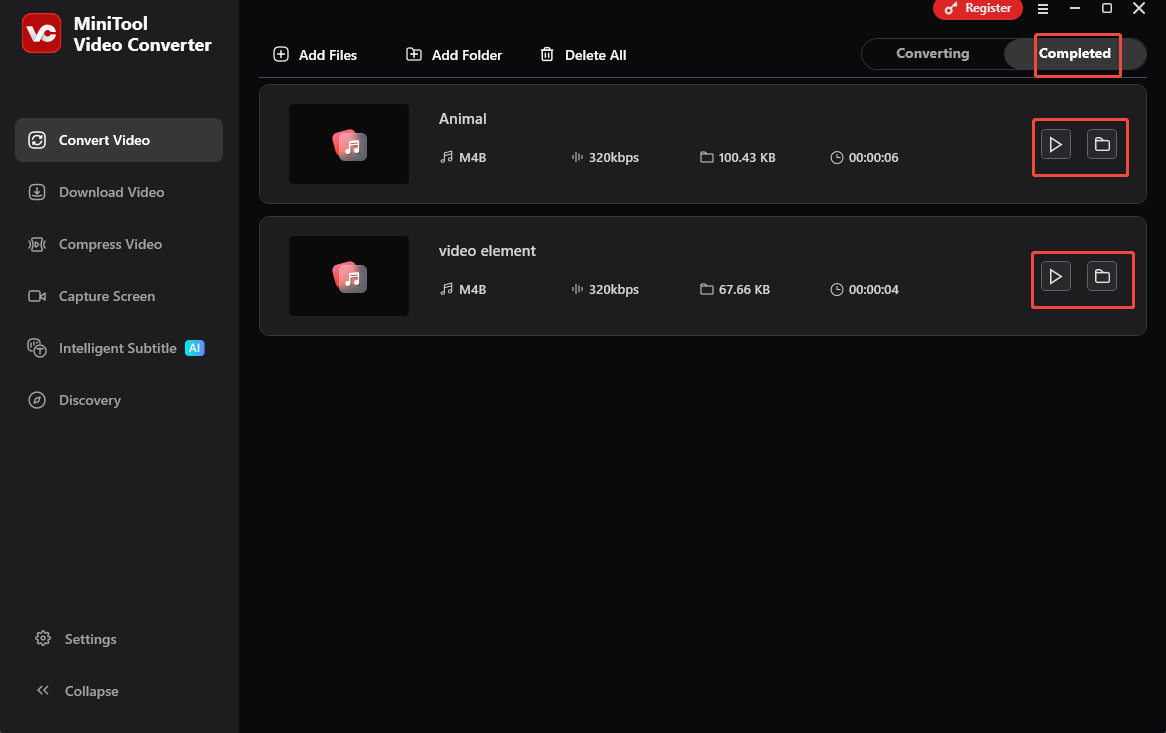
As you can see, MiniTool Video Converter is an amazing tool. Plus, it is also a one-stop solution for video compression and video/audio to text conversion. By the way, MiniTool Video Converter is also an M4B to M4V converter.
How to Convert M4V to M4B Online
Some of you may want an online M4V-to-M4B converter. Here, I select Movavi Video Converter. It has a web-based version, which empowers you to get M4B from M4V and vice versa without downloading extra software. More importantly, the online Movavi Video Converter doesn’t require any payment. Below are the detailed steps to use this online tool.
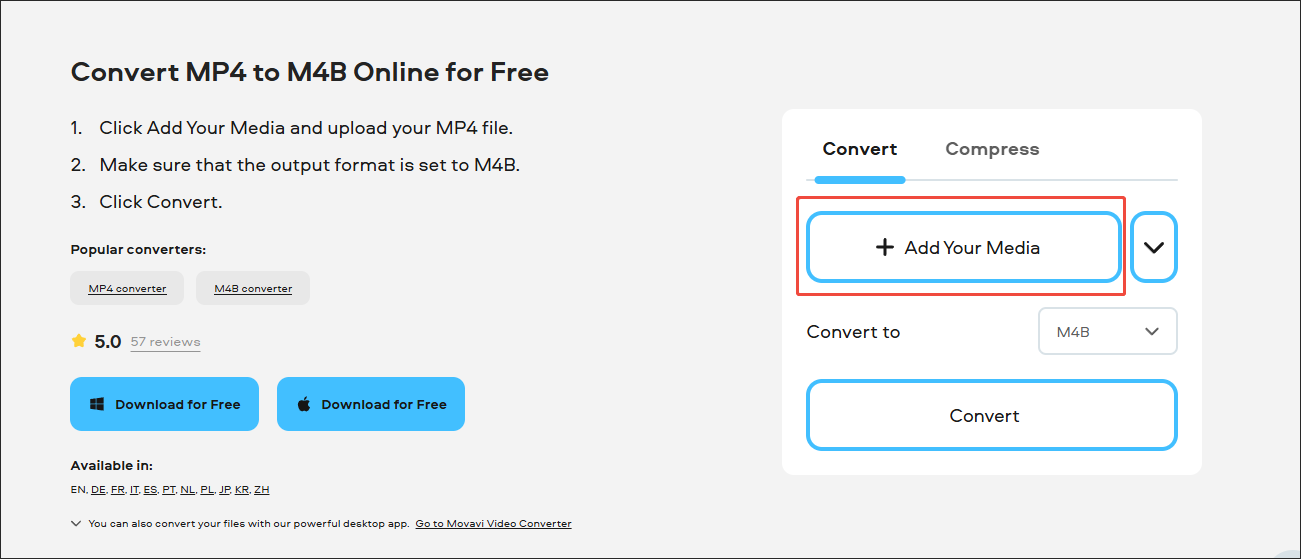
Step 1. Go to the M4V to M4B Converter page of Movavi Video Converter.
Visit https://www.movavi.com/video-converter/convert-mp4-to-m4b.html.
Step 2. Import the M4V file.
Click on the Add Your Media option to upload your M4V video.
Step 3. Specify the conversion settings and start conversion.
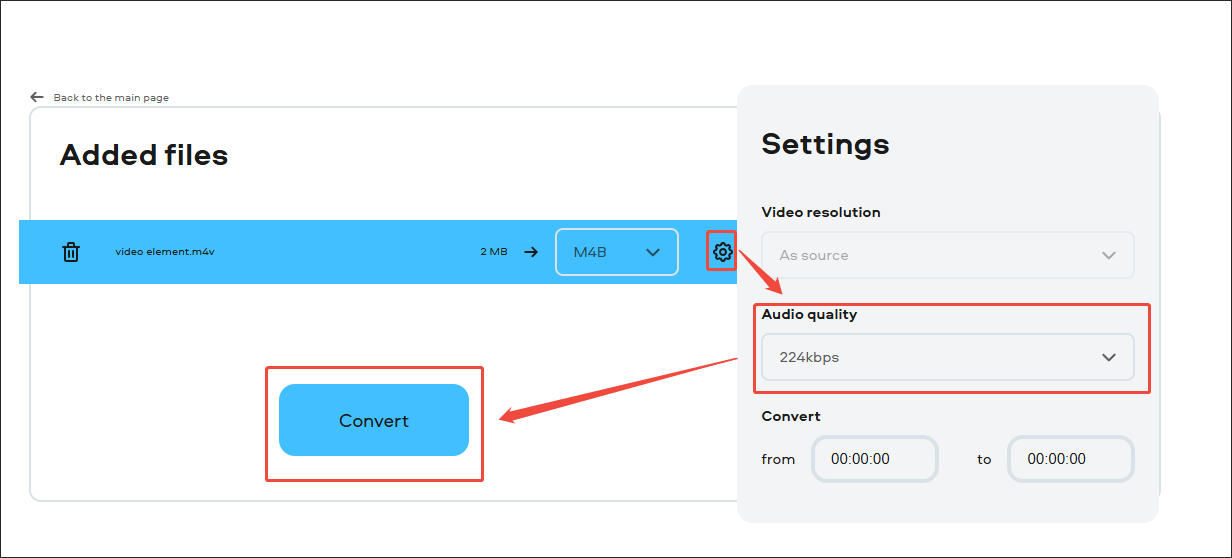
Click on the Settings icon to enter the Settings window. There, you can customize the audio bitrate by expanding the Audio quality option. Here, I select 224 kbps as an example. Then, begin the conversion process by clicking on the Convert button.
Step 4. Check the output file.
When the file conversion process completes, click on the Download button to download the output file.
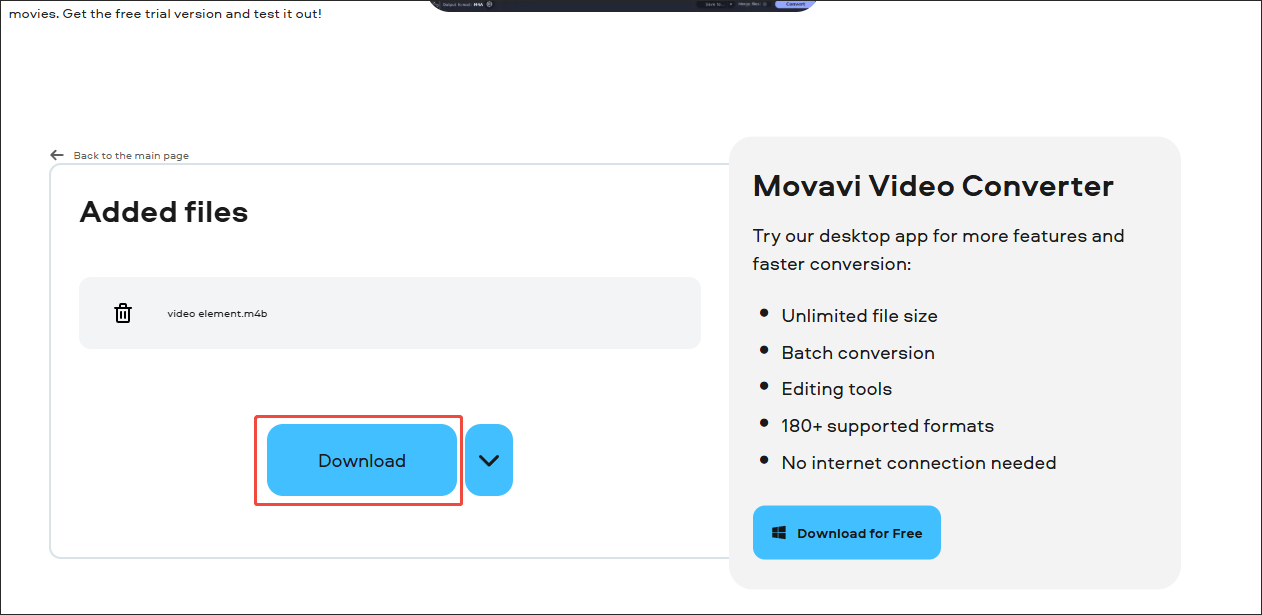
Undoubtedly, Movavi Video Converter is an easy-to-use application. However, its online version only allows you to convert one file at a time. As such, if you want to convert multiple files efficiently, the web version Movavi Video Converter may not meet your needs.
Final Words
Both MiniTool Video Converter and Movavi Video Converter empower you to convert M4V to M4B and vice versa. The former one supports batch conversion, while the latter one offers you an online conversion experience.
User Comments :