

Why Convert M4V to AIFF
If you want to extract high-quality audio from your M4V files, the M4V-to-AIFF conversion can be an ideal choice. With a lossless nature, AIFF audio, unlike compressed audio contained in your M4V videos, offers you a better auditory experience. As such, provided that you want to use your M4V files for fantastic music production, just implement the conversion.
However, although AIFF provides you with great audio quality, it also brings a large file size. If you want to reduce the file size, just read the article below.
How to Convert M4V to AIFF Offline
If you want an offline method to convert M4V to AIFF, never miss MiniTool Video Converter.
About MiniTool Video Converter
MiniTool Video Converter is a fantastic free video converter that enables you to convert M4V videos to a variety of audio/video formats, including AIFF, MP4, MP3, MKV, WAV, MOV, and more. Without a file size limit, it features a well-organized interface. As such, even if you are a beginner in file conversion, you can access the tool easily.
MiniTool Video Converter doesn’t contain any advertisements. It also allows you to customize various parameters, including encoder, frame rate, sample rate, bitrate, resolution, and audio channel. Meanwhile, MiniTool Video Converter supports batch conversion, allowing you to convert up to 5 M4V files simultaneously.
How to Convert M4V to AIFF with MiniTool Video Converter
Below are the detailed instructions on how to convert M4V to AIFF using MiniTool Video Converter.
Step 1. Download and Install MiniTool Video Converter
MiniTool Video ConverterClick to Download100%Clean & Safe
Download MiniTool Video Converter by clicking on the download button above. Then, follow the on-screen prompts to install this M4V to AIFF converter on your PC.
Step 2. Import the M4V Files
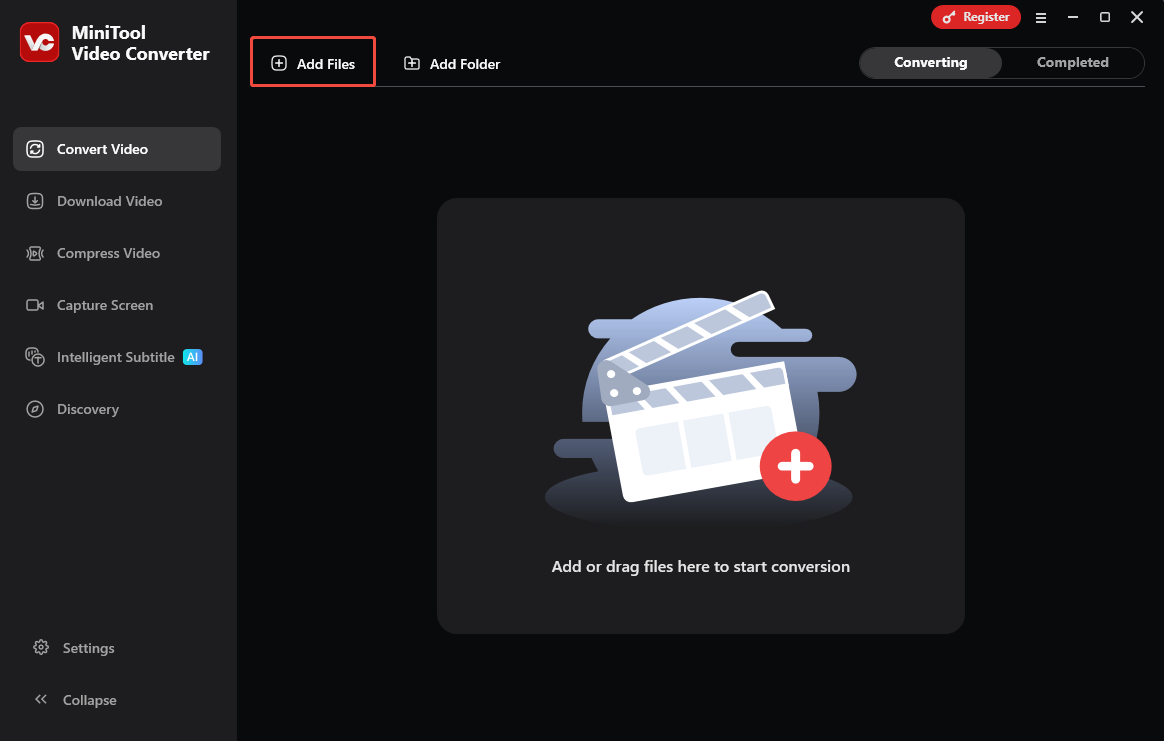
After launching MiniTool Video Converter, click on the upper-left Add Files option to import the M4V videos.
Step 3. Set AIFF as the Output Format
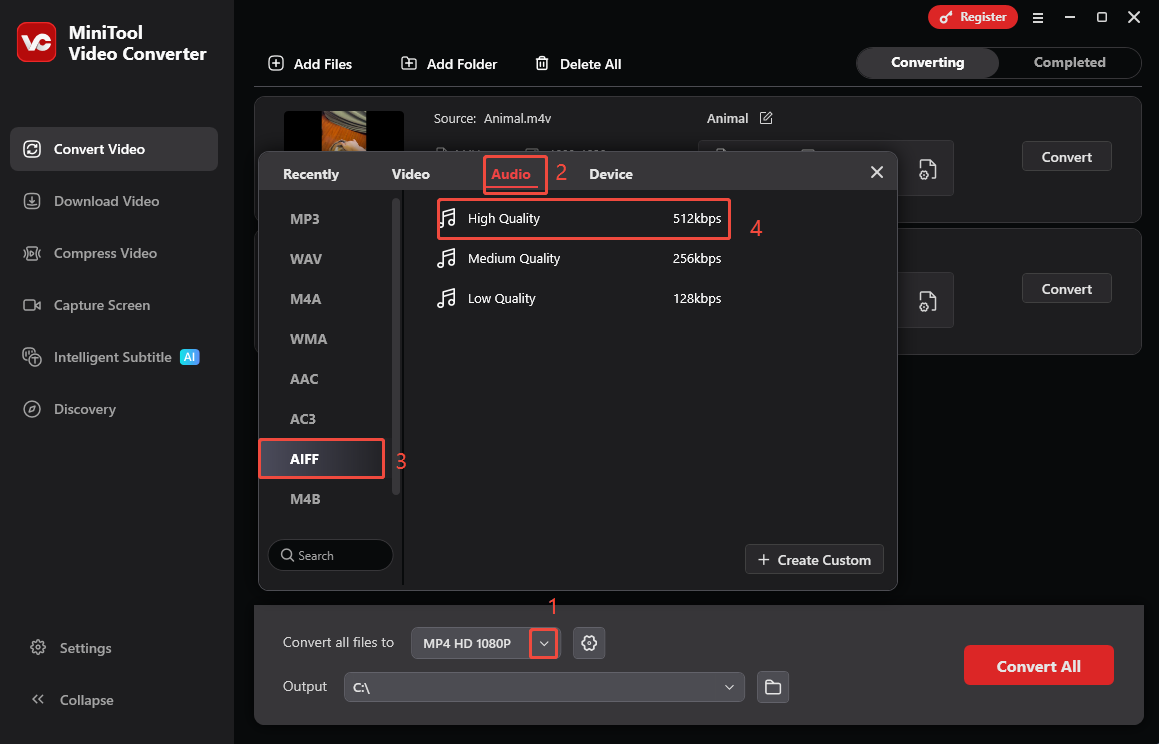
Expand the bottom Convert all files to option to enter the output format window. There, switch to the Audio tab and click on AIFF. Next, choose the audio quality you want. Here, I will take High Quality as an example.
Step 4. Set an Output Folder and Start Conversion
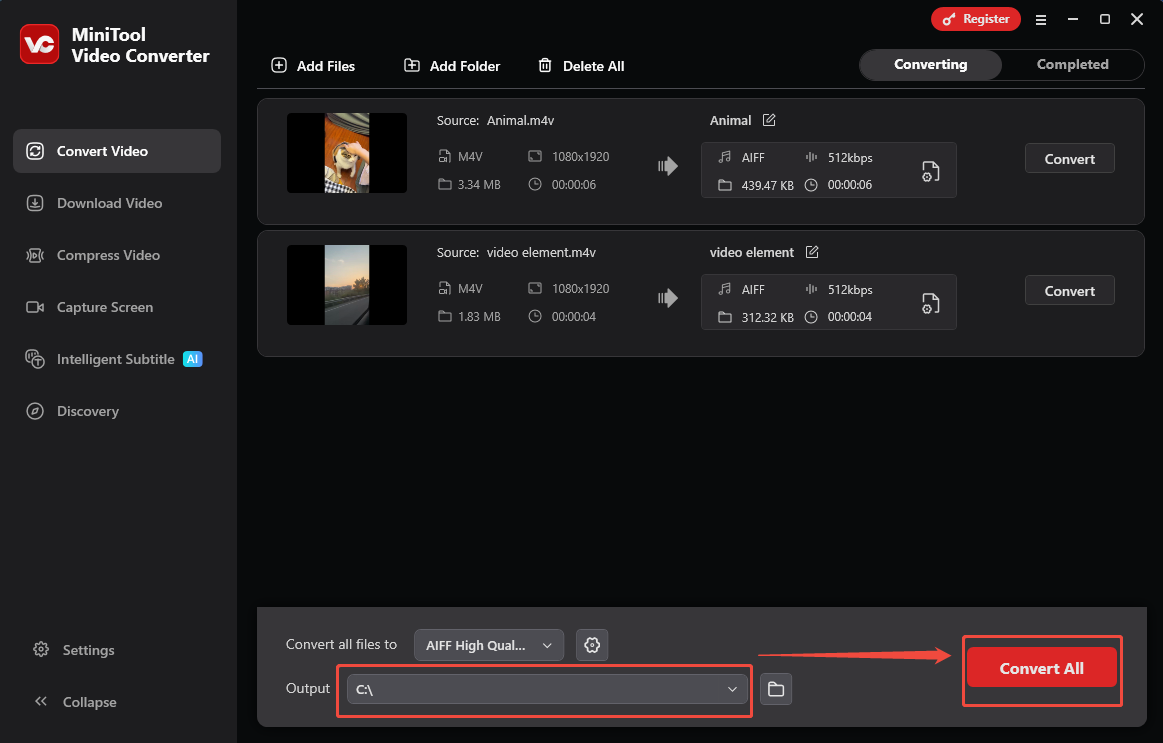
Expand the bottom Output option to choose a saving path for the output files. Then, begin the conversion process by clicking on the bottom-right Convert All button.
Step 5. Check Conversion Results
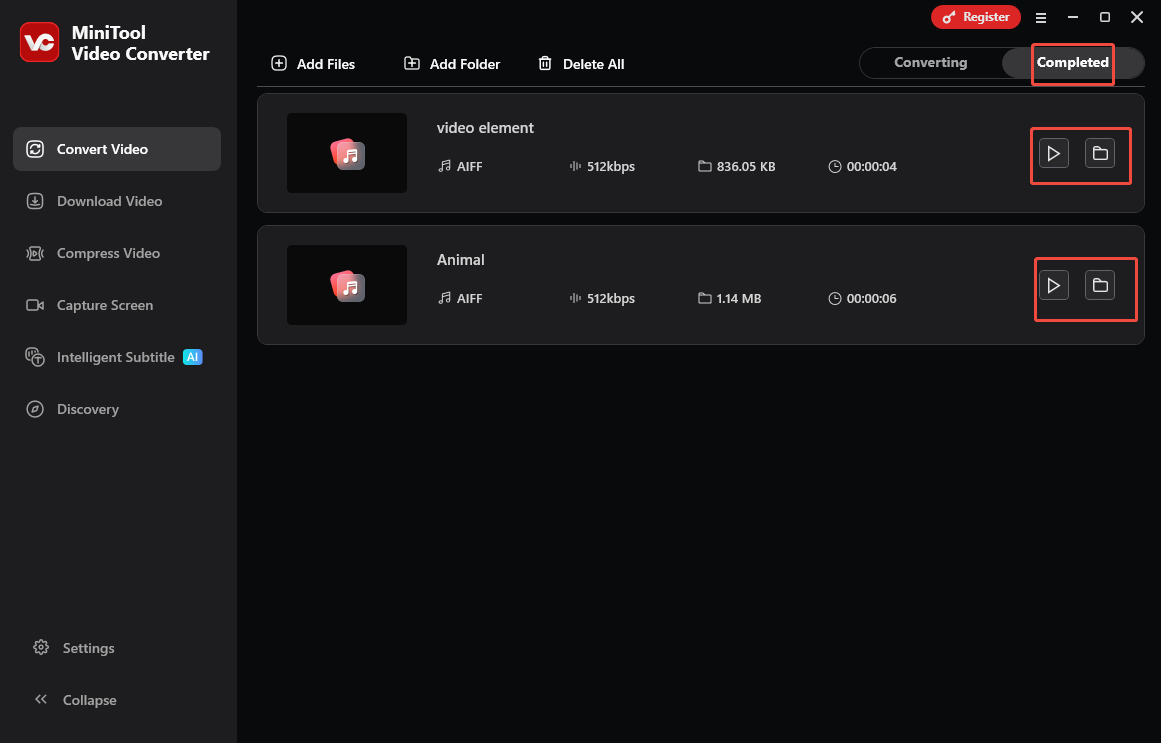
When the file conversion process completes, this M4V converter will automatically switch to the Completed section. There, click on the Play icon to view the output files. If you want to locate the AIFF files, click on the Folder icon.
More than a free video converter, MiniTool Video Converter is also a one-stop solution for video compression and video/audio to text conversion. By the way, this application is also an AIFF to M4V converter.
How to Convert M4V to AIFF Online
Some of you may not want to spend more time downloading extra software. To meet your needs, I highly recommend CloudConvert. As a robust web-based converter, it enables you to get AIFF from a wide range of formats, including M4V, FLV, MP4, MOV, MPG, and so on.
Plus, CloudConvert allows you to import your M4V videos from multiple sources, including Google Drive, OneDrive, Dropbox, URL, and your computer. Meanwhile, it has an intuitive interface, which makes CloudConvert an ideal choice for novices. Below is a detailed guide on how to convert M4V to AIFF using this online tool.
Step 1. Go to the M4V to AIFF Converter Page of CloudConvert.
Visit https://cloudconvert.com/m4v-to-aiff.
Step 2. Import an M4V File.
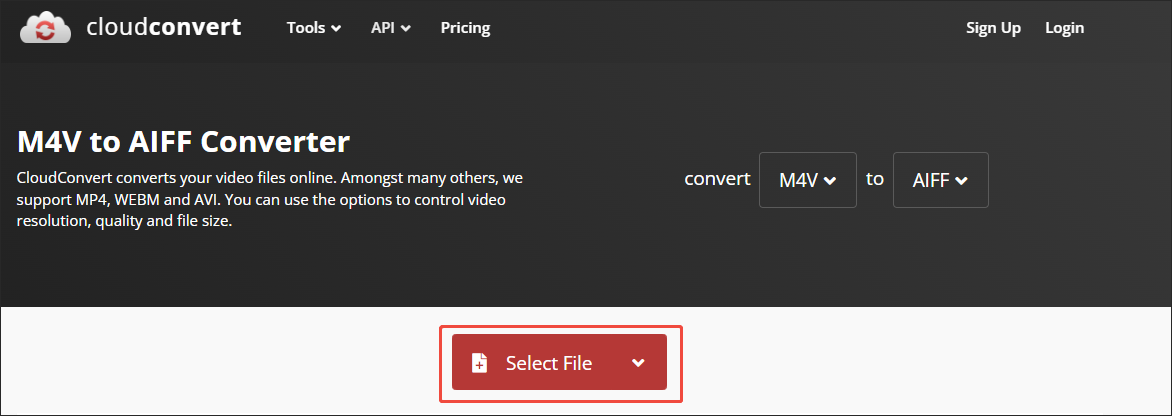
Upload an M4V video by clicking on the Select File option.
Step 3. Configure the conversion settings.
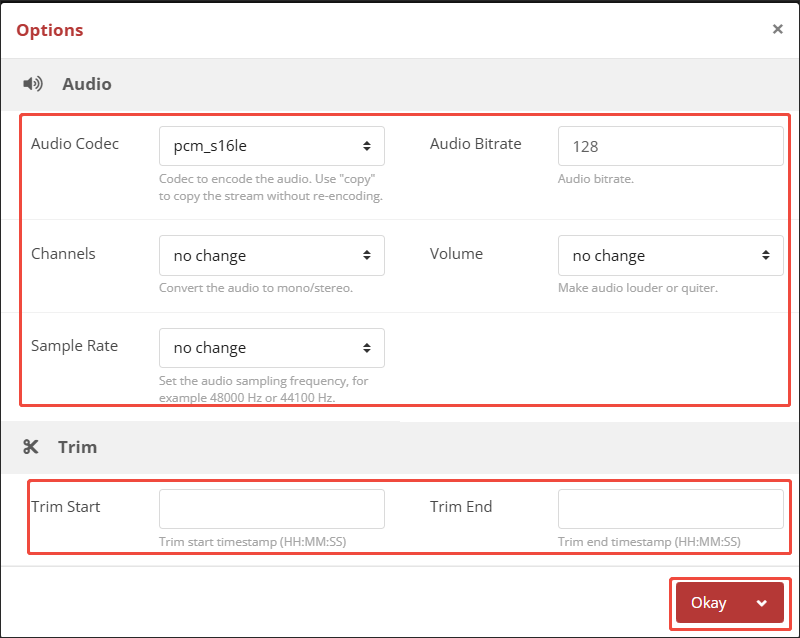
Click on the Wrench icon to access the Options window. There, you are free to customize the audio codec, audio channel, audio bitrate, and volume. You can also determine whether to trim the output audio or not. Finally, click on the Okay button to apply the conversion settings.
Step 4. Start conversion and check the output file.
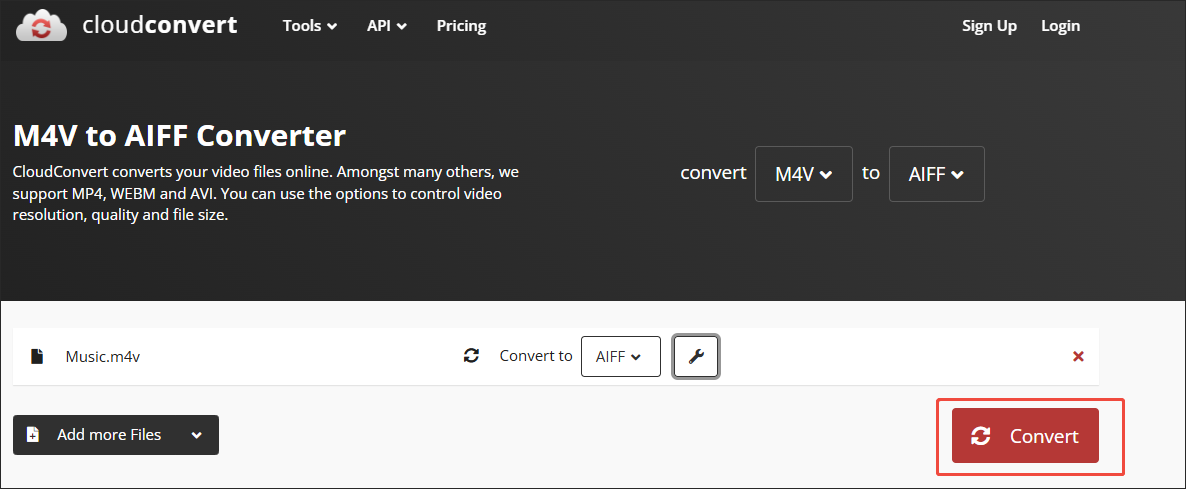
Start the conversion process by clicking on the Convert button. When the file conversion finishes, download and check the output file.
As you can see, CloudConvert is an amazing tool that enables you to accomplish the conversion task with simple clicks.
Wrapping Up
MiniTool Video Converter, working as an offline tool, enables you to convert M4V to AIFF and vice versa with simple clicks. If you want an online method, try CloudConvert.
User Comments :