

How to fix the problem that I can’t play FLV files? This article analyzes 2 common issues and gives 3 effective solutions, including converting FLV to other formats with MiniTool Video Converter.
Why Can’t You Play FLV Files?
With technological advancements, FLV is no longer a mainstream video format. Therefore, can’t play FLV files is a common issue. Here are 2 reasons why FLV files might not play.
1. FLV File Corruption
The inability to play FLV files may be due to interrupted download or transmission, resulting in missing data and FLV file corruption. Many media players can’t recognize such incomplete files, thus causing playback failure.
2. Incompatible Codec of FLV
Another reason FLV files may not play is the use of incompatible or outdated codecs. FLV is a relatively old format. The official doesn’t offer technical support for it. Therefore, FLV’s codecs are also relatively outdated. Some newer systems, devices, or players have also chosen not to support this format. So, it’s easy to encounter playback issues when we play it.
3 Methods to Solve the Problem That Can’t Play FLV
When the FLV is not playing, I usually adopt the following 3 options to solve this problem.
1. Repair FLV File
For corrupted FLV files, you can try using a professional tool like MiniTool Video Repair to repair them. Alternatively, downloading a complete FLV file or changing the file’s storage location may also be effective solutions.
2. Change a Video Codec for FLV
If the codec is incompatible, using a codec conversion tool to change the video codec can solve this problem. When I encountered this situation before, I used the K-Lite Codec Pack to change the encoding.
3. Convert FLV to Other Formats
Apart from the solutions above, I think converting FLV to other formats is also a great idea. When I encounter a situation that can’t play FLV files, I will convert them to MP4, which has stronger compatibility. Which FLV to MP4 converter is excellent? I prefer MiniTool Video Converter. It has no conversion file size limits. In addition, it allows me to convert up to 5 tasks at one time.
Now, let me show how to convert FLV to MP4 with MiniTool Video Converter.
Step 1. Download and Install MiniTool Video Converter
I embedded the download button of MiniTool Video Converter below. Simply click on it to download and set up this converter. Then, open it.
 MiniTool Video Converter
-
 Batch convert video/audio files among 1000+ formats.
 - Quickly compress videos for easy storage and transfer.
- Accurately extract subtitles from video/audio files.
- Effectively enhance video quality.

Step 2. Import the FLV File
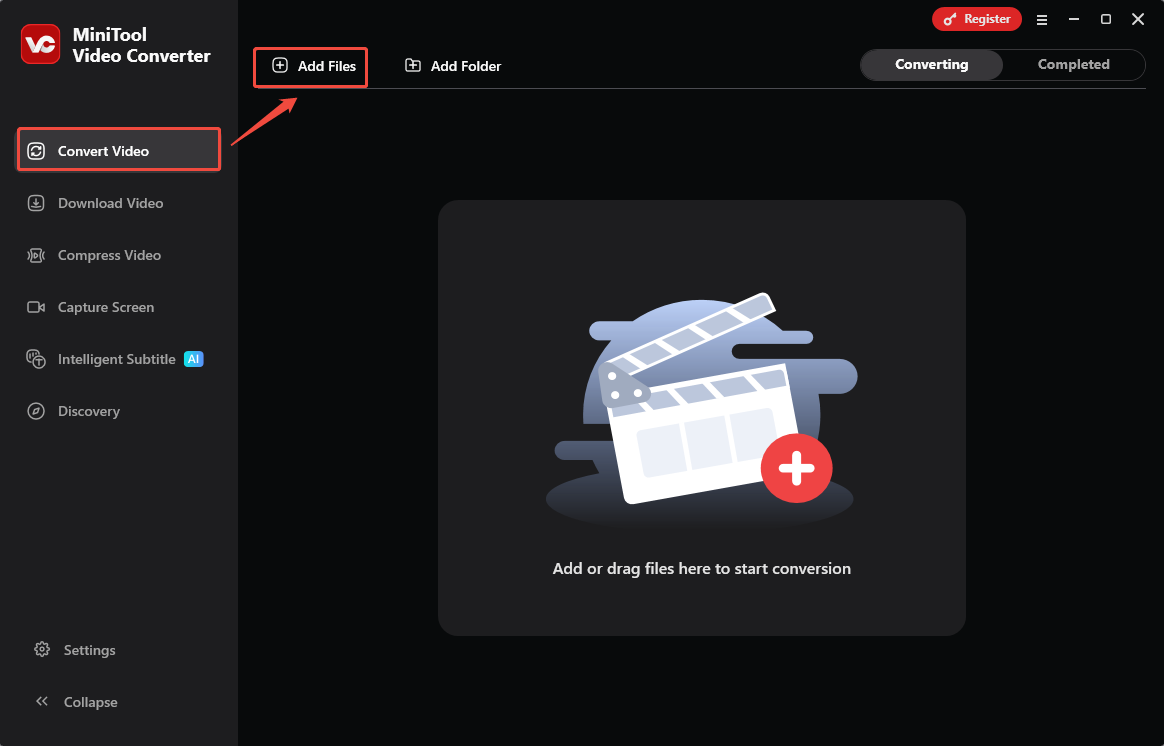
I drag my FLV file into the Add or drag files to start conversion option in the default Convert Video tab to import it.
Step 3. Set MP4 as the Output Format
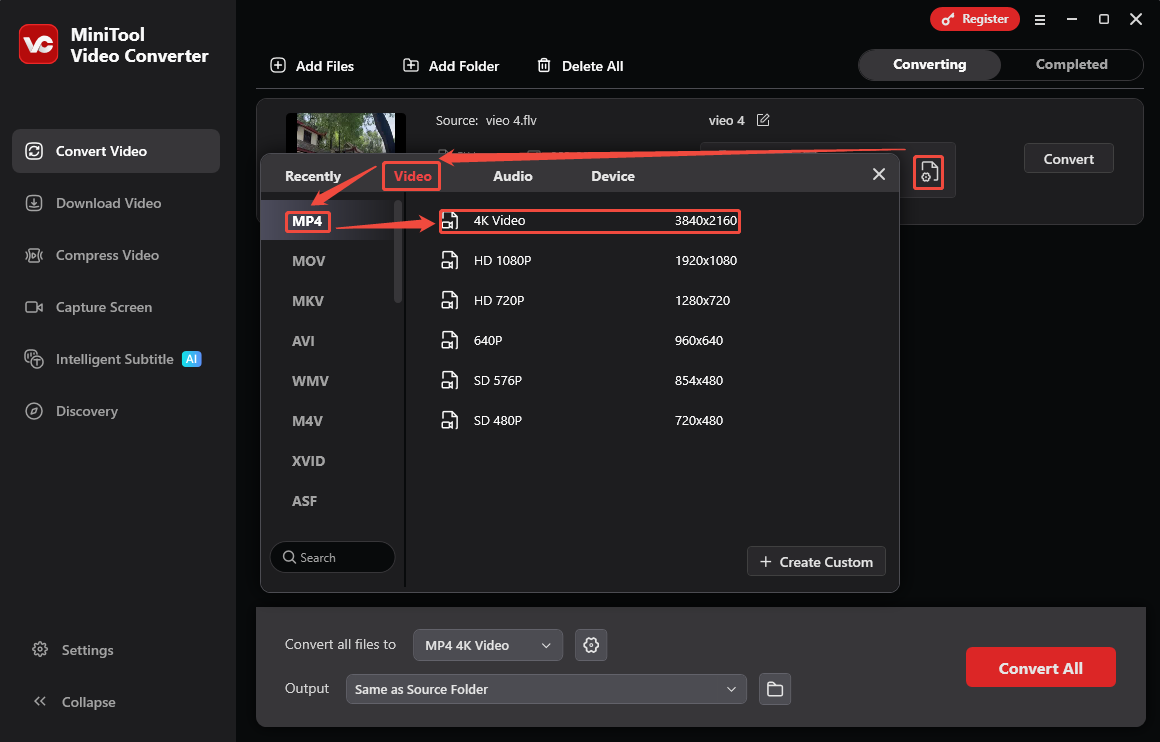
After importing the FLV file, I click the Gear icon to trigger the output format settings. There, go to the Video tab and choose the MP4 format. Then, I select a high-resolution option, which is 4K Video.
Step 4. Begin the Conversion
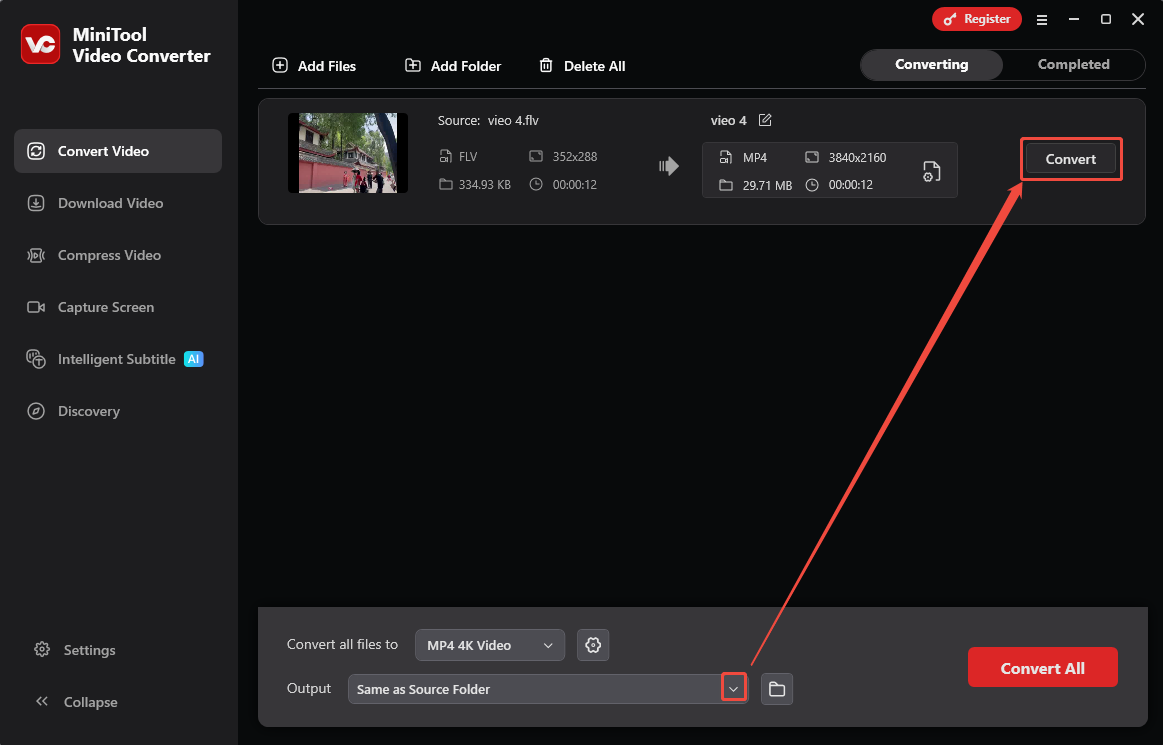
Before the conversion, I expand the Output option to choose a suitable storage location for the converted video. Then, click on the Convert button to begin the conversion.
Step 5. View the Converted Result
As soon as the conversion task ends, the converted video will be taken to the Completed tab. Here, I click on the Play icon or the Folder icon to view or locate it on my computer.
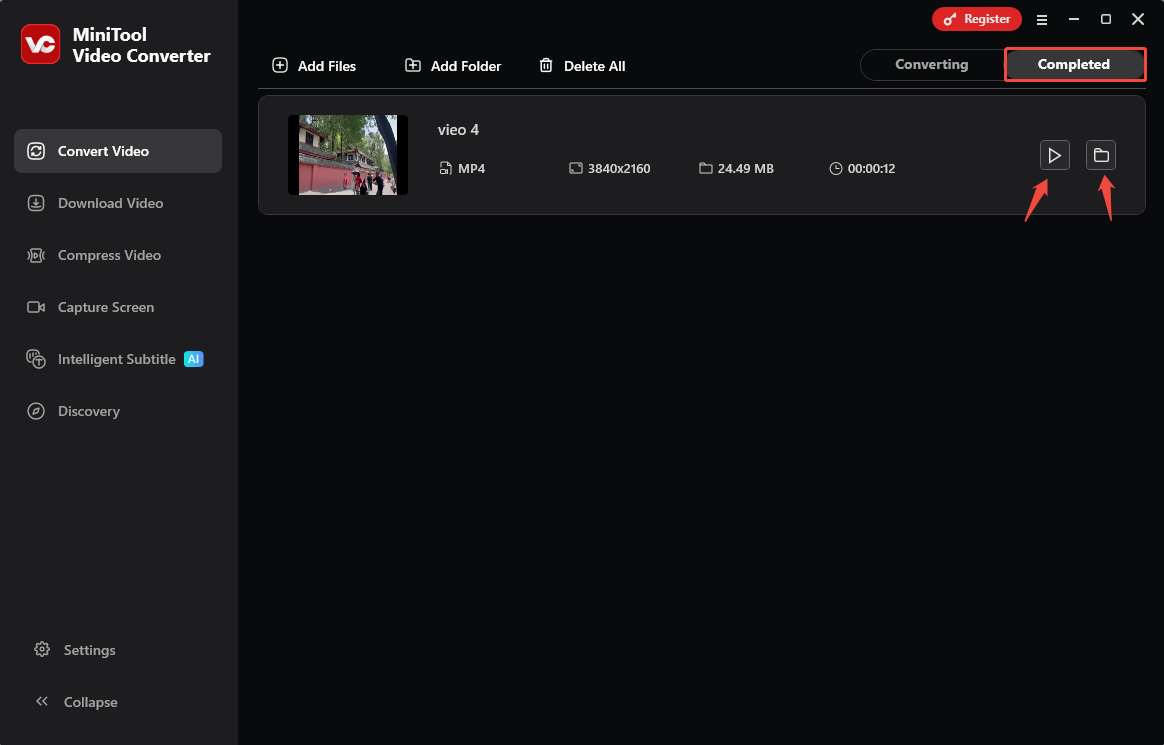
The above is a demonstration of how I convert FLV to MP4. Of course, you can also choose to convert FLV to other formats. MiniTool Video Converter supports more than 1,000 formats, such as FLV, MP4, MKV, MOV, AVI, and more.
Final Words
If you can’t play FLV files, you can solve this problem by repairing the FLV file or converting FLV to another format. This article also shares an example of converting FLV to MP4 using MiniTool Video Converter.
User Comments :