

This article walks you through Serato DJ and tells you can Serato play WMA. Meanwhile, it shows how to convert WMA for Serato DJ with MiniTool Video Converter, Convertio, or CloudConvert.
More and more people are using Serato DJ to produce their music work. However, some users complain that Serato DJ doesn’t recognize the WMA file. Can Serato play WMA? Read the following content to find out the answer.
What Is Serato DJ
As an industry-standard application, Serato DJ enables you to DJs to mix digital music files according to their needs. There are multiple powerful functions, including waveforms, beat matching, and so on.
Can Serato Play WMA
Does Serato DJ support WMA? No, it doesn’t. Specifically, Serato DJ supports MP3, WAV, AAC, AIFF, FLAC, and OGG. Hence, it is common for you to face the problem that Serato DJ won’t play WMA. To fix that issue, you need to convert the WMA audio to a Serato DJ-compatible format.
Method 1. Use MiniTool Video Converter (Offline)
MiniTool Video Converter is the first application that I want to recommend.
About MiniTool Video Converter
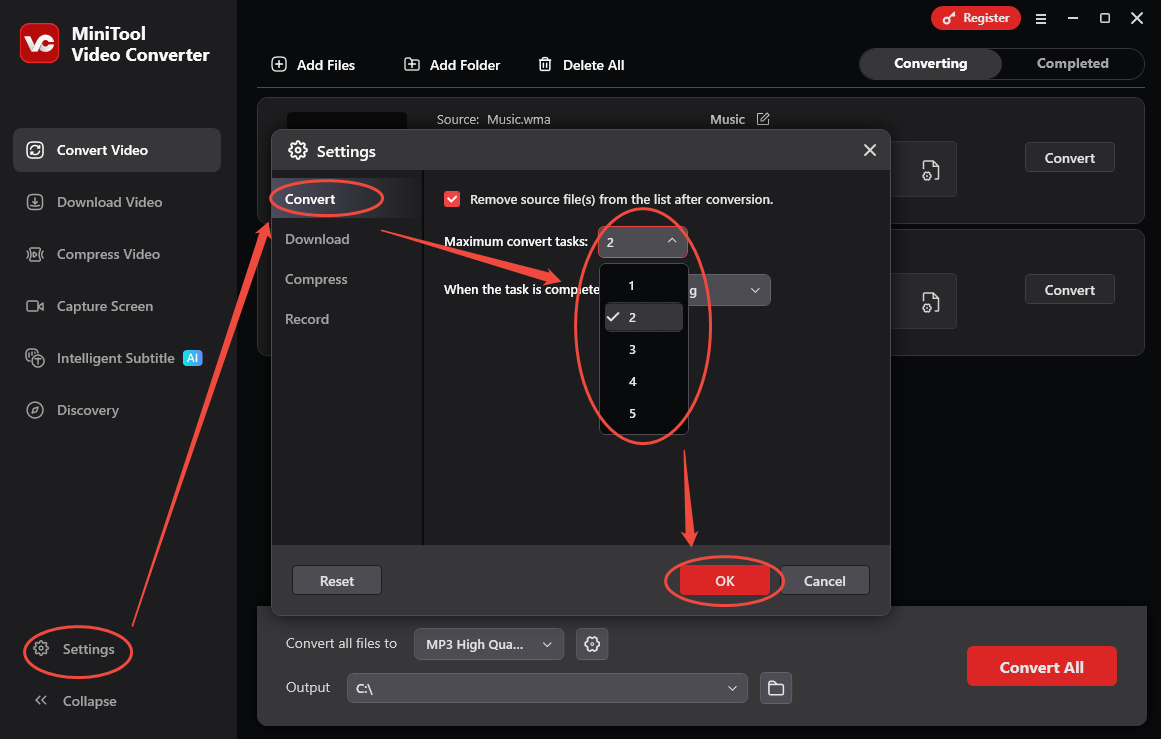
MiniTool Video Converter is a free audio/video converter with a batch conversion function. With it, you can convert up to 5 WMA files at the same time. What’s more, MiniTool Video Converter supports a wide range of audio formats, such as MP3, AIFF, FLAC, M4A, OGG, and so on.
Better than some online converters, MiniTool Video Converter never sets a file size limit for users. It features a well-organized interface, allowing every novice to accomplish their conversion tasks with simple clicks.
How to Convert WMA to WAV with MiniTool Video Converter
WAV audio is compatible with Serato DJ and offers you a high-quality auditory experience. In the following content, I will show you how to convert WMA to WAV using MiniTool Video Converter.
Step 1. Download and install MiniTool Video Converter.
MiniTool Video ConverterClick to Download100%Clean & Safe
Download MiniTool Video Converter by clicking on the download button above. Then, follow the on-screen prompts to install this Serato DJ audio converter on your PC.
Step 2. Import your WMA files.
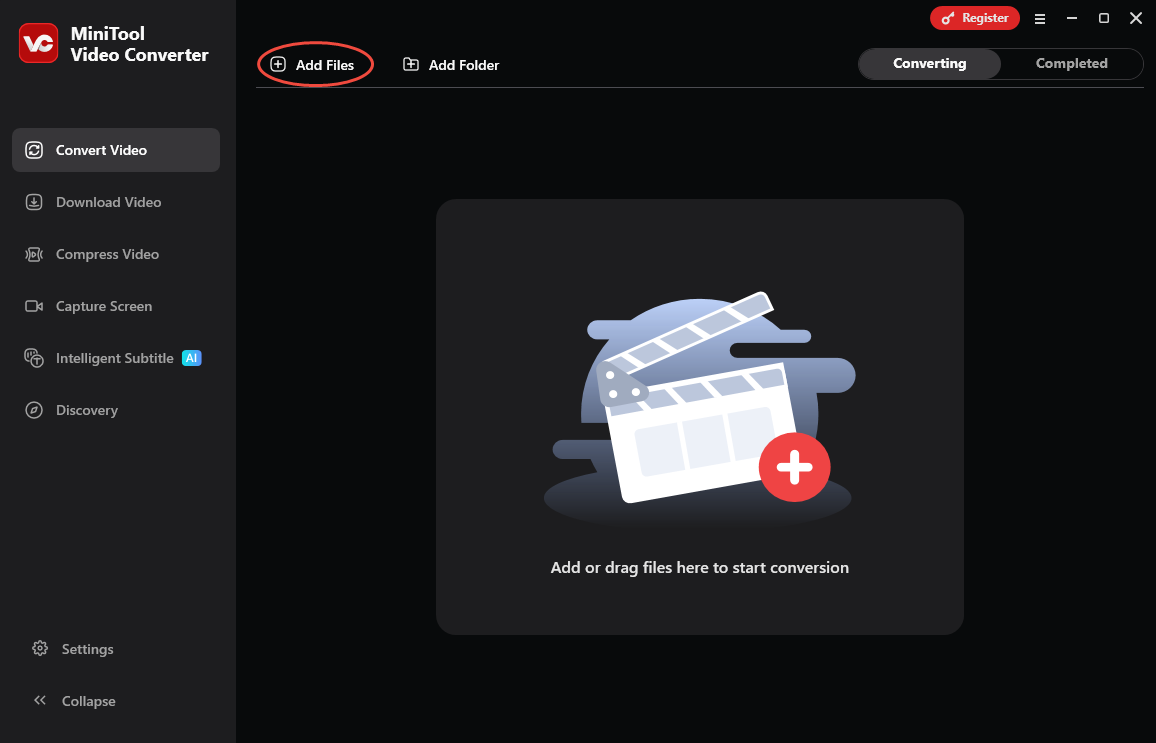
After launching MiniTool Video Converter, click on the upper-left Add Files option to upload the WMA audio files.
Step 3. Set WAV as the output format.
Expand the bottom Convert all files to option to enter the output format window. There, switch to the Audio tab and click on WAV. Then, select the audio quality you want. Here, I select WAV High Quality.

Step 4. Set an output folder and begin conversion.
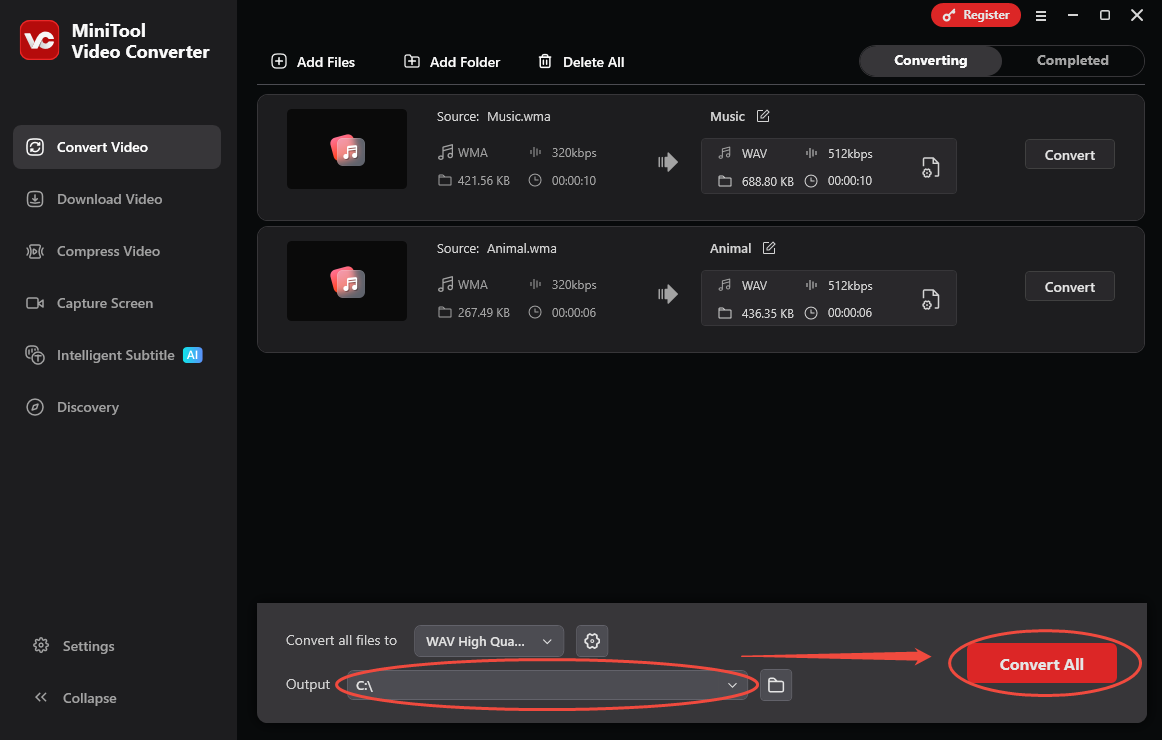
Expand the bottom Output option to choose a destination folder for the output files. Then, click on the bottom-right Convert All button to begin the conversion process.
Step 5. Check the output files.
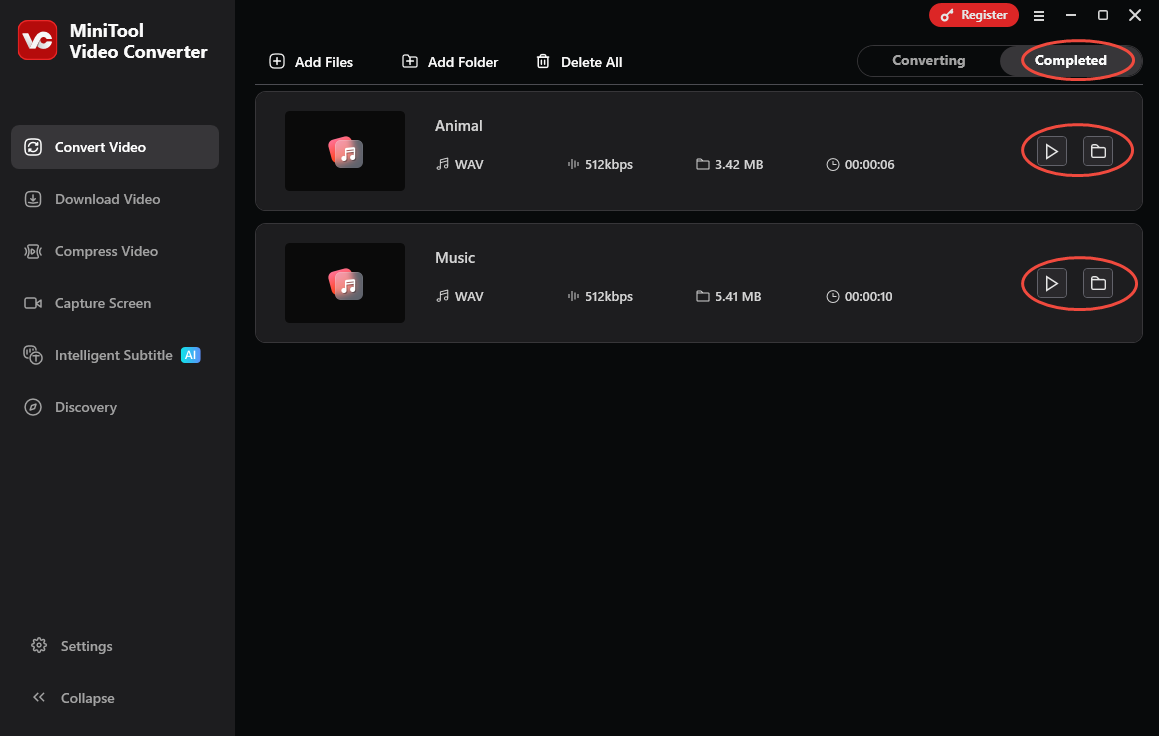
When the file conversion process completes, this audio converter will automatically switch to the Completed section. There, click on the Play icon to view the output files. If you want to locate the output files, click on the Folder icon.
Can Serato play WMA? Although the answer is no, MiniTool Video Converter can help you convert WMA for Serato easily. Moreover, this application also enables you to compress large videos or transcribe audio/video files.
Method 2. Use Convertio (Online)
If you want to convert WMA for Serato DJ without downloading extra software, Convertio can be a good option. It has an intuitive interface and is completely free. Meanwhile, Convertio empowers you to upload the WMA files from multiple sources, including Google Drive, Dropbox, and your computer.
Below is a detailed guide on how to convert WMA to WAV with Convertio.
Step 1. Go to the WMA to WAV Converter page of Convertio.
Visit https://convertio.co/wma-wav/.
Step 2. Import the WMA files.
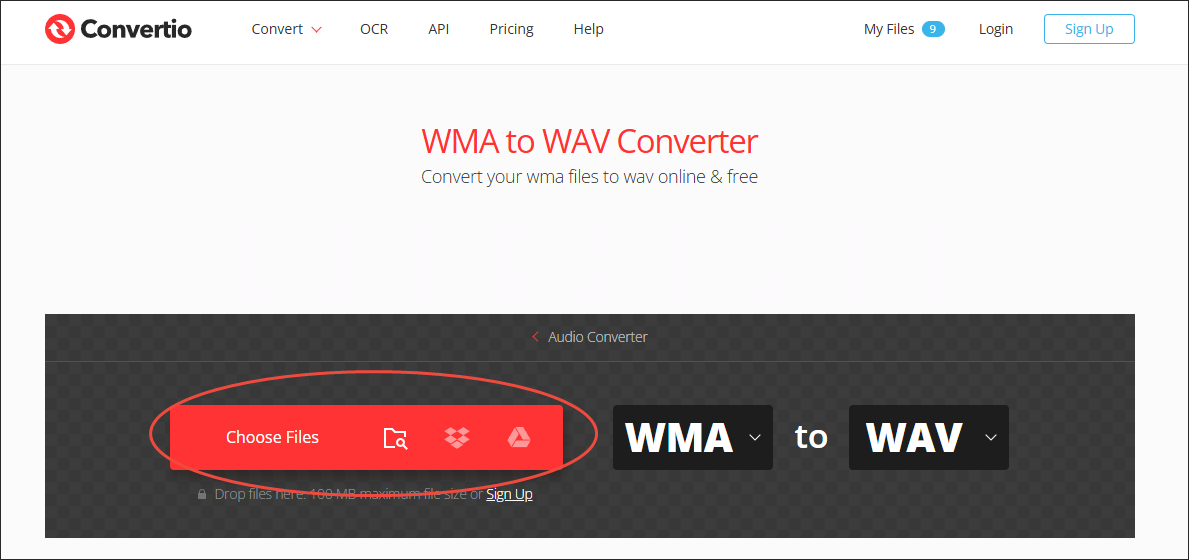
Click on the Choose Files option to import the WMA audio.
Step 3. Configure the conversion settings.
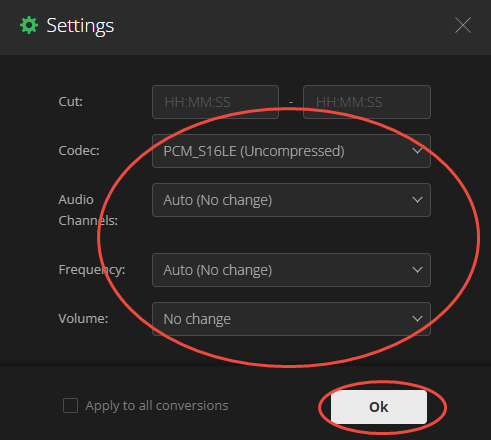
Click on the Settings icon to enter the Settings window. There, you can customize the parameters like audio channel, volume, and more. Finally, click on the Ok button to confirm the changes.
Step 4. Start conversion and check the output files.
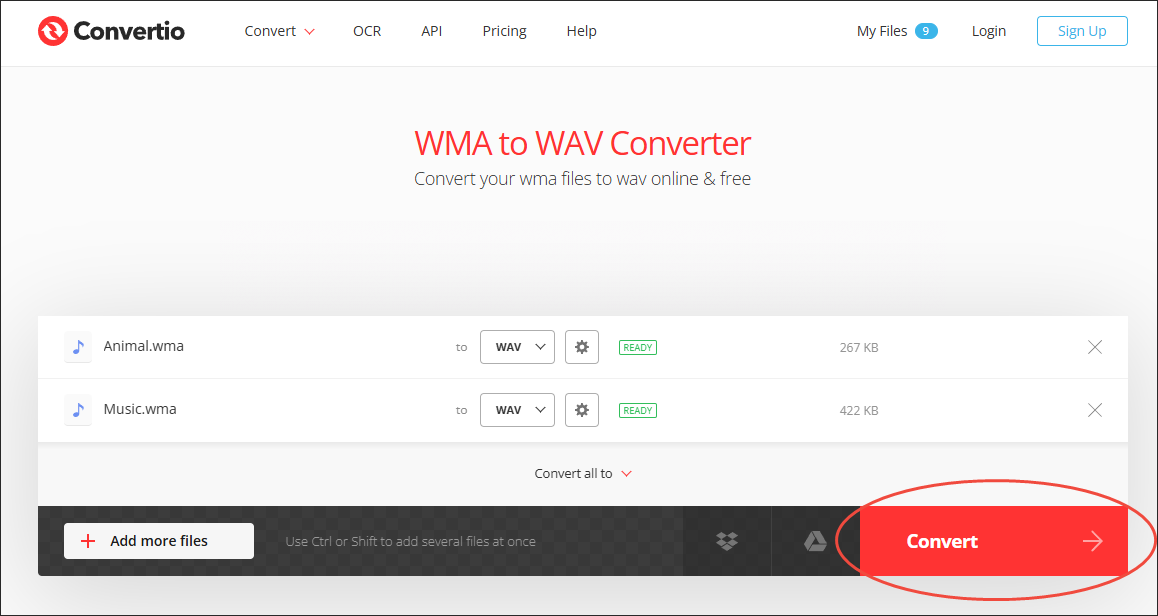
Begin the conversion process by clicking on the bottom-right Convert button. When the file conversion process completes, download and check the converted files.
With the above-detailed steps, you can convert WMA for Serato DJ effortlessly. Admittedly, Convertio is a remarkable online converter. However, it sets a 100MB file size limit for free users. This way, you may not be able to use Convertio to convert numerous, large WMA files.
Method 3. Use CloudConvert (Online)
CloudConvert is another online converter that enables you to convert your WMA files to a Serato DJ-supported format. It has a higher file size limit than Convertio. In addition, CloudConvert allows you to convert your WMA files to a variety of audio formats, such as WAV, MP3, AAC, AC3, and so on.
Below is a detailed guide on how to convert WMA to WAV with CloudConvert.
Step 1. Go to the WMA to WAV Converter page of CloudConvert.
Visit https://cloudconvert.com/wma-to-wav.
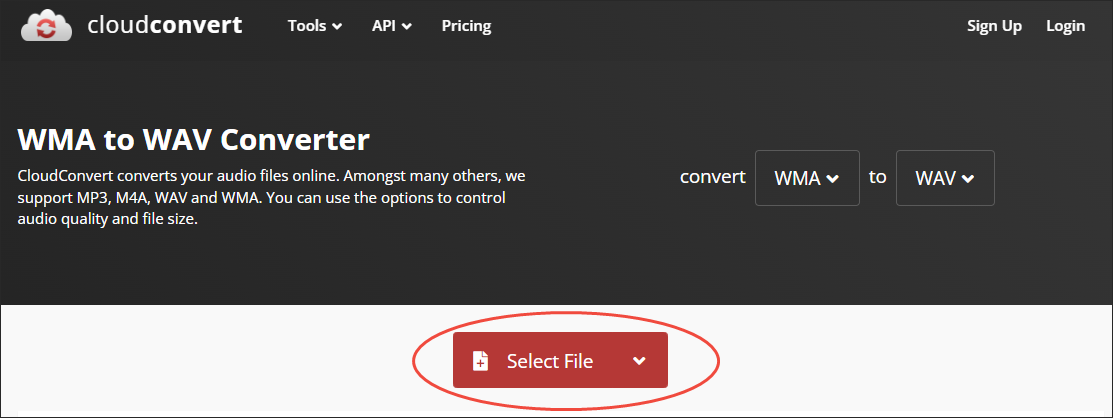
Step 2. Upload the WMA files.
Click on the Select File option to import the WMA files.
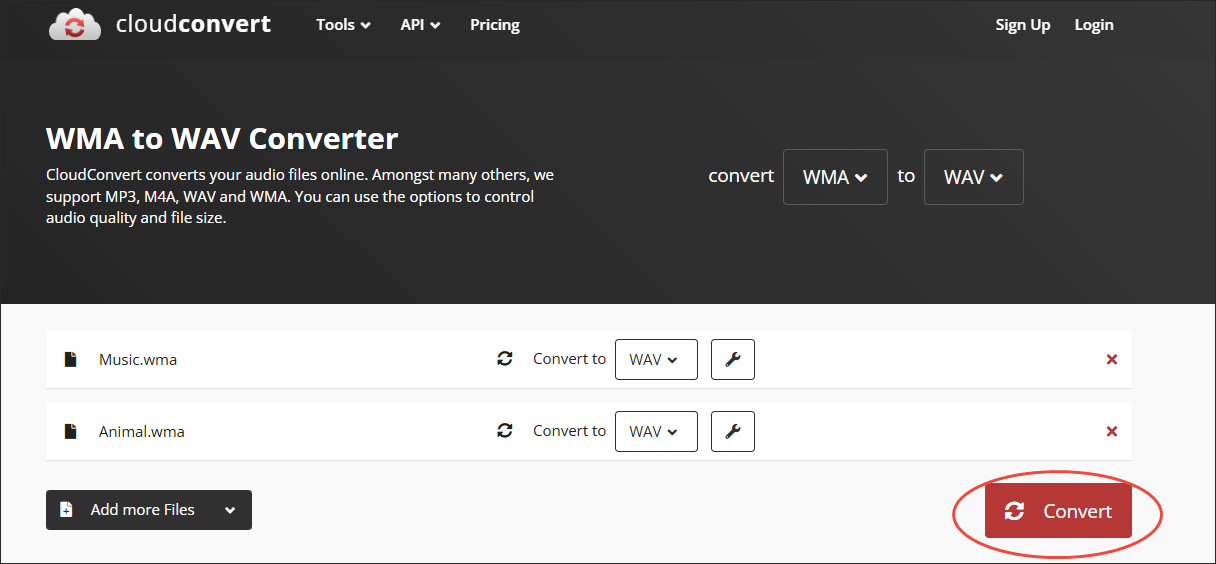
Step 3. Begin conversion and check the output files.
Start the conversion process by clicking on the Convert button. When the file conversion process ends, download and check the output files.
Can Serato play WMA? Though the answer is no, CloudConvert can help you convert WMA to WAV for audio playback on Serato DJ.

Wrapping Up
Can Serato play WMA files? No, it can’t. Fortunately, you can use MiniTool Video Converter (Offline), Convertio (Online), or CloudConvert (Online) to convert WMA to a Serato DJ-compatible format.
User Comments :