

MP4 (MPEG-4 Part 14) is the most popular digital container format developed by IOS (International Organization for Standardization) and IEC (International Electrotechnical Commission). It usually utilizes the H.264 video codec and the AAC audio codec. MP4 is commonly used to store videos, audio, subtitles, and images.
SRT File (SubRip File) is one of the most commonly used formats for creating closed captions and regular captions. SRT’s biggest feature is its ability to convert audio and screen information into plain text and display it during playback.
Why convert MP4 to SRT?
- Converting video and audio into SRT text helps hearing-impaired individuals understand the content.
- SRT text assists viewers in quickly grasping audio and video content, without having to spend a significant amount of time watching the video or listening to the audio.
- Converting video and audio into SRT also helps non-native speakers use tools to translate the content into their native language, promoting the dissemination of video content.
- Generating SRT subtitles can make videos on most video platforms, such as Netflix, TikTok, and Hulu, look more polished.
How to Convert MP4 to SRT?
If I want to transcribe an MP4 video to SRT text, which is the best MP4 to SRT converter? Below are 2 effective tools available.
- MiniTool Video Converter
- Zamzar
This chart is a quick overview of the 2 conversion tools.
| MiniTool Video Converter | Zamzar | |
| Compatibility | Windows | All systems |
| Conversion Speed | Fast | Slow |
| Subtitle Extraction Accuracy | High | High |
| Custom Parameters | Supported | Not Supported |
| Completely Free | Yes | No |
Before using these converters, here is a quick preview of the conversion guide.
Fast Steps:
- Choose a speech-to-text converter
- Import a target video
- Select to export video subtitles as SRT text
- Start the export
- Check the converted text
#1 Use MiniTool Video Converter
MiniTool Video Converter’s Intelligent Subtitle feature supports MP4 to SRT conversion. It is powered by AI and launches 3 effective conversion models, including Basic, Standard, and Advanced. This speech-to-text tool also allows me to customize the font, opacity, background color, and position of the generated subtitles. Below is a detailed MP4 to SRT transcription guide.
1. Download and Install MiniTool Video Converter
Download, install, and open MiniTool Video Converter.
 MiniTool Video Converter
-
 Batch convert video/audio files among 1000+ formats.
 - Quickly compress videos for easy storage and transfer.
- Accurately extract subtitles from video/audio files.
- Effectively enhance video quality.

2. Choose an AI Model and Upload a Video
Switch to the Intelligent Subtitle tab. There, click Choose AI Model to choose an AI model. I choose the Basic Model option and import the target video.
3. Select SRT as the Output Text
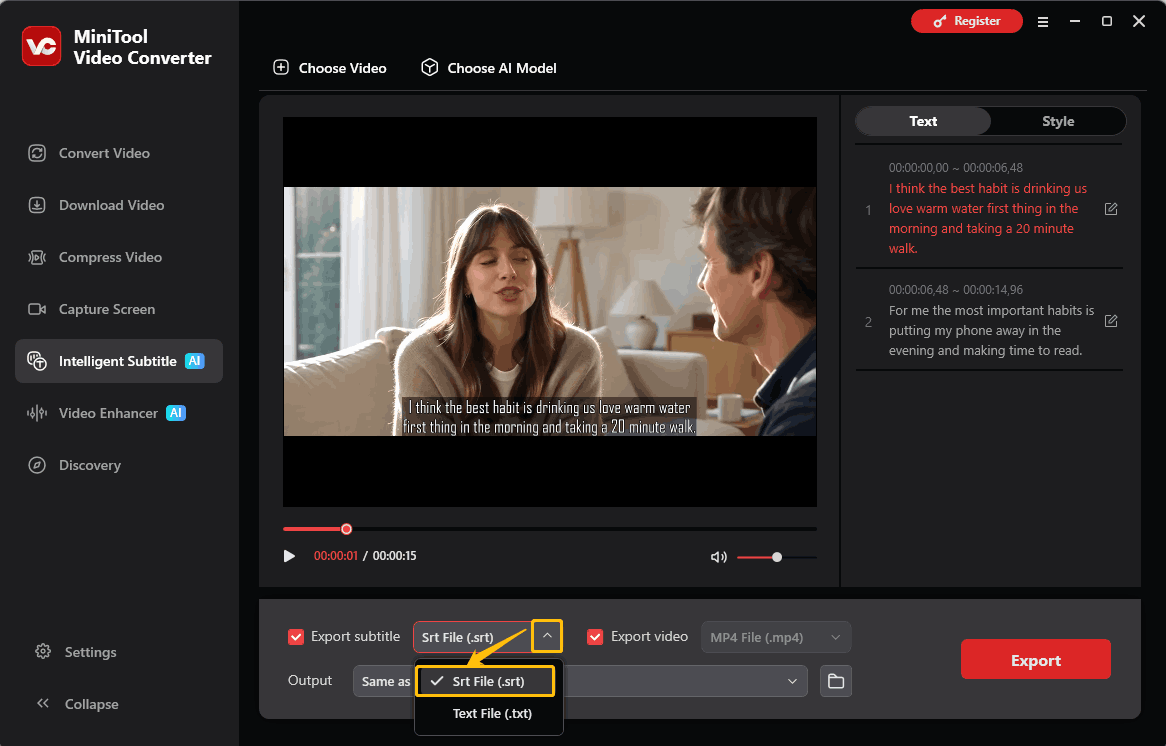
After uploading the video, go to the Text tab and Style tab to edit the subtitles and customize the captions’ font, position, and more. Then, expand the Export subtitle option and specify the Srt File (.srt) option.
4. Start the Export
Click the Export button to start the output process. Then, check the output SRT file in the pop-up local folder.
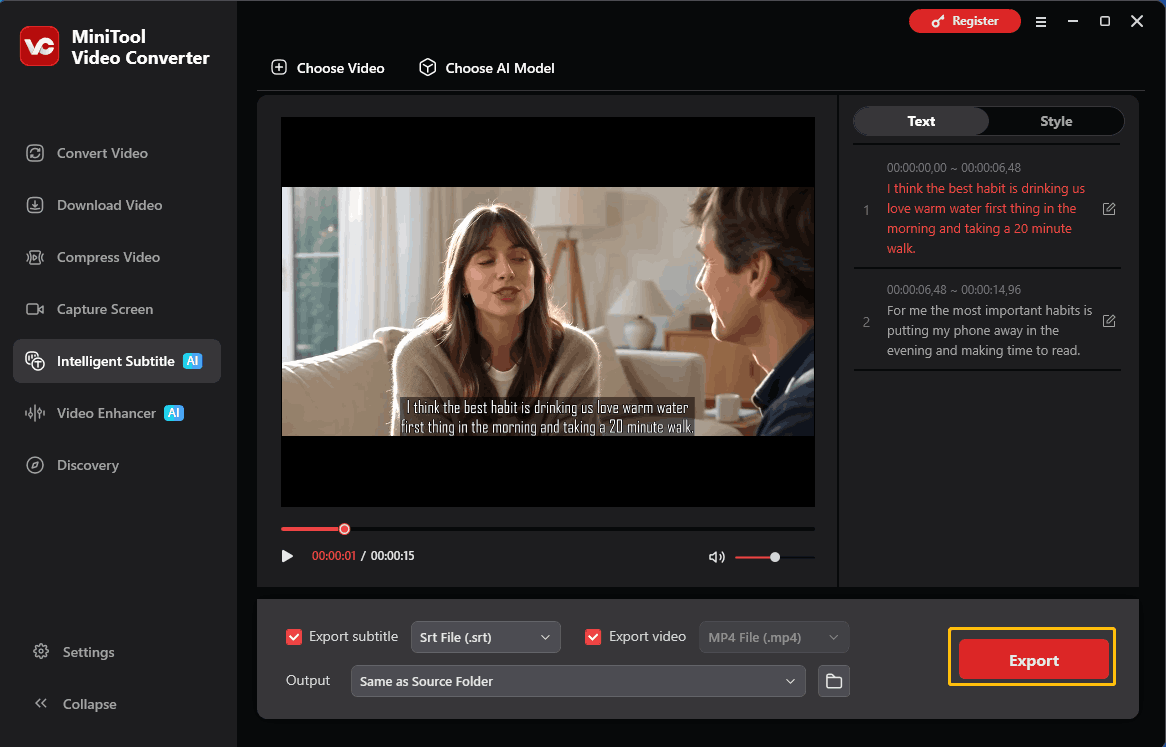
MiniTool Video Converter supports exporting individual SRT text files or exporting both video and text simultaneously. However, this tool is only available on Windows.
How to transcribe MP4 to SRT? MiniTool Video Converter and Zamzar are worth a try.Click to Tweet
Quickly convert speech to text with accurate and secure AI-powered models, no need for manual notes-taking anymore. Regardless of the audio language, the tool can recognize, extract, and edit the texts for you in seconds.https://minitool-video-converter.apponic.com/
#2 Use Zamzar
Zamzar is an efficient online MP4 to SRT converter. Sometimes I use it to convert my videos when I need them urgently. It supports transcribing video to various languages, such as English, Arabic, German, French, Dutch, and more. Moreover, this online speech to text converter also allows me to import files from Google Drive and Dropbox.
1. Navigate to https://www.zamzar.com/convert/mp4-to-srt/ to go to Zamzar’s speech-to-text page.
2. Click the Choose Files option to upload the target MP4 video.
3. Expand the Language option to choose a language for the transcribed SRT text.
4. Click Convert Now to start the conversion.
5. Download the converted file and save it on the computer.
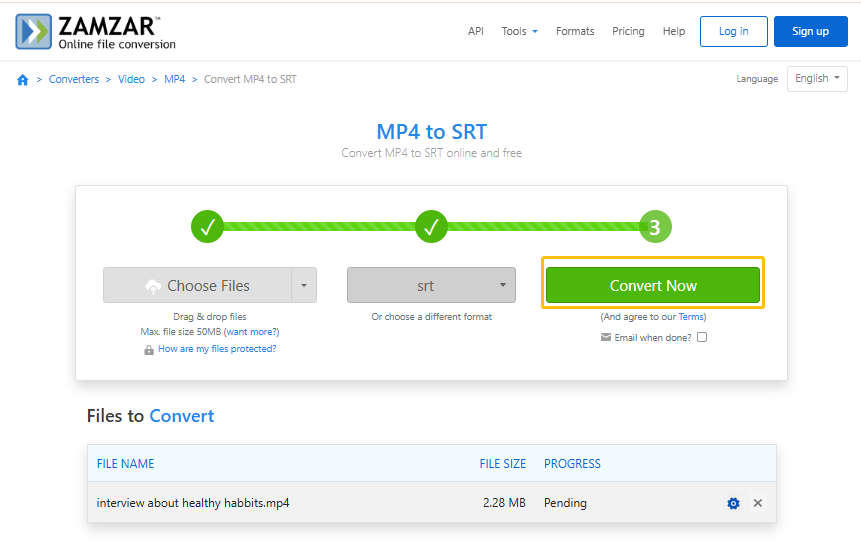
When I finish the conversion, it enables me to share the converted SRT text via email. The following is how to convert MP4 to SRT with Zamzar. However, each upload only supports video sizes not exceeding 50MB.
AI Speech to Text vs Human Transcription
Human transcription boasts high accuracy. It is particularly effective for recognizing complex, highly technical, and heavily accented speech. However, its fatal flaw is its high cost and time-consuming nature.
On the other hand, AI transcription can convert speech quickly, but its accuracy is insufficient, often requiring manual error correction after conversion. Sometimes, AI fails to recognize complex legal or medical audio and video.
Conclusion
This article explains why to convert MP4 to SRT and how to do this conversion with 2 reliable converters, including MiniTool Video Converter and Zamzar.
If you have any questions or suggestions about MiniTool Video Converter, feel free to contact MiniTool via email at support@minitool.com for assistance.
People Also Ask
1. Ensure the filename matches the video filename.
2. Save the file as a UTF-8 encoded file.
3. Use a text editor to check the timecode.
User Comments :