

Converting MP3 audio into text allows you to easily transform recordings into a readable format, which is useful for organizing notes or creating subtitles. Whether you are dealing with interviews, lectures, or other types of voice recordings, you can use AI-powered transcription tools to convert them into text.
This article introduces three simple methods for converting MP3 audio to text, including desktop software, Microsoft Word, and online transcription tools.
Method 1: Transcribe MP3 Speech to Text with MiniTool Video Converter
Fast steps:
- Download the software.
- Go to the Subtitle feature.
- Select the AI model and add the target MP3 file.
- Check the text and edit it if necessary.
- Choose the export text format.
- Select the output destination.
- Export the text.
MiniTool Video Converter is one of the audio/video processing tools I use most often. Its AI-powered transcription feature can convert MP3 speech to text, allowing me to edit the transcript before exporting it as an SRT or TXT file. It also makes it easy to create subtitles for videos.
 MiniTool Video Converter
-
 Batch convert video/audio files among 1000+ formats.
 - Quickly compress videos for easy storage and transfer.
- Accurately extract subtitles from video/audio files.
- Effectively enhance video quality.

Here is how I convert an MP3 audio speech to text with MiniTool Video Converter:
1. Download the software.
Download and install the latest version of MiniTool Video Converter on your PC.
2. Go to the Subtitle feature.
Click the AI Tools tab on the left menu and choose Subtitle.
3. Select the AI model and add the target MP3 file.
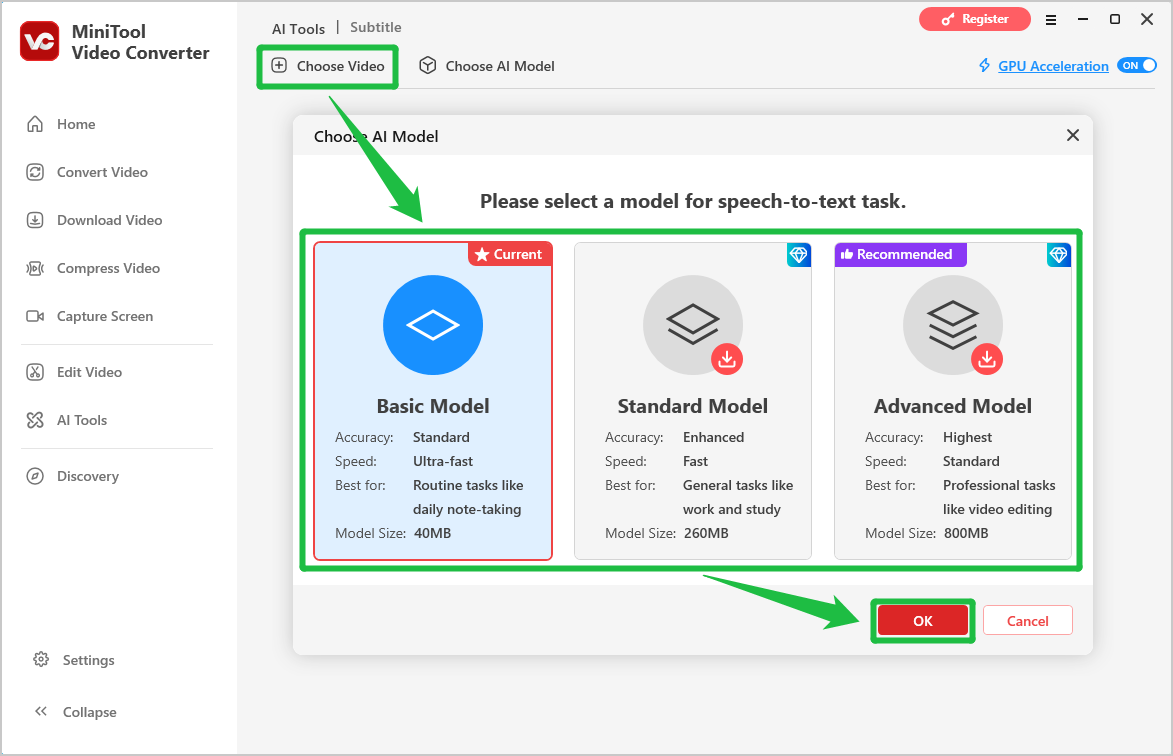
In the new interface, click Choose Video. Select an AI transcription model in the pop-up window and click OK. When File Explorer opens, locate and select the MP3 file to import.
4. Check the text and edit it if necessary.
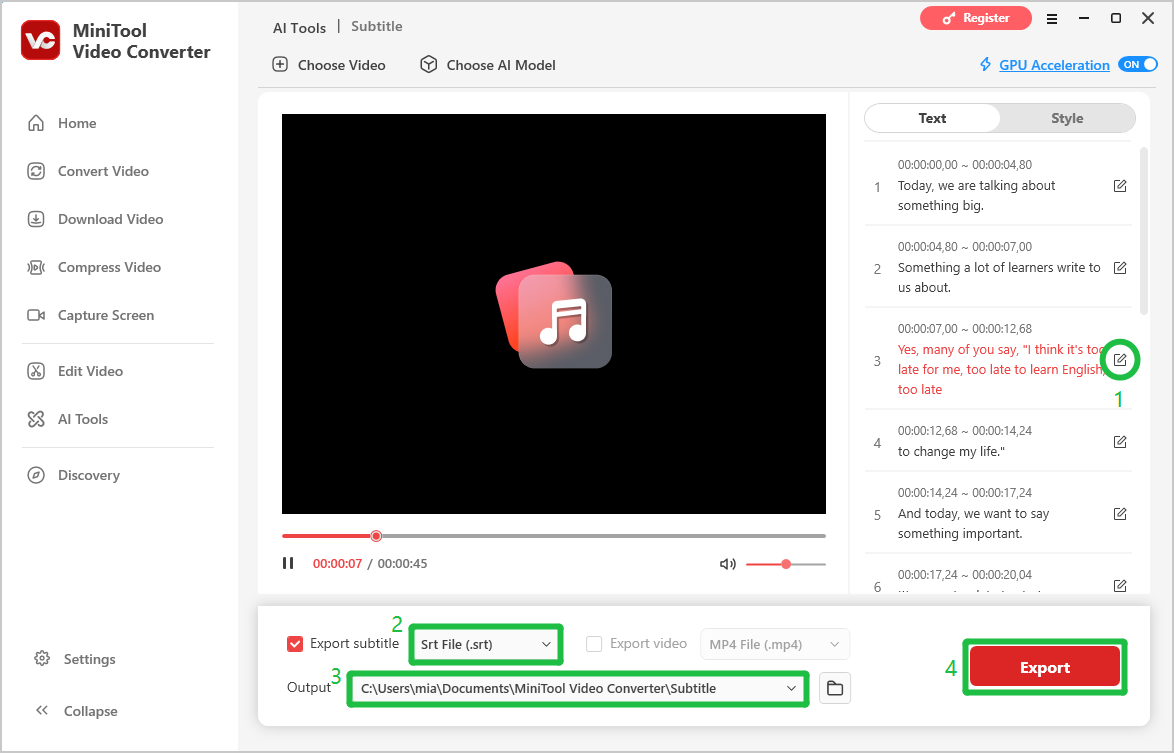
In the right panel, check the transcripts. If there are any errors, click the edit icon next to it to correct them.
5. Choose the export text format.
Under the video, expand the Export subtitle menu and choose a format. Here I choose Srt File (.srt).
6. Select the output destination.
Expand the Output option and choose a folder to save the exported text file.
7. Export the text.
After reviewing and editing the text, click Export to save the transcript.
MiniTool Video Converter is not only fast at transcribing but also highly accurate. Most importantly, its basic model is free to use.
Method 2: Transcribe MP3 Speech to Text with Microsoft Word
Fast steps:
- Open Microsoft Word.
- Open the Transcribe Feature.
- Upload the MP3 file.
- Review and edit the transcript.
- Add the transcript to Word.
Microsoft Word includes Dictate and Transcribe features for converting speech into text. However, these features require an eligible Microsoft 365 subscription and aren't available with every free account. It supports uploading audio files in MP3, M4A, WAV, and MP4 formats for transcription.
Here is how to transcribe MP3 speech to text with Microsoft Word:
1. Open Microsoft Word.
Open Word for the web and sign in with an eligible Microsoft 365 account. Then, create a new blank document.
2. Open the Transcribe Feature.
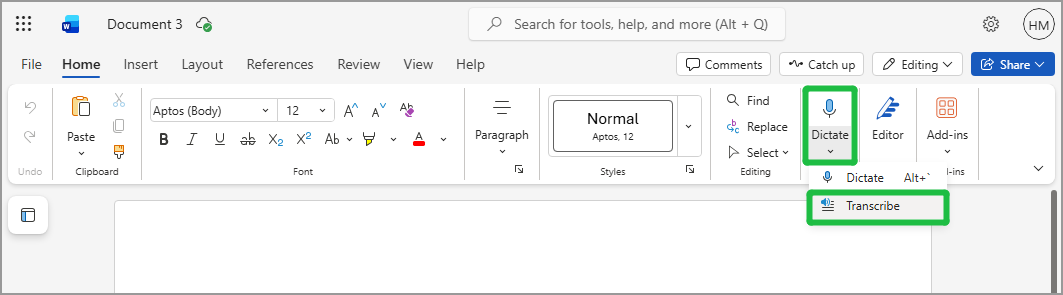
Go to the Home tab, click the arrow next to Dictate, and select Transcribe from the drop-down menu.
3. Upload the MP3 file.
In the Transcribe pane, click Upload audio and select the MP3 speech from the computer.
4. Review and edit the transcript.
Wait for Word to finish transcribing the audio. Review the generated text and correct any errors. Speaker labels and individual transcript sections can also be edited when needed.
5. Add the transcript to Word.
Click Add all to document to insert the transcript into the Word document. Adjust the text formatting as needed, then save the document.
Microsoft Word makes it easy to transcribe MP3 speech to text and edit the transcript in a document. However, since the Transcribe feature requires an eligible subscription, desktop software like MiniTool Video Converter or a free online transcription tool may be a more suitable alternative for users without access.
Method 3: Transcribe MP3 Speech to Text with Audio Transcriber AI
Fast steps:
- Go to audiotranscriber.io.
- Import the MP3 file.
- Check the generated transcript.
- Download the transcript.
I searched on Google for online tools capable of transcribing MP3 audio into text and found options such as Audio Transcriber AI, AudioToText.com, Any2Text, Otter.ai, and UniScribe. I tried out Audio Transcriber AI, it can be used directly without the need to download any software or register an account. Here is how:
1. Go to Audio Transcriber AI.
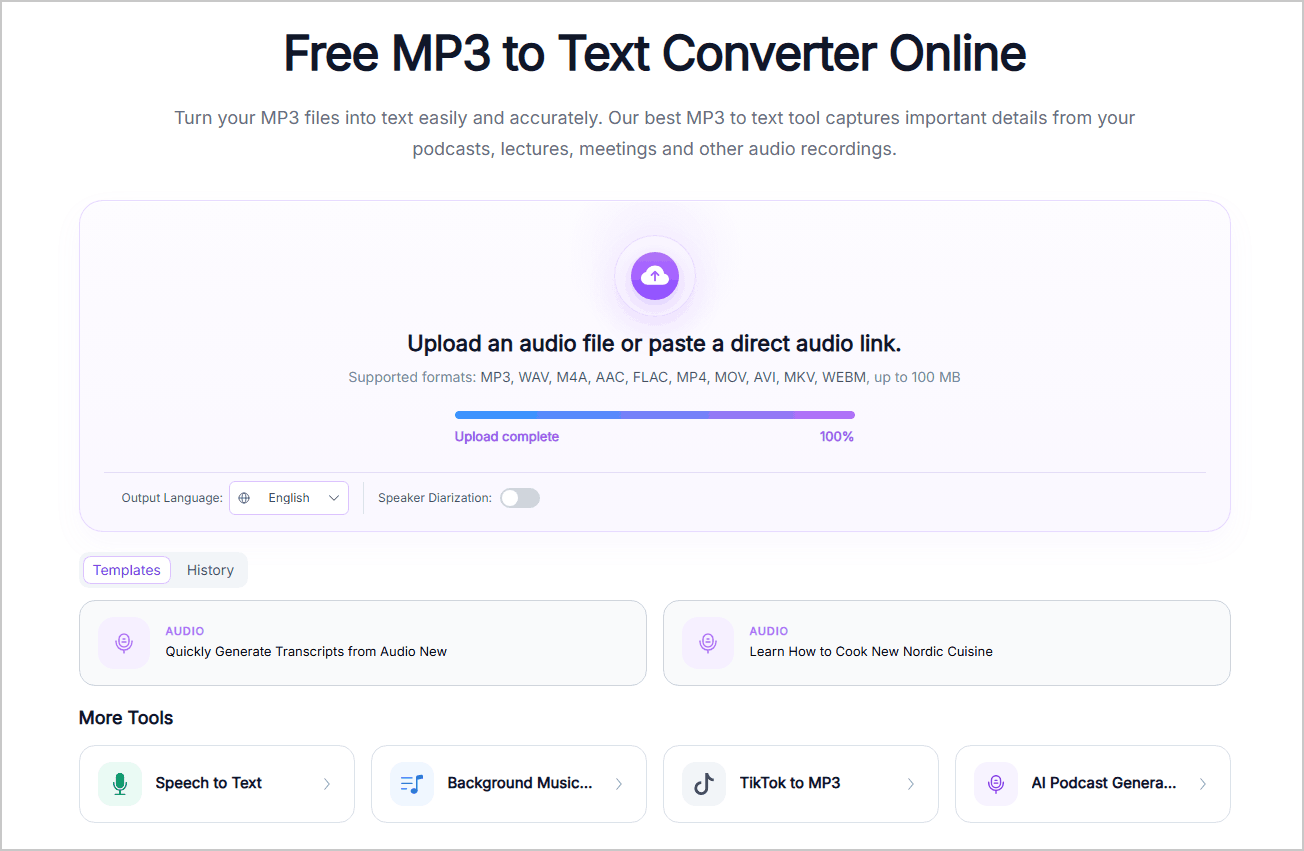
Copy and paste https://audiotranscriber.io/mp3-to-text/ into the browser's address bar and go to the homepage of Audio Transcriber AI.
2. Import the MP3 file.
Click the Upload Audio option to import the MP3 speech audio from your device.
3. Check the generated transcript.
On the new page, check the transcript and edit any errors as needed.
4. Download the transcript.
Click the download icon to get the transcript.
Comparison of the 3 MP3-to-Text Methods
| MiniTool Video Converter | Microsoft Word | Audio Transcriber AI | |
| Platform | Windows | Web | Web |
| Free to Use | Yes, basic model | Requires an eligible subscription | Available without registration |
| Export Formats | TXT, SRT | Word document | TXT, DOCX, SRT, VTT |
| Internet connection | Not required after downloading an AI model | Required | Required |
Which tool should you choose:
- MiniTool Video Converter: Best for Windows users who want to transcribe MP3 files, edit transcripts, and export TXT or SRT files.
- Microsoft Word: Best for users with an eligible Microsoft 365 subscription who want to incorporate transcripts into documents.
- Audio Transcriber AI: Best for quick transcription without installing any software or creating an account.
Bottom Line
Transcribing MP3 speech to text is simple with desktop software, Microsoft Word, or online tools. Choose MiniTool Video Converter for TXT or SRT exports, Word for document editing, or Audio Transcriber AI for quick online transcription.
If you need assistance with MiniTool Video Converter, contact support@minitool.com via email.
User Comments :