

To convert Chinese speech to text, use MiniTool Video Converter to import the audio or video, choose an AI model, edit the transcript, select TXT or SRT, and export it. For real-time transcription, use Google Docs Voice Typing, select Chinese, and start the recording and transcribing.
Chinese speech-to-text transcription is the process of converting spoken Chinese into written Chinese text using speech recognition technology. It can turn Chinese speech from recordings, videos, meetings, lectures, or live conversations into editable text.
How to Convert Chinese Speech to Text?
- Option 1: Use MiniTool Video Converter
- Option 2: Use Google Docs
1. MiniTool Video Converter
Fast steps:
- Get MiniTool Video Converter Ready
- Pick a transcription model.
- Add the Chinese speech recording.
- Check the generated text.
- Choose the output format for the transcript.
- Set the destination folder.
- Save the transcript.
MiniTool Video Converter is a multi-functional tool that can transcribe video and audio into text in minutes. It supports many languages, including Chinese, English, Spanish, Portuguese, Japanese, and more. The generated text can be edited and exported as a TXT file for notes or transcripts and an SRT file for subtitles.
The most useful MiniTool Video Converter Free features are the ones tied directly to choosing source media, setting output or capture options, previewing results, and saving a usable file. Those details help users decide whether the software fits the job before installation.https://www.fosshub.com/MiniTool-Video-Converter.html
To extract the script from the Chinese speech recording with MiniTool Video Converter, follow the steps below:
 MiniTool Video Converter
-
 Batch convert video/audio files among 1000+ formats.
 - Quickly compress videos for easy storage and transfer.
- Accurately extract subtitles from video/audio files.
- Effectively enhance video quality.

1. Get MiniTool Video Converter Ready
Install the latest version of MiniTool Video Converter on your Windows computer. After installation, open the software.
2. Pick a transcription model.
Go to the Intelligent Subtitle tab from the left menu, click Choose Video, select an AI model that suits your needs, and click OK to continue.
3. Add the Chinese speech recording.
A File Explorer window will appear. Browse to the Chinese audio or video recording you want to transcribe, select it, and import the file into MiniTool Video Converter.
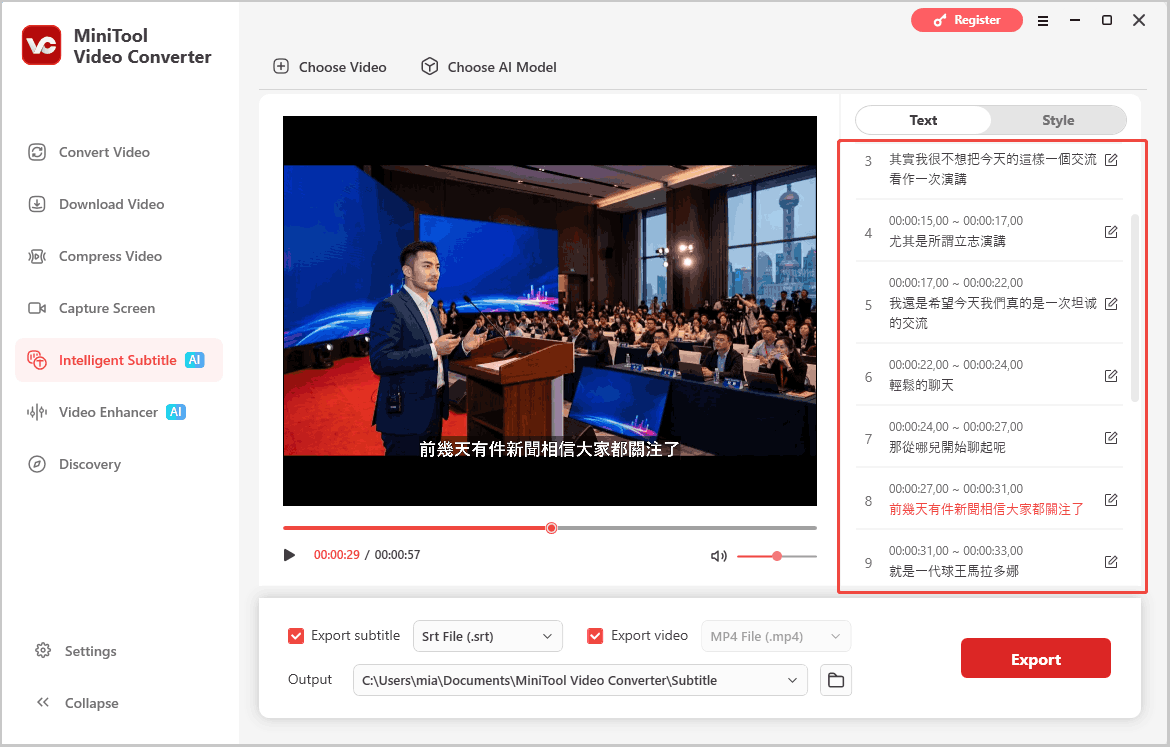
4. Check the generated text.
After processing, the software automatically recognizes the Chinese speech and generates the text. Review the result and click the edit icon to fix misrecognized words, punctuation, or other parts of the text.
5. Choose the output format for the transcript.
When the transcript is ready, expand the Export subtitle option and select an output format, such as SRT or TXT.
6. Set the destination folder.
Go to the Output option and specify a folder on your computer for the exported transcript.
7. Save the transcript.
Click Export to save the Chinese speech transcript.
2. Google Docs
Fast steps:
- Open a new document in Google Docs.
- Find the Voice Typing feature.
- Set the recognition language.
- Let Google Docs capture the speech.
- Stop transcribing.
Google Docs includes a Voice Typing feature that can turn spoken words into written text. It supports many popular languages, including Chinese, English, Spanish, and more. It can also correct words that may have been misidentified. This makes it a convenient option for quickly turning spoken Chinese into editable text.
Here is how to use the Google Docs Voice Typing feature to transcribe Chinese voice to text in real time.
1. Open a new document in Google Docs.
Open Google Docs in your browser and log in to your Google account. From the home page, click Blank document.
2. Find the Voice Typing feature.
After entering the document, look at the menu bar across the top. Open Tools, then select Voice typing from the drop-down menu.
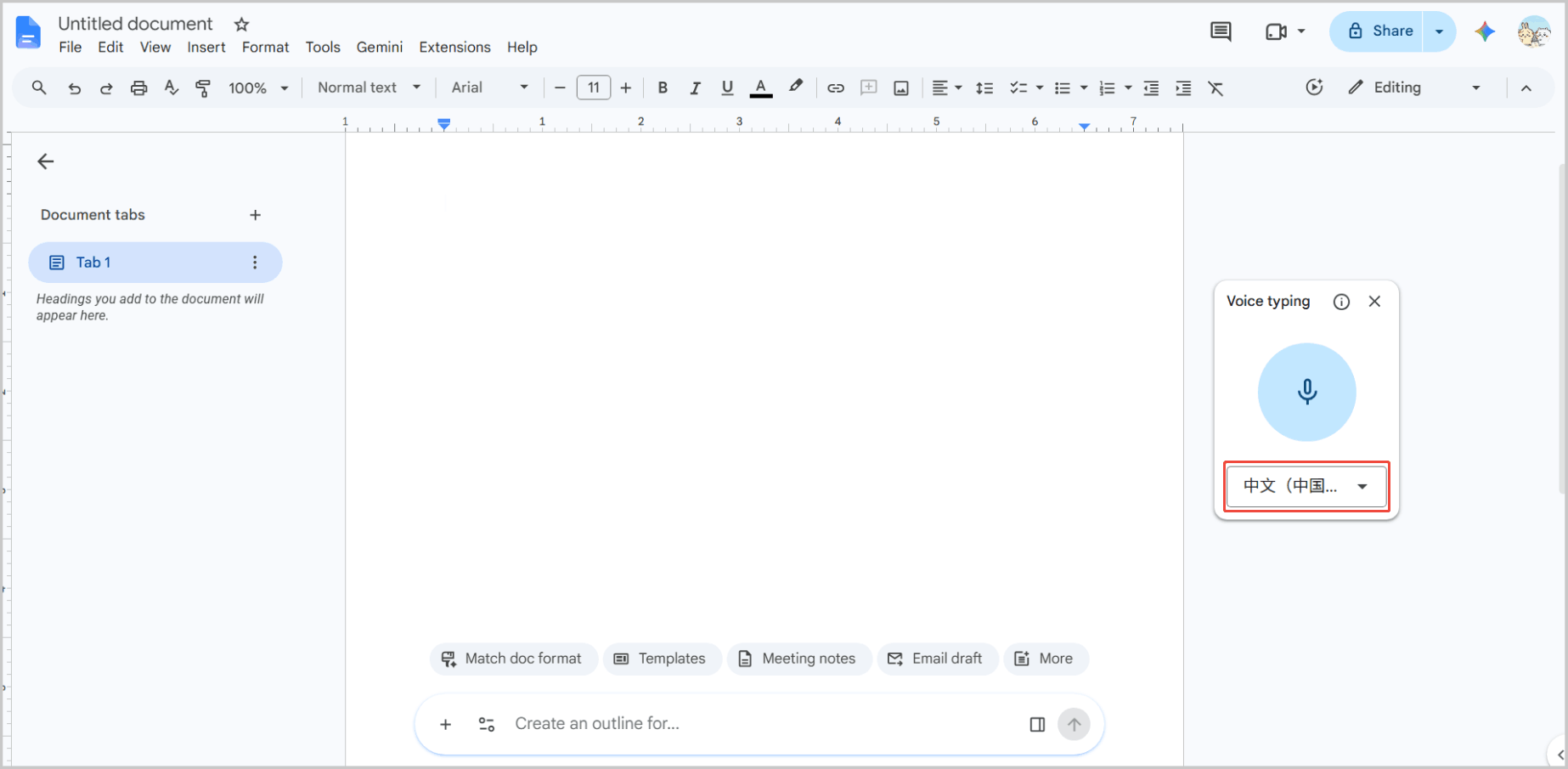
3. Set the recognition language.
Open the language menu on the Voice typing panel. Scroll through the list and select the Chinese option.
4. Let Google Docs capture the speech.
Click the microphone button to turn on Voice typing. For a live conversation or speech, speak clearly while Google Docs converts the words into text as they are spoken.
For an existing recording, play the Chinese audio through a nearby speaker so the computer microphone can pick up the speech.
5. Stop transcribing.
Click the microphone icon to stop the transcription.
Overall, Google Docs’ voice typing is very convenient and works on both computers and mobile phones. However, it is not well-suited for transcribing pre-recorded audio.
MiniTool Video Converter vs. Google Docs
| MiniTool Video Converter | Google Docs | |
| Platform | Windows | Web |
| Input | Audio/video | Played audio |
| Chinese transcription | Yes | Yes |
| Editing | Yes | Yes |
| Export | TXT/SRT | Google Docs formats |
| Offline use | Yes, after downloading the AI model | No |
1. Platform
MiniTool Video Converter is Windows-based software, whereas Google Docs' voice typing feature can be used directly in a browser. You can use Google Docs on mobile phones, computers, tablets, and other devices.
2. Input
The Intelligent Subtitle feature of MiniTool Video Converter supports importing video and audio files in various formats:
- Video: MP4, MKV, MOV, WebM, AVI, RMVB, WMV, 3GP, FLV
- Audio: MP3, WAV, M4A, CAF, AIFF, WMA, OGG
Google Docs performs transcription by recording audio. Therefore, it is not restricted to specific audio formats. It can transcribe Chinese speech as it happens during a live event, or process a prerecorded speech by playing the recording through a microphone.
3. Language Support
MiniTool Video Converter supports multiple languages, including Chinese, English, Spanish, Korean, Japanese, Portuguese, German, and more. Google Docs supports around 119 languages and dialects. The list includes Chinese (Simplified), Chinese (Traditional), and Chinese (Hong Kong), along with English, Spanish, Japanese, Korean, Portuguese, and many others.
4. Editing
Both MiniTool Video Converter and Google Docs support text editing.
5. Export
MiniTool Video Converter lets users export the generated text as SRT or TXT. SRT files contain timestamps and are useful for subtitles, while TXT files provide plain text for notes or transcripts.
Google Docs keeps the recognized speech directly in the document, and the text can be copied and saved separately when needed.
6. Internet Required
MiniTool Video Converter can transcribe speech without an internet connection after the required AI model has been downloaded. Google Docs Voice Typing, however, relies on an active internet connection for speech recognition and transcription.
Tips for More Accurate Chinese Transcription
- Use recordings with clear speech.
- Reduce background noise.
- Avoid overlapping speech while recording.
- Choose the correct Chinese language/model.
For better transcription results, use a clear recording with minimal background noise. This is particularly important when using real-time voice typing tools such as Google Docs, as unclear audio can lead to more recognition errors.
In addition, avoid overlapping speech and select the appropriate language and AI model before beginning the transcription.
Conclusion
Both MiniTool Video Converter and Google Docs can convert Chinese speech to text. MiniTool is suitable for saved audio or video files, while Google Docs is useful for real-time speech transcription.
If you are interested in MiniTool Video Converter, feel free to contact MiniTool’s official support via email at support@minitool.com.
User Comments :