

This article explains how to transcribe Japanese speech to text with 3 audio transcription tools. MiniTool Video Converter and UniScribe require importing a file, starting transcription, reviewing the text, and exporting the transcript. Google Docs uses Voice typing to transcribe Japanese speech in real time.
Japanese speech-to-text refers to the process of converting spoken Japanese from audio or video into written Japanese text. With the help of AI transcription tools, speech can be automatically recognized to rapidly generate Japanese text.
This article shows how to convert Japanese audio into text with MiniTool Video Converter, Google Docs, and UniScribe.
| Platform | Price | Accuracy | Offline Transcription | |
| MiniTool Video Converter | Windows | Free/Paid | High | Yes |
| Google Docs | Web | Free | Medium | No |
| UniScribe | Web | Free/Paid | High | No |
How to Transcribe Japanese Speech to Text
- Use MiniTool Video Converter
- Use Google Docs
- Use UniScribe
#1 MiniTool Video Converter
Fast steps:
- Download and install MiniTool Video Converter.
- Select an AI model.
- Import the Japanese speech audio.
- Edit the text if necessary.
- Choose the output text format.
- Choose an output folder.
- Export the transcript.
MiniTool Video Converter is a free tool for transcribing Japanese speech to text from audio and video files. Its Intelligent Subtitle feature automatically recognizes Japanese speech and converts it into text, which can be exported as TXT or SRT files for easy editing and subtitle creation.
The most useful MiniTool Video Converter Free features are the ones tied directly to choosing source media, setting output or capture options, previewing results, and saving a usable file. Those details help users decide whether the software fits the job before installation.https://www.fosshub.com/MiniTool-Video-Converter.html
Follow these steps to transcribe Japanese audio to text with MiniTool Video Converter:
 MiniTool Video Converter
-
 Batch convert video/audio files among 1000+ formats.
 - Quickly compress videos for easy storage and transfer.
- Accurately extract subtitles from video/audio files.
- Effectively enhance video quality.

1. Download and install MiniTool Video Converter.
Download and install the latest version of MiniTool Video Converter, then launch it on your PC.
2. Select an AI model.
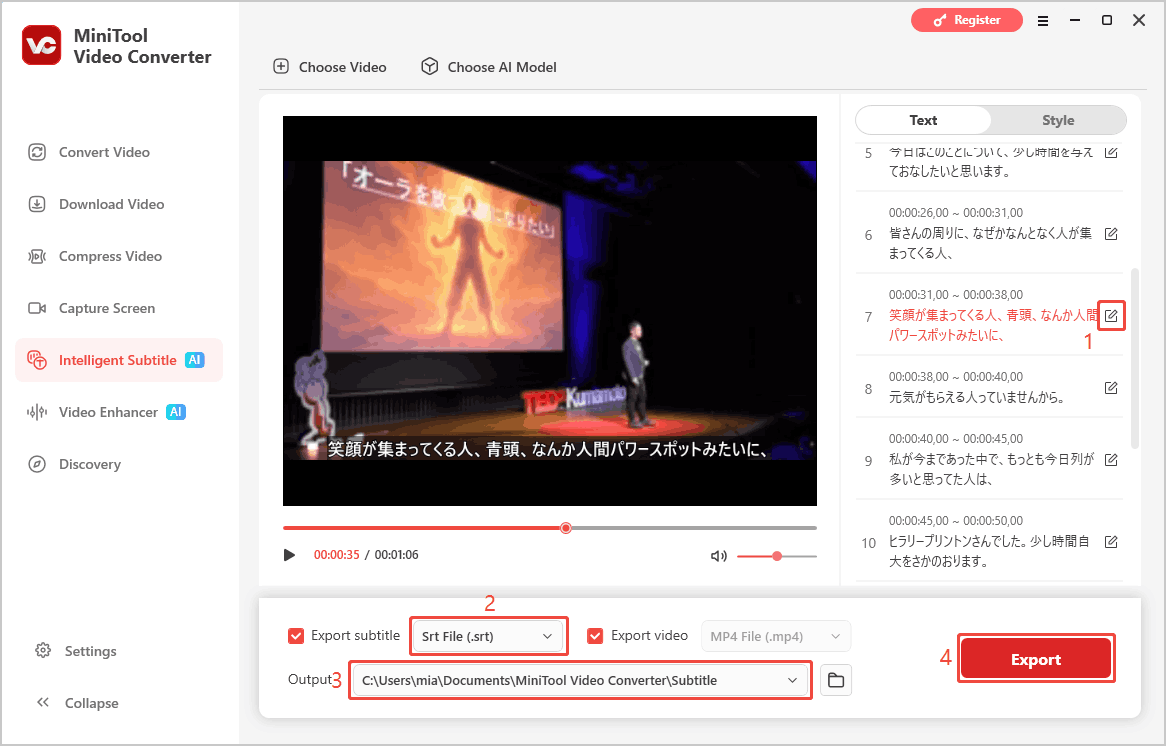
Go to the Intelligent Subtitle tab, click Choose Video, select an AI model, and click OK.
3. Import the Japanese speech audio.
Select the Japanese audio or video file in File Explorer to import it.
4. Edit the text if necessary.
The tool will automatically transcribe the Japanese speech and display the text. Click the Edit icon to correct any text if needed.
5. Choose the output text format.
Expand the Export subtitle option and select an output format, such as SRT or TXT.
6. Choose an output folder.
Open the Output menu and choose where to save the transcript.
7. Export the transcript.
Click Export to save the Japanese speech transcript.
#2 Google Docs
Fast steps:
- Open a new document.
- Activate voice typing.
- Choose a language.
- Start transcribing.
- Pause transcribing.
Google Docs is a word processor with a built-in Voice typing feature that converts speech to text. It supports over 100 languages, including Japanese, English, Spanish, Portuguese, and more. It also offers correction suggestions for potentially misrecognized words.
The following steps show how to use it to transcribe audio in real time on a desktop browser.
1. Open a new document.
Go to https://docs.google.com/ and sign in with your Google account. Then, click Blank document.
2. Activate voice typing.
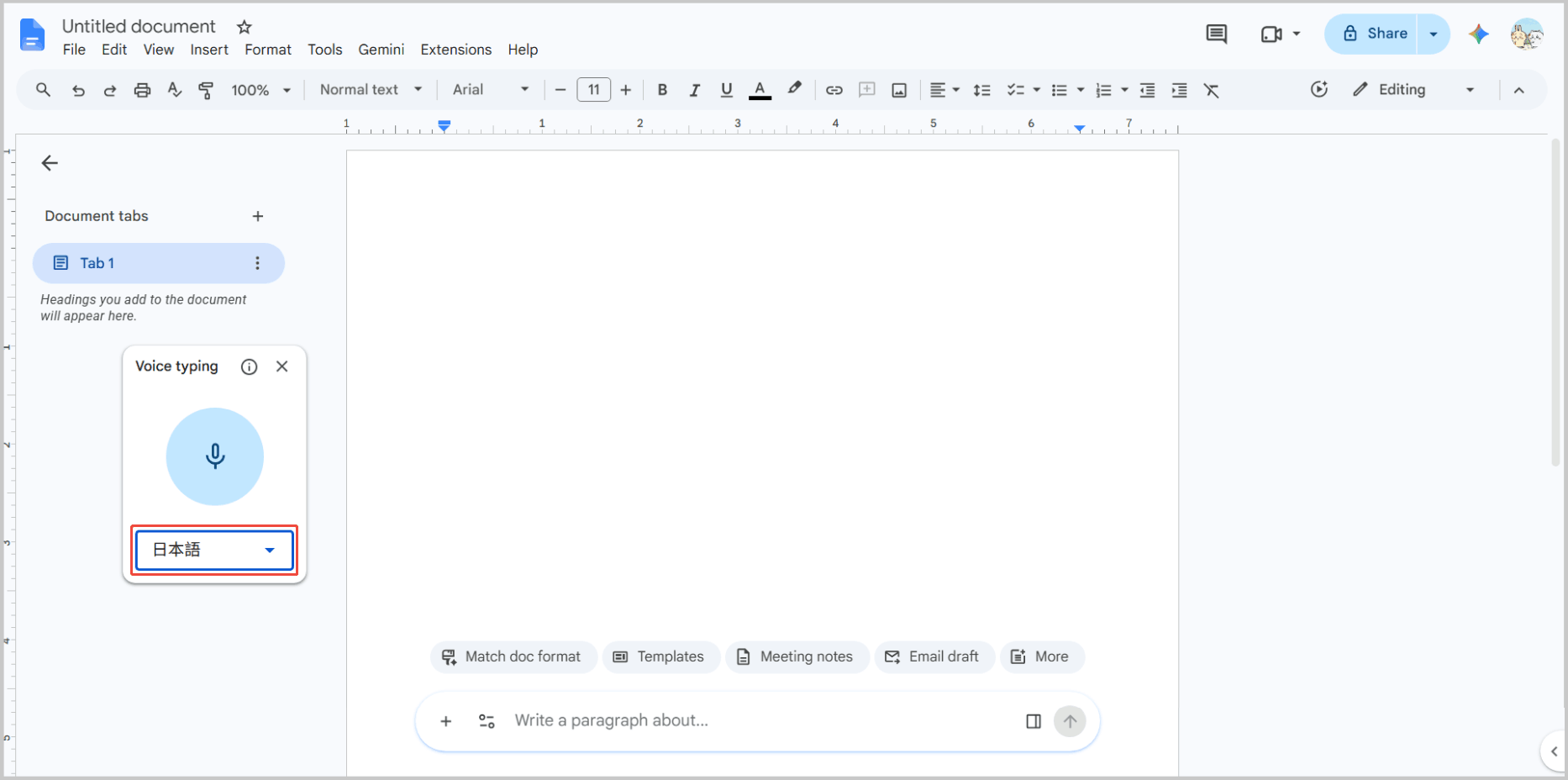
Click the Tools tab at the top bar and choose Voice typing.
3. Choose a language.
Select Japanese from the language list in the floating window. Then, click the microphone icon.
4. Start transcribing.
If you are at a live speech, Google will automatically transcribe the spoken words in real time. If you already have a recording of the speech, you can play the audio near the microphone to transcribe it.
5. Pause transcribing.
Click the microphone icon again to stop the transcription.
After transcription is complete, you need to manually format and proofread the text.
#3 UniScribe
Fast steps:
- Go to the UniScribe website.
- Upload the audio/video file.
- Choose the language.
- Start transcribing.
- Download the transcripts.
UniScribe is an AI transcription tool that converts Japanese audio and video into text. It supports various file formats and can export transcripts as TXT, SRT, or VTT. The free plan allows up to 120 minutes of transcription, while longer use requires a paid plan.
UniScribe supports transcription for 63 languages, making it a handy tool for creators, researchers, educators, and professionals working with multilingual audio and video content.https://vmake.ai/blog/uniscribe-review
Here is how to transcribe Japanese audio to text with UniScribe:
1. Go to the UniScribe website.
Visit the UniScribe website and open its transcription tool.
2. Upload the audio/video file.
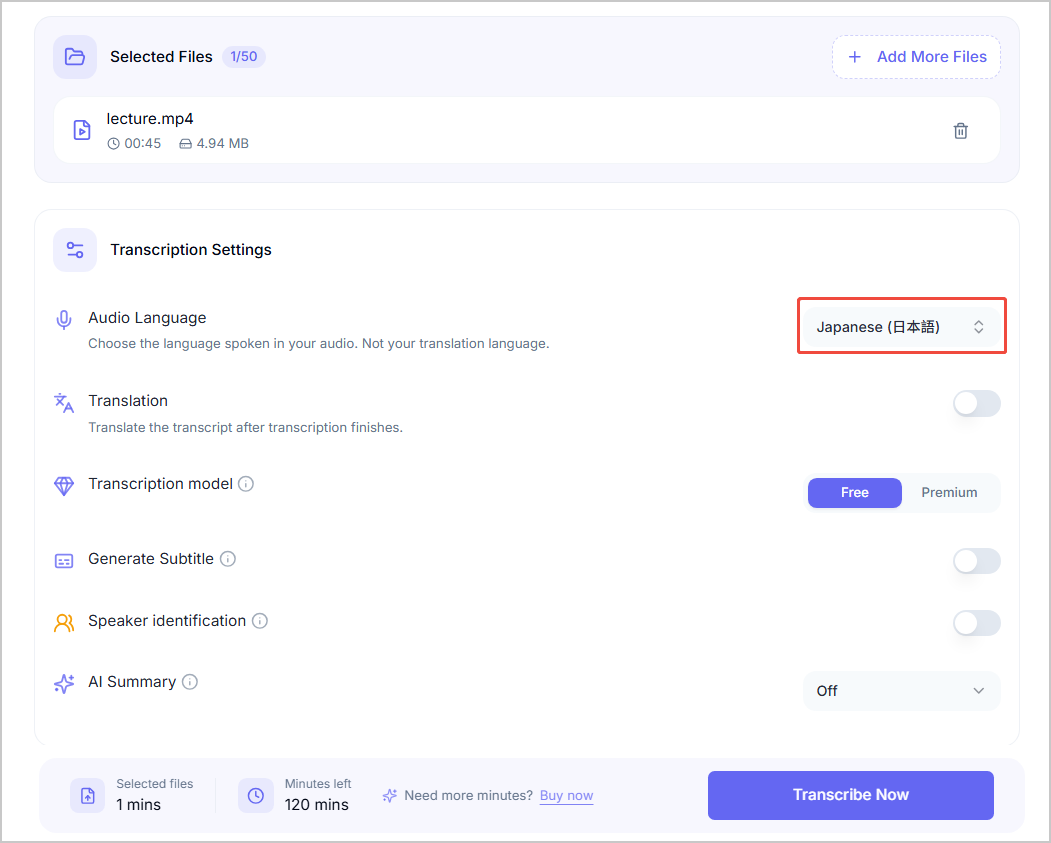
Click Upload Files and select the Japanese audio or video file.
3. Choose the language.
Click the Audio Language option and select Japanese from the drop-down menu.
4. Start transcribing.
Click Transcribe Now to convert the Japanese speech to text.
5. Download the transcripts.
Once transcription is complete, click Export Transcript and choose a format such as TXT, SRT, or VTT.
Why Convert Japanese Audio to Text?
- Create subtitles: Convert spoken Japanese into text to create subtitles for videos.
- Improve accessibility: Provide written Japanese content for viewers who have difficulty hearing or prefer reading along.
- Simplify review: Turn spoken content into searchable and editable text for easier review, organization, and reference.
Which Transcription Tool Is Right for You
- MiniTool Video Converter: Fast, editable, offline, SRT/TXT export.
- UniScribe: Advanced online transcription with VTT export.
- Google Docs: Free real-time transcription, but no speaker identification or SRT export.
Three transcription tools were introduced above. The final choice depends on your specific needs.
For accurate transcription and easy editing, MiniTool Video Converter and UniScribe are both good options. The former generates text faster and supports exporting text in SRT and TXT, whereas the latter, while slower, supports exporting in VTT format. Additionally, once the AI model is downloaded, MiniTool Video Converter can transcribe files offline, while UniScribe requires an internet connection.
Google Docs offers a completely free transcription feature that is ideal for real-time Japanese speech transcription. However, it has limitations. For instance, it cannot distinguish between different speakers, and transcription accuracy depends heavily on audio clarity. The accuracy may decrease with unclear audio or distant microphones. It also does not directly export transcripts as SRT files.
Conclusion
Transcribing Japanese speech to text makes spoken content easier to review, edit, and reuse. MiniTool Video Converter is ideal for offline Japanese transcription, Google Docs for free real-time transcription, and UniScribe for online transcription. Choose the tool that best fits your needs.
For help with MiniTool products, contact the support team at support@minitool.com and include details of your issue for quicker assistance.
User Comments :