

Online courses are a popular way to learn new things, but taking notes while watching videos can be time-consuming. You may need to pause the video repeatedly to write down important points, which can interrupt the learning process.
Fortunately, AI-powered audio note-taking tools make things easier. They can transcribe video audio into text, and some can even summarize the content and highlight key points, helping learners review information more efficiently.
Best AI Note Taker from Audio
- MiniTool Video Converter
- Notta
- Microsoft Word
| MiniTool Video Converter | Notta | Microsoft Word | |
| Platform | Windows | Web, mobile | Desktop, web |
| Export formats | TXT, SRT | TXT, DOCX, SRT, PDF, etc. | Word document |
| File duration limit | No | 3 minutes per recording (free) | Monthly usage limits |
#MiniTool Video Converter
MiniTool Video Converter AI-powered audio to notes converter. This application supports most popular audio and video formats, including MP3, WAV, M4A, CAF, AIFF, WMA, OGG, MP4, MKV, MOV, AVI, WMV, and more. Also, it can export the transcript as a TXT or SRT file.
 MiniTool Video Converter
-
 Batch convert video/audio files among 1000+ formats.
 - Quickly compress videos for easy storage and transfer.
- Accurately extract subtitles from video/audio files.
- Effectively enhance video quality.

To convert audio to notes with MiniTool Video Converter, follow the steps below:
Fast steps:
- Open MiniTool Video Converter
- Go to the Subtitle feature
- Choose the AI model
- Import the audio file
- Check and modify the transcript
- Choose the output text format
- Set the save location
- Export the note
1. Open MiniTool Video Converter
Get the latest version of MiniTool Video Converter. Then launch this transcription tool.
2. Go to the Subtitle feature
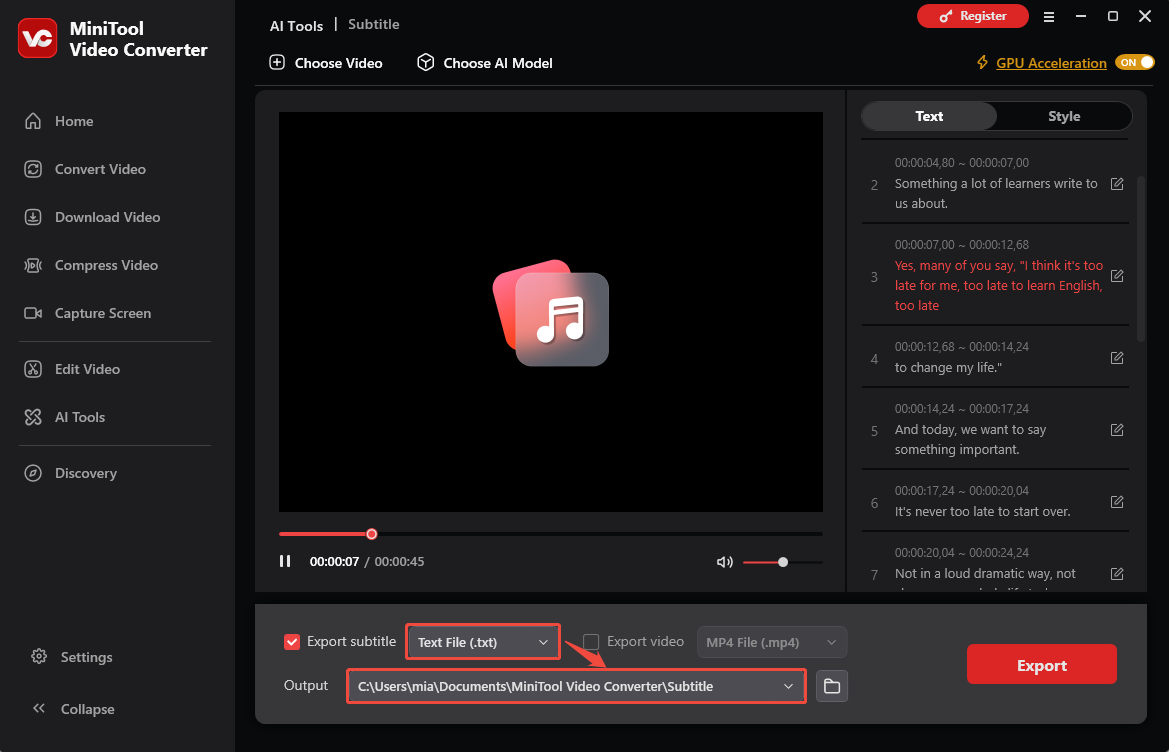
Choose AI Tools on the left. Then select Subtitle from the right panel.
3. Choose the AI model
Click Choose Video, select an AI transcription model from the pop-up window, and click OK.
4. Import the audio file
In File Explorer, choose the target audio file you want to transcribe.
5. Check and modify the transcript
The software will quickly generate a transcript of the audio and display it on the right side of the interface. You can review it sentence by sentence and correct any words that were misrecognized.
6. Choose the output text format
Click Export subtitle, then choose TXT or SRT based on your needs. Select TXT to read and review the transcript, or SRT to use it as video subtitles.
7. Set the save location
Open the Output menu and choose a folder to save the file.
8. Export the note
Click Export to save the generated text.
Pros:
- Supports converting audio and video speech into text.
- Allows exporting transcripts as TXT or SRT files.
- Supports multiple languages.
- Provides accurate speech transcription.
- Has no file duration limit.
Cons:
- Available for Windows only.
#Notta
Notta is an AI-powered transcription tool that converts spoken content into text, making it useful for transcribing lectures, online courses, and other recordings. The free plan only supports recordings up to 3 minutes. A paid plan is required to transcribe longer recordings and access more features, such as AI summaries.
Here is how to use Notta to convert audio to notes:
Fast steps:
- Visit the Notta website
- Upload your target files
- Choose audio language
- Find the transcript
- Download the transcript
1. Visit the Notta website
Go to https://app.notta.ai/ and sign in with your Google account.
2. Upload your target files
Click the Upload & transcribe option, select the audio file you want to transcribe, and import it to Notta.
3. Choose audio language
In the Upload & transcribe window, select the audio language.
4. Find the transcript
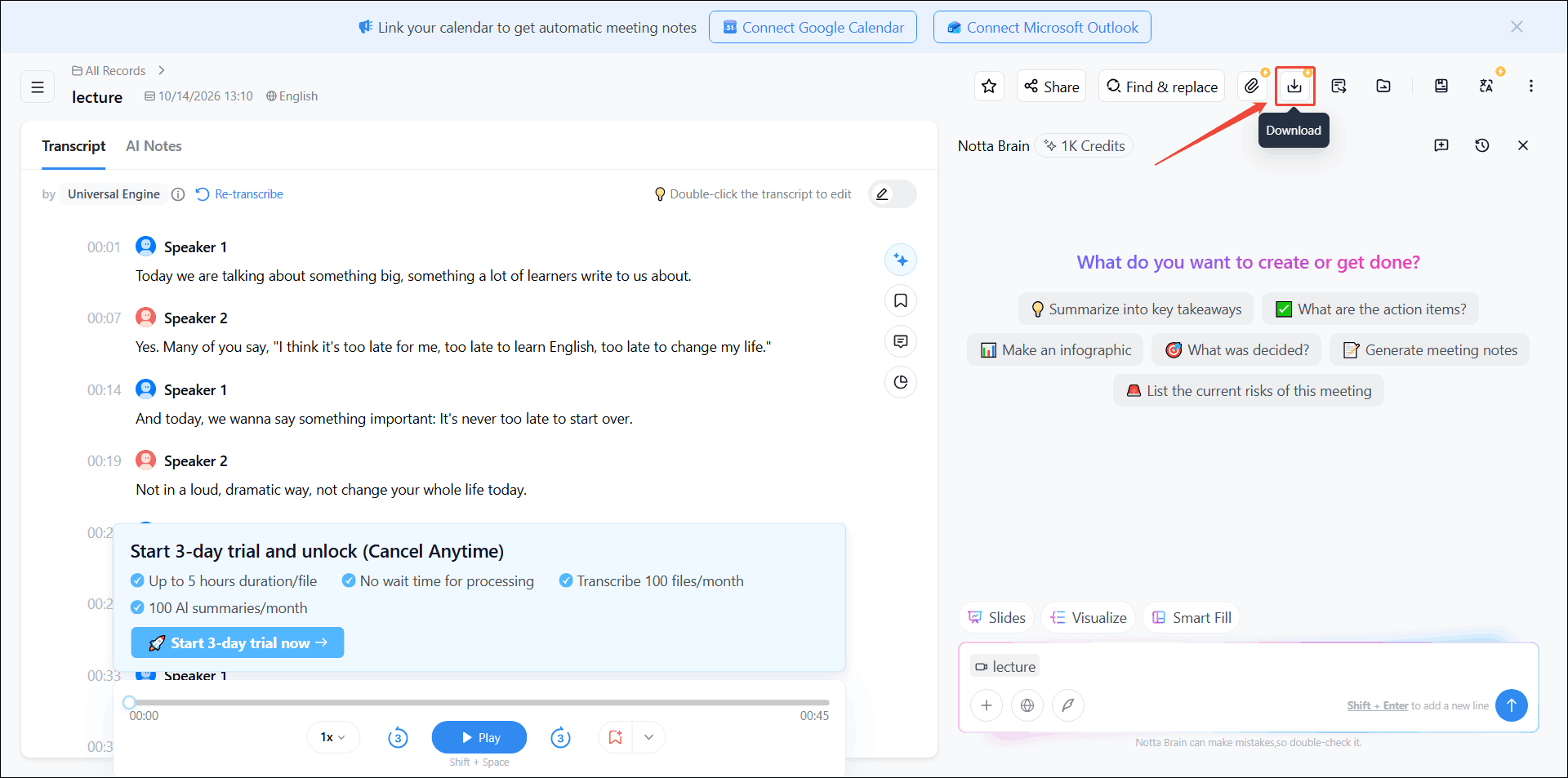
Click All Records in the left menu, choose Created by me, and select the script you need.
5. Download the transcript
To export the transcript to TXT or other formats, click Download in the top-right corner. Note that downloading the transcript requires a paid plan.
Pros:
- Supports multiple languages.
- Generates AI summaries of transcripts.
- Identifies different speakers.
- Supports live transcription and file uploads.
Cons:
- Some advanced features require a subscription.
- Transcription time is limited on the free plan.
#Microsoft Word
Microsoft Word 365 supports real-time dictation and audio file transcription. If the desktop version isn't installed, Word for the web is another option. However, feature availability depends on the Microsoft account and platform.
Below is how to use this AI audio note taker to convert your audio to text:
Fast steps:
- Open Microsoft word
- Find the transcribe feature
- Upload an audio file
- Check and edit the transcript
- Insert the transcript into word
1. Open Microsoft word
Open Word for the web or Microsoft 365 and sign in to your account.
2. Find the transcribe feature
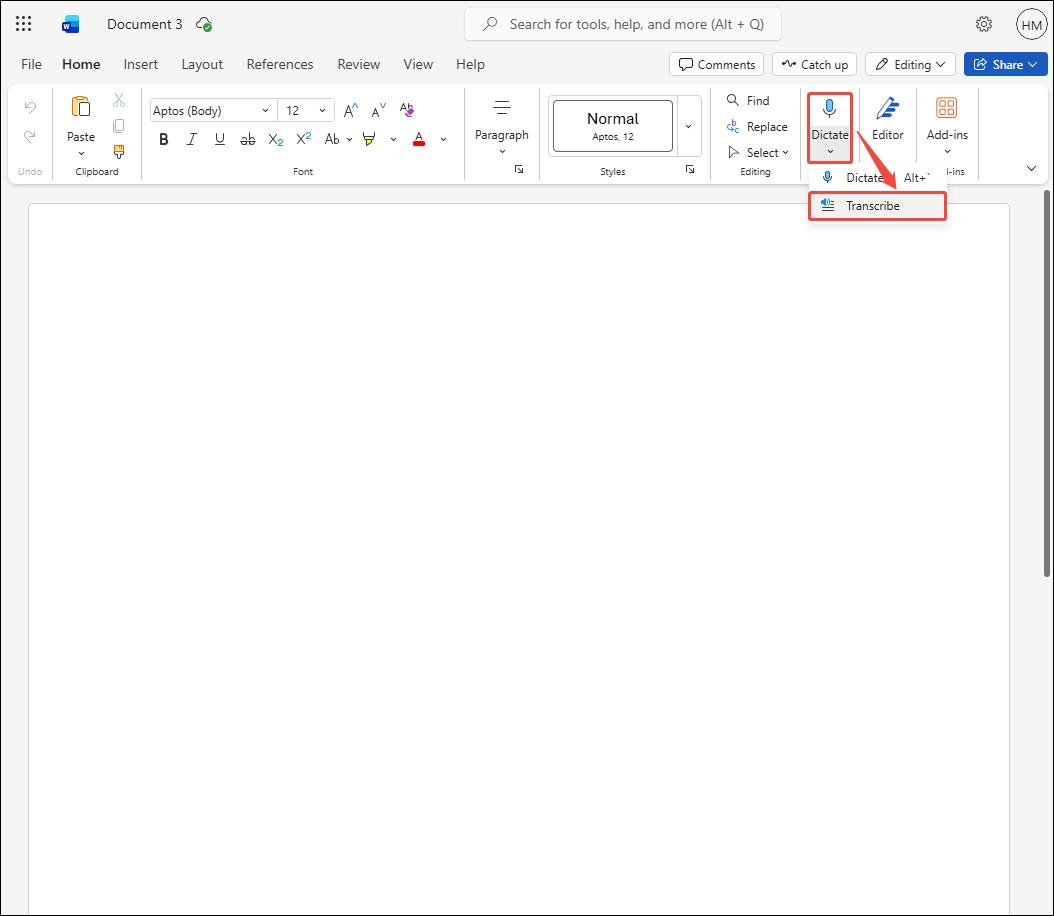
Create a blank document or upload a file. Then, go to Home, click the arrow next to Dictate, and choose Transcribe.
3. Upload an audio file
Click Upload audio, then select your audio file.
4. Check and edit the transcript
Review the generated text and correct any mistakes. You can also adjust speaker labels if necessary.
5. Insert the transcript into word
Click Add all to document to add the generated transcript. Afterwards, you can adjust the text formatting and layout.
Pros:
- Supports real-time speech-to-text dictation.
- Supports multiple languages.
- Integrates with other Microsoft 365 tools.
Cons:
- Uploaded audio transcription has monthly usage limits.
- Requires an internet connection for online transcription features.
Which Note Taker Is Right for You
Which voice-to-note app should you choose? It depends on your needs:
- MiniTool Video Converter: Best for free audio transcription on Windows. It supports audio and video files but does not offer real-time transcription.
- Notta: Ideal for users who need AI-generated summaries and speaker identification. However, transcript downloads and some advanced features require a paid plan.
- Microsoft Word: A good option for users who want to transcribe audio and edit or organize the text into notes in the same document.
Conclusion
Choose the best AI note taker for your needs. MiniTool Video Converter is suitable for free audio and video transcription on Windows, Notta offers AI summaries and speaker identification with an advanced plan, and Microsoft Word makes it easy to transcribe audio and organize notes in one document.
If you have questions about MiniTool Video Converter, email support@minitool.com for support.
User Comments :