

Lectures often contain a lot of information that can be difficult to remember or review later. Recording the lecture and transcribing it into text not only makes the content easier to read but also facilitates organization and review.
Whether dealing with recorded video or audio files, there are various ways to convert spoken content into written text. This article recommends using AI transcription tools, such as MiniTool Video Converter or Otter.ai, or performing manual transcription.
Method 1: Transcribe Lecture to Text with MiniTool Video Converter
Fast steps:
- Download and install MiniTool Video Converter.
- Choose the AI transcription model.
- Import the lecture recording.
- Edit the text if necessary.
- Choose the output text format.
- Set the destination folder.
- Save the transcript.
MiniTool Video Converter can transcribe a lecture recording into text, making it easier to review and organize lecture content. It supports editing the text and exporting the generated transcript as a TXT or SRT file.
The most useful MiniTool Video Converter Free features are the ones tied directly to choosing source media, setting output or capture options, previewing results, and saving a usable file. Those details help users decide whether the software fits the job before installation.https://www.fosshub.com/MiniTool-Video-Converter.html
Here is how to transcribe lecture to text using MiniTool Video Converter’s Intelligent Subtitle feature:
1. Download and install MiniTool Video Converter.
Get the latest version of MiniTool Video Converter and launch it on your PC.
 MiniTool Video Converter
-
 Batch convert video/audio files among 1000+ formats.
 - Quickly compress videos for easy storage and transfer.
- Accurately extract subtitles from video/audio files.
- Effectively enhance video quality.

2. Choose the AI transcription model.
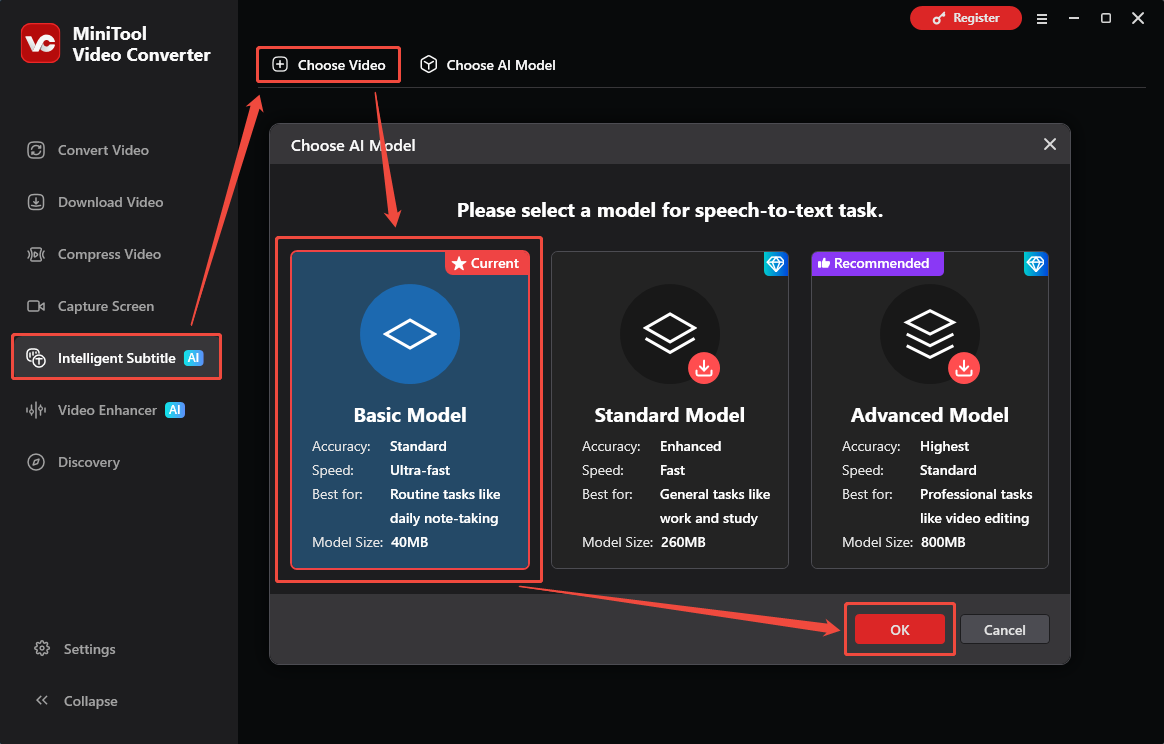
Switch to the Intelligent Subtitle tab. Then, click Choose Video, choose an AI model based on your needs, and click OK.
3. Import the lecture recording.
Then, File Explorer will pop up automatically. Select the lecture audio or video to import into the program.
4. Edit the text if necessary.
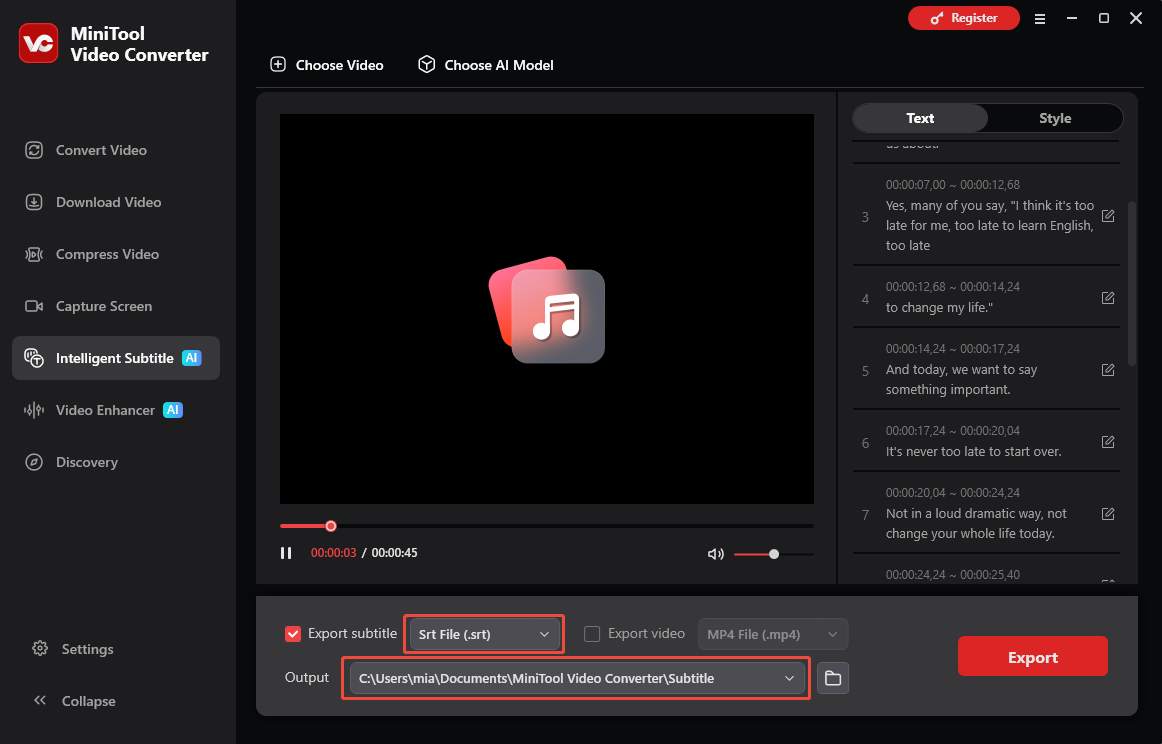
The program will automatically begin transcribing audio and video, and display the transcribed text in the right panel. If you need a specific word or sentence, simply click the corresponding edit icon.
5. Choose the output text format.
Expand the Export subtitle option and select an output format (SRT or TXT).
6. Set the destination folder.
Expand the Output menu and choose a folder as the destination folder.
7. Save the transcript.
Click Export to save the transcript in the selected folder.
Imported videos can also be exported with embedded subtitles as MP4 files.
Method 2: Transcribe Lecture Audio with Otter.ai
Fast steps:
- Go to Otter.ai and sign in.
- Upload the target audio file.
- Wait for the transcript to generate.
- View the transcript.
- Edit and export the transcript.
Otter.ai is an online AI-powered transcription tool that can convert lecture recordings to text. It can automatically transcribe spoken content and organize the transcript, making lecture notes easier to review and edit.
However, the free plan of Otter.ai has limits on transcription minutes and the number of imported files:
- 300 transcription minutes per month
- 30 minutes maximum per conversation/file
Otter transcribes mp3, m4a, wav, and other audio formats. Upload size limits are 500 MB. Most 30-minute interviews transcribe in 5–7 minutes. Turnaround is fast enough for daily news workflows.https://mediacopilot.ai/otter-ai-review-the-all-around-transcription-tool-that-still-hits-the-sweet-spot/
If you have only a few audio or video files to transcribe and they aren't very long, you can use Otter.ai:
1. Go to Otter.ai and sign in.
Sign in to Otter.ai and click Import in the upper-right corner.
2. Upload the target audio file.
Select Browse and choose the lecture audio file.
3. Wait for the transcript to generate.
Wait for the file to upload. Otter will automatically process the audio and generate a transcript.
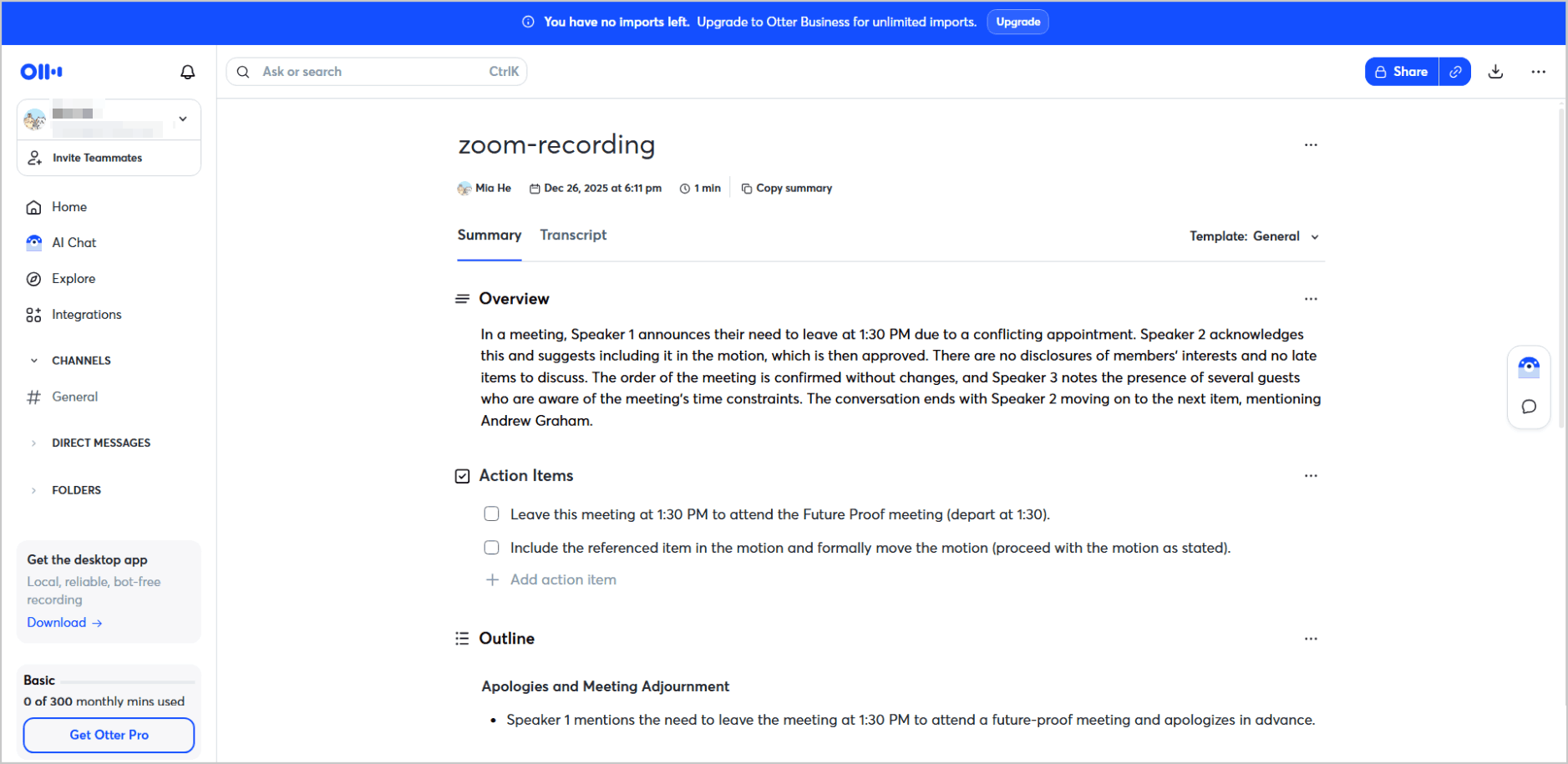
4. View the transcript.
Once processing is complete, click Go to Transcript to view the generated text.
5. Edit and export the transcript.
Review and edit the transcript to correct any errors, then export or share it as needed.
Method 3: Transcribe a Lecture Manually
To transcribe a lecture manually, play the recording and type the spoken content into a document. Pause or rewind whenever needed, especially for unclear sections. Add timestamps or headings to keep the transcript organized, then proofread it to fix any mistakes.
Tips for Getting Accurate Lecture Transcriptions
- Use clear audio.
- Select the correct language.
- Avoid overlapping speech.
- Check technical terms.
- Proofread the transcript.
To obtain a more accurate transcript of the lecture, it is best to use a recording with clear audio quality.
Additionally, ensure you select the correct language before using AI transcription tools. When recording the lecture, avoid situations where multiple people speak simultaneously, as this causes overlapping audio.
Once transcription is complete, carefully proofread the text to correct terminology, punctuation, and other errors.
How to Choose the Best Lecture Transcription Method
- Desktop transcription: good for recorded lectures and batch work.
- Online transcription: convenient for quick jobs.
- Manual transcription: best when maximum accuracy and control are required.
Conclusion
Transcribing lecture to text with AI makes lengthy lectures easier to review and organize. MiniTool Video Converter is suitable for transcribing recorded lectures on a PC and exporting editable TXT or SRT transcripts. Otter.ai is a good choice for quick, online transcription of shorter lecture recordings.
For assistance with MiniTool Video Converter, contact support@minitool.com via email.
User Comments :