

Initially, I would always edit my MP4 videos after recording them, but switching between different tools wasted unnecessary time. I later discovered that using a tool that integrates video cutting with other functions significantly boosts productivity. After trying out various options, I found the following two tools to be well worth a try:
- MiniTool Video Converter
- VEED
How Can I Cut MP4 Videos
Fast Track Steps:
- Open the cutting tool
- Import an MP4 video
- Select the unwanted segment
- Remove the unwanted segment
- Preview the video
- Choose the file output location
- Export the edited MP4 video
Both tools I tried, MiniTool Video Converter and VEED, make it easy to cut an MP4 video. The former is desktop software that integrates the video creation workflow, while the latter allows me to quickly cut videos directly in the browser.
Option 1: MiniTool Video Converter (Offline)
My top recommendation for an MP4 video cutter is MiniTool Video Converter. As the name suggests, it is not a dedicated video editor but a multifunctional tool that handles video conversion, compression, screen recording, etc. This allows me to conveniently cut an MP4 file after completing those other tasks, without needing to open a separate program.
This desktop tool is not only free but also supports importing and trimming videos in various formats, such as MP4, MOV, FLV, MKV, MPG, MPEG, MXF, and M4V. Finally, users can export the video in MP4 format. Furthermore, there is no need to worry about slow export times for long videos, as the tool automatically enables GPU acceleration during the export process.
Here are the detailed steps on how to cut MP4 videos on Windows with MiniTool Video Converter.
 MiniTool Video Converter
-
 Batch convert video/audio files among 1000+ formats.
 - Quickly compress videos for easy storage and transfer.
- Accurately extract subtitles from video/audio files.
- Effectively enhance video quality.

1. Download and install MiniTool Video Converter
Click the button above to download and install MiniTool Video Converter. Then, launch it on the PC.
2. Import the MP4 video
On the Home page, click the Cut Video option, then select the target MP4 video file in the new pop-up window. Click Open to add it to the tool.
3. Remove the unwanted section
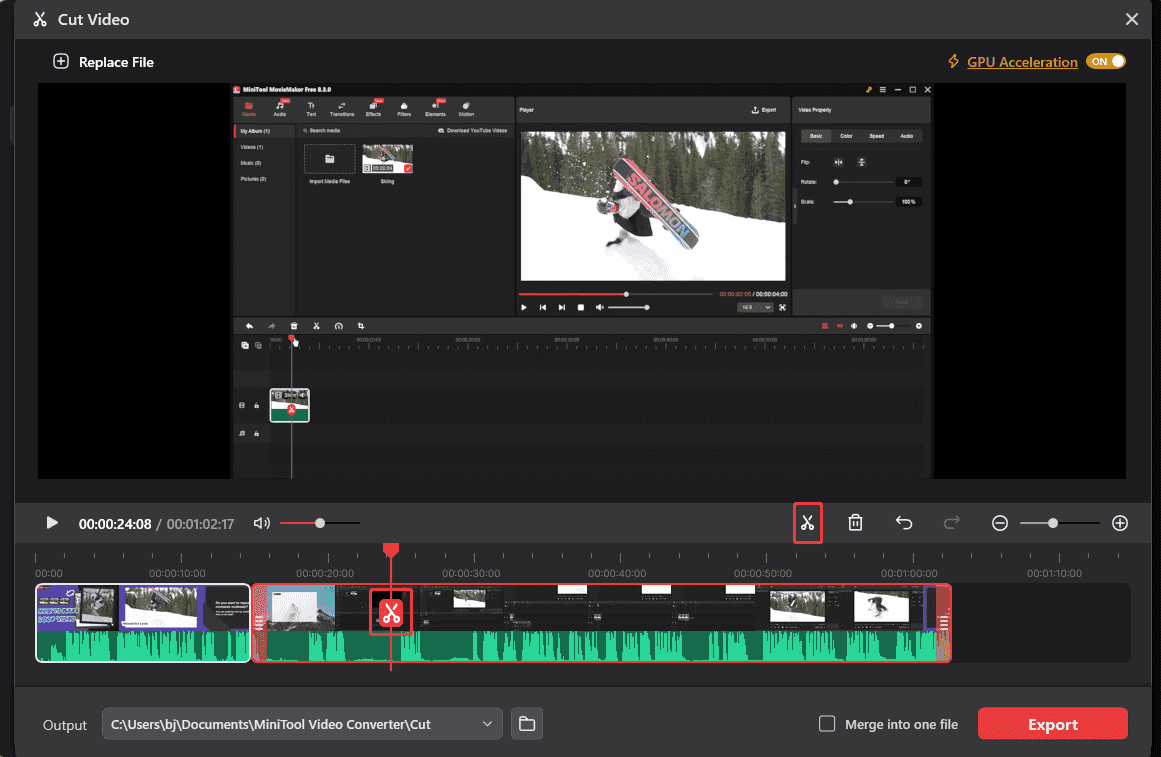
In the timeline, move the playhead to the start and end points of the segment you wish to remove, then click the Cut icon to split the video. Afterward, click the segment, then click the Delete icon to remove it.
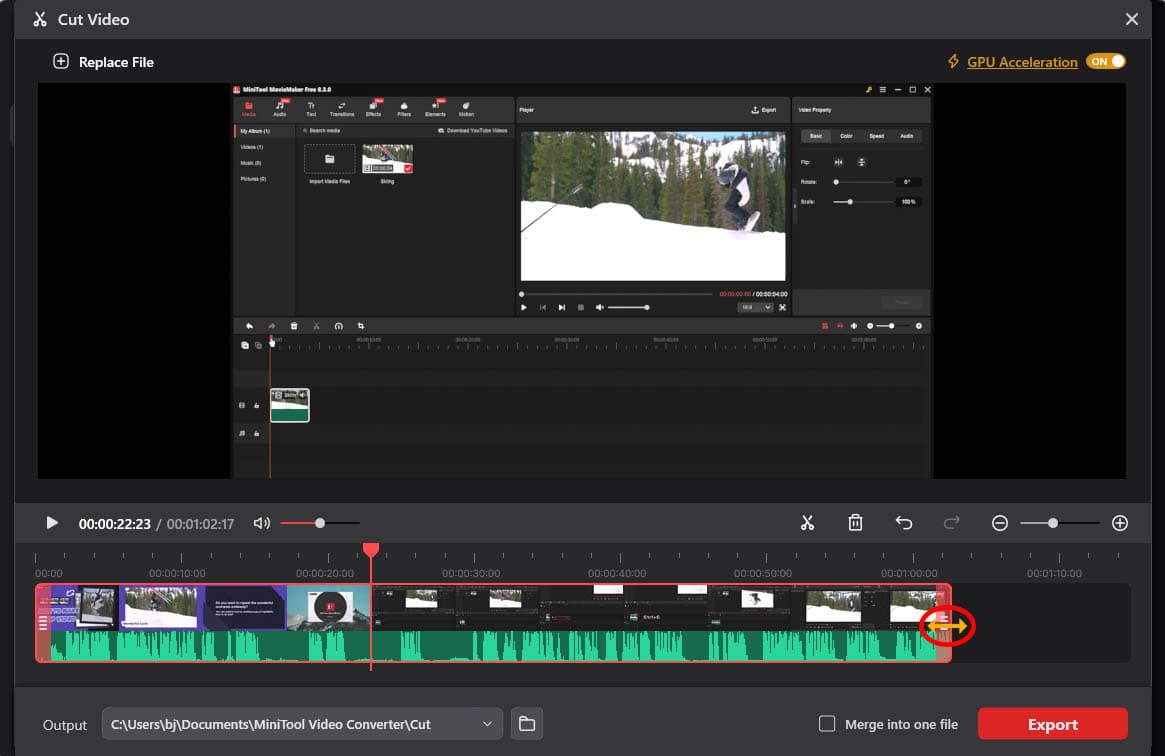
Alternatively, hover the mouse over the beginning or end of the video until a double-arrow icon appears, then drag it to trim away unwanted sections at the start or end.
4. Preview & choose file output location
Then, click the Play icon to check the edited MP4 video. Expand the Output option to choose the MP4 video file location.
5. Export the edited MP4 video
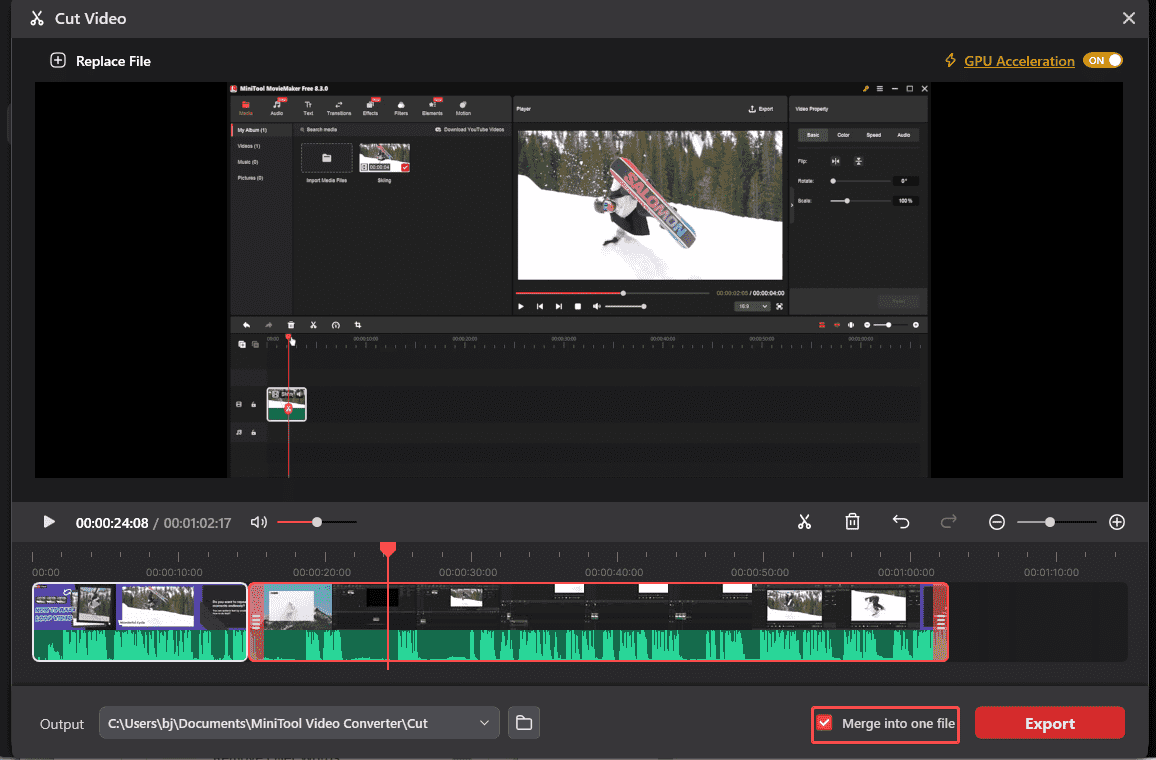
To export the edited video in one file, click the Merge into one file option. Then, click the Export option to save the edited MP4 video to the local drive.
Option 2: VEED
When I need to quickly cut MP4 videos, I usually turn to online tools like VEED. It is a cloud-based AI video creation tool that offers basic cutting capabilities. Unlike the basic cutting functions found in MiniTool Video Converter, VEED goes beyond simple trimming and splitting; it also allows me to adjust color settings, video dimensions, audio speed, and more.
Additionally, I can add transitions, filters, and text to the video. All in all, VEED is an excellent tool for tasks like quickly trimming MP4 videos.
The detailed guide below shows how to cut MP4 file online with VEED.
1. Open VEED
Visit the VEED website https://www.veed.io/tools/video-cutter. Then, click the Cut video option to enter the video cutting interface.
2. Import the MP4 video
In the video cutting interface, click the Upload files option to add the MP4 file to this tool.
3. Cut the unwanted part
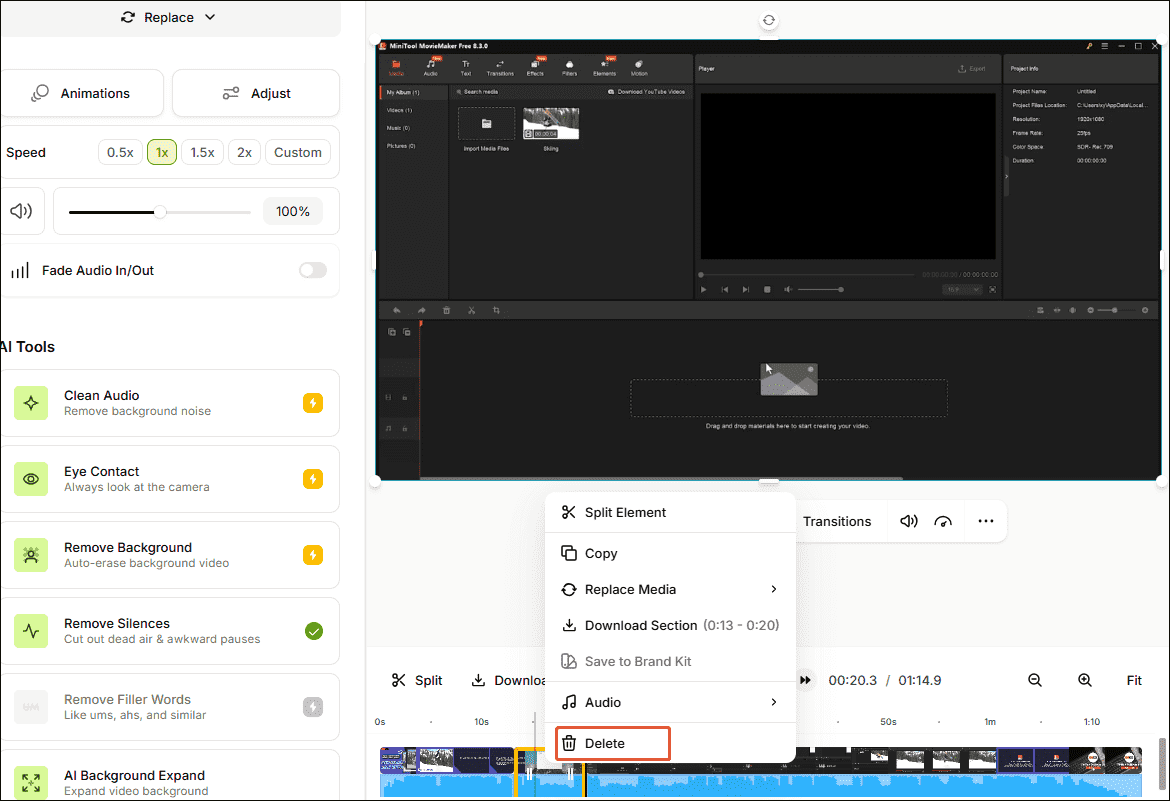
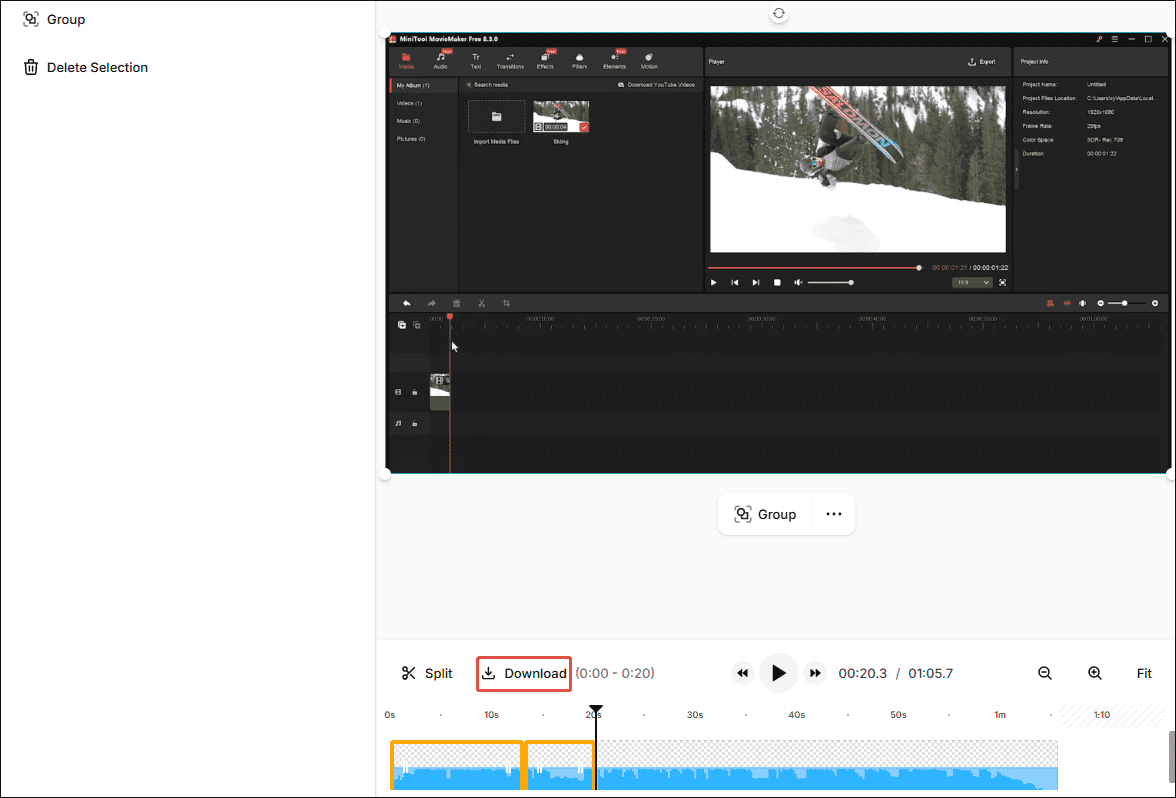
The MP4 audio will automatically appear in the timeline. Then, move the playhead to split the video. Next, choose the segment that needs to be cut and right-click it, then choose the Delete option to remove it. Or, hover the mouse over the beginning or end of the video until a double-arrow icon appears, then drag it to cut the beginning or the end of the video.
4. Preview the edited MP4 video
After video editing, click the Play video icon to check the MP4 video.
5. Save the edited MP4 video
If the trimmed video meets your expectations, click the Download option above the timeline to save the MP4 video.
The two tools mentioned above offer viable solutions for cutting MP4 videos, catering to different needs. The final choice should be made after trying out the methods described above.
Practical Tips for Cutting MP4 Videos
The cutting tool makes it easy to remove unwanted sections, but there are several factors to consider during the process to ensure the video remains smooth and cohesive.
- Audio continuity: Cutting video inevitably leads to audio-visual desynchronization. Therefore, it is necessary to ensure the audio remains synchronized after cutting.
- Video pacing: Pauses in the video are usually cut out, but appropriate pauses should be retained to maintain the video's rhythm.
- Content integrity: Before cutting the video, please make sure that the deleted part is not key information to avoid missing the key content of the video.
Final Words
It is easy to cut MP4 videos. The two tools introduced in this article, MiniTool Video Converter and VEED, offer straightforward, efficient ways to remove unwanted segments. Additionally, the tips on MP4 editing provided here can further help create more professional and polished videos.
If you encounter any questions when using MiniTool Video Converter, please send an email to support@minitool.com for help.
People Also Ask
About The Author

Position: Columnist
Jade is an experienced multimedia tech writer who has authored hundreds of guides on screen recording, video editing, and software troubleshooting. Dedicated to bridging the gap between complex technical concepts and user-friendly solutions, she specializes in providing clear, actionable advice.
User Comments :