

Overview of M4V and AAC Format
Before showing you how to convert M4V to AAC, let’s first understand these two formats.
What Is the M4V Format
M4V is a video container format developed by Apple. Apple uses this format to play videos purchased from the iTunes Store. The format supports DRM. If an M4V file is protected by Apple’s FairPlay DRM, copying or unauthorized use of the file is restricted.
M4V files typically contain H.264-encoded video and AAC audio. M4V files are primarily used to play video content from the iTunes Store, such as TV series, movies, and music videos. M4V files play smoothly on Apple devices, including the iPhone, iPad, and Apple TV. Some Apple software, such as Final Cut Pro and iMovie, also supports the M4V format.
M4V and MP4 are very similar. They both use the same codecs. However, MP4 is more universal and has wider compatibility. To broaden an M4V file’s support, you can use a converter to convert it to MP4 or simply rename the file to MP4.
What Is the AAC Format
AAC (Advanced Audio Coding) is an audio format that efficiently compresses audio. It’s commonly used on streaming platforms such as Apple Music, Spotify, Amazon Music, and YouTube. AAC is highly compatible. Most modern devices support AAC, including Apple devices, Android devices, and some game consoles. You can play AAC files on almost any modern audio player.
M4V is a video format, and AAC is an audio format. Why convert M4V to AAC? I will explain in the next paragraph.
Benefits of Converting M4V to AAC
Converting M4V to AAC is essentially extracting the audio from the M4V video. This allows the audio to be used for mixing, podcasting, and other purposes. Furthermore, AAC is a highly efficient and widely compatible format. You can convert M4V to AAC to have a better sound quality and improved compatibility.
How to Convert M4V to AAC? (2 Tools)
In this section, I will recommend two M4V to AAC converters for you: MiniTool Video Converter and Aconvert.
1. MiniTool Video Converter
MiniTool Video Converter is a professional audio/video converter. It supports multiple video and audio formats, including M4V, MOV, MP4, AAC, MP3, WAV, AIFF, and more. This application is easy to use. It keeps things simple and leaves no watermark on your files. How to convert M4V to AAC with MiniTool Video Converter? Here are the steps:
Step 1: Install MiniTool Video Converter
Click the download button below to get MiniTool Video Converter on your computer. Then launch this application.
MiniTool Video ConverterClick to Download100%Clean & Safe
Step 2: Import M4V Files
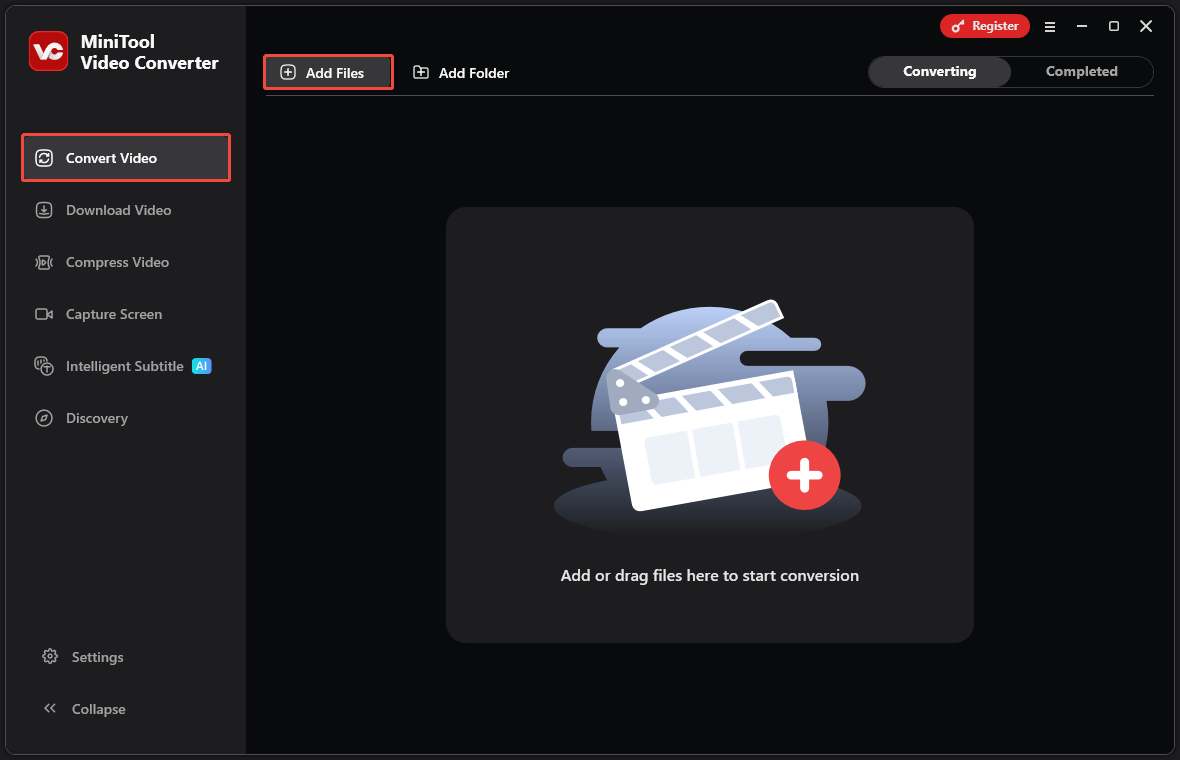
The converter opens on the Convert Video tab. Then click the Add Files option, select the M4V file you want to convert, and click OK.
Step 3: Choose AAC as the Output Format
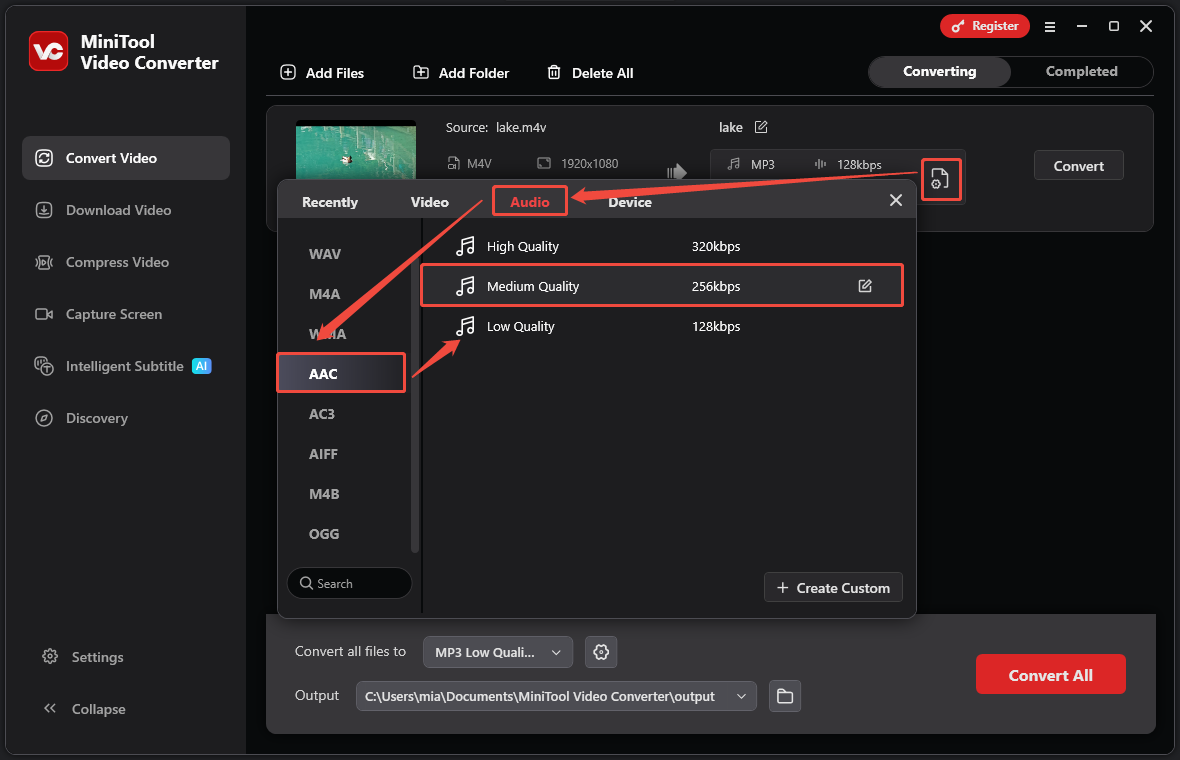
Once the file is uploaded, click the gear icon, select the Audio tab, choose AAC from the left list, then select the audio quality you want.
Step 4: Select a Save Folder and Start Conversion
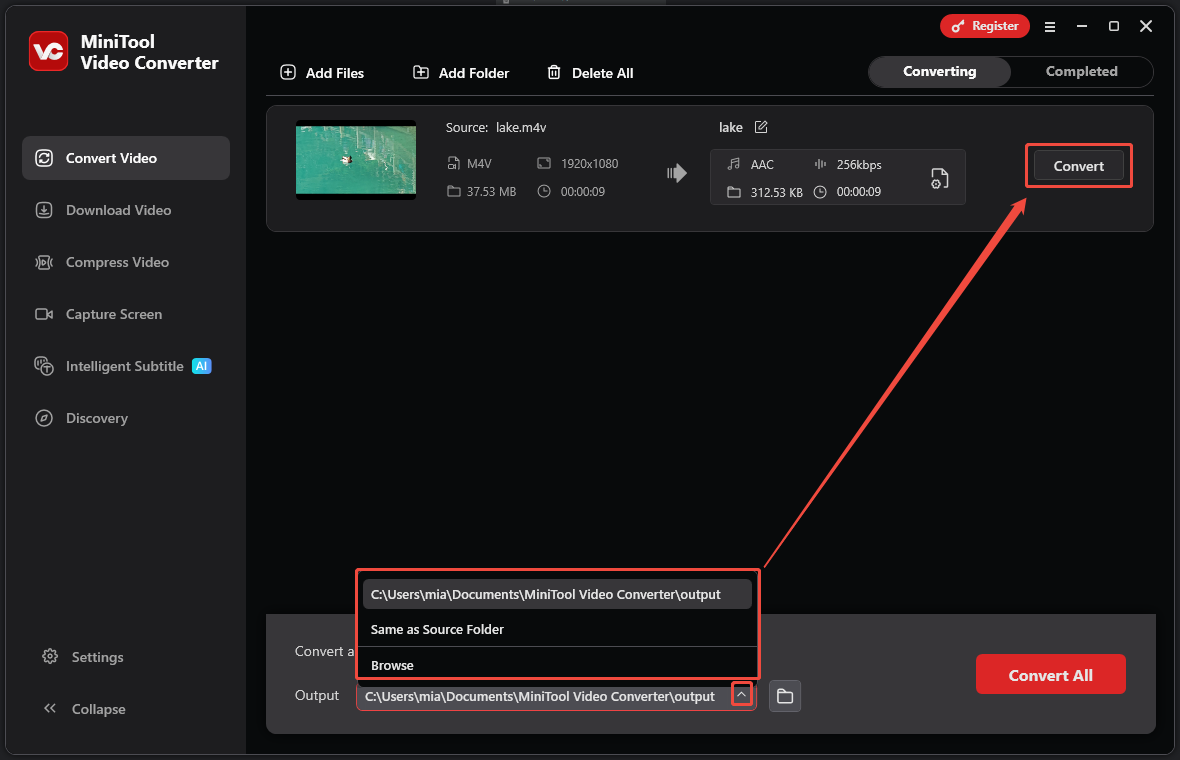
Open the Output menu and select a folder to save the converted file. After that, you can click the Convert button to begin the conversion.
Step 5: Play or Navigate to the Converted Files
Once the conversion is complete, the program will automatically move to the Completed tab. From there, you can click the play icon to preview the converted video, or click the folder icon to open the folder where the new file is saved.
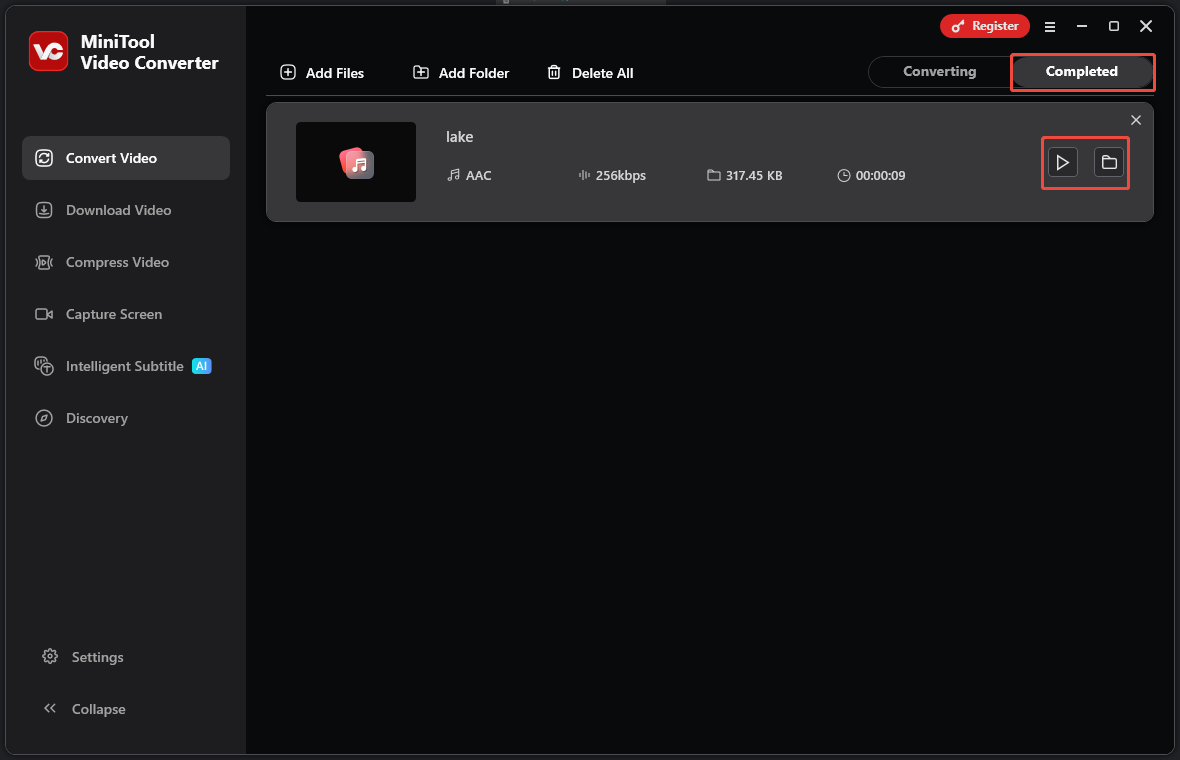
Follow the steps above, and you can convert M4V to AAC within minutes! You can also use this application to shrink video file size, convert speech to text, generate video captions, and more.
2. Aconvert
Aconvert is an easy-to-use online video converter. It supports conversion between various file types, including video, audio, and documents. Supported video formats include M4V, AAC, MP4, MOV, AVI, and WMV.
How to convert M4V to AAC with Aconvert? Here is a quick guide:
Step 1: Visit the Aconvert Website
Select a browser, then enter the following URL in the address bar: https://www.aconvert.com/audio/m4v-to-aac/.
Step 2: Add Your File
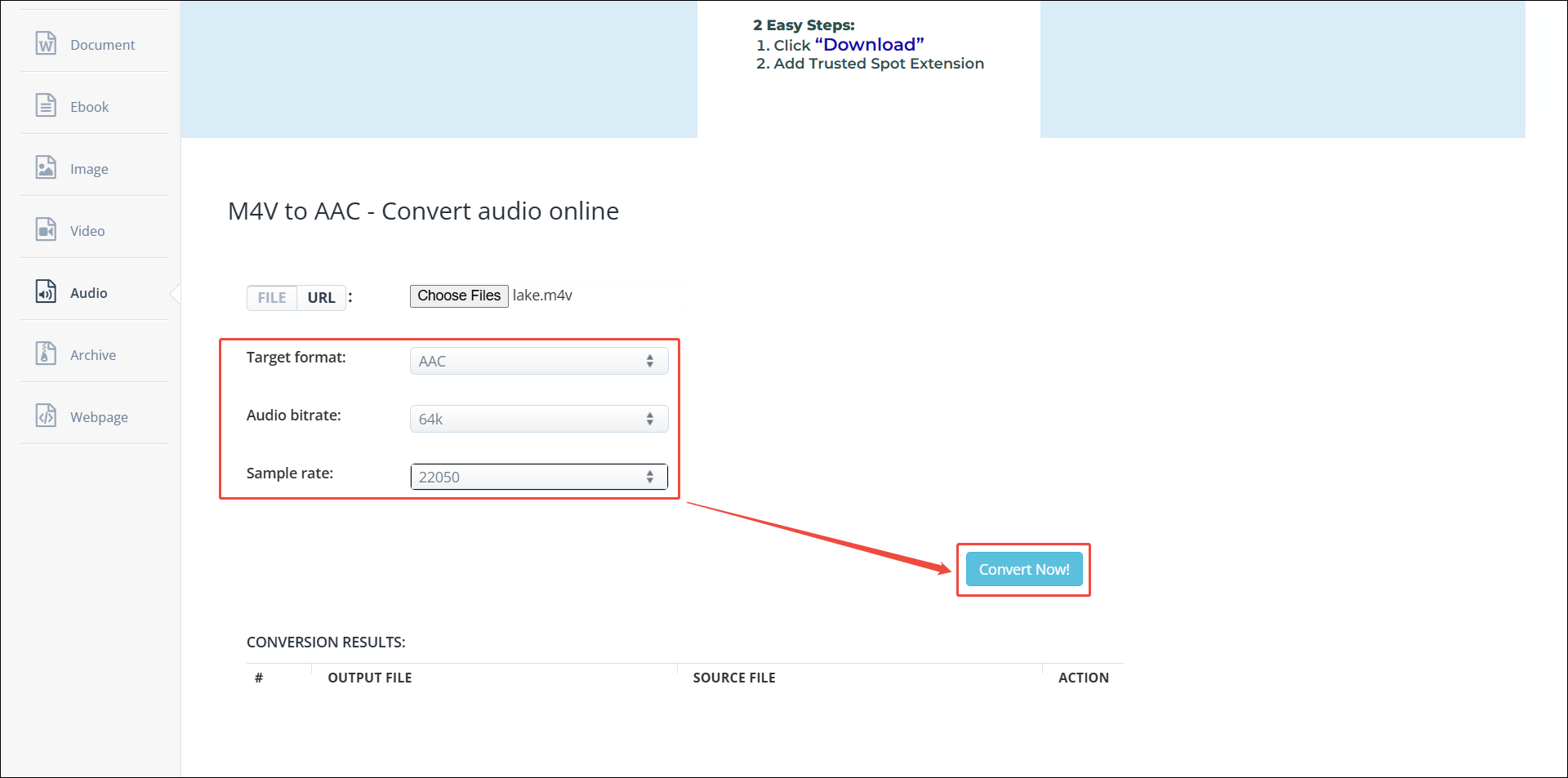
Click the Choose Files button and choose the M4V file you want to convert.
Step 3: Choose the Target Format
Expand the Target format option and select AAC as the output format.
Step 4: Set Audio Bitrate and Sample Rate
Select the audio bitrate and sample rate to suit your needs.
Step 5: Start Conversion
Click Convert Now! to start conversion.
Step 6: Download the Converted File
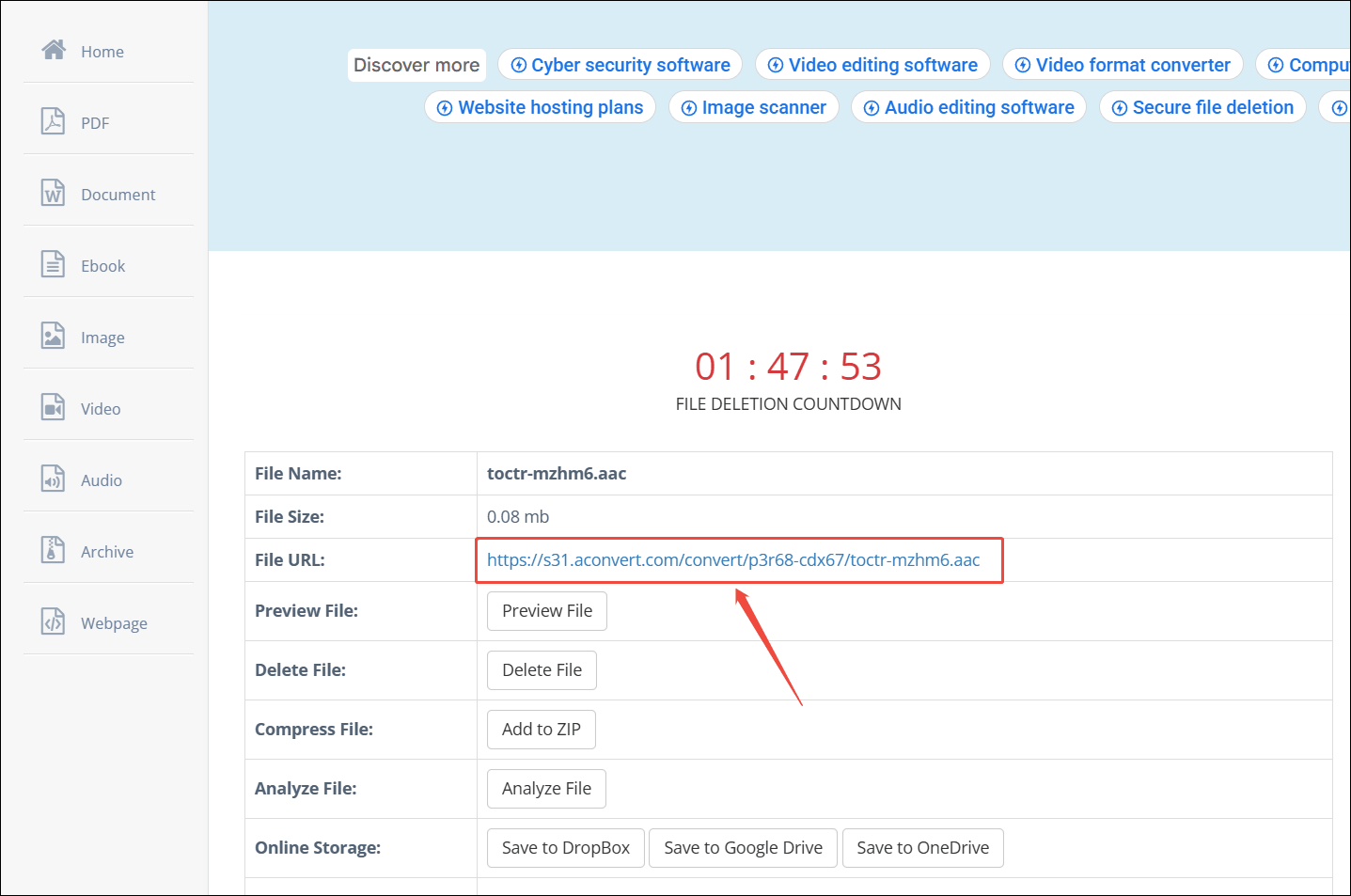
Once the conversion is complete, you can find the converted file in the CONVERSION RESULTS area. Then, click the download icon. On the new page, click the link next to File URL to download the converted file.
Aconvert is easy to use, converts quickly, and is completely free. If you can tolerate some ads on your website, then Aconvert is a good choice.
Conclusion
If you want to get the audio from the M4V video, you can choose to convert it to AAC format. Just select MiniTool Video Converter or Aconvert to complete the M4V to AAC conversion. Both of them are good choices.
User Comments :