

Recently, more and more users are complaining that they can’t view the XVID videos on Chromecast. Don’t worry. The following content can help you get Chromecast XVID support.
What Is Chromecast
Developed by Google, Chromecast refers to a powerful digital media player. It enables you to stream various content, including music, shows, films, and more, from your tablet, phone, or computer to a TV screen with a Wi-Fi network.
Does Chromecast Support XVID
Can Chromecast support XVID? The answer is negative. Specifically, Chromecast supports MP4 (H.264/AAC) and WEBM (VP8/Vorbis). As such, it is common to see that Chromecast won’t play XVID. To solve that problem, you can try the methods below.
Method 1. Use VLC
VLC, also known as the VLC media player, is an XVID player that is available on a wide range of systems, such as Windows, macOS, Android, iOS, ChromeOS, and more. With an open-source nature, it features an intuitive interface and enables you to attain Chromecast XVID support effortlessly. Below are the detailed instructions on how to play XVID on Chromecast using VLC.
Step 1. Download and install VLC.
Go to https://www.videolan.org/vlc/ to download and install the VLC media player on your PC. Connect your PC and Chromecast device to the same Wi-Fi network.
Step 2. Connect to the Chromecast device.
After launching the VLC media player, click on the upper Playback option and select Renderer. Next, choose the Chromecast device.
Step 3. Play XVID with VLC.
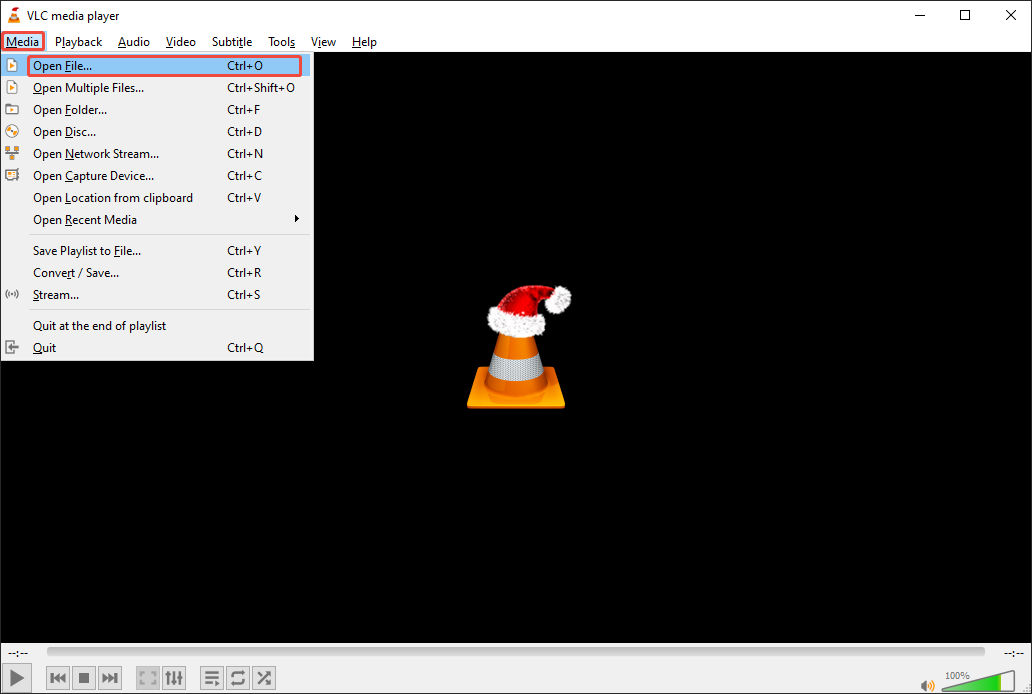
Click on the Media option in VLC and select Open File… to browse and select the XVID video that you want to play. Once you have chosen the XVID video, it will be played automatically on your Chromecast device.
If you are an Android/iOS user, the VLC app can also help. Just ensure that your phone and Chromecast device are on the same Wi-Fi network. Then, click on the Cast icon (usually in the upper right of the VLC app) to enjoy XVID on Chromecast.
Method 2. Convert XVID to MP4
MiniTool Video Converter is a can’t-miss application for you to convert XVID to MP4.
What Is MiniTool Video Converter
MiniTool Video Converter is a free video converter that enables you to convert XVID files to a variety of output formats, including MP4, MP3, MOV, AIFF, MKV, WAV, and more. In addition, this program supports batch conversion, allowing the conversion of up to 5 XVID videos at the same time.
MiniTool Video Converter doesn’t have any file size limit. Plus, it empowers you to customize the encoder, frame rate, sample rate, resolution, and other parameters of the output files. With a well-organized interface, MiniTool Video Converter is an ideal option for entry-level users.
How to Convert XVID to MP4 with MiniTool Video Converter
Below are the detailed steps to convert XVID to MP4 using MiniTool Video Converter.
Step 1. Download and install MiniTool Video Converter.
MiniTool Video ConverterClick to Download100%Clean & Safe
Click on the download button above to download and install MiniTool Video Converter on your PC.
Step 2. Import the XVID videos.
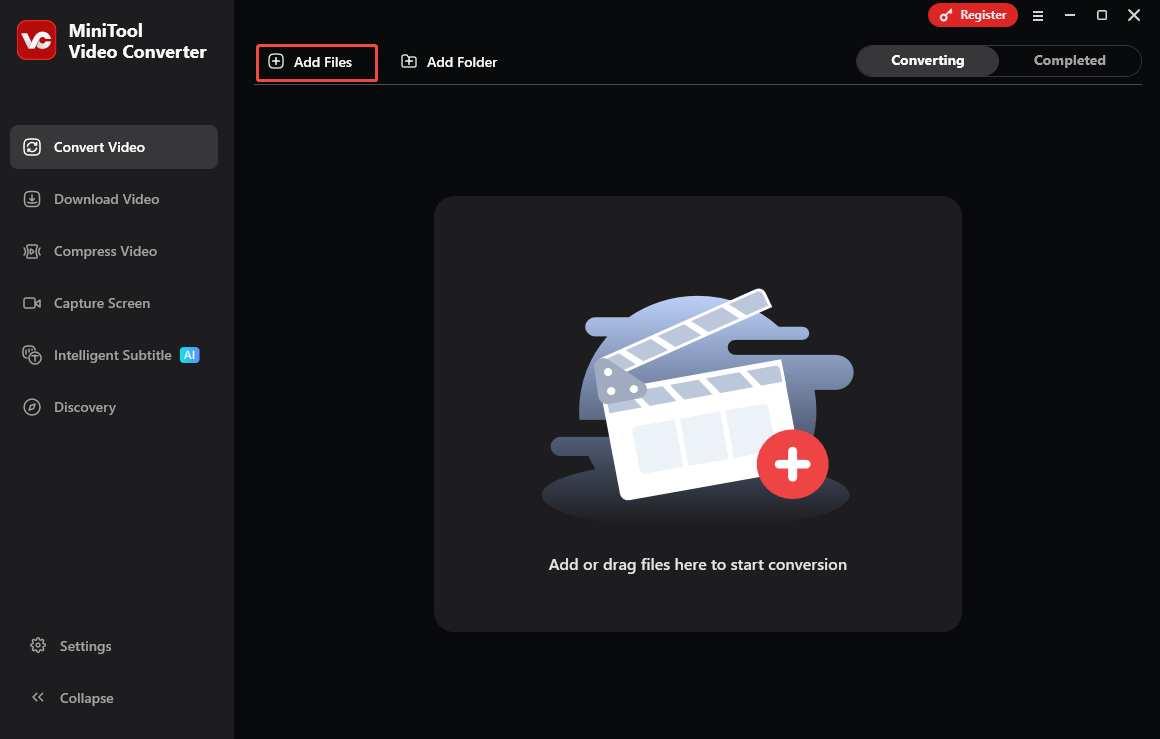
After launching MiniTool Video Converter, click on the upper-left Add Files option to upload the XVID videos.
Step 3. Set MP4 as the output format.
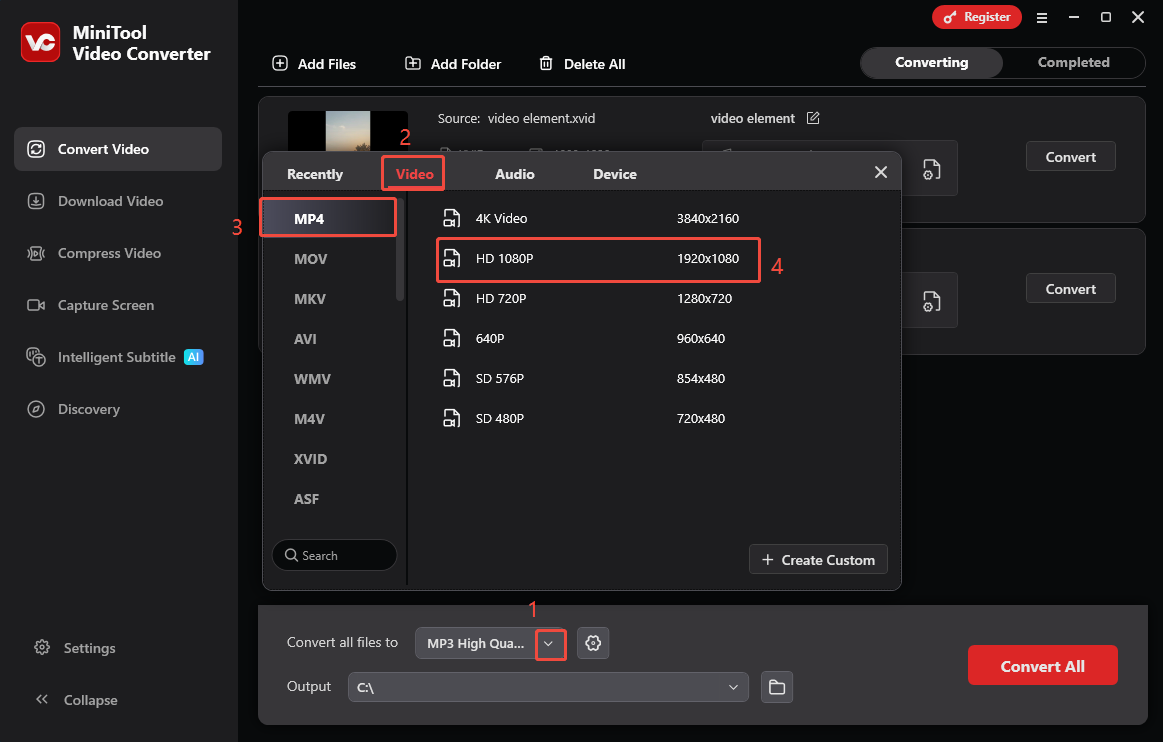
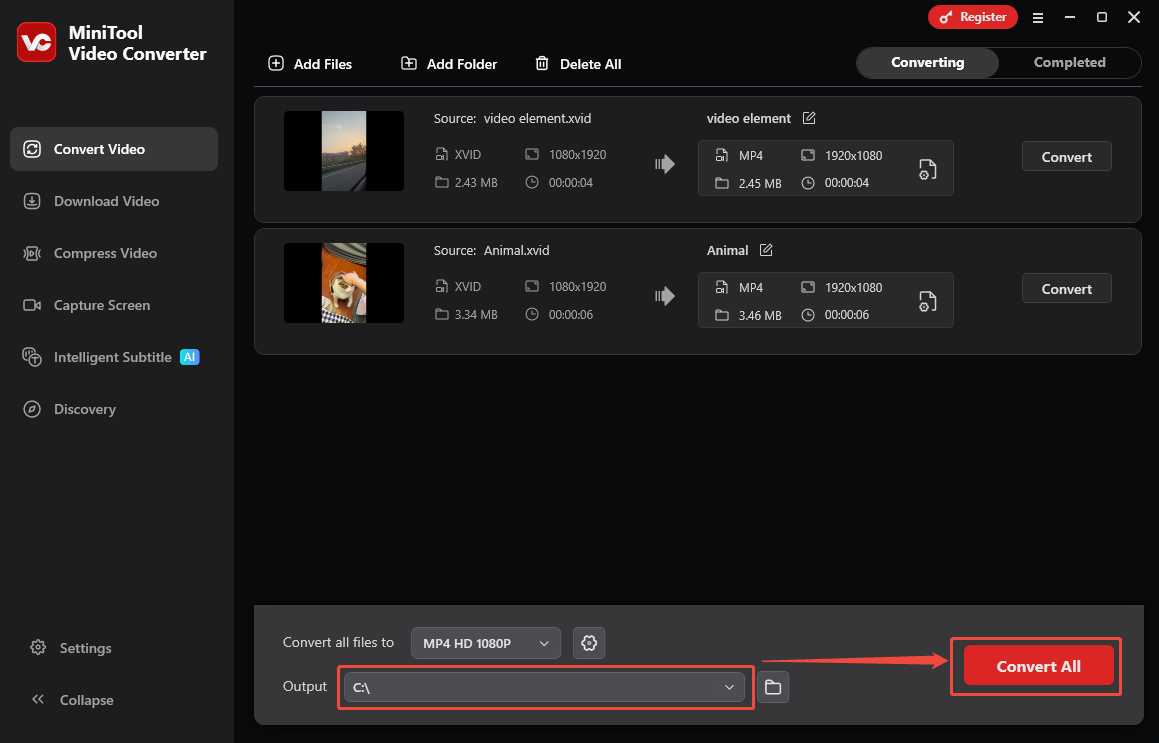
Expand the bottom Convert all files to option to enter the output format window. There, switch to the Video tab and click on MP4. Then, select the resolution you want. Here, I select HD 1080P as the example.
Step 4. Set an output folder and start conversion.
Expand the bottom Output option to select a destination folder for the converted files. Then, begin the conversion process by clicking on the bottom-right Convert All button.
Step 5. Check the output files.
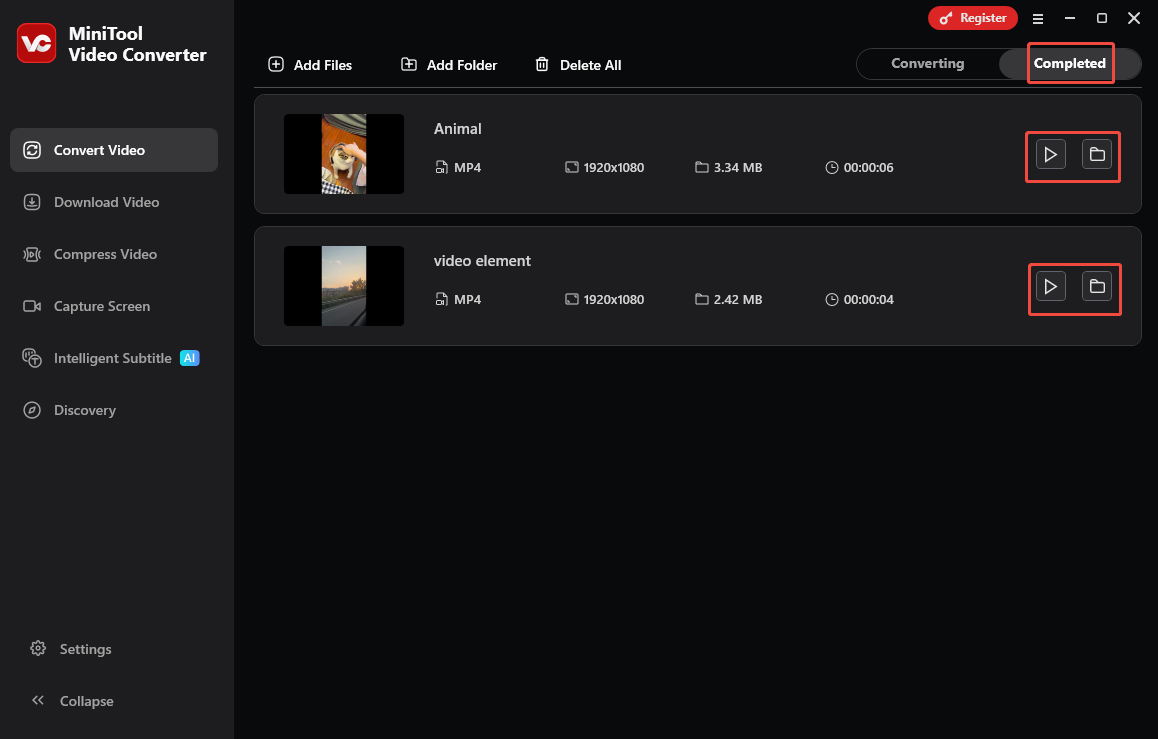
When the file conversion process completes, this video converter will automatically switch to the Completed section. There, click on the Play icon to view the output videos. If you want to locate the output videos, click on the Folder icon.
More than a video converter, MiniTool Video Converter is also a one-stop solution for video compression and video/audio-to-text conversion. If you want to convert XVID to MP4 online, visit https://www.freeconvert.com/xvid-to-mp4.
Closing Words
There is no native Chromecast XVID support. To view XVID videos on Chromecast, it is advisable for you to convert XVID to MP4 with MiniTool Video Converter. Provided that you don’t want a conversion method, you can use the VLC media player to cast the XVID content to the Chromecast device.
User Comments :