

AVI vs MOV, this article provides a comprehensive comparison of them from 3 aspects. It also details how to convert AVI to MOV with an excellent video converter: MiniTool Video Converter.
AVI (Audio Video Interleave) is an earlier multimedia container format that allows audio and video to be stored separately and synchronized during playback. MOV (QuickTime Movie) is a video container format developed by Apple. It is suitable for video editing and content creation. MOV is a very important format in the Apple ecosystem.
AVI vs MOV: Core Differences
How about AVI vs MOV? I compare them in terms of compatibility, file size, video quality, and usage.
1. Compatibility
AVI offers broader compatibility than MOV, supporting almost all older and newer computer systems, media players, and browsers. It performs particularly well on Windows systems. MOV provides native support on the Apple ecosystem, including iPads, iPhones, and Macs. It can be played on these devices smoothly.
2. File Size and Video Quality
AVI is an older video format with low compression efficiency. Its file size is usually large, requiring a large storage space. MOV uses advanced video codecs such as H.264 and H.265. Therefore, the MOV format achieves better video quality while maintaining higher compression efficiency. Furthermore, MOV files are smaller, making them suitable for storage, transmission, and sharing.
3. Usage
AVI is usually used for saving on Windows systems and playing on older devices. MOV format is used for playback and professional editing on Apple devices. Additionally, MOV is used for streaming media and various social media platforms.
Why Convert AVI to MOV
MOV has high compression efficiency, resulting in smaller file sizes. At the same video quality, converting AVI to MOV saves more storage space, also making it easier to transfer and share. AVI to MOV conversion makes videos more convenient to edit. Furthermore, AVI is prone to audio and video desynchronization issues. Converting AVI to MOV effectively solves this problem.
How to Convert AVI to MOV
Are you still looking for an AVI to MOV converter? As a user who frequently converts video formats, I want to recommend a video converter that I’ve used for several years. It is MiniTool Video Converter developed by MiniTool Ltd. It allows me to quickly and easily convert AVI to MOV. Besides, when I use it, I find it enables me to adjust advanced settings, such as resolution, frame rate, bitrate, and more.
Apart from converting AVI to MOV, MiniTool Video Converter also supports converting over 1,000 video and audio formats, such as MKV to MP4, WebM to FLV, VOB to OGV, and more. What’s more, it also allows me to convert 4K video to various formats, like 4K video to MKV, 4K to MOV, 4K to WMV, and more. Does it support batch conversion? Of course! I've tested that it can convert 5 tasks simultaneously.
Next, I will demonstrate how to convert AVI to MOV with MiniTool Video Converter efficiently.
Step 1. Obtain MiniTool Video Converter
I put the MiniTool Video Converter download button below. Just click on it to download and install this free video converter. Then, launch it.
MiniTool Video ConverterClick to Download100%Clean & Safe
Step 2. Upload AVI File
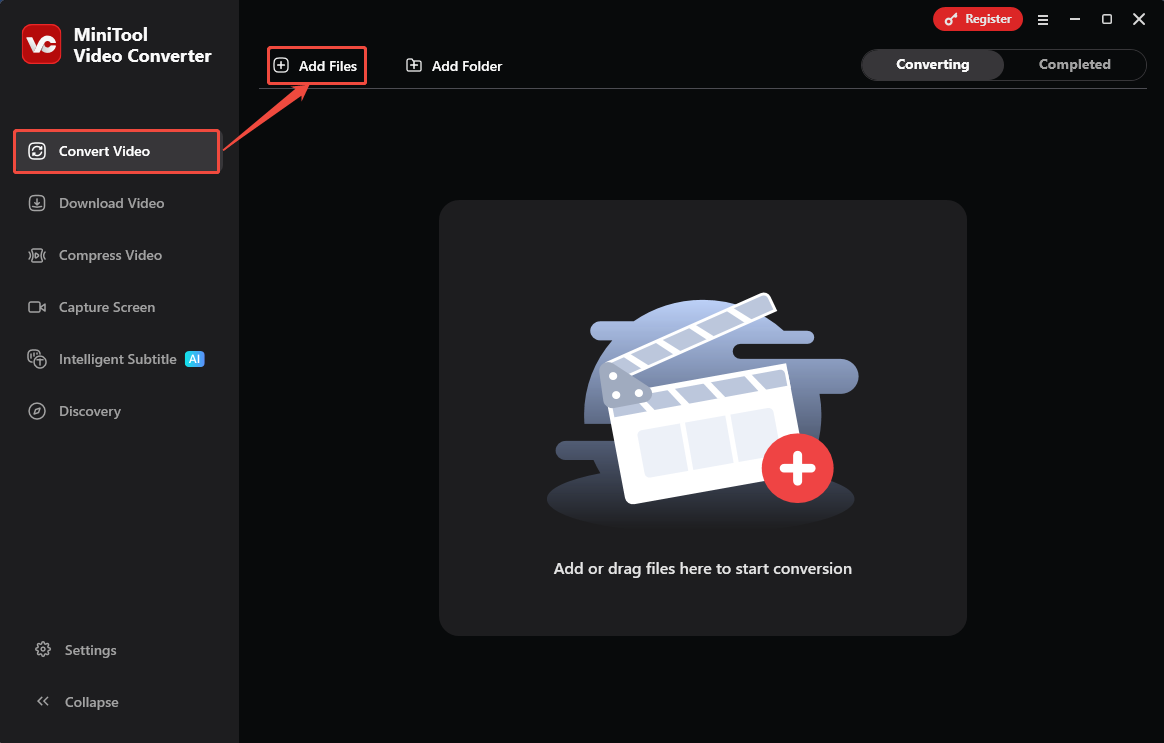
After running MiniTool Video Converter, I click on the Add Files option in the default Convert Video tab to upload the target video.
Step 3. Configure MOV as the Output Format
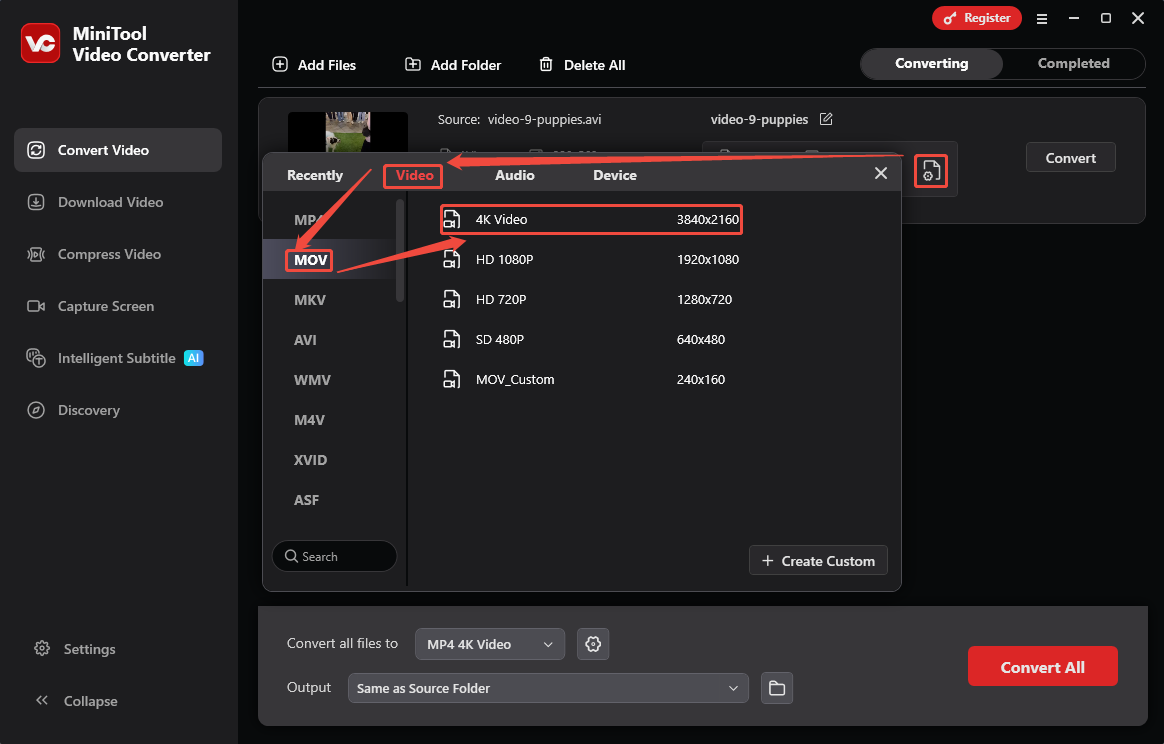
To set MOV as the output format, I click on the Gear icon to trigger the output format window. There, switch to the Video tab and select MOV. Then, I choose the 4K Video option for my converted video.
Step 4. Begin the Conversion Process
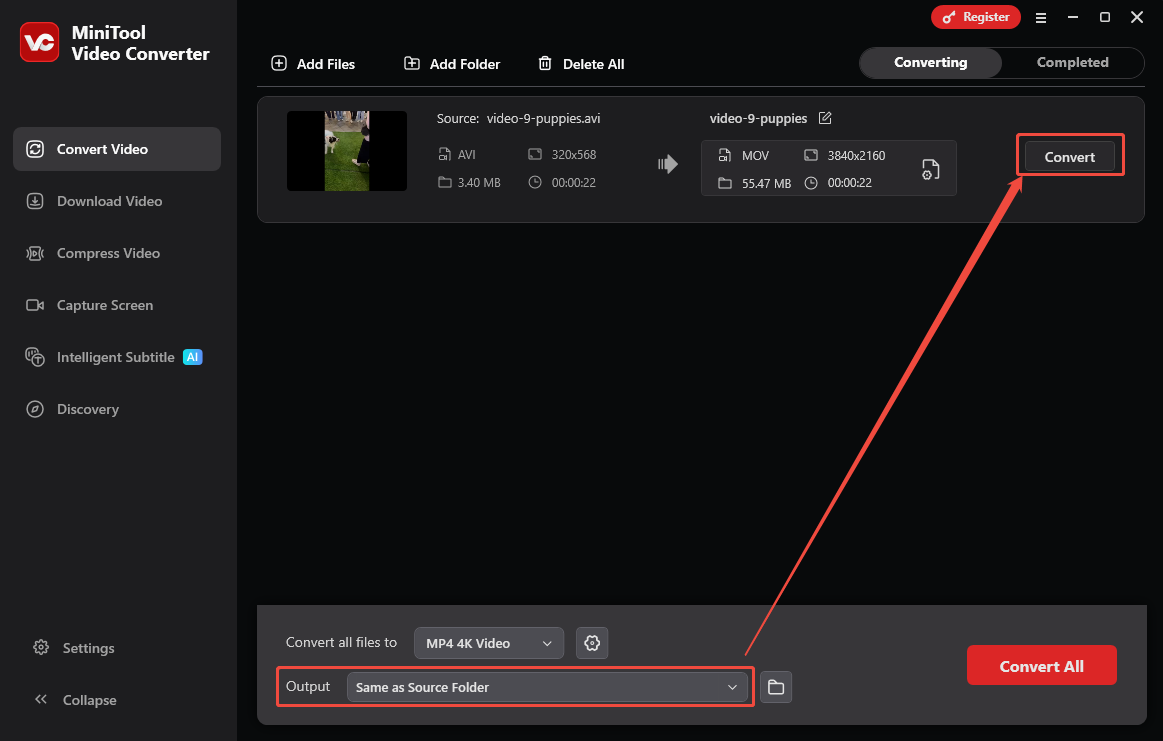
Before the conversion, I expand the Output option at the bottom of the main interface to set a saving path. Then, I click on the Convert button on the conversion task to begin the conversion.
Step 5. Take a Look at the Converted Video
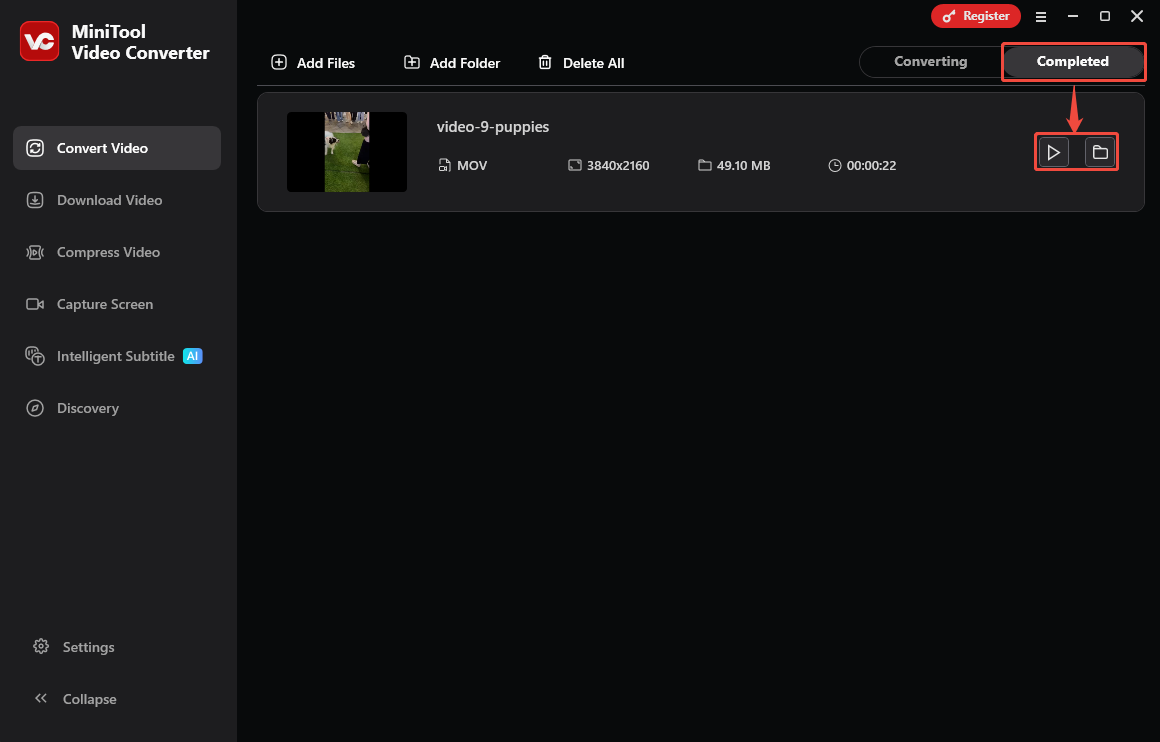
Once the conversion task finishes, the converted video will land on the Completed tab. At this point, I usually click on the Play icon to preview the converted video. Additionally, I habitually click the Folder icon to locate it on my computer.
MiniTool Video Converter makes it easy to convert AVI to MOV. It has no built-in ads or bundles, providing you with a clean and simple conversion interface.
Conclusion
AVI vs MOV, this article shows that they are different in terms of compatibility, file size, video quality, and usage. It also shares a detailed AVI to MOV conversion method, which uses MiniTool Video Converter.
User Comments :