

This article shows how to transcribe Arabic video to text with MiniTool Video Converter, including choosing an AI model, uploading the video, editing the transcript, and exporting the transcript in SRT or TXT. It also covers common use cases, key benefits, and tips for improving transcription accuracy.
I often need to convert spoken Arabic into written text for subtitles, translations, notes, or content creation. Fortunately, modern speech recognition technology makes the process faster and easier than ever.
In this guide, I'll show you how to transcribe Arabic videos to text step by step and share several practical tips to help improve transcription accuracy.
How to Transcribe Arabic Video to Text?
Fast Track Steps:
- Install and launch MiniTool Video Converter.
- Select an AI transcription model.
- Upload the Arabic video.
- Generate and review the transcript.
- Choose an export text format.
- Select the save location.
- Save the text file.
MiniTool Video Converter is a versatile multimedia tool that can convert video and audio files into text. It supports multiple languages and allows transcripts to be exported in SRT or TXT format. Below is how I use this tool to convert Arabic video to text:
1: Install and launch the speech-to-text converter.
Download and install the software on the computer. Then, launch it.
 MiniTool Video Converter
-
 Batch convert video/audio files among 1000+ formats.
 - Quickly compress videos for easy storage and transfer.
- Accurately extract subtitles from video/audio files.
- Effectively enhance video quality.

2: Select an AI transcription model.
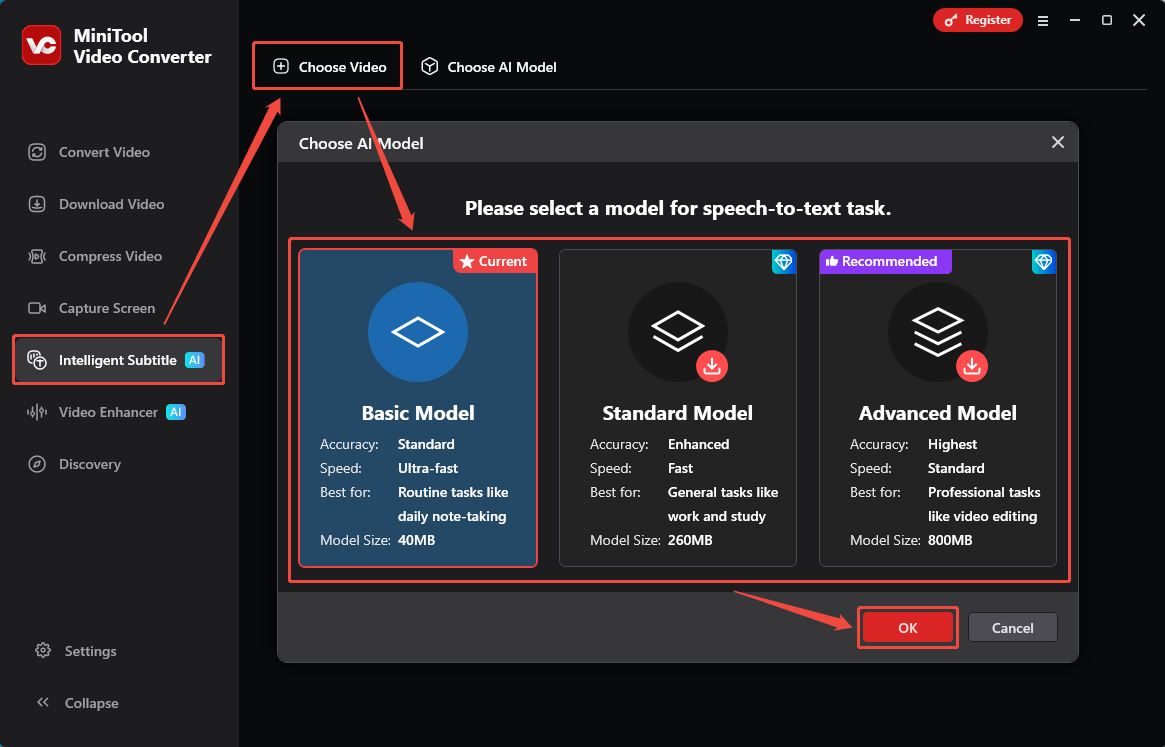
Go to the Intelligent Subtitle tab and click Choose Video. Then, choose the speech-to-text AI model and click OK.
3: Upload the Arabic video.
Next, the File Explorer will pop up. Select the Arabic video and click Open.
4: Generate and review the transcript.
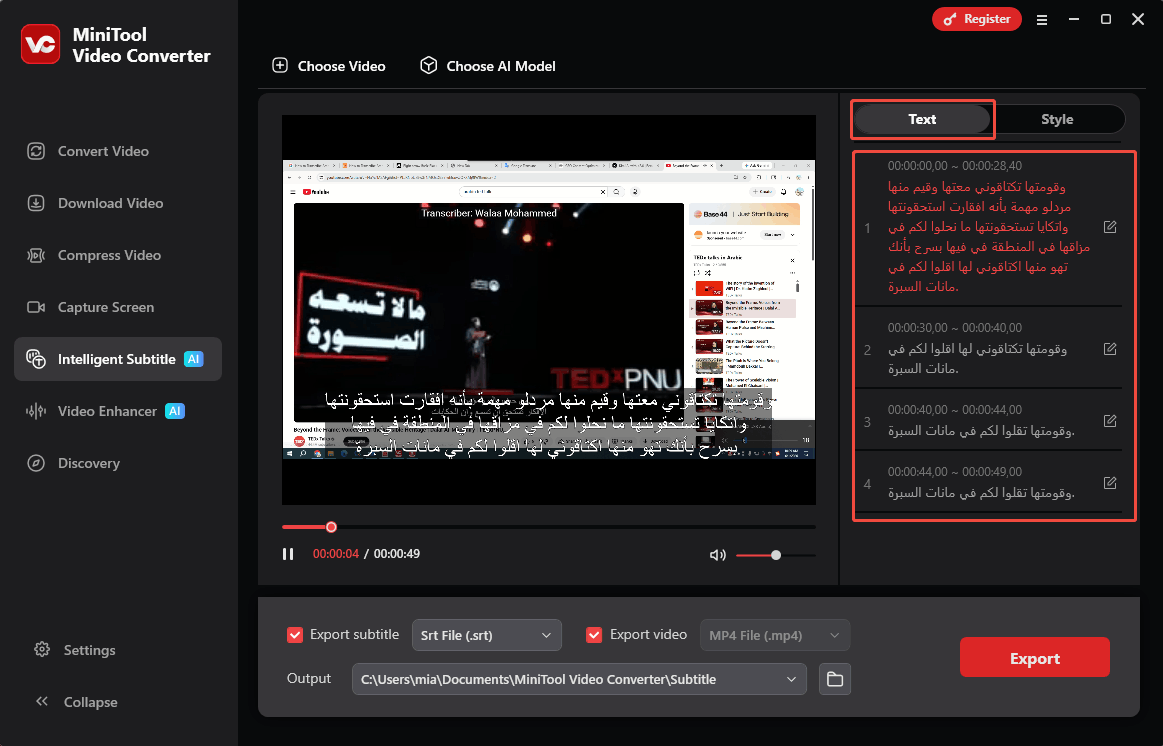
Once a video is uploaded to the software, the software automatically identifies the language within the video and begins transcription. Check the transcript in the Text section on the right. Select the edit icon next to a sentence to correct any errors.
5: Choose an export text format.
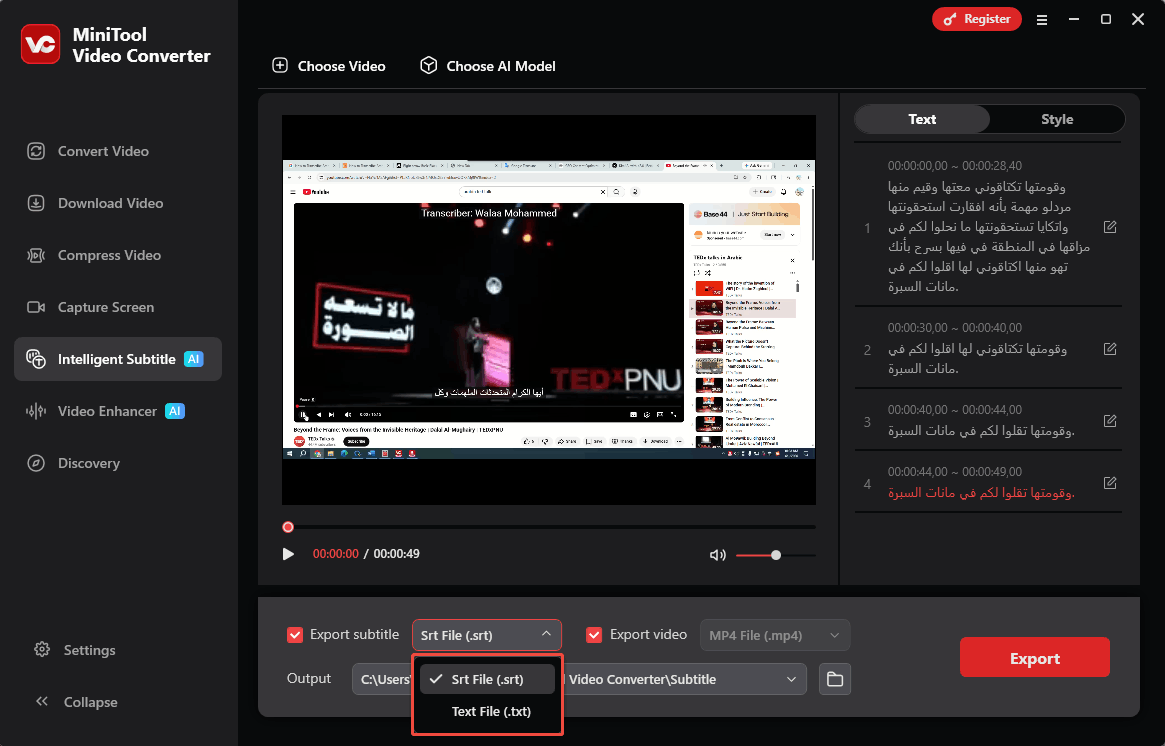
Expand the Export subtitle option and select SRT or TXT as the output text file format.
6: Select the save location.
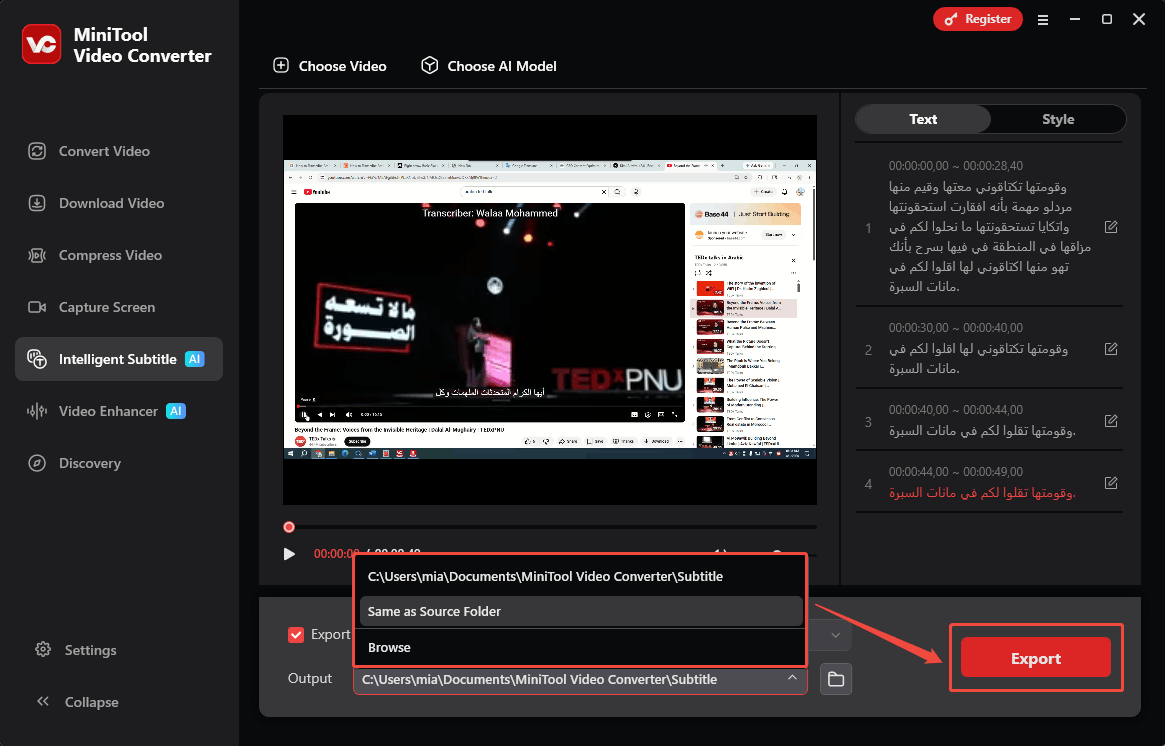
Open the Output menu and choose a destination folder for the exported file.
7: Save the text file.
Click Export to save the transcript on the computer.
This transcription tool supports exporting videos with embedded subtitles. After completing transcript edits, open the Style tab to customize subtitle font, color, and position, then export the video.
Why Transcribe Arabic Video?
- Creating subtitles for videos
- Turning lectures into study notes
- Repurposing videos into content
- Improves accessibility
- Enables easy translation
- Increases productivity
- …
Arabic video transcription converts spoken Arabic into text for subtitles, notes, and content reuse. It improves accessibility, searchability, and workflow efficiency. The following sections cover common use cases and key benefits.
Common Use Cases of Arabic Video Transcription
- Creating subtitles for videos: To add subtitles to Arabic videos without captions, first generate a transcript and then convert it into an SRT file for subtitle use.
- Turning lectures into study notes: Arabic lectures can be transcribed into structured written notes, making it easier to review key points and revise complex topics.
- Repurposing videos into content: The transcript extracted from the Arabic video can be reused to create articles, blog posts, or social media content, thereby helping to expand reach and attract a wider audience.
Key Benefits of Converting Arabic Video to Text
- Improves accessibility: Converting Arabic videos into text allows hearing-impaired users, as well as those who prefer reading over watching videos, to access the content directly.
- Enables easy translation: Once an Arabic video has been converted into text, that text can be quickly translated into other languages, helping content reach a global audience and facilitating multilingual communication.
- Increases productivity: Text-based Arabic content is easier to search, edit, summarize, and reuse, saving time in content creation, research, and documentation workflows.

Tips to Improve Arabic Transcription Accuracy
- Use high-quality source videos.
- Split long videos into smaller segments.
- Review and format the transcript.
While automated transcription tools can achieve relatively high accuracy, they are not perfect. Often, if the video's original audio is unclear or contains background noise, the transcription will also be inaccurate. Here are some tips to improve transcription accuracy.
1. Use High-Quality Source Videos
Ensure the audio of the video to be transcribed is clear and has minimal background noise. High-quality audio helps speech recognition tools identify words more accurately and reduces transcription errors.
If you are transcribing a video yourself, it's best to use a high-quality microphone placed close to the speaker to capture clear pronunciation. If the existing video contains noise, you can use noise reduction software to reduce it.
2. Split Long Videos into Smaller Segments
For transcription software, long video or audio files are time-consuming and can reduce accuracy. Therefore, before transcription, we can segment lengthy Arabic videos into shorter segments to simplify the transcription process. This also helps identify errors more efficiently.
3. Review and Format the Transcript
Even advanced AI transcription tools may misunderstand technical terms, dialects, personal names, or unique expressions. Therefore, it's essential to check the text for errors before exporting. If any are found, correct them promptly within the software.
Once the transcript is exported as an SRT, TXT, or other file format, adjust punctuation, paragraph breaks, and formatting to improve readability and ensure a clear flow of information.
Conclusion
With the MiniTool Video Converter, it is easy to transcribe Arabic video files into text for subtitles, notes, and content reuse. For higher accuracy, use clear source videos and review the transcript before exporting.
If you encounter any problems while using MiniTool Video Converter, please feel free to reach out via support@minitool.com for further assistance.
People Also Ask
About The Author

Position: Columnist
Cora is a tech writer specializing in digital media workflows, with over six years of hands-on experience in video post-production, media transcoding, and screen capture. Her writing is always clear and practical. Cora also produces in-depth software reviews for users across skill levels to help them find the right tool and enjoy video editing.
User Comments :