

This post explains how to upscale video using the AI video upscaler in MiniTool Video Converter. Follow these steps: import the video, choose your desired enhancement level, and begin upscaling.
Video upscaling refers to the process of increasing video resolution by intelligently supplementing pixels using AI technology. Since resolution affects video clarity, AI-enhanced videos offer better clarity.
How to Upscale Video
Fast Track Steps:
- Install MiniTool Video Converter
- Import your video.
- Set an enhancement level
- Preview the enhanced video.
- Start enhancement.
When it comes to upscaling videos, what tools can I use to achieve an increase in video quality? After some searching, I found that MiniTool Video Converter met my needs. It includes an AI video enhancer to upscale regular videos, anime, and cartoon videos. It's also capable of removing noise and grain to make a video clear again.
The software supports various video upscaling options, including original resolution, 2X upscaling, and 4X upscaling, up to 4K resolution or higher resolution, significantly improving video quality. Even when keeping the original resolution, the quality of the final video is much better. The application also allows me to compare original and enhanced versions side by side, so I can check if the final result meets my needs before exporting.
Here is how to upscale video using MiniTool Video Converter:
1. Download and Install
Download the AI video enhancer and follow the on-screen prompts to set it up. Then, launch this software.
 MiniTool Video Converter
-
 Batch convert video/audio files among 1000+ formats.
 - Quickly compress videos for easy storage and transfer.
- Accurately extract subtitles from video/audio files.
- Effectively enhance video quality.

2. Import Target Video
After entering the main interface of MiniTool Video Converter, go to the Video Enhancer tab. There, click the Add Video option to import the target video.
3. Choose the Upscaling Level
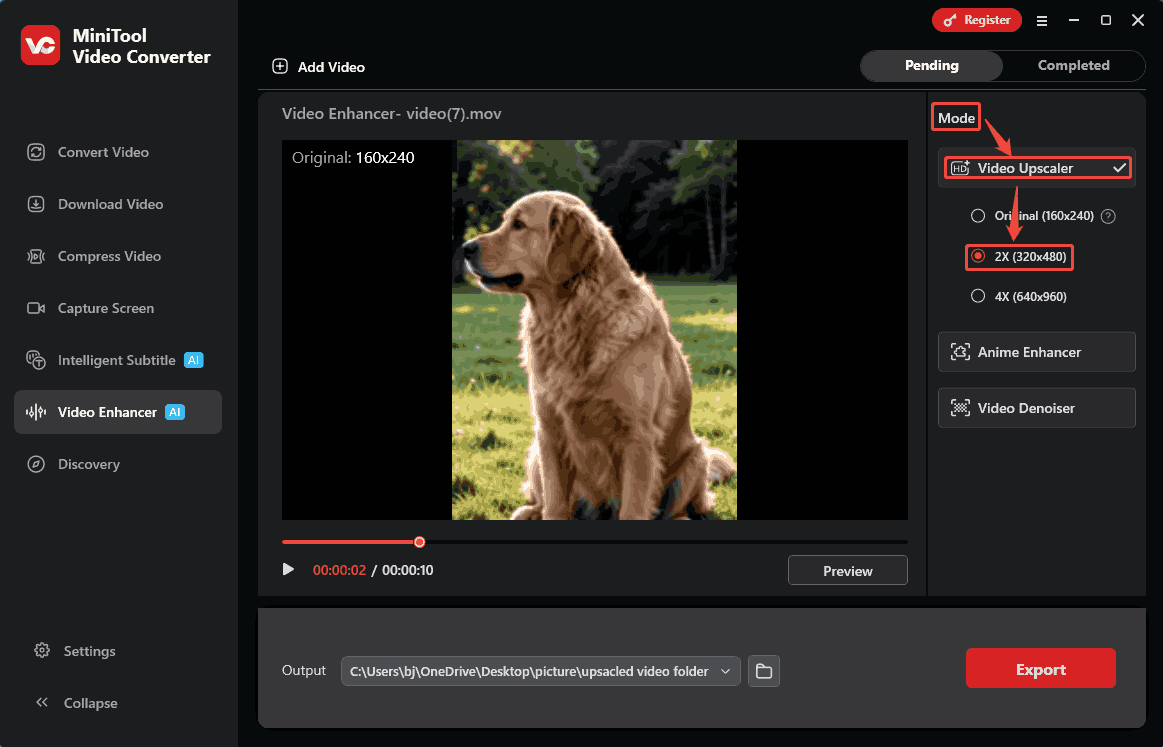
Navigate to the Mode section and expand the Video Upscaler menu to specify a desired upscaling level. Here, I choose 2X, which means the video will be upscaled to twice its original resolution.
4. Preview the Upscaled Video
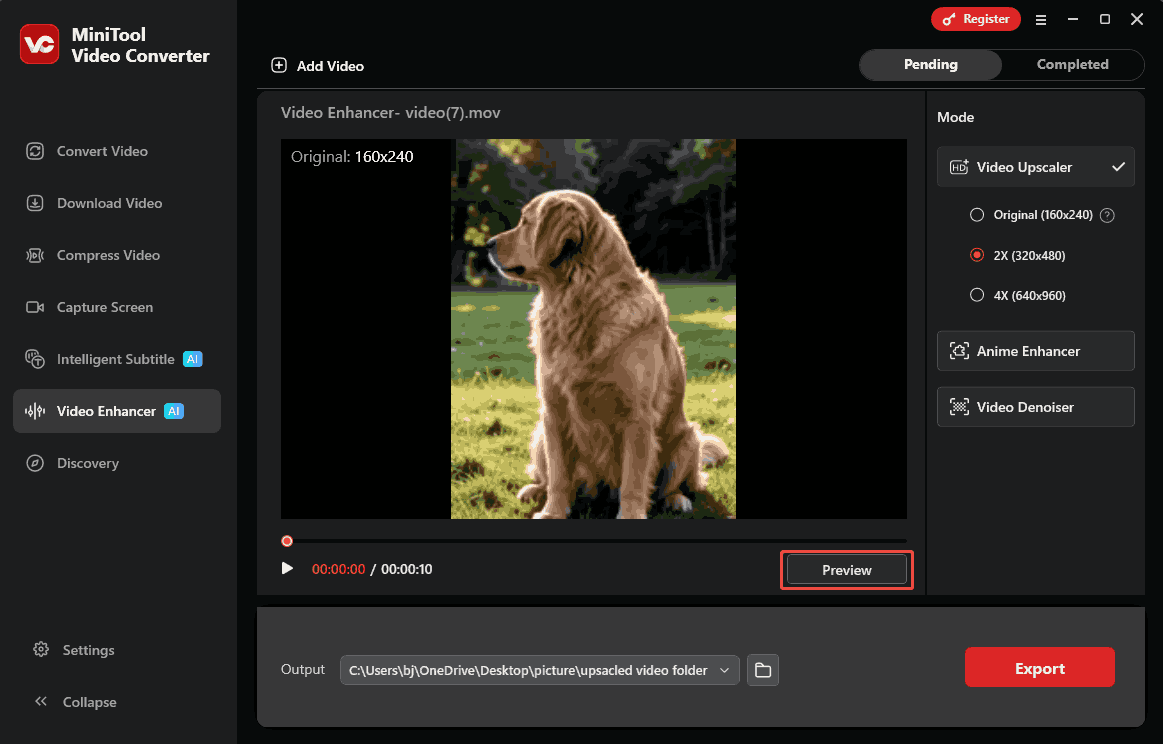
After selecting the enhancement level, I click the Preview button in the playback window to compare the before-and-after effects side by side at key frames.
5. Export the Upscaled Video
Before exporting the video, expand the Output option to select a storage location as an export destination for the upscaled video. Then, click on the Export button to start the export process.
6. Check and Locate the Final Result
Once rendering is complete, the exported video will appear in the Completed tab. From there, click the Play icon to view the video, or click the Folder icon to find the upscaled video on my computer.
Why Upscale Video
Video upscaling helps improve video quality by increasing resolution to 1080p, 4K, or even 8K, making videos suitable for modern high-resolution screens.
When importing low-resolution or vintage-style videos to modern high-resolution devices, the videos are typically enlarged. Without upscaling, the original pixels of the video can’t fill the screen of a high-resolution device, potentially resulting in a blurry or pixelated image. By increasing the resolution, upscaling allows the video to better fill the screen, presenting a clearer picture.
Common Target Video Resolution for Upscaling
The purpose of video upscaling is to improve video quality. Therefore, common types of video upscaling usually involve higher resolution, including 1080p, 4K, and 8K.
1080p (1920x1080): 1080p is a very common high-resolution standard nowadays, which is often seen on short video platforms and social media. It is usually used to replace 480p or 720p video footage.
4K (3840x2160): 4K is a frequently used resolution for smart TVs and high-end streaming media. It allows for rich detail in video images. 4K resolution is also commonly used in artificial intelligence fields, such as image enhancement technology.
8K (7680x4320): 8K is currently a more advanced resolution standard. It is less common in everyday life and is mainly used for advanced image enhancement technologies to provide as much detail as possible in the image. 8K is also a major tool for future technological innovations.
Traditional Video Upscaling Tool vs AI Upscaling
Quick Answer:
| Aspect | Traditional Stretching | AI Upscaling |
| How It Works | Copies and stretches original pixels | Uses AI to analyse and reconstruct missing pixel details |
| Output Quality | Soft, pixelated, with visible artifacts | Crisp edges, enhanced textures, and fine details |
| Real Quality Boost? | No | Yes |
| User Effort | Needs manual tweaking of settings | Simple one-click process |
Of course! Traditional video upscaling and AI-based video upscaling are completely different. Compared to traditional methods, AI video upscaling technology usually produces better results. Traditional upscaling stretches the original pixels, making each frame of the video appear larger, but it often results in a blurry or soft image.
On the other hand, AI-based video upscaling technology enlarges each frame by increasing the number of pixels in every frame. This technology not only magnifies the image but also enhances video clarity, resulting in a qualitative change in the video.
Final Words
It is not difficult to upscale videos. With MiniTool Video Converter’s AI enhancement tool, you can easily upscale a low-resolution video to higher resolutions and improve clarity. That’s totally different from traditional upscaling, which just duplicates existing pixels and cannot actually improve video quality.
If you encounter problems while using MiniTool Video Converter, contact the support team at suppoer@minitool.com for assistance.
People Also Ask
About The Author

Position: Columnist
Cora is a tech writer specializing in digital media workflows, with over six years of hands-on experience in video post-production, media transcoding, and screen capture. Her writing is always clear and practical. Cora also produces in-depth software reviews for users across skill levels to help them find the right tool and enjoy video editing.
User Comments :