

This article introduces the 2 best speech-to-text app for hearing impaired free, including MiniTool Video Converter, which supports offline transcription, TXT and SRT export, transcript editing, and subtitle creation, and AudioConvert, which provides transcription with speaker identification and AI summaries.
Speech-to-text technology converts spoken language into written text, either in real time or from recorded audio and video files. This technology makes it easier for people to follow conversations, meetings, videos, and other audio content. For people with hearing impairments, speech-to-text tools offer a convenient way to access spoken information in writing.
This article introduces several high-quality, free speech-to-text apps suitable for the hearing impaired and compares their key features and use cases.
Best Speech-to-Text App for Hearing Impaired Free
- MiniTool Video Converter
- AudioConvert
The tools above can all transcribe audio to text for free. See the table below for a quick comparison of their key features.
| MiniTool Video Converter | AudioConvert | |
| Input | Video/Audio | Video/Audio |
| Subtitle output | SRT | SRT/VTT |
| Text output | TXT | TXT/DOCX |
| Export subtitles with video | Yes | No |
| Offline Use | Yes | No |
| Best for | Transcribe videos; create subtitles | Audio/video transcription |
Note: Once MiniTool Video Converter has downloaded the AI transcription model while connected to the internet, it can transcribe audio or video offline.
#1 MiniTool Video Converter
MiniTool Video Converter is a speech to text app for hearing impaired. It can turn recorded speech into editable text, making spoken content easier for hearing-impaired users to read and review. The transcript can be saved as a TXT or SRT file, which also makes it easy to create subtitles for videos.
Here is how to transcribe speech to text using MiniTool Video Converter’s Intelligent Subtitle feature:
Fast steps:
- Launch MiniTool Video Converter.
- Access Intelligent Subtitle.
- Add your speech recording.
- Review the generated transcript.
- Choose the output text format.
- Choose where to save the transcript.
- Export the text.
 MiniTool Video Converter
-
 Batch convert video/audio files among 1000+ formats.
 - Quickly compress videos for easy storage and transfer.
- Accurately extract subtitles from video/audio files.
- Effectively enhance video quality.

1. Launch MiniTool Video Converter.
Download and install MiniTool Video Converter, then open the program on your Windows PC.
2. Access Intelligent Subtitle.
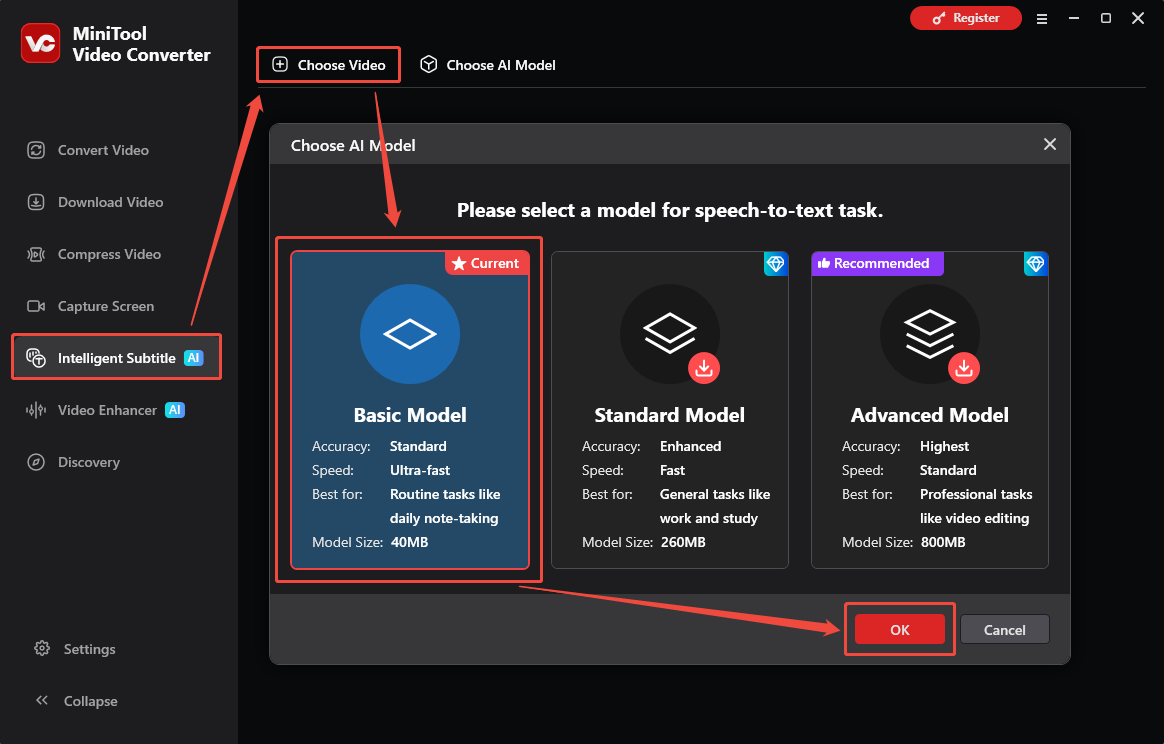
Select Intelligent Subtitle from the left panel. Click Choose Video, select an AI transcription model in the pop-up window, and click OK to continue.
3. Add your speech recording.
When File Explorer appears, browse to the recording file and open it. MiniTool Video Converter supports various audio and video formats, including MP4, MKV, MOV, AVI, WMV, MP3, WAV, M4A, and more.
4. Review the generated transcript.
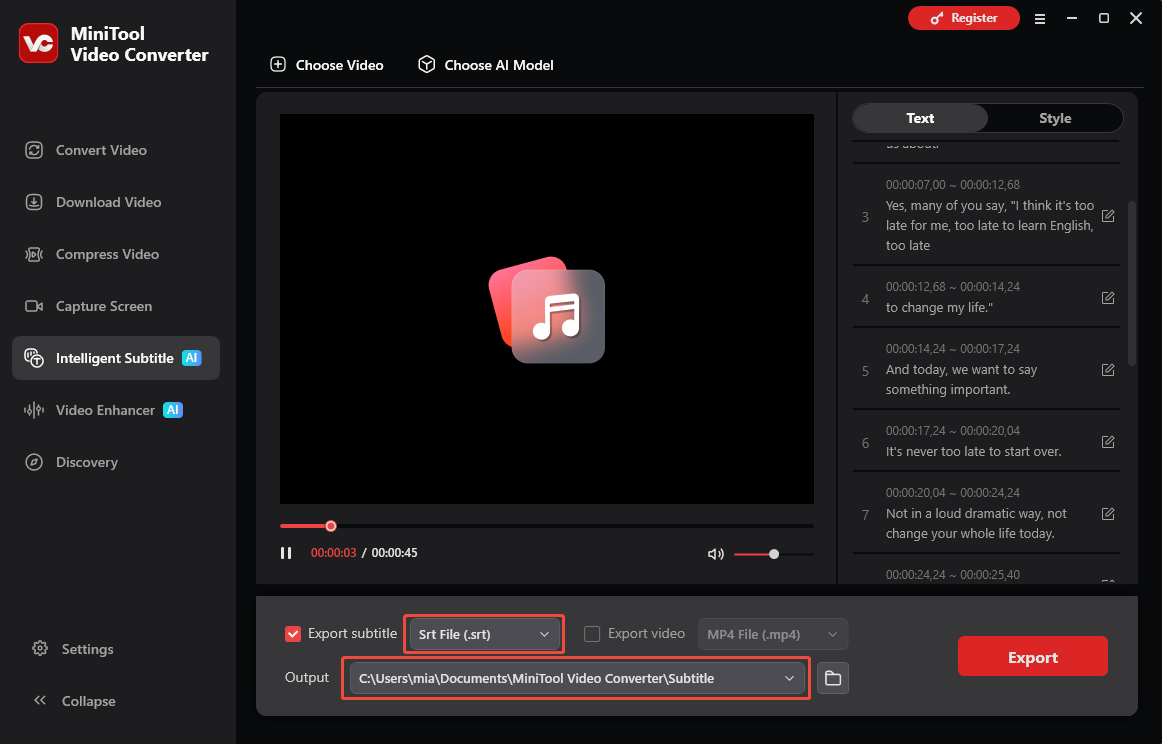
The software will process the recording and display the recognized text in the right-hand panel. Check the transcript and click the pen icon to correct or modify any text if needed.
5. Choose the output text format.
Open Export subtitle and choose TXT or SRT, depending on how you plan to use the transcript. (Choose TXT for reading and reviewing the transcript, or SRT for adding captions to a video.)
6. Choose where to save the transcript.
Open the Output menu and specify the saving folder.
7. Export the text.
Click Export. MiniTool Video Converter will save the finished transcript to the selected location.
For people looking for voice to text for deaf people, MiniTool Video Converter is a suitable choice.
MiniTool Video Converter transcription feature pros and cons:
Pros:
- Supports text editing.
- Supports embedding subtitles into videos.
- Supports customizing subtitle styles and positioning.
- Supports various audio and video formats.
- Supports multiple languages.
- High transcription accuracy.
- No file duration limit.
- The exported video with subtitles has no watermark.
Cons:
- Supports Windows only.
- Supports a limited number of export formats.
#2 AudioConvert
AudioConvert is a transcription tool. It supports uploading audio or video files in MP3, WAV, M4A, MP4, MOV, and AVI formats. What’s more, this tool allows paste a URL to get the YouTube video transcript.
Below is how to use AudioConvert to convert speech to text for hard of hearing:
Fast steps:
- Upload the target file.
- Select transcription language.
- Choose transcription mode.
- Start transcription.
- Edit the text.
- Export the video.
1. Upload the target file.
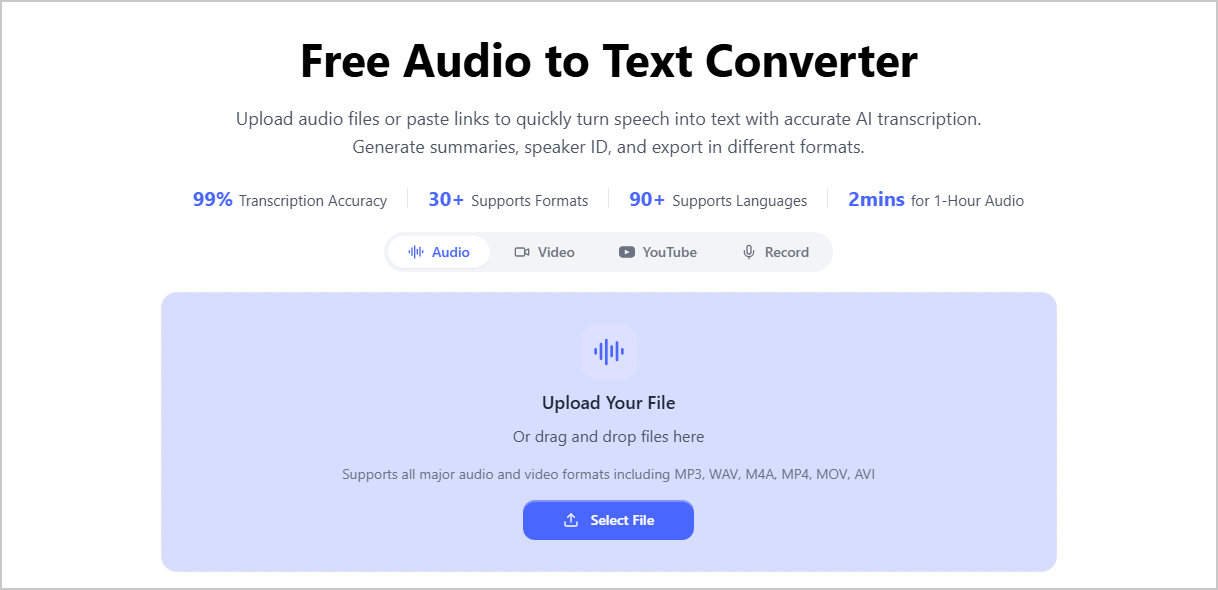
Go to https://audioconvert.ai/. Click Select File to upload the speech recording from your device.
2. Select the transcription language.
In the Spoken Language section, choose the speech language.
3. Choose transcription mode.
Choose transcription mode as Standard or Advanced.
4. Start transcription.
Click Start Transcription to start converting speech to text.
5. Edit the text.
The generated text will appear in the left panel. You can click the edit icon to modify the words.
6. Export the video.
Click the Export option in the Transcription panel. Then choose an output format, and click Export.
AudioConvert pros and cons:
Pros:
- Supports multiple languages.
- Provides timestamps.
- Supports speaker identification.
- Can export subtitles.
- Offers AI-generated summaries.
Cons:
- Supported import formats are limited.
- No offline transcription.
- Some advanced features may require a paid plan.
Which Tool Should You Choose?
Choose MiniTool Video Converter for:
- Creating and customizing subtitles for videos.
- Embedding subtitles into videos without a watermark.
- Transcribing content in multiple languages.
Choose AudioConvert for:
- Transcribing speech directly in a web browser.
- Generating timestamps and AI summaries.
MiniTool Video Converter suits hearing-impaired users who need to turn recorded speech into readable text or create video subtitles. It also provides transcript editing, subtitle customization, and subtitle embedding, making it useful for preparing accessible video content.
AudioConvert is a better choice for users who prefer a browser-based transcription tool. It supports speaker identification, timestamps, and AI-generated summaries, making it useful for organizing and reviewing recorded conversations or speeches.
Conclusion
The best speech-to-text app for hearing impaired free should provide accurate transcription. MiniTool Video Converter is a suitable option for converting recorded speech into TXT or SRT files, while AudioConvert offers transcription with features such as timestamps and speaker identification.
Need help with MiniTool Video Converter? Contact support@minitool.com for assistance.
User Comments :