

Cutting a video can help remove unwanted segments from the beginning, end, or middle of a video. This article explains how to cut a video using video cutters: MiniTool Video Converter and Clipchamp. The general steps involve trimming or splitting the video, removing unwanted parts, previewing the result, and exporting the edited video.
Whether we are shooting or recording video, there are inevitably pauses, superfluous shots, or lengthy introductions. Cutting these segments helps highlight the video's theme and ensures a smoother flow. I have found that these tasks do not require complex video editing software; they can be accomplished using tools that simply offer basic video cutting functions.
How Can I Cut a Video
- Import the video
- Cut the unwanted parts of the video
- Preview the results
- Export the edited video
When I need to cut lengthy video segments, I generally prefer using simpler tools rather than those with complex editing features. MiniTool Video Converter and Clipchamp are two tools I have found to be efficient and easy to use for this purpose; below, here are the detailed introductions and step-by-step guides for both.
Method 1: Use MiniTool Video Converter
After testing it, I found the cutting feature in MiniTool Video Converter to be very convenient. As the name suggests, it is a video conversion tool, but it also includes functions for compression, screen recording, video enhancement, and subtitle extraction. The built-in video trimming capability integrates these features into a comprehensive workflow.
For instance, after compressing, converting, or especially recording the screen, I often need to cut out pauses or unwanted segments. Switching directly to the editing function allows me to do this quickly. This feature supports the import of various video formats, including AVI, 3GP, VOB, WEBM, WMV, MP4, MOV, and more. Furthermore, the video does not have any watermarks added to it.
Below is a detailed guide on how to cut out parts of a video with MiniTool Video Converter.
 MiniTool Video Converter
-
 Batch convert video/audio files among 1000+ formats.
 - Quickly compress videos for easy storage and transfer.
- Accurately extract subtitles from video/audio files.
- Effectively enhance video quality.

1. Download and install MiniTool Video Converter
Click the button above to download and install MiniTool Video Converter. Then, launch it on the PC.
2. Import the video
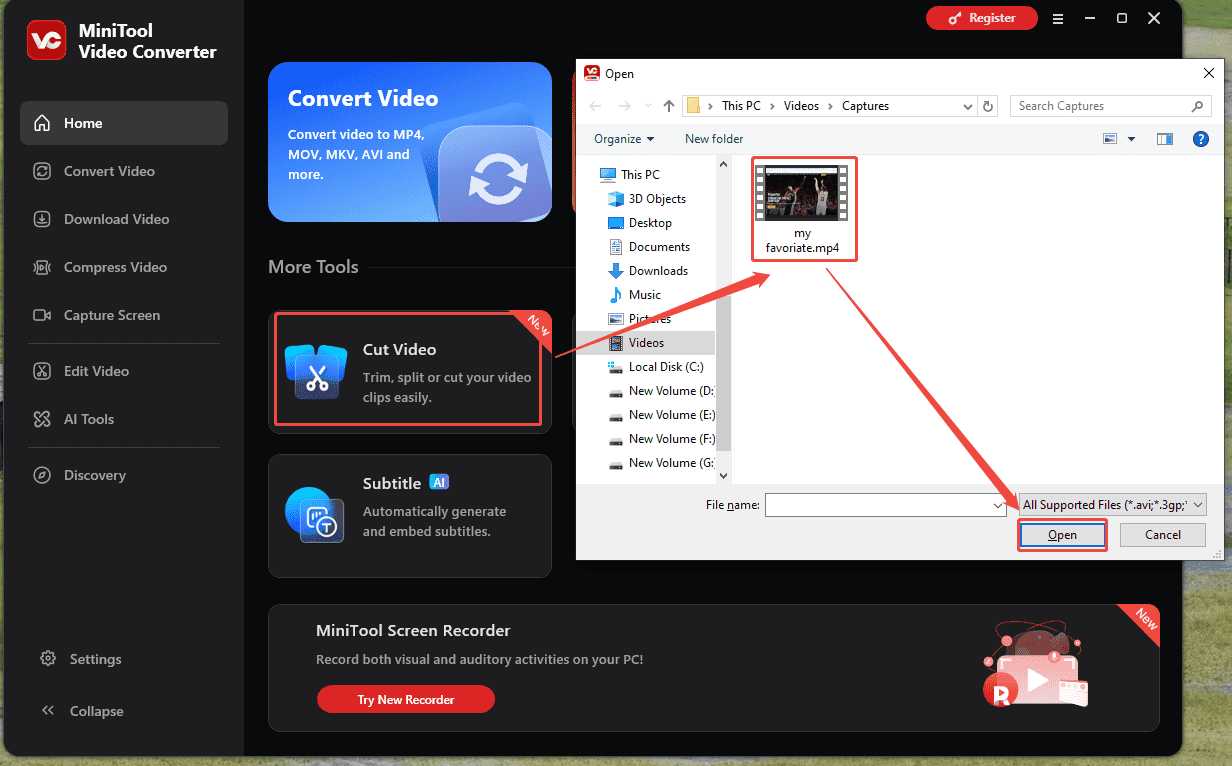
In the Home interface, click the Cut Video option. Then, a window pops up. Next, choose the video that needs to be cut and click the Open option to add it to the tool.
3. Cut the unwanted part of the video
In the Cut Video interface, the video has automatically appeared on the timeline. There, you can:
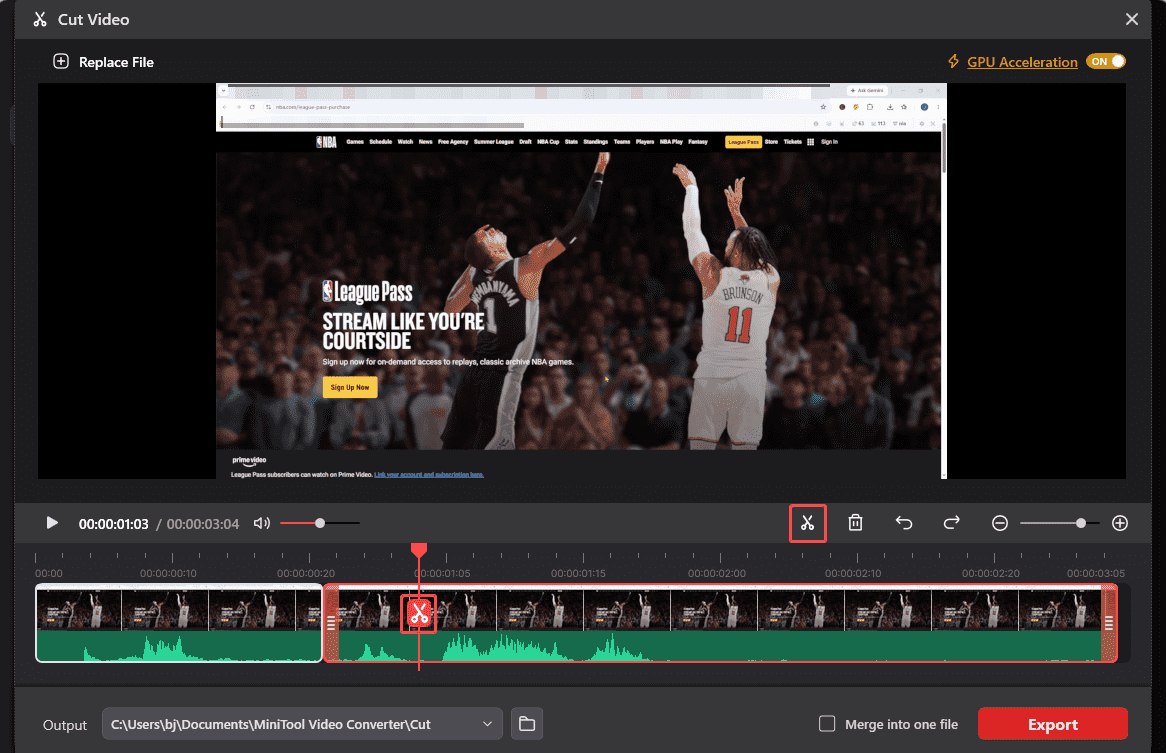
Remove a middle section of the video: Tap the video clip. Select the unwanted segment, set its start and end points, and tap the Cut icon to cut it out. Then, select the cut segment again and tap the Delete icon.
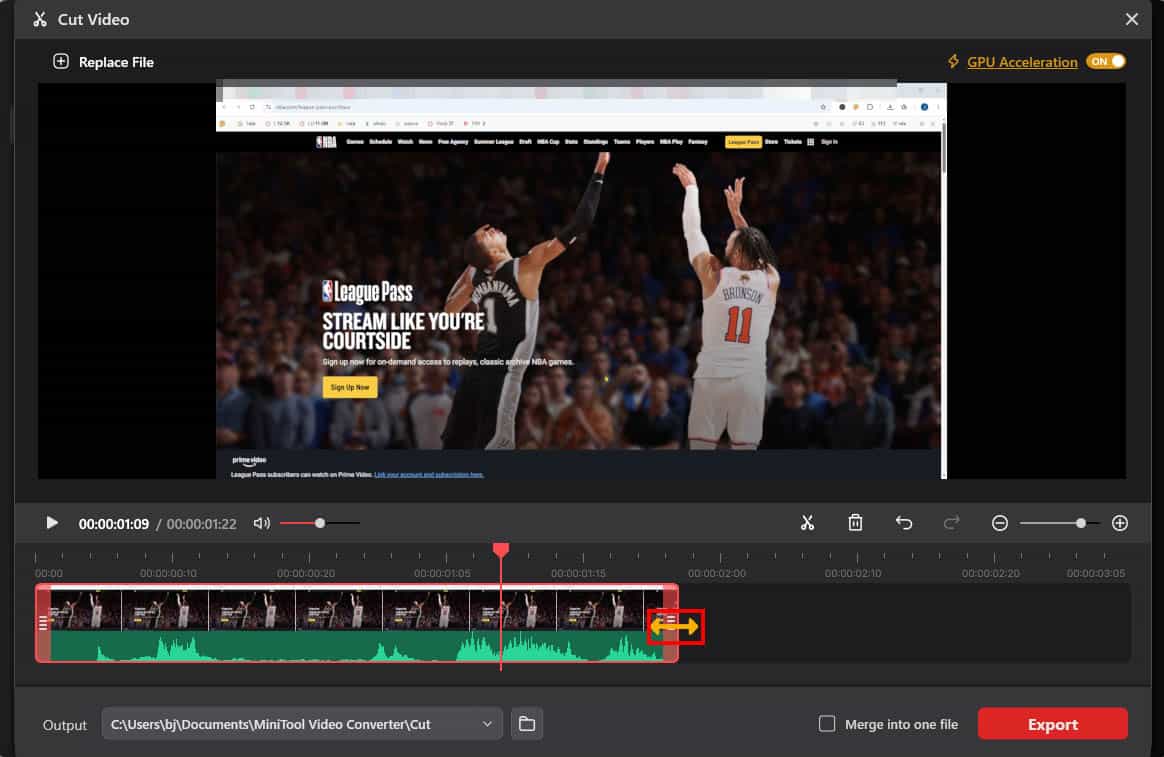
Remove the beginning/end of the video: Hover your mouse over the start or end of the video until a double-arrow icon appears. Then, drag this icon to the point where you want to trim.
4. Preview the video
After editing is complete, click the Play button above the timeline to preview the edited video.
5. Choose an output format
Then, expand the Output option to choose an output format.
6. Export the edited video
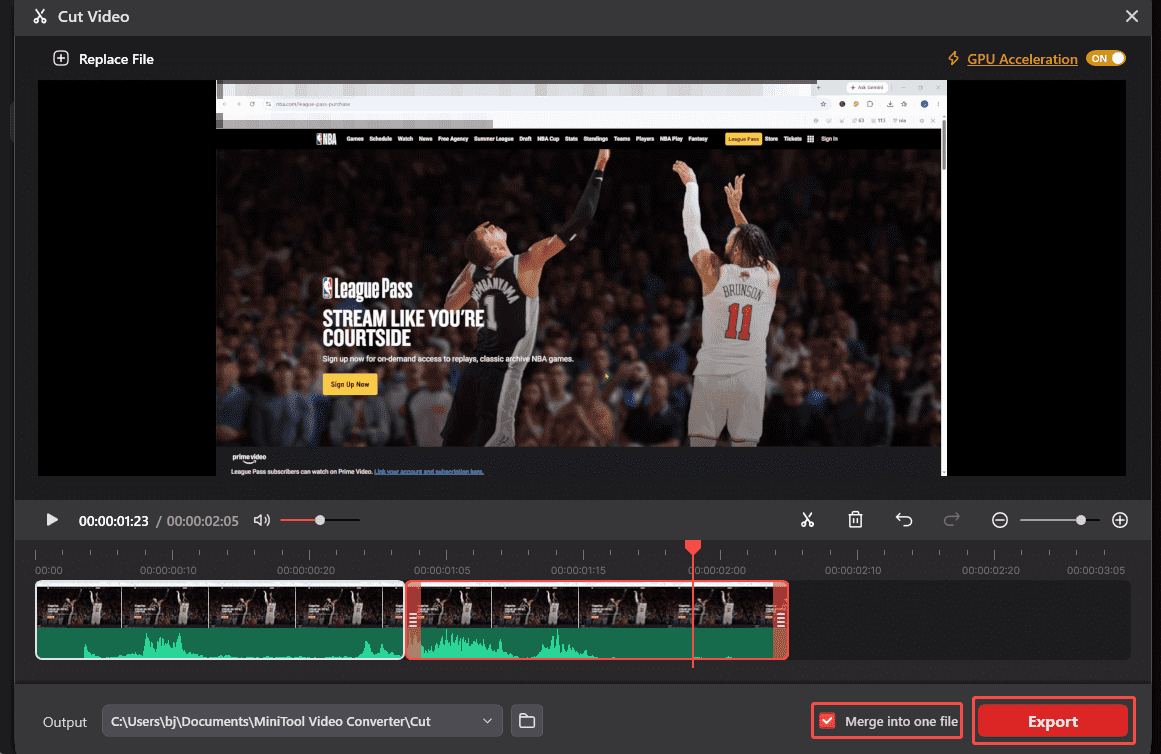
If the video is cut into multiple sections, each section will be exported as a separate video file by default. To keep them as one complete video, check the Merge into one file option. Then, click the Export option to save the video to the local drive.
Method 2: Use Microsoft Clipchamp
When I prefer not to spend time installing software, I always try Clipchamp, the built-in video editing tool for Windows; it also offers a web-based version. Unlike MiniTool Video Converter, which integrates a wide range of functions, Clipchamp focuses primarily on video editing capabilities.
Beyond simply trimming out unwanted footage, I also use it to add filters, text, effects, and music to my videos. Moreover, the tool incorporates AI capabilities that can automatically generate subtitles. Consequently, I typically rely on it for more advanced editing tasks.
Now, follow the steps to learn how to cut videos with Clipchamp.
1. Open Clipchamp
Launch Clipchamp on your PC. Then, click the Create a new video option in the main interface to enter the video editing interface.
2. Import the video
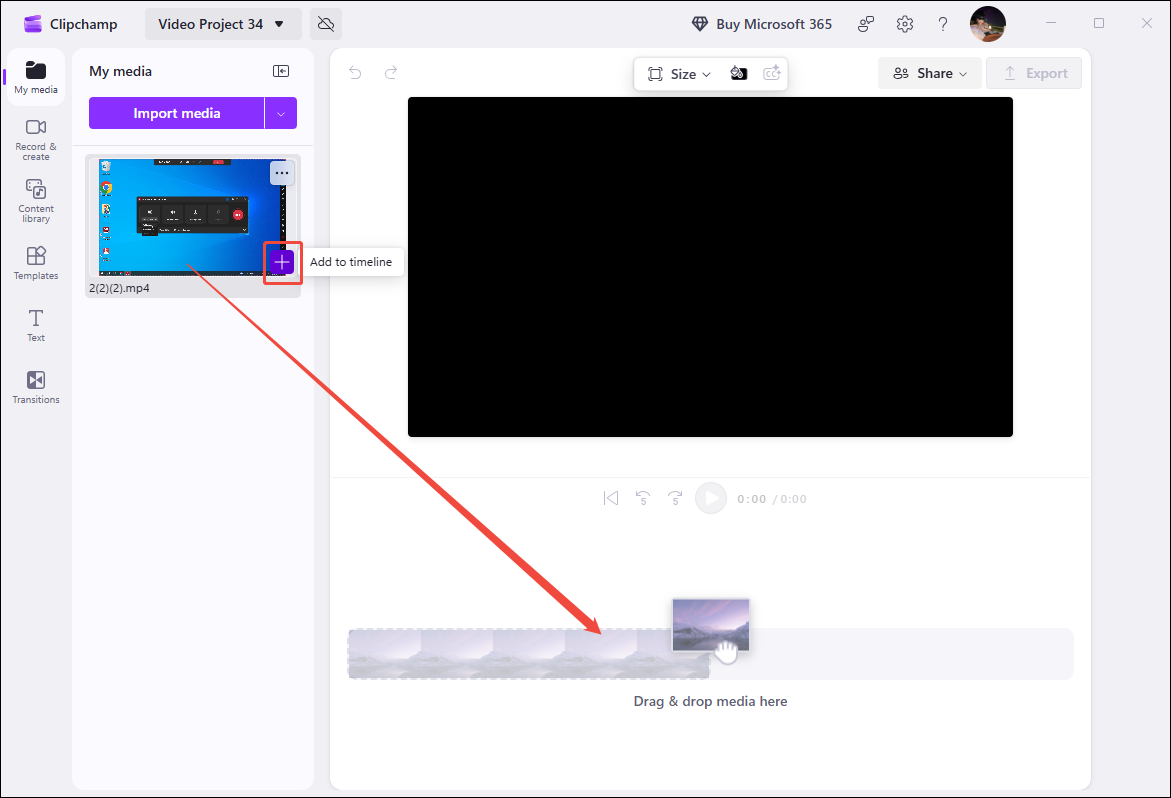
Then, click the Import media option to import the video that needs to be cut. Next, click the Plus icon or drag the video directly to the timeline.
3. Cut the video
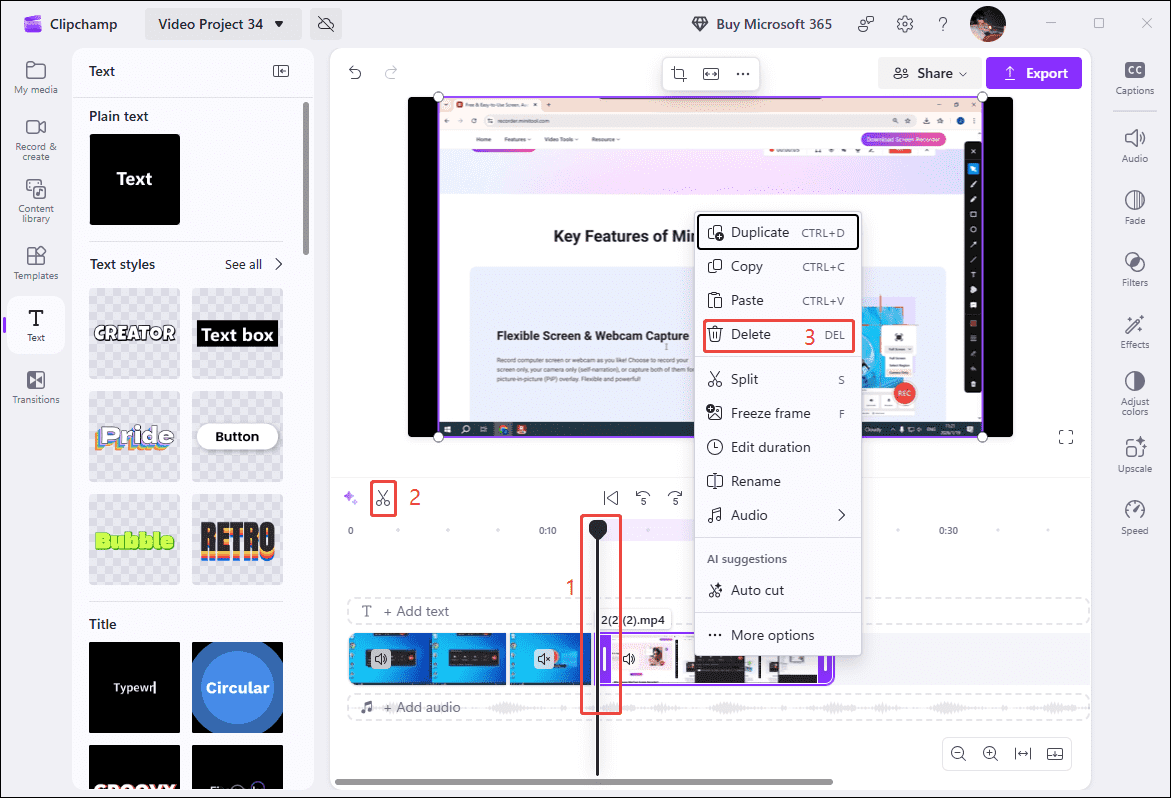
Move the playhead to the point in the video that needs to be cut, then click the Split icon at the top. Next, right-click the segment to be removed and select the Delete option. Alternatively, hover the mouse over the beginning or end of the video until a double-arrow icon appears, then drag the icon to trim off the unwanted start or end sections.
4. Export the edited video
After cutting the video, click the Export option in the upper-right corner to save the edited video.
In short, both tools can handle simple video cutting tasks; however, the former is better suited for integration with other video creation workflows, while the latter is better suited for slightly more complex video editing tasks.
Cut vs. Trim vs. Split: What's the Difference?
As the steps above show, cut a video typically involves trimming and splitting. So, what's the difference between them?
- Trim: Trimming typically refers to removing unwanted segments from the beginning or end of a video, usually accomplished by directly dragging the start or end points. Additionally, trimming alters the video's overall duration.
- Split: Splitting does not change the duration of the video; it typically refers to dividing the video into several parts.
- Cut: Cutting and splitting are inextricably linked. Cut refers to removing unwanted portions of the split segment, thereby altering the video's original duration.
Conclusion
How to cut a video easily? If there is a need to quickly trim out unwanted parts, MiniTool Video Converter offers a more convenient option, while Clipchamp is the better choice for users who require more advanced editing capabilities.
If you encounter any questions when using MiniTool Video Converter, please send an email to support@minitool.com for help.
People Also Ask
About The Author

Position: Columnist
Jade is an experienced multimedia tech writer who has authored hundreds of guides on screen recording, video editing, and software troubleshooting. Dedicated to bridging the gap between complex technical concepts and user-friendly solutions, she specializes in providing clear, actionable advice.
User Comments :