

How to fix the unsupported video type or invalid file path error? If you come across the same error on your PC, you don’t need to worry. Here offers a comprehensive guide to help you get rid of the error.
Some people report that they received the error message “ERROR: Unsupported video type or invalid file path” on their PCs. When this error occurs, they can’t play any MP4 files. Have you also encountered the same error on your PC? If so, continue reading to get some useful solutions.
Solution 1. Enable IIS in Windows 11/10
When you receive the error message “ERROR: Unsupported video type or invalid file path” on your PC, the first solution you can try is to enable IIS on your PC. Here’s the way:
Step 1. Press the Windows Key, type “control panel” and press Enter.
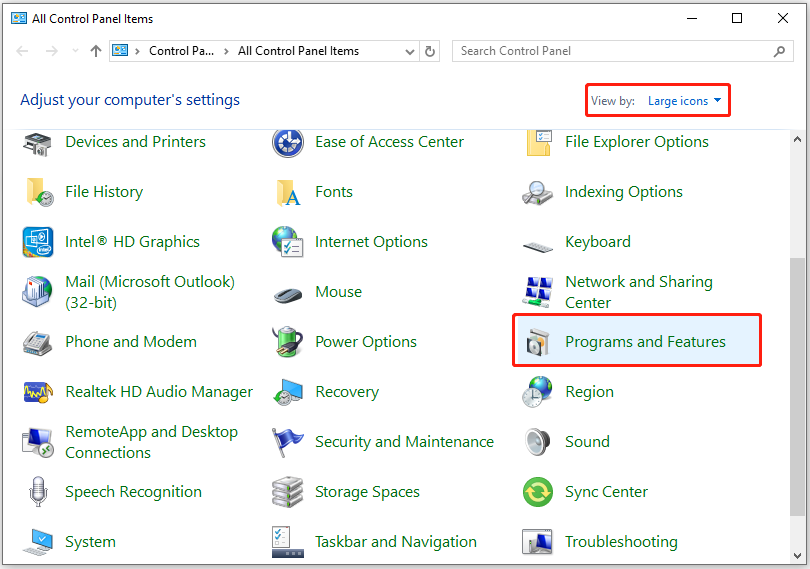
Step 2. In the pop-up window, set View by as Large icons or Small icons, and then select Programs and Features from the feature list.
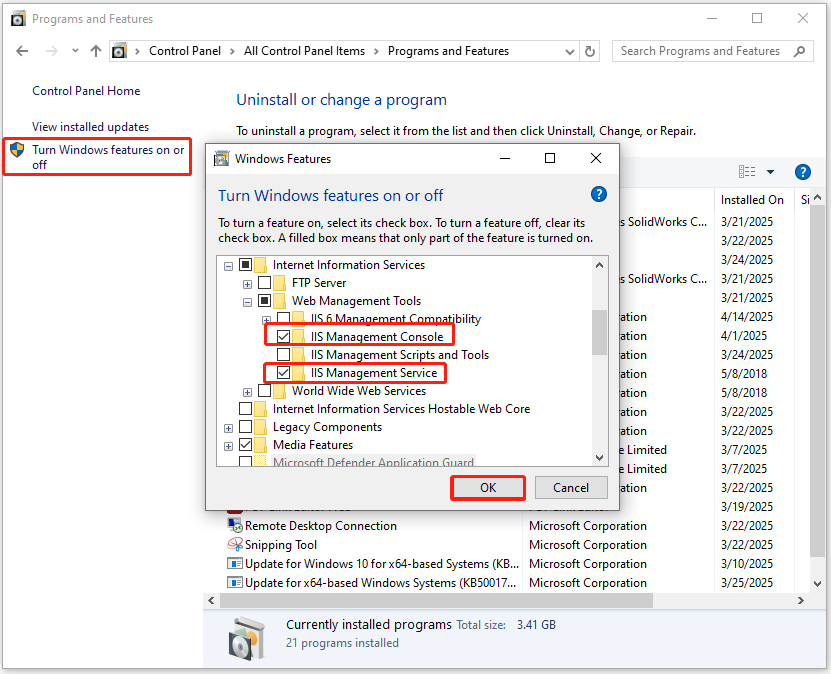
Step 3. Click Turn Windows features on or off from the left panel. In the pop-up Windows Features window, go to Internet Information Services > Web Management Tools, and check the boxes of IIS Management Console and IIS Management Services. Then, click OK to save the changes.
Step 4. Once done, check if the unsupported video type or invalid file path error has been resolved.
Solution 2. Configure the MP4 MIME type in IIS
If enabling IIS in Windows OS unable to help you fix the unsupported video type or invalid file path error. Here’s how to do that:
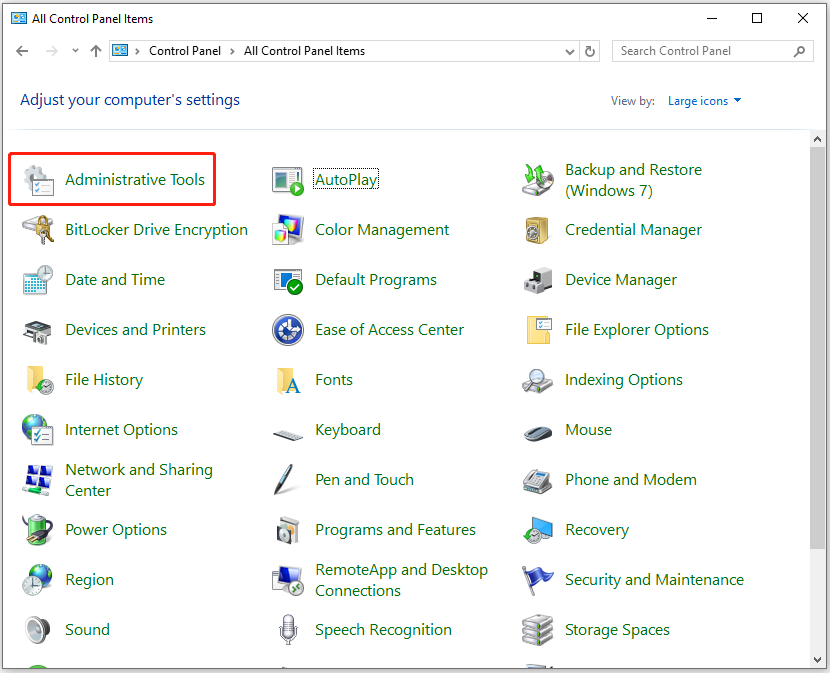
Step 1. Open the Control Panel window, set View by as Large icons, and select Administrative Tools from the feature list.
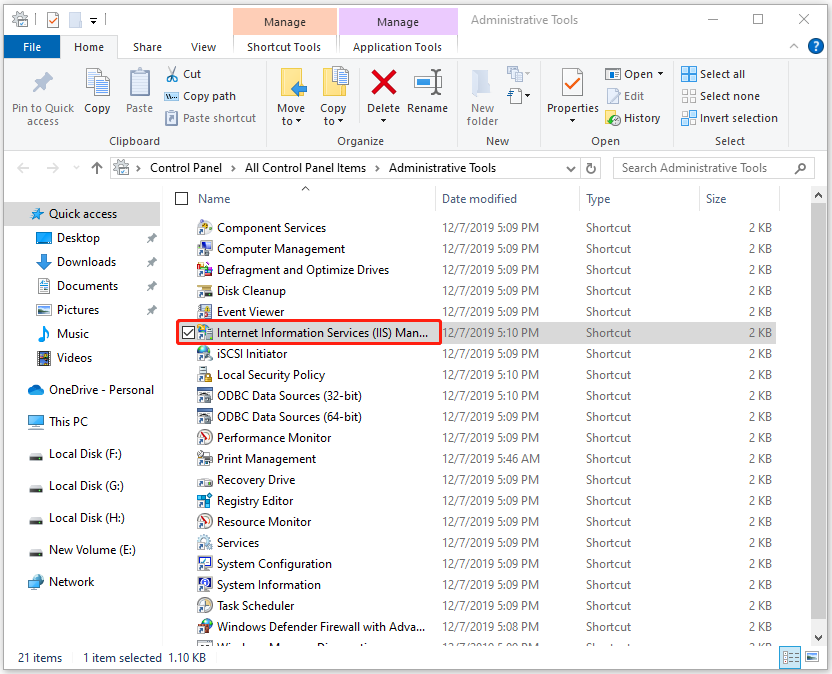
Step 2. Then, double-click Internet Information Services Manager.
Step 3. Click the name of your IIS Server on the left panel.
Step 4. Next, double-click the MIME Types in the middle panel, and then click the Add link option in the right panel to open a configuration dialog box.
Step 5. Now, type “.mp4” in the File name extensions box and “video/mp4” in the MIME Type box. Then, click OK to confirm the changes.
Step 6. Once done, you won’t see the unsupported video type or invalid file path error on your computer anymore.
Solution 3. Clearing Browser Cache
Some people report that they fix the unsupported video type or invalid file path error successfully by clearing the browser cache. You can also have a try. To do that, you can do the following steps:
For Google Chrome:
- Open Chrome on your computer.
- Click the three dots in the menu, then select Delete browsing data.
- In the pop-up dialog, choose a Time range or select All time.
- Check Browsing history, Cookies and other site data, and Cached images and files.
- Next, click the Delete data button.
- Once done, close and reopen Chrome for the changes to take effect.
For Microsoft Edge:
- Launch Microsoft Edge on your PC.
- Set Time range according to your needs.
- Check Browing history, Download history, Cookies and other site data, Cached images and files, and other data you want to clear.
- Next, click Clear now to apply the changes.
Solution 4. Reset Browser
Besides, you can also try resetting the Browser to fix the unsupported video type or invalid file path error. Here are the detailed steps:
For Google Chrome:
- Open Google Chrome on your PC.
- Type “chrome://settings” in the address bar and press Enter.
- Find and select the Reset settings option from the left panel.
- Then, click Restore settings to their original defaults.
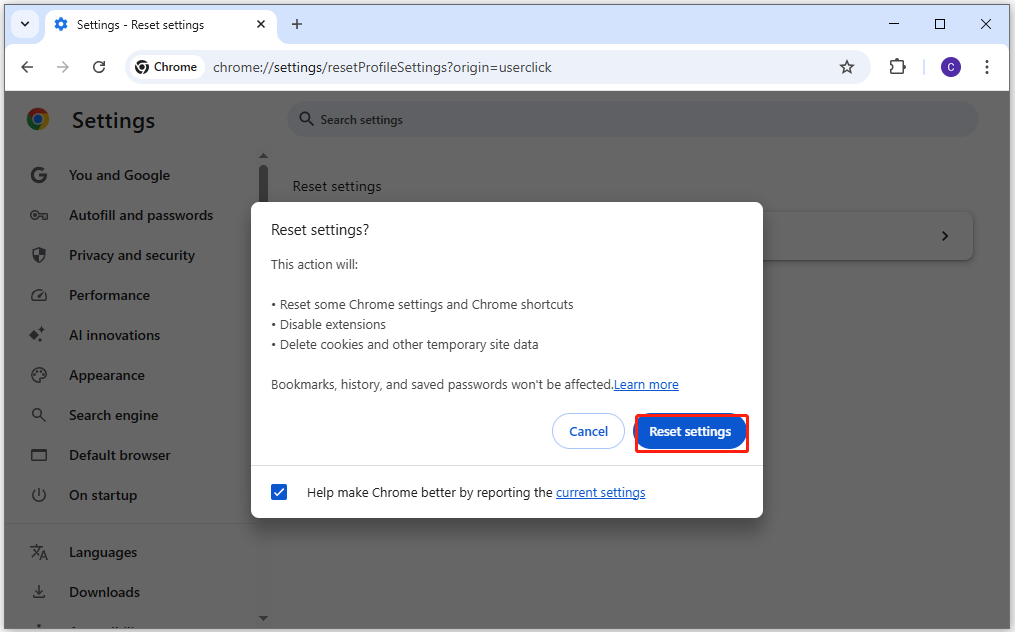
- Click Reset settings in the pop-up dialog.
- Once done, Google Chrome will be reset successfully.
For Microsoft Edge:
- Launch Microsoft Edge on your PC.
- Click three dots from the top right corner.
- Select Settings from the drop-down menu.
- Then, select Reset settings from the left panel.
- Click Restore settings to their default values.
- Next, click Reset in the Reset settings window.
- Once done, Microsoft Edge will be reset successfully.
In Conclusion
How to fix the unsupported video type or invalid file path error? After reading this post, you may already know the answer. This post offers several practical solutions to help you troubleshoot the error.
User Comments :