

Can QLab play FLAC audio? No, but it plays other audio formats, such as MP3, WAV, AIFF, etc. Simply import the FLAC file, select a supported format like MP3 or WAV, adjust settings if needed, and start conversion using MiniTool Video Converter or CloudConvert for compatible playback.
Created by Figure 53, QLab refers to an application that is widely used for cue-based multimedia playback. Live entertainment can be its main use cases, such as controlling the audio, lighting. video and other elements in corporate events, theater, or concerts.
Can QLab Play FLAC
No. QLab can’t play FLAC files. It only gives support for audio formats including MP3, AIFF, WAV, AAC, and CAF. FLAC is not here.
Therefore, to enjoy the audio content on QLab, you should convert FLAC to a QLab-supported format, such as MP3.
Method 1. Use MiniTool Video Converter (Offline)
Fast steps:
- Open MiniTool Video Converter.
- Import the target FLAC file.
- Choose MP3 as the output format.
- Set the save location.
- Start conversion.
- Locate the converted file.
MiniTool Video Converter is a free, all-in-one tool that supports FLAC to MP3 conversion along with 1000+ other format combinations. It offers high-speed conversion and allows you to convert multiple files simultaneously.
Below is how to convert FLAC to MP3 with this free FLAC converter:
1. Launch MiniTool Video Converter.
Download and install MiniTool Video Converter, then launch it and navigate to the Convert Video interface.
MiniTool Video ConverterClick to Download100%Clean & Safe
2. Import the FLAC file.
Click Add Files to add the FLAC audio. (Or you can drag the FLAC file to the workplace)
3. Choose MP3 as the output format.
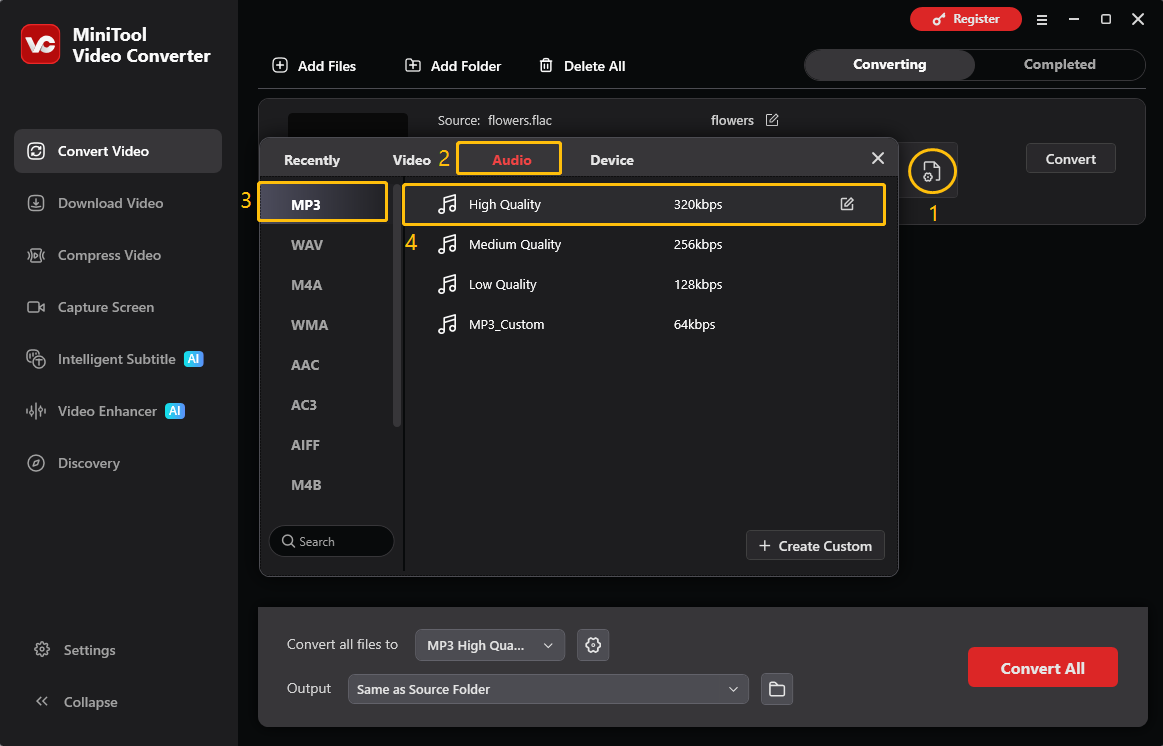
Click the gear icon to open the output formats window, then go to Audio > MP3 > select your preferred audio quality.
4. Set the save location.
Expand the Output folder and select a destination folder for the converted file.
5. Start conversion.
Click Convert to start conversion.
6. Locate to the converted file.
Under the Completed tab, click the folder icon to open the converted file's location. Then, double-click it to open it.
Method 2. Use CloudConvert (Online)
Fast steps:
- Go to the main interface of CloudConvert.
- Import the FLAC files.
- Set an output format.
- Configure the conversion settings.
- Begin conversion and check the output files.
If you prefer an online FLAC to QLab converter, I highly recommend CloudConvert. It features an intuitive and clean interface. Meanwhile, CloudConvert empowers you to upload your FLAC files from multiple sources, such as Google Drive, OneDrive, your computer, URL, and Dropbox.
Below is a detailed guide on how to get a QLab-compatible format from FLAC using CloudConvert.
1. Go to the main interface of CloudConvert.
Visit https://cloudconvert.com.
2. Import the FLAC files.
Upload the FLAC files by clicking on the Select File button.
3. Set an output format.
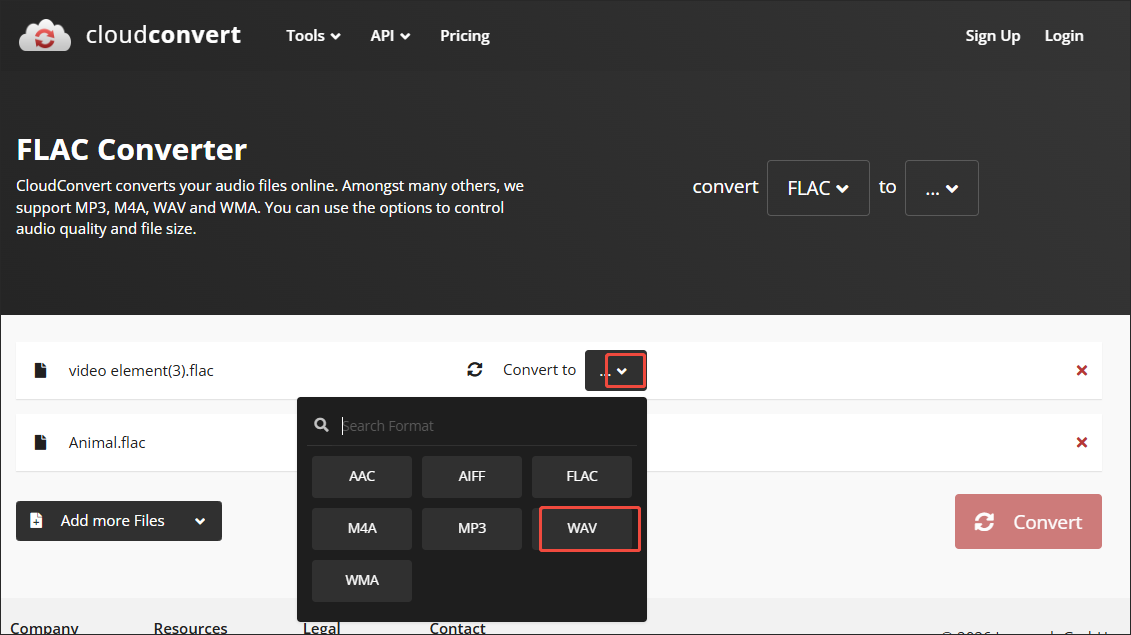
Click on the inverted triangle to enter the output format window. There, choose a QLab-supported format according to your needs. Here, I take WAV as an example. Next, repeat the operations above to specify the output format for other formats.
4. Configure the conversion settings.
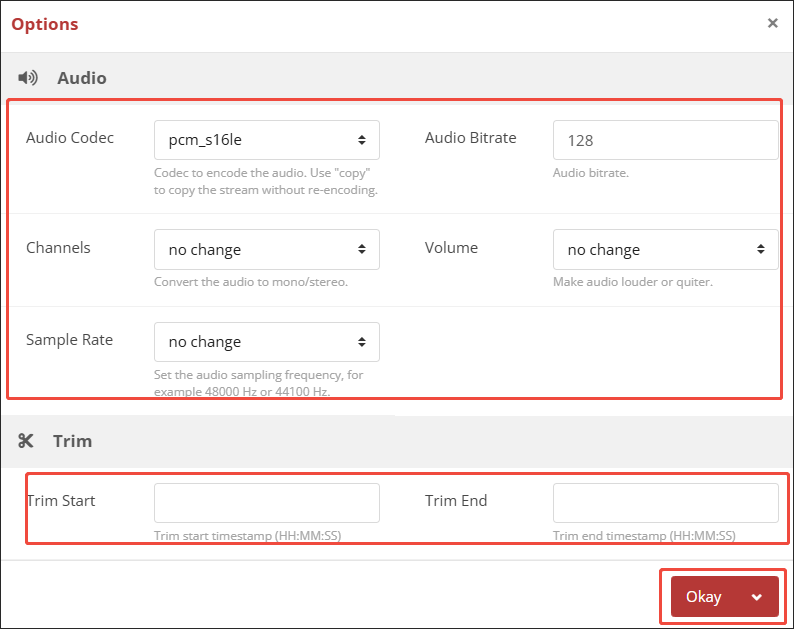
Click on the wrench icon to enter the Options window. There, you can customize the audio channel, sample rate, and more. Also, you are free to trim the output audio as you want. Finally, click on the bottom-right Okay button to save the changes.
5. Begin conversion and check the output files.
Start the conversion process by clicking on the Convert button. When the file conversion process finishes, download and check the converted files.
Converting FLAC to a QLab-supported format with CloudConvert is very fast. If you don’t want to download and install a software, it can be a good choice.
To Wrap Things Up
Can QLab play FLAC? No, it can’t. If you want to enjoy the audio content without hassle, it is suggested that you use MiniTool Video Converter (Offline) or CloudConvert (Online) to convert the FLAC files to a QLab-compatible format.
For questions or suggestions about MiniTool Video Converter, contact support@minitool.com.
User Comments :